
Your phone can be tracked in more ways than you think. Apps can collect your location and device data, websites and advertisers can follow your online activity, and mobile networks can observe connection metadata. Spyware can go even further, monitoring what you do on your phone without detection. Not all tracking is malicious, but some forms can seriously invade your privacy.
Shutting down all forms of tracking isn’t realistic, but you can still limit the extent to which someone can monitor you. Knowing who’s collecting your data, spotting signs of unwanted surveillance, and changing a few privacy settings can help you take back control of your location and personal information.
Quick Steps for Reducing Tracking
- Open your Google Account or Apple Account and check active sessions. Log out of any devices you don’t recognize or haven’t used in a long time.
- Change your Google Account or Apple Account password and add two-factor authentication.
- Go through your phone’s settings and remove any apps or profiles you don’t need or don’t recognize.
- Use your phone’s built-in security tools to check for malware. Consider a reputable mobile security app where appropriate.
Am I Being Tracked? Signs to Look Out For
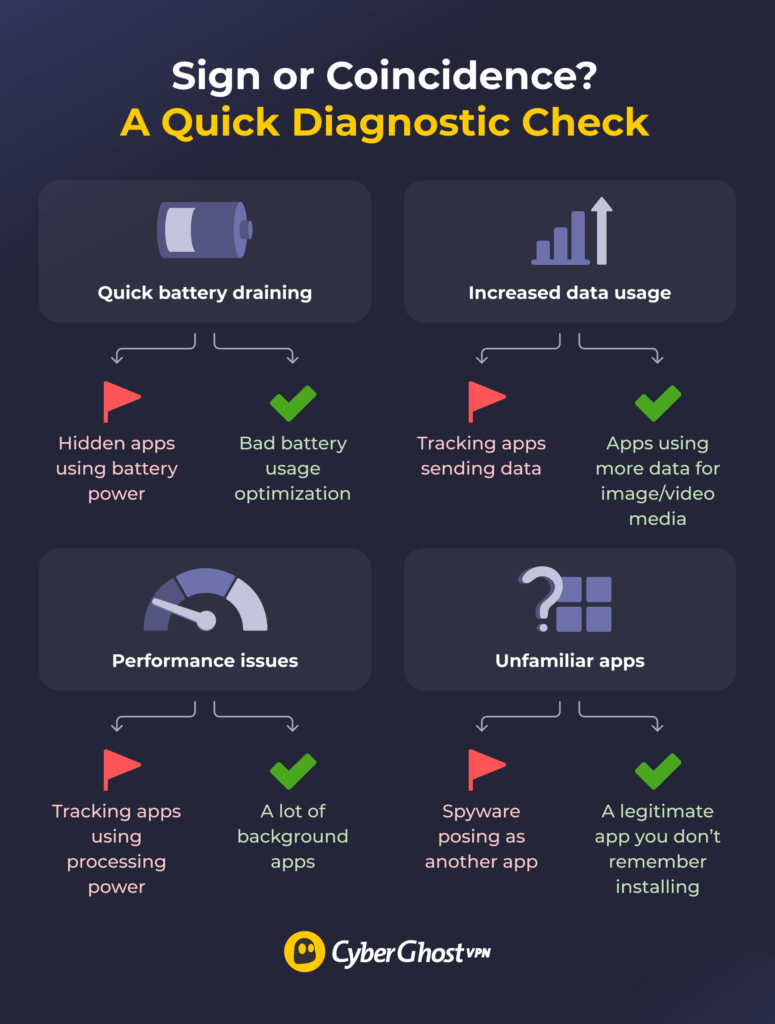
Paying attention to unusual behavior on your phone can help you identify potential signs that your phone’s being tracked. However, you should keep in mind that none of these signs are concrete proof that someone is tracking your phone. Each behavior can also have a normal explanation unrelated to tracking:
- Performance issues and battery usage: Slowdowns and faster battery draining could be the result of a tracking app using up resources without you noticing, but that isn’t the only possible cause. Having a lot of background apps with bad power optimization can also drain your battery and slow down your phone.
- Unexpected data usage: Increased data usage may warrant further investigation if you can’t identify what app is using the data. However, if you use social media apps to load images and videos, it can use up a large amount of data.
- Unexpected apps: An app on your phone that you don’t remember installing or looks like a duplicate might be maliciously using its permissions to track your activity. Another possibility is that it could be a trusted app whose appearance drastically changed after an update. Your operating system might also create new apps after a large update.
Who Might Be Tracking You
Online tracking is widespread, to the point of being almost inevitable. Many different parties could be monitoring your phone, with different reasons to do so. For example:
- Advertisers and apps: May collect information about your activity, device, and interests for analytics, personalization, or advertising.
- Websites and data brokers: These can use cookies, trackers, account information, and other identifiers to collect or link information about your activity. Depending on their practices, some organizations may also share or sell data.
- Networks and carriers: Can collect information about your connection or approximate location as part of providing network services.
- Family members and acquaintances: May be able to view your location if you intentionally or accidentally share it through services such as Google Maps, Apple Find My, or other location-sharing tools.
- Your workplace or school administration: May use mobile device management tools to manage or monitor organization-owned devices.
- Spyware or stalkerware: These can monitor activity on an infected device, collecting information such as location, messages, browsing activity, or other sensitive data.
How Different Types of Phone Tracking Work
Each type of tracker relies on one or more of the following tracking methods:
| Type | What It Does | How to Reduce It |
| Location tracking | Collects or shares location data | Review location sharing and permissions |
| Ad and cross-site tracking | Collects data about your online activity | Limit cookies and use tracker/ad blocking tools |
| Spyware and stalkerware | Secretly monitors device activity | Remove suspicious software and use appropriate security tools |
| Network tracking | Observes information about network connections | Use encryption and a VPN on untrusted networks |
Location Tracking
Location tracking can happen through apps that have permission to access your location data. This can include location features in apps such as Google Maps and Apple Find My and many social networks. Apps with background access to your location may collect that data while you’re on the move. They may use this information for analytics, personalization, advertising, or shared with third parties, depending on the app’s practices.
You can reduce location tracking by revoking permissions from apps that don’t need them, limiting apps to approximate location, and restricting background location access. You can also turn off Location Services when you don’t need location-based features.
Cross-Site and Ad-Based Tracking
Cross-site tracking is how sites, companies, or advertisers follow your activity across multiple websites and apps. They can use identifiers such as account information or cookies stored on your device to recognize or associate your activity across different sites and services.
Online ads can include tracking technologies that collect identifying data. They can collect information related to your device, such as your IP address, screen dimensions, phone model, operating system, and browser version. These trackers might trigger when the ad loads without you having to interact with it at all.
Reducing this kind of phone surveillance usually involves using an ad blocker and adjusting your browser settings to disable cross-site tracking.
Network Tracking
Network tracking analyzes the data your phone sends and receives over a network, like a public Wi-Fi hotspot. Someone who manages the Wi-Fi network may be able to observe information about your connection, such as connection timing, bandwidth usage, and the services or domains your device connects to. Exactly what they can see depends on factors such as HTTPS and DNS encryption.
Pro tip: A VPN can reduce what the local network can observe about your internet traffic by encrypting the traffic between your device and the VPN server.
Spyware
Spyware is malicious software that’s installed on your device and collects information. Spyware can track your browsing habits, keystrokes, passwords, or other sensitive data. Stalkerware is a particularly invasive type of spyware. It can track minute details of someone’s daily habits, such as location, phone usage, visited websites, and even access your camera or microphone.
How to Reduce Tracking on Your Phone (Android & iOS)
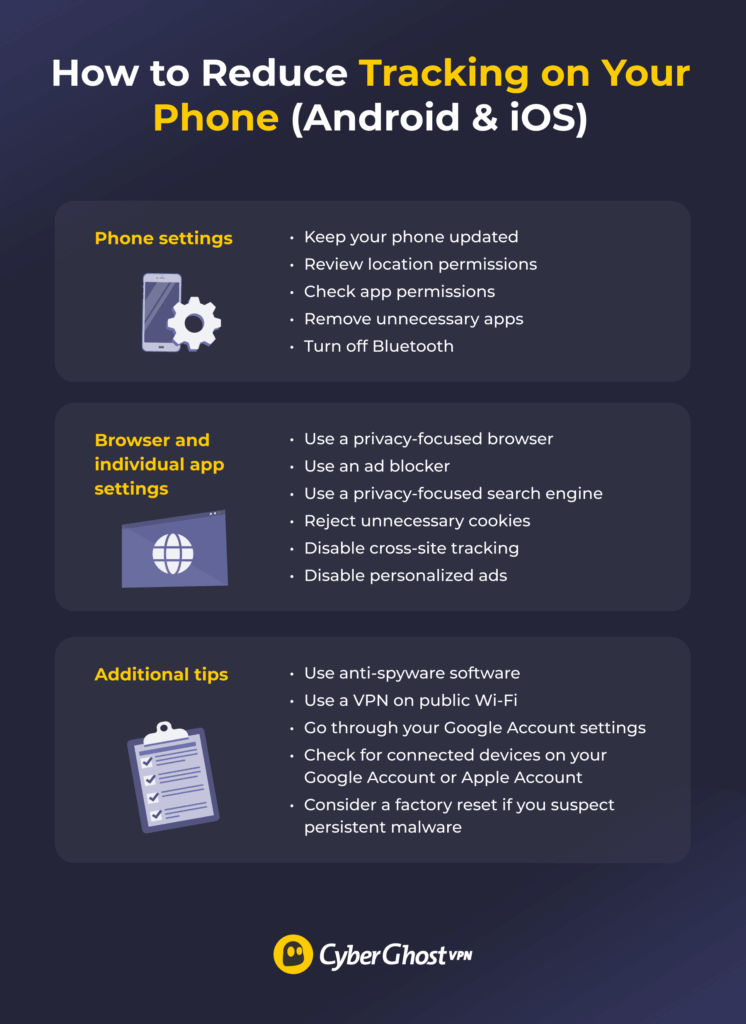
On supported devices, reputable mobile security or anti-spyware software can help detect and remove some forms of spyware. Here are some other potential methods.
Quick Steps: How to Reduce Tracking on Android
- Open Settings and review Privacy, Security & privacy, Permission Manager, or Privacy Dashboard.
- Review installed apps and remove or disable anything you don’t recognize.
- Review Location permissions and restrict access where possible.
- Turn off Bluetooth when you aren’t using it.
Quick Steps: How to Reduce Tracking on iPhone
- Open Settings > Privacy & Security and review app permissions.
- Remove any apps you don’t recognize after confirming they aren’t legitimate.
- Open Location Services and review which apps can access your location.
- Go to Settings > Bluetooth and turn it off when you aren’t using it.
Keep Your Phone Updated
Update your phone’s operating system and installed apps to ensure you get the latest security patches. This makes it harder for malware and other threats to exploit known vulnerabilities.
Limit or Turn Off Location Services
Many apps and sites collect location data in the background, and third parties can use your location data to get an idea of your real-life habits. Modern Androids and iPhones usually let you give an app permission to access your general location instead of the precise one. When an app asks you for location access permissions, make sure to have it ask every time and only give it access to the general location.
If you want to disable Location Services, here’s how:
On Android:
- Open Settings and search for Location, or open the Location setting from Quick Settings if your device provides it.
- Use the main toggle to turn Location off.
On iPhone:
- Go to Settings > Privacy & Security > Location Services.
- Use the main toggle to turn Location Services off. You can also keep it enabled and change individual app permissions instead.
Check App Permissions
Go to your device’s permission settings and check which apps have access to which parts of your phone, like contacts, location, microphone, camera, or files. Revoke any unnecessary permissions, especially ones that don’t make a lot of sense (for example, letting a calculator app access call logs).
On Android:
- Open Settings.
- Go to Privacy Dashboard or Permission Manager, depending on your device.
- Review sensitive permissions such as Location, Camera, Microphone, Contacts, and storage/files.
- Remove any permissions that an app doesn’t need.
On iPhone:
- Open Settings > Privacy & Security.
- Review categories such as Location Services, Microphone, Camera, Contacts, and Photos.
- Check which apps have access and remove unnecessary permissions.
Remove Unnecessary Apps
Check your device’s list of installed apps and pay close attention. Look for any apps you don’t recognize and check your phone’s app store for more information about them. Remove unwanted or unknown apps, but only after you make sure you don’t need them and can safely delete them.
Use Anti-Spyware Software
On Android, use Google Play Protect and, if necessary, a reputable mobile security or anti-spyware app to check for malicious software. On iPhone, third-party apps generally can’t perform the same kind of device-wide malware scans. Instead, focus on reviewing installed apps, configuration profiles, account access, and any security warnings if you suspect compromise.
Use a Privacy-Focused Browser
Consider using a browser with stronger privacy controls than your default browser. Useful features of a private browser can include tracker and fingerprinting protection, cookie controls, phishing and malware protection, ad blocking, and options for clearing browsing data.
Use an Ad Blocker
Install an ad blocker extension if your browser supports it. Aside from blocking trackers built into ads, many ad blockers also cover other forms of tracking on webpages. Make sure you’re using a trustworthy ad blocker, because some malicious extensions can pose as ad blockers to try and track you.
CyberGhost VPN has a built-in Content Blocker that helps reduce ad-based tracking. It can block your device from connecting to some domains associated with ads, trackers, and malware. This can prevent some trackers and ads from loading, which may reduce the amount of information they collect about you.
Use a Privacy-Focused Search Engine
Consider switching to a private search engine with a policy of minimizing the collection and retention of your search activity. Search engines still need to process your queries to return relevant results, but privacy-focused services may collect less information or limit how long they retain identifiable activity. Check the provider’s privacy policy to understand what data it collects and how it uses that information.
Reject Unnecessary Cookies
Click Reject, Deny, Do not accept, or any similar prompt when a site asks you to store non-mandatory functional cookies. While some cookies are necessary for the site’s functioning, like login cookies or session cookies, many cookies can be used to track your activity across websites and services.
Turn Off Bluetooth
When you enable Bluetooth, your phone can communicate with nearby Bluetooth devices and services. Some retailers and other organizations have used Bluetooth-based signals to help estimate visitors’ movements. Turn off your phone’s Bluetooth connectivity while you aren’t using it.
On Android:
- Open the Quick Settings panel and tap Bluetooth.
- If it’s not in the Quick Settings panel, open Settings and go to Bluetooth.
- Tap the toggle to turn it off.
On iPhone:
- Go to Settings.
- Find Bluetooth.
- Tap the toggle to turn it off.
Use a VPN on Public Wi-Fi
Set up a VPN on your phone and keep it on while you’re using public Wi-Fi. Open Wi-Fi hotspots are convenient, but they can have weak security, which makes them popular targets for cybercriminals. A malicious or compromised hotspot may be able to observe information about your connection and attempt to intercept or manipulate traffic.
A VPN encrypts traffic between your device and the VPN server, reducing what the local network can observe about your internet activity. For example, CyberGhost VPN uses strong protocols to encrypt your traffic on public Wi-Fi. It also has an Automatic Wi-Fi Protection feature that connects you to a VPN server of your choice when it detects your phone is on a new or unsecured Wi-Fi network.
Go Through Your Google Account Settings
Review the privacy and activity settings associated with your Google Account. Google provides controls that let you review what activity it saves to your account and manage how it uses that information:
- Log in to your Google Account.
- Go to Account > Data & privacy.
- Review the Web & App Activity, Timeline, and YouTube History settings. Where available, pause activity collection or adjust the retention settings.
- Review and delete saved activity where appropriate.
- Review Google’s personalization settings, including ad and search personalization, and disable them if you don’t want that activity used for personalization.
Check for Connected Devices on Your Google Account or Apple Account
Review the devices signed in to your Google Account or Apple Account. If someone unauthorized has access to your Google Account or Apple Account and you use that account for authentication, they could potentially access your services.
Google Account:
- Open your Google Account settings.
- Go to Security.
- Scroll to the Your devices section.
- Tap Manage all devices.
- Review the listed devices and sessions. Sign out of anything you don’t recognize or no longer use.
- If you see unfamiliar activity, change your password and review your account’s security settings.
Apple Account:
- Go to Settings.
- Tap your account name.
- Scroll down to find the list of active devices.
- Tap a device you don’t recognize or no longer use.
- Click Remove from Account and confirm if prompted.
Perform a Factory Reset
If you suspect persistent malware and other troubleshooting steps haven’t helped, you may want to perform a factory reset. This removes all your installed apps and data from the device and can remove many forms of malware or spyware. Keep in mind a factory reset erases the data on the device and is difficult or impossible to undo, so back up anything important first.
If you suspect malware, be selective about what you restore afterward. Reinstall only the apps you trust rather than restoring everything. If spyware or a malicious configuration profile infiltrated your backup data, it will reinfect the phone as soon as you restore it from the backup.
On Android:
- Open Settings.
- Search for Factory reset or Reset options. The exact location varies by device.
- Follow the on-screen instructions to erase the device.
On iPhone:
- Go to Settings.
- Tap General > Transfer or Reset iPhone > Erase All Content and Settings.
- Enter your passcode or Apple Account password.
- Confirm your choice.
Is There a Code to Stop Someone from Tracking Your Phone?
When you search for tips on how to stop tracking, you might encounter mentions of “secret dialer codes” that you can type into your phone and dial to prevent some form of tracking. Some of these codes can be legitimate and give you useful info. For example, you can check if carrier-based call forwarding is on and disable it.
However, these dial codes can differ by country, phone operator, operating system, and sometimes phone model. They can affect how your phone and SIM card interact with the cellular network. Avoid entering unfamiliar dialer codes unless you understand what they do and have confirmed that they’re appropriate for your carrier and device.
Can You Really Block All Tracking on Your Phone?
There’s no foolproof way to block all tracking on your phone. Websites, apps, network carriers, and malicious actors can all collect different kinds of information about you. Tracking methods can target your online activity, location data, and call history, which can be used to gain insight into your habits.
That said, you can still take meaningful steps to reduce the amount of information your phone, apps, websites, and networks collect about you. This involves reviewing privacy settings, limiting unnecessary permissions, adjusting browser and account settings, and practicing good security habits.
FAQ
How do I block my phone from being tracked?
You can take steps to reduce tracking on your phone, and the procedures and points you should pay attention to are largely the same on Android phones and iPhones. You can review your phone’s location services and app permissions, limit location sharing, disable Bluetooth when you don’t need it, and remove unnecessary apps.
Can you make your phone impossible to track?
No, there’s no way to make your phone impossible to track. You can block some website trackers and reduce network tracking, but you can’t prevent a powered-on phone with cellular connectivity from communicating with nearby cellular networks by changing its tracking settings.
Can a SIM card be tracked?
Yes, a SIM can be tracked via the phone it’s installed on. Turning off location services may help restrict GPS-based location access for applications, but it doesn’t prevent the carrier from using the cellular network to estimate the phone’s approximate location.
Can a phone be tracked without a SIM card?
Yes, a phone can still be tracked without a SIM card through Wi-Fi, apps, websites, accounts, and device-location services that remain available to the device. If you use the phone to connect to Wi-Fi, you can use the internet without a SIM card.
How do I know if someone is tracking my location?
To know if someone’s tracking your location, review your phone’s location permissions to see which apps can access your location and whether they have ongoing or background access. Also check which people or services you’ve shared your location with. If you suspect spyware or stalkerware, look for signs of possible compromise such as unfamiliar apps, profiles, or account access.
Can my phone be tracked without me knowing?
Yes, someone may be able to monitor your activity or location through your phone without you realizing it. For example, spyware can operate discreetly on an infected device, while websites and apps may collect activity data in the background.
What happens if you don’t update your phone?
If you don’t update your phone, it becomes vulnerable to threats that exploit known vulnerabilities. This can include spyware and other forms of invasive tracking. Regularly updating your phone and apps fixes these vulnerabilities, which reduces the potential exploits in your phone’s security.
Can someone track your phone if your location is off?
Yes, turning off Location Services can prevent apps from accessing your device’s location through that feature, but it doesn’t stop every form of tracking. Websites and advertisers can track you through ads, web beacons, tracking cookies, or your IP address. That said, you should review which apps have access to your location data and disable precise or background access when you don’t need it.

Leave a comment
geminid
Posted on 27/02/2023 at 11:14
Hey verʏ interesting blog!
Ghostie
Posted on 28/02/2023 at 16:13
Hi Geminid, thanks for reading!
Caroll
Posted on 10/02/2023 at 17:57
You show how to lock your SIM card… but only for Android.
For the other devices… you don’t tell anything about “lock”.
Ghostie
Posted on 14/02/2023 at 13:15
Hi Caroll. Scroll below the Android settings and you’ll find steps for iPhones and iPads too. Hope this helps!
Justin powell
Posted on 12/11/2022 at 09:12
Dude this has got to be the most convenient an interesting an all information article iv ever read in my life on all topics of staying safe and tracking and the little things each site agency are company uses to keep up with any one of us. Beautiful I love it learned so much more then anything iv read so far wonderful just damn wonderful 👍👍👍👍👍👍
Ghostie
Posted on 15/11/2022 at 10:26
We’re so happy to hear that, Justin. Thanks for reading!
Gotheglobals
Posted on 31/10/2022 at 10:15
Thanks a lot for sharing this
Ghostie
Posted on 10/11/2022 at 15:13
Glad to hear you enjoyed reading, Ghostie.
Jaden Smith
Posted on 20/10/2022 at 10:21
Hello,
It’s the most informative content. I am reading your content with enjoyment. I see in this article more information on tracking mobile apps. I love your content.
Thanks a lot for sharing this.
Jaden Smith
Posted on 18/10/2022 at 09:36
Very informative
thanks a lot!
Ghostie
Posted on 18/10/2022 at 11:12
Thanks for reading, Jaden!
Maureen Riffin
Posted on 03/09/2022 at 21:28
I already have VPN on my phone but I think I will change it to yours.
It has s lot more to offer . Mind blowing stuff and frightening at the same time.
Ghostie
Posted on 22/09/2022 at 12:18
Thank you for your kind words, Maureen. We’re happy to hear you chose CyberGhost VPN!
Rubi Kaur
Posted on 01/09/2020 at 09:43
I have been examinating out many of your posts and i can state clever stuff. I will make sure to bookmark your blog.
Hadenough
Posted on 06/02/2023 at 04:51
Can a vpn be put on a car
Ghostie
Posted on 06/02/2023 at 11:21
Hi Hadenough. We don’t guarantee CyberGhost VPN will operate as intended on a car system. You can still use CyberGhost VPN on your iOS and Android phone, and connect your phone to CarPlay or Android Auto.
For more information pertaining to your exact setup, contact our 24/7 Customer Support team.
Rubi Kaur
Posted on 30/08/2020 at 17:25
I have been examinating out many of your posts and I can state clever stuff. I will make sure to bookmark your blog.
Adina Ailoaiei
Posted on 31/08/2020 at 10:19
Glad to hear you enjoyed reading, Rubi! 😊
CryptokenBoy
Posted on 08/11/2019 at 12:45
Yes Tom T.Y. Very Informative & helpful
Antonio H
Posted on 22/10/2019 at 14:43
Very interesting
Tiya
Posted on 30/05/2019 at 15:56
A good informative article i found after a long time. Thank you for sharing this article.
Tom Bradbury
Posted on 30/05/2019 at 17:20
No problem, Tiya. 🙂
I’m glad you found it helpful!