
Trying to change your Steam region and getting nowhere? You’re not alone. Many gamers move to a new country, open Steam, and expect the store to update automatically. Instead, they see the wrong currency, payment errors, or no option to switch at all.
The reason is simple. Steam doesn’t let you manually flip your region. It verifies your location and payment details before it updates your store country. In this guide, you’ll learn why Steam blocks changes, what it actually checks behind the scenes, and how to update your region the right way.
Every time you log in to Steam, play online, or make a purchase, your connection can be exposed to tracking, DDoS attacks, or interception on unsecured networks. Using CyberGhost VPN encrypts your connection, hides your real IP address, and adds a strong layer of privacy while you play.
What You Need to Know Before You Change Your Steam Region
Steam doesn’t let you manually switch regions in your settings on demand. The platform uses a mix of signals to determine where your account is actually based. It typically checks:
- Your IP location
- The billing address on your payment method
- The currency used for your purchase
These details must match the country you want to switch to. Simply browsing another country’s store won’t update your region. Steam typically confirms a change only after you complete a purchase with a payment method issued in the new country, which helps verify your location. If your payment information doesn’t align with your detected location, the transaction may be declined, and repeated inconsistencies can trigger an account review.
Before updating your Steam region, consider the following:
- Not all games are available everywhere: Game availability depends on licensing agreements and local laws. When you switch regions, your store catalog can change. For example, a game available in the US store might not appear in the German store due to regional regulations, while certain region-exclusive titles may suddenly become visible.
- Family Sharing and gifting rules can be affected: Cross-region gifting can be restricted, and Steam Family Sharing may not work the same way if accounts are set to different countries. For instance, you might not be able to gift a discounted game to a friend whose account is registered in another region. Your Steam Wallet balance may also be converted to a new currency.
- Price differences are intentional: Steam adjusts pricing based on local economies, taxes, and currency values. A game may cost more or less depending on the country, and Steam monitors unusual region changes linked to price differences.
- Account restrictions are possible: If Steam detects mismatched payment information or suspicious region changes, it may block transactions, limit certain features, or, in serious cases, suspend accounts.
Note: Steam enforces a 90-day cooldown between region changes. After updating your store country, you must wait three months before switching again. Make sure your information is correct before confirming the change.
Is Changing Your Steam Region Legal?
Yes, changing your Steam region is legal if you have genuinely relocated to another country. If your IP location, billing address, and local payment method all reflect your new residence, you can complete a purchase to confirm the update. As long as your information is accurate, this generally doesn’t violate Steam’s rules.
Issues arise when users try to switch regions without actually moving. Steam’s Subscriber Agreement prohibits providing false information or manipulating settings to bypass regional pricing. Changing countries solely to access cheaper games can violate Steam’s terms, even if no local laws are broken.
How to Check Your Current Steam Region
Before making any changes, you should confirm which country your Steam account is currently set to.
- Launch the Steam desktop app or visit the Steam website and sign in to your account.
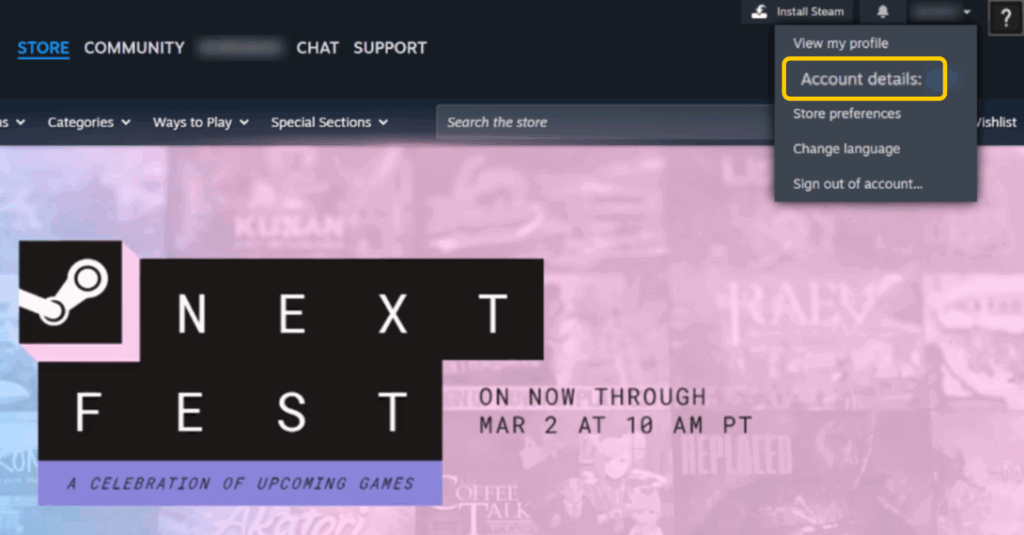
- Click your profile name in the top-right corner. From the dropdown menu, select Account details.
- Under the Store & Purchase History section, look for your Store Country. This shows the country your account is currently assigned to.
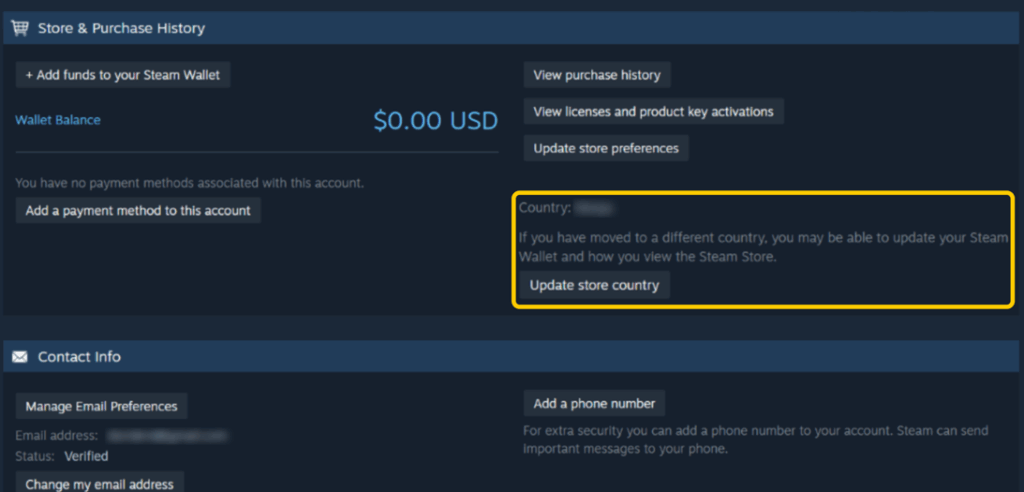
- On the same page, you can view your Steam Wallet balance and the currency linked to your account, if one is set up. This currency typically matches your current store region.
If the country listed doesn’t match where you currently live, your account may still be set to a previous location. In that case, you may need to update it, especially if you have permanently moved.
How to Change Your Steam Region — For Movers, Travelers, and More
Steam doesn’t offer a manual country selector inside settings, so the process depends on your circumstances and payment details.
Important: Steam requires a valid payment method issued in your new country. Without a local card or a supported payment option with a matching billing address, the region update will not go through.
Update Your Store Country After Adding a Local Payment Method
When you open Steam in your new country, the platform may detect that you’re connecting from a different location based on your IP address. That signals that you’re no longer accessing the store from your previous country.
However, detecting a new location is only the first step. Steam typically finalizes the switch after you complete a purchase using a valid local payment method. That transaction helps confirm the change and updates your store country.
- Open Steam while connected to the internet in that country, so the platform can detect your current location.
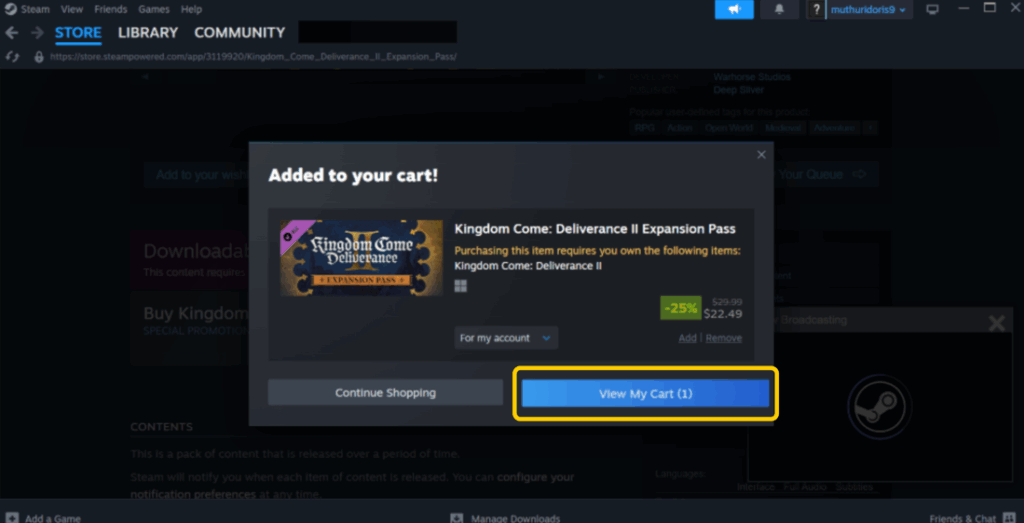
- Choose any game, DLC, or in-store item and add it to your cart. Then, proceed to checkout.
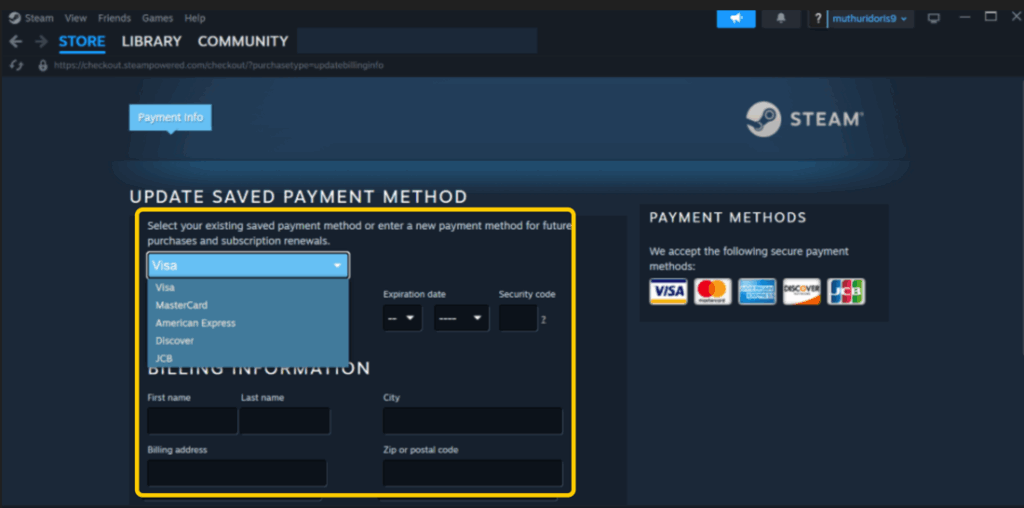
- Choose a local debit card, credit card, or supported regional payment option. Enter the billing address exactly as it appears on your bank records. The country on the billing address must match where you live.
- During checkout, Steam may show a message asking if you want to update your store country. Carefully confirm that the displayed country is correct before continuing.
- Complete the payment. If the payment is approved, Steam will automatically switch your store region and update your account currency to match the new country.
- After the purchase, go to your Account Details page and check that your Store Country and wallet currency reflect the new location.
Set Up a New Steam Account
If your current account doesn’t update automatically, or you prefer not to change its region, creating a new Steam account can be a practical alternative. This can be especially useful for temporary stays, long-term travel, or if you don’t yet have a local payment method linked to your main account.
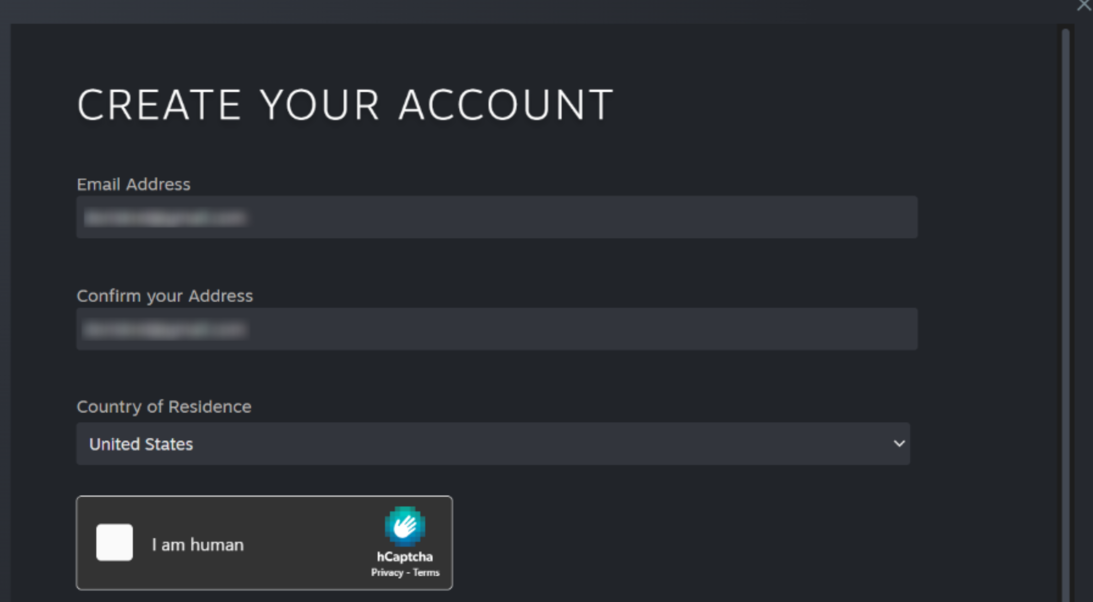
During registration, select the country where you’re physically located and complete the email verification process. Once the account is active, use a payment method issued in that country for purchases. The store prices and currency will automatically match the region chosen during signup.
Keep in mind that your games, saved progress, and friends list won’t transfer from your original account. Each account operates separately, so you will need to manage them independently.
Get Help From Steam Support
If your region doesn’t update during checkout, or your situation doesn’t fit the standard process, you can contact Steam Support directly. You should consider reaching out if:
- Your account shows the wrong store country and doesn’t match where you live.
- Steam doesn’t prompt you to update your region during checkout.
- Your payment keeps getting declined even though your details are correct.
- Your account has purchasing restrictions due to region inconsistencies.
- You recently moved, but can’t access the correct store or currency.
Steam Support typically won’t override region rules for pricing purposes. However, if you’ve genuinely relocated and are experiencing problems updating your account, they can clarify what is preventing the change and guide you through the correct process.
This option is best used when the automatic checkout method doesn’t work or when your account has been restricted due to location inconsistencies.
How VPNs Improve Your Online Game Experience
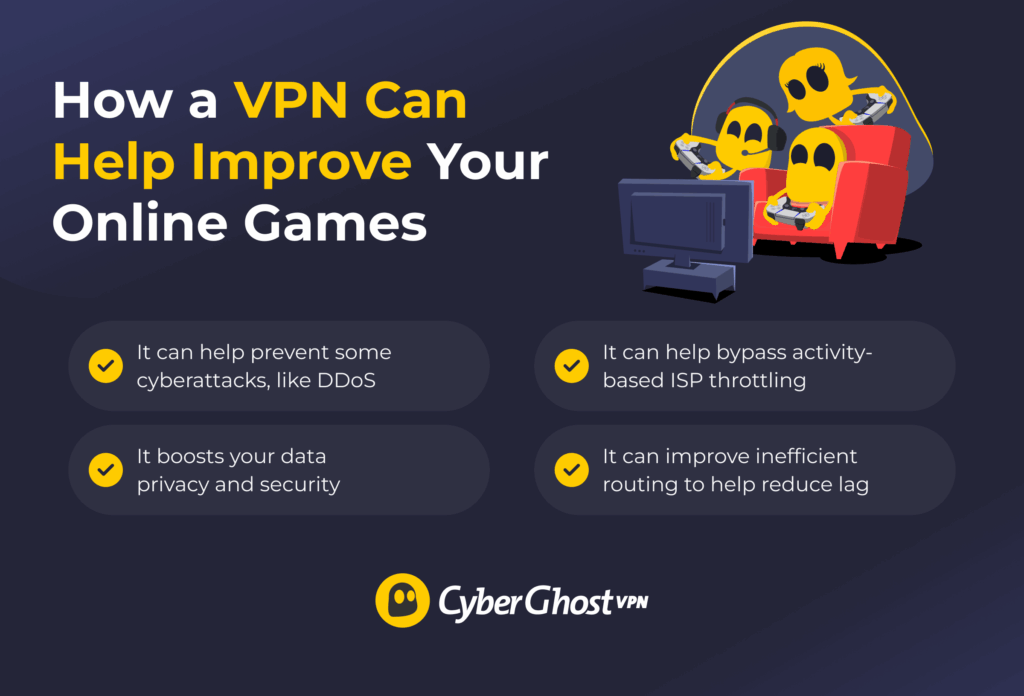
Online gaming isn’t just about skill. Your connection quality, privacy, and network stability can affect how steadily your games run. From sudden lag spikes to targeted attacks, several factors outside your control can disrupt gameplay. Adding a VPN to your gaming setup can help with many common risks and issues.
Get Extra Protection Against Cyberattacks
Every time you connect to a multiplayer server, join voice chat, or compete in ranked matches, your IP address can become visible to others involved in the connection. In some cases, that can make you a target. A VPN can help reduce the risk of falling victim to many attacks, including:
- DDoS attacks: Some players try to overwhelm an opponent’s IP with traffic, causing lag or disconnects. A VPN hides your real IP, making direct attacks more difficult.
- IP grabbing: Certain games and voice platforms can expose your IP during peer-to-peer connections. A VPN replaces it with the VPN server’s address, making it more difficult to single out your actual location.
- Public Wi-Fi attacks: On hotel, airport, or campus networks, attackers may intercept unencrypted data. A VPN encrypts your traffic to help prevent spying.
- Account takeover attempts: Cybercriminals may try to intercept login data on unsecured networks. A VPN adds an extra layer of protection by encrypting your connection.
Boost Your Data Privacy and Security
When you play online, you constantly send and receive sensitive information, including login details, purchases, chats, and account data. On unsecured networks, some of this data may be exposed. A VPN secures your connection by encrypting your internet traffic, turning your information into unreadable code for anyone trying to spy on it. This helps protect:
- Login credentials
- Payment information
- In-game chats and voice communications
- Browsing and gaming activity from ISP monitoring
- Data transmitted over public Wi-Fi networks
However, remember that a VPN protects your data in transit. It doesn’t stop malware, phishing, or weak passwords. For full protection, you should also use strong passwords, enable two-factor authentication, and keep your system updated.
Bypass Potential App-Based ISP Throttling
Your ISP can see the type of traffic on your network and may slow certain activities like gaming, streaming, or large downloads. This is known as app-based throttling. Throttling can cause higher latency, lag spikes, slower download speeds, and unstable connections during peak hours
A VPN helps reduce throttling by encrypting your traffic. Instead of seeing specific activities, your ISP only sees encrypted data traveling to a VPN server. This can sometimes help maintain more consistent speeds, especially during busy periods. However, a VPN can’t increase the speed of your base internet plan.
Avoid Additional Ping Spikes
Ping measures how quickly data travels between your device and the game server. Lower ping means faster response times, while higher ping often leads to lag and delayed actions. In most cases, a VPN won’t lower your ping. However, in some situations, it can help stabilize your connection or slightly improve routing:
- Better routing paths: Sometimes your ISP routes traffic through inefficient or congested paths before it reaches the game server. A VPN can provide a more direct route through its own network, helping reduce delays.
- Avoiding network congestion: During peak hours, ISPs may overload specific routes. Connecting to a VPN server can sometimes bypass crowded pathways.
- Reducing packet loss: If your connection suffers from unstable routing, a VPN may provide a more consistent path, which can reduce packet loss and sudden spikes.
That said, a VPN can also increase ping if you connect to a distant server. For the best results, you should choose a VPN server close to your physical location, select a server near the game’s hosting region, and avoid overcrowded VPN servers.
Change Your Steam Region and Protect Online Games
Steam region changes often fail because the process is more restrictive than many users expect. In reality, Steam relies on verified location signals and local payment details before it approves any update. Once those pieces are in place, the process becomes much more straightforward and predictable.
If you’re gaming from a new country, keeping your connection private and secure can also be worth considering. CyberGhost VPN keeps your data more private, helps protect your traffic with strong encryption, and can maintain a stable connection while you play. You can test it yourself with our reliable 45-day money-back guarantee on long-term plans.
FAQ
Why can’t I change my Steam region?
You can’t change your Steam region because Steam only updates your store country when specific conditions are met. Your physical location, IP address, billing address, and payment methods must match the new country, and you typically need to complete a purchase using a locally issued payment method. If you’re within the 90-day cooldown period, using mismatched payment details, or your account has prior region inconsistencies, Steam will likely block the change.
Is Steam region-locked?
Steam isn’t fully region-locked, but its store operates on a regional system. You can access your account and game library while traveling, but pricing, currency, and some game availability depend on your store country. Certain titles may be restricted due to licensing agreements or local regulations, and you can’t freely switch regions without meeting Steam’s location and payment requirements.
Is changing my Steam region against Steam’s terms of service?
Changing your Steam region isn’t against Steam’s terms of service if it reflects a genuine relocation and your billing details accurately match your new country. However, attempting to switch regions without being in a different country can violate Steam’s rules, especially if it involves misrepresenting your location or payment information.
How often can you change your Steam region?
You can change your Steam region once every 90 days. After updating your store country, Steam enforces a three-month cooldown period before you’re allowed to switch it again.
What is the best VPN for online gaming?
A good VPN for online gaming should offer fast speeds, stable connections, and strong security features. Many providers, including CyberGhost VPN, offer large server networks, modern protocols, and protection against threats like DDoS attacks.
However, no VPN can guarantee lower ping or eliminate lag. In fact, VPNs often add a small amount of latency because your traffic is routed through an extra server. In some cases, though, a VPN can improve connection stability or avoid inefficient routing, which may result in better gameplay overall.
Will changing Steam region affect my games?
Changing your Steam region won’t remove the games you already own. Your library, progress, and friends list stay the same. However, prices, currency, and game availability in the store may change, and some region-locked titles or DLCs may not be available in your new country.

Leave a comment
majus
Posted on 01/04/2023 at 21:07
can I use the money in my steam wallet, I am planning on getting the new COD game.
Ghostie
Posted on 21/04/2023 at 10:34
Hi, Ghostie
Unless you haven’t made a purchase in a long time, you should be able to use the money already in your Steam wallet.
Thank you,
Adrian
Posted on 15/03/2023 at 21:28
Is it possible to disable the VPN after you made your payment?
Ghostie
Posted on 22/03/2023 at 15:28
Hi Adrian,
You can certainly disable your VPN once you’ve paid for your games, but it might not be a good idea.
Steam usually turns a blind eye when players use VPNs for security or to get around region locks, but purchasing cheaper games could result in account termination.
This is why you’ll have to change your Steam Store region, and can’t change back for at least 3 months.
We recommend keeping your VPN running while using Steam to protect your account. Remember to connect to a server in the country you want to change your Steam location to.
Ali
Posted on 17/02/2023 at 16:02
Hi. I forgot to update my payment adress bills before I bought funds. I’m very worried about if I will get banned. Because Instead of buying the game, I tried to buy fund and i see that they have to check it and accept it. Do you think i should cancel it immediately? And as i said i forgot changing address. It’s not matching with the current county that I set with
Ghostie
Posted on 20/02/2023 at 17:41
Hi Ali, I don’t think you have anything to worry about! This is taken from Steam’s website:
“If your location differs from your current Steam account store country setting you’ll have an option to change your store region while you view your cart or as you complete your purchase”
Simply put, Steam only sets new your region once you have made a purchase in your new currency. If you changed the location to browse games but didn’t buy anything, your account is still set to it’s original location, and therefore won’t be flagged.
If you’d like to buy games from a different region, follow the steps in the tutorial and add your new billing information as prompted. Your Steam Wallet should update automatically, but remember you can only change your region once every three months.
Linda Gross
Posted on 09/02/2023 at 17:17
Cacacan I send a steam email gift card to a military man in Syria, and can it be used for more than gaming?
Ghostie
Posted on 13/02/2023 at 18:47
Hi Linda, thanks for your question.
Unfortunately, Steam is unavailable in Syria due to U.S. sanctions, so please be careful — this might be a scam.
Steam has a few regulations you should keep in mind. To purchase a digital gift card for someone else, they must have a Steam account, and you must be friends with each other on Steam for a minimum of 3 days. If the recipient has specifically requested you send a voucher code via email, please see it as a red flag.
As for your second question, Steam gift cards are only redeemable in the Steam Store, and can be exchanged for games, software, and game soundtracks – as well as the Steam Deck in countries where it’s available.
jose claro
Posted on 20/01/2023 at 10:07
Do this tutorial consider the restriction with the payment method that doesn’t allows paying with cards registered out of the target country u want to change to?
Ghostie
Posted on 14/02/2023 at 13:07
Hi Jose, thank you for the question. In some cases, if your IP address and Steam Store location don’t match, you might not be able to purchase anything. This is to prevent credit card fraud, in case your credit card or card details are stolen. Here are a few ways you could get around it:
demos
Posted on 19/12/2022 at 21:12
How can i turn back to my original country before 3 months wait
Ghostie
Posted on 14/02/2023 at 13:02
Hi Demos, unfortunately there is no way around this. Once you change your Steam region, you’ll have to wait 3 months before you can switch back, whether or not you’ve used a VPN. (edited)