
Have you ever been in the middle of a video call when the sound cuts off or the screen freezes? Or maybe your online game stuttered even though your speed test says your internet was fine? That’s often not caused by bad Wi-Fi but by network jitter instead, which signals that data isn’t traveling smoothly between your device and the internet.
Even a tiny delay in the arrival of data packets can make real-time apps like Zoom, Teams, or online games feel broken. The good news is that network jitter is fixable once you understand what’s causing it. So, let’s explain what network jitter is, why it happens, and the best ways to reduce it.
What Is Network Jitter?
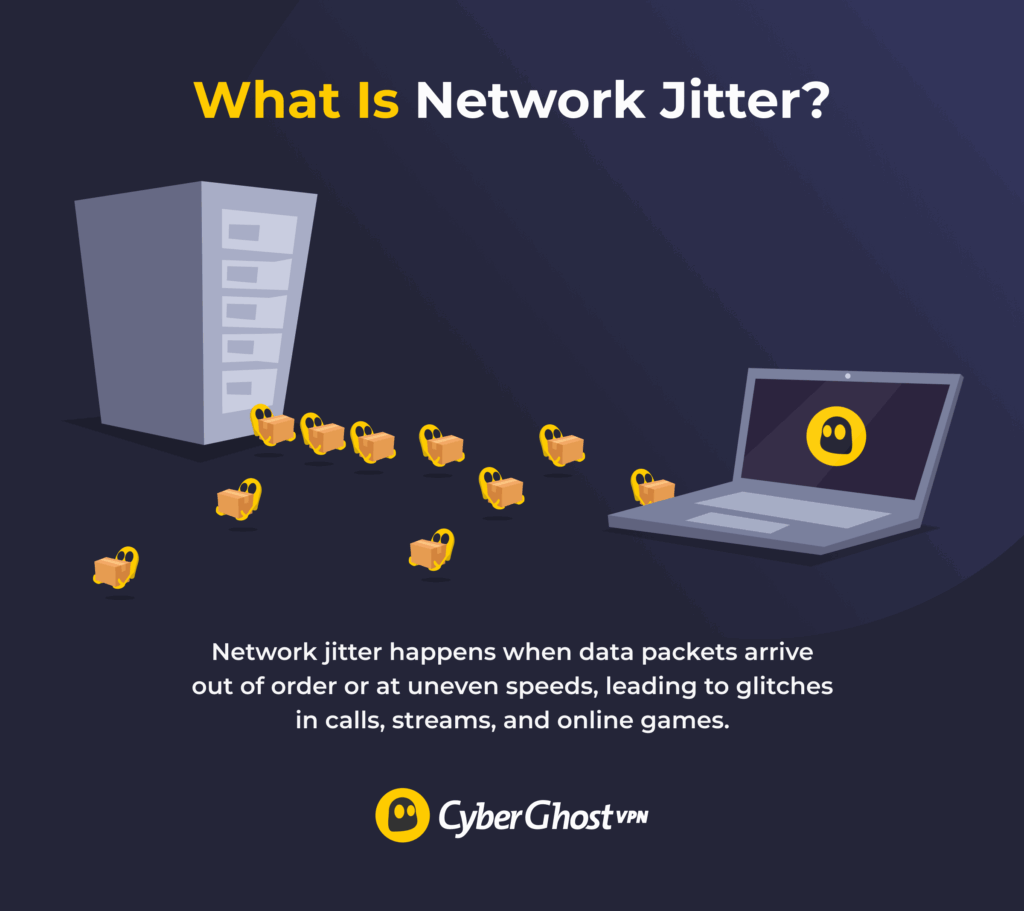
Every piece of information you send online, from your voice in a call to the frames of a video stream, is split into tiny data packets. In a healthy connection, those packets arrive evenly spaced, almost like cars driving at a steady speed down a highway. When network jitter occurs, some packets arrive early, others late, and a few might even get lost. The result is stuttering audio, frozen video, or laggy gameplay.
Real-time applications for activities like VoIP calls, video conferencing, and online gaming are highly sensitive to jitter as they rely on continuous data streams. Even slight inconsistencies in packet timing can interrupt the flows and cause noticeable disruptions.
Network experts often describe a few types of jitter:
- Constant jitter: Delays between packets stay consistent, for example, an audio stream that always lags by half a second. It’s predictable but still disruptive.
- Transient jitter: Delays come in sudden, short-lived spikes. You might notice a quick freeze or hear a clipped word out of a call.
- Short-term jitter: Rapid, moment-to-moment spikes that create noticeable lag, especially in video calls and online gaming.
Jitter vs Latency, Ping, and Packet Loss
Jitter often gets confused with other network performance terms like latency, ping, and packet loss. However, each measures a different part of how data travels online.
- Latency measures delay: It shows how long data takes to travel from your device to its destination. For example, when you join a video call, latency describes how long it takes for the connection to start.
- Ping tests latency: It sends a small packet to a server and measures how long it takes to get a response. A ping of 20-40 milliseconds (ms) is fast, while anything above 100 milliseconds can cause lag.
- Jitter measures inconsistency: It shows how much the delay between packets changes. If your ping jumps between 20 ms and 80 ms from one moment to another, you’re experiencing jitter.
- Packet loss measures missing data: It occurs when some packets fail to reach their destination. Even a small amount of packet loss can cause frozen video, broken audio, or dropped connections.
What Causes High Jitter?

Jitter happens when data packets don’t travel evenly across the network. Many everyday issues can cause this, including:
- Network congestion: Too many people using the same internet connection can increase delay and force data packets to compete for bandwidth.
- Wi-Fi interference: Electronics like microwaves, Bluetooth devices, or nearby Wi-Fi networks can disrupt your signal and cause wireless packets to arrive out of order.
- Poor routing: Data can sometimes take inefficient routes between internet providers and across regions. Each extra hop or unstable link increases the chance of variable delay.
- Hardware limitations: Older routers, overloaded switches, or outdated firmware can’t handle high traffic smoothly. If they support older networking standards, they can cause delays and inconsistent packet flow.
- Bufferbloat: Overloaded internal queues in a router can store packets instead of sending them. This leads to random bursts of delay, especially under heavy network load.
- QoS misconfigurations: Routers may struggle to prioritize real-time traffic without Quality of Service (QoS) settings, allowing background traffic to interrupt more important data.
- ISP problems: Faults in your internet provider’s local network, busy copper lines, or overloaded regional servers can all add instability and make packet timing unpredictable.
- Software bugs: Software glitches in VoIP applications and online games can cause network traffic to route inefficiently, causing delays. Driver issues are also known to cause network jitter.
How to Test Network Jitter
You can easily test network jitter with built-in system tools or free online tests. Here’s how to check if unstable latency is affecting your connection.
- Run a speed test: Visit a trusted site like Speedtest.net or Fast.com. These tools usually show latency and jitter. If the value you see is higher than 30 ms, you might notice lag or choppy video calls.

- Use the ping command: On Windows, open the Start Menu and type “Command Prompt.” Open it and paste the following command: “ping -n 20 google.com.” On macOS and Linux, use the Terminal and this command: “ping -c 20 google.com.” The results will show response times for each packet. Look for variation; if some replies are much slower than others, that means jitter is present.

- Try dedicated jitter tools: Sites like Packet Loss Test can monitor your connection over time and display graphs showing jitter, latency, and packet loss. It even has presets for testing, so you can choose tests related to 720p video calling or 1080p game streaming, for example.
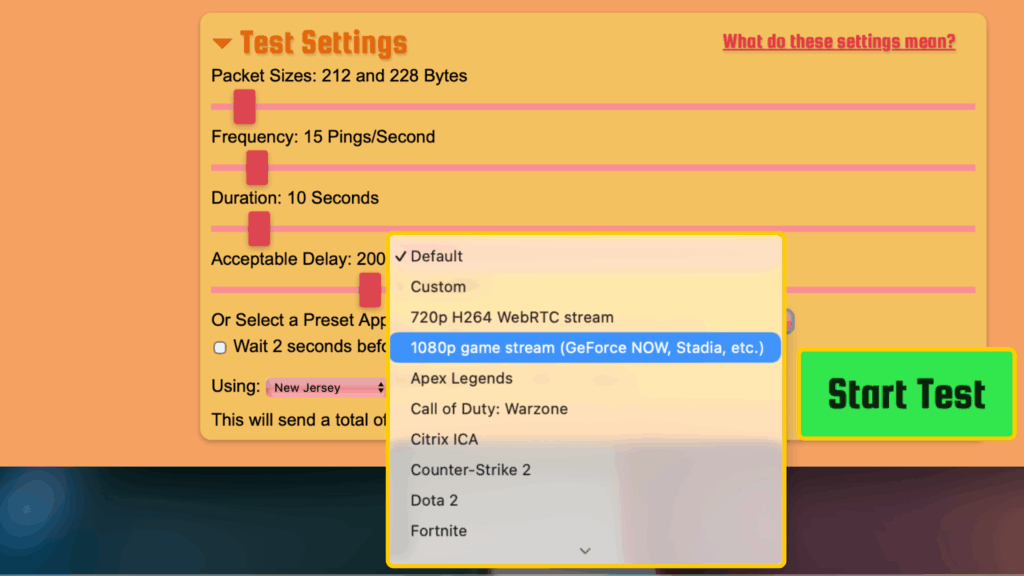
Stable jitter values below 20-30 ms tend to be fine for most activities. For online gaming and clear VoIP calls, aim for less than 10 ms. It’s also wise to test your connection during both peak and off-peak hours. Higher jitter during busy times points to congestion on your internet provider’s network.
How to Reduce Network Jitter
You can’t eliminate jitter completely. However, you can greatly reduce it by improving how your network handles traffic. Try these practical fixes:
- Use Ethernet instead of Wi-Fi: A wired connection offers a stable signal and consistent packet delivery. This helps reduce interference and signal drops.
- Boost Wi-Fi performance: You can move closer to your router, switch to a 5 GHz or 6 GHz band, and pick a less crowded channel to improve overall stability.
- Enable traffic prioritization (QoS): Set up Quality of Service on your router to give video calls, gaming, and voice apps higher priority over background tasks.
- Control background usage: Pause large downloads, system updates, or cloud backups during calls or gaming sessions to prevent network congestion.
- Use a VPN: If your internet provider slows certain types of traffic, a VPN may help by preventing the provider from seeing what applications you’re using. This can sometimes lead to a more consistent connection.
- Use Smart Queue Management (SQM): Enable SQM or FQ-CoDel on your router (if it supports those technologies) to balance traffic and reduce variable delays.
- Update or replace old hardware: Install the latest firmware on your router or network adapter. Alternatively, upgrade to newer hardware for better performance.
- Enable jitter buffers in VoIP apps: Many calling and video tools have a jitter buffer option. Its role is to smooth out data delivery for clearer calls.
- Keep your software updated: Update your operating system, network drivers, and apps regularly. Patches often fix bugs that cause unstable performance.
- Minimize device interference: Keep cordless phones, Bluetooth speakers, and other electronics away from your router to prevent signal disruption.
- Contact your ISP: If jitter remains high after troubleshooting, ask your provider to check for line noise, local congestion, or hardware faults.
Managing Jitter Doesn’t Have to Be a Hassle
Network jitter is something most people experience every day. Luckily, most causes of it, like Wi-Fi interference, local congestion, or outdated hardware, are within your control. But if your internet provider slows or reroutes traffic inefficiently, you can use a VPN to make your traffic more private. This may help reduce selective slowdowns, though it won’t fix issues caused by weak signal, congestion, or hardware problems.
CyberGhost VPN offers fast, globally distributed servers with connections optimized for stable streaming, gaming, and video calls. It helps ensure your data travels evenly while keeping you more private online. You can even try it risk free with our 45-day money-back guarantee to see just how well it handles your traffic.
FAQ
What is network jitter in simple terms?
Network jitter means that data packets reach their destination irregularly. Instead of arriving evenly spaced, some packets are delayed or arrive out of order. This can cause stuttering audio or frozen images during online activities.
How does network jitter affect video calls and gaming?
Apps that rely on real-time communication, like video calls, live streams, or online games, are the most sensitive to jitter. Even small variations in packet timing can cause choppy audio, dropped video frames, or sudden disconnections.
What causes high jitter on a network?
Common causes include network congestion, weak Wi-Fi signal, interference from other devices, outdated routers, or internet provider infrastructure issues. Sometimes, background downloads or misconfigured Quality of Service (QoS) settings also contribute.
What is considered an acceptable jitter level?
For most online activities, jitter below 30 milliseconds (ms) is fine. Real-time applications like video calls and gaming work best under 20 ms. Anything higher than 50 ms can lead to noticeable lag or unstable performance.
How can I reduce network jitter?
Use a wired Ethernet connection instead of Wi-Fi, update your router’s firmware, and limit background traffic. You can also reduce network jitter by giving voice or video apps higher priority through your router’s QoS settings. If the problem persists, contact your internet provider to check for line issues or network congestion.
Is 200ms jitter bad?
Yes, 200 ms of jitter is considered extremely high. It will likely cause severe lag, audio delays, or disconnects in games and video calls. You’ll need to troubleshoot your connection, switch to Ethernet, or consult your internet provider to fix the underlying issue.
Can a VPN reduce jitter?
A VPN can’t fix jitter caused by weak Wi-Fi or local network issues. However, it can help if your internet provider throttles or reroutes certain traffic. By hiding your data and using optimized servers, VPNs can provide a more stable route in some situations, which may help reduce sudden spikes in latency. Results vary depending on what’s causing the jitter.
Are ping and jitter the same?
No. Ping measures the average time it takes for a data packet to travel to a server and back. Jitter measures how much the time fluctuates between packets. Low ping with high jitter can still cause lag in real-time activities.
Is jitter more common in wired or wireless networks?
Wireless networks tend to have higher jitter because Wi-Fi is more vulnerable to interference, signal drops, or congestion. Wired Ethernet connections are far more stable since they transmit data directly through a cable. That means they avoid environmental noise, so they’re less prone to network jitter.

Leave a comment