
Nothing kills a Roblox session faster than lag. Delayed movements, rubber-banding, and sudden freezes can turn even the best games into a frustrating mess, especially when you know your internet should be good enough. If high ping keeps ruining your matches, you’re not alone.
The good news is that Roblox lag is usually fixable. While some players look for a third-party Roblox ping optimizer, the manual fixes below are often more effective. In this guide, you’ll learn exactly what causes high ping and how to lower it using simple network tweaks, in-game settings, and connection fixes that actually work.
What Causes High Ping in Roblox?
High ping in Roblox can come from several different issues, not just slow internet. Understanding the most common causes makes it much easier to fix lag and improve your gameplay.
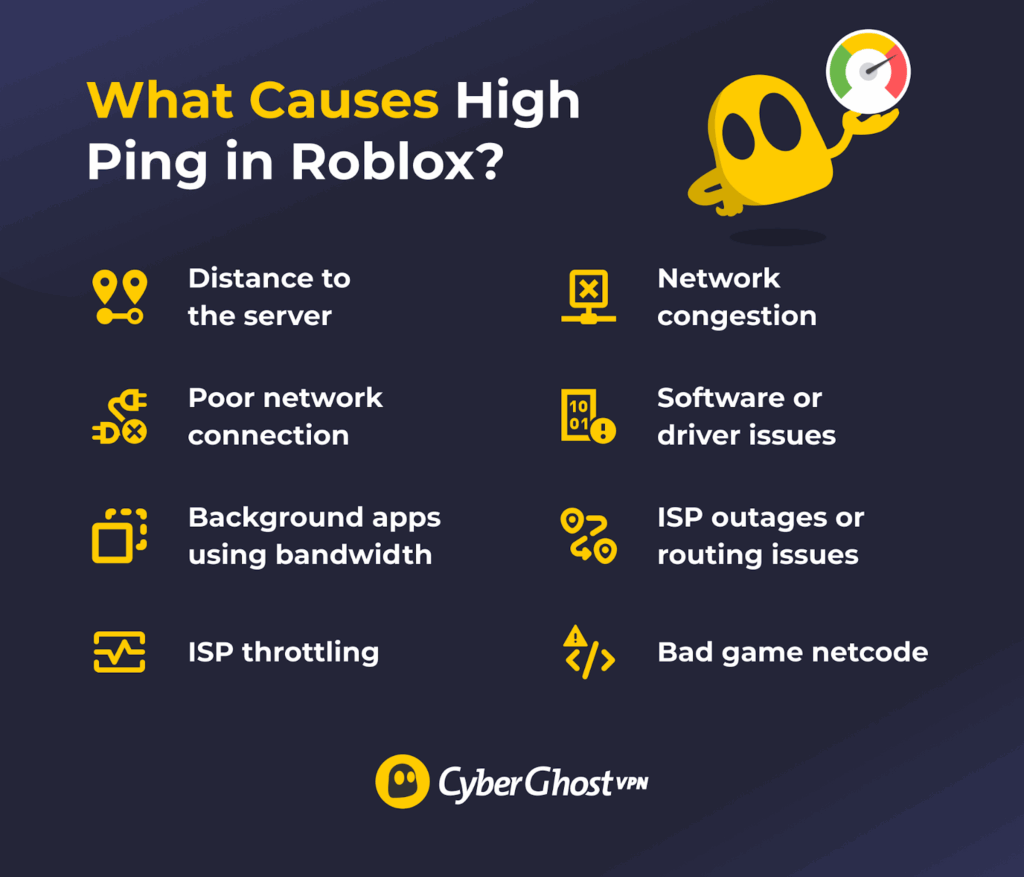
- Distance to the server: Roblox connects you to a game server, and the farther that server is from your physical location, the longer it takes for data to travel. This delay directly increases your ping and makes the game feel less responsive.
- Network congestion: When many devices in your home or many users in your area are online at the same time, the network becomes crowded and slows down data transfer.
- Poor network connection: An unstable or weak internet connection, especially Wi-Fi with low signal strength, can cause data delays, packet loss, and frequent lag while playing Roblox.
- Software errors: Outdated network drivers, operating system bugs, or corrupted Roblox files can interfere with how your device communicates with game servers.
- Background apps consuming bandwidth: Programs running in the background, such as downloads, video streaming, or cloud backups, use your internet speed and leave less bandwidth available for Roblox.
- ISP issues: Your internet provider’s technical issues, maintenance, or poor routing can lead to sudden spikes in ping and unstable connections.
- ISP throttling: Some internet service providers intentionally slow down certain types of traffic during heavy usage periods, which can increase ping and cause lag in online games.
- Bad game netcode: Some Roblox games are poorly optimized by developers, which can cause lag and high ping even if your internet connection is fast and stable.
Fast Fixes for High Roblox Ping
If you want the fastest results, work through these in order. Most Roblox lag issues improve after 1–2 changes.
- Use a wired Ethernet connection: If you can, plug your device into your router with an Ethernet cable. A wired connection is more stable than Wi-Fi and is less affected by distance, walls, or interference.
- Move closer to your router (or reposition it): Wi-Fi signals get weaker with distance and obstacles. If you’re on Wi-Fi, move closer to the router or place it in a central, open spot — higher up, away from thick walls and electronics.
- Restart your router: Turn the router off (or unplug it), wait 30–60 seconds, then turn it back on. This refreshes the connection and can clear temporary network glitches that cause ping spikes.
- Disable background programs and pause updates: Close any apps you’re not using (streaming, downloads, cloud sync, launchers, etc.). On Windows, press Ctrl + Shift + Esc to open Task Manager. On Mac, open Activity Monitor. Pause system/app updates while you play.
- Lower Roblox graphics settings: If your ping isn’t high but gameplay stutters, lower graphics. In-game, press Esc > Settings > set Graphics Mode to Manual > move the Graphics Quality slider down.
After the quick fixes, check your ping in Roblox using Performance Stats. If it’s still high, go to the network tips section below.
Note: Roblox players use the term “lag” to refer to a few different problems. Sometimes it’s high ping, which causes delayed actions and rubber-banding. Other times, your connection is unstable, and you get spikes or packet loss. And sometimes the game feels laggy because your device can’t keep up, so your frames per second (FPS) drop, and everything looks choppy even if your ping is fine.
How to Test Your Roblox Ping
Before you change a bunch of settings, check your baseline ping — then test again after each fix so you know what actually helped.
- In-game performance stats: Join any Roblox game, open the Settings menu, enable performance or network stats, and check the live ping shown on your screen while playing.
- Roblox developer console: Press F9 (or type “/console” in chat) to open the Developer Console and view network stats like ping and packet loss.
- Online speed test: Run a speed test on sites like Speedtest by Ookla or Fast.com to check your general ping and see if your internet connection is stable.
- Command prompt ping test: Use your device’s command prompt or terminal to ping a server and check basic network latency.
How to Fix High Ping in Roblox — Network Fixes
Stabilize Your Wi-Fi
Your Wi-Fi router uses a specific channel to send data. If too many nearby networks are using the same channel, it can cause congestion. This congestion slows your connection, increases ping, and leads to lag while playing Roblox. Switching to a less crowded channel helps your Wi-Fi run more consistently and keeps your connection more stable.
Here’s how to change your Wi-Fi channel step by step:
- Open a web browser on a device connected to your Wi-Fi and enter your router’s IP address, such as 192.168.0.1 or 192.168.1.1, to open the router login page.
- Log in to the router using the default username and password, usually printed on the device.
- Open Wi-Fi settings and navigate to the Wireless section.
- Select Channel, and then choose a different Wi-Fi channel to avoid interference from nearby networks.
- Apply the changes and restart your router so the new channel takes effect, then test Roblox to see if your ping improves.
Prioritize Roblox Traffic on Your Network
Quality of Service, or QoS, lets your router decide which devices or apps get priority on your network. When enabled, it can give Roblox traffic higher priority, which helps reduce lag and keep ping stable, even when other devices are using the internet. This is especially helpful in busy households where streaming or downloads can slow down online games.
Follow these steps to enable QoS on your router:
- Open a web browser, enter your router’s IP address, and log in to the admin panel.
- Look for a section called QoS, Traffic Control, or Bandwidth Management.
- Turn the QoS feature on if it’s disabled.
- Set your gaming device or Roblox traffic as a high priority if the option is available.
- Apply the changes, restart your router, and test Roblox to see if your ping is more stable.
How to Fix Laggy Roblox Gameplay — Performance Fixes
Disable Overlays (Discord, Xbox Game Bar, NVIDIA)
Apps such as Discord, Xbox Game Bar, and NVIDIA overlays can use extra system resources and cause stutters or FPS drops, which can feel like lag. Disabling them can help Roblox run more steadily.
Here’s how to turn off common overlays:
- Disable Discord overlay: Open Discord, go to User Settings, select Game Overlay, and turn off the option that enables the in-game overlays.
- Disable Xbox Game Bar: Open Windows Settings, go to Gaming, select Xbox Game Bar, and turn it off.
- Disable NVIDIA overlay: Open NVIDIA GeForce Experience, go to Settings, and turn off the In-Game Overlay option.
Turn Off VR Mode on Roblox
While VR mode and full-screen optimizations enhance visuals and immersion, they can occasionally cause performance issues in Roblox. When enabled, they may use extra system resources or conflict with how the game runs, leading to lag or stuttering. Turning these features off can help Roblox run more steadily, especially on lower-end systems.
Here’s how to turn off VR mode and disable full-screen optimizations:
- Open Roblox, join any game, press Esc, and open the Settings tab.
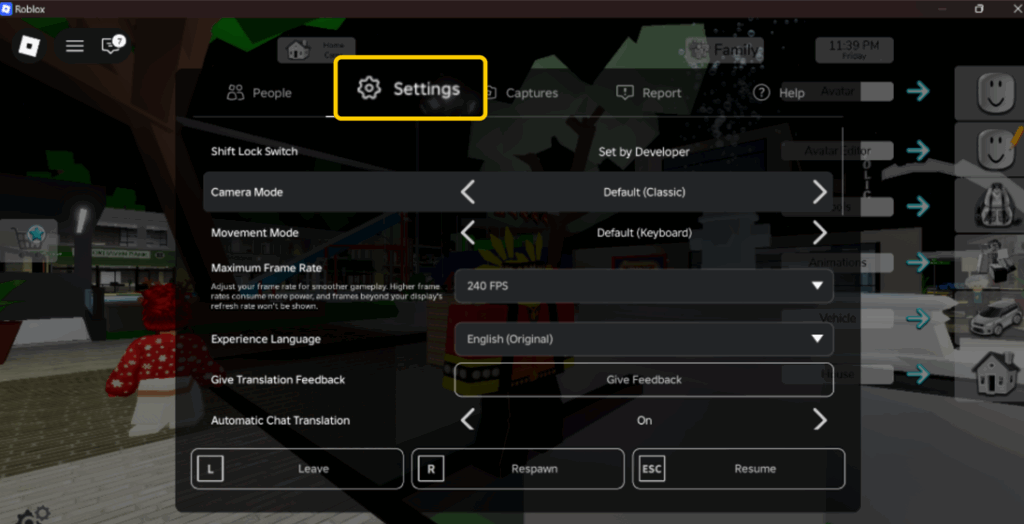
- Find the VR Mode option and set it to Off.
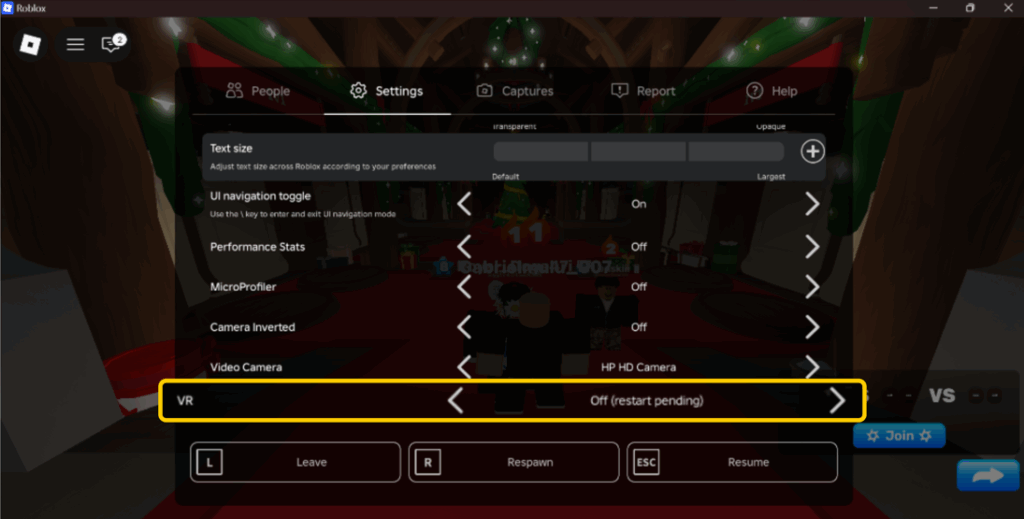
- Close the menu and continue playing to check if performance improves.
Disable Roblox Camera Access
Roblox camera access allows the game to use your device’s camera for certain features, but it isn’t needed for most gameplay. When enabled, it can use extra system resources in the background, which may contribute to lag or performance drops. Disabling camera access can help reduce unnecessary resource usage and keep Roblox running more seamlessly.
Follow these steps to disable Roblox camera access:
- Open Roblox settings. Launch Roblox, join a game, press Esc, and go to the Settings tab.
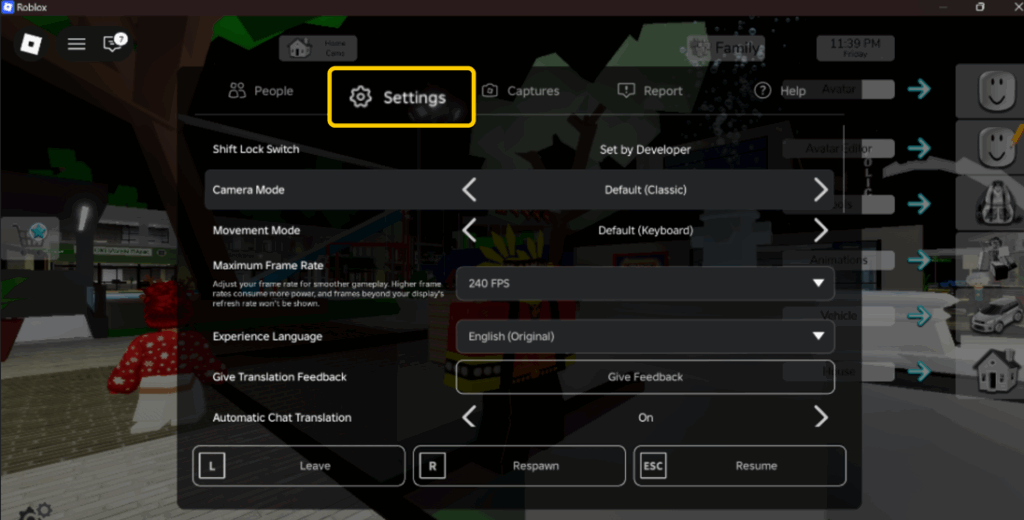
- Look for the Camera and set the access to Off so Roblox can’t use your device’s camera.
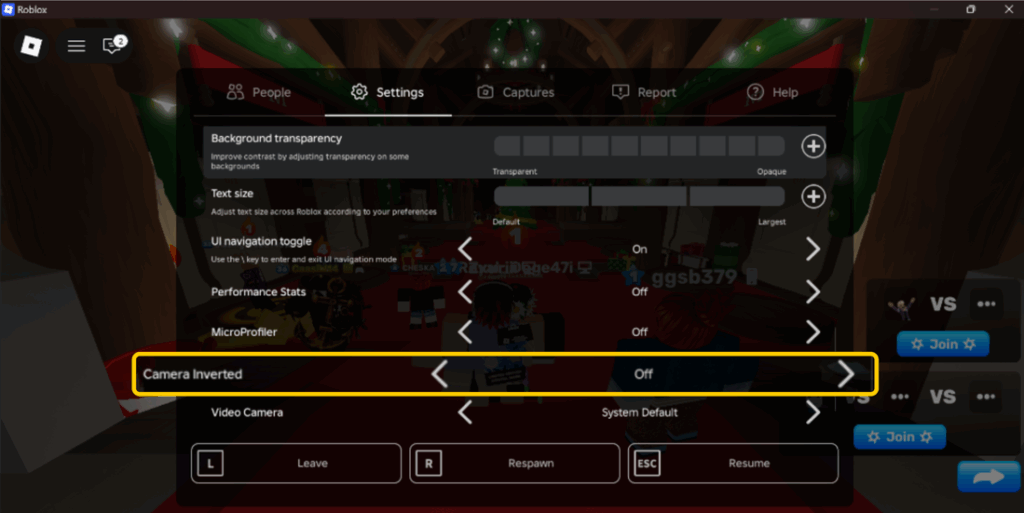
- Restart Roblox to make sure the change takes effect and check if gameplay feels steadier.
Update Network Drivers and OS
Your network drivers and operating system control how your device connects to the internet. When they’re outdated, they can cause connection issues, slower speeds, and higher ping while playing Roblox. Keeping both up to date helps improve stability, fix bugs, and ensure the best possible network performance.
Follow these steps to update your network drivers and operating system:
- Check for system updates. Open your device’s settings, then look for the software or system update section and install any available updates.
- Update network drivers. On Windows, open Device Manager, expand Network adapters, right-click your network device, and select Update driver. On macOS, network drivers are updated automatically through system updates.
- Reboot your computer after updating to apply all changes properly.
- Launch Roblox again and see if your ping and overall performance have improved.
Reinstall Roblox
Over time, Roblox files can become corrupted or outdated, which may cause lag, crashes, or connection issues. Reinstalling Roblox removes problematic files and replaces them with a fresh, up-to-date version of the game.
To do this, uninstall Roblox from your device, restart your system to clear any leftover data, then download and install the latest version directly from the official Roblox website before testing your gameplay again.
Advanced Fixes
Change Your DNS Provider
Your DNS provider helps translate website and game server names into IP addresses so your device knows where to connect. A slow or unreliable DNS can add extra delay, which may increase ping and cause lag in Roblox. Switching to a faster public DNS provider can help improve connection speed and stability.
Follow these steps to change your DNS provider:
- Go to your device’s Network & Internet settings and select the network you’re currently using.
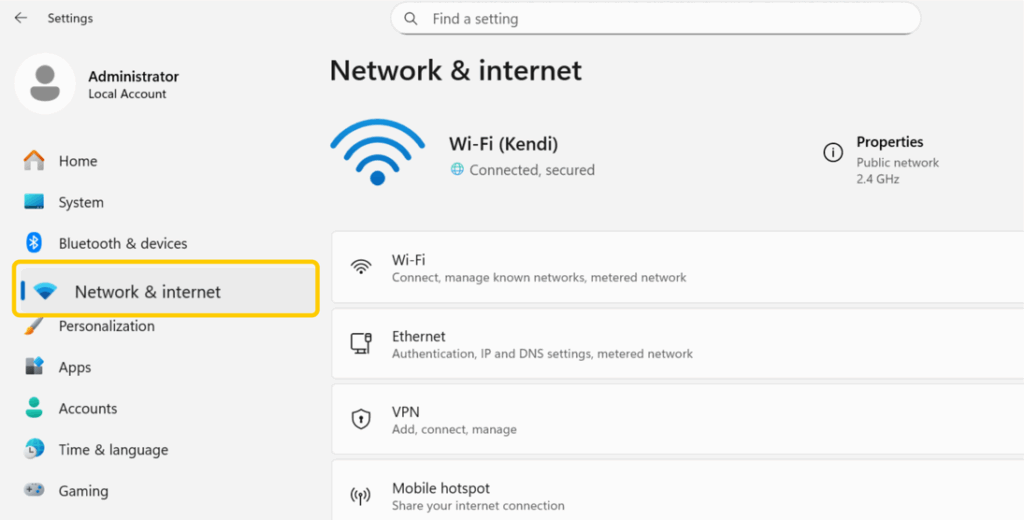
- Access DNS settings. Depending on your device, look for IP settings, Advanced network settings, or DNS options.
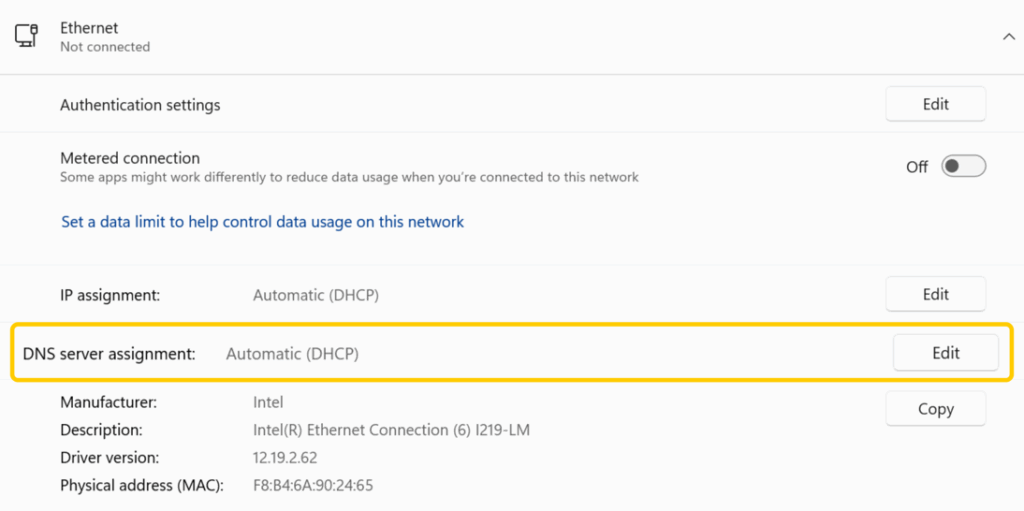
- Change the DNS setting from automatic to manual.
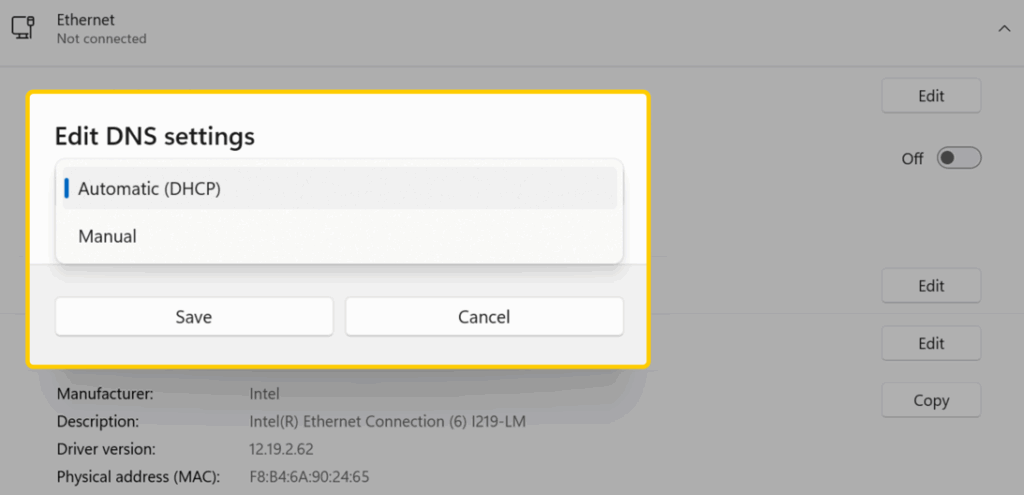
- Enter a public DNS. Use a trusted DNS provider, such as Google DNS with 8.8.8.8 and 8.8.4.4, or Cloudflare DNS with 1.1.1.1 and 1.0.0.1.
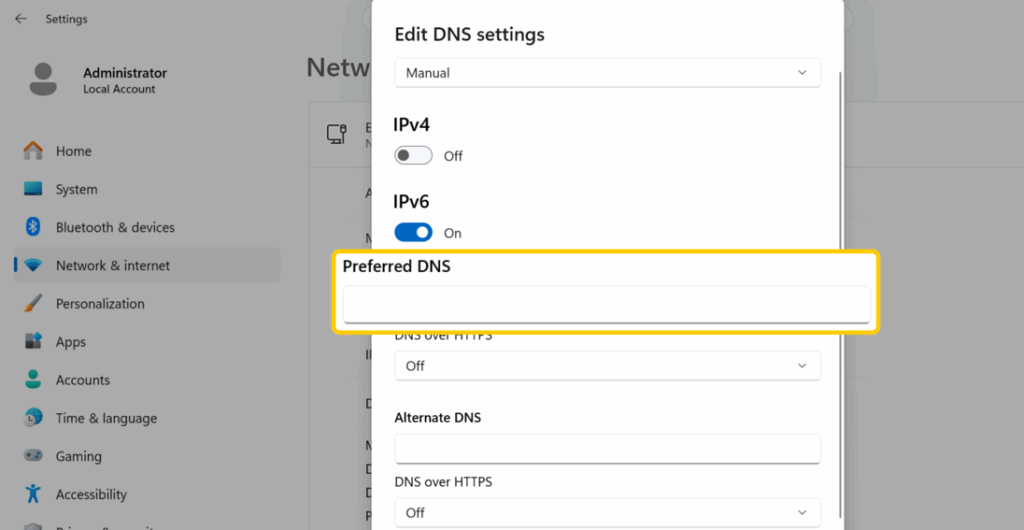
- Apply the changes, reconnect to the network, and restart Roblox to see if your ping improves.
Check for ISP Throttling or Peak-Hour Congestion
Your ISP may slow down certain types of traffic or struggle during busy hours when many people are online. This can cause higher ping, lag spikes, or unstable connections in Roblox, even if your internet plan is usually quick. Checking for throttling or peak-hour congestion helps you understand whether the issue is coming from your ISP rather than your setup.
To check this, try playing Roblox at different times of the day and see if performance improves during off-peak hours. You can also run a speed test during laggy periods to see if your speeds drop significantly. If the issue keeps happening, you can sometimes contact your ISP or use tools like a VPN to change routing to help reduce congestion-related lag.
Use a VPN or Change VPN Protocol (If Routing Is Bad)
A VPN like CyberGhost VPN can help when your ISP’s route to Roblox is inefficient or congested. It sends your connection through a different network path, which can improve stability on some routes. Test it in the game — if your ping is lower and more consistent, keep it. If it stays the same or gets worse, disconnect and use the other fixes in this guide.
Disable Proxies or Firewalls Blocking Roblox
Proxies and strict firewalls can interfere with how Roblox connects to its servers. When these tools block or filter game traffic, they can cause high ping, lag, or even prevent Roblox from connecting at all. Disabling unnecessary proxies or adjusting firewall settings helps ensure Roblox can communicate freely and run steadily.
Follow these steps to fix the issue:
- Verify your network or internet settings to ensure that no proxy is enabled unless it’s specifically required.
- Open your system’s firewall or security software and look for any rules that block Roblox or unknown applications.
- Add Roblox as an allowed app so it can send and receive data without restrictions.
- If you’re using third-party firewalls or network filters, try turning them off briefly to test if they’re causing the lag.
- Restart your device, then open Roblox and check whether your connection and ping have improved.
Allow Roblox Through Your Firewall (Ports Only if Needed)
If Roblox is being blocked by a firewall, security app, or a restricted network, you may get lag spikes, disconnects, or trouble joining games. The safest fix is to allow Roblox as an app in your firewall or security software. Only look at ports if you’re on a managed network and an admin confirms outbound traffic is restricted.
Step 1: Allow Roblox as an app (recommended)
- Open your firewall or security app settings.
- Find the area for allowed apps, app permissions, or firewall exceptions.
- Add Roblox (or RobloxPlayerBeta.exe on Windows) and allow it on private networks. Only allow it on public networks if you trust the network.
- Save your changes, restart Roblox, and test again.
Step 2: Check ports only on restricted networks (advanced)
Roblox can use UDP ports for real-time game traffic. On school, work, or other managed networks, an admin may need to confirm whether outbound UDP traffic is restricted.
If an admin asks for a port range, Roblox may use UDP 49152–65535. Avoid setting up broad port-forwarding rules unless you know exactly why you need them — opening large ranges can increase security risk.
Lower Your Ping and Get Back to Playing
Roblox lag can make even the best games feel unplayable, but most ping problems are fixable with the right approach. From optimizing your network to adjusting game settings, every small improvement helps create a more stable and responsive experience. Consistently applying these fixes can turn laggy sessions into seamless gameplay.
When your ISP’s routing is the issue, CyberGhost VPN offers an effortless solution. It helps you bypass inefficient routes and connect through faster paths so you can lower your ping, defeat lag, and get back into the game. With CyberGhost VPN, your connection works for you, not against you.
FAQ
How do I reduce ping in Roblox mobile?
To reduce ping in Roblox on mobile, connect to a strong, stable Wi-Fi network instead of mobile data whenever possible. Close background apps, lower Roblox graphics settings, and move closer to your router to improve signal strength. You can also restart your phone and router to refresh the connection and reduce lag.
What is a good ping rate for Roblox?
A good ping rate for Roblox is usually below 100 ms, which gives steady and responsive gameplay. Ping between 100 and 150 ms is still playable but may feel slightly delayed at times. Anything above 150 ms can cause noticeable lag, delays, and stuttering during games.
Why is my ping so high in Roblox if my internet is good?
Your ping can be high in Roblox even if your internet is fast because speed and ping aren’t the same thing. High ping is often caused by factors like long distance to Roblox servers, poor routing from your internet provider, Wi-Fi interference, background apps using bandwidth, or issues with the specific Roblox game server. Often, the problem isn’t your internet speed but how your connection reaches the Roblox servers.
Why does Roblox lag, but other games run fine?
Roblox can lag even when other games run fine because it uses different servers and networking systems. Some Roblox games are poorly optimized or hosted on distant servers, which can cause high ping and lag even with a good connection. This means the issue is often with the specific Roblox game or server rather than your internet or device.
How do I check my ping in Roblox?
You can check your ping in Roblox directly while playing a game. Join any game, press the Esc key, go to Settings, and turn on Performance Stats. Once enabled, your ping will appear on screen in milliseconds and update in real time as you play.
How do I know if Roblox is lagging because of my ISP?
You can tell Roblox is lagging because of your ISP if your ping is high, even when your Wi-Fi signal is strong, and no other apps are using the internet. If Roblox runs better during off-peak hours but lags in the evening, that often points to ISP congestion or throttling. You can also run speed tests during laggy periods or try a VPN to see if changing the routing improves ping, which suggests the issue is on your ISP’s side.
Does Roblox ban accounts for high ping or lag?
No. Roblox won’t ban your account just because your ping is high or the game is lagging. The usual result is a choppy game or a disconnect — not a ban. If you want to sort it out, start by looking into common network fixes.
Can I manually choose Roblox servers?
In most Roblox games, you can’t pick a specific server or region — Roblox puts you in one automatically. If your ping is high or you keep getting lag spikes, try leaving and rejoining to get a different server, join a friend who’s closer to you, or use a private server if the game offers one. For more ways to lower ping when you can’t pick a server, check out common network fixes.

Leave a comment