
You’re mid-game when your character freezes, teleports back, then carries on like nothing happened. High ping can cause these delays, but it isn’t always the culprit. Some players reach for a third-party “ping booster,” but Wi-Fi interference, busy networks, device performance, and Roblox servers can affect gameplay. Figuring out what’s causing the problem is the first step toward fixing it, and many effective solutions don’t cost anything.
What Causes High Ping in Roblox?
Ping is the time, in milliseconds (ms), that your data takes to travel to a Roblox server and back. Slow internet is only one reason it climbs. These are the usual culprits:
- Distance to the server: The farther the game server is from you, the longer it takes for data to make the trip. That delay goes straight into your ping.
- Network congestion: When lots of devices in your home or many people in your area are online at once, data moves more slowly.
- Bufferbloat: Your router holds too much data in its queue when the connection is busy, so game traffic waits behind a download or upload.
- Poor connection quality: A weak or unstable connection, especially Wi-Fi with a low signal, can cause delays, packet loss, and frequent lag.
- Software errors: Outdated network drivers, OS bugs, or corrupted Roblox files can get in the way of communication with game servers.
- Background apps using bandwidth: Downloads, video streams, and cloud backups all compete with Roblox for the same connection.
- Internet service provider (ISP) issues: Maintenance, outages, or inefficient routing on your provider’s side can cause sudden ping spikes.
- ISP throttling: Some providers slow certain traffic during busy periods, which can raise ping in online games.
- Poorly optimized experiences: A number of Roblox experiences lag even on a fast, stable connection because of how they’re built.
Ping, Packet Loss, or FPS? Identify the Problem First
High ping, packet loss, and low frames per second (FPS) can all feel like “lag,” but each has different causes and fixes:
- High ping (latency): Your actions take too long to reach the server, so movement and responses feel delayed.
- Packet loss: Your connection may lose data packets or they arrive unevenly and have to be resent. You’ll see rubberbanding, freezes, and sudden spikes.
- Low FPS: Your device is struggling to render the game. This can look like network lag even when your ping is normal.
- Server or experience problems: If only one Roblox experience lags while others run fine, the issue is probably linked to that particular experience.
How to Test Your Roblox Ping
Get a baseline before you change anything, then test again after each fix so you know what helped.
- In-game performance stats: Join any Roblox game, press Esc, open Settings, and turn on Performance Stats. Your ping appears on screen in milliseconds and updates live as you play.
- Roblox Developer Console: Press F9 (or type “/console” in chat) to open the Developer Console and view network stats like ping and packet loss.
- Online speed test: Run a speed test on sites like Speedtest by Ookla or Fast.com to check your general ping and see if your internet connection is stable.
- Command Prompt ping test: Use your device’s Command Prompt or terminal to ping a website and check basic network latency. Pinging a website measures the route to that site, not to a Roblox server, so treat it as a rough health check rather than a measure of your in-game ping.
Run the Load Test to Check for Ping Spikes When the Network Is Busy
This can help narrow down the cause because it separates congestion on your own network from distance and routing problems.
To run the test:
- Join a Roblox game and note your baseline ping with Performance Stats on.
- Have someone on the same network start a large download or start one yourself.
- Watch your Roblox ping while the connection is busy. Note how high it climbs and whether it stays there.
- Stop the download and check whether ping drops back to baseline within a few seconds.
- Repeat with a large upload or a video call. Upload congestion causes latency spikes as easily as downloads, and it’s the one most people never consider.
Here’s how to read the results:
| Issue | Cause | Fix |
| Ping spikes under load but recovers when idle | You’re probably dealing with congestion or bufferbloat. | Smart Queue Management (SQM) |
| Ping is high all the time, load or no load | The cause is likely the distance to Roblox servers, routing, or Wi-Fi | Fast fixes or network fixes |
| Ping is fine, but the game stutters | That points to FPS, not network issues. | Performance fixes |
Roblox Ping Troubleshooting: Fast Fixes
If you want the fastest results, work through these in order. Most Roblox lag issues improve after a handful of quick fixes.
- Use a wired Ethernet connection: If you can, plug your device into your router with an Ethernet cable. A wired connection is more stable than Wi-Fi and is less affected by distance, walls, or interference.
- Switch to the 5 GHz band if you can’t go wired: 5 GHz is usually less crowded than 2.4 GHz and picks up less interference from neighbors, microwaves, and smart home devices. It has a shorter range, so this works best if you’re in the same room or one room away.
- Move closer to your router (or reposition it): Wi-Fi signals get weaker with distance and obstacles. Move closer, or place the router in a central, open spot, higher up and away from thick walls and electronics.
- Restart your router: Turn the router off (or unplug it), wait 30–60 seconds, then turn it back on. This refreshes the connection and can clear temporary network glitches that cause ping spikes.
- Disable background programs and pause updates: Close any apps you’re not using (streaming, downloads, cloud sync, launchers). On Windows, press Ctrl + Shift + Esc to open Task Manager. On a Mac, open Activity Monitor. Pause system/app updates while you play.
If your ping is still high, move on to the network fixes.
High Ping in Roblox: Network Fixes
Fix Ping Spikes Under Load with SQM (Smart Queue Management)
All three network fixes below start in your router’s admin panel. To open it, enter your router’s IP address, such as 192.168.0.1 or 192.168.1.1, in a web browser and log in with the username and password, usually printed on the device.
Fix Ping Spikes Under Load With SQM
If the load test showed your ping jumping only when your connection is busy, the cause is almost certainly bufferbloat. SQM keeps game packets from waiting behind bulk traffic like a game download or a 4K stream. Your speed results may still look fine, but your ping doesn’t.
- Run a speed test on a quiet network and write down your actual download and upload speeds. You’ll need both.
- Look for SQM, Smart Queue Management, bufferbloat, Cake, or fq_codel. You’ll usually find these on OpenWrt, pfSense, OPNsense, or gaming-focused firmware. Many standard ISP-issued routers don’t include it.
- Enable SQM on your wide area network (WAN) interface and choose Cake if it’s offered, or fq_codel if it isn’t.
- Set the download and upload limits to roughly 85%-95% of your measured speeds.
- Save, restart the router, and run the load test again. Ping should now stay close to baseline while a download runs.
If the spikes are gone but your speeds feel slower, nudge the limits up a few percent at a time until you find the balance you want.
If your router doesn’t support SQM, set up QoS below instead, or look into whether your router can run firmware that adds SQM. Several gaming routers include it under names like “anti-bufferbloat” or “adaptive QoS.”
Prioritize Roblox Traffic With QoS
QoS lets your router decide which devices or apps get priority on your network. When enabled, it can give Roblox traffic higher priority, which helps reduce lag and keep ping stable, even when other devices are using the internet.
Follow these steps to enable QoS on your router:
- Look for a section called QoS, Traffic Control, or Bandwidth Management.
- Turn the QoS feature on if it’s disabled.
- Set your gaming device or Roblox traffic as a high priority if the option is available.
- Apply the changes, restart your router, and test Roblox.
Stabilize Your Wi-Fi
Your router sends data over a specific Wi-Fi channel. When many nearby networks use the same one, they interfere with each other, which slows your connection, raises ping, and causes lag. Moving to a less crowded channel can make your Wi-Fi more consistent.
Here’s how to change your Wi-Fi channel:
- Open Wi-Fi settings and navigate to the Wireless section.
- Select Channel and then choose a different Wi-Fi channel to avoid interference from nearby networks. On 2.4 GHz, stick to 1, 6, or 11, as they’re the only channels that don’t overlap.1
- Apply the changes and restart your router so the new channel takes effect, then load Roblox.
Improve Laggy Roblox Gameplay: Performance Fixes
These fixes target stutter and frame drops. They won’t necessarily lower your ping, but if the game feels choppy while your ping reads fine, start here.
Lower Graphic Settings
Lowering graphics reduces the load on your device. In-game, press Esc > Settings, set Graphics Mode to Manual, and move the Graphics Quality slider down.
Disable Overlays (Discord, Xbox Game Bar, NVIDIA)
Overlays use extra system resources and can cause stutters or FPS drops that feel like lag. Turning them off can help Roblox run more efficiently.
Here’s how to turn off common overlays:
- Discord: Open User Settings > Game Overlay and turn off the in-game overlay.
- Xbox Game Bar: Open Windows Settings > Gaming > Xbox Game Bar and switch it off.
- NVIDIA: Open GeForce Experience, go to Settings, and turn off In-Game Overlay.
Turn Off VR Mode
Virtual reality (VR) mode can add extra load or conflict with how Roblox runs, especially on lower-end systems. If you’re not using a headset, turn it off:
- Open Roblox, join any game, press Esc, and open the Settings tab.
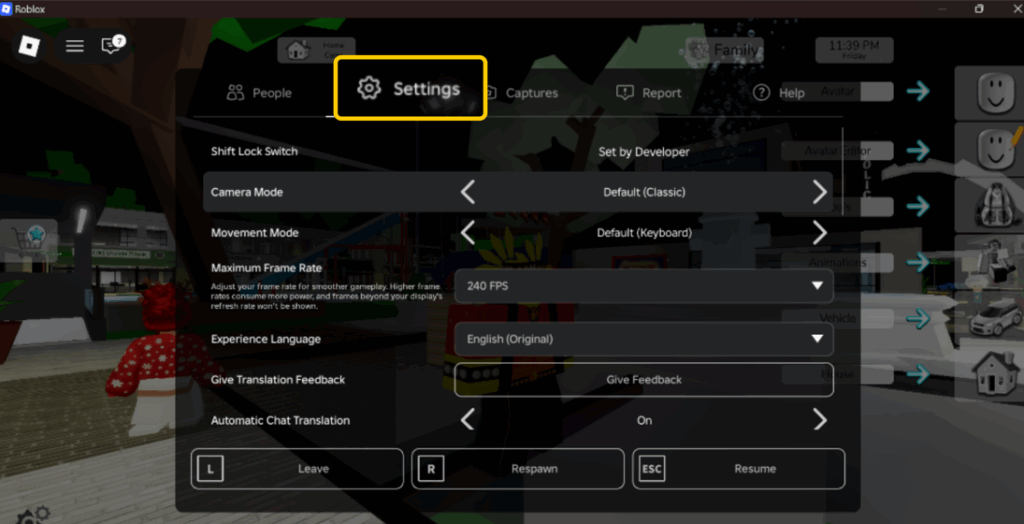
- Find the VR Mode option and set it to Off.
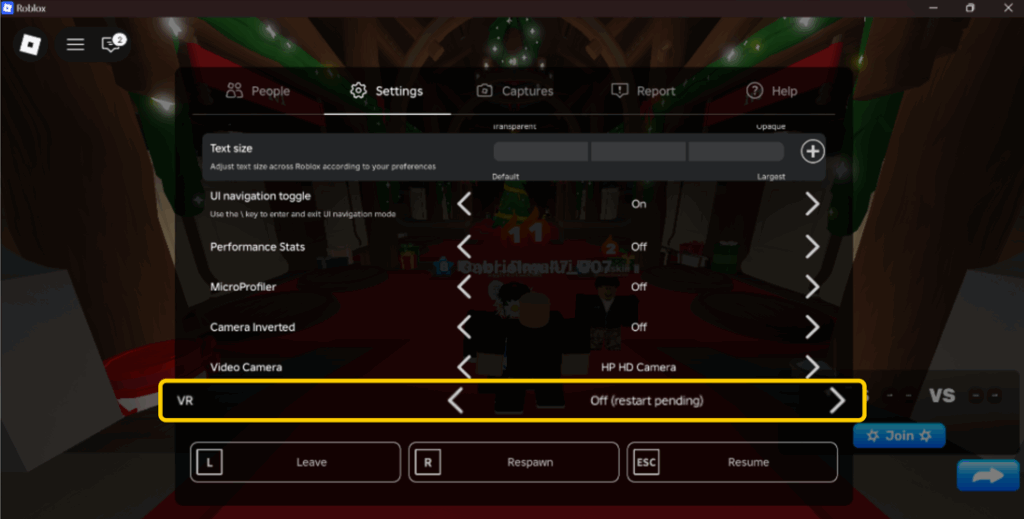
- Close the menu and continue playing to check if performance improves.
Disable Roblox Camera Access
Most games (including Roblox) don’t need your camera and leaving it on can use resources in the background. To turn it off:
- Launch Roblox, join a game, press Esc, and go to the Settings tab.
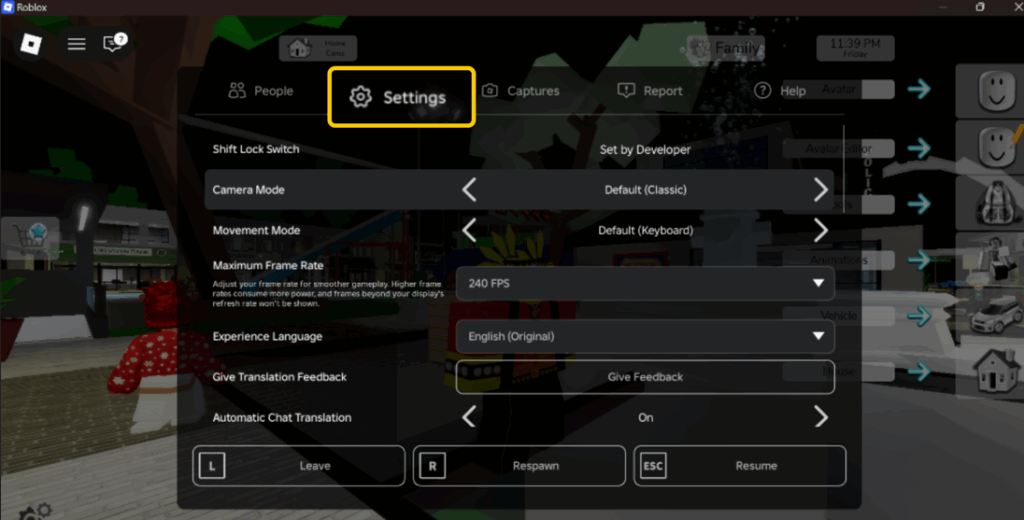
- Look for Camera and set the access to Off.
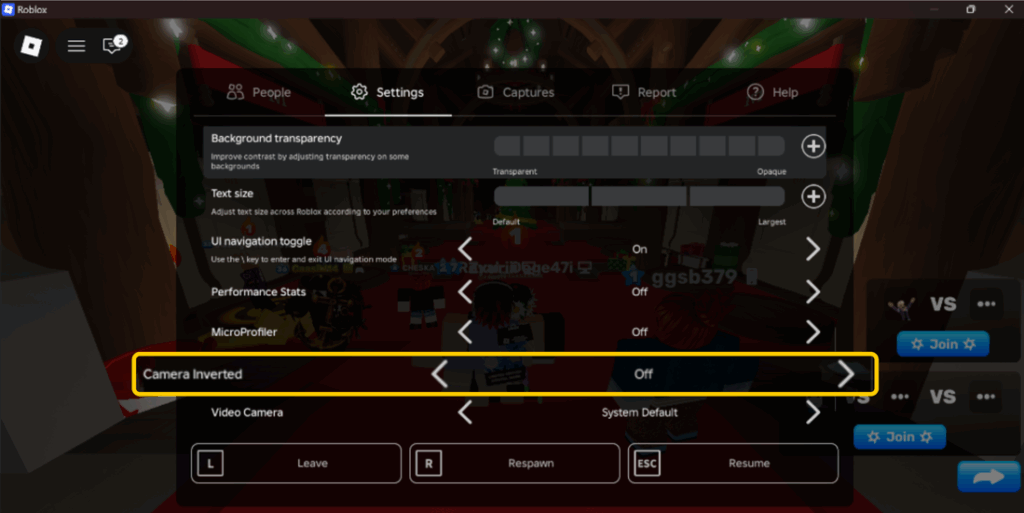
- Restart Roblox to make sure the change takes effect.
Update Network Drivers and OS
Outdated network drivers and operating systems can cause connection issues, slower speeds, and higher ping while playing Roblox.
To update them:
- Open your device’s settings, then look for the software or system update section and install any available updates.
- On Windows, open Device Manager, expand Network adapters, right-click your network device, and select Update driver. macOS updates network drivers through system updates.
- Reboot your computer after updating to apply all changes.
- Launch Roblox again and see if your ping and overall performance have improved.
Reinstall Roblox
Over time, Roblox files can become corrupted or outdated, which may cause lag, crashes, or connection issues. Reinstalling Roblox removes problematic files and replaces them with a fresh, up-to-date version of the game.
To do this, uninstall Roblox from your device, restart your system to clear any leftover data, then download and install the latest version from the official Roblox website before evaluating your gameplay again.
Roblox Performance Issues: Advanced Fixes
Change Your DNS Provider
DNS translates names, like those of websites and game services, into IP addresses. A slow or unreliable DNS server can delay lookups, which can make joining games and reconnecting feel slow. It’s unlikely to change your ping once you’re in a game.
Follow these steps to change your DNS provider:
- Go to your device’s Network & Internet settings and select the network you’re currently using.
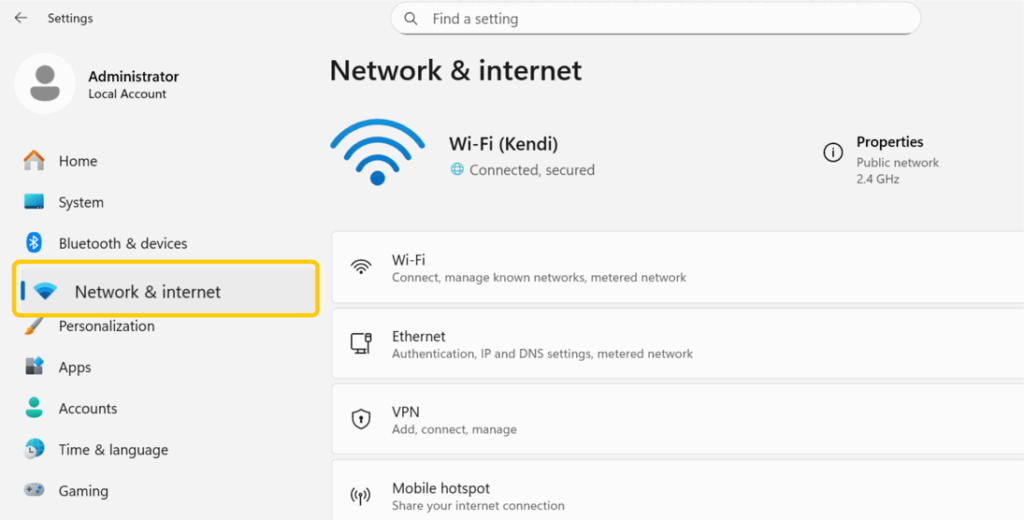
- Depending on your device, look for IP settings, Advanced network settings, or DNS options.
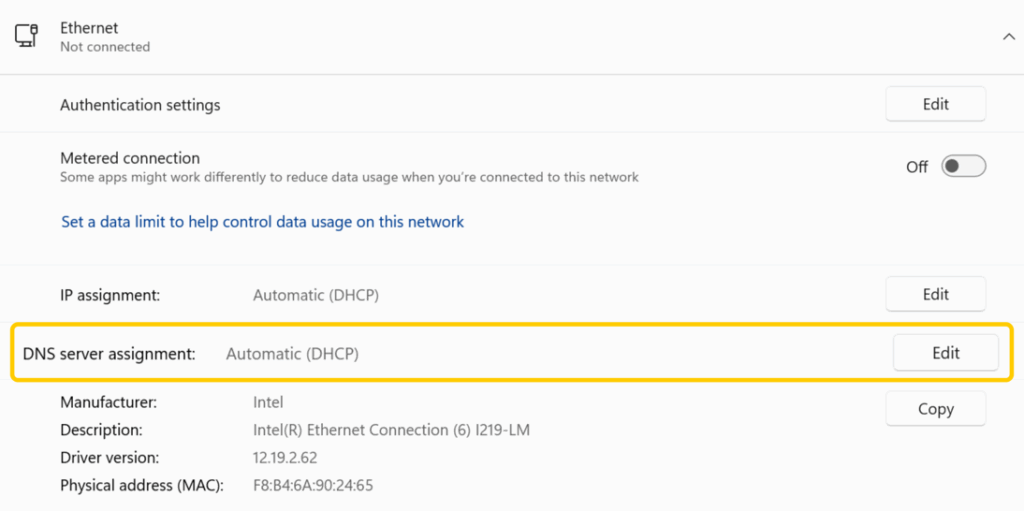
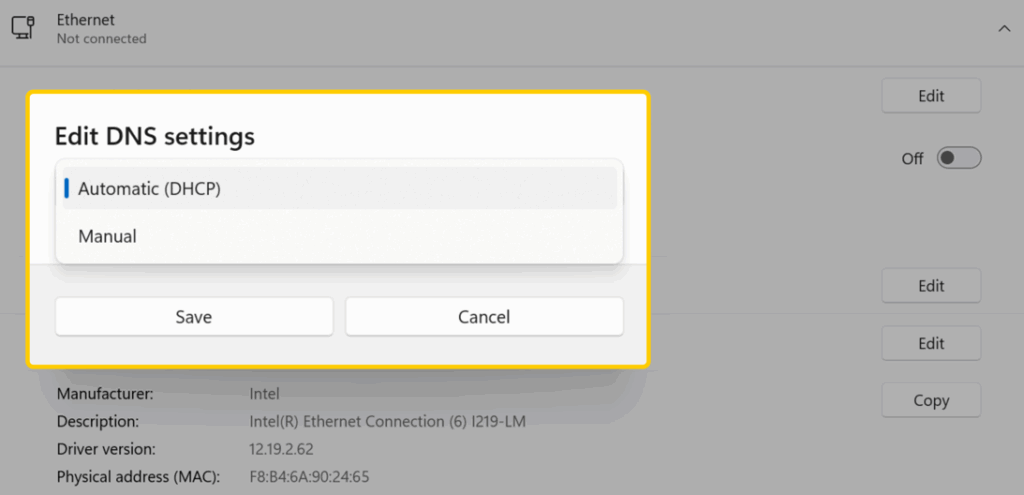
- Change the DNS setting from automatic to manual.
- Enter a public DNS server from a trusted provider, such as Google (8.8.8.8 and 8.8.4.4) or Cloudflare (1.1.1.1 and 1.0.0.1).
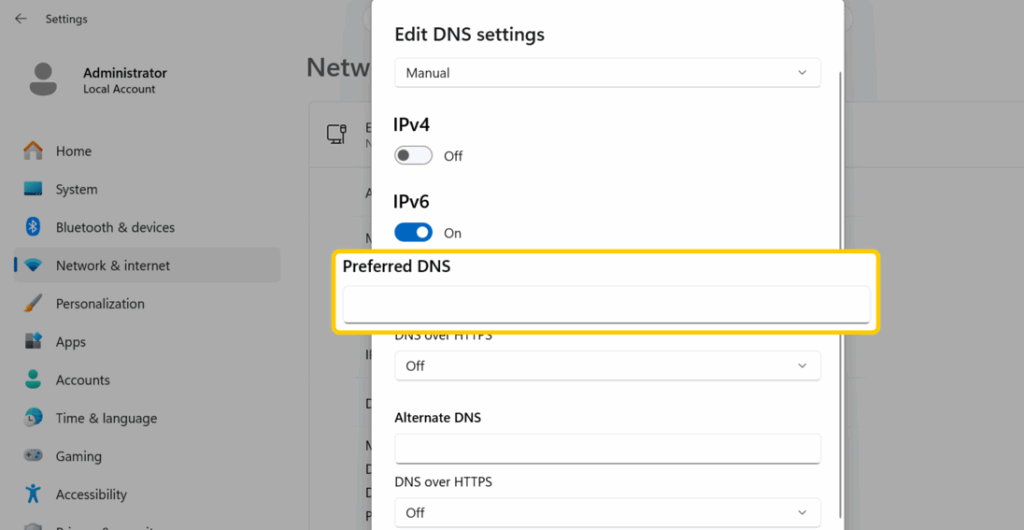
- Apply the changes, reconnect to the network, and restart Roblox.
Check for ISP Throttling
If Roblox runs fine in the afternoon and turns laggy in the evening, your ISP’s network may be congested or applying activity-based throttling.
To check, play Roblox at different times of day with Performance Stats on and compare off-peak hours with evenings. Run speed tests during laggy periods and watch for big drops in speed or spikes in latency. If the pattern repeats, contact your ISP or try a gaming VPN, which encrypts your traffic so your ISP can’t easily see which services you connect to.
Use a VPN or Change VPN Protocol
When your ISP uses a congested route or takes an inefficient detour, a VPN may route your traffic through a different path to the Roblox server. That path can be shorter or less busy, which may lower your ping.
Here’s how you can test it:
- Note your ping in a Roblox game with the VPN off.
- Connect to a VPN server close to you or close to the region the game server is in. If you’re using CyberGhost VPN, try a gaming-optimized server.
- Rejoin and compare. If ping is lower and steadier, routing is often the issue. If it’s higher or unchanged, try another nearby server or a different protocol. WireGuard® is usually the fastest option.
Adjust Firewall and Proxy Settings
Proxies and strict firewalls can interfere with how Roblox connects to its servers. When these tools block or filter game traffic, they can cause high ping, lag, or even prevent Roblox from connecting at all. Disabling unnecessary proxies or adjusting firewall settings can help Roblox communicate freely and run steadily.
Follow these steps to fix the issue:
- Verify your network or internet settings to ensure that there isn’t an enabled proxy unless it’s required.
- Open your system’s firewall or security software and look for any rules that block Roblox or unknown applications.
- Add Roblox as an allowed app so it can send and receive data without restrictions.
- If you’re using third-party firewalls or network filters, try turning them off to test if they’re causing the lag, then turn them back on. Only do this on a network you trust.
- Restart your device, then open Roblox and check whether your connection and ping have improved.
Lower Your Ping and Get Back to Playing
Most Roblox lag comes down to a few causes, and conducting a load test can show you which one you have. The problems that are hardest to fix yourself usually sit between you and Roblox’s servers: a congested ISP route, slowdowns at peak hours, throttling of gaming traffic, and sudden lag from attacks aimed at your IP address.
CyberGhost VPN works on that layer. It sends your traffic through its own servers, which can help bypass a poor route and get around ISP throttling, while also hiding your IP from other players. It won’t fix a weak Wi-Fi signal or an underpowered PC, but if the problem is routing, throttling, or IP exposure, a good Roblox VPN like CyberGhost VPN can be the easiest fix.
FAQ
How do I reduce ping in Roblox mobile?
To reduce ping in Roblox Mobile, use a stable Wi-Fi network instead of mobile data when you can and stay close to the router. If your router offers a 5 GHz band, connect to that. Close background apps, pause downloads and app updates, and restart your phone and router. Lowering graphics won’t reduce ping, but it can help if the game stutters.
How can I get better ping in Roblox?
To get better ping in Roblox, find out when your ping is bad. If it spikes only when others are using your network, set up SQM or QoS on your router. If it’s high all the time, use Ethernet or 5 GHz Wi-Fi, move closer to the router, and close bandwidth-heavy apps. If ping looks fine but the game stutters, lower your graphics settings.
What is a good ping rate for Roblox?
Under 100 ms is generally considered a good rate for Roblox and feels responsive. Between 100 and 150 ms is still playable, though you may note slight delays. If you’re testing Roblox ping and it goes above 150 ms, lag and stuttering will be noticeable.
Why is my ping so high in Roblox if my internet is good?
Fast internet can still have high ping because of distance to Roblox servers, poor routing from your ISP, Wi-Fi interference, background apps, or problems with the specific game server.
Why does Roblox lag, but other games run fine?
Different developers build Roblox experiences and some create poorly optimized games or host them far from you, so they can lag even on a good connection. Try connecting to a CyberGhost VPN server near your Roblox server.
How do I check my ping in Roblox?
You can check your ping in Roblox while playing a game. Join any game, press the Esc key, go to Settings, and turn on Performance Stats. Once enabled, your ping will appear on screen in milliseconds and update in real time as you play.
How do I know if Roblox is lagging because of my ISP?
If your ping is high even with a strong Wi-Fi signal and nothing else using the connection, it may be your ISP. If Roblox runs better off-peak but lags in the evening, check for ISP throttling. Run speed tests during laggy periods, and try connecting to CyberGhost VPN to see if a different route to the server helps.
Does Roblox ban accounts for high ping or lag?
No, high ping alone doesn’t get you banned. The usual result is a choppy game or a disconnect. Deliberately disrupting your own connection to gain an advantage, known as lag switching, is a different matter and can break Roblox’s rules. If lag keeps happening, a few fast fixes can usually get you back into the game.
Can I choose Roblox servers?
In most Roblox games, you can’t pick a specific server or region as Roblox chooses one for you. If your ping is high or you keep getting lag spikes, try leaving and rejoining to get a different server, join a friend who’s closer to you, or use a private server if the game offers one. Common network fixes can help lower ping when you can’t pick a server.

Leave a comment