
FIFA 26, currently known as EA Sports FC 26, is about as much fun as you can have playing football while indoors and sitting down. But like any other online multiplayer, it can be affected by lag.
And lag doesn’t always mean the same thing. High ping can disrupt your connection to the game server, while FPS drops, stuttering, and input delays can make gameplay feel sluggish even when your internet connection is fine.
So if you’re tired of being absolutely sure you should’ve been able to steal the ball and there’s no way Jim3344y32 from Boise could have scored that goal, this guide is for you. We’ll go over what can cause FIFA 26 lag, how to work out what’s behind yours, and what you can do to improve it.
Pro Tip: One cause of FIFA lag may be your connection to the game server. If your ISP isn’t using the most efficient route, a good gaming VPN can help by providing a different network path to the EA servers. It won’t reduce lag in every situation, so it’s worth identifying what’s causing the problem before trying one.
Common Types of EA Sports FC/FIFA Lag
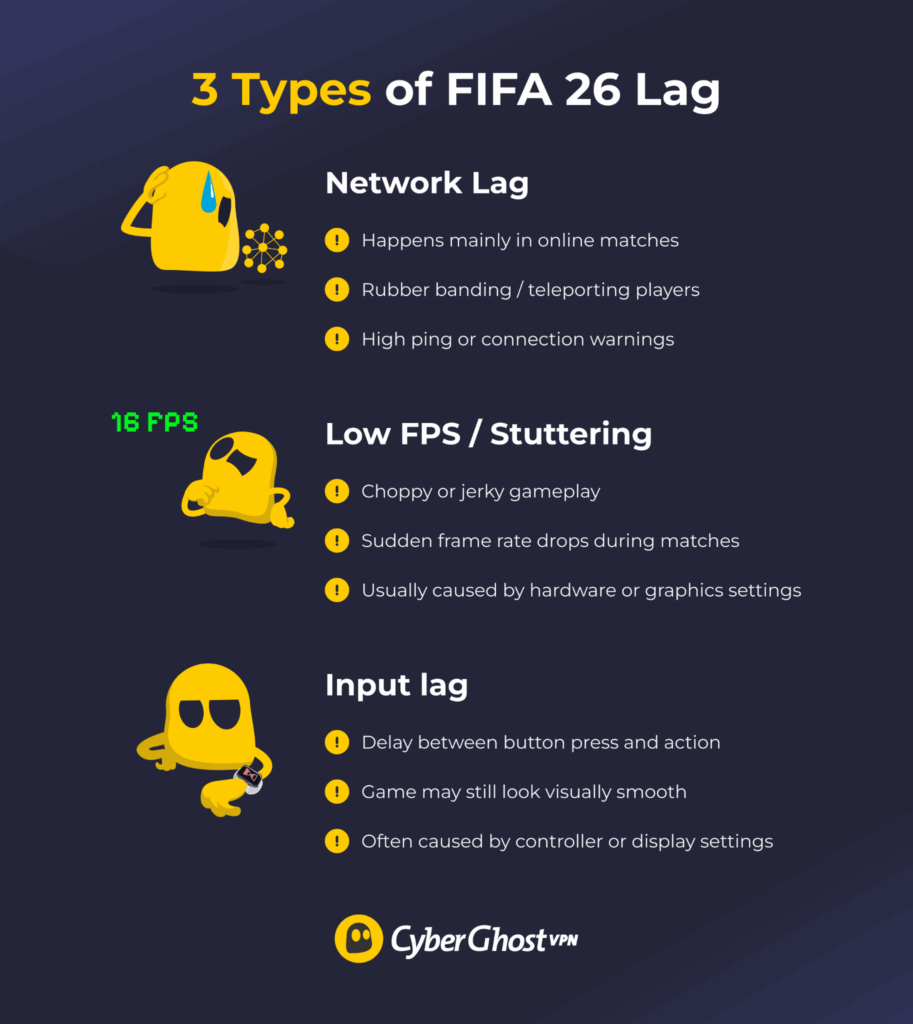
To understand why your FIFA 26 is lagging and how to fix it, you’ll need to identify what type of performance issues you’re dealing with. FIFA lag has various causes, from game settings to your gaming setup and network connectivity issues.
Network Lag
Network lag affects the connection between your device and EA Sports FC’s online services. In the menu, it may show up as excessive loading times, endless “connecting” indicators, or timeout messages. During an online match, you may experience delayed actions, sudden slowdowns, or players and the ball jumping across the pitch.
Rubberbanding is one of the most common signs of network lag. You’ll notice it when the game seems to slow down unexpectedly, then accelerate, almost as if someone keeps switching between slow motion and fast-forward. EA Sports FC’s Connection Monitoring indicators can also help you spot connection problems while you play. If the ping numbers turn orange/red or you see higher numbers (80 ms and above), this is a likely reason for FIFA 26 lagging.
Several things can cause network lag, including:
- Distance to the server: The farther data has to travel between you and the game servers, the longer it takes to reach its destination. This increases latency. If you’re in a region without nearby servers or if you’re matched with someone from a distant location, the risk of FIFA lag — including higher ping and less responsive gameplay — is much higher.
- Your home or Wi-Fi network: A weak or unstable home network can introduce latency, jitter, and packet loss. If your PC or console is too far from the router or there’s something obstructing the signal path, it will reduce your connection speeds. Too many devices gaming, downloading, or streaming at once can also overwhelm the router, increasing lag for all of them.
- ISP connection issues: Congestion on your ISP’s network can increase latency during busy periods when many users are online. Your ISP may also route your traffic through inefficient network paths, adding unnecessary delay between you and the FIFA servers. Some ISPs may also intentionally throttle certain kinds of traffic under specific conditions.
- Software or configuration issues: Some network settings on your PC, console, router, or FIFA 26 itself can negatively impact online performance. Outdated router firmware, network adapter drivers, or operating system updates can also contribute to connection instability. Incorrect router settings or VPN and firewall configurations may introduce additional latency or interfere with network traffic.
- Background data use: Your operating system or other applications may be consuming bandwidth without you realizing it. Large downloads, cloud backups, game updates, and video streaming can all compete with FIFA 26 for network resources. A saturated internet connection can increase latency and jitter, making online matches feel less responsive.
If the problem appears during online play while offline matches run smoothly, your network connection is a good place to start troubleshooting.
Low Frame Rate or FPS Stuttering
Low FPS makes EA Sports FC/FIFA feel slow or have choppy visuals. However, if there are random massive FPS drops in between smooth periods of gameplay, that’s what we call FPS stuttering. You may notice these problems more during intense moments, when there’s more happening on screen at once, like when you’re scoring a goal.
These issues can point to your gaming device rather than your internet connection. Your CPU or GPU may be struggling to keep up with the game, your graphics settings could be too demanding, or background applications may be competing for system resources. Outdated graphics drivers, software problems, and limited RAM may also be a culprit here.
Input Lag
Input lag is a delay between pressing a button and the action taking place on screen. For example, if you press pass, shoot, or switch players, there’s a noticeable pause before the game responds.
If this happens while the rest of the game runs smoothly, it’s likely that input lag is the cause, particularly if it occurs both in online and offline play. The cause could lie with your gaming device, peripherals, wireless connections, display settings, or monitor.
How to Fix FIFA Network Lag
Network lag is the most common type of lag on PS5 and Xbox consoles, where hardware-related performance issues are generally less frequent than on PCs. It’s not always caused by a single problem, as it can result from high latency, jitter, or packet loss — each of which affects gameplay differently:
- High latency (ping): Ping is the time it takes for data to travel from your device to the FIFA 26 servers and back again. High latency creates input delay so that your players react noticeably slower to button presses.
- Jitter: Jitter measures how much your latency fluctuates over time. Even if your average ping is relatively low, inconsistent latency can make gameplay feel unpredictable. For example, players may suddenly speed up or slow down.
- Packet loss: Online games constantly exchange small packets of data between your device and the game server. If some of those packets never arrive, the server has incomplete information about what’s happening. This can cause rubberbanding, stuttering movement, or players teleporting across the pitch.
8 Ways to Fix Lag in EA Sports FC 26
To determine if your network is the problem, we recommend running a speed test. Use a free online tool like speedtest.net and check your upload, download, and latency scores.
If you get good results, your FIFA lag may come from the local device or in-game settings. Lower-than-expected results might indicate a problem somewhere on your local network, with your ISP connection, or with bandwidth usage.
Check and Limit Your Background Data
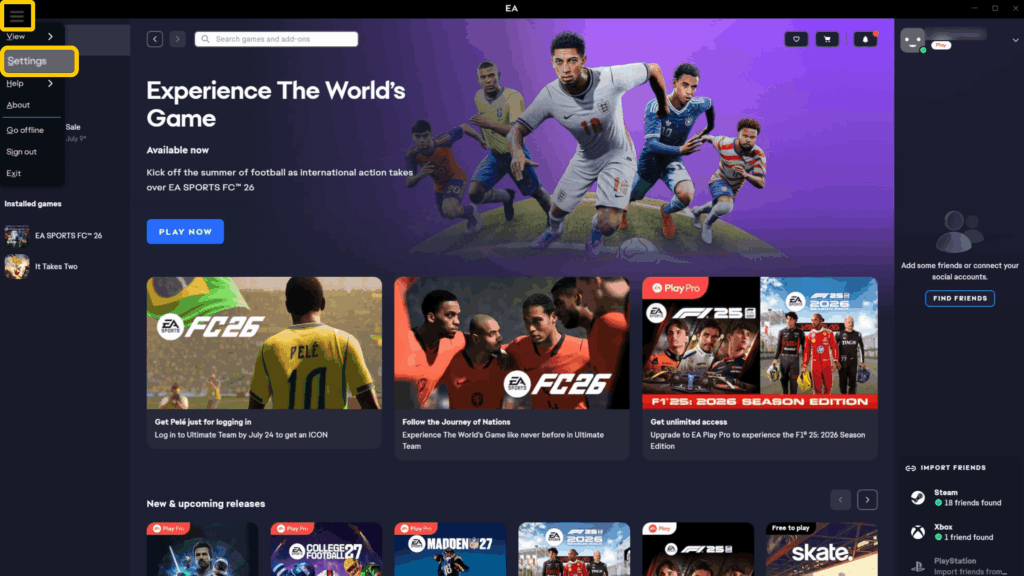
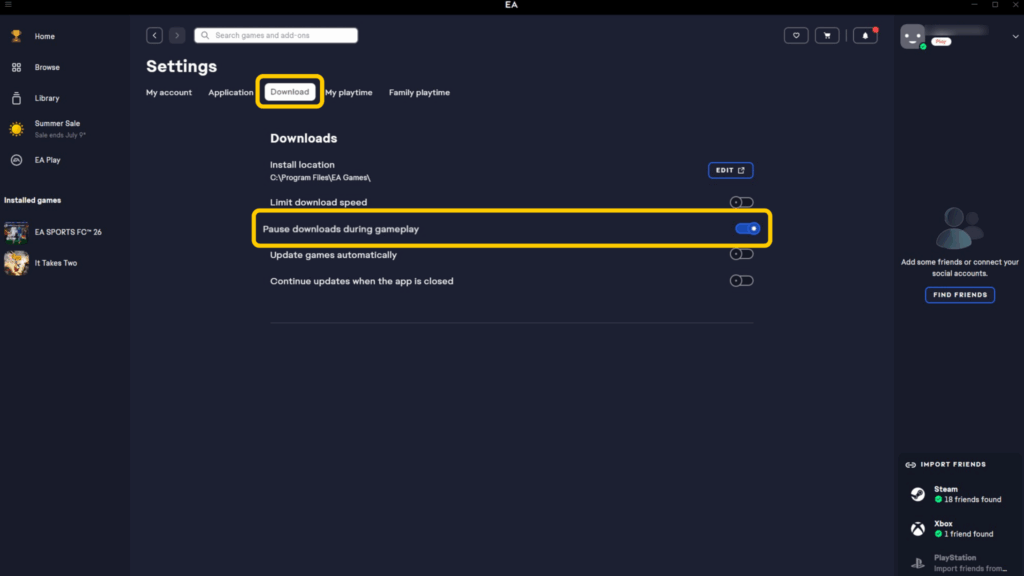
Check whether the EA app (or any other game launcher) is open and has any active downloads. Pause or cancel these downloads before launching FIFA again. Alternatively, make sure that you disable background downloads in the EA app by following these steps:
- Click the hamburger menu icon in the top left corner and select Settings.
- Go to the Download tab and enable Pause downloads during gameplay.
If FIFA 26 is lagging on PC, make sure that your operating system isn’t currently performing an update. On Windows, open the Task Manager and see if any apps or services are using a lot of network resources. If you’re playing FIFA on PlayStation or Xbox, check your system settings. Make sure to pause or cancel any active updates and that you have automatic updates disabled.
Finally, check that five other people in your home aren’t watching the latest streaming sensation while uploading TikToks and downloading torrents all at the same time. That’ll slow you down.
Optimize Wi-Fi or Use a Wired Connection
Wired connections are often faster than wireless connections, so connect your PC or console to your modem with an Ethernet cable instead.
If you don’t have an Ethernet cable or it isn’t feasible, try to optimize your Wi-Fi connection as much as possible. Your gaming system should be close to the router, with as few obstacles or walls between them as possible. If your router and gaming system support it, use the 5 GHz channel, as it’s generally much faster than 2.4 GHz. You can also buy powerline adapters or mesh Wi-Fi systems to strengthen the connection to your router.
Restart Your Router
A router can slow down over time. Heavy use can leave it managing multiple active sessions or temporary network states. Restarting the router can clear its cache contents, refresh processes, and reset Wi-Fi channels. This fresh start may provide an immediate FIFA performance boost.
The exact steps will differ slightly depending on your model, but you can follow these general steps to restart your router:
- Push the power button to shut down the router and wait for all lights to turn off.
- Unplug the router from the power source. Do the same for the modem, if you have one.
- Leave it unplugged for 30–60 seconds.
- Plug the power cable back in and turn the router back on.
- Wait for all the light indicators to return to normal and for your PC or console to reconnect.
In extreme cases, you can also completely factory reset your router. However, this is a riskier and more complex process, which isn’t recommended unless you’re familiar with setting up a router. It’s also not guaranteed to fix FIFA lag issues.
Restart Your System and Flush the DNS
It may help to restart your gaming system completely, restart the game, or turn the Wi-Fi off and on again. This clears temporary processes, reconnects you to your network, and can resolve minor issues affecting the game’s performance.
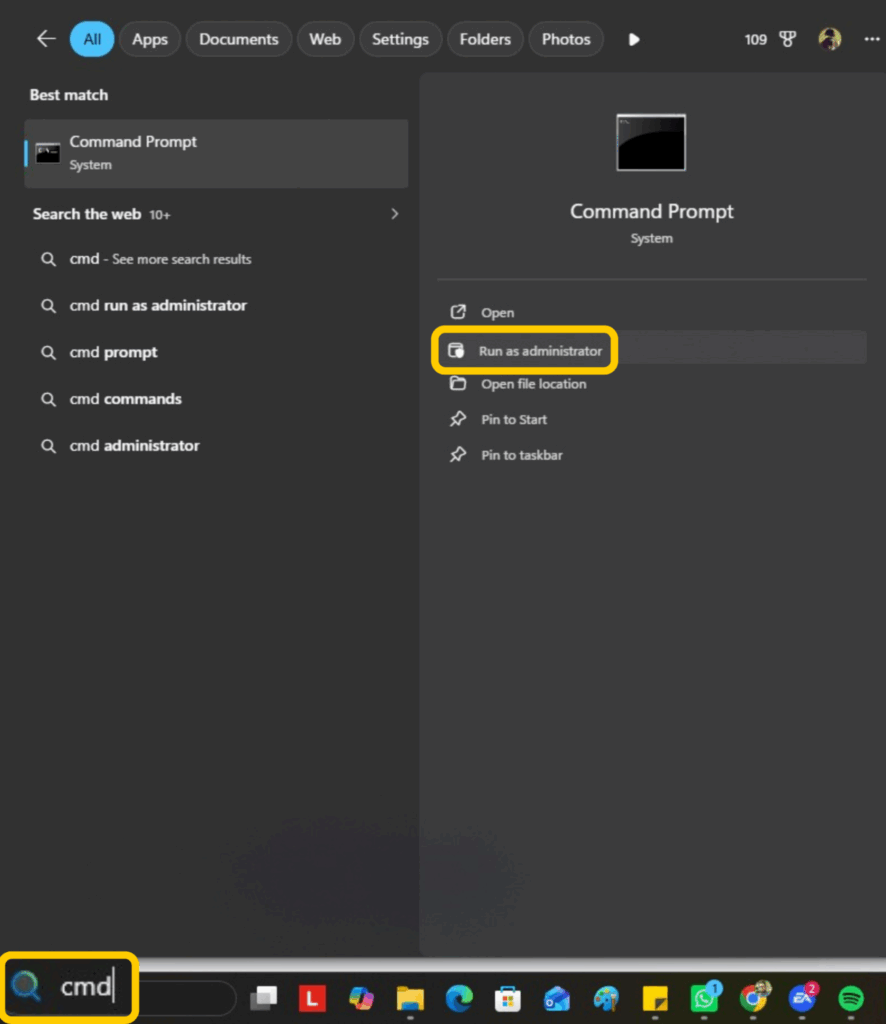
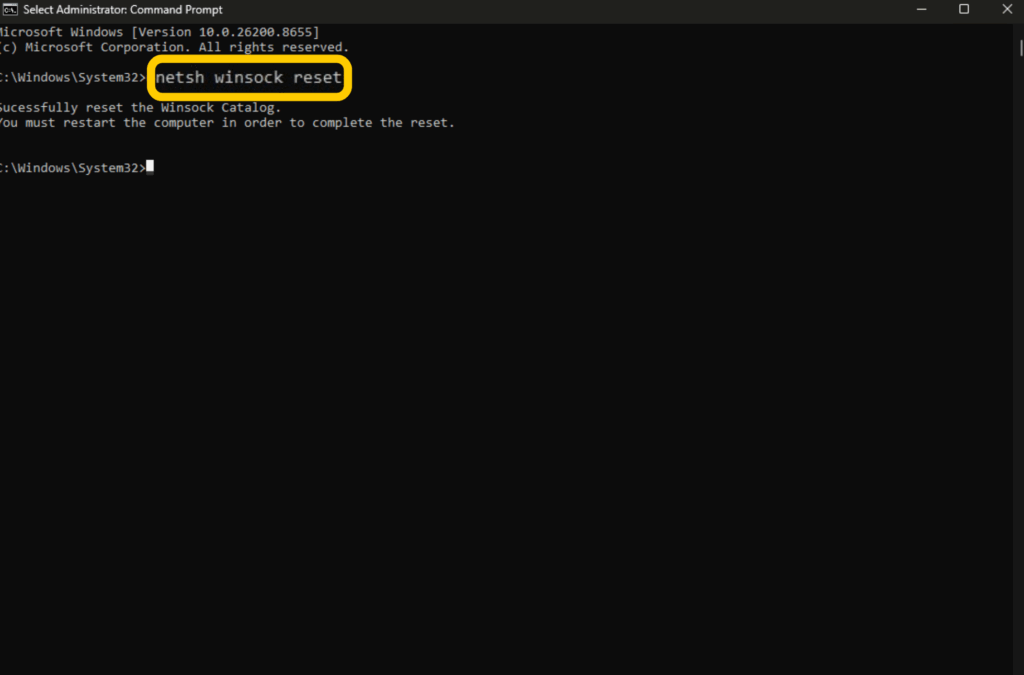
If you’re playing on Windows, you can also reset several network components using Command Prompt. These commands don’t reduce latency, but they can resolve configuration issues that sometimes interfere with online games like FIFA.
- Type “cmd” into the Windows search bar, right-click Command Prompt, and choose Run as Administrator.
- Run “netsh winsock reset” to reset the Windows Winsock catalog, which can fix problems caused by corrupted network socket settings.
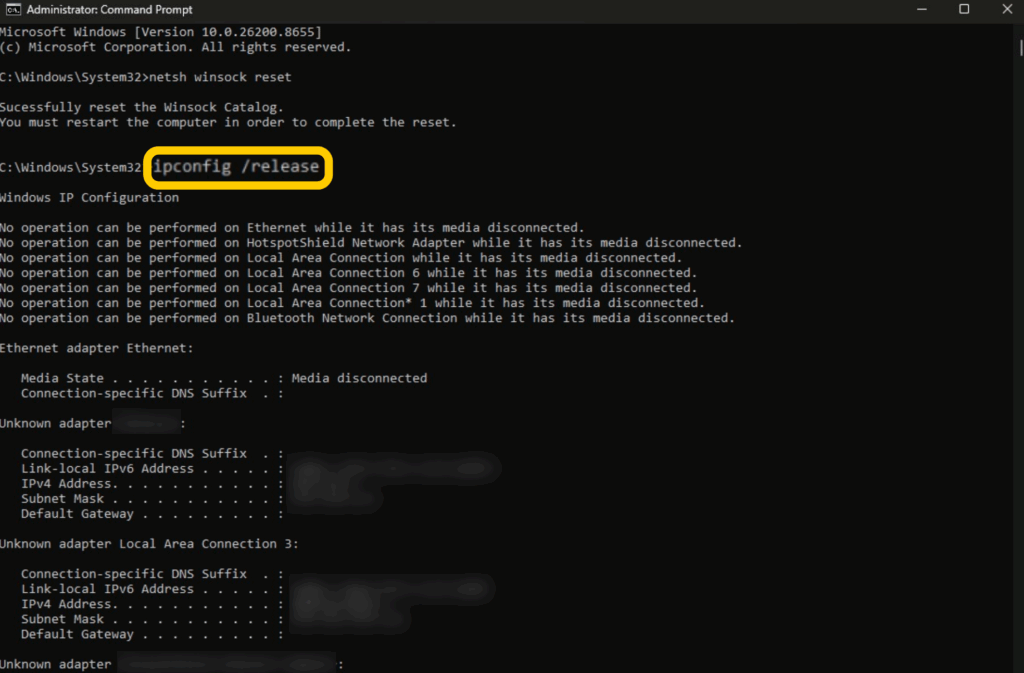
- Run “ipconfig /release” to release your current DHCP-assigned IP address.
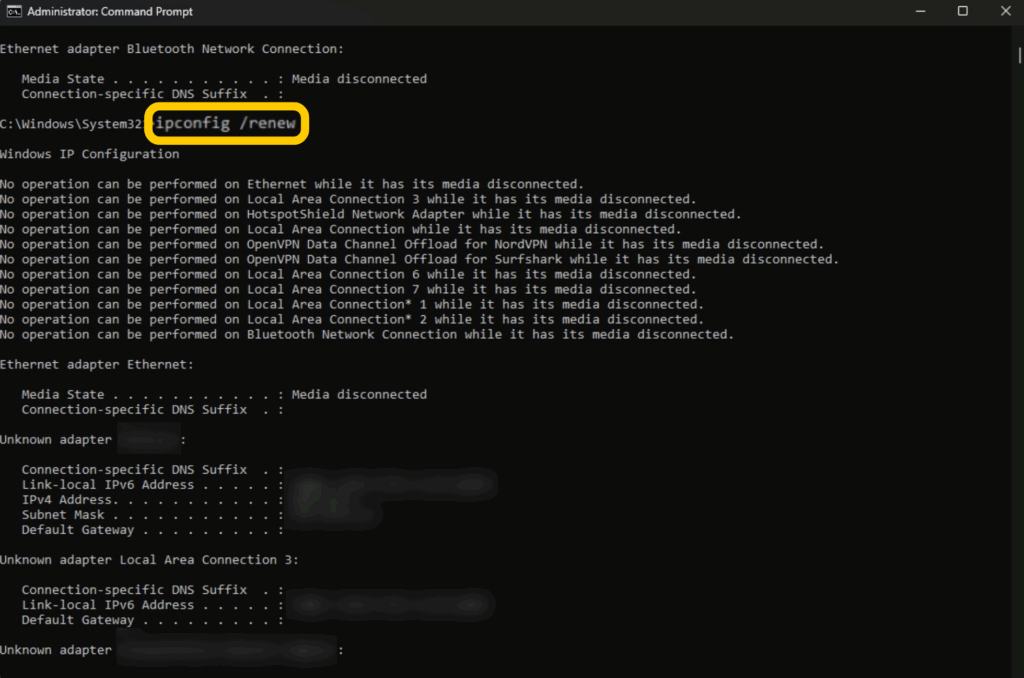
- Run “ipconfig /renew” to request a new IP address from your router. This can help if your current network configuration is causing connectivity issues.
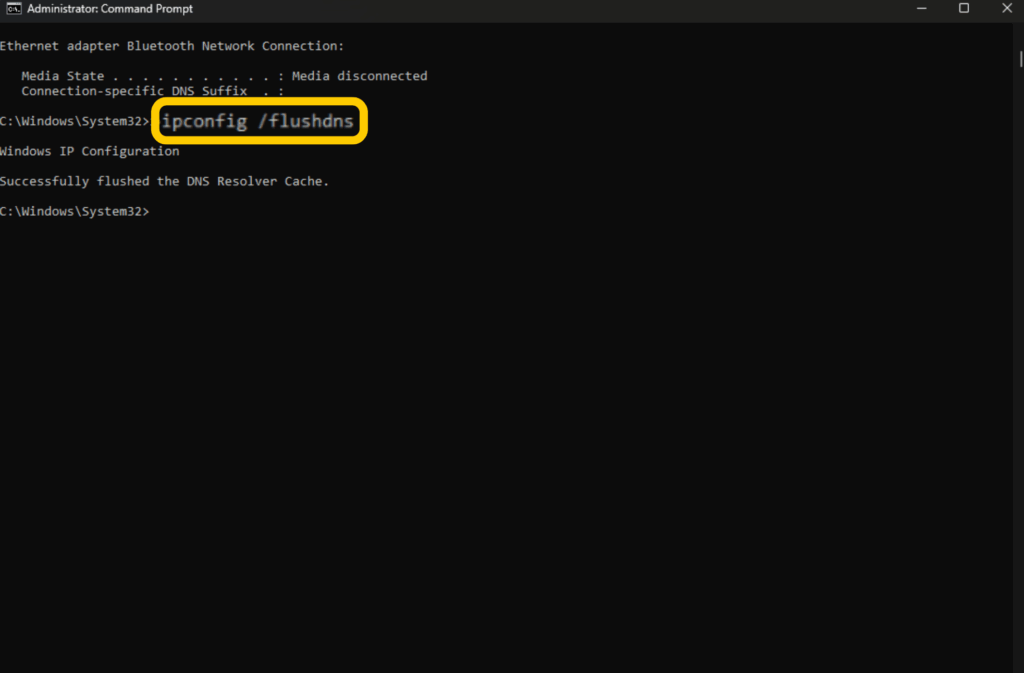
- Run “ipconfig /flushdns” to clear the local DNS cache. This removes outdated DNS records that can occasionally prevent Windows from connecting to EA’s online services correctly. It’s useful for troubleshooting connection issues rather than ongoing in-match lag.
- Restart your PC to ensure the Winsock reset takes effect before playing FIFA.
These commands refresh different parts of your Windows network configuration. They’re most useful when you’re experiencing connection errors or having trouble reaching EA’s servers. If your problem is jitter, packet loss, or consistently high ping during matches, then the commands are unlikely to improve your game’s performance
You can’t run commands like these on gaming consoles. The closest equivalents are to reset the console’s network settings, clear the alternate MAC address (on Xbox), or restart your console or router.
Restrict Matchmaking to Nearby Regions
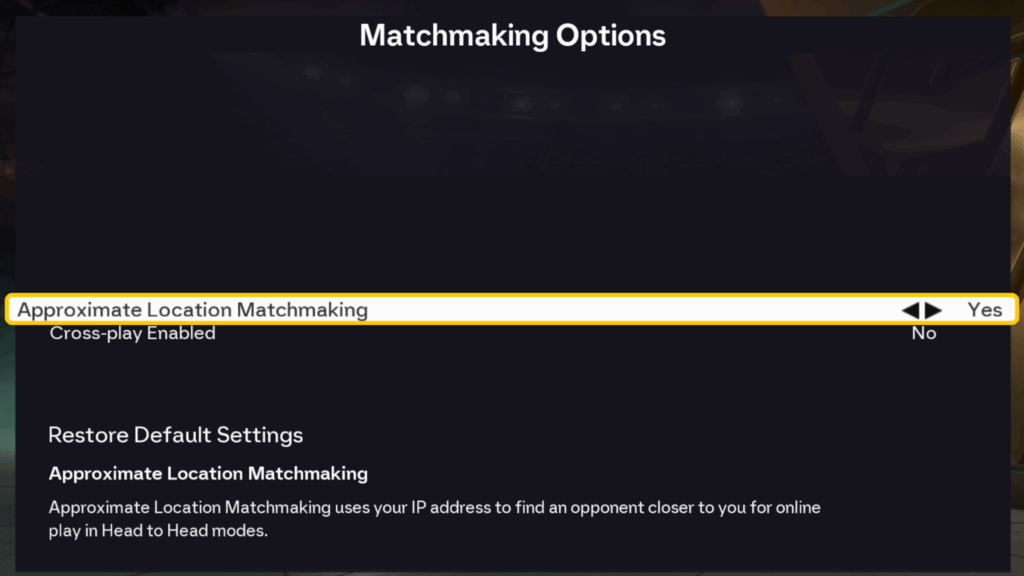
By enabling this setting, EA Sports FC will only pair you with nearby players based on your IP address location. This should reduce latency by shortening the distance that data has to travel between two players and FIFA’s servers in Head to Head matches.
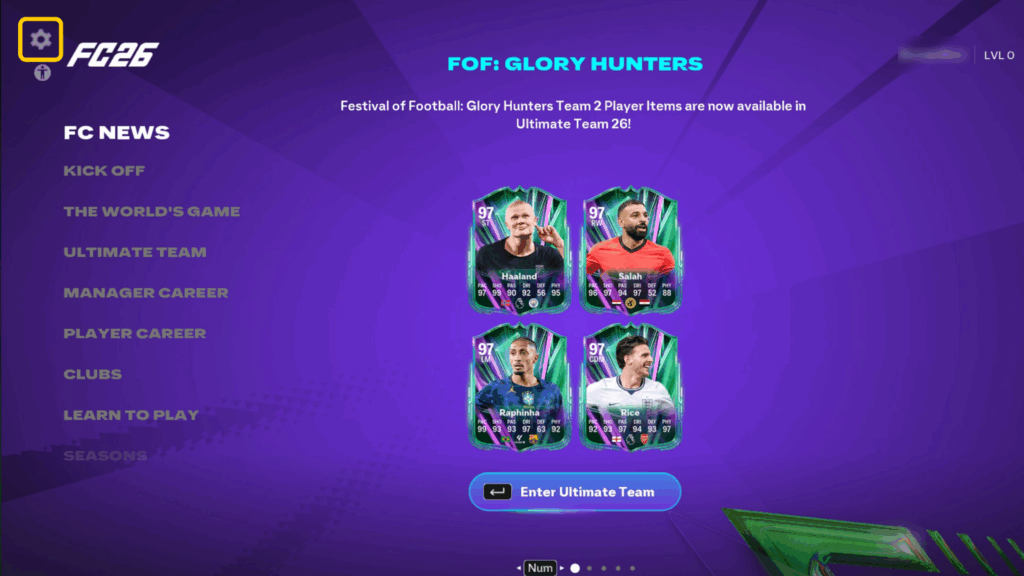
- Launch EA Sports FC 26 and click the gear icon in the top left corner.
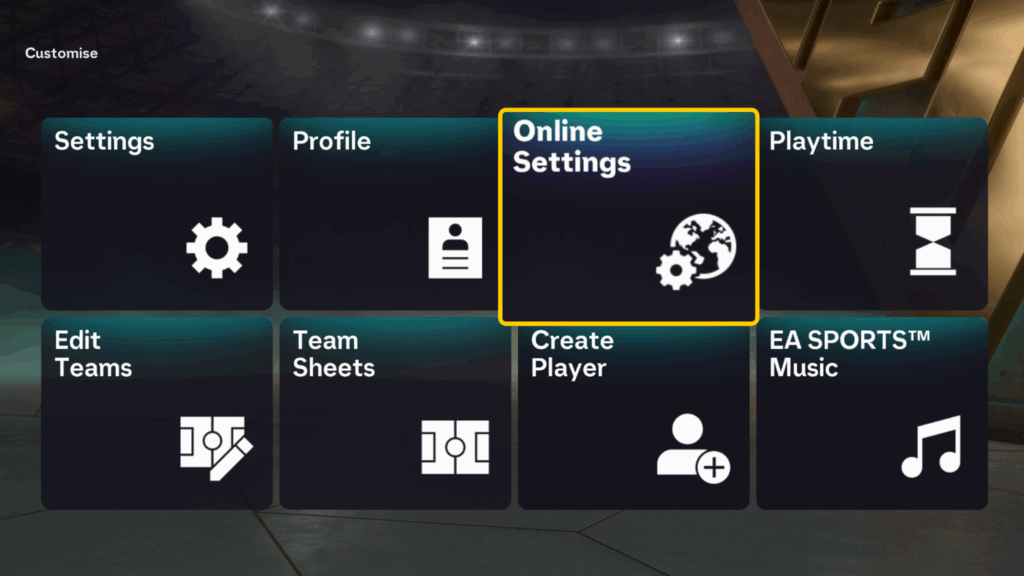
- Navigate to Online Settings.
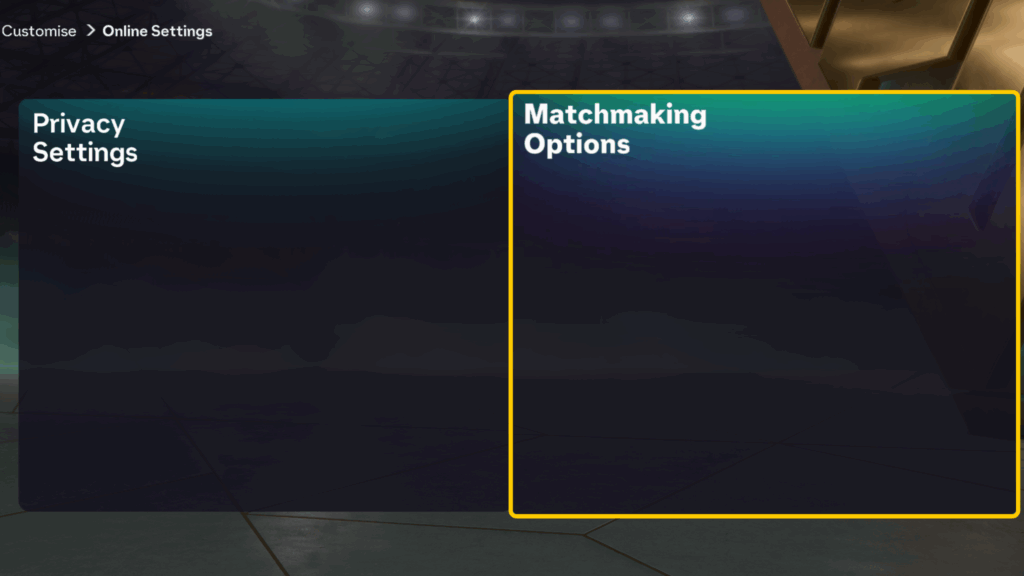
- Then, go to Matchmaking Options.
- Make sure that Approximate Location Matchmaking is set to Yes. Some players also report less FIFA lag when disabling Cross-play Enabled, but this may also make it harder to find opponents to play against.
Optimize Your Router
Some routers provide more advanced settings and control, allowing you to improve the network performance. Again, we’d advise not doing this unless you’re comfortable making changes to your router settings, as it’s possible to accidentally misconfigure it or make performance worse. To do this, you usually need to be able to log in to your router’s admin panel and know the basics of IP addressing.
For example, some routers allow you to modify Quality of Service (QoS) settings to prioritize traffic to your gaming device. Another possibility is to enable port forwarding. Changing your DNS server can speed up domain name lookups, but it doesn’t always reduce in-game latency.
Use a Gaming VPN
Under the right circumstances, a VPN service can reduce your FIFA lag. VPN providers, especially those designed for gaming, sometimes use more direct routing than ISPs, potentially reducing the overall latency. Connecting to a VPN server near EA’s game data centers may improve your game’s performance.
VPNs can also prevent some outside interference by encrypting your traffic and masking your real IP. This makes it harder for your ISP to selectively throttle your game traffic or for third parties to attack your home network with DDoS attacks, which can cause lag.
Pro Tip: If you enjoy playing FIFA on your PC, you can use CyberGhost VPN’s gaming-optimized servers in the US and Europe. These servers are specially configured to avoid any extra delays.
Upgrade Your Router or ISP Plan
If none of these solutions work, the next best option may be to upgrade your router or ISP plan to one with improved bandwidth.
You may try a more premium router model or one designed for online gaming. If you have a complex home layout, look for one with stronger wireless networking capabilities. A Wi-Fi 6 or Wi-Fi 7 router with dual-band 2.4 GHz and 5 GHz channels is a good starting point.
Keep in mind that internet service plans affect available bandwidth and not your ping or latency, unless you’re still using DSL. Depending on your area, there may be a better ISP to switch to with higher-bandwidth uplinks and plans. They are certainly not made equal.
How to Fix FIFA Lag on PC
PC users often have more control over their hardware and performance settings when it comes to EA Sports FC. However, some of the advice below will apply to console users as well.
If you’ve ruled out network lag, here’s how to stop lag on FIFA 26 on PC or console.
Adjust FIFA Graphics Settings
Graphics settings that are too demanding for your PC are one of the most common causes of performance issues. You may need to experiment to find the optimal settings for your system and display, but here is a rough guide to play around with:
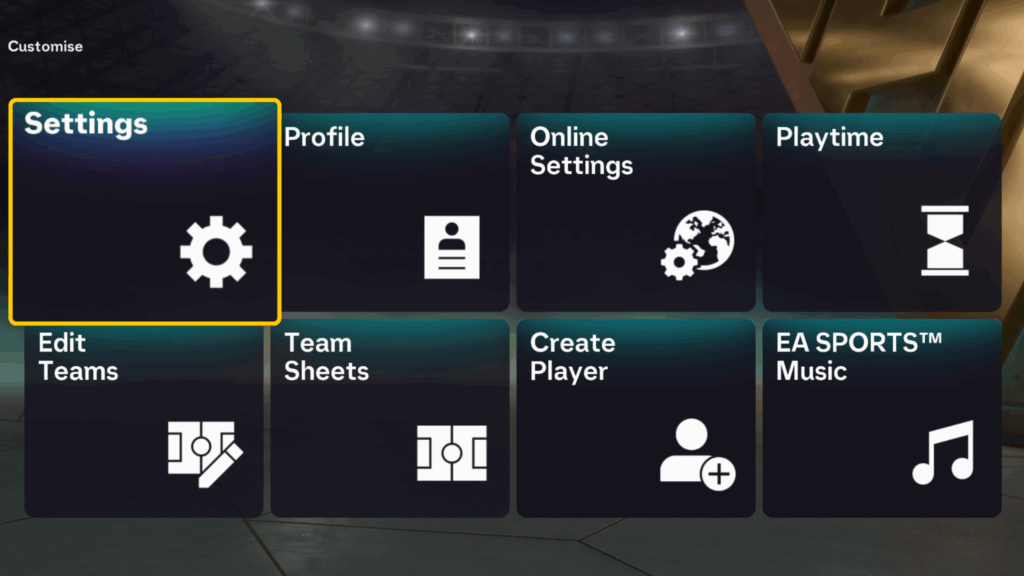
- With FIFA running, click the gear icon and go to Settings.
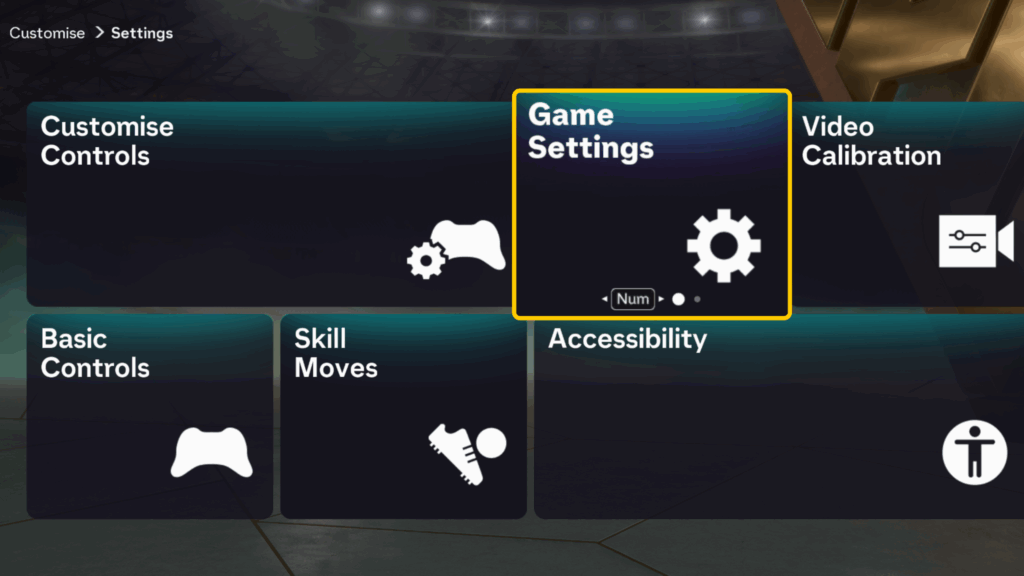
- Open Game Settings.
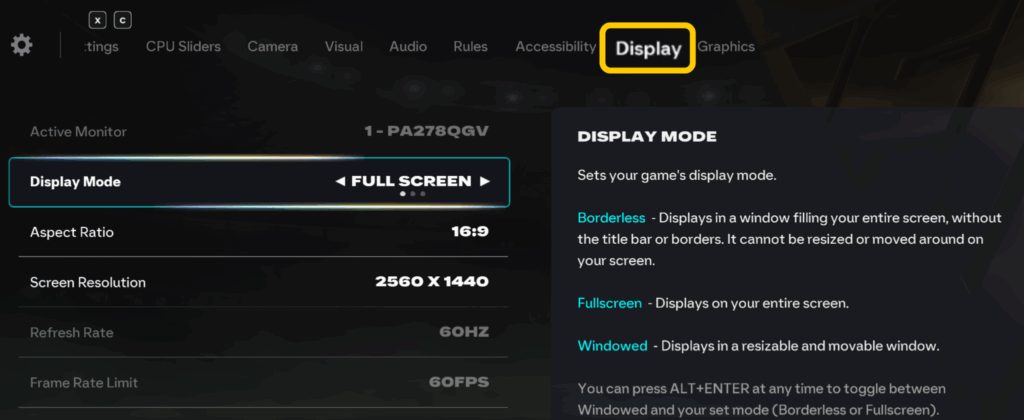
- Switch to the Display tab at the top of the screen and ensure that you’re playing in Full Screen mode. Also, try lowering Resolution, Refresh Rate, and Frame Rate Limit. Keep in mind that these will have a big impact on the visual fidelity and smoothness of the gameplay. A very low refresh and frame rate will also feel less responsive.
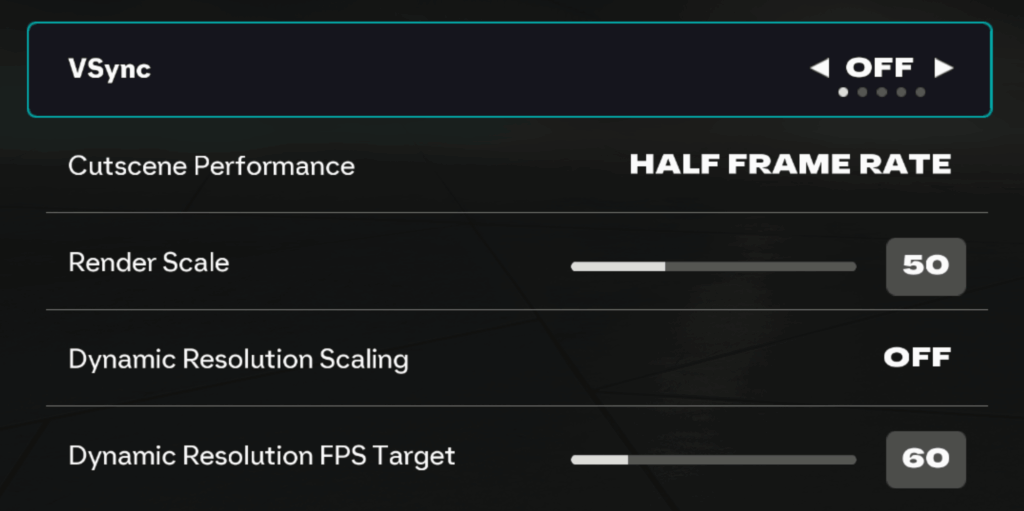
- Scroll down to switch off V-Sync and lower the Cutscene Performance Quality and Render Scale. Dynamic Resolution Scaling and Dynamic Resolution FPS Target may also help maintain constant frame rates if you find the frame rate very inconsistent.
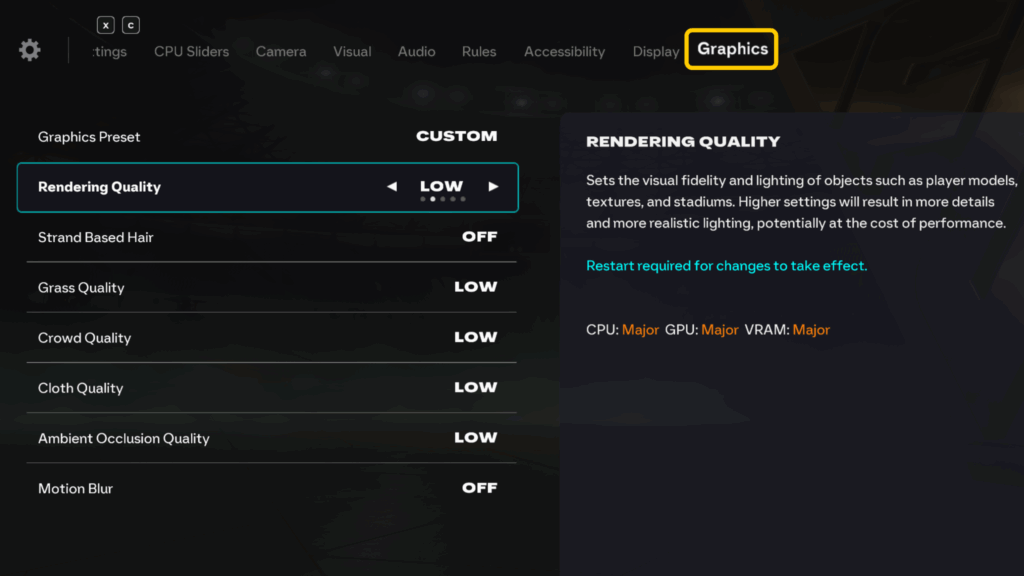
- Next, switch to the Graphics tab. Here, configure the overall visual quality by lowering the Graphics Preset or tuning individual settings. Auto should generally provide the best balance of performance and quality, but you can also start at Low for the best performance.
Update Everything
If any part of your system is out of date, it can cause incompatibility or optimization issues that lead to poor performance or lag in FIFA. Make sure that your game and the EA app are up to date. If there is an active FIFA download or update, let it complete before playing the game. To be safe, also check that your operating system and the drivers for your graphics card, network devices, and gaming peripherals are all up to date.
Repair or Verify FIFA Game Files
If your game files somehow become corrupted, they can also cause various problems, including reduced performance. Depending on what game launcher you use, go to the game and run file integrity checks and repairs. This may fix some difficulties that a normal update doesn’t.
Optimize Windows Settings
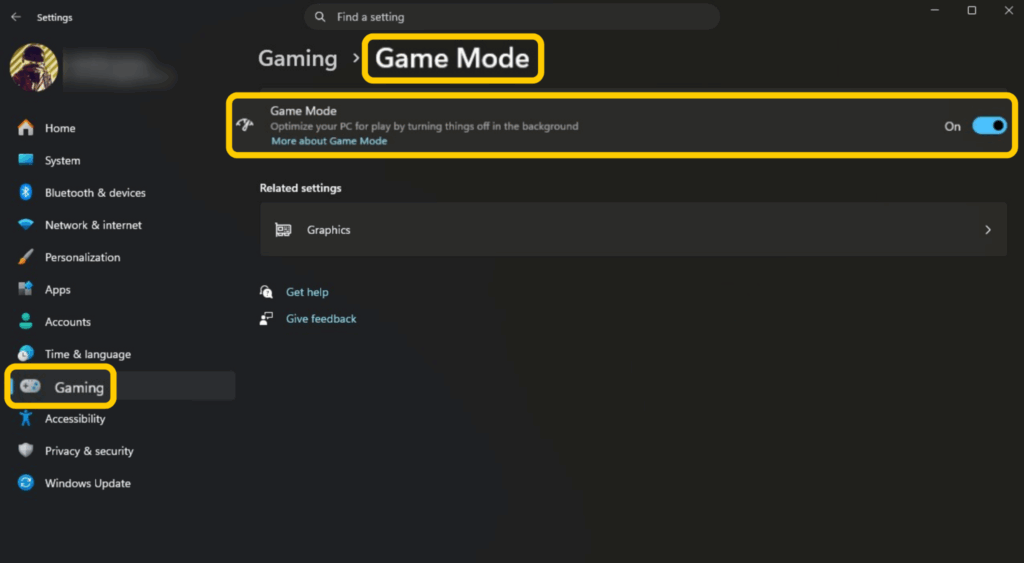
Modern Windows versions provide several tools that may improve game performance. Make sure that Game Mode is on whenever you play FIFA. This will free up resources by turning off background services whenever you launch a game.
Windows users can also try the following if FIFA is lagging on PC:
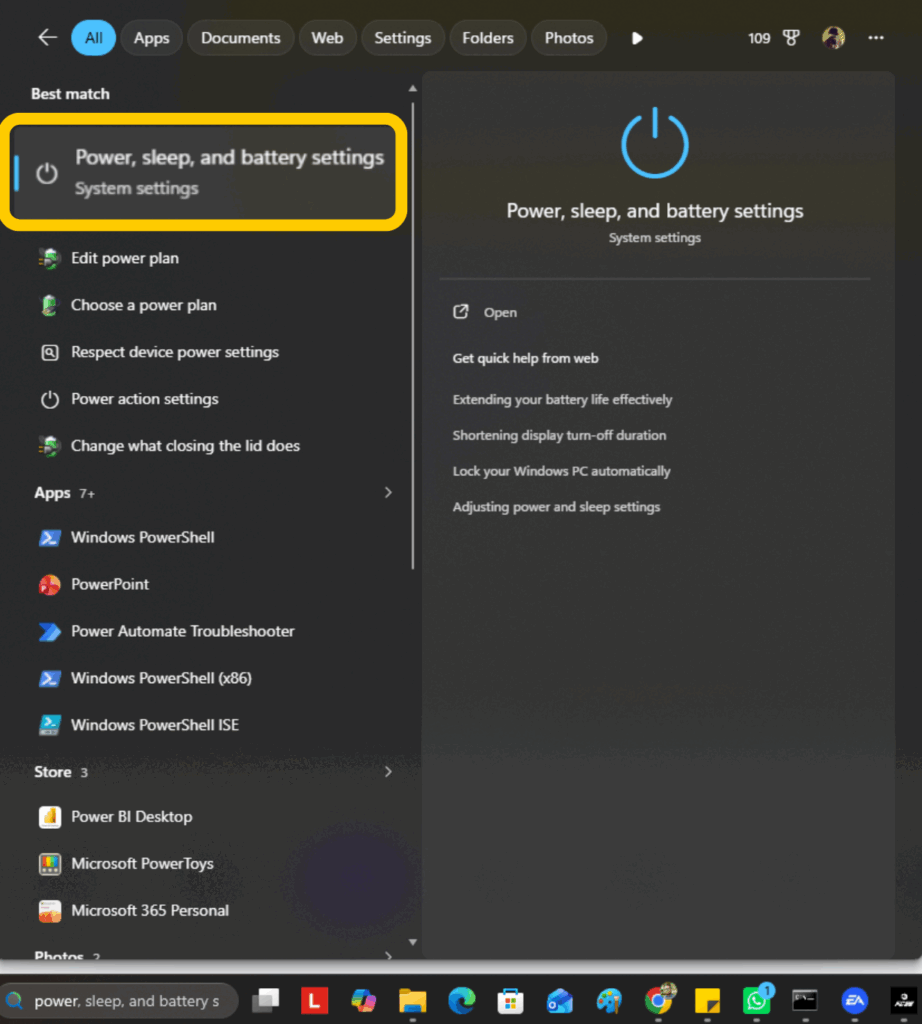
- Use Windows search to find Power, sleep, and battery settings under System.
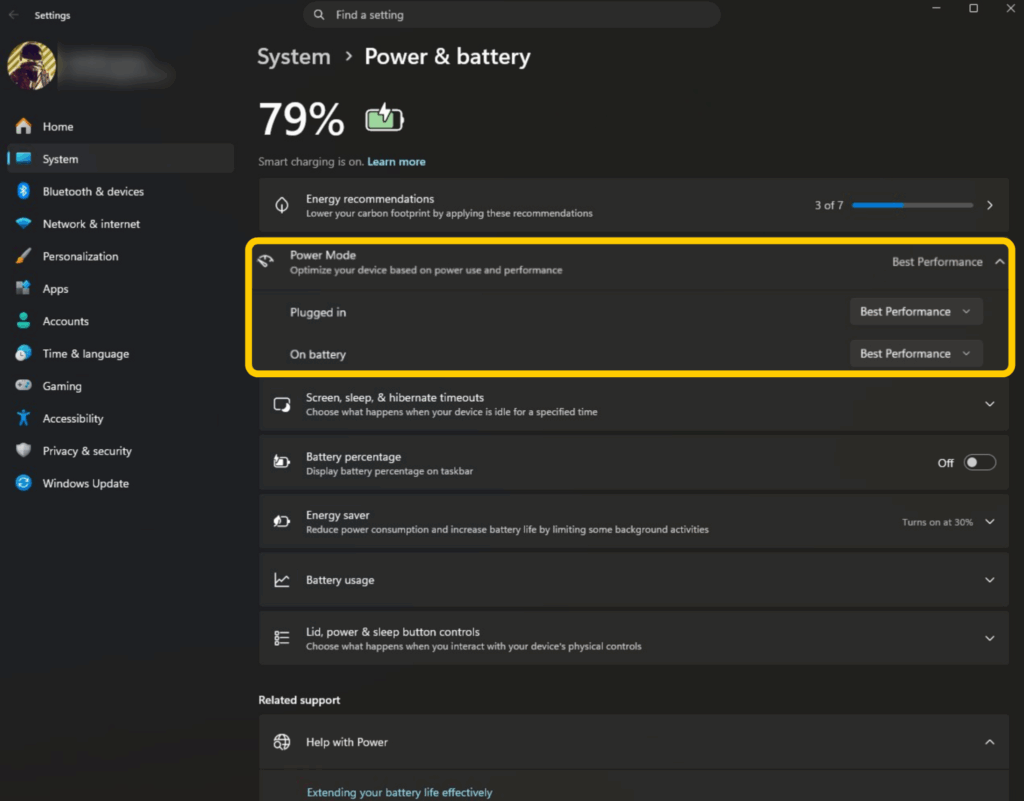
- Look for more Power settings and ensure that all settings are set to Best Performance.
- Next, go to Gaming > Game Mode and toggle it on.
- Finally, click on Graphics (if it doesn’t appear under Game Mode, go to System > Display > Graphics). Enable both Optimizations for windowed games and Hardware-accelerated GPU scheduling.
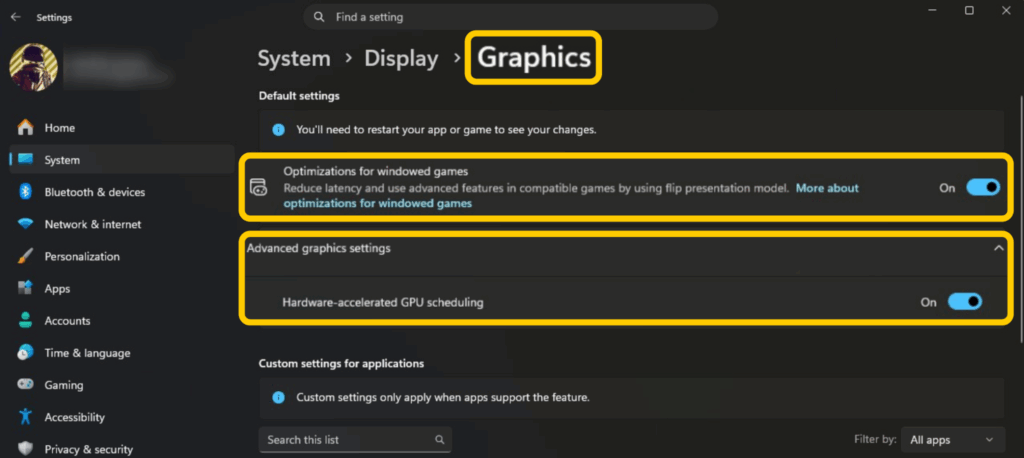
Finally, make sure you disable all gaming overlays in apps like Steam, Discord, GeForce Experience, and other recording or streaming apps.
Adjust Nvidia or AMD Control Panel Settings
Your GPU is the hardware with the greatest impact on gaming performance, so it may help to tweak its settings. However, it’s not always straightforward and depends on what model GPU you have. Unless you have experience doing this, you may negatively impact some games’ performance.
However, in general, look for settings like max performance, low-latency modes, or shader cache.
Check Your Device’s Temperature
Overheated hardware can lead to reduced performance. Any gaming system will tend to get hotter the longer you play, so overheating may be the cause if the game’s performance gets worse over time.
On PCs, you can download free utilities like MSI Afterburner or Core Temp to monitor your CPU temperature and warn you if it gets too hot. You can also feel if the air around your PC or console becomes excessively warm.
Common fixes for an overheating device include:
- Dusting it off and making sure it’s as clean as possible, paying attention to ventilation holes.
- Positioning it in a more well-ventilated area or away from potential heat sources (like direct sunlight).
- Lowering the surrounding temperature with an air conditioner or fan.
- Improving the temperature control of your PC by installing fans, CPU cooling paste, or investing in a better chassis.
- Placing your laptop on a cooling fan or a ventilation stand.
Pro Tip: Overheating is an issue that can affect game consoles as well as PCs. If the action isn’t only heating up your screen but also your Xbox, follow the relevant tips above.
How to Fix FIFA Lag on a Console
Clear Console Cache
Clearing the cache is one of the few ways you can fix issues like FIFA lag, FPS stuttering, crashes, or freezes on a gaming console. Clearing the cache is more thorough than restarting the console, so it’s worth a try if you experience performance issues.
To clear the cache on PS5:
- Go to the Power Menu and select Turn Off PS5 to shut it down completely.
- Hold the power button for 7 seconds until the second beep.
- Connect your controller via USB cable.
- Press the PS button on the controller to enter safe mode.
- Select Option 6: Clear Cache and Rebuild Database.
- Choose Clear System Software Cache first, then Rebuild Database.
- The process can take several minutes, especially for Rebuild Database.
To clear the cache on Xbox:
- Hold down the Xbox controller button, then select Turn off console from the power menu.
- Unplug the console’s power cable and wait for 2 minutes.
- While unplugged, hold the console’s power button for 10 seconds to discharge it completely.
- Reconnect the power cable and turn on the console.
Fix FIFA Input Lag
If the remaining FIFA lag issues don’t seem network or performance-related, there might be input delays between your gaming system and peripherals. First of all, try using your controllers in wired mode and see if there’s an improvement, or move them closer to your console.
Next, check your monitor or TV and make sure that all cables are properly plugged in. Also, check your monitor or TV settings and enable “game mode” (if available) while disabling any post-processing features. Try using different cables between your gaming system and peripherals. Damaged wires, damaged or dirty connectors, or wires with insufficient throughput may all introduce delays.
Solve FIFA 26 Lag and Get Back on the Pitch
FIFA 26 lag can be frustrating, but it’s possible to improve once you know what’s causing it. Whether you’re dealing with high ping, FPS drops, stuttering, or input delay, identifying the problem first makes it easier to choose the right fix.
Simple changes like updating your drivers, optimizing your graphics settings, reducing background network traffic, or switching to a wired connection can make a big difference. If your ISP is routing your traffic inefficiently, a gaming VPN may also help by providing an alternative route to the game server.
CyberGhost VPN offers high-speed servers in dozens of countries, including dedicated gaming servers optimized for stable connections. It also protects your connection with strong encryption, DNS leak protection, and an automatic Kill Switch, helping keep your gaming sessions private and secure. Try CyberGhost VPN risk-free with our 45-day money-back guarantee (14 days on monthly plans).
FAQ
Why is my FIFA so laggy?
There can be many types of lag in EA Sports FC 26. The most likely culprits are a slow or overused internet connection, hardware performance issues, misconfigured settings, or input delays between peripherals. EA’s servers can sometimes cause issues, which is always fun. But you should also double-check that no one else in the house is downloading any large files.
How can a VPN reduce FIFA 26 lag?
The short version is that a gaming VPN can potentially reduce lag by creating a more direct connection between your computer and the game server. This can sometimes bypass problems caused by intervening networks or even issues caused by your own ISP. Note that you need to pick a VPN server that’s close to the game server for the best results.
How can I make FIFA 26 run smoother?
Double-check the specifications of your PC if that’s what you’re playing on. If you have lower-end hardware, try lowering the graphics settings to see if that helps. Also, verify the game files via the EA app, Steam, or your console settings to make sure none of the files are corrupted.
How do I stop EA Sports FC lagging on Xbox or PS5?
Use a wired internet connection, try wiring your controller, clear the cache, and make sure you’ve updated everything, including the game and operating system. Another common issue on consoles is if they start to overheat due to poor ventilation or dust. Try to put the console somewhere that doesn’t block its cooling fans and make sure that its vents are clean.
How do I fix lag on FIFA 26 PC?
Depending on what’s causing the lag, there are a few ways you can try fixing it. Updating your software and clearing the cache is a great place to start. You can also try adjusting the graphics settings, as a lower resolution will improve performance if the settings are too demanding for your PC.
How do I fix FIFA freezing?
Verify your game files and make sure everything is up to date, including your graphics drivers if you’re playing on PC. You may want to completely uninstall your drivers with a utility like DDU, and reinstall them from scratch. Capping the frame rate to 60 FPS also helps at times.

Leave a comment