
If your browser takes too long to load pages, freezes when you open new tabs, or struggles with video and web apps, something is wrong — even if your internet speed looks fine. In most cases, the slowdown comes from overloaded browser processes, misbehaving extensions, cached data buildup, or background activity competing for resources.
The good news is you don’t need to replace your device or reset everything. This guide breaks down the most common causes of browser slowness and shows you exactly what to check and change to restore normal performance quickly and safely.
Is the Slowdown Coming from Your Browser or Your Network?
Before you start digging through browser settings, it’s worth confirming where the slow browsing actually comes from. A slow browser and a slow connection may feel similar, but they require different fixes.
Here’s how you can quickly tell them apart:
- Check speeds on multiple devices: Open the same websites across different devices. If everything is slow, the issue is likely your internet connection rather than the browser.
- Try other websites and apps: Load multiple sites or apps to compare their speeds. If only one is slow, the problem is probably on that site’s end.
- Run a speed test: Measure your connection speed with reliable tools like speedtest.net. If your speeds are unexpectedly low, restart your router and, if it doesn’t help, contact your ISP.
- Test a different browser: View the same site in a different browser. If it loads faster, your main browser may need to be cleaned or reset.
- Rule out Wi-Fi issues: Move closer to the router, switch to Ethernet if possible, and restart your router and device to eliminate signal or congestion issues.
Most Common Reasons Behind Slow Browsers
When your browser starts to slow down, pages take longer to load, videos freeze, and tabs stop responding. The culprit is often something small inside the browser itself. Here are the most common reasons for slowing it down:
- Too many open tabs: Each tab uses memory and processing power, especially if it runs video, ads, or background scripts. The more active tabs you have, the slower your browser may be.
- Extensions or add-ons in the background: Extensions and add-ons often constantly monitor pages, inject scripts, or sync data, consuming system memory. Poorly maintained or redundant extensions are a frequent source of slow startups and lag.
- Built-up cache, cookies, and temporary files: Cached data and cookies help websites load faster and remember your preferences, but over time, they pile up. Large or corrupted caches can slow page loading instead of improving it.
- Pending browser or system updates: Running an outdated browser version can cause compatibility issues, memory leaks, or sluggish behavior. Updates often include performance fixes and security improvements.
- Malware or faulty DNS settings: Browser hijackers and adware can redirect traffic, load unwanted content, or modify DNS settings. This often shows up as slow loading, unexpected redirects, or unfamiliar search results.
- Competing background apps: Browsers share resources with all applications running on your computer. Streaming apps, cloud backups, or large downloads can hog memory and bandwidth.
- Media-heavy websites: Websites with ads, animations, and videos load a substantial amount of data. Even a few of these pages can strain older devices or low-memory systems.
Easy Ways to Speed Up Your Browser (Google Chrome, Microsoft Edge, Safari, Firefox, and More)
Whether you’re using Chrome, Safari, Edge, or Firefox, the steps to speed things up are almost the same. Simply follow the steps below to get your browsing up and running in no time.
Clear Your Cache and Cookies
Your browser stores cached files and cookies to help websites load faster the next time you visit them. Cache includes items such as images, scripts, and layout data, while cookies store login details and site preferences. Over time, these stored files can accumulate, consume space, and impact your browser’s performance.
Here’s how to clear cache and cookies in major browsers:
-
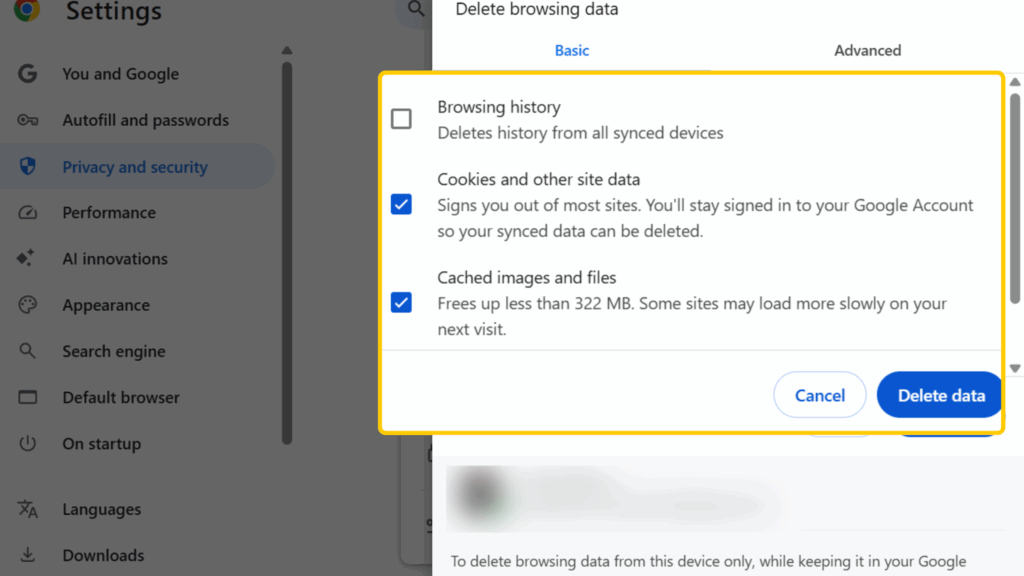
- Google Chrome: Go to Settings > Privacy and Security > Clear browsing data. Tick Cached images and files and Cookies and other site data, then click Clear data.
-
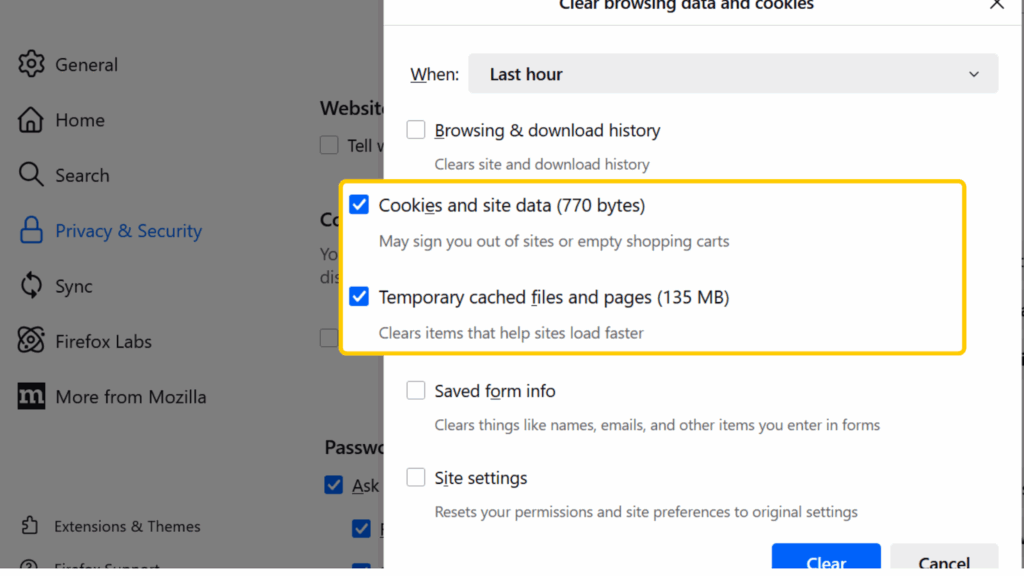
- Mozilla Firefox: Go to Settings > Privacy & Security, scroll to Cookies and Site Data, then click Clear Data.
-
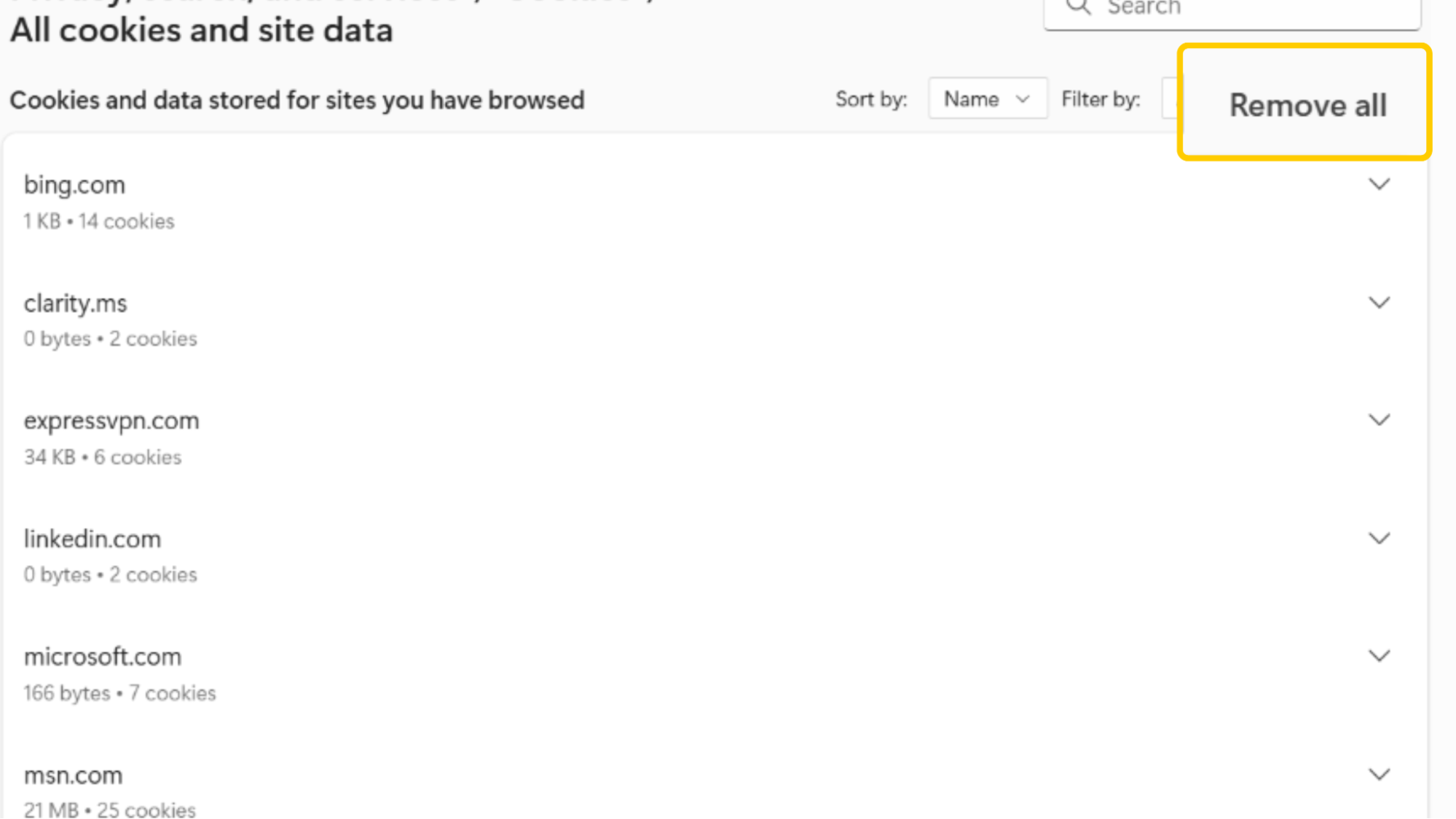
- Microsoft Edge: Go to Settings > Privacy, search, and services, find Clear browsing data, and select what you want to remove or click Remove all.
-
- Safari: In the menu bar, click Safari > Preferences > Privacy, then choose Manage Website Data and click Remove All.
Note: Clearing your cache and cookies doesn’t delete passwords or bookmarks unless you select those options.
Close Tabs and Windows You’re Not Using
Every tab you open uses memory and processing power, even if you’re not actually looking at it. Modern browsers, such as Chrome and Edge, create a separate process for each tab to enhance stability. That means each one takes up its share of RAM. If your PC or laptop has lower memory, keeping too many tabs open can drain resources and slow the system down.
The solution is simple: close the tabs and windows you’re not using. If you want to save them for later, use bookmarks or tab management tools like Chrome’s Group Tabs or Firefox’s Bookmark All Tabs. You can also use extensions or built-in features to automatically suspend inactive tabs so they don’t consume memory in the background.
Disable or Remove Unnecessary Extensions
Browser extensions can make your browsing experience more convenient, but they also run in the background and consume system resources. Each extension can use memory, CPU power, and even internet bandwidth. Over time, excessive extensions can lead to slow page loading, increased memory usage, and even security risks.
The easiest way to see if extensions are the problem is to open your browser in Incognito Mode or Safe Mode, where most extensions are disabled by default. If your browser runs faster, you’ve found the cause.
Here’s how to manage extensions in popular browsers:
-
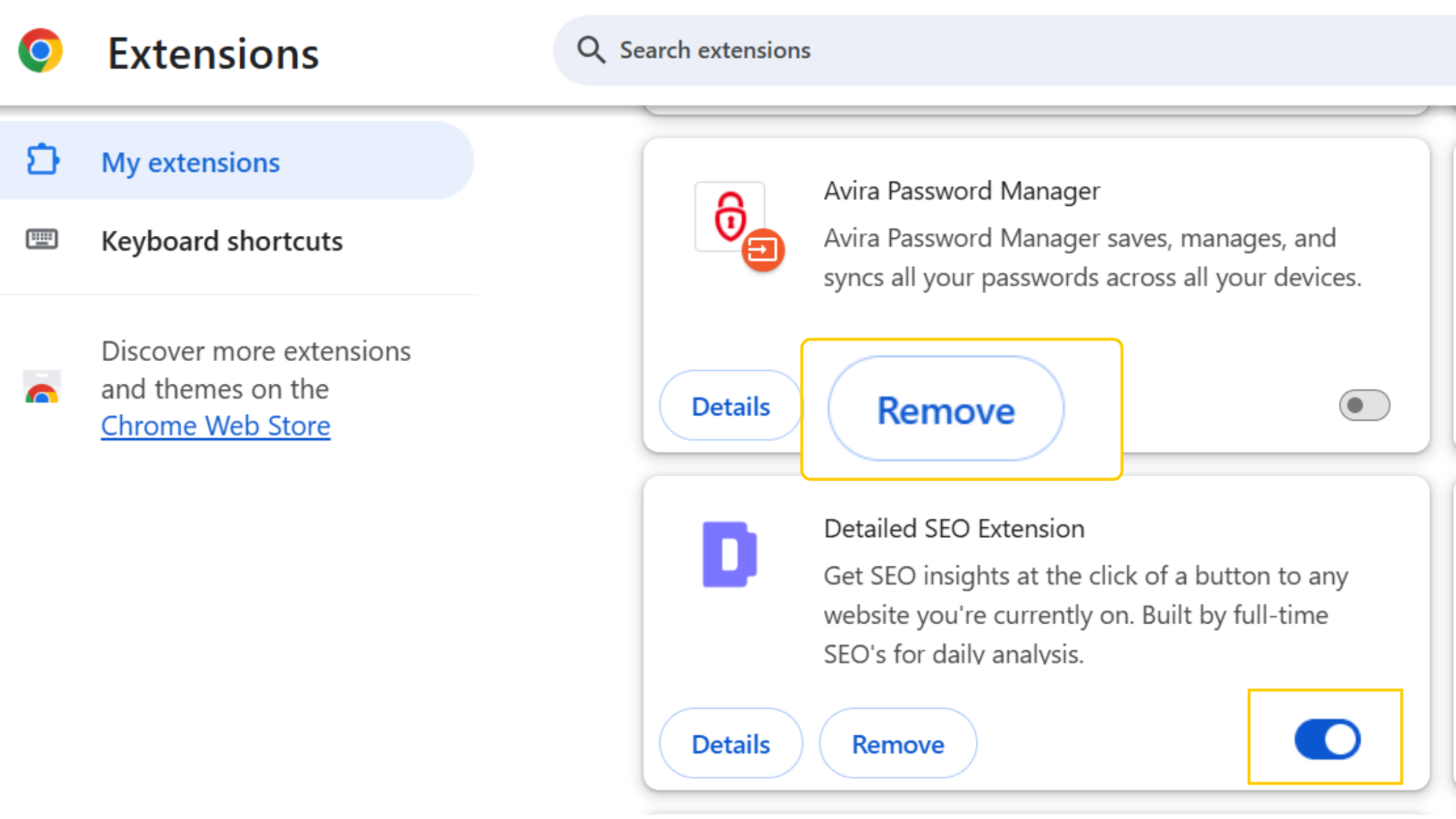
- Google Chrome: Go to Extensions and click Manage Extensions. Turn off the ones you don’t need or click Remove to uninstall them completely.
- Mozilla Firefox: Go to Add-ons and Themes > Extensions. Disable or remove extensions you don’t recognize or no longer need.
- Microsoft Edge: Go to Settings and More (⋯) > Extensions. Disable unnecessary ones or remove them.
- Safari: Go to Preferences > Extensions. Deselect or uninstall any extensions you don’t use regularly.
Note: You can temporarily disable all extensions, then re-enable only the ones you need in small batches. Use the browser’s Task Manager to watch CPU or memory spikes as you test.
Update Your Browser
Regular updates ensure your browser runs smoothly and efficiently, using the latest optimization improvements from the developers. Most browsers update automatically, but it’s still a good idea to check for them manually once in a while:
-
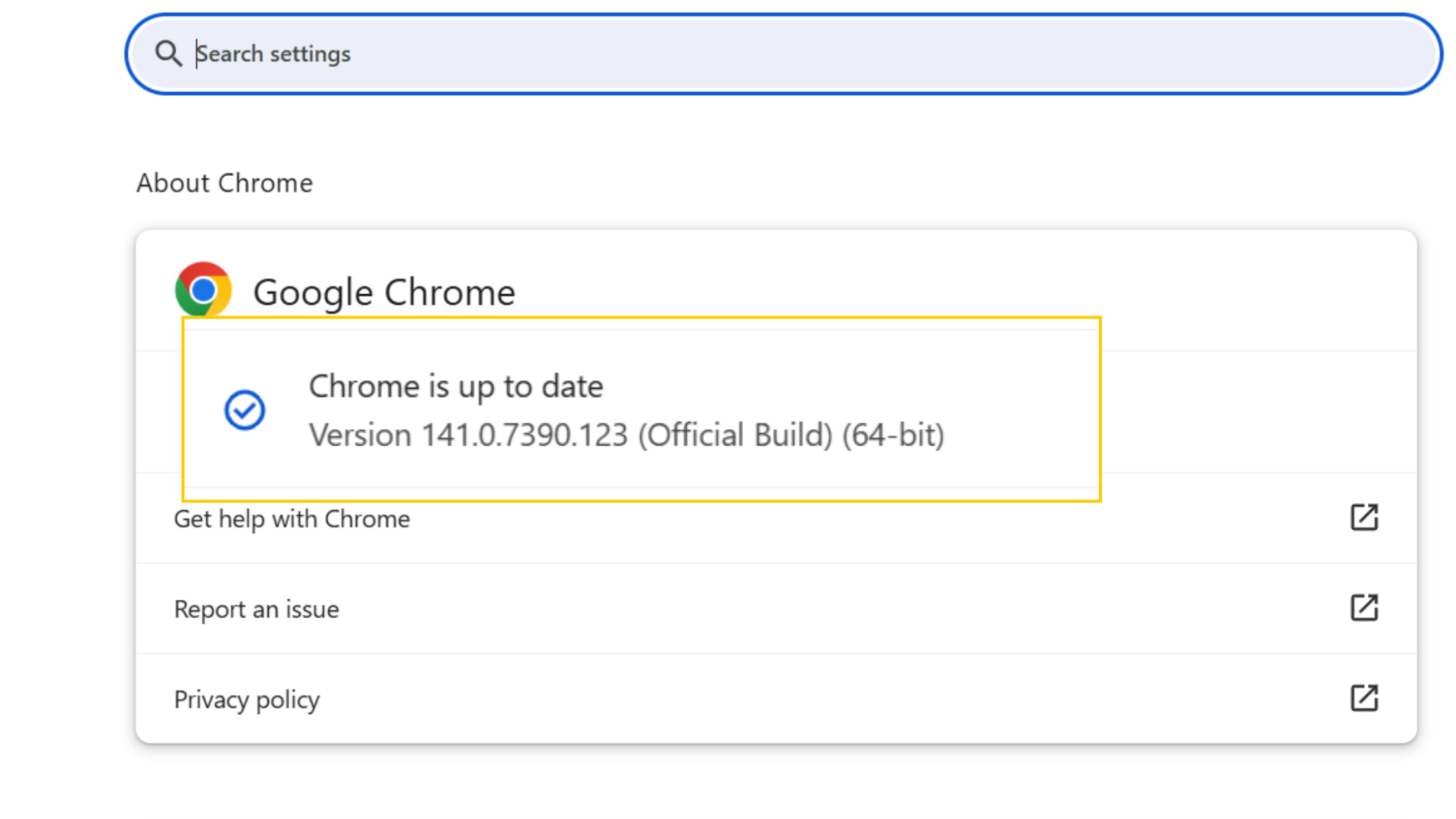
- Google Chrome: Click the three dots in the top-right corner, then select Help > About Google Chrome. If an update is available, it’ll install automatically.
-
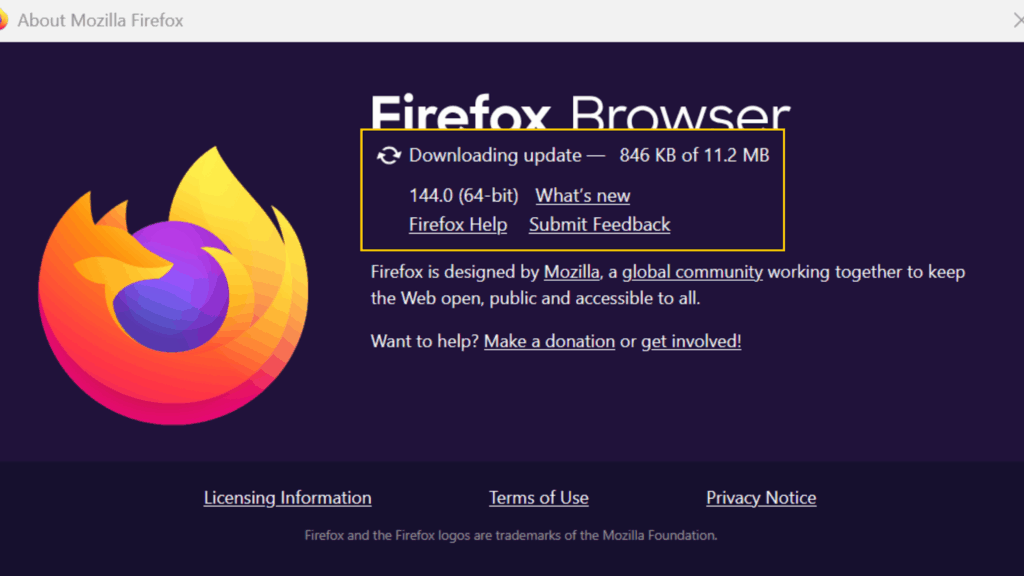
- Mozilla Firefox: Click the menu button, go to Help > About Firefox. If an update is available, Firefox will download and install it.
-
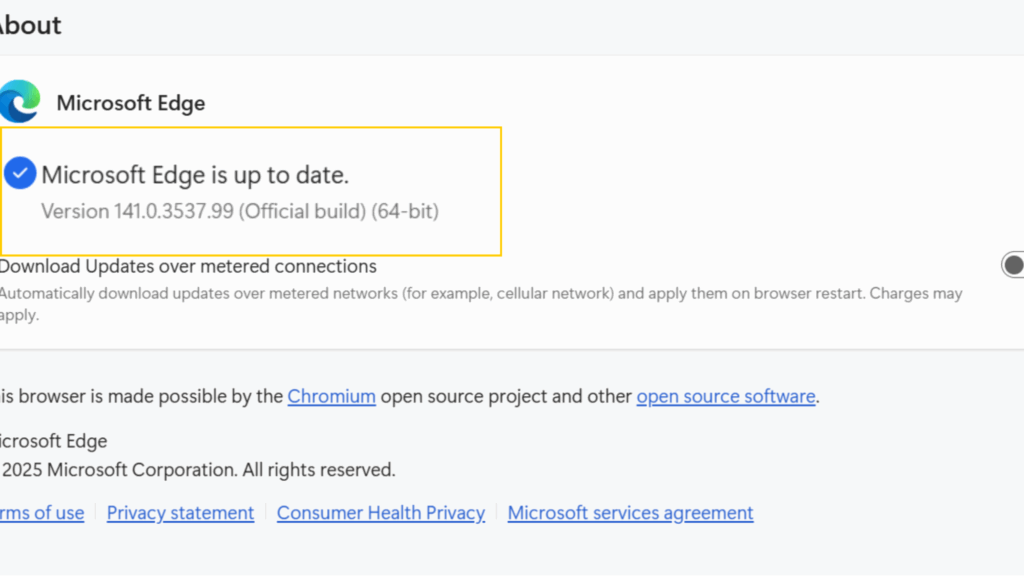
- Microsoft Edge: Click the three dots, go to Help and feedback > About Microsoft Edge to check for updates.
-
- Safari: Safari updates come through macOS updates. Go to System Settings > General > Software Update.
After updating, restart your browser to apply the changes. Doing this regularly keeps your browser fast, secure, and compatible with the latest web technologies.
Note: On some Windows 11 24H2 setups, GPU or driver quirks have caused flickering or freezing in Chromium-based browsers. A quick toggle of hardware acceleration (Settings > System > Use hardware acceleration when available) can isolate the issue.
Restart Your Device
Restarting your device clears temporary files and background processes that use memory and slow down your browser. It also resets network connections, which can fix loading delays and connectivity issues.
If your browser feels sluggish or keeps freezing, try restarting your computer, phone, or tablet before attempting any other solution. It’s a quick, reliable way to free up resources and restore fast performance.
Try a Different Browser
If your browser still feels slow after trying all other fixes, test the same websites in a different browser. This helps you see whether the issue is browser-related or system-wide.
For example, if Chrome feels sluggish but Firefox or Edge runs smoothly, the problem is likely within Chrome’s settings, extensions, or cached data. On the other hand, if every browser loads slowly, your internet connection or device performance may be the cause.
Which Browser Is the Fastest?
Google Chrome is often considered the fastest browser, especially on Windows. It loads pages quickly and handles multiple tabs with ease. But the fastest browser can depend on your computer, operating system, and what you’re doing online.
Microsoft Edge is another strong performer, offering speed similar to Chrome while using less memory. If you’re on a Mac, Safari is usually the fastest choice, as it’s built to work seamlessly with Apple devices.
Fix Your Browsing Speeds in No Time
Browser slowdowns usually build up over time. Too many tabs, bloated cache files, heavy extensions, and background processes quietly drag performance down until everything feels laggy. Luckily, the fix is often very simple. Start with the basics: clear your browsing data, disable unused extensions, and close tabs you’re not using. Those small steps often bring your browser back to full speed.
Your network also matters. On busy or unsecured Wi-Fi, slowdowns can come from throttling, congestion, or background tracking you can’t control. CyberGhost VPN can help. It encrypts your traffic, reduces ISP throttling, and blocks ads and trackers that slow pages down in the background. Plus, you can test it completely risk free with a 45-day money-back guarantee.
FAQ
Can too many extensions slow down my browser?
Yes, having too many extensions can definitely slow down your browser. Each extension runs background processes that use memory, CPU power, and sometimes network bandwidth. The more extensions you have, the more resources your browser must manage, which can lead to slower page loading, lag, or even crashes.
Does clearing the cache and cookies improve browser speed?
Yes, clearing your cache and cookies can improve browser speed, especially if you haven’t done so in a while. Your browser stores cached files and cookies to help websites load faster on future visits. Over time, these stored files build up and can slow things down instead of speeding them up.
Why does my browser lag even with a fast internet connection?
A fast internet connection helps pages load quickly, but it doesn’t guarantee smooth browser performance. Browser lag often comes from issues inside your device or the browser itself, rather than your network speed.
Common causes include too many open tabs, overloaded extensions, or built-up cache and cookies. These can consume system memory and processing power, which can slow down the browser even if your internet connection is strong. Outdated browser versions or conflicting background apps can also cause lag.
Can malware cause my browser to run slowly?
Yes, malware can slow down your browser. Malicious software often runs hidden background tasks that consume memory, processing power, and bandwidth. Some malware types track your online activity, inject unwanted ads into websites, or redirect your searches, all of which can make your browser feel sluggish and unstable.
How does having multiple tabs open affect browser performance?
Every open tab consumes system resources, including memory (RAM) and processing power. Modern browsers create a separate process for each tab to improve stability, which means each one consumes its share of memory. When you keep many tabs open at once, your computer must divide its resources among them, and that can quickly slow things down.
Why does my browser get slower the longer it stays open?
The longer your browser stays open, the more memory it uses. Each new tab, website, and background process adds to that load. Over time, cached data, active scripts, and background extensions continue to run even when you move on to other sites. This buildup gradually consumes your system’s memory and processing power, causing the browser to become sluggish.
Why is my browser slow only on Windows 11?
If your browser is slow only on Windows 11, system settings or background processes are likely to be the cause. Windows 11 uses more system resources than older versions, and features like animations, background updates, and startup apps can reduce the memory and CPU power available to your browser.
Outdated drivers, especially graphics or network drivers, can also cause lag or slow page loading. Security software and background syncing apps may further slow performance by scanning or using bandwidth while you browse.
How can I speed up my browser on my phone?
If your mobile browser feels slow, it usually needs a quick cleanup or a setting adjustment. The main causes are stored cache, too many background tabs, or outdated browser versions. To improve speed, clear the cache and browsing data, close background tabs, update your browser app, disable unnecessary add-ons, restart your phone, and check your internet connection.

Leave a comment