
Your iPhone may alert you if a saved password has been exposed in a data leak, sometimes referred to as a “data leak iPhone” warning. Apple highlights it as a risk and advises you to update your credentials. It’s a simple message, but it raises bigger concerns about your accounts and personal data.
The issue isn’t the alert itself; it’s the lack of context around it. You don’t know when the leak happened, where it came from, or how likely it is to affect you. That missing information makes it hard to judge the situation. We’ll help you understand what this iPhone data leak notification means so you can take the right steps without unnecessary stress.
What Does an Apple Data Leak Warning Mean?
A data leak on an iPhone doesn’t mean the device itself has been hacked. It means your personal data has been exposed through a third party, such as a website or app you use. This usually happens when a company suffers a data breach, and attackers obtain user data like email addresses, compromised iPhone passwords, or login credentials. Apple compares your saved passwords against known leaked data and alerts you if there’s a match.
For example, if your password is “password” and your iPhone flags it as part of a data leak, it means that exact password has appeared in breached data. This indicates that at least one service where you used that password has been compromised. If the same password is reused elsewhere, those accounts may also be at risk.
Data leaks can also happen in more routine situations. Companies may fail to properly protect user data, or apps may collect and share more information than expected. Risky actions like clicking suspicious links or downloading untrusted apps can also increase exposure. Regardless of how it happens, the outcome is the same. Your data becomes accessible to others, increasing the risk of fraud, account takeovers, and misuse.
Why Did You Receive a Data Leak Notification from Apple?
You received this notification because one of your saved passwords matches data found in known breaches. You may wonder how real or serious Apple data leak warnings are, especially when the alert appears without much detail. These alerts come from iCloud Keychain, which securely monitors your saved credentials and flags passwords that appear in known data leaks.
Apple states that it uses strong cryptographic techniques to compare your saved passwords against leaked credentials without revealing your actual passwords or account information1. This means the warning is triggered by a real breach of data, not by suspicious activity on your device, and the affected password should be updated.
This warning indicates that a password has been exposed in a data breach, not that your account has already been accessed. It should be treated as no longer secure. If a leaked password is reused across multiple accounts, it can increase the risk of:
- Unauthorized access: Attackers may gain access to your accounts if the exposed password is still in use.
- Credential stuffing attacks: The same password can be used across other services where it was reused, increasing the risk of unauthorized logins.
- Identity theft: Exposed personal data may increase the risk of identity theft, especially if linked to multiple accounts.
- Targeted phishing attempts: Phishing messages may become more convincing using information tied to your compromised credentials.
- Financial fraud: Fraudulent activity may occur if affected accounts are connected to payment methods or sensitive data.
How to Check for Leaked Passwords on an iPhone or iPad
Apple lets you check for exposed passwords through iCloud Keychain in your iPhone settings. This feature highlights passwords that appear in known data leaks and marks them as security risks.
- Open the Settings app on your iPhone.
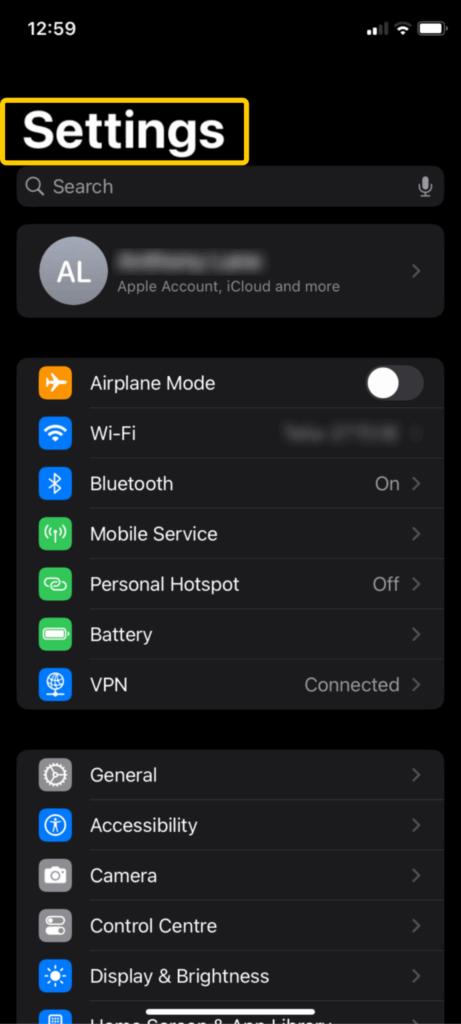
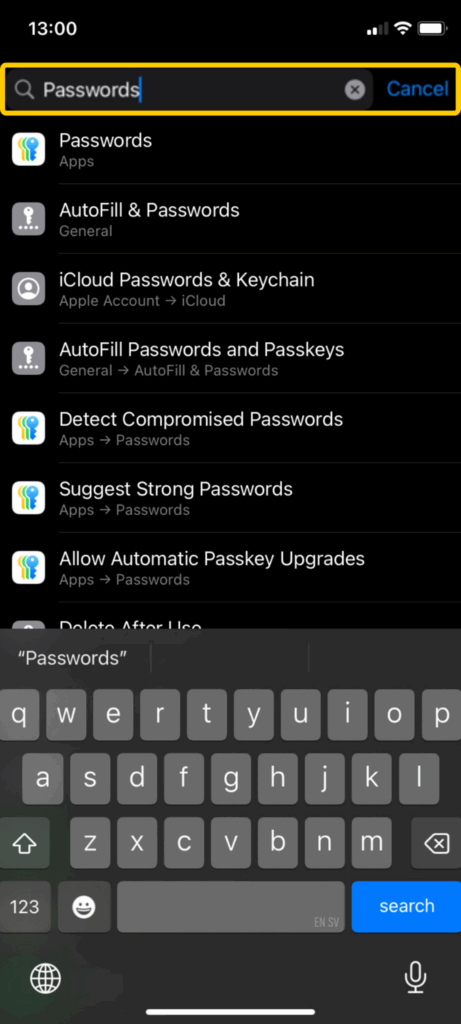
- If you have iOS 18 or later, scroll down, open Apps, and tap Passwords. If you’re on iOS 17 or earlier, you can either scroll down to Passwords or type “passwords” in the search bar to find it quicker.
- Find Detect Compromised Passwords and toggle the slider on. If any of your passwords have been exposed, a new window will appear showing a list of the affected passwords along with recommendations from Apple.
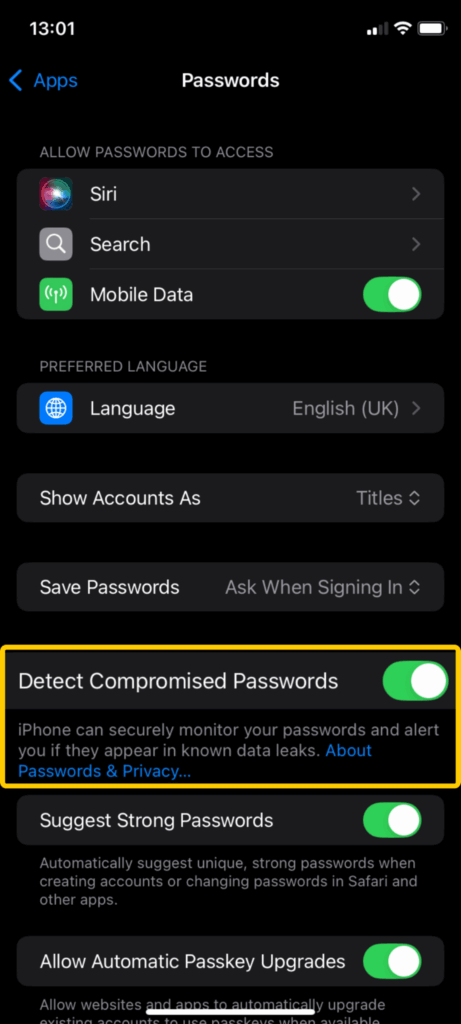
Important: The Detect Compromised Passwords feature allows your iPhone to automatically monitor your saved passwords and alert you if any are at risk. This feature only works for passwords stored in iCloud Keychain, so accounts not saved there won’t be monitored.
How to Secure and Protect Your Accounts on an iPhone
If your iPhone flags a password as compromised, you should first secure the affected accounts, then take steps to prevent future exposure.
If a Password Is Compromised
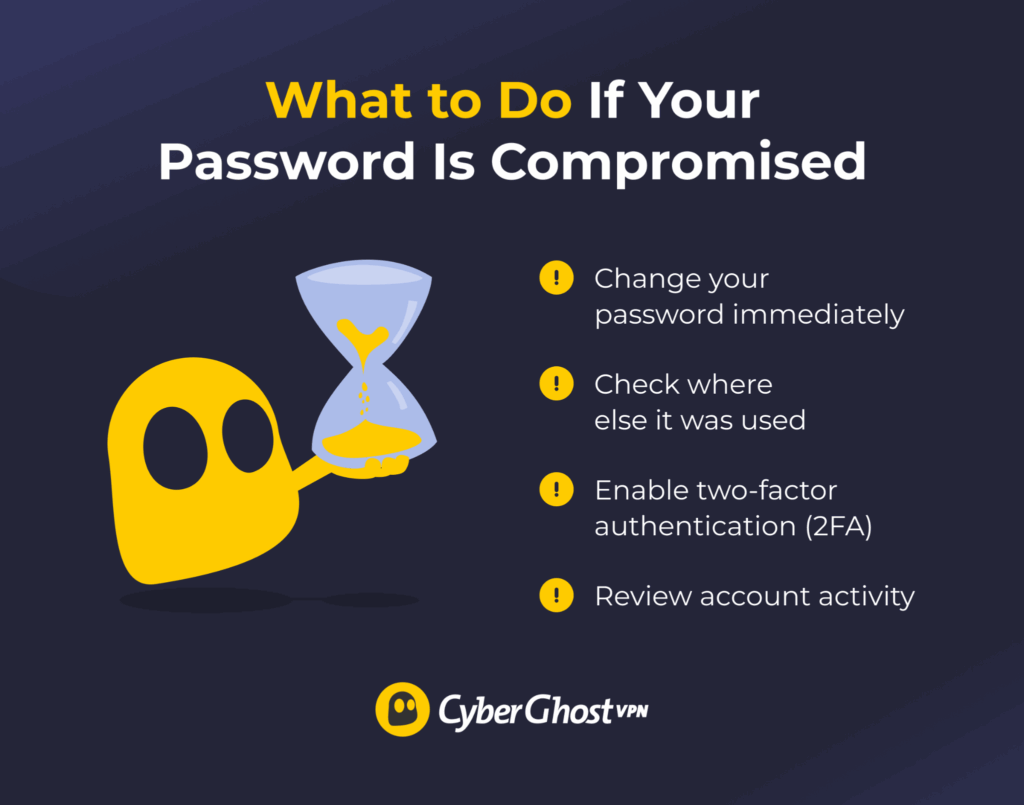
- Change the password immediately: Update the password for the affected account as soon as possible. Use a completely new password that is long and unique. It shouldn’t be based on anything you’ve used before. Avoid making small changes to the old password, as attackers can often guess variations.
- Check where else it was used: If you reused that password on other accounts, those accounts are also at risk. Go through your important accounts, such as email, banking, and social media, and update any that share the same or a similar password.
- Enable two-factor authentication (2FA): Turn on 2FA wherever available. This adds a second verification step, such as a code sent to your device or generated by an app. Even if someone has your password, they shouldn’t be able to access your account without it.
- Review account activity: Check for signs of unauthorized access, such as logins from unknown locations, new devices, password changes, or unfamiliar transactions. If anything looks suspicious, log out of all sessions and secure the account immediately.
To Prevent Future Data Leaks
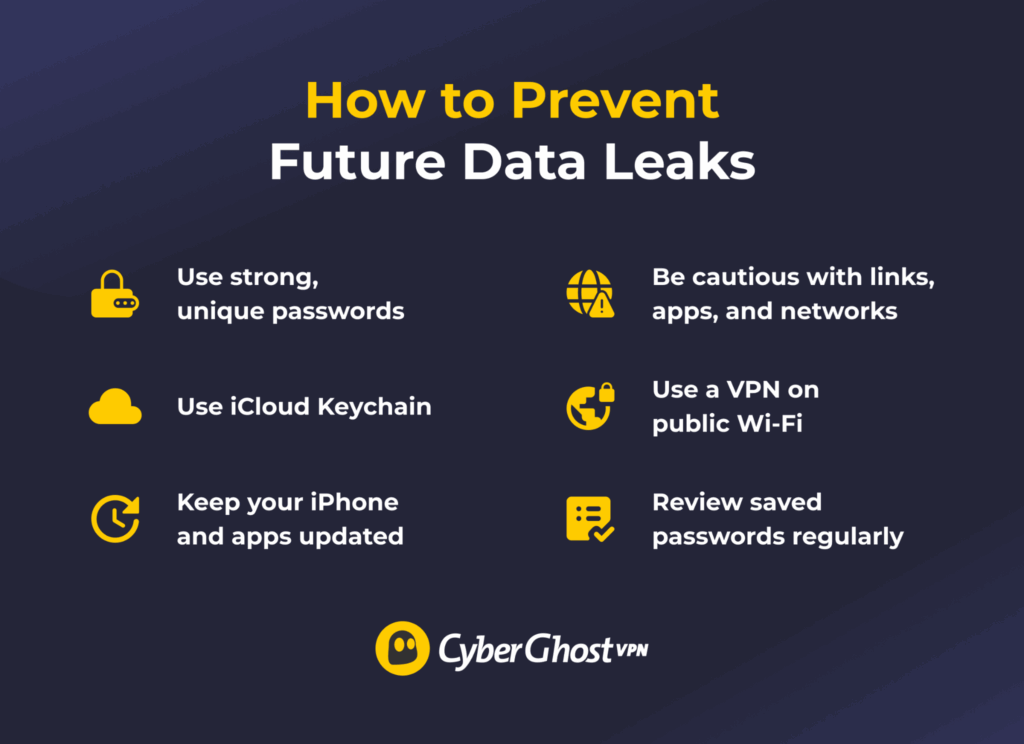
- Use strong, unique passwords for every account: Each account should have its own password to prevent a single breach from affecting multiple services. Preferably, use a passphrase and make it long and difficult to guess. Avoid using personal details or anything you’ve used before.
- Use iCloud Keychain: iCloud Keychain securely stores your passwords, generates strong ones for new accounts, and autofills them when needed. It also monitors saved passwords and alerts you if they appear in known data leaks.
- Keep your iPhone and apps updated: Install updates regularly. Software updates often include security fixes that protect against known vulnerabilities that attackers could exploit.
- Be cautious with links, apps, and networks: Avoid clicking on suspicious links in emails or messages, and only download apps from the App Store. Be careful when entering passwords on unfamiliar websites, especially when connected to public Wi-Fi.
- Review saved passwords regularly: Check the Security Recommendations section in your iPhone settings to identify weak, reused, or compromised passwords. Updating them regularly helps reduce long-term risk.
- Use a VPN: A VPN encrypts your internet traffic, making it much harder for third parties to intercept your data. With CyberGhost VPN, you can help reduce the risk of your data being intercepted while browsing or accessing accounts.
Built-In iPhone Security Features You Should Use
Your iPhone already includes several security features designed to protect your passwords and personal data. Using them properly can reduce your risk without needing extra apps. Please note that some of these features may not be available depending on your iPhone version.
- iCloud Keychain: This feature stores and autofills passwords securely, generates strong passwords, and alerts you if they appear in data leaks.
- Security recommendations: You can use this to flag weak, reused, or compromised passwords and receive tips on how to update them.
- Face ID or Touch ID: These two options protect access to your device and sensitive data, including saved passwords.
- App tracking transparency: Use this to control which apps can track your activity across apps and websites.
- Privacy Report (App Privacy Report): This shows how apps use your data and which domains they contact.
- Automatic software updates: Auto updates install security patches that fix vulnerabilities and keep your device protected.
- Passkeys (Passwords app): Passkeys replace traditional passwords with cryptographic keys stored securely on your device. The website or app only stores a public key, so there’s no password to steal or leak in a data breach.
How Often You Should Check for Password Leaks
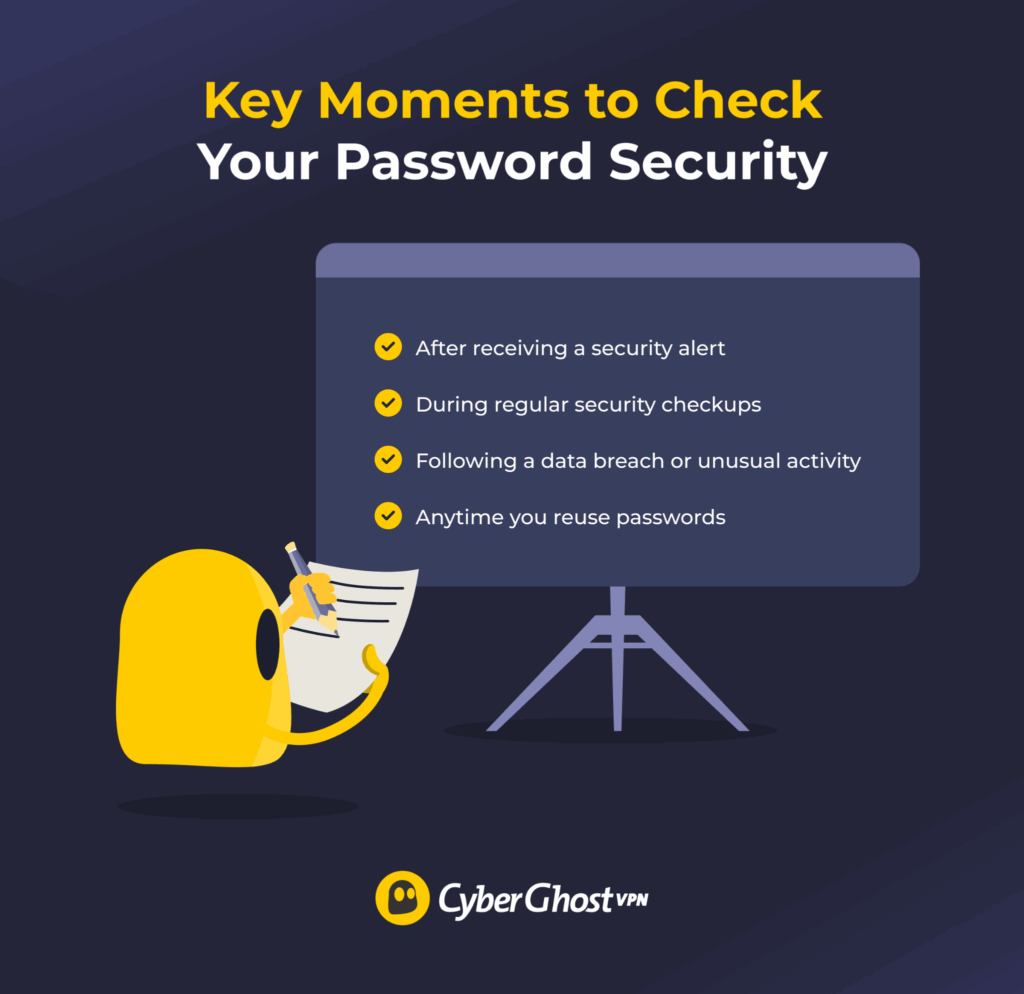
There is no fixed schedule you must follow because your iPhone already monitors your saved passwords through iCloud Keychain and alerts you if any are found in known data leaks. That said, you should still check manually, especially at certain key times.
- Check immediately when you get a notification: Review flagged passwords right away since they have already been exposed.
- Check periodically in Settings: Open Security Recommendations every few weeks or once a month to review your passwords.
- Check after major events: Review your passwords after a known data breach, suspicious activity, or using shared devices.
- Check more often if you reuse passwords: Reused passwords increase risk, so they require more frequent checks.
How to Stay Ahead of iPhone Data Leaks
Data leak alerts on your iPhone are meant to help you act early, not panic. They warn you that your information may be exposed, so you can secure your accounts before anything happens. Once you understand these alerts and respond quickly, it becomes easier to stay in control of your data and reduce risk.
For stronger protection, you can also improve the security of your devices. Tools like CyberGhost VPN add an extra layer of privacy by encrypting your connection. This can reduce the chances of your data being intercepted while you browse, log in, or manage accounts. If you want a simple way to boost your overall security, CyberGhost VPN offers a 45-day money-back guarantee (14 days for monthly users).
FAQ
How do I know if my iPhone was affected by a data leak?
You can tell through the Security Recommendations alert on your iPhone, which flags saved passwords that appear in known data leaks. You can also check manually by going to Settings > Passwords > Security Recommendations. Here, any compromised accounts will be listed. This doesn’t mean your iPhone was hacked, only that your password was exposed in a breach linked to a website or service you use.
What iPhone data is most commonly exposed in leaks?
The data most commonly exposed in leaks is account-related information, not data directly from your iPhone. This usually includes email addresses, passwords, usernames, and sometimes phone numbers. In some cases, leaks may also involve names, billing details, or partial payment information, depending on the service that was breached. These leaks typically come from websites or apps you use on your iPhone, not from the device itself.
Can iCloud Keychain be compromised in a data breach?
No, iCloud Keychain itself isn’t typically compromised in data breaches because it uses strong end-to-end encryption to protect your passwords. However, the accounts saved in it can still be affected if their passwords are exposed through breaches of websites or apps you use, which is why your iPhone may flag them as compromised even though Keychain remains secure.
Apple also offers Advanced Data Protection (available on iOS 16.3 and later), which extends end-to-end encryption to more iCloud data categories for users who want the highest level of protection.
Do third-party apps increase the risk of iPhone data leaks?
Yes, third-party apps can increase the risk of data leaks if they collect, store, or share your data improperly. Some apps request unnecessary permissions or fail to secure user information, which can lead to exposure if the app or its servers are breached. This doesn’t mean all third-party apps are unsafe, but using apps from trusted sources and limiting permissions helps reduce the risk.
What should I do immediately after an iPhone data leak alert?
You should change the affected password immediately, making sure it’s strong and unique, then update any other accounts that use the same password. After that, enable two-factor authentication on the account, review it for any suspicious activity, and make sure the new password is saved in your iPhone so it can continue to be monitored.
References

Leave a comment