
The difference between a safe site and a dangerous one isn’t always obvious. It might look fine at first glance but still hide nasty dangers like a phishing form or a fake checkout page.
Fortunately, there are several ways to determine if a website is unsafe. Looking closely at the URL, paying attention to what your browser tells you, and taking notice of weird behavior are all simple checks that can help you identify a malicious site. Though it’s impossible for this guide to cover every conceivable scenario, we discuss typical signs of unsafe websites and how to protect yourself.
How to Check If a Site Is Legit or Unsafe
Inspect the URL
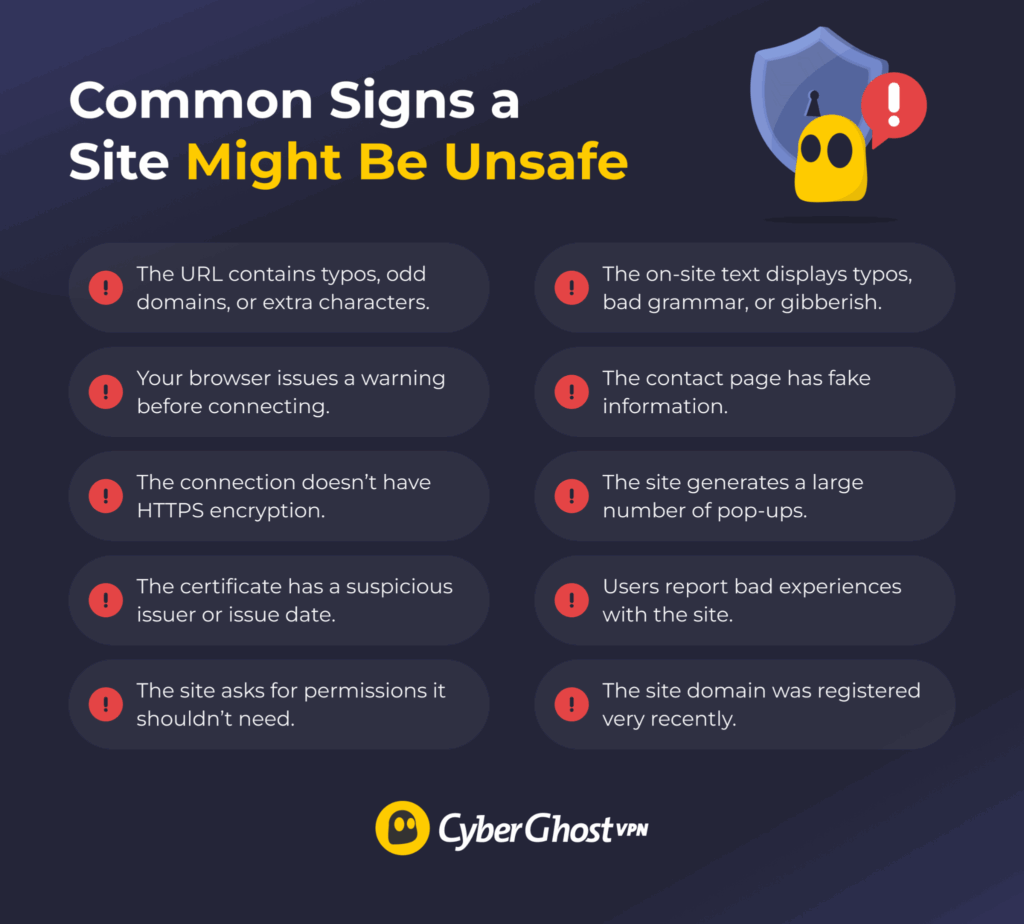
A suspicious-looking URL is often the most obvious red flag. Look for misspellings of well-known brand names — for example, “cyberqhost.com” instead of “cyberghost.com.” This is commonly known as a homograph attack. You should also be wary of additional words, hyphens, and punctuation that aren’t in the legitimate site’s URL.
Double-check the domain extension, too. Some unsafe sites can use uncommon extensions, such as .click, .top, or .xyz. But you shouldn’t immediately assume common extensions like .com, .org, or .net are inherently secure.
A good technique is to hover over a URL before clicking. Many browsers display the destination URL in the bottom left of the window. This lets you confirm the link goes to the expected URL, as the actual destination may differ from how it appears.
Pay Attention to Browser Warnings
Many modern browsers issue warnings if you try to open a known unsafe site. These warnings can cover dangers such as unsecured connections or suspicious certificates. You could click past a warning and continue to the site, but you should only do so if you understand the risk. In most situations, when you get a browser warning, the safest choice is to leave the site. However, a lack of a warning doesn’t guarantee a website’s safety.
Watch Out for Unusual Permission Requests
When you visit a website, your browser may ask for permission to send notifications, access your location, or use your camera and microphone. Consider if the site you’re visiting actually needs these permissions. For example, does an online shop need access to your camera? As a rule of thumb, deny any permissions the site asks for. If the site turns out to be legitimate, you can change permissions in your browser settings.
Check for an HTTPS Connection
An HTTPS encrypts your connection, which makes it harder for third parties to snoop on your on-site activity. Browsers typically mark an HTTPS connection with a padlock or shield icon near the address bar. A site using HTTP instead of HTTPS doesn’t use this encryption, so it could expose your activity. Using HTTPS isn’t a total guarantee the site is legitimate and safe — a scam site could also use a secure connection.
Examine the Site’s Overall Quality
Unsafe websites might look unfinished or quickly cobbled together. Look for broken navigation menus, missing images, placeholder text (“Lorem ipsum dolor sit amet”), or nonsensical text that seems unrelated to the rest of the page. Bad grammar and spelling, strange capitalization, and punctuation placed in odd places can also be signs of a malicious site.
That said, some fraudulent sites can copy the original’s design very accurately. Also, legitimate sites may appear broken if they’re undergoing maintenance or restructuring. Messy design isn’t a 100% guarantee you’re on an unsafe site, but it should encourage you to pay closer attention to other factors.
Check Contact and Legal Pages
Legitimate businesses and organizations provide accessible ways to reach them on their sites. Look for an “About” or “Contact” page and check for details such as a physical address, phone number, or contact email address. A site that asks for money or your personal data without having a proper contact method could indicate a scam. Sites with fake physical addresses are likely also fake.
Pay Attention to Intrusive Behavior
Safe sites don’t tend to bombard you with pop-ups from the moment you open the page. Watch out for pages that launch advertisements or windows with fake “Close” buttons. Also, beware of sites that redirect you immediately to a different URL than the one you clicked on.
If you’re using an ad blocker or a similar extension, check its activity logs. If the extension is blocking a large number of pop-ups or trackers, that could point to the site being malicious.
Do a Reputation Check
Before you trust a site you’ve never heard of, you can run a quick background check. Type the site’s name into a search engine along with keywords like “review,” “scam,” or “fake” to see if people are sharing negative experiences. Alternatively, run the URL through a trusted link checker tool. These tools let you check URLs against extensive and regularly updated databases containing known dangerous sites.
You can also check the site’s domain name through a WHOIS lookup service. This shows the site’s public registration information, such as its creation and expiration dates. For example, a site claiming to be a well-established business with a very recent registration can be suspicious.
What to Do If You Visit an Unsafe Site
The most important thing is that you don’t panic. Visiting an unsafe site isn’t enough to cause any serious harm. Here’s what you should do:
- Close the tab and any pop-up windows without clicking anything in them.
- Check your downloads. Delete any files the unsafe site might have downloaded.
- Run a security scan using your device’s built-in protection or trustworthy antimalware software.
- Clear your browser cache and cookies. This helps remove any remnant trackers from the site.
- Change any passwords you entered on the site.
- If the unsafe site is impersonating a real site you use, check your account on the real site for unusual activity.
How to Protect Yourself from Unsafe Sites
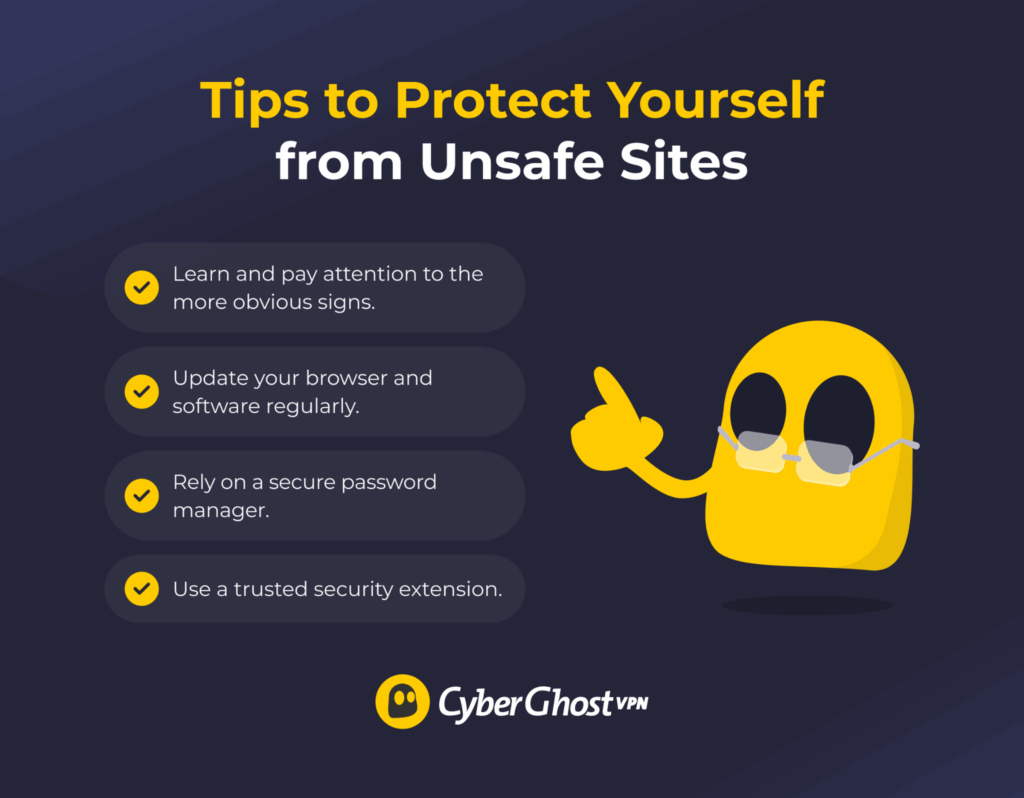
The first step in protecting yourself from malicious sites is knowing how to recognize them. Pay close attention to telltale signs like misspelled URLs to avoid visiting unsafe sites. Aside from that, you can also rely on the following:
- Regular updates: Keep your browser and operating system up to date. Many types of cyberattacks on unsafe sites take advantage of known, unpatched exploits in outdated software.
- Browser settings: Enable your browser’s security features for safer browsing. Look for settings related to enhanced security or safe browsing.
- Security extensions: Use a reputable extension to block malicious ads or aggressive pop-ups, which could lead you to an unsafe site.
- Password managers: These make it easier to recognize fake login pages. They’re programmed to autofill your password on the actual, legitimate site.
Get a VPN
Your activity on HTTP sites might end up visible to your ISP, Wi-Fi owners, or network administrators. CyberGhost VPN routes your traffic through an encrypted tunnel, which makes it harder to expose your traffic in this manner.
Note: A VPN encrypts your traffic between your device and the VPN server. If you’re on an HTTP connection, it’s still potentially exposed between the VPN server and the destination site. A VPN can improve your security for more casual browsing, but you shouldn’t use HTTP connections for sensitive data. This includes online transactions or anything that involves sharing personal information.
Develop Cyber Hygiene Habits to Defend from Unsafe Sites
Scammers and other bad actors continuously refine their methods, so many unsafe sites appear legitimate at a glance. This is why you should develop a habit of checking every new link you visit. It takes mere seconds to verify the URL and details like the HTTPS icon and SSL certificate.
For an extra layer of caution, you can also employ a trusted third-party tool like a link checker or a browser security feature. Sometimes a site just feels off, and it’s better to trust your gut than risk your data.
FAQ
How can I tell if a website is safe to use?
Determining if a site is safe can be very simple. Before you even click the link to a website, check its URL. Unsafe scam sites might have misspellings or different domain extensions. Once you reach the website, look for other signs that it might be malicious. Common red flags include requests for unusual permissions, aggressive redirects to other sites, or a large number of pop-ups.
Is HTTPS enough to trust a website?
No, it’s not. HTTPS encrypts your connection, which makes it harder for third parties to snoop on your on-site activity. But it doesn’t automatically mean the site itself isn’t malicious. A phishing site or fake online store can still have the HTTPS padlock icon next to the address bar.
What are common signs of a fake or malicious website?
The most obvious signs include URLs with misspellings or extra characters, unfinished or nonsensical site content, and forceful pop-ups or redirects. If you land on a site that looks suspicious, the best course of action is to immediately close the site. Make sure you clear any cookies it might have set and check if it downloaded any files to your device.
Can a website be dangerous even if it looks legitimate?
Yes, it can. Scammers can copy the design of a legitimate website convincingly. You can still tell that a site is unsafe if its URL looks wrong or if it starts asking for more permissions than necessary.
Which tools can help check a website’s safety before visiting?
You can check a site’s reputation using a link checker tool. It warns you if the URL appears in a database of known malicious sites. You can also use a WHOIS lookup service to find out the site’s registration date and possibly who owns it. This information can help you determine if the site is trustworthy. Your browser might also have built-in security features that warn you if a site is unsafe.

Leave a comment