
Most computers and smartphones run operating systems that support VPNs, but what about your game consoles, Smart TVs, or other gadgets without native VPN support? What if you want to improve the security and privacy on all your home devices through a VPN? One possible solution is setting up a hotspot that shares a VPN connection with other devices.
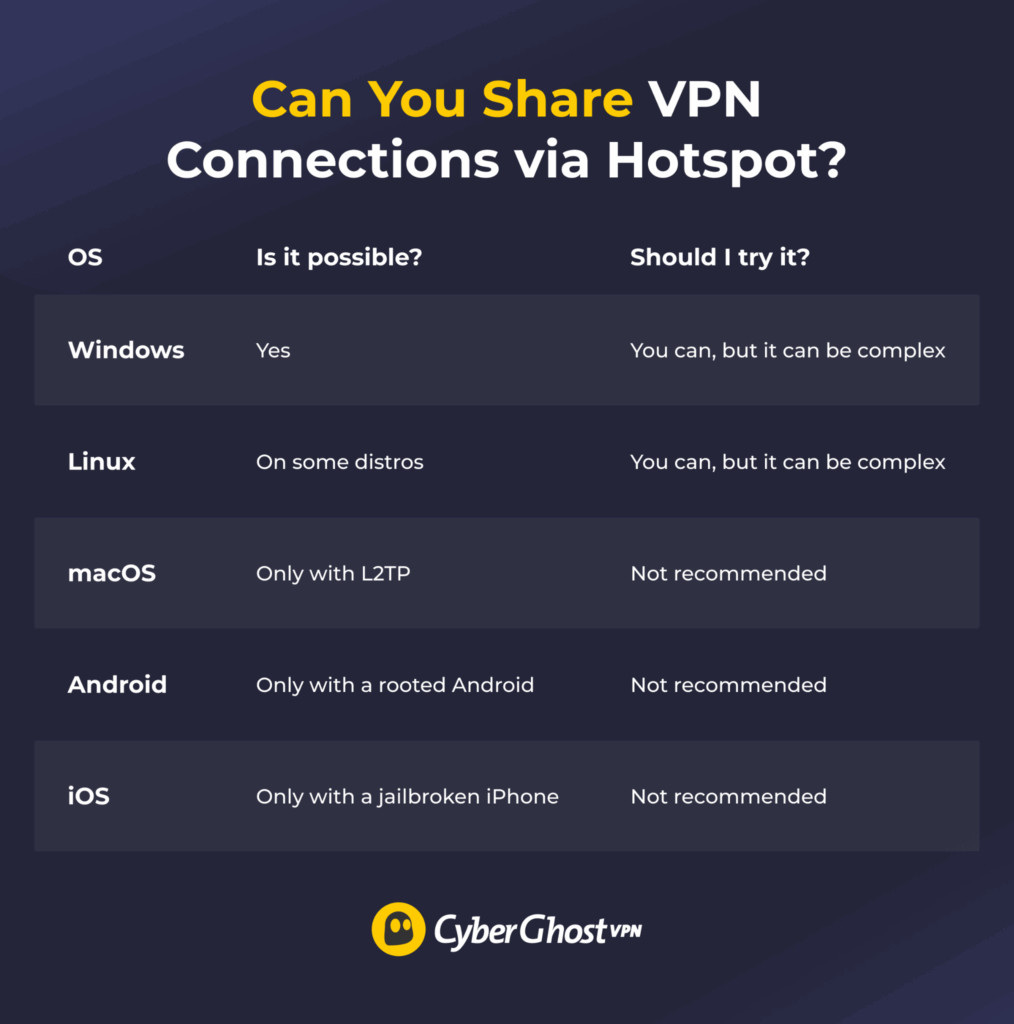
However, it’s not always straightforward. Depending on your operating system, setting up a VPN hotspot may require changing advanced network settings, and some platforms don’t support it at all. In this guide, we’ll explain what’s possible on Windows, Linux, macOS, Android, and iOS, along with the limitations and risks you should know before getting started.
How to Share a VPN Connection via Hotspot
Windows
To set up VPN-sharing on a Windows device, you need an active VPN subscription and a wireless adapter that supports mobile hotspots. Most laptops already have one built in, but desktop PCs may need a USB Wi-Fi adapter.
The process is slightly different for Windows 10 and Windows 11 devices, but the general procedure follows these steps:
- Check if your Windows device has a wireless adapter and if it supports mobile hotspots.
- Launch your VPN and connect to a server.
- Go to Settings > Network & internet.
- Find the Mobile hotspot section if it’s available and toggle it on.
- Set the hotspot’s name and password and make a note of them.
- Go to Control Panel > Network Connections.
- Locate the hotspot and VPN connection adapters.
- Share the VPN connection with the hotspot adapter.
- Connect a device to the hotspot.
CyberGhost VPN’s Support Center has detailed, step-by-step guides on how to share a VPN connection on Windows 10 and Windows 11.
Linux
You’ll need a wireless adapter for the hotspot, as well as another adapter or an Ethernet cable to connect your Linux device to the internet and the VPN. The exact steps for Linux devices vary, depending on the distribution and desktop environment you use. However, the setup steps are practically the same, even if the exact location and name of some settings might differ:
- Launch your VPN app and connect to a server.
- Find the mobile hotspot option. It’s usually in Settings, Network Settings, Wi-Fi Settings, or a similar location.
- If you’re using several wireless adapters, the system will likely prompt you to choose one.
- Open the mobile hotspot.
- On some versions of Linux, this should be it. Otherwise, you might have to adjust the hotspot adapter’s settings to use the internet adapter’s connection.
macOS
Setting up a VPN hotspot on macOS requires a VPN connection using Layer 2 Tunneling Protocol (L2TP). However, keep in mind that modern standards no longer consider L2TP very secure. CyberGhost VPN and many other providers have deprecated support for L2TP in favor of more modern and secure VPN protocols like OpenVPN or WireGuard®.
If you’re sure you want to proceed, here are the setup instructions:
- Launch your VPN and connect to a server through L2TP.
- Go to System Settings > General, then click on Sharing.
- Click the information symbol (ⓘ) next to Internet Sharing.
- In the dropdown menu next to Share your connection from, find your VPN connection.
- In the To computers using menu, tick the box next to Wi-Fi.
- Click Done.
- Tap the toggle next to Internet Sharing and click Start when prompted.
Android and iOS
Sharing your mobile device’s VPN connection through a hotspot is technically possible, but it’s not as simple as activating both and hoping this method works. The reason lies in the operating system’s core settings. Android and iOS handle hotspot connections and VPN traffic differently.
We strongly recommend you don’t hotspot a VPN on Android or iOS, as it usually requires rooting or jailbreaking your device. Besides making permanent changes to your operating system, it can introduce security risks, void your warranty, and, in some cases, breach your device’s terms of use. For most people, it’s much simpler and safer to use a VPN-compatible router or a VPN that supports several devices instead.
How to Cover Multiple Devices With a VPN
The easiest way is to get a VPN that supports multiple simultaneous connections. That way you simply need to install an app on each compatible device and connect whenever you need a privacy boost. CyberGhost VPN works on up to 7 devices at once, allowing you to switch between your gadgets without constantly logging in and out.
Another option is to set up your VPN on a compatible router. This setup automatically routes traffic from all connected devices through the VPN tunnel, including devices that don’t have native VPN support, such as game consoles. Not all routers support this setup, but it does bypass a potential VPN device limit.
Is Setting Up a VPN Hotspot Worth the Hassle?
A VPN hotspot can work, but it isn’t always the easiest solution. Depending on your operating system, the setup can range from fairly simple to unsupported without major changes to your device. For most people, using a VPN on several devices or setting it up on a compatible router is the simpler long-term option.
CyberGhost VPN lets you connect up to 7 devices at the same time. It has apps for popular operating systems such as Windows, iOS, Android, macOS, and some Linux distros. You can also configure it on a VPN-compatible router to turn it into a real, functional VPN hotspot. Plus, it comes with a handy 45-day money-back guarantee (14 days on the monthly plan), letting you test all its features completely risk-free.
FAQ
What is a VPN Wi-Fi hotspot?
It’s a hotspot that’s capable of sharing a VPN connection with the connected devices. Your device acts like a router, sending traffic from the connected devices through the VPN tunnel. Keep in mind that it’s not enough to just turn on the hotspot and the VPN. In fact, the procedure to create a VPN hotspot can be complex, depending on your operating system.
How do I create a VPN Wi-Fi hotspot?
The exact steps depend on your device’s operating system. Windows and Linux devices tend to have the most reliable procedure, while macOS depends on an older VPN protocol that doesn’t meet modern security standards. Android and iOS devices require more aggressive measures, like jailbreaking or rooting. We don’t recommend it as it may void your warranty or create a security risk.
Can I use a VPN hotspot without rooting my device?
Not in most cases. Android and iOS don’t normally let you share a VPN connection over a hotspot, and workarounds often require rooting or jailbreaking. Because those changes can introduce security and stability risks, we don’t recommend them.
Which devices can connect to a VPN Wi-Fi hotspot?
Any device with Wi-Fi capabilities can connect to a correctly configured VPN hotspot. This includes devices that don’t support VPNs, such as game consoles, smart gadgets, and some Smart TVs. A simpler alternative method for the same results is setting up a VPN on a compatible router.
Is a VPN Wi-Fi hotspot secure?
Yes, as long as the host device uses a properly configured, trustworthy VPN. All traffic coming from connected devices travels through the host device’s VPN tunnel. However, you should remember to set a strong password when configuring your VPN hotspot to make it less likely that strangers can connect without permission.

Leave a comment