
There’s nothing worse than trying to relax with your PS5, only to face slow matchmaking, random timeouts, or voice chat issues with your friends. If your internet connection seems fine but these problems persist, an overly restrictive Network Address Translation (NAT) configuration on your router may be blocking the ports your PS5 needs for online features. Port forwarding may be the solution.
This guide shows you how to open PS5 ports safely on your router and what port forwarding can and cannot do. By the end, you’ll know exactly how to set it up and test it.
What Is Port Forwarding?
Port forwarding is a networking feature that tells a router to send incoming traffic to a specific device. For example, you can “bind” incoming connections using the 3480 port to a PS5 on your home network. This allows servers or people on the internet to communicate with the PS5.
Without port forwarding, external services will only “see” your home network’s public IP address, not individual devices behind it. The router forwards inbound traffic to the correct device using NAT, which lets it share one public internet address while channeling connections to multiple devices on its network.
In most cases, the default setup works fine with gaming consoles like the PS5. However, some router configurations, firewall rules, or strict NAT settings can prevent traffic on certain ports from reaching your PS5, leading to connectivity errors.
People often call this process “opening ports” for a specific device. PlayStation lists the ports the PS5 uses for its online features. At the time of writing, the PS5 may use any of the following ports1:
- Transmission Control Protocol (TCP): 80, 443, 3478, 3479, 3480.
- User Datagram Protocol (UDP): 3478, 3479, 49152~65535
Each console uses different ports and supports different NAT types. Generally, the best type for PlayStation 5 is NAT type 2, while Xbox and Nintendo Switch have different networking terminology and recommended ports. Even other PlayStation devices, such as the PS Portal, may not use exactly the same ports as the PS5.
When Should You Use Port Forwarding on Your PS5?
As mentioned, port forwarding a PS5 isn’t always necessary, and many players use their console for years without ever doing it. If online gaming and Voice over Internet Protocol (VoIP) chat work normally and your PS5 already shows NAT type 2, there’s usually no reason to configure port forwarding.
However, it can help improve performance or fix persistent online issues in these situations:
- Strict NAT: Start up your PS5 and go to Settings > Network > Connection Status > View Connection Status. If it says NAT Type 3, strict NAT settings may be blocking PS5 ports. NAT type 1 is rare but means your settings are too open, potentially leaving your PS5 exposed to attacks.
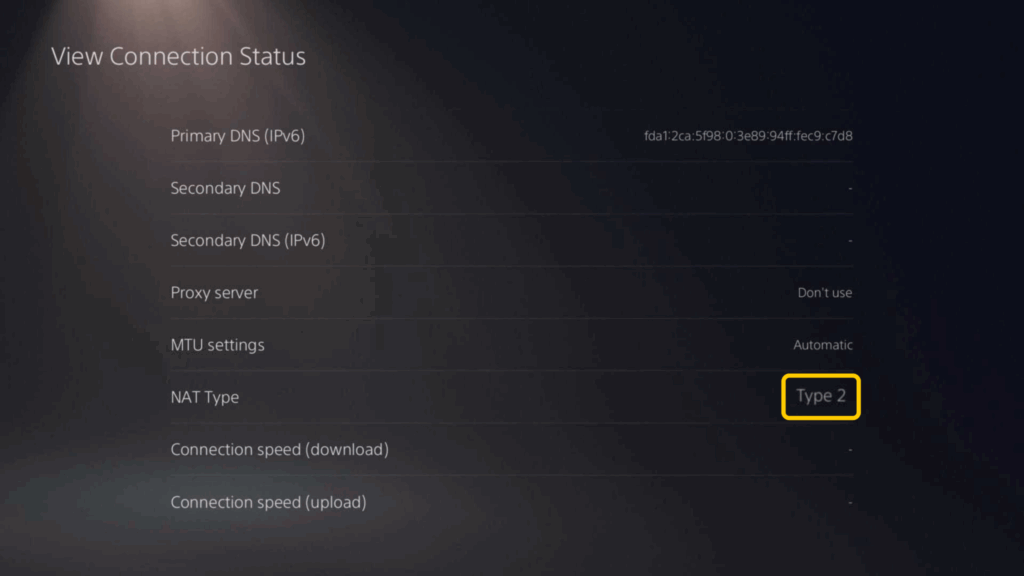
- Multiplayer connection errors: Try joining or hosting an online game. See if lobbies take forever to fill, there are frequent timeouts, you get “Unable to connect” errors, or you struggle to join games. While rare, in-game lag or other performance issues may also be a symptom.
- Voice chat problems: Call up some friends and see if you can communicate without hiccups. Blocked ports often result in sudden disconnections, choppy audio, or inconsistent performance.
- Remote Play issues: Try connecting to your PS5 from outside your home Wi-Fi network using Remote Play. If you can’t find it, struggle to connect, or experience timeouts, a restricted port may be the cause.
A poor internet connection can also cause many of these issues. Test your connection speed and latency first. If other devices on your home network also have a slow or unstable connection, the problem is more likely with your router, internet service provider (ISP), or too many people using the internet at once.
How to Set Up Port Forwarding for Your PS5
Port forwarding your PS5 isn’t that difficult once you know the steps. You’ll need to access your router and change some of its settings, so follow the instructions carefully and make sure you only change the settings covered in this guide.
Locate IP Addresses for Your PlayStation 5 and Router
You’ll need your router’s IP address to access the admin panel and configure its port forwarding settings. Most routers have a default IP of 192.168.1.1, 192.168.0.1, or 10.0.0.1. Type them into a web browser’s URL bar and see if it takes you to the login page. If it doesn’t, you’ll need to find your router’s IP.
You’ll also need the PlayStation’s current IP to configure the port forwarding rule. The router assigns IPs to the PS5, and this IP may change over time, such as when the PlayStation or router reboots, breaking the port forwarding rule. First, get the PS5’s current IP and set it to static so that it stays the same.
To find your console and router’s IP on PS5:
- Start up your PlayStation and go to Settings.
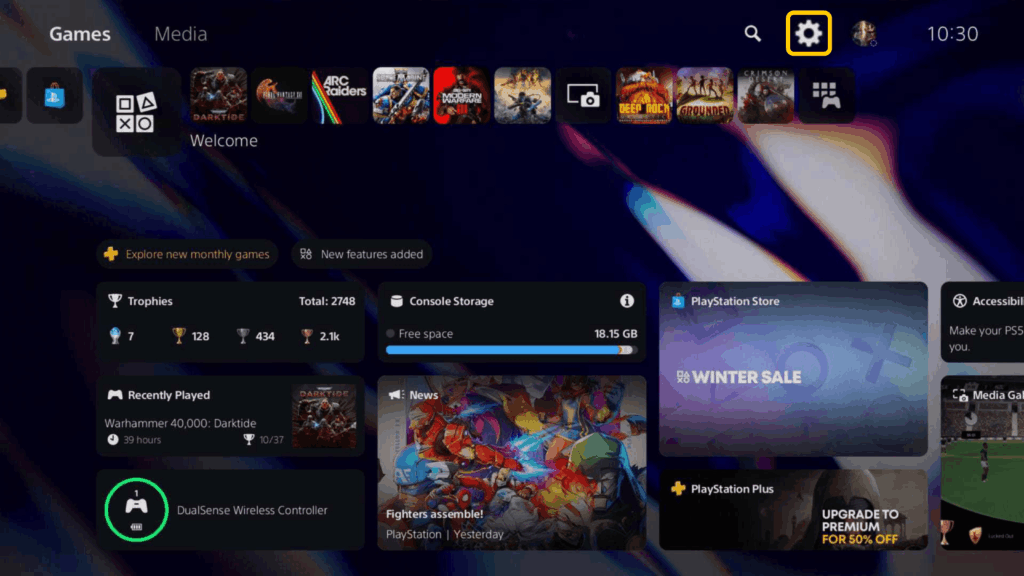
- Select Network, then View Connection Status.
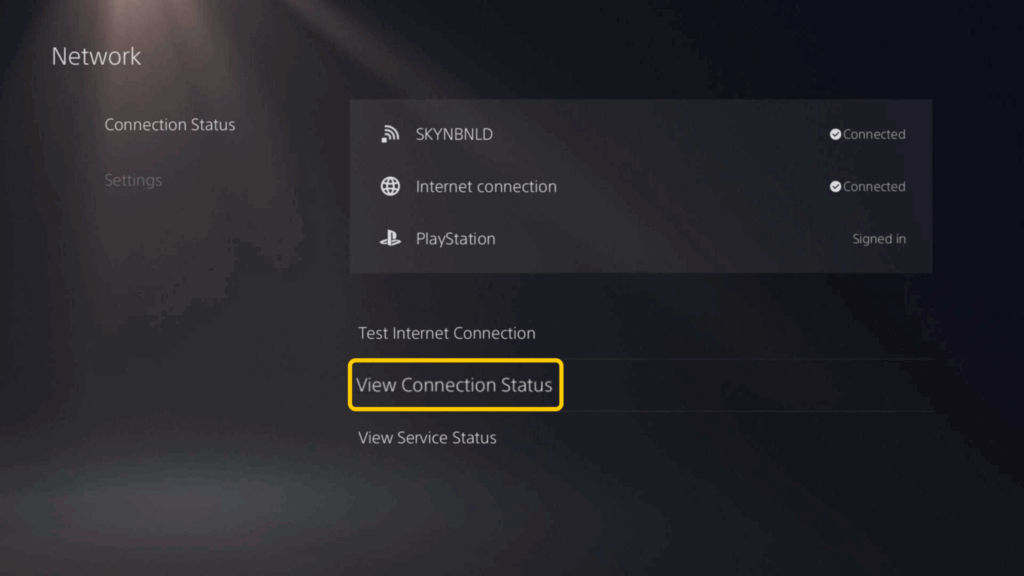
- You should now see your PS5’s IP (next to IPv4 address) and your router’s IP (next to Default Gateway) on the screen. Copy both.
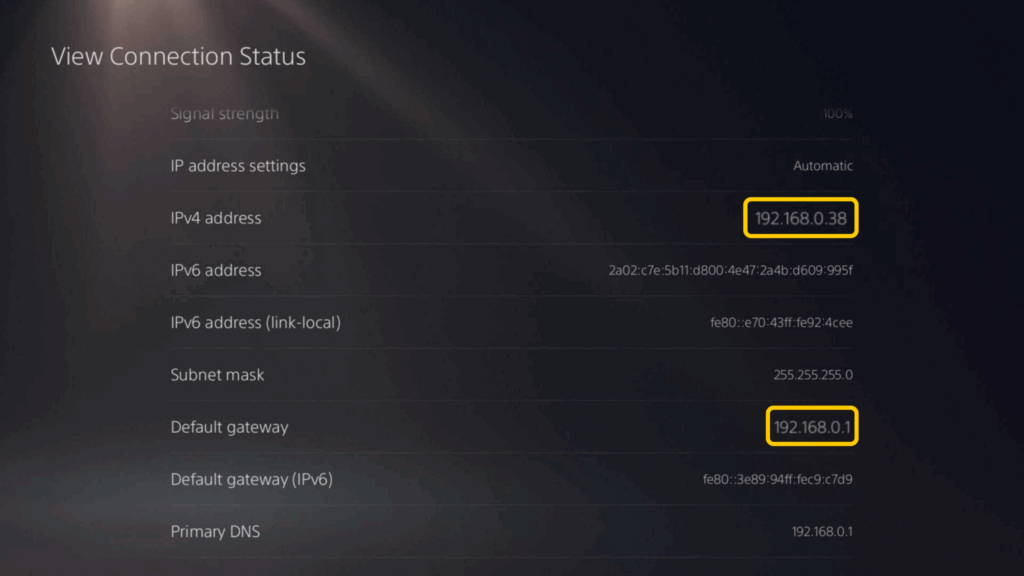
- Now, look for MAC Address (LAN Cable) and MAC Address (Wi-Fi), and copy the one matching how you connect your PS5 to the router.
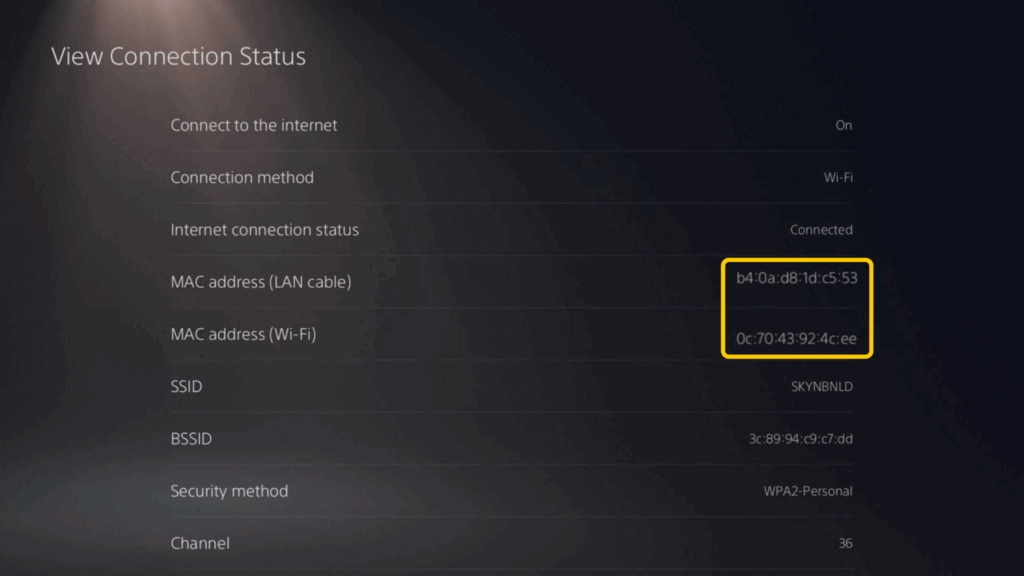
Make sure you have both IPs before proceeding. Don’t turn off or disconnect your PlayStation 5 until you’ve completed the entire port forwarding procedure, as this may change the IP.
Configure Port Forwarding on Your Router
The exact steps differ depending on your router model. Refer to your router’s manual, online documentation, or technical support if you need extra help.
Here are the typical steps to set up PS5 port forwarding:
- Log in to your router’s admin page. Open your browser and enter the router’s IP address into the address bar. Enter the username and password to log in.
- Before creating the forwarding rule, find your router’s DHCP Reservation, Address Reservation, or Static DHCP settings. Reserve your PS5’s current IP address using its MAC address so the router always assigns the same local IP.
- Locate the port forwarding settings. Look for a menu option like Port Forwarding, Apps and Gaming, Port Range Forwarding, or Virtual Servers. You’ll know you’re in the right place if you see a table or list with port numbers and IP addresses.
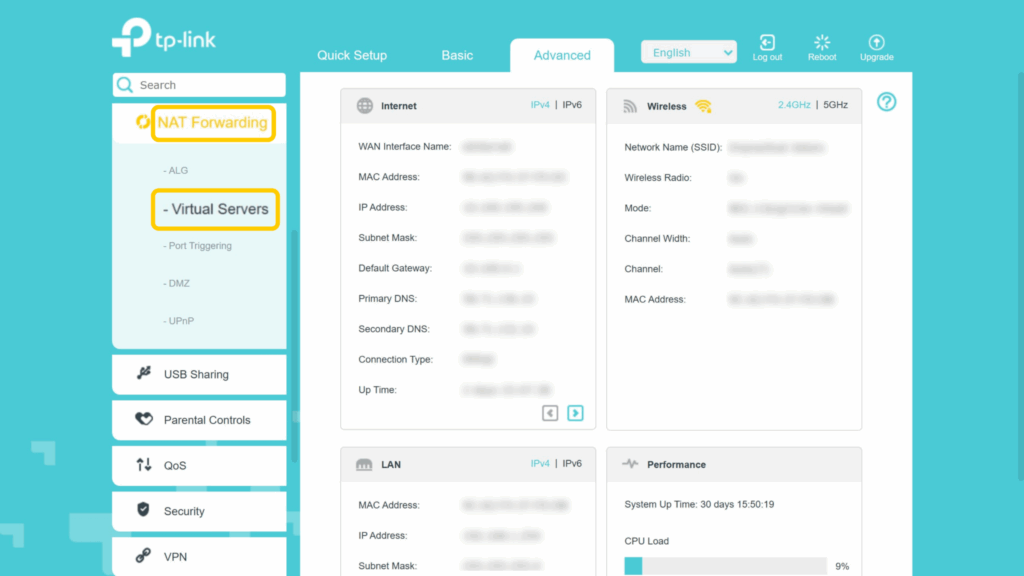
- Add a new port forwarding rule. Select Add New or a similar option. Enter a rule name, the port number or range, select TCP or UDP (or both), and specify your PS5’s IP address (Internal IP in the image below). Finally, save the rule and make sure it’s enabled, if required.
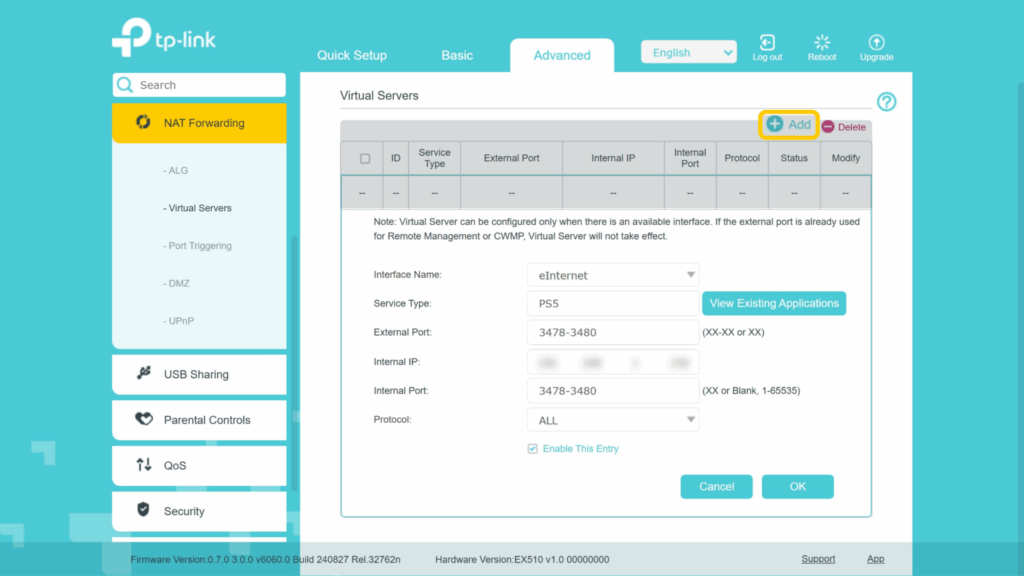
- Restart your PS5. This will apply the new IP and port settings. If everything went well, your PS5 should now use the forwarded ports.
Test if It Worked
A few basic tests can confirm that your PS5 port forwarding is working before you jump into competitive matches.
- Check NAT type: Go to Settings > Network > Connection Status > View Connection Status and confirm NAT type 2. While you’re here, check that the IP Address is still the same as the one you used above.
- Use a port checking tool: Free online port checkers let you enter your public IP address and port to verify the port is reachable. Find your public IP via a site like whatismyip.com or your router’s status page. Don’t check your PS5’s local IP, which starts with 192.168.x.x or 10.x.x.x and isn’t visible from the internet.
- Test multiplayer and voice chat: Use these features as you normally would. Check that everything works as intended before you join serious matches.
- Try Remote Play: If you have a PS Portal, connect to a different network (mobile hotspot or a nearby cafe’s Wi-Fi, for example) and see if you can connect to your PS5 through Remote Play.
Pros and Cons of Port Forwarding
Port forwarding makes your PS5 reachable from the internet on specific ports. This carries some inherent risk compared to the default setup, where your router handles the traffic on your PS5’s behalf.
Benefits
- May improve matchmaking and hosting: Other players may be able to connect to games you host more easily.
- May improve voice chat stability: Direct connections can make voice chat more consistent in some games.
- May resolve NAT-related issues: Port forwarding can help restore online features that don’t work well with a strict NAT type.
Drawbacks
- Increases exposure to the internet: If your PS5’s IP address becomes known, unwanted traffic can reach your console.
- Requires careful router configuration: Incorrect settings can create connectivity problems or expose the wrong device.
- Won’t automatically improve gaming performance: Port forwarding doesn’t reduce ping or increase internet speeds on its own.
Troubleshooting PS5 Port Forwarding
Here are the most likely reasons port forwarding your PS5 may not work as intended:
- NAT type didn’t change: If you still see NAT type 3 in your PS5’s network settings, log in to the router and check that you configured the port forwarding rules correctly, especially the IP and ports. Confirm that there are no conflicting or incomplete entries for your PS5.
- Your PS5’s IP changed: If the IP on your PS5 doesn’t match the one in the port forwarding rule, it may have changed between connections. Configure a DHCP reservation (Static DHCP) for your PS5 on your router and update the port forwarding rule with the new IP.
- You have Double NAT: If your network uses two routers (or a router and a modem), you may need extra configuration to get port forwarding working. Two possible solutions are to put your ISP-facing router in bridge mode or set up port forwarding on both.
- Your ISP uses Carrier-Grade NAT (CGNAT): If your ISP uses CGNAT, it shares a single public IP among multiple customers, which makes port forwarding impossible. Call your ISP and ask for a unique public IP address (you may need to pay extra).
- Router firmware issues: If you notice other issues that seem to affect your entire network, it may be your router acting up. Update the firmware, look for any strange settings, reboot it, or factory reset it if necessary.
- Universal Plug and Play (UPnP) conflict: If your router already has UPnP enabled, it may be handling port forwarding by default and conflicting with your manual rules. If your router supports UPnP and your PS5 has NAT type 2 with no connectivity issues, you probably don’t need manual port forwarding.
Fix Connection Issues and Help Secure Your PS5
Port forwarding a PS5 can fix NAT-related problems with online play. It won’t lower your ping, but it can clear up matchmaking, voice chat, and Remote Play issues. However, port forwarding doesn’t improve your online security on PS5 and may even weaken it.
To help secure your gaming sessions, consider a trusted gaming VPN like CyberGhost VPN. It encrypts your connections and helps hide your real IP, making it harder for others to monitor your connection or target you with distributed denial-of-service (DDoS) attacks or swatting.
You can install our VPN on your router to help protect your PS5. CyberGhost VPN also runs servers optimized for gaming, so there’s added protection without crushing your latency.
FAQ
Is port forwarding safe?
Port forwarding is generally safe if you only forward the ports you need and you don’t unnecessarily advertise your IP online. However, it does come with a slightly higher risk of cyberattacks that try to exploit software vulnerabilities on the PS5 or target it with denial-of-service (DoS) traffic, which could disrupt gameplay or PS5 online features.
What ports should I forward for PS5?
PlayStation lists the ports the PS5 uses on its website. These cover online multiplayer matchmaking, voice chat, PS Remote Play, and PSN connectivity. Only open the ports that are causing issues or that you intend to use to minimize risk.
Does port forwarding reduce lag or improve speed?
It may reduce perceived lag if NAT settings interfere with certain PS5 features. However, port forwarding doesn’t increase speeds or lower latency on a technical level. It allows incoming connections to communicate with your PS5 when using specific ports. It mostly helps fix issues with PS5 online features that strict NAT settings block.
Is UPnP better than port forwarding?
It depends. UPnP (Universal Plug and Play) opens and closes ports as needed, so you don’t have to configure your router manually. If your PS5 already has NAT type 2 and online gaming works normally, UPnP is usually the simpler option. Manual port forwarding may be a better choice if UPnP isn’t working as intended, if you’re troubleshooting NAT-related issues, or if you want more control over which ports remain open.
What NAT type is best for PS5?
Your PS5 should show NAT type 2 for the best experience. Check under Settings > Network > Connection Status > View Connection Status. NAT type 3 means settings are too restrictive and may block certain online features. NAT type 1 means your PS5 connects to the modem without a router or firewall, which may leave it exposed to threats.
Can I port forward behind CGNAT?
No. CGNAT means your ISP shares its public IP among multiple customers, and port forwarding only works with a unique public IP. Ask your ISP for a dedicated public IPv4 address or switch to an ISP that doesn’t use CGNAT. You can also try a VPN that supports port forwarding, although few do due to security concerns.

Leave a comment