
If you’re connected to someone else’s Wi-Fi, the person who controls the router can usually see which websites your device connects to. That includes the domain names you visit and the apps that generate internet traffic. Whether it’s your parents, landlord, boss, or public Wi-Fi provider, anyone who manages a Wi-Fi network can potentially monitor your online activity on your phone and other devices.
Incognito Mode doesn’t change that. Clearing your browsing history doesn’t either. Keep reading to find out what exactly Wi-Fi owners can and can’t see, how monitoring works, and what actually protects your activity on shared networks.
What Wi-Fi Owners Can and Can’t See
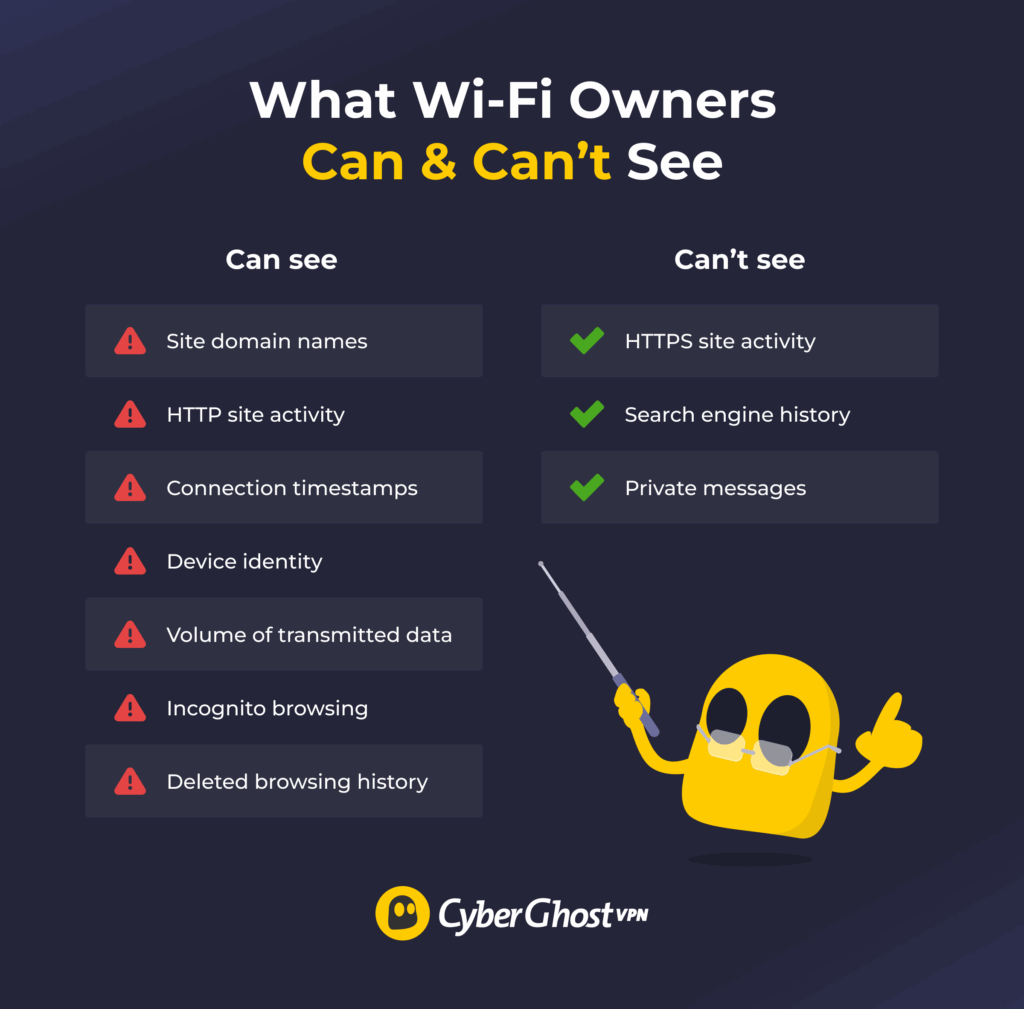
What’s Visible to Wi-Fi Owners
When you’re connected to someone else’s network, the router can log certain types of information. Typically, that includes:
- Domain names you visit: If a site uses HTTPS (which most do), the network owner can see the main domain name, like example.com, but not specific pages, searches, or content inside it.
- Most activity on HTTP sites: These sites don’t use the secure HTTPS connection, so your Wi-Fi provider could see specific pages you visit and other on-site activity.
- Connection timestamps and duration: Network owners can see when your device connects to a site and for how long the connection stays active.
- Your device details: Your device’s MAC address and the local IP address assigned by the router are visible on the network.
- Total usage and data volume: Network logs can show how long your device has been connected and how much data it has sent and received.
- Incognito or private browsing sessions: Private browsing prevents your browser from saving your history and tracking cookies on the device you’re using. However, it doesn’t hide your traffic from Wi-Fi owners.
- Deleted browsing history: Clearing your browser’s history doesn’t delete logs of your activity recorded by the router. Still, Wi-Fi owners can’t access the browsing history you’ve previously deleted.
What’s Not Visible to Wi-Fi Owners
Encryption limits what a network owner can actually see inside your activity.
- Specific activity on HTTPS sites: Wi-Fi owners can’t see specific pages, media, or searches on a site that uses a secure connection. They can only see the site’s domain.
- Search engine history: Search engines like Google or DuckDuckGo encrypt search queries. A Wi-Fi owner can see that you used the search engine, but not what you searched for.
- Message contents in encrypted apps: The messages you exchange on apps like WhatsApp, Signal, or iMessage are protected with end-to-end encryption. This means only the sender and recipient can read them, not Wi-Fi owners.
How Wi-Fi Owners See Your Activity
Wi-Fi owners don’t see your screen or read your messages directly. However, they can monitor network activity through several different methods.
On a basic home network, the most common method is router logging. Many routers can keep records of which domains devices connect to, along with timestamps, device names, and local IP addresses. Some models have logging enabled by default, while others require the owner to turn it on in the settings. Either way, it can be enabled or disabled in the router’s settings panel.
In larger environments, such as workplaces, schools, or ISP-managed networks, administrators may use more advanced tools like deep packet inspection (DPI). This technology analyzes traffic metadata, including packet size, timing, and destination IP address. While Wi-Fi owners can’t use it to read the actual payload of the transmitted packets, they can potentially see the target site’s IP address.
Organizations may also use dedicated network monitoring software at the router or gateway level. This software can log all internet traffic, including visited sites, timestamps, and the amount of transmitted data. However, it’s more commonly used as part of a large organization’s network security than in typical home setups, where monitoring is usually limited to basic router logs.
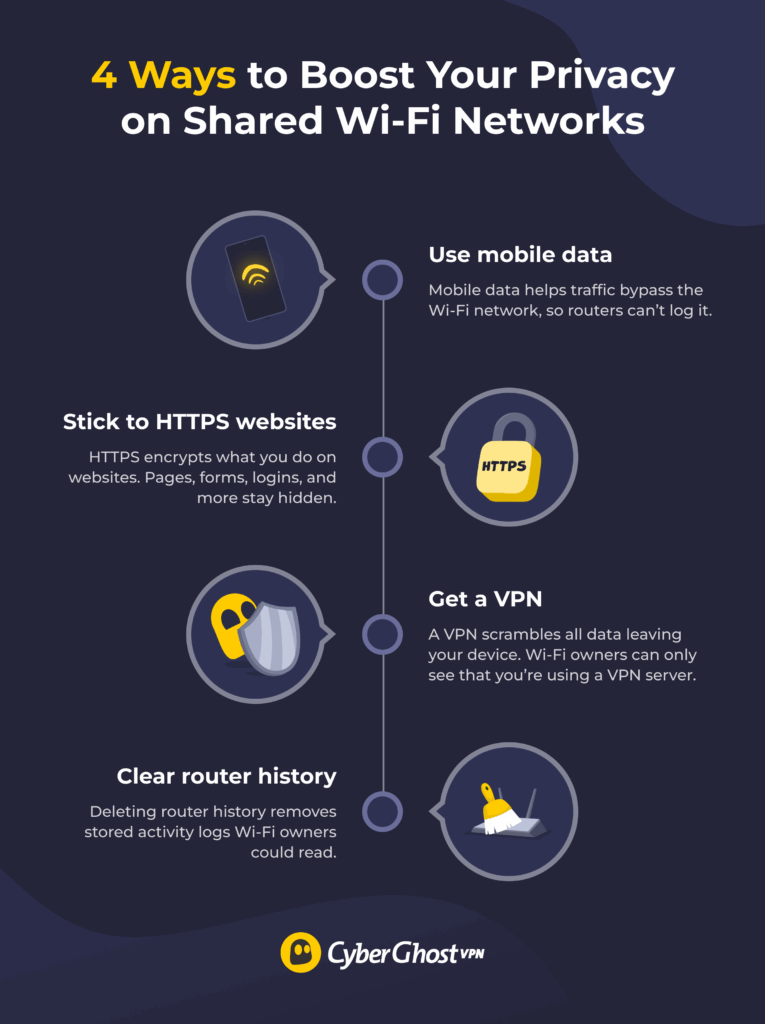
How to Boost Your Privacy on Shared Wi-Fi Networks
Use Mobile Data
The simplest way to boost your online privacy is to disconnect from the Wi-Fi network altogether. When you switch to mobile data, your traffic no longer passes through the router, so the network owner can’t log it. You can also use your smartphone as a hotspot to connect other devices, like your laptop or tablet.
However, keep in mind that this shifts visibility to your mobile provider instead. Depending on your phone plan, heavy browsing or streaming could also increase your data usage and cost.
Stick to HTTPS Websites
HTTPS is a secure communication protocol that lets a browser safely exchange traffic with websites. It encrypts a part of the data you send and receive, so it prevents the Wi-Fi owner or network admin from seeing exactly what you’re doing on the sites you visit.
Most browsers show a secure connection in the address bar, either by showing “https://” in the URL or a closed lock icon. Browsers often give you a warning if you try to connect to a site using HTTP instead of HTTPS. They also typically have a setting that lets them only connect to sites if HTTPS is available, usually called “HTTPS-only” or similar.
HTTPS doesn’t hide the site domains you’re visiting, so the Wi-Fi owner can still get some idea of what you do online. However, they still can’t see the exact pages you visit.
Get a VPN
A VPN encrypts all of your traffic before it’s sent. Then, it reroutes the encrypted traffic through a secure VPN server before reaching the target site. On the Wi-Fi network, your activity appears as encrypted data traveling to a VPN server, not to individual websites.
Anyone snooping in on your network can’t see what the traffic contains or the target site. They only see that some encrypted traffic is going to the VPN server. Because all your traffic goes through the VPN server, the VPN provider hypothetically has access to your online browsing history.
That’s why it’s important to choose a reputable no-logs VPN that doesn’t track or record your online activity. Unlike using mobile data, a VPN with a strong no-logs policy makes it harder for anyone to monitor your traffic.
Clear Router History
If you control the router, you may be able to delete stored activity logs through the router’s admin panel. Not all routers log browsing history by default, and many home networks have logging disabled. Here’s how to check if your router is logging your online activity and how to delete it:
- Find your router’s IP address. The exact process depends on the device you’re using. On Windows, you can open Command Prompt and type “ipconfig.” The router’s IP address is listed under Default Gateway. It’s usually 192.168.100.1, 192.168.0.1, or 10.0.0.1.
- Open a browser and type the router’s IP address into the address bar. This will bring up the login page for your router.
- Log in to your router settings. You’ll need the administrator username and password, which is different from the Wi-Fi password. Many router models have the default login credentials on the router itself.
- Go to the router history section. Its exact location varies greatly between different router brands and models. Look for a tab or menu titled Activity, Logs, Administration, or similar.
- Delete the logs. Once you find the router history section, you can view and delete the entries by clicking Clear Log, Delete, or a similar button. You might also find the Disable Logging option if you want to stop the router from logging your online activity.
Changing router settings can disrupt your network if you aren’t sure what you’re doing. You could accidentally disable internet access, alter security settings, or lock users out. More importantly, accessing or modifying router settings on a network you don’t own, such as at school or work, may violate usage policies and could result in legal consequences.
How to Tell If Your Wi-Fi Network Is Logging Your Activity
In most cases, you don’t get a clear warning that a network is logging traffic. Monitoring usually happens quietly in the background. A few signs might suggest that extra controls or filtering are in place:
- Slower connections: Network monitoring software could slow down your connection speeds.
- Blocked or restricted traffic: Inaccessible sites could be a result of firewalls logging your traffic and blocking certain sites.
- Unexpected certificate warnings: If your browser asks you to install a security certificate or shows certificate errors on multiple HTTPS sites, the network could be using inspection tools.
- Login splash pages or captive portals: Public and workplace networks often route traffic through monitoring or filtering systems after you connect.
- Consistent policy-based restrictions: Activities like gaming, streaming, or specific website categories may be unavailable across all devices.
However, none of these signs automatically mean someone is actively watching your browsing. The only surefire way to see if your Wi-Fi is tracking your activity is to check the router itself (on home networks). On school, office, or public Wi-Fi, you usually won’t have access to those settings, so you should assume the network may log basic connection details by default.
Wi-Fi Owners Can See the Sites You Visit, But You Can Stay Private
Your Wi-Fi network owners can see a lot about your online traffic, like the sites you visit and when you visit them. Even if they can’t read what you do inside most HTTPS sites, your browsing destinations are still visible at the network level. If you want to prevent that, you need to encrypt your traffic before it leaves your device.
One of the most effective ways to do that is to get a VPN. It encrypts your traffic and creates a secure tunnel between your device and a VPN server. This means the Wi-Fi owner only sees encrypted traffic heading to the VPN server, not the websites or apps you’re actually using.
CyberGhost VPN makes this simple. It uses strong encryption to protect your traffic from snoops before routing it to your chosen server in its network covering 100 countries. It also has a strong no-logs policy, so it doesn’t track or record your online activities. You also get automatic Wi-Fi protection, DNS leak protection, and a 45-day money-back guarantee, so you can test it without risk.
FAQ
Does using a VPN hide browsing history from the Wi-Fi owner?
Using a VPN increases your privacy online. It encrypts your internet traffic and routes it through a secure VPN server before it reaches a website. As a result, the Wi-Fi network can typically see that your device is connected to a VPN server, but not the specific websites you visit through it.
Does the Wi-Fi still track browsing history when you use mobile data?
No, it doesn’t. Using mobile data means your traffic completely circumvents the Wi-Fi network, so your Wi-Fi router doesn’t have any browsing history to track. However, it also means your mobile provider can track your browsing history instead, and different providers may have their own data handling policies.
Does Private Browsing show up in Wi-Fi history?
Private Browsing, Incognito Mode, and similar browser features don’t hide the sites you visit from your Wi-Fi router’s history. They just delete a browsing session’s history and cookies from your browser’s local storage on the device you’ve been using. However, router history logging doesn’t depend on your browser at all.
Can a Wi-Fi owner see what I do on Instagram?
No, a Wi-Fi owner can’t see what you do on Instagram because both its app and website create a secure connection using HTTPS. However, they can still see you’re connected to Instagram because HTTPS doesn’t hide the visited sites’ domains.
Can my employer see what websites I visit on Wi-Fi on my phone?
If your phone is connected to the workplace Wi-Fi network, then your employer can see the sites you visit. If you use mobile data instead, your traffic doesn’t go through the workplace Wi-Fi, so your employer can’t track it.
Can a Wi-Fi owner see text messages?
No, Wi-Fi owners can’t see your text messages. SMS uses the cellular network, not your Wi-Fi. Text messaging apps like iMessage or RCS on Google Messages require an internet connection, but they encrypt messages in transit, so your Wi-Fi owner can’t read them.
Can a Wi-Fi owner see WhatsApp messages?
No, your Wi-Fi owner can’t see the WhatsApp messages you send or receive through that Wi-Fi network. WhatsApp uses end-to-end encryption, which means only the sender and the recipient can decrypt and read the exchanged messages. However, the Wi-Fi owner can still see your device connecting to WhatsApp.
Does my browsing history show up on my internet bill?
No, your browsing history isn’t listed on your internet bill. Wi-Fi bills typically include details related to your account, such as your service plan, billing information, and sometimes data usage. Your internet service provider (ISP) can normally see all the websites you visit, but it doesn’t print this information publicly.

Leave a comment
Katie G
Posted on 27/07/2023 at 20:23
How do I find the VPN on samsung phone?
Ghostie
Posted on 28/08/2023 at 12:03
Hi Katie, great question!
Samsung phones have a built-in VPN, but it’s the bare minimum and lacks most capabilities premium VPNs offer.
We recommend installing CyberGhost VPN’s Android app. You’ll get our full suite, including access to servers in 91 countries, 256-bit AES encryption, automatic Wi-Fi protection, unlimited bandwidth, and a Kill Switch for extra data protection — all features Samsung’s VPN can’t offer you.
Ant
Posted on 18/06/2023 at 02:09
what about mobile data? if i switch to mobile data just before searching a site and turning it off when im done browsing, does it have any effect?
Ghostie
Posted on 03/07/2023 at 17:08
Excellent question, Ant.
Wi-Fi routers only track active connections, so your activity won’t be recorded if you’re using mobile data. Keep in mind, depending on your country’s privacy laws, your mobile network provider will still be able to monitor what you’re doing, as will the sites you visit.
CyberGhost VPN encrypts your data, so you can use it to prevent your ISP and mobile carrier from monitoring your online activity.
Shar
Posted on 28/04/2023 at 03:24
If I hooked up to someone’s wifi, and we were connected through a Google hub Nest device, would THE WIFI OWNERS browser AND domain lookups be visible on MY DEVICE, ? (Can you see each others)
Ghostie
Posted on 28/04/2023 at 12:48
Technically, yes, anyone connected to the Wi-Fi could go into the router’s admin settings via their browser and check the most recent events related to all devices connected to it. But hopefully your friends have changed their password from the standard admin/ admin by then. From the article: How to Clear the History on a Router
1. Open your internet browser
2. Type in your router’s IP address and hit Enter. 192.168.0.1 is the default IP address on most routers.
3. Login with your router’s username and password. If you can’t remember what this is, try admin / password or admin / 1234 or admin / admin or root / root.
Jane
Posted on 20/04/2023 at 08:00
Any person with knowledge of computers who is even self taught just a little bit can find what you’ve been playing with in your computer. If you have big secrets. Lock your computer down when you are not around. Or try to be a good husband and quit hiding things from your wife unless it’s a diamond for her. Then if she’s the diamond she won’t be mad and she’ll probably be extremely happy until she gets it and afterward.
Ghostie
Posted on 20/04/2023 at 12:58
That’s quite true, Jane. But there are measures you can take to wipe your tracks. Clear the router logs if you can, delete your cookies and browser history, and use a good VPN.
SS
Posted on 29/03/2023 at 18:31
So, you mention that using a VPN convinces the router it’s not your device, but does it also make it not register what sites you visited? Or does it do record the sites, just not your IP address and geolocation?
Thx )
Ghostie
Posted on 30/03/2023 at 12:59
Hello SS. the router (say at home or work) will know it’s your device, a VPN can’t help there. The router will not be able to tell which sites you’ve visited, though, as all it will register is that you connected to us. If you mean the destination server, (the websites you visit) they will see our IP and geolocation instead of yours.
Connie
Posted on 22/03/2023 at 18:04
can I block anyone from my internet router that uses cyber ghost?
Ghostie
Posted on 14/04/2023 at 12:44
Hi Connie, yes, you can restrict VPN use on your network using your router’s firewall. In most instances the feature you want will be found inside the Advanced or Security menu options, but might be located else where.
You need to create a new rule in your router that blocks specific protocols and ports. This will apply to the entire network, which will include every device that connects to it. In a Netgear Orbi router, this is located inside Security > Block Services. You want to block Point-To-Point Tunneling (PPTP) or Secure Socket Tunneling Protocol (SSTP). Blocking these protocols should work to block VPN use.
taylor
Posted on 18/03/2023 at 13:18
how long is your incognito history on their wifi visible?
Ghostie
Posted on 22/03/2023 at 09:50
Hello Taylor, the Wi-Fi router will typically keep a log of all the websites you connected to, yes, even those made in incognito mode. It will not keep a history of your search queries, only the domains you visited. The good news is, every time the Wi-Fi owner reboots the router, the information is erased. Hope that helps.
my sources
Posted on 17/03/2023 at 11:07
Great information. Lucky me I recently found your
website by chance (stumbleupon). I’ve book-marked it for later!
Ghostie
Posted on 17/03/2023 at 11:32
Thanks for the encouraging words. We’ll try to keep bringing you the intel you need to stay safe online.
Katrina
Posted on 16/03/2023 at 06:10
If I upload this will it help hide my internet use or IP detail from home
And info about me
Ghostie
Posted on 17/03/2023 at 11:28
Hi Katrina, CyberGhost VPN will encrypt your data, which means the Wi-Fi owner (at home or anywhere else) can’t see what you’re doing online, only that you’re connected to our service. However, they will be able to see that you’ve been on the network and for how long. Hope that helps. Stay safe!
anoymous
Posted on 27/02/2023 at 21:05
Hi if i connected to cyber vpn on someone home wifi router can a owner see which website i visit or if they request broadband provider to show details can my history log will be trace
Ghostie
Posted on 03/03/2023 at 11:57
Hi Anonymous, Yes, CyberGhost VPN hides your browser history and all your online activities from ISPs, Wi-Fi owners, cybercriminals, snoopers, your mom, your boss, and everyone else!
A VPN eliminates every trace of your digital identity: your device IDs, IP address, geographic location, and search history. A VPN encrypts your data with 256-bit AES encryption from the moment it leaves your device, so your router and ISP only receive an indecipherable jumble.
VPNs also mask your IP address (which identifies you and your device) with one of their own. That tricks your Wi-Fi router or ISP into thinking that the data comes from a different source, not you. You’re safe to browse freely with CyberGhost.
Carla
Posted on 15/01/2023 at 10:15
I want to download this app but I have so many questions first? But there’s is no search button for questions n concerns
Ghostie
Posted on 18/01/2023 at 09:50
Hi Carla, I am sorry the answers to your questions could not be found using our search function. Have you tried contacting our 24/7 Customer Support team. They’re always ready to answer any questions through live chat and email.
bezza
Posted on 06/01/2023 at 03:04
Could someone see what your past search history was when you connect to their wifi or is it just their wifi they could see what you’re on?
Ghostie
Posted on 09/01/2023 at 10:06
Hi Bezza, no, they would only be able to look up what you’ve been up to during a session on their Wi-Fi, not previous sessions on other networks.
Ken Oolai
Posted on 27/07/2022 at 16:59
Dear Ms. Hansen –
Are you employed by Cyber Ghost ?
After free 45 days what are the regular fees ?
I think the overall article was helpful.
Ghostie
Posted on 28/07/2022 at 10:50
Hi, Ken
The fee does not change after 45 days. You can check out our pricing any time on our buy page.
Stay safe,