
The idea of being watched through your phone’s camera is unsettling, to say the least, but it is something you can protect yourself against. Even though true camera hacking isn’t common, it is possible when malware, rogue apps, or poor security habits come into play.
Understanding how camera spying works and the signs it leaves behind can help you regain control over your privacy. Most detection methods are simple, and strengthening your phone’s security can stop potential intruders before they gain access to your camera. Here’s what to look out for and the steps you can take to keep your camera (and your data) private.
How to Know If a Phone Camera Is Watching You: 6 Warning Signs
Spyware is designed to stay hidden, but it often leaves subtle clues. Noticing one sign doesn’t mean your digital privacy is compromised; phones can act up. Still, if you spot several of these, particularly the first few, it’s worth taking a closer look. Below are the most common warning signs, listed from the most obvious to the more subtle.
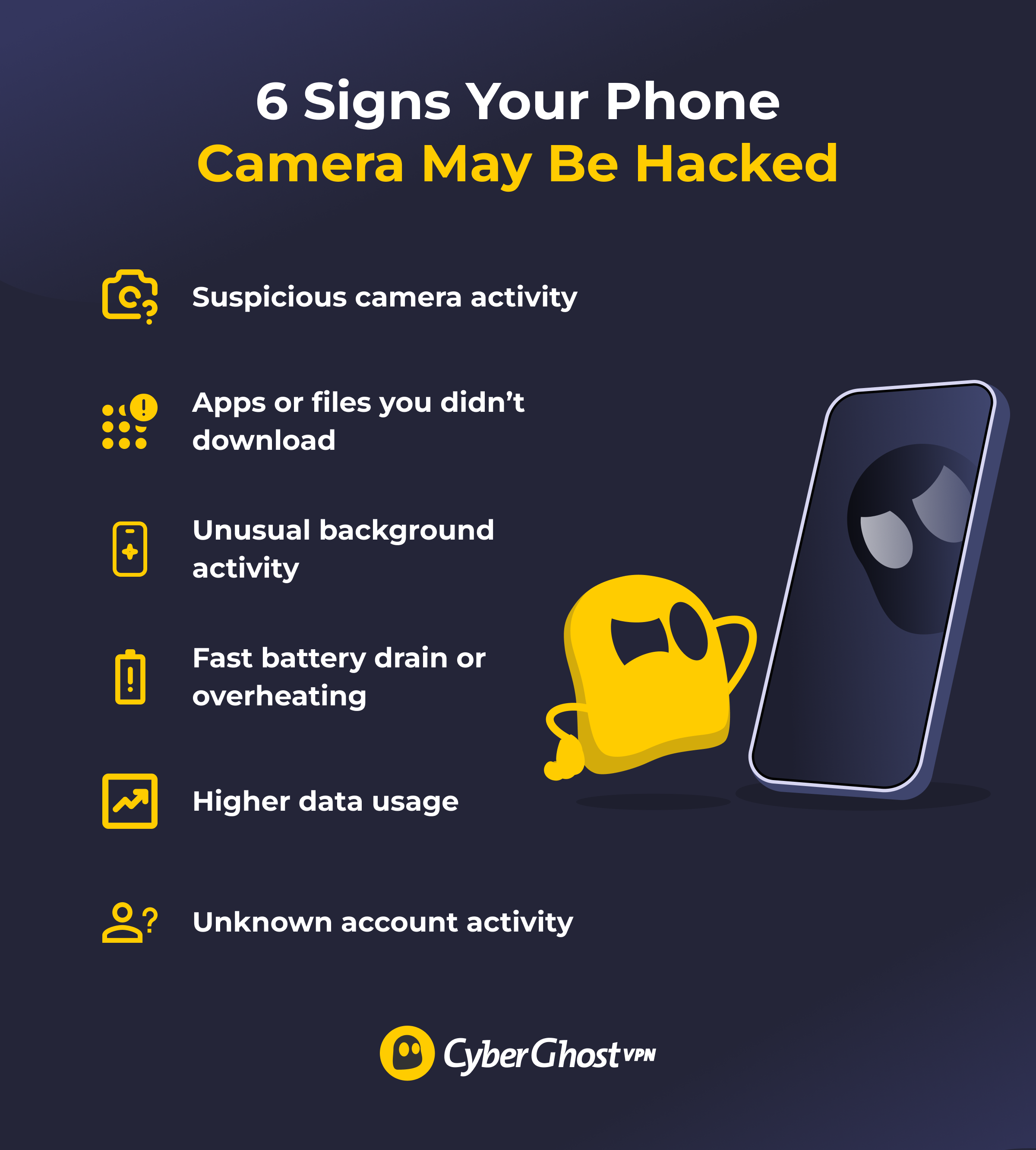
1. Suspicious Camera Activity
If your camera or the LED indicator light turns on by itself, that’s worth checking. For example, if you attempt to take a picture and see the message: Camera in use by another app. Similarly, most modern phones show a green dot (iPhone). On Android 12+, you may see a small green dot when the camera is being used (and some devices also show a camera icon). If you see this indicator when you’re not using any camera-based apps, someone else might be accessing it. However, skilled hackers can use your camera without triggering the light.
Unless you’ve got faulty hardware or a software bug, this shouldn’t happen. Usually, updating and restarting your phone and camera apps resolves the issue. If it doesn’t, it could be spyware.
2. Apps or Files You Don’t Recognize
Seeing suspicious apps or files you don’t remember installing is another clue that something may be off. It could just be a leftover app you forgot about. Spyware often hides inside regular-looking apps, like photo tools or system cleaners, so it blends in easily. Counterfeit versions and trojans can be hard to spot, too. In some cases, attackers can even hide data inside ordinary-looking photos, videos, or audio so they appear completely normal in your gallery — a technique called steganography.
You might also notice your storage filling up faster than usual. That can happen when hidden apps create files in the background or save recordings before sending them elsewhere. A slower phone, sudden low storage warnings, or unfamiliar media in your camera roll are good reasons to investigate.
3. Background Activity You Can’t Explain
Even when spyware tries to hide, it often leaves traces in your phone’s activity logs. Low-level mobile spyware usually runs as a background service all the time. Signs include apps you don’t use very often that might show strange background activity, stay active when the screen is off, or ask for permissions they don’t need.
Don’t immediately assume that someone is watching you. Navigation apps, Bluetooth, and system services all run in the background. If an unfamiliar app frequently activates or shows significant background usage without any screen time, you should take a closer look.
4. Fast Battery Drain or Overheating Without an Obvious Reason
Spyware that records through your camera or microphone puts a heavy load on your phone’s hardware. This can cause sudden battery drops or overheating, even when you’re not actively using the device. A 2024 Lookout analysis found that battery drain is the most common symptom victims notice in mobile surveillance cases.
Recording video, uploading files, or processing captured data can push CPU usage up by 20–40%, which is enough to heat up even newer phones. Before assuming the worst, rule out normal causes like a failing battery or too many apps open. But if your phone is less than 5 years old and these symptoms appear suddenly, it’s worth scanning for malware.
5. Higher Than Normal Data Usage
Many forms of spyware, or so-called surveillanceware, need to upload data from your phone, such as photos, location logs, audio recordings, or screen captures. This can create spikes in mobile or Wi-Fi data use. According to a recent global mobile threat overview by Zimperium, mobile surveillance and spyware remain among the top threats and are becoming more widespread.
Some advanced spyware sends data in small encrypted bursts, so it’s harder to spot in your usage breakdown, while more basic stalkerware might upload large files in the background, creating obvious monthly spikes. If your habits haven’t changed but your data usage has, something might be sending information without your knowledge.
6. Unknown Account Activity
Are there messages or emails you don’t remember sending, or location activity you can’t explain? Different types of spyware will record and upload images and videos taken through your camera in different ways. Some stream the media files directly to a cloud server or another device without saving them to yours. Others might send the files via your messages, messaging apps, or email.
If you are notified that your location was accessed when you didn’t use Find My Phone, or if you see account logins coming from devices that you do not own, someone may have access to your phone or accounts. Spyware often includes location tracking, allowing whoever installed it to monitor where you are at all times.
Who Might Want to Spy on Your Phone Camera?
The threat can come from different sources, each with different motivations. Understanding who might target you helps you take the right precautions.
Cybercriminals
They often target individuals for financial gain using spyware for blackmail or extortion, and mostly focus on those with security vulnerabilities. Unless you’re high-profile, you’re less likely to be individually targeted, but automated attacks can still catch you.
Stalkers and Abusive Partners
This is the most common and most concerning threat for many people. They commonly install stalkerware to monitor current or former partners, usually with prior physical access to the device, making detection difficult.
Apps and Tech Companies
Apps like Facebook, Instagram, and Snapchat can access your camera if granted permission. Access is typically limited to features that require it, such as taking photos, recording stories, or using filters. In 2020, a software bug showcased the potential for unintentional activation. Meta described it as an unintentional issue, but it highlighted that apps technically can use the camera when permitted.
Government Agencies
Access is possible with probable cause, primarily for specific investigations or very high-priority targets. Routine mass surveillance focuses on metadata (who you contact, when, and where) rather than live feeds.
How to Protect Yourself and Stop Camera Spying
Preventing camera access is much easier than dealing with spyware after it’s installed. These steps help whether you’re worried something is happening right now or you simply want to stay protected long-term. Start with the first 3 — they make the biggest difference.
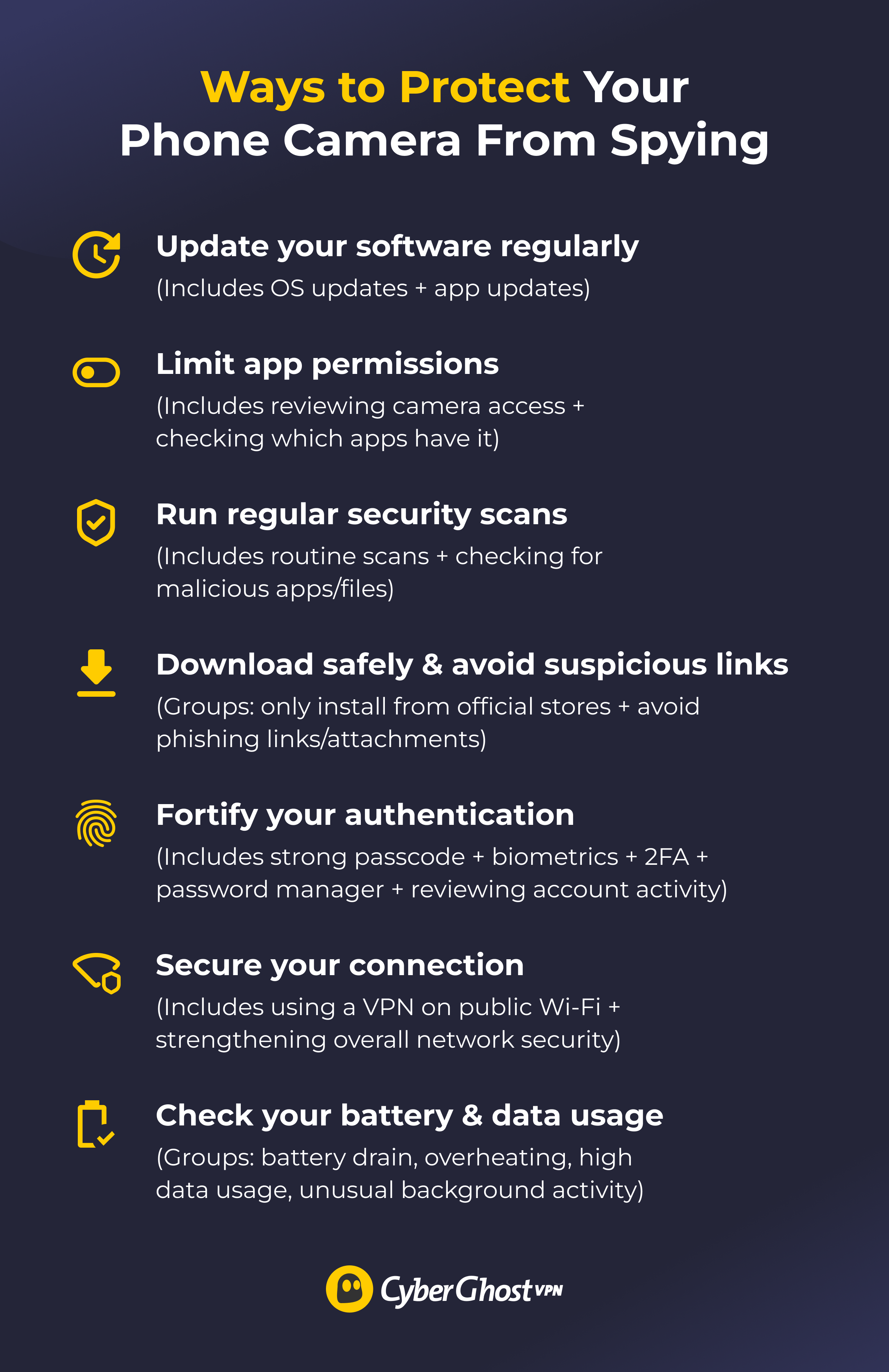
1. Keep Your Software Up to Date
Updates fix vulnerabilities that spyware relies upon. Make sure your OS and apps are updated. Security patches often close the known loopholes in spyware. This is one of your strongest defenses.
What to do:
- iPhone: Settings > General > Software Update > Automatic Updates.
- Android: Settings > Software Update > Auto download over Wi-Fi.
2. Review and Limit App Permissions
Regularly check which apps have permission to access your camera, and remove those permissions from anything that doesn’t really need it.
What to do:
- Force close all apps and see if the indicator disappears.
- Check your app permissions to see which apps have camera access (Settings > Privacy > Camera on iPhone, or Settings > Privacy > Permission Manager > Camera on Android).
For apps using the camera on occasion, select Only while using the app. This sets up a periodic permissions review once every few months.
What to do:
- Verify which apps have location permissions (Settings > Privacy > Location Services).
- Review recent account activity for unusual logins.
- Change passwords and enable two-factor authentication.
- Revoke access from unfamiliar devices.
3. Run Regular Security Scans
Run a security scan with reliable antivirus software. A trusted antivirus or anti-malware app can detect spyware early and help remove it. Set up automatic weekly scans. For real-time protection, you’ll need to go beyond a free version. Free versions are fine for basic checks, but paid ones are recommended in this case.
4. Download Apps Only from Official Stores
Avoid installing anything from outside the Apple App Store, Google Play, or trusted developer websites. Third-party app stores often bypass the safety checks that help catch malicious apps.
Watch for fake apps, especially ones with:
- Look-alike names or logos.
- Low-quality or suspicious reviews.
- A brand-new (or unknown) developer.
- Permission requests that don’t match what the app should need.
5. Fortify Your Authentication
Effective device security decreases the chances that someone could install spyware through physical access. Use:
- A strong password (at least 6 digits, numbers, different characters, etc.).
- Biometric locks — Face ID or fingerprint (conveniently fast as well).
- Two-factor authentication on key accounts.
- A password manager for unique passwords.
The most common way spyware spreads is through phishing links. That said:
- Don’t click on any suspicious links.
- Don’t open unexpected attachments.
- Don’t click links in messages that create a false sense of urgency (avoid messages like — Your account will close in 24 hours. Act now!).
If a message looks like it’s from someone you know but feels off, verify with them first. Go through your sent folders in messages and email, and check if there are any messages you didn’t send.
6. Use a VPN on Public Wi-Fi
Using unsecured public Wi-Fi is a classic example. It is relatively easy to intercept, and cybercriminals often use unsecured networks to inject malware or monitor your activities. They can also hijack unsecured connections to install malware like a man-in-the-middle (MiTM) attack. MiTM attacks are more common on public Wi-Fi networks and websites with poor security.
A VPN encrypts your traffic so others using the same network can’t see what you’re doing or tamper with your connection. CyberGhost VPN provides an encrypted tunnel and an automatic kill switch that prevents data leaks if the VPN connection drops. It also maintains a rigorous no-logs policy — a promise that your online activity isn’t stored or shared with anyone.
7. Check Your Battery and Data Usage
If your phone is draining fast, getting hot easily, and having abnormal data usage, you can do several things.
What to do:
-
- Close all apps and see if your phone cools down. Check battery usage to identify power-hungry apps. If the problem persists, scan for malware.
- Check battery usage: iPhone: Settings > Battery (see app usage); Android: Settings > Battery or Settings > Apps (review activity).
- Take a look at your data usage in Settings (both cellular and Wi-Fi).
Delete any apps you don’t recognize or use that also show unexplained high activity. Also, compare current usage to your typical patterns.
8. Optional: Physically Cover Your Camera
Camera covers, stickers, or tape provide absolute certainty that no one can see through your camera. It’s low-tech but effective — useful when you’re not actively using your camera.
9. If Standard Removal Doesn’t Work
- Factory reset your phone as a last resort (back up important data to a separate device first).
- Contact device manufacturer support (Apple or Android) for guidance.
- Consult a cybersecurity professional for serious situations.
After cleaning your device, monitor its behavior for 1–2 weeks, keep security software running, and keep software up to date. Use a VPN on all networks going forward.
What not to do: Don’t jailbreak (iPhone) or root (Android) your device. This disables built-in security features and exposes you to malicious apps. Don’t ignore your instincts. If something feels off, investigate. Basic prevention takes 15 minutes.
Final Note
If someone is spying on you through your phone camera, you can detect and remove the threat with a few simple steps. These include checking your phone behavior, updating your device, being careful with what you install, and knowing how to spot the early signs of spyware. If something feels off, checking your permissions, running a quick scan, or reviewing your recent activity can already make a big difference. Remember: most spyware can be safely removed with a few habits in place.
FAQ
How can someone access my phone camera?
Most camera spying is done through spyware or malicious apps. These can get installed when you download infected or fake apps, click on links in phishing messages, install apps from unofficial stores, or allow someone physical access to your device.
Someone can also access your synced photos or videos by hacking your iCloud or Google account, although such actions won’t give them access to your live camera feed. Public Wi-Fi networks can also expose you to malware or network interception if your traffic isn’t encrypted. Built-in protections help, but they aren’t perfect — especially if your phone isn’t updated.
Is Instagram spying on users through their phone camera?
Instagram only has permission to access your camera when you previously allowed it to. This is necessary for posting photos, recording stories, or applying filters. A past iOS bug once turned cameras on involuntarily, which raised concern, but Meta said it was an accident.
To restrict access: Open your phone’s Settings > Instagram > Camera and select Only while using the app or turn it off completely. You can also use Instagram through a browser for more control.
Can someone monitor me if they hack into my Google or iCloud account?
They can’t access your live camera feed. But they can see things like synced photos and videos, location information (Find My), backed-up messages, and other information.
If you think your account has been compromised, change your password immediately from a secure device, enable two-factor authentication, review logged-in devices, and sign out of anything unfamiliar.
What code do I dial to check if someone is spying on me?
There isn’t a universal dialer code that detects this. Codes like *#21# only show call forwarding status; they do not detect malware. Reliable detection includes checking warning signs, app permissions, scanning with security tools, and monitoring data, battery, and background activity.
Is my phone’s camera safe to use after spyware removal?
Yes, provided you have correctly removed the infection and run the security checks. For reassurance, you should run multiple security scans, update all apps and the OS, and review app permissions. Changing the device might be the safest option if you have been targeted in a serious or abusive situation.
Can my iPhone’s camera also get hacked?
Yes, iPhones can also be compromised, although it’s less common due to Apple’s stricter security controls. Most camera hacks happen through spyware that slips in when someone installs a malicious app, clicks a dangerous link, or has their device physically accessed. Android devices face a higher risk because they allow more third-party app installs. To stay safe, keep your phone updated, avoid suspicious downloads, and use strong device security (e.g., passcodes and 2FA).

Leave a comment