
Tired of lag ruining your K/D ratio or sudden connection drops killing your flow? If you’ve ruled out problems with your console or Wi-Fi, the problem could be somewhere along the connection between you and the game itself. A VPN can help in some cases by changing how your traffic is routed while also adding privacy and security to your connection.
There’s just one catch: PlayStation consoles don’t support native VPN apps. However, that doesn’t mean you’re stuck. CyberGhost VPN provides workarounds that let you route your PS5’s traffic through the VPN tunnel. We’ll walk you step-by-step through the different ways to set up a VPN on PS5, including methods with and without a PC, explain the benefits, and help you decide whether it’s worth it for your setup.
Quick Guide: How to Set Up CyberGhost VPN for PlayStation 5
- Sign up for CyberGhost VPN. It’s an excellent gaming VPN for PlayStation that offers a large server network, reliable speeds, and broad device support.
- Configure the VPN on a compatible router.
- Connect your PS5 to the router.
- Start gaming with the benefits of a VPN connection.
How to Connect Your PS5 to a VPN
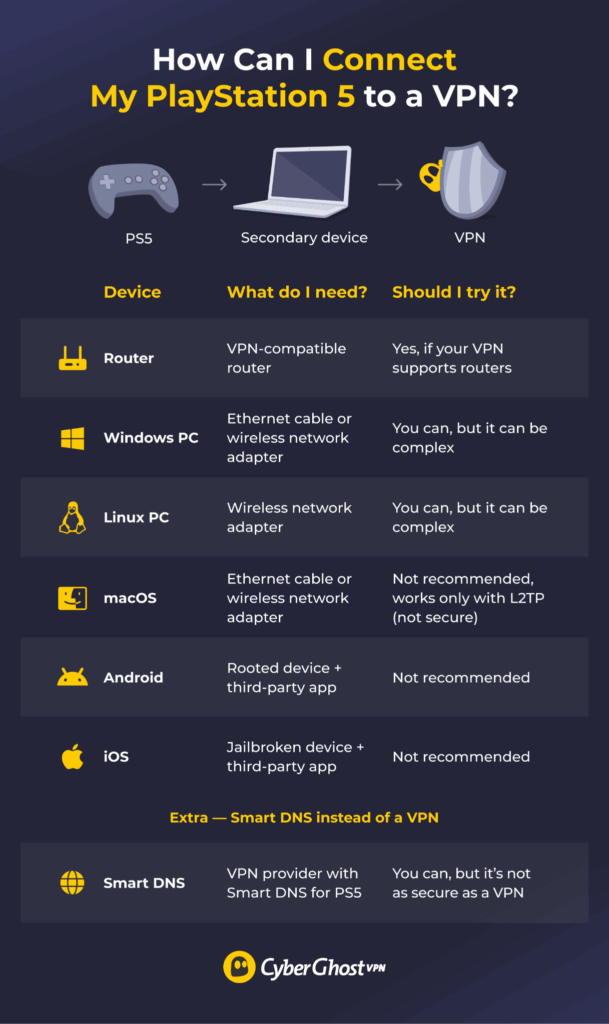
Since PlayStation consoles don’t support VPN apps directly, you’ll need to share the VPN connection from another device or configure it on your router. The methods below focus on PS5, but they also work with PS4 and PS3. The exact names and locations of settings on the console itself might differ, but the overall setup process is similar.
Router
Setting up a VPN on a compatible VPN router is usually the most reliable way to connect your PS5 to a VPN server. It protects the console directly through your router, so you don’t need to keep a PC or another device running whenever you play.
You’ll need a VPN-compatible router and a VPN that supports manual router configuration like CyberGhost VPN. Check your router’s documentation to see which VPN protocols and configurations it supports before you start.
The process is a bit more technically demanding than simply installing a VPN app, but don’t worry. The exact steps might differ based on your router’s model or ISP, but here’s how to set up the VPN:
- Go to CyberGhost VPN’s site and log in to your account.
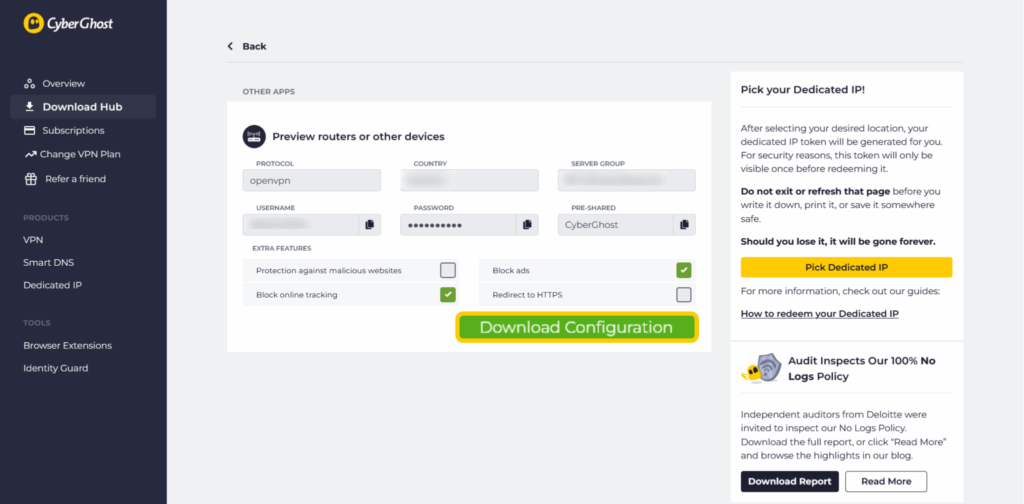
- Go to Download Hub > Other apps > Routers or other devices > Configure.
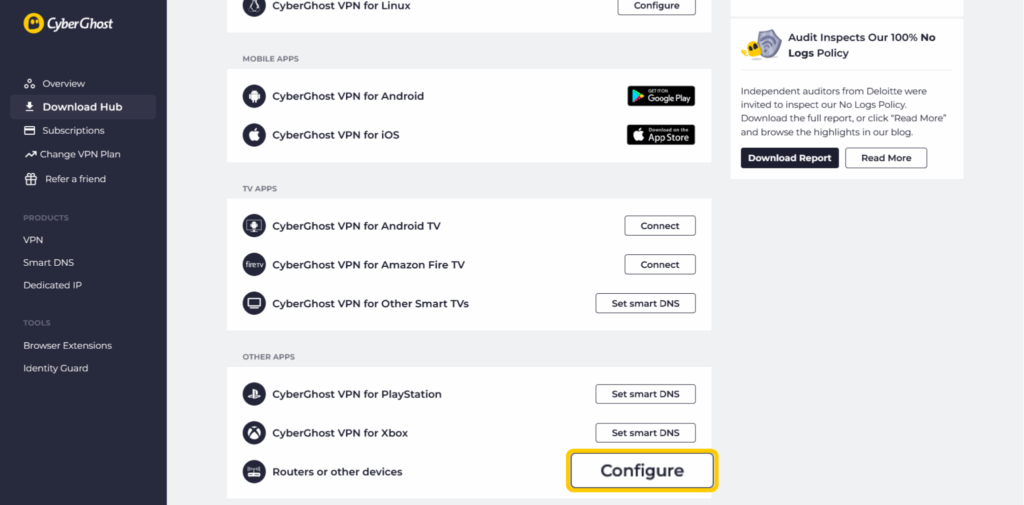
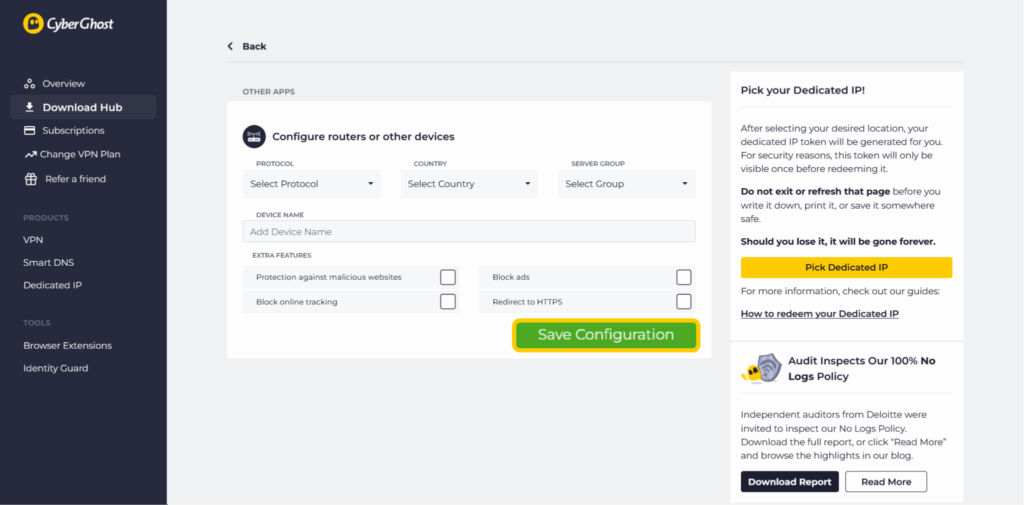
- Here, you can create a configuration for your router setup, including the protocol and server location you want to connect to. Click Save configuration when you’re ready.
- This takes you to the Manage Devices page. In the Routers or other devices section, click View.
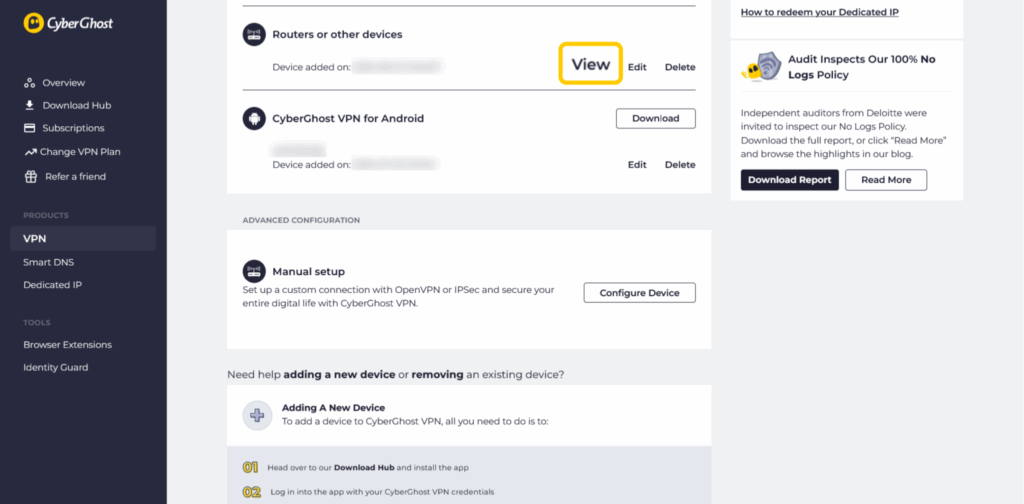
- Either note the details somewhere or click Download configuration to export the settings to an .ovpn file.
- Open your router’s admin panel. The IP address varies by router and is often printed on the router or available in its documentation.
- Find the VPN settings. Different router models have different interfaces, so look for sections titled something like VPN Settings or Advanced Settings.
- Add your VPN profile, either by uploading the configuration file or manually entering the connection details.
- Connect your PS5 to the router. Once the VPN connection is active on the router, your PlayStation traffic will use it automatically.
Windows
You can also share a CyberGhost VPN connection from Windows 10 or 11 using Ethernet or a mobile hotspot. Ethernet is generally the simpler option. To use a hotspot, your PC needs a wireless adapter that supports creating one.
To start, you need a VPN on your Windows device, an Ethernet cable, or a configured hotspot on your PC. Once you have everything, here’s how to set up VPN sharing:
- Launch CyberGhost VPN and connect to a server.
- If you’re using an Ethernet cable to connect your PS5 to the Windows PC, connect it now. If you plan on using a hotspot instead, wait until step 8 to connect.
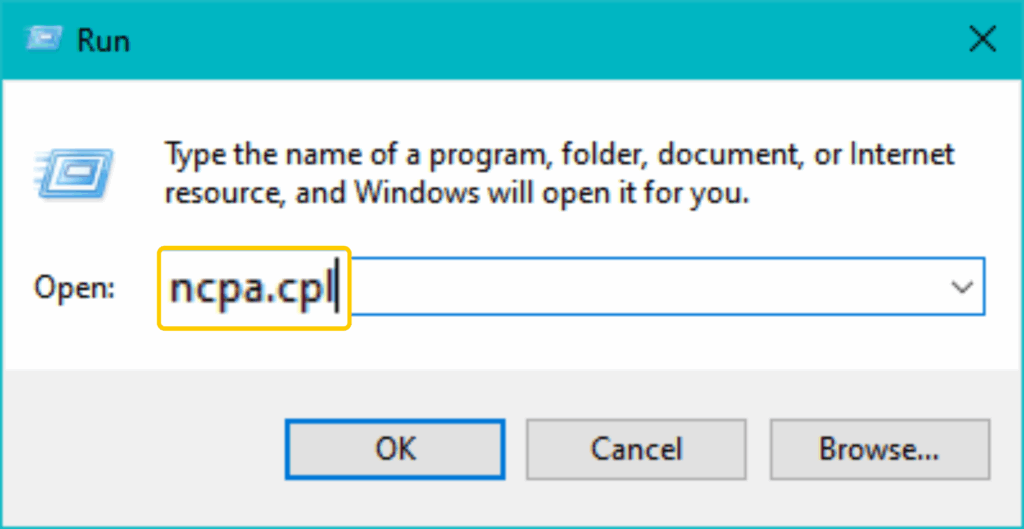
- Press the Windows key + R. In the opened window, type “ncpa.cpl” and click OK. This takes you directly to Network Connections.
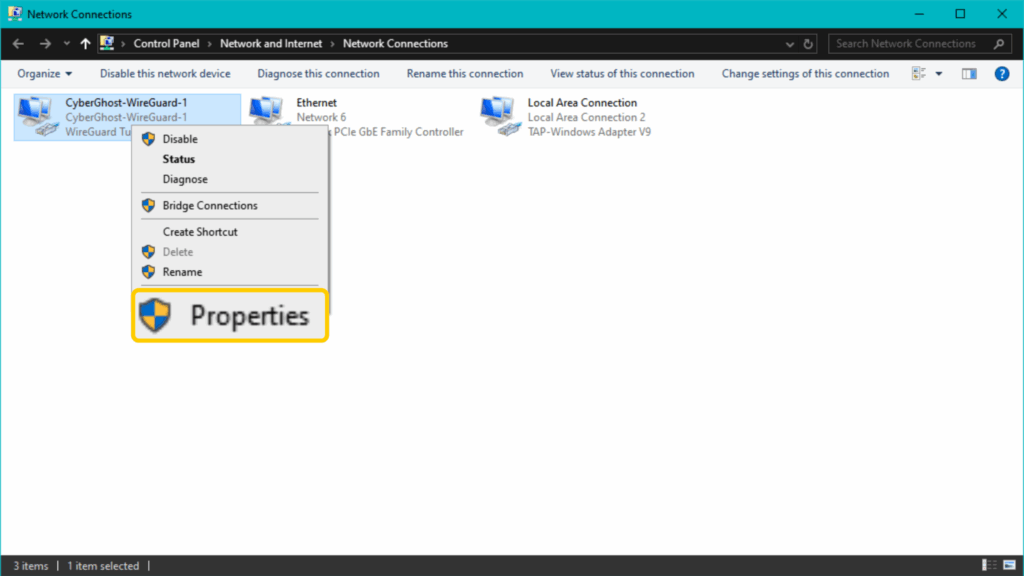
- Right-click the CyberGhost VPN network adapter. It’s typically called “Wintun Tunnel,” “WAN Miniport,” or “WireGuard Tunnel,” depending on the protocol you’re using. Go into Properties.
- Click Sharing. Tick the box next to Allow network users to connect through this computer’s internet connection.
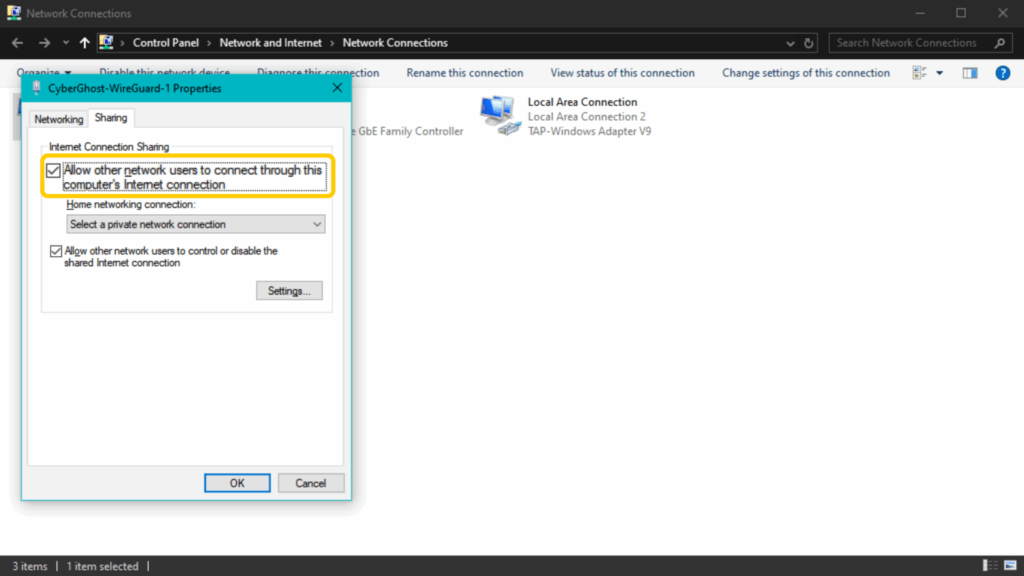
- In the dropdown menu under Home networking connection, choose the connection that connects your PS5 to the Windows PC. This is either an Ethernet connection or a Wi-Fi adapter.
- Click OK to save the changes.
- If you’re using a hotspot to connect your PS5 to the Windows PC, connect it now.
macOS
Sharing a VPN connection from your Mac to your PS5 is possible, but it has an important drawback compared to other PCs. The process doesn’t work with modern, secure VPN protocols like OpenVPN or WireGuard®. Instead, it requires a VPN connection using Layer 2 Tunneling Protocol (L2TP), which isn’t considered secure by current standards, and many VPNs no longer support it.
If you choose to share a VPN connection to your PS5 over a macOS device, the procedure follows largely the same steps as from a Windows PC:
- Set up your VPN and connect to a server using L2TP.
- On devices running macOS Ventura and later, go to System Settings > General > Sharing. On older versions, go to System Preferences > Sharing.
- Click the information symbol next to the toggle. Alternatively, click the toggle, then the Configure button if it appears in the prompt.
- In the Share your connection from dropdown menu, choose your VPN connection.
- Under To devices using, toggle the method you’re using to connect your PS5 to the Mac (Ethernet adapter or Wi-Fi).
Linux
For Linux devices, you need a wireless network adapter to create a hotspot. The PS5 connects to this hotspot, while the Linux device connects to the internet either through Ethernet or a second adapter. The exact steps vary from device to device because Linux has a large variety of distributions and desktop environments. Still, the procedure follows the same outline:
- Start up your VPN.
- Connect to a server.
- Open the Linux device’s mobile hotspot settings. They’re usually in a location called Settings, Wi-Fi Settings, Network Settings, or something similar.
- Enable the hotspot.
- Connect the PS5 to the hotspot.
Usually, this gets the job done. On some Linux devices, you may need to manually change the hotspot adapter’s settings and have it use the device’s internet connection.
Can You Share a VPN From Android or iPhone to PS5?
We don’t recommend using an Android phone or iPhone to share a VPN connection with your PS5. Standard mobile hotspots generally don’t share the phone’s VPN tunnel with connected devices, and workarounds may require rooting or jailbreaking your device. That can introduce security and stability risks.
Use a compatible router or Windows PC instead.
Set Up a Smart DNS on Your PlayStation 5
If you don’t need VPN encryption, Smart DNS offers a simpler setup for compatible services on PS5. It changes the DNS servers your PlayStation uses without routing your internet traffic through a VPN server.
- Log in to your CyberGhost VPN account, go to the Smart DNS tab, and click Enable Smart DNS if prompted.
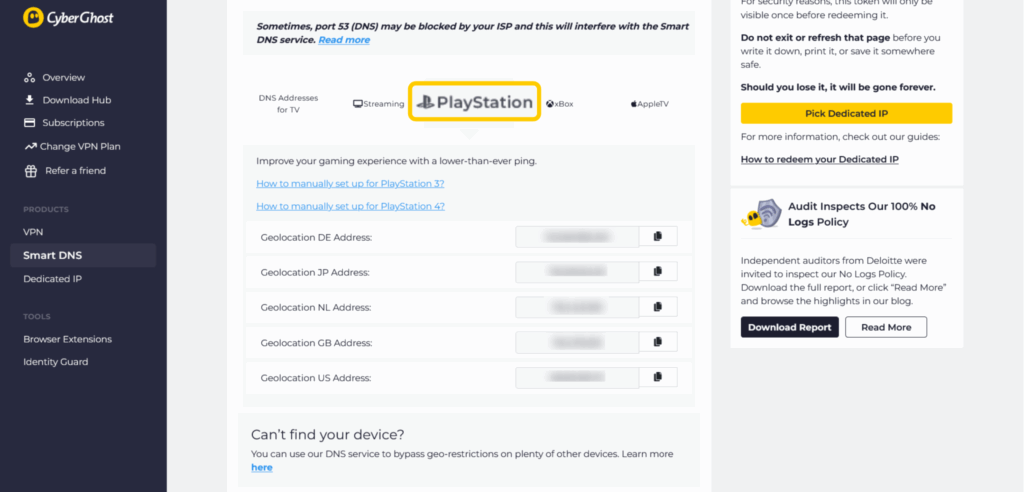
- Under My Smart DNS Settings, click PlayStation. This shows the DNS server IP addresses for the server location you want to use. Choose the one you need and copy it.
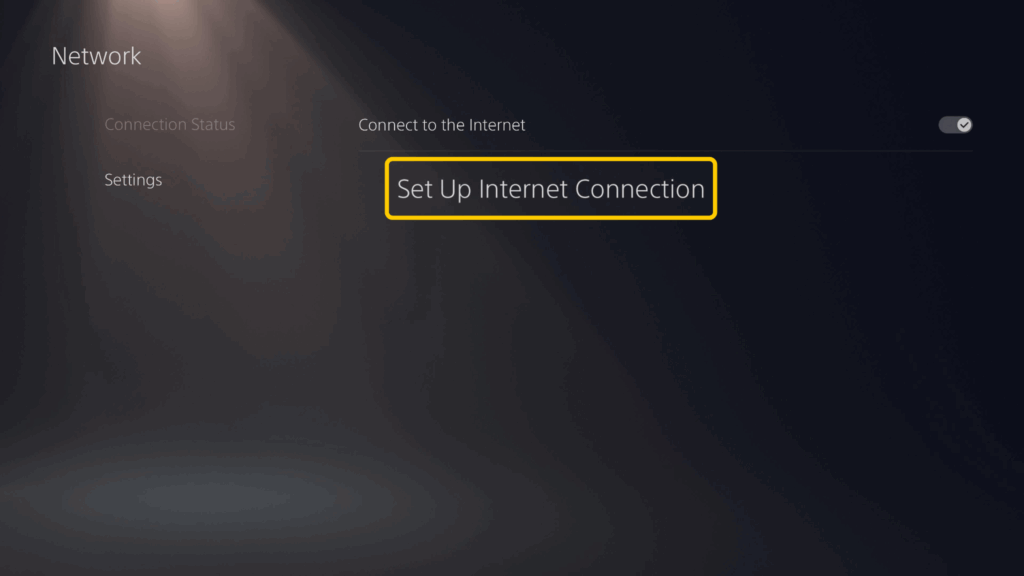
- On your PS5, go to Network > Settings > Set Up Internet Connection.
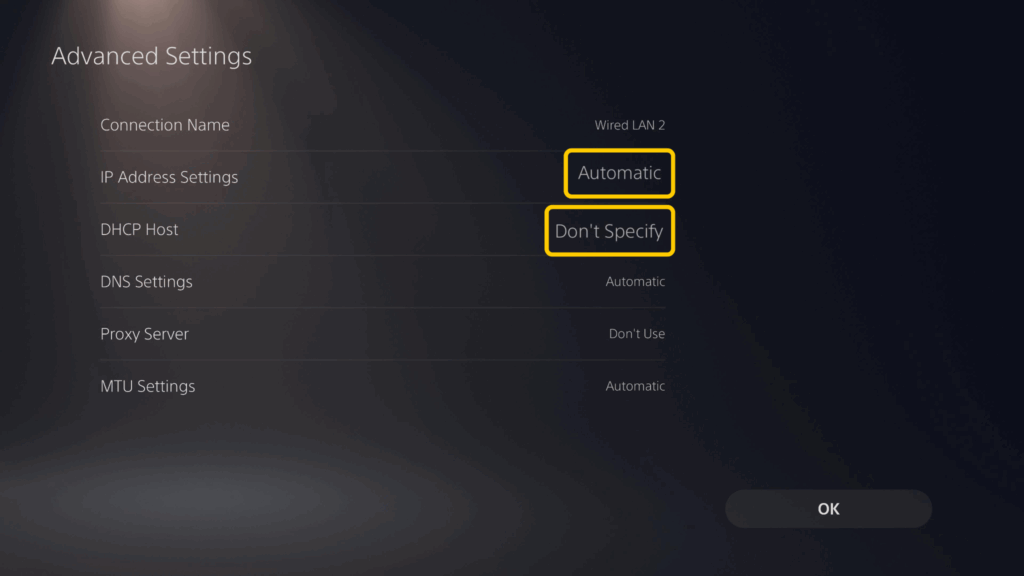
- For IP Address Settings, choose Automatic. For DHCP Host, choose Do Not Specify.
- For DNS Settings, choose Manual. For Primary DNS, enter the address you got from the Smart DNS setup on the site.
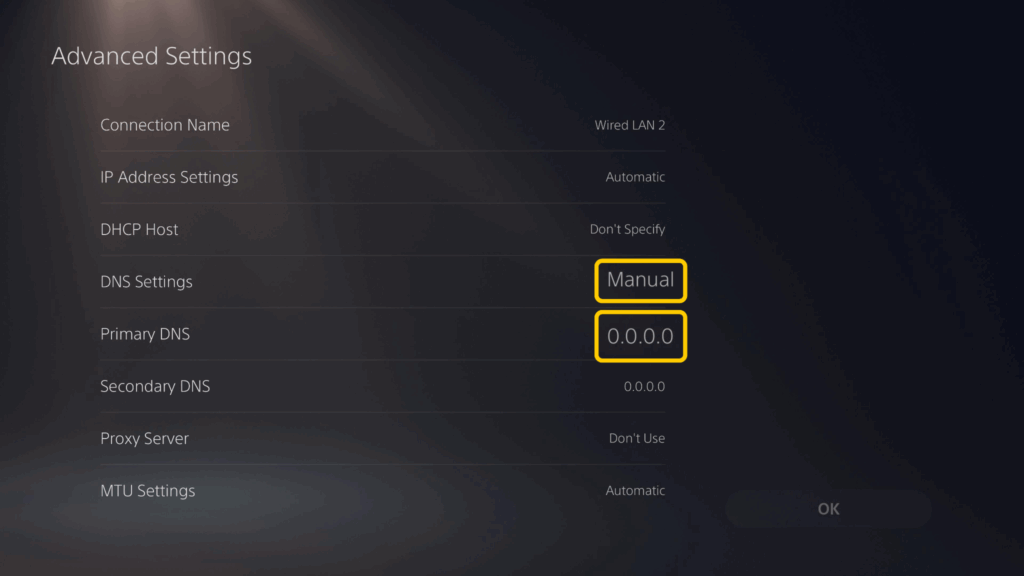
- If necessary, set Proxy Server to Don’t Use and MTU Settings to Automatic. Click OK to save the settings.
Smart DNS isn’t a replacement for a VPN. It doesn’t encrypt your PS5 traffic, change your public IP address, or provide the same protection against IP-based threats such as DDoS attacks. Use one of the VPN methods above if privacy, encryption, or IP protection is your priority.
Why You Should Use a VPN for PS5
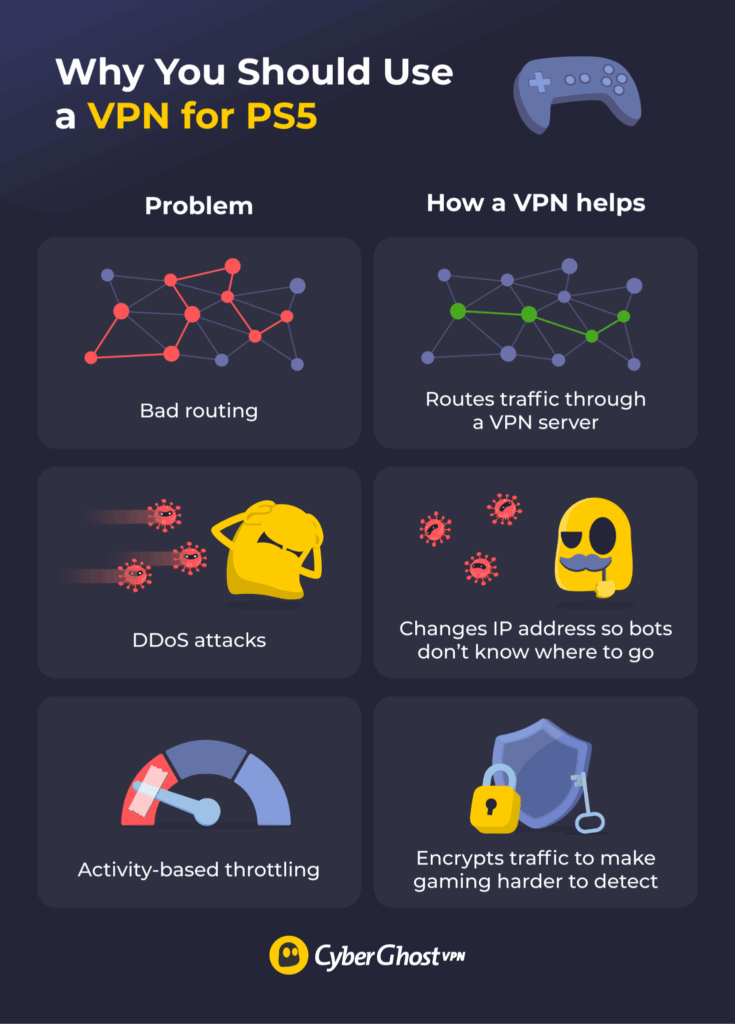
If your PS5 gaming sessions suddenly start lagging or latency becomes unstable, the cause is likely somewhere with your connection to the game’s servers. A reliable PS5 VPN can help in some situations by changing how your data is routed, masking your IP address, and encrypting your traffic. Here’s where it can make a difference.
Improve Routing & Stabilize Latency
Sometimes, high latency and unexpected lag are a result of inefficient or congested routing. Your ISP may send your PS5 traffic along a longer or busier route to the game server. A VPN routes your traffic through a VPN server first, giving it a different path. In some cases, this alternate route may be more direct or stable, particularly if you choose a VPN server close to the game servers.
Protect Against DDoS Attacks
In online games, frustrated opponents might sometimes try to knock you offline with DDoS attacks. This involves flooding your IP address with bot traffic to overload your network and potentially disconnect you. Connecting to a VPN changes the public IP address other players may see, helping mitigate DDoS attacks. If someone targets the VPN server’s IP address, the VPN provider’s infrastructure can help absorb or mitigate the attack.
Reduce Activity-Based Throttling
Some ISPs might throttle certain types of internet traffic based on the activity they detect. This can reduce connection performance and potentially contribute to lag or instability while gaming.
A VPN encrypts your traffic, which makes it harder for your ISP to detect that you’re connected to a PS5 game’s servers. This can help with activity-based throttling, but it won’t prevent slowdowns caused by general network congestion, data caps, or other forms of throttling that don’t depend on the type of traffic.
Setting Up a VPN on PS5: Which Method Should I Choose?
Setting up the VPN on your router is usually the best option. Your PS5’s traffic goes through the router anyway, so you don’t need another device running in between. If you can’t or don’t want to mess with your router, try sharing the VPN connection from a Windows or Linux PC. Smart DNS offers a simpler setup if you don’t need VPN encryption or IP protection, but it isn’t a replacement for a VPN.
Regardless of the method, you need a good gaming VPN to get the most out of the effort. Why not give CyberGhost VPN a go? It has a large server network, so you can pick one close to your game’s servers to improve your routing and protect yourself from DDoS attacks. You can try it out risk-free thanks to a 45-day money-back guarantee on long-term plans (14 days on the monthly plan).
FAQ
Can I install a VPN on PS5 directly?
No, you can’t install a VPN directly on your PS5. PlayStation consoles don’t support VPN apps. You can set up a device with a VPN, such as a compatible router, a Windows PC, or a Linux PC, and share its VPN connection with the PS5.
How do I use a VPN on PS5 through my router?
First, you need a VPN-compatible router and a router-compatible VPN. Get the configuration file from your VPN provider, open your router’s settings panel, and apply the provided details. Once the router is connected to the VPN, every device on your network, including your PS5, will automatically use that VPN connection.
Can I share a VPN from my Windows PC or Mac to PS5?
You can, but we don’t recommend doing it on a Mac. VPN sharing on macOS works only through L2TP, which isn’t a secure VPN protocol in line with modern standards. Windows or Linux PCs are a better alternative because they support OpenVPN or WireGuard®, which provide much better protection.
Do I need a special VPN for PS5 gaming?
You don’t need a completely special VPN just for PS5, but your VPN needs to be compatible with the device you’re using to set up the connection or offer Smart DNS support. CyberGhost VPN is a great pick because it’s compatible with router setup and it has native apps for Windows and Linux PCs.
Can a VPN lower ping or lag?
Only in some cases. If your ISP is routing your traffic through inefficient or congested paths, a VPN can create a more direct link between your PlayStation and the game server. Some ISPs may also throttle gaming traffic to preserve bandwidth. A VPN routes your PS5 connection through an encrypted tunnel, which changes the path your traffic takes and makes it harder to target your gaming activity.
Is it legal to use a VPN on PS5?
Using a VPN with your PS5 is legal in most countries, but VPNs may be restricted in certain jurisdictions, so you should always check local laws first. Sony doesn’t ban VPN use, but individual online games can have different rules in place. Always pay attention to the Terms of Service regarding VPN use.
Will a VPN slow down downloads or affect gameplay?
It depends. There might be a slight drop in speed when using a VPN, because it encrypts your data and sends it through an extra server before reaching the game’s servers. However, if you choose a fast VPN like CyberGhost VPN and connect to a nearby server, the impact is usually minimal. In some cases, a VPN can actually improve performance, for example, if the VPN’s route is better than the one your ISP normally uses.

Leave a comment