
Kodi is great straight out of the box, but the add-ons (sometimes called Kodi apps) are what unlock its true potential. They turn your home screen into a powerful control center, helping you organize your media, connect streaming services, and more. If you’ve ever tried installing one, though, you probably noticed it’s not exactly plug-and-play.
Don’t worry, we’re here to help. This guide will show you how to install Kodi add-ons safely, explain which ones are worth trying, and help get your setup running smoothly in minutes.
How to Install Kodi Add-Ons: A Step-By-Step Guide
The best way to install Kodi add-ons is through trusted repository sources. A nice thing about Kodi is that its interface is identical on all devices. It doesn’t matter if you’re using macOS or Android, the steps for installing add-ons are the same. Follow the steps below to allow unknown sources, add sources, install add-ons from the repository, and finally install the add-on you want.
Quick Guide: How to Install Kodi Add-Ons in 4 Simple Steps
- Step 1: Allow add-ons from unknown sources.
- Step 2: Add sources.
- Step 3: Install a repository.
- Step 4: Install add-ons from a repository.
1. Allow Add-Ons from Unknown Sources
Kodi automatically blocks you from downloading third-party add-ons, so you’ll need to disable this security feature before you proceed.
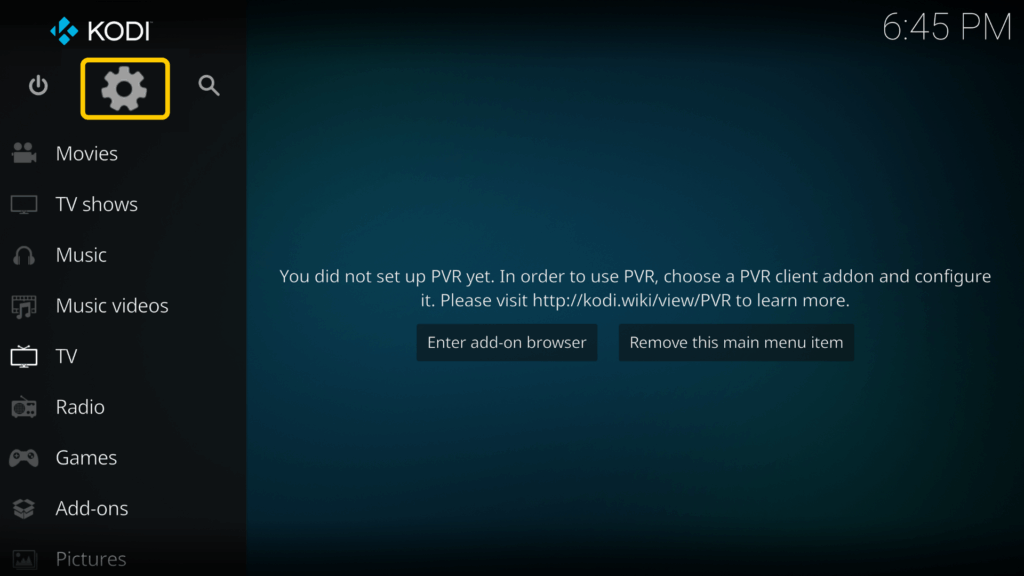
- Open Kodi and click the settings icon from the panel on the left.
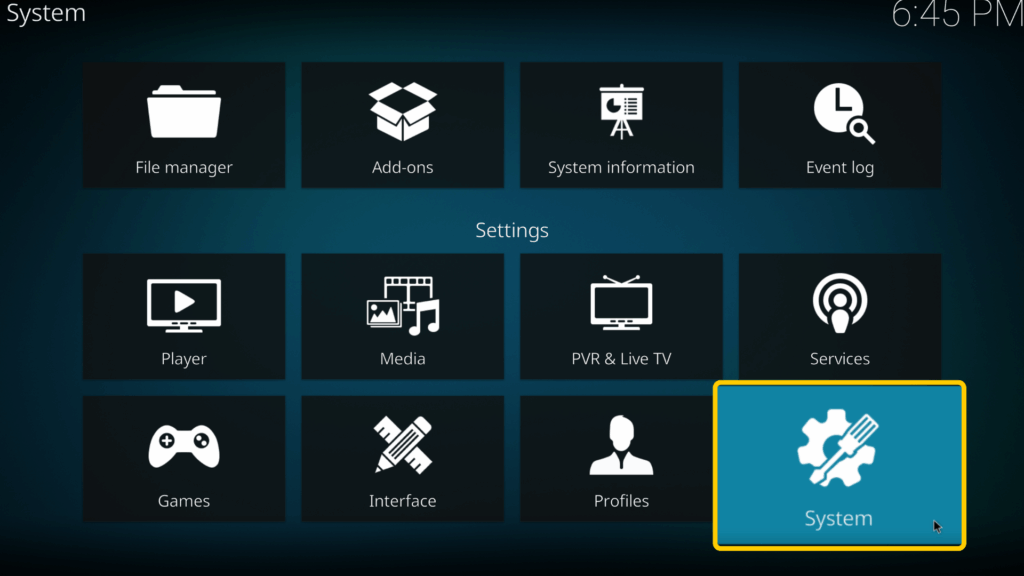
- Select System from the list of options.
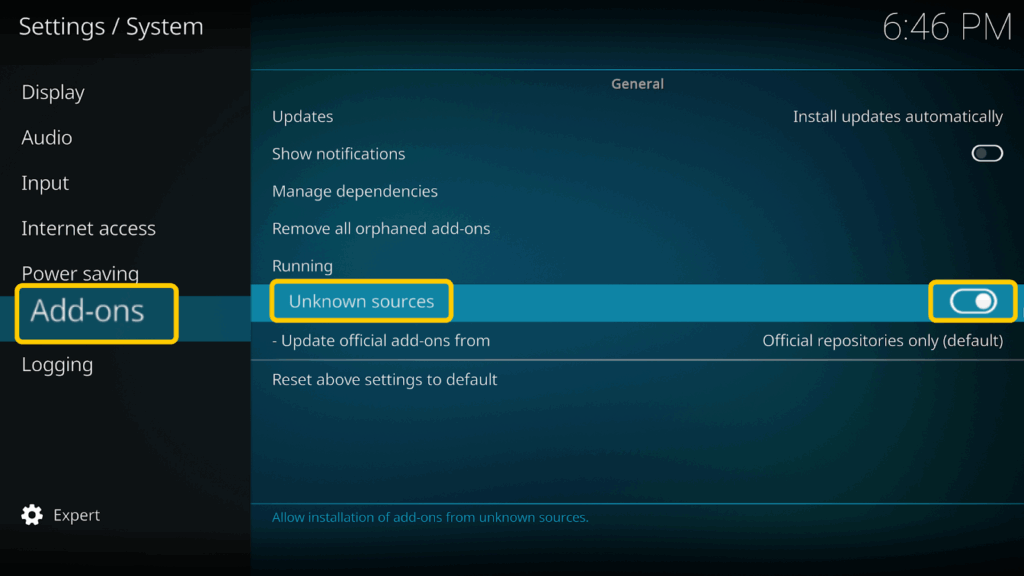
- Click Add-ons from the left panel, and toggle the switch beside Unknown sources to enable it.
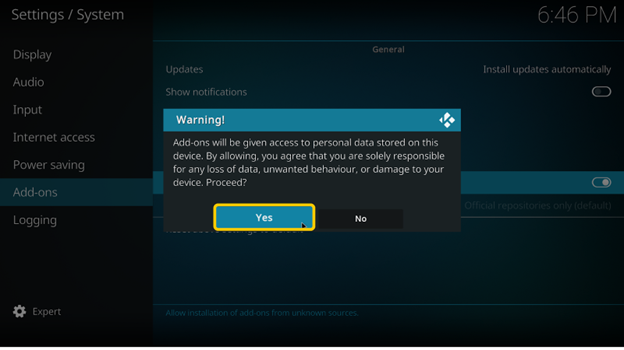
- Click Yes when prompted.
2. Adding Sources
A source is the online location from which Kodi pulls a repository.
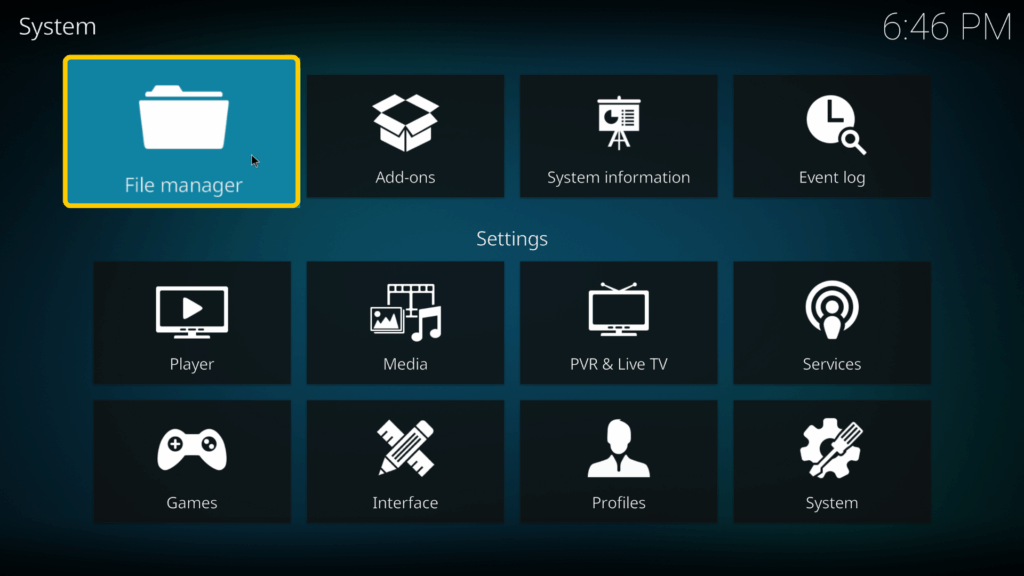
- Click the settings icon and select File manager.
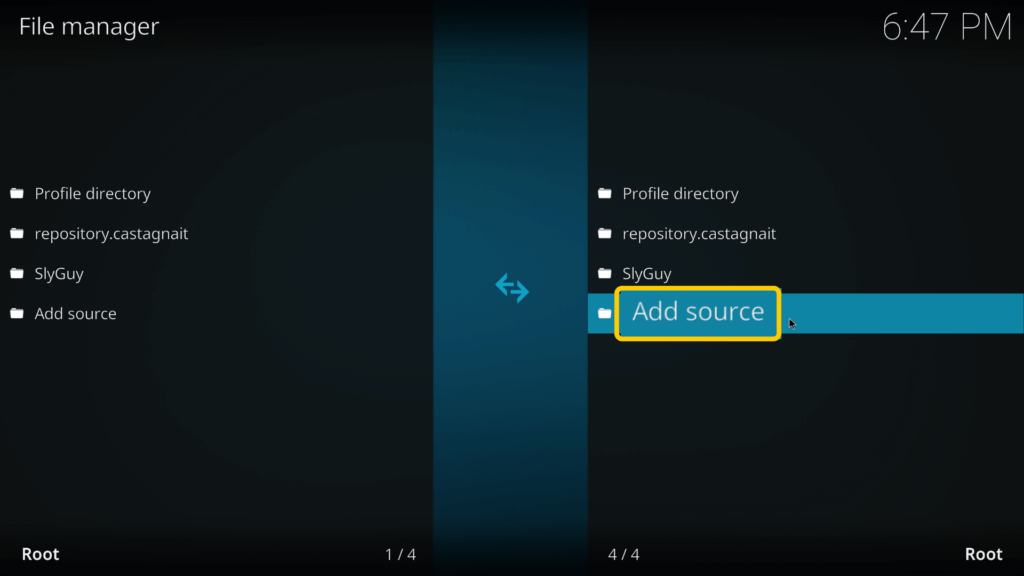
- Click Add source.
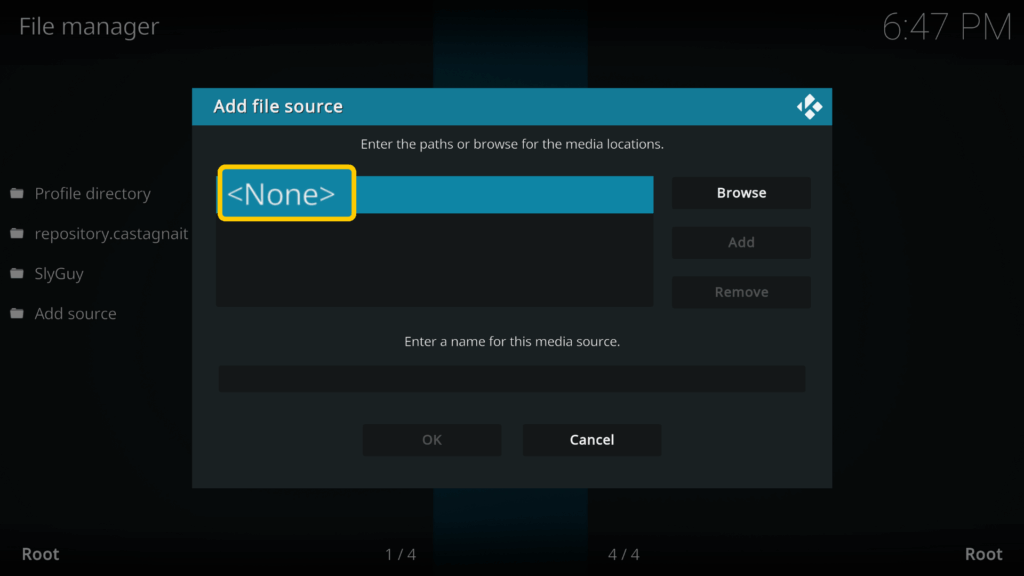
- Select None on the pop-up window.
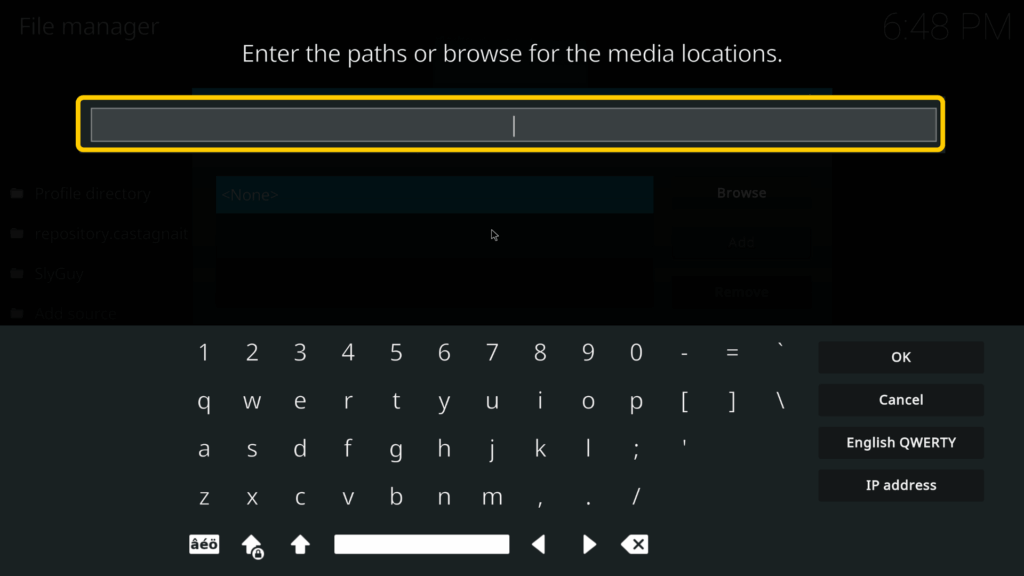
- Enter the source URL for your add-on. You need the exact repository URL of the Kodi add-on you want.
3. Install a Repository
A repository stores add-ons. Developers use them to organize, manage, and update add-ons as new ones become available. To install third-party add-ons, you’ll first need access to their repository. In this tutorial, we’ll use The Crew add-on to show the process.
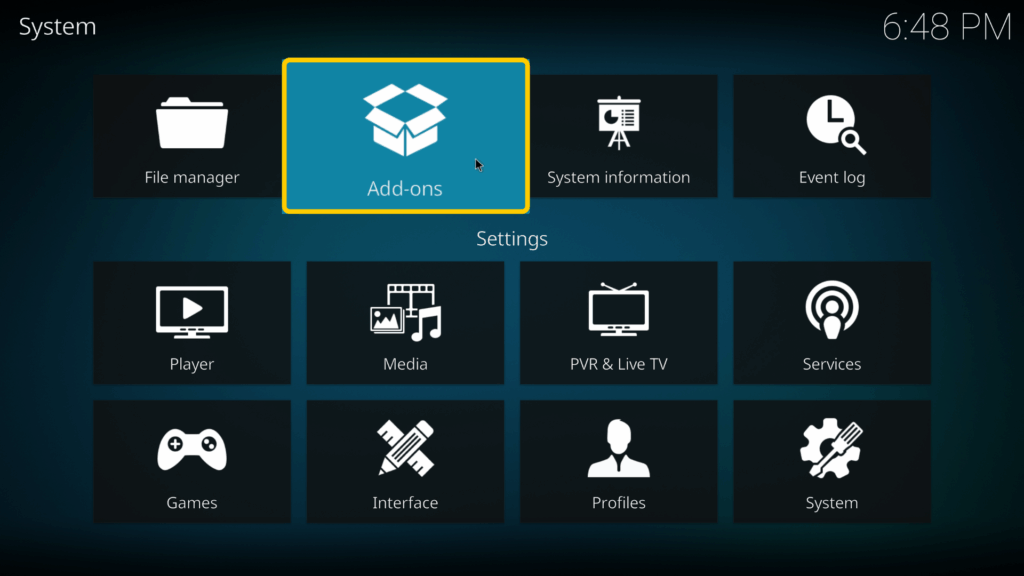
- Go to the Kodi home screen and select Add-ons.
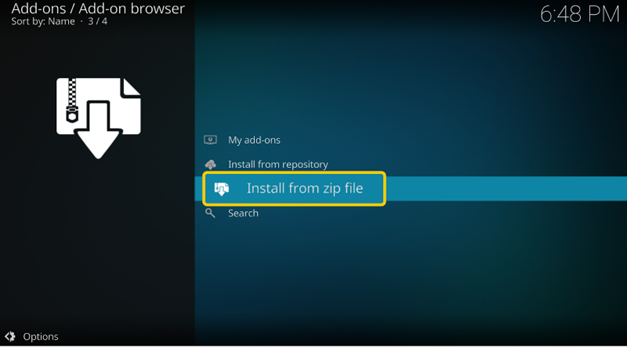
- Select Install from zip file.
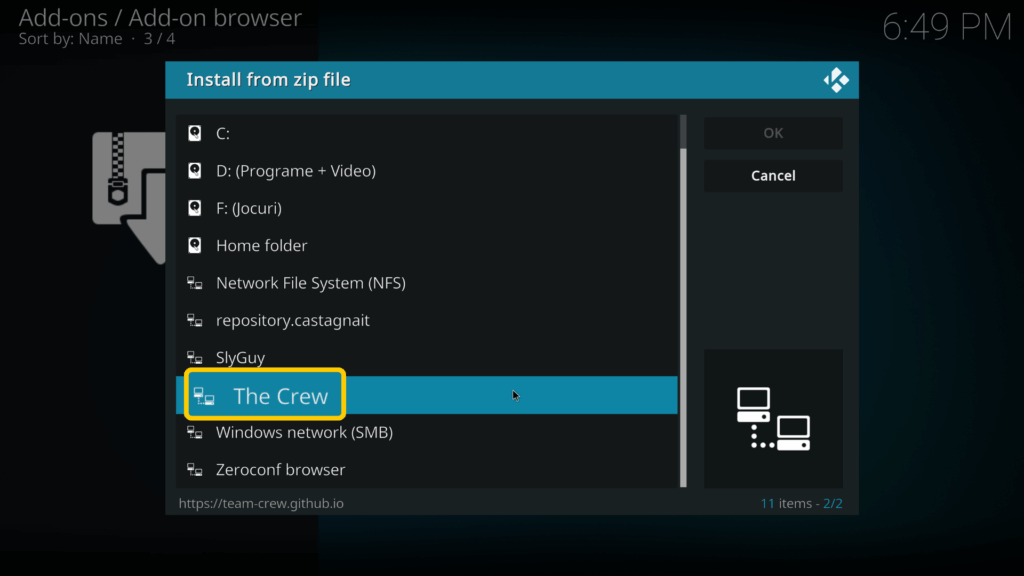
- Select the add-on you wish to install from the left panel. Then, choose the repository you want from the dialogue box that opens and click OK.
4. Install Add-Ons from a Repository
Once the repository is installed, you can install add-ons from it.
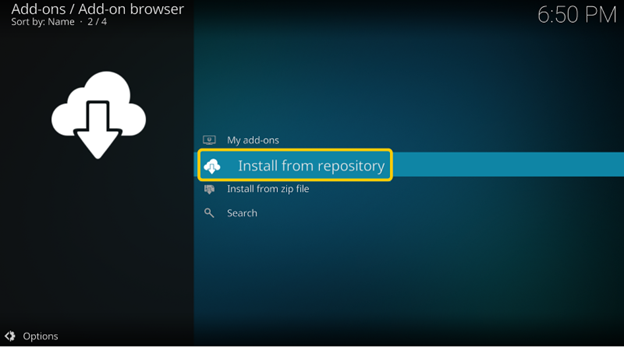
- Select Install from repository.
- Choose your add-on from the pop-up box and save it to Video add-ons.
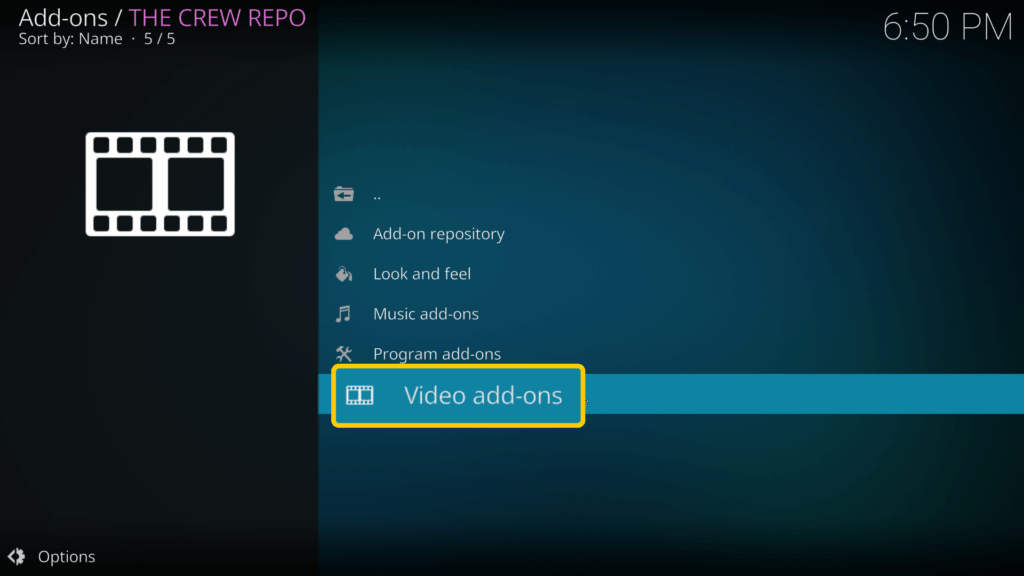
- Click Install.
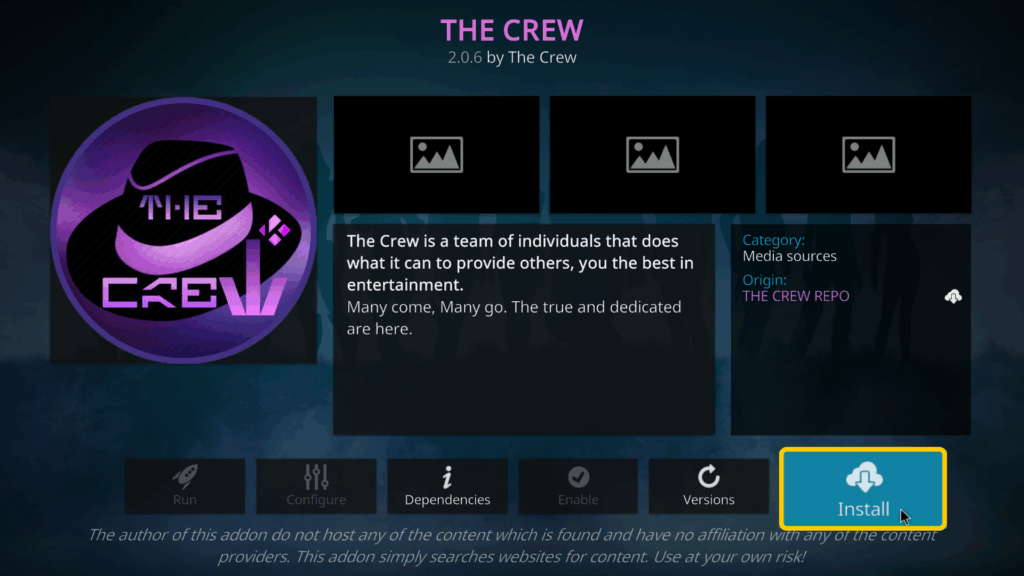
- You can find your add-on under Video add-ons.
Are Kodi Add-Ons Legal?
Kodi itself is fully legal to own and use. However, not all third-party add-ons follow copyright laws. Some provide access to content you’re not licensed to stream, and using them can lead to legal consequences depending on your region. Always check the legality of any add-on before using it.
Are Kodi Add-Ons Safe?
Not always. Many third-party add-ons connect to external servers Kodi doesn’t control, which can expose you to security risks, like Man-in-the-Middle (MitM) attacks. Some third-party repositories still use plain HTTP, which means someone on the network could potentially interfere with files while they’re being downloaded. Kodi recommends using HTTPS for repositories and warns you when a connection isn’t secure, and the official Kodi repository now uses HTTPS. To stay safe, install add-ons only from trusted sources and use a VPN to secure your connection.
CyberGhost VPN can help keep your Kodi connection private so your ISP or snoops can’t see or tamper with your data. It encrypts your traffic and creates a secure tunnel between your device and the VPN server. This encryption stops outsiders from spying on your Kodi activity or altering add-on downloads in transit.
10 Best Kodi Add-Ons
We’ve put together a list of the best Kodi add-ons based on online ratings and user reviews. If you’ve just followed our guide on how to install Kodi add-ons, it’s time to test your new skills. Here’s our list of the top 10 Kodi add-ons for streaming.
Disclaimer: The add-ons discussed in this article have not been checked for copyright infringement. Do your due diligence before using any add-ons. CyberGhost VPN does not condone copyright infringement, with or without a VPN.
1. The Crew
The Crew is one of the most complete Kodi add-ons available. It combines movies, TV shows, live sports, IPTV, and on-demand content in one clean interface. It works with Real-Debrid, Premiumize, and Trakt for better-quality links, faster playback, and synced watchlists. The Crew updates frequently to replace broken sources, which keeps it more reliable than most all-in-one add-ons.
-
- Repository URL: https://team-crew.github.io/
2. Scrubs V2
Scrubs V2 pulls content from free public sources, so you don’t need a debrid account to use it. However, because free sources are unstable, you may face buffering, broken streams, or missing content. Scrubs V2 supports Kodi 20 (Nexus) and 21 (Omega). It also offers extra features like Trakt sync, subtitles, and library integration. You can optionally configure a debrid service for better-quality links.
-
- Repository URL: https://jewbmx.github.io/
3. Elementum
Elementum streams via BitTorrent (it downloads and plays content at the same time). This can help reduce buffering and improve quality if the torrent is well-seeded. But because it uses peer-to-peer sharing, your IP address is exposed to other peers in the swarm, so you should connect to a VPN when using it. Elementum comes with a built-in virtual repository, which means its updates go through its own repo.
-
- Repository download: https://elementumorg.github.io/
4. Ghost
Ghost is an all-in-one Kodi add-on for movies, TV shows, live channels, and replays. It’s part of The Crew repository and updates often to keep links working. Ghost supports Kodi 20 and 21, with both free and Real-Debrid sources for better stream quality. Because it uses third-party sources, always use a VPN to stay private.
-
- Repository URL: https://team-crew.github.io/
- Repository URL: https://team-crew.github.io/
5. FEN/FEN Light
FEN and FEN Light are known for their clean design and fast performance. Both work best when you connect a debrid service like Real-Debrid or Premiumize. FEN Light is a trimmed-down version that runs smoothly on lower-powered devices. You’ll get quick scraping, high-quality links, and Trakt support with both.
-
- Repository URL: https://fenlightanonymouse.github.io/packages/
6. Umbrella
Umbrella focuses on reliable, premium streams. It uses debrid services like Real-Debrid, AllDebrid, and Premiumize. You can also add external scrapers like CocoScrapers for more sources. It doesn’t include free links, but it makes up for that with stable, high-quality playback and fast loading. You can install Umbrella from the Umbrella Repository.
-
- Repository URL: https://umbrellaplug.github.io/
7. Seren
Seren is a premium add-on made for smooth, buffer-free streaming. It only works with debrid accounts, but setup is easy once you’ve connected one. You’ll also need to install a provider package so it can find and organize links. Seren is known for its clean interface, fast playback, and consistent updates.
-
- Repository URL: https://nixgates.github.io/packages/
8. The Loop
If you love to stream live sports, The Loop is one of the best Kodi add-ons to install. It includes live games, highlights, and replays across football, basketball, baseball, and more. Everything is grouped by sport and event date, so finding matches is quick and easy. Streams change often, but The Loop’s developers keep links updated.
-
- Repository URL: https://loopaddon.uk/theloop
9. Free99
Free99 is a Kodi add-on that lets you stream movies, TV shows, and live channels without a debrid account. It pulls content from public sources, so quality and reliability can vary, but it’s easy to install and works well for casual streaming.
-
- Repository URL: https://nebulous42069.github.io/diggz/
10. Shadow
You’ll need a premium hoster like Real-Debrid to use this add-on. You can install Real-Debrid on Kodi to enjoy everything Shadow has to offer. This add-on displays a wide range of high-quality links for movies, TV shows, and more. It also comes with added features like Trakt support, search history, last link played, resume watching, and RD history.
-
- Repository URL: https://magnetic.website/repo/
Can You Use a VPN with Kodi?
Yes, you can, and in many cases, it’s a good idea. A VPN adds a layer of privacy and security to your Kodi setup. It encrypts your internet connection so no one, not even your internet service provider, can see what you’re doing online. This helps protect your personal data and prevents bandwidth throttling that can slow your streams. Using a VPN also keeps your activity private when you install third-party add-ons or connect over public Wi-Fi.
Installing Kodi Add-Ons Safely
Installing Kodi add-ons isn’t as complicated as it seems. Once you enable unknown sources, add your link, install a repository, and choose your add-ons, you can customize Kodi exactly the way you want. Just remember that third-party add-ons can expose your traffic, especially on unsecured networks. Using a VPN adds an important layer of privacy by keeping your browsing and streaming activity hidden from your ISP and anyone else watching the network.
CyberGhost VPN keeps your Kodi activity private and secure. It encrypts your connection with top-tier ciphers, making sure your data is locked down in a private tunnel. This means you can stream on Kodi without exposing your data or browsing habits. Better yet, you can test CyberGhost VPN yourself completely risk-free as it’s backed by a 45-day money-back guarantee.
FAQ
Can I update Kodi without losing add-ons?
Usually, yes. When you update Kodi, your add-ons and settings remain in place. Still, it’s smart to back them up first, since some major version changes can break older add-ons. After updating, check for add-on updates too. They often need to match your new Kodi version.
Do you need a VPN for Kodi add-ons?
You don’t need one, but it’s a good idea to use one. Many Kodi add-ons connect to third-party servers outside your control. A VPN protects your privacy by encrypting your connection so no one, including your internet provider, can see what you’re doing online. It adds an extra layer of security when using public Wi-Fi or installing add-ons from external sources.
Where are Kodi add-ons stored?
Kodi saves add-ons in a local folder on your device. The exact location depends on your operating system. You can check AppData > Roaming > Kodi > addons on Windows or Users/[username]/Library/Application Support/Kodi/addons on macOS. You can also open this folder through Kodi’s File Manager to manually update or delete add-ons when needed.
Are Kodi add-ons legal?
Kodi itself is completely legal software, but not all add-ons follow the same rules. Official add-ons from Kodi’s repository are fine to use, while some third-party add-ons might let you stream copyrighted content illegally. Always install from trusted sources and check local laws to avoid running into trouble.
Can Kodi be detected?
Your internet service provider can see that you’re using Kodi, just like any other app that connects to the internet.
But when you use a VPN, your online traffic is encrypted and routed through a secure server. This means your ISP can’t see what add-ons you install, which repositories you access, or what you stream through Kodi. It only sees an encrypted connection to the VPN server.
What are Kodi add-ons?
Kodi add-ons are small tools that add new features and streaming options to your Kodi setup. When you install Kodi add-ons, you can watch movies, TV shows, and live channels or manage your media library more easily. They work like plugins that expand what Kodi can do from one simple dashboard.

Leave a comment
Acb
Posted on 06/07/2023 at 20:05
Good 👍🏾 Stuff
Ghostie
Posted on 12/07/2023 at 20:51
Hi Acb,
Thanks for your comment. We’re glad to hear you’re finding our content useful!
Have a great day :slightly_smiling_face:
Rick
Posted on 06/07/2023 at 19:42
Do you have a how how to video 😊
Ghostie
Posted on 12/07/2023 at 20:52
Hi Rick,
Thanks for the comment. Unfortunately, we don’t have a how-to video to share with you. Which step are you having difficulty with?
Let us know and we’ll try to clarify for you :slightly_smiling_face: