
Traveling is great… but losing access to your playlist halfway through your trip: not so much. Spotify uses your location to determine which version of the service you can access, and you can only use free accounts outside their registered country for 14 days. Once you reach that limit, playback and other features may stop working until you update your location.
Keep reading to learn more about Spotify’s location detection system, why the 14-day rule applies, and how to change your Spotify location in three easy steps.
How Spotify Detects Your Location
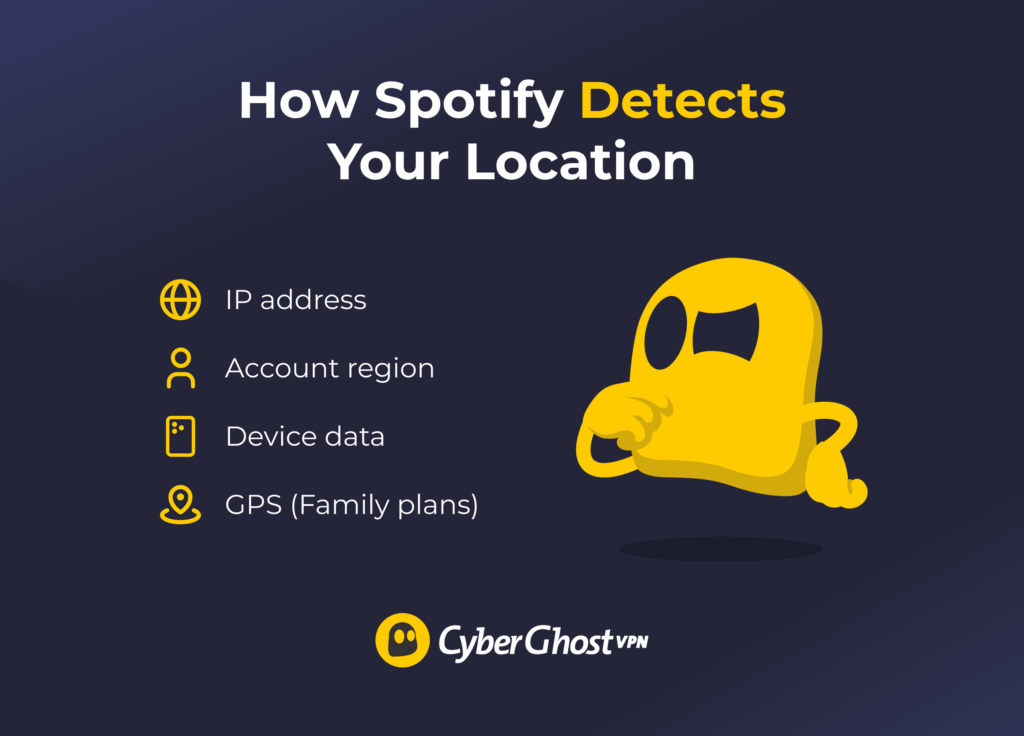
Spotify uses a mix of smart techniques to figure out your general location1. This helps it deliver the right music recommendations and adhere to region-based music licensing rules. To figure out where you are, the platform uses 4 main identifiers:
- IP address: Your internet connection has an IP address that shows your approximate location. This helps Spotify determine the country or general region you’re connecting from.
- Account signup country: Usually based on your IP address at signup, Spotify associates your account with the country where you registered it. This becomes your account’s “home” region.
- Device and technical data: Spotify looks at things like your device’s language settings, time zone, network type, and browser information to get a better idea of where you are.
- GPS and location (limited use): For Premium Family plans, Spotify may occasionally ask for your home address or location data to check that everyone lives together and prevent plan sharing. According to Spotify, this is for verification and the platform doesn’t continually track your movements2.
Spotify’s location settings are intended to reflect where you’re currently located. The platform discourages attempts to use VPNs or other location-spoofing services to change your account region or bypass region-based licensing restrictions. Content availability varies by country because of licensing agreements between Spotify and rights holders, and account location changes should comply with Spotify’s policies3.
What Is Spotify’s 14-Day Rule?
If you’re on Spotify’s free plan, you can use the app in a different country for up to 14 days4. After that, the platform may stop playback and ask you to update your account location before you can continue using the service normally.
This limit exists because Spotify has to follow music licensing agreements, which can vary from country to country. Some artists or labels even choose to release music only in specific markets for strategic reasons. The platform uses your account location to determine the regional version of the service you can access.
The 14-day countdown starts when Spotify detects you’re logging in from a different country than the one registered on your account. If you’re staying abroad for more than two weeks and use Spotify Free, you’ll likely have to update your account location to match where you are. Premium subscribers aren’t subject to the same 14-day rule and can typically listen to music on Spotify while traveling without interruptions.
How to Change Your Spotify Location
Changing your Spotify country or region is straightforward, but there’s one important requirement: the platform needs to detect that you’re actually in the new country before it’ll let you change your location. Spotify checks your IP address and other location markers, so the option to update your country appears only when the service believes you’re somewhere different.
You also can’t change the country directly in the Spotify mobile app or desktop app. Instead, you need to do it through a web browser. Here’s how.
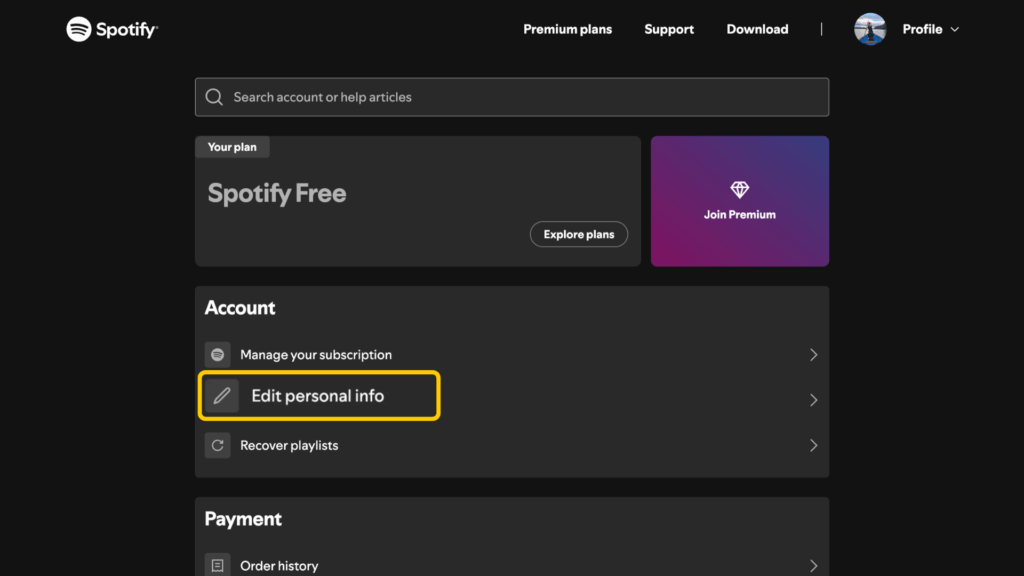
- Log in to your Spotify account in a web browser and open your Account tab from your Profile drop-down list. Click Edit personal info (or Edit profile).
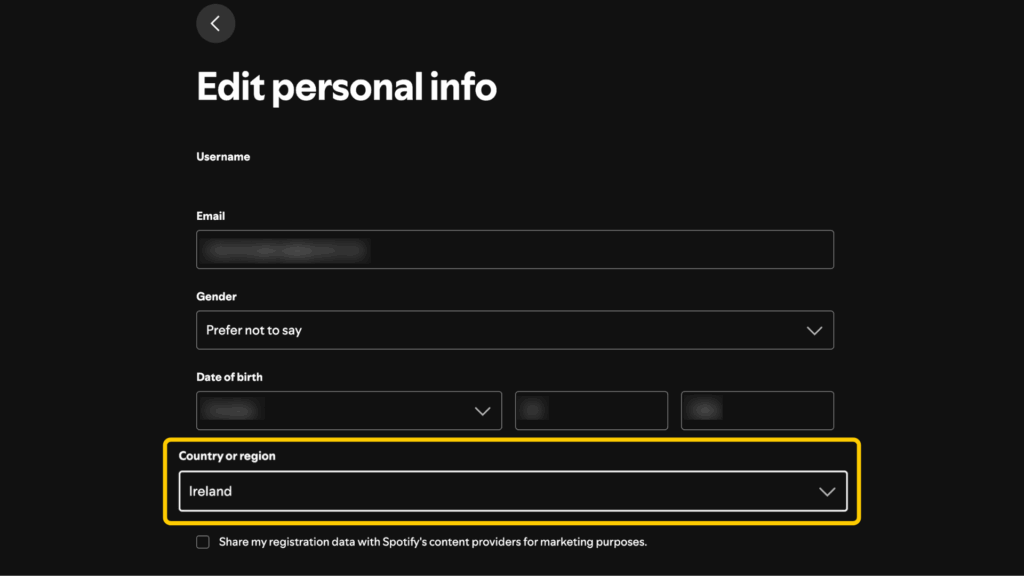
- Scroll down to Country or region and select your new country from the dropdown list.
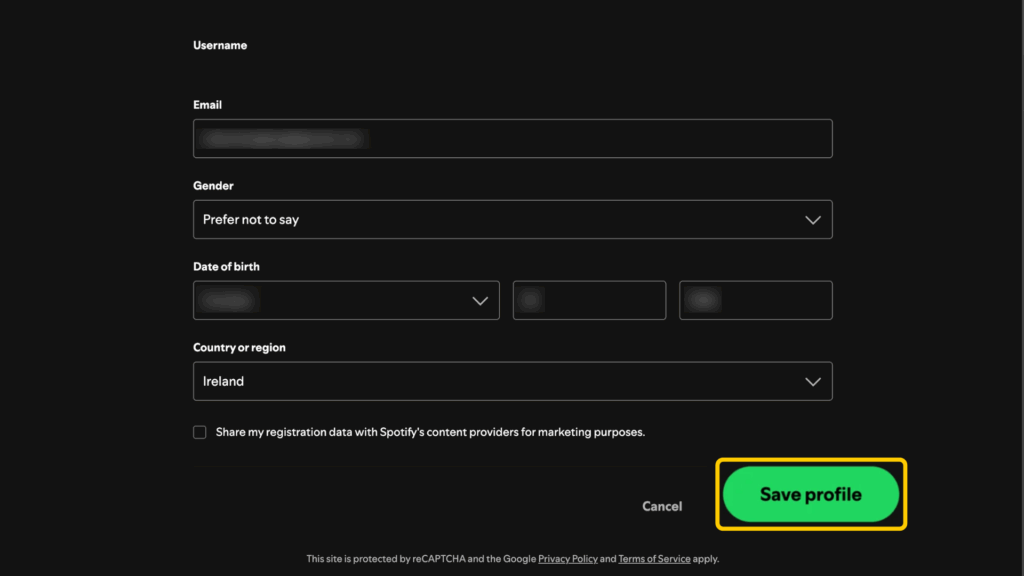
- Click Save profile.
Updating Your Payment Method
If you have Spotify Premium, you might need to update your payment method before you can change your location5. Spotify sometimes requires your payment method to match the new country so they can charge you the correct local price and stay compliant with licensing rules.
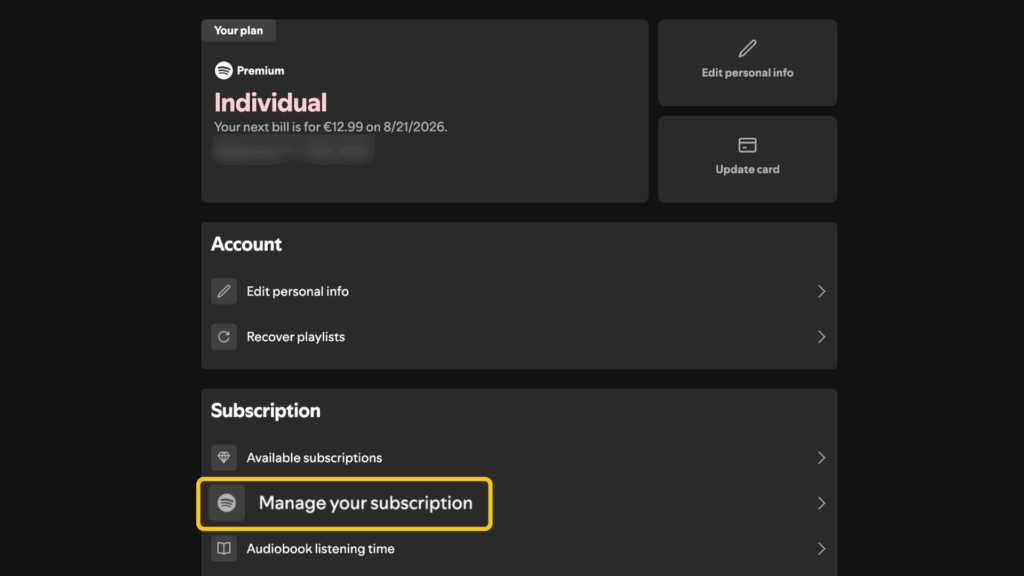
- Open a web browser and log in to your Spotify account. Access your Account tab from your Profile drop-down list. Then, scroll to Manage your subscription.
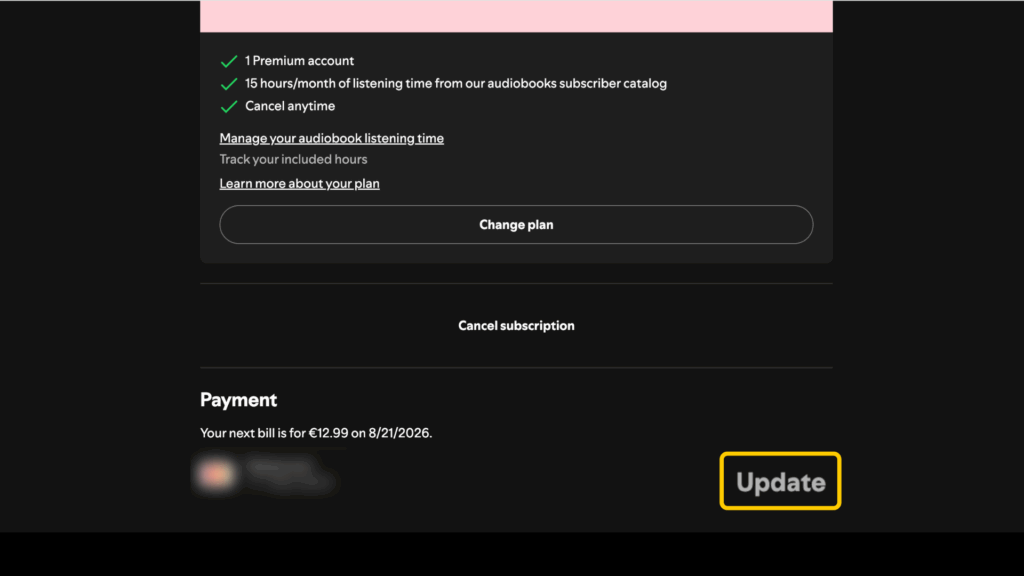
- Click Update next to your current payment method.
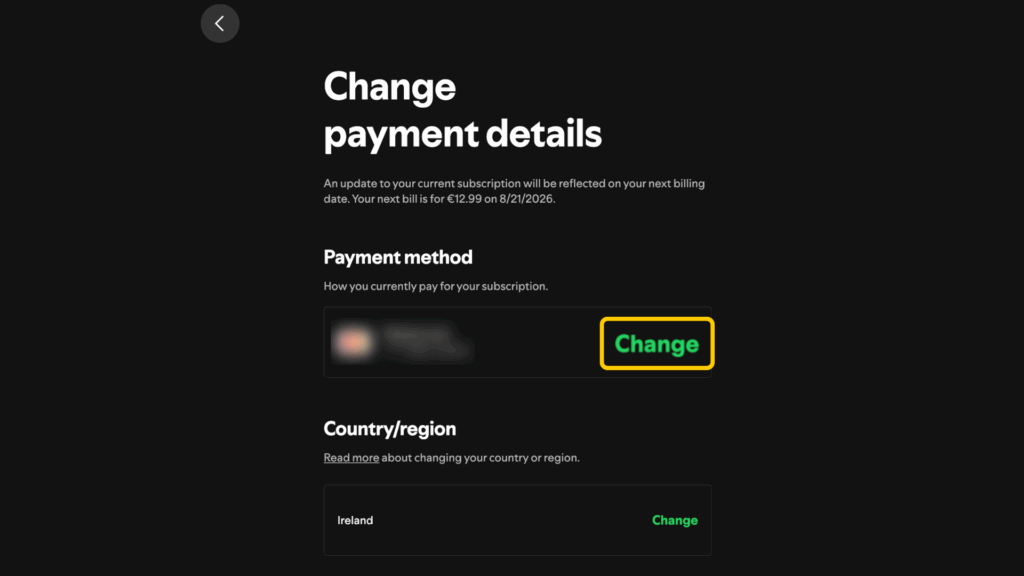
- Select Change.
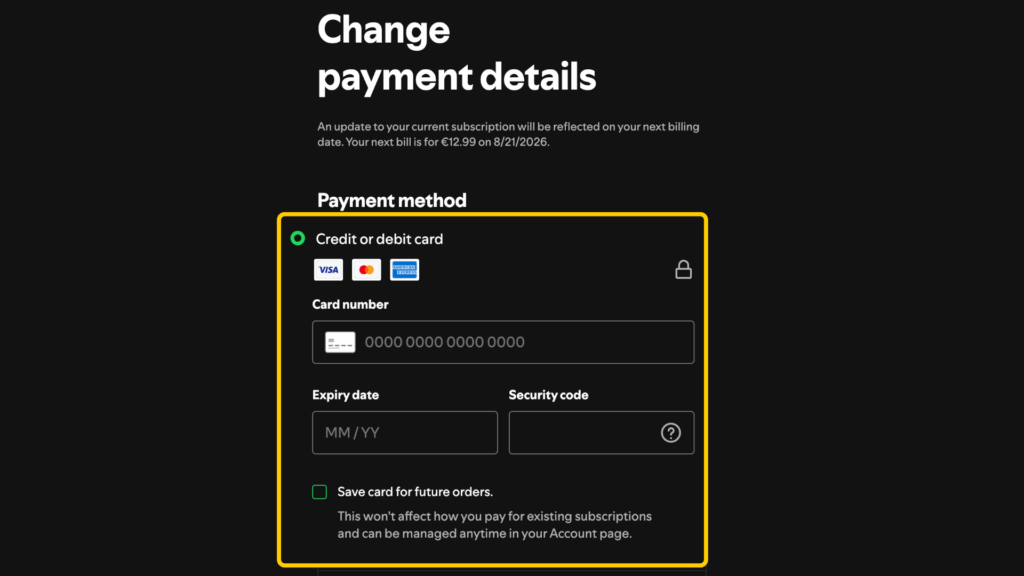
- Enter your new payment details from the new country.
Using a VPN for More Secure Music Streaming
A VPN can improve privacy and security while you stream music, especially when you’re using public Wi-Fi networks or other shared connections. While a VPN can encrypt your traffic and mask your IP address from certain third parties, it doesn’t make your Spotify account activity anonymous to Spotify. Its main benefits include:
- Stronger privacy protection: A VPN keeps your online activity a little more private by masking your IP address and making it harder for third parties to monitor your browsing habits.
- Safer public Wi-Fi: Public networks in places like airports, hotels, and cafés aren’t always secure. A VPN helps protect data sent between your device and the internet when using these shared connections.
- Extra account security: VPN encryption can sometimes reduce the risk of exposing sensitive information when you sign in to streaming services on shared or unfamiliar networks.
CyberGhost VPN makes it easy to protect your connection while streaming music at home or on the go. With servers in 100 countries, apps for all major devices, and support for up to 7 simultaneous connections, you can boost your devices’ protection. There’s no upfront commitment when you try it risk-free with a 45-day money-back guarantee (14 days for monthly plans).
What to Remember About Spotify Locations
Spotify’s location rules exist because the platform needs to abide by licensing deals and legal contracts. If you’re using Spotify Free, you can listen in another country for up to 14 days before you’ll need to update your account location. Premium subscribers can keep listening while they travel, but permanent country changes still require Spotify to verify that you’ve actually moved.
If you’re planning a long trip or moving abroad, you should check your account settings before you go. A quick update can help you avoid interruptions and keep your music, podcasts, and playlists available when you need them.
FAQ
How do I change my country on Spotify?
To change location settings on Spotify, you need to log in to your account through a web browser as the platform won’t allow you to do it through the app. Once you log in, click Edit profile, scroll to Country or region, select your new country, and save. Remember that the platform needs to detect your actual location change before the option to update your settings appears.
Why can’t I update my Spotify location?
The most common reason behind it is that Spotify can’t detect you’re in the country you want to switch to. The service uses identifiers like your IP address to verify your location before allowing you to change it. If you’re a Premium user, you may also need to update your payment method before you can change your country.
Do I need a local payment method to switch regions?
It depends. Spotify may require Premium subscribers to use a payment method issued in the new country before approving your location change. Free users don’t need to do this to update their location, but they are subject to the 14-day travel limit.
How long can I use Spotify in another country?
If you use Spotify Free, you can listen to music in another country for up to 14 days before you’ll need to update your account location. Premium subscribers can continue listening while traveling without that time restriction.
Will changing my Spotify location affect my playlists?
Your playlists, liked songs, and music library will stay attached to your account if you change your Spotify location. However, content availability can vary by country due to licensing agreements. If a song, album, or podcast isn’t licensed in your new region, it may become unavailable even though it still appears in your library.
References:

Leave a comment