
A router is the heart of your Wi-Fi network, but it’s probably not something you think about until the internet stops working. That makes it easy to overlook potentially suspicious activity. If an attacker compromises a router, they may be able to monitor your network activity, interfere with connected devices, or redirect you to dangerous websites.
The tricky part is knowing whether something is wrong. Slow speeds, unexpected disconnections, and unfamiliar devices on your network can raise concerns, but they don’t always mean someone’s hacked your router. A sluggish connection might only need a router restart, while a changed DNS setting could be a sign that someone has tampered with your network.
Most Common Signs That Your Wi-Fi Is Hacked
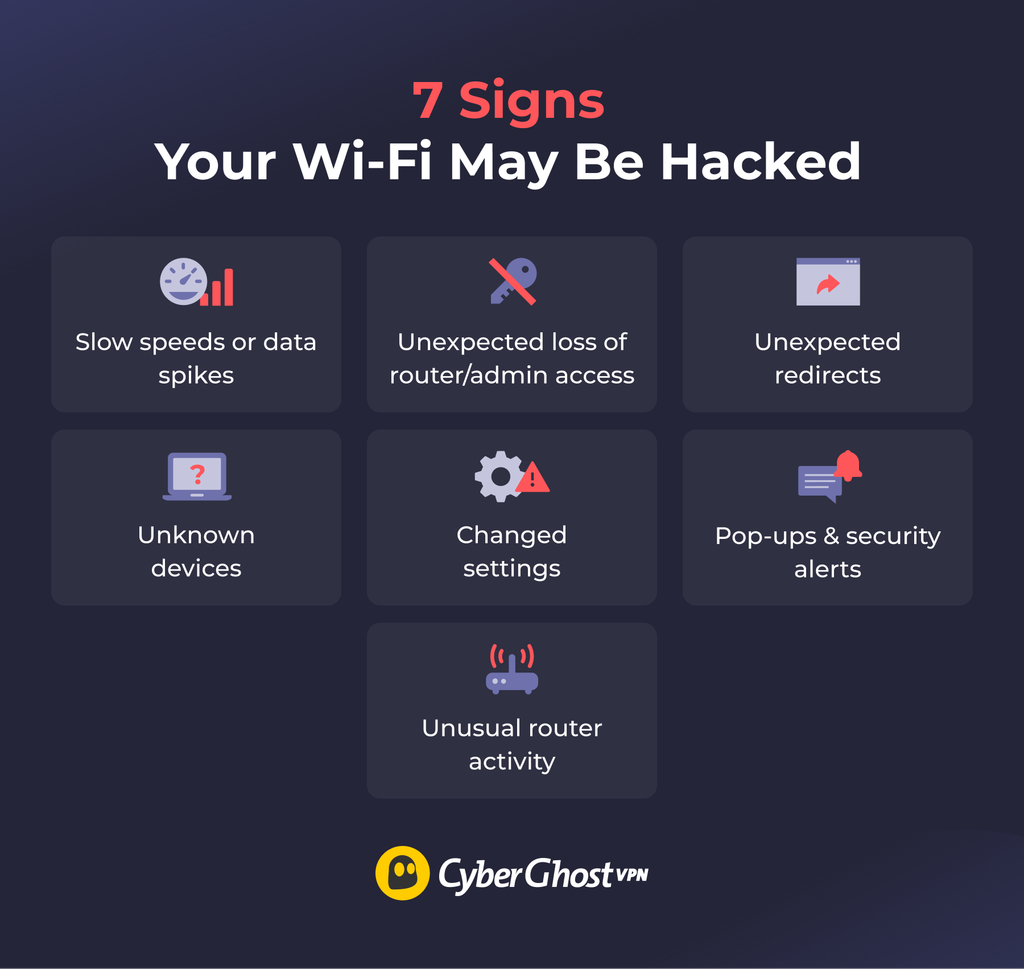
A compromised router doesn’t always give itself away. Depending on the techniques and goals, the signs of a compromise can vary and may be difficult to distinguish from normal router or network faults. The clues below are worth investigating, although none proves on its own that someone hacked your Wi-Fi.
1. Slow Internet or Data Usage Spikes
A sudden drop in internet speed, persistent lag, or unexpected spikes in data usage could be a sign of unusual activity on your network. An unauthorized device could be consuming bandwidth, or malware on a connected device could be sending large amounts of data in the background.
Of course, you should rule out other common causes. For example, many people using the Wi-Fi at once for downloads, streaming, gaming, or other high-bandwidth activities can overwhelm the network. There may be a typical ISP slowdown due to high traffic, infrastructure outages, or bad weather. A sustained increase in traffic that nobody in your household can explain is more concerning than occasional buffering.
2. Unknown Devices Connected to Your Wi-Fi
An unfamiliar device on your network could mean someone has gained access to your Wi-Fi password.
You can check who’s connected to your network by accessing your router’s admin panel and checking the connected devices list. You’ll usually find it under Connected Devices, Device List, or Network Map. Look for names you don’t recognize, but remember that smart home gadgets and phones sometimes appear under generic names or unfamiliar identifiers.
If you’re unsure about a device, check its MAC or IP address against the information shown in your router’s admin panel or the device’s own network settings.
3. Unable to Access Your Wi-Fi or Router Admin Panel
If your router’s admin credentials stop working or its management address has changed without explanation, investigate further. An unexpected change to the router’s management address can also raise suspicion, particularly if you haven’t adjusted any network settings.
There are less alarming explanations, though. A firmware update, router reset, forgotten password, or change made by another household member could be responsible. If you can’t reach the login page, check your router’s current gateway address rather than relying on an old bookmark. On Windows, you can find it by running ipconfig and looking for the Default Gateway address.
4. Your Router Settings Have Changed
Unexpected configuration changes are the more concerning signs of router compromise, especially when they affect who can access your network or where your traffic goes.
There are a few settings on routers that cybercriminals might try to change as part of their attacks:
- Remote management: When enabled, this feature allows someone to manage your router over an external internet connection.
- Port forwarding and firewall rules: New network rules can expose devices or services on your network to unwanted inbound traffic.
- New admin accounts: Attackers may add these profiles so they can log in and change router settings at any time.
- DNS settings: Unauthorized DNS servers could redirect requests for legitimate websites to malicious destinations. Compare them with the router manufacturer’s or ISP’s recommended settings, or with any DNS service you configured.
Not every unfamiliar setting is suspicious. Your ISP, router manufacturer, or someone who manages your network may have made legitimate changes. What matters is whether you can account for them.
5. Browser Redirects to Unfamiliar Sites
A common trick is to deceive internet users into visiting fake websites run by cybercriminals. Attackers can manipulate a router’s DNS settings and may cause connected devices to redirect to scam sites.
These sites look like legitimate websites to trick unsuspecting victims into handing over their data or downloading malicious files. While some can be hard to spot, there will usually be something off. This can include spelling errors or a slightly modified domain (go0gle.com instead of google.com), a practice known as typosquatting.
6. Persistent Pop-Ups, Security Warnings, or Strange Device Behavior
An unusual flood of advertisements, fake virus warnings, or prompts to install software can be another sign that something is wrong. Attackers sometimes use compromised network settings to steer people toward malicious pages that display these messages. A fake security alert might claim something infected your device or that it needs an urgent update, then direct you to a scam website or harmful download.
However, malicious websites, browser extensions, notification permissions, or malware on the device can cause pop-ups and strange behavior. If the same unusual behavior appears across several devices on your Wi-Fi, it’s worth checking the router as well as the individual devices.
How to Check If Your Wi-Fi Is Really Hacked
Before investigating a possible attack, rule out the everyday problems that can cause similar symptoms. If your connection is acting up, check for:
- Background downloads: Are there any apps, services, or system updates consuming data in the background?
- Too many active devices: Are many other devices connected to Wi-Fi? Does the issue go away when you’re the only one on the Wi-Fi network?
- Poor Wi-Fi coverage: Are your devices far from the router and are there physical obstacles in the way? Do your speeds improve dramatically if you use a wired connection?
- Competing Wi-Fi signals: Are there other nearby Wi-Fi networks that overlap with yours and may be causing issues?
- ISP problems: Have you checked if your ISP is experiencing any connectivity or infrastructure issues? Are they known for throttling users based on activity or bandwidth consumption?
Run a speed test on all your devices to compare their performance and help identify where the problem lies. Restarting your router may also clear temporary faults without changing your saved settings. If you still can’t improve your performance after ruling out these common causes, investigate the possibility of a compromise.
If the problems continue, look for more direct signs of unauthorized access. Check your router’s connected-device list, review administrator accounts, and inspect DNS, remote management, and port forwarding settings for changes you don’t recognize. A trusted network-scanning tool can help identify devices or services that deserve a closer look.
If the issue persists or you notice some of the other warning signs above, investigate the possibility of a compromise.
What to Do If You Suspect Your Wi-Fi Has Been Hacked
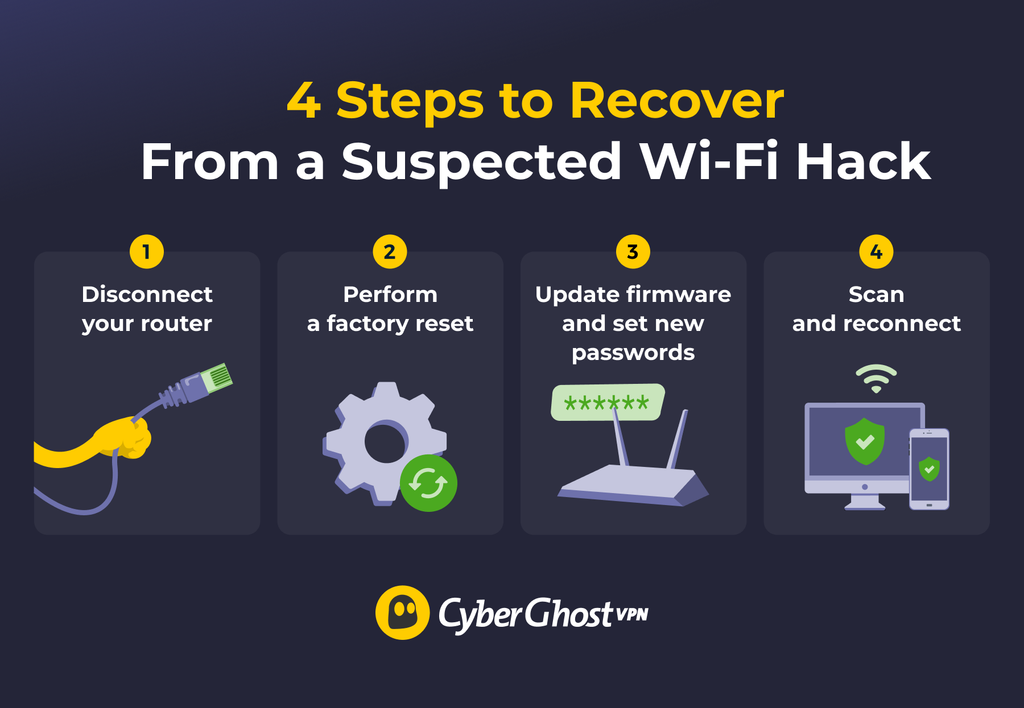
If you’ve found convincing signs of a compromise, act quickly to prevent further access. Start with the router, then check the devices and accounts that have been using your network.
1. Disconnect Your Router from the Internet
If you suspect an active attack, disconnect your router from the internet to limit further communication with an attacker. You can unplug the cable connecting your router to the modem or disable the WAN connection through its settings, depending on your setup. Leave the router powered on if you need to investigate its configuration. You may be able to access the admin panel from a computer connected to the router with an Ethernet cable.
You may also need to re-establish the connection to your ISP. Depending on your ISP and router model, it may reconnect or require manual activation. If it’s the latter, contact your ISP for the details, including the PPPoE username and password, VLAN ID, or static IP configuration.
2. Factory Reset Your Router
A factory reset erases your router’s custom settings and restores its factory configuration. This can remove unauthorized configuration changes, such as malicious DNS settings or unfamiliar accounts. But it’ll also clear your own settings, like router name (SSID), network settings, username and password, and other configurations.
Have the default access details ready before you do the reset. You can usually find them in the manual or on the vendor’s support website. The exact instructions may differ slightly, but this is generally how to factory reset a router:
- Find the reset button. It’s usually a small, recessed button at the back of the physical router. Keep the router plugged in throughout the entire process.
- Press and hold the reset button for as long as required (usually 10-30 seconds).
- Wait for the reset to finish. Often, you’ll see the indicator lights power off, power back on, and then start flickering as it restarts.
A factory reset doesn’t remove every type of compromise, particularly if it involves malicious firmware. If suspicious behavior continues, contact the router manufacturer or your ISP.
3. Update and Secure Your Router
Updates can fix vulnerabilities that attackers may have exploited. Some routers install firmware updates, while others require you to check for and install them yourself. Check your router’s admin panel or the manufacturer’s website for the latest firmware.
Then review your security settings:
- Change the administrator password: Use a strong, unique password rather than reusing the previous one.
- Set a new Wi-Fi password: This helps prevent anyone with the old password from reconnecting.
- Enable WPA3 or WPA2-AES: Avoid outdated security options such as WEP, WPA, and TKIP.
- Disable unnecessary features: Turn off WPS and internet-facing remote administration unless you need them.
- Check DNS and port forwarding settings: Make sure they match your intended configuration and remove anything you don’t recognize.
If your router no longer receives security updates, consider replacing it for a safer long-term option.
4. Secure Your Devices and Reconnect
As a basic precaution, scan your devices for malware and check that no one else has accessed your accounts. A compromised router can increase the risk to connected devices, while a compromised device may be used to target other systems on the network.
Run reputable security scans on supported devices, install available operating system and app updates, and remove any unfamiliar software. Review important online accounts for suspicious sign-ins. If you suspect someone exposed your passwords, change them from a trusted device on a secure connection and enable multi-factor authentication where available.
Once you update and secure your router, reconnect your devices using the new Wi-Fi password. Keep an eye on the connected-device list and router settings over the following days to see whether anything suspicious returns.
How Does Wi-Fi Get Hacked?
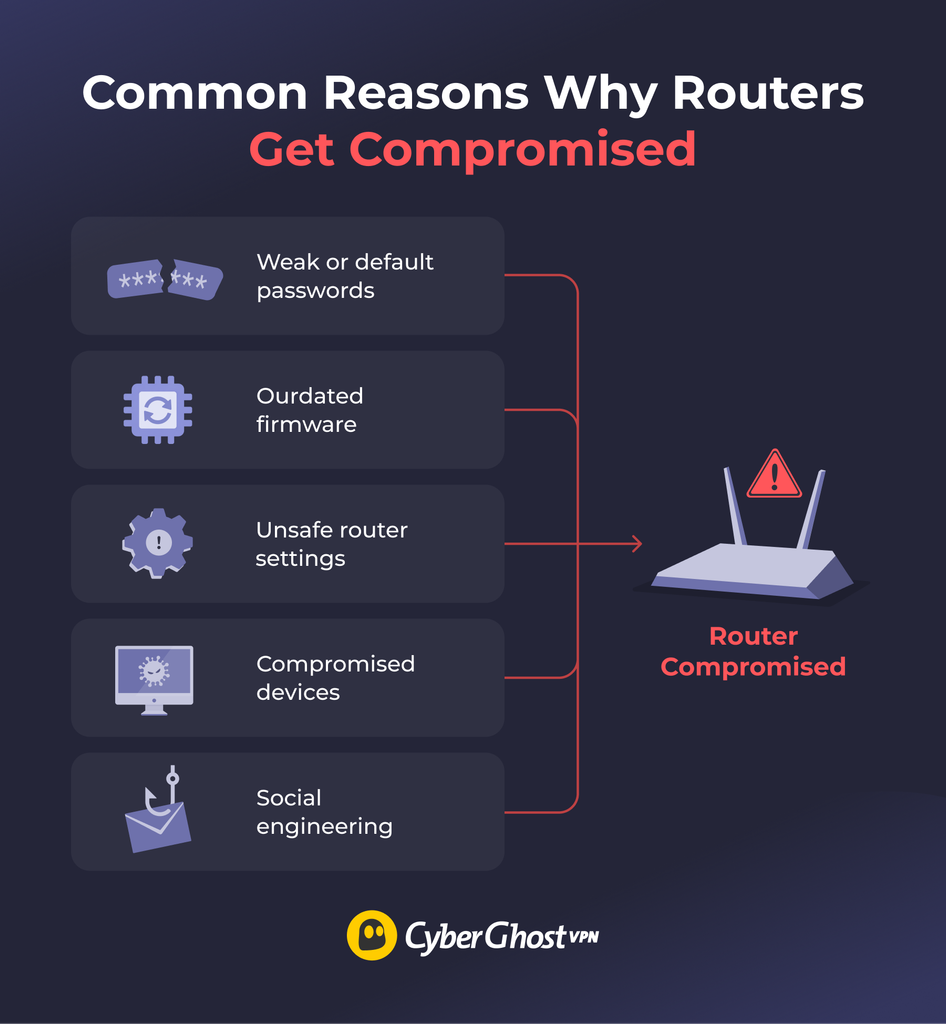
Attackers often exploit existing vulnerabilities or unsafe practices to gain unauthorized access to Wi-Fi routers. Some common ways attackers compromise Wi-Fi networks and routers include:
- Weak or default credentials: Weak Wi-Fi passwords or unchanged router admin credentials can make it easier for attackers to gain unauthorized access.
- Outdated router firmware: Security vulnerabilities in older firmware can give attackers a way into your router. Manufacturers release updates to fix known flaws, but unpatched devices remain vulnerable.
- Insecure router settings: Features such as WPS, remote management, and Universal Plug and Play (UPnP) can introduce security risks, particularly when they’re enabled unnecessarily or configured poorly.
- Compromised devices: Malware can infect a device and attempt to access your router’s settings or attack other devices on the same network.
- Social engineering: Attackers may impersonate your ISP, send phishing messages, or create fake router login pages to trick you into revealing passwords or installing malicious software.
What Can Someone Do If They Hack Your Wi-Fi?
The damage depends on whether an attacker has gained access to your Wi-Fi network, taken control of your router, or compromised a connected device. Some intruders may use your internet connection without permission, while others could interfere with your traffic, target your devices, or steal sensitive information.
Monitor Your Online Activity
Much of the traffic from devices on a home network passes through the router. If an attacker compromises the router, they may be able to monitor network metadata and, depending on the traffic and attack, possibly capture or manipulate unencrypted communications. In addition to violating your privacy, they can use this information to target you with other cyberattacks or disguise their own malicious activities.
However, HTTPS and other encrypted connections protect your data, including passwords and messages sent through secured services.
Abuse Your Internet Connection
An unauthorized user may consume your bandwidth, slow down your speeds, and increase your data usage. Attackers with more extensive access might also use your connection to send spam, operate proxy services, or participate in botnet activity. Since this traffic appears to originate from your IP address, it could lead to complaints or scrutiny directed at your network. Others may be looking to score a free internet connection.
Redirect You to Malicious Websites
Attackers may be able to monitor or manipulate some network traffic, particularly unencrypted traffic and DNS requests. These fake sites might imitate banks, online stores, or familiar login pages to steal account credentials and payment details. Others could trick you into downloading malware or sharing sensitive information.
HTTPS helps protect against traffic interception and tampering, but it can’t prevent someone from visiting a convincing phishing site.
Disrupt Your Network
Depending on the type of hack, it may affect the normal operation of your router. This may result in slower speeds, unstable connections, or other strange behaviors. If attackers know too much about your network, they may target your devices with denial-of-service (DoS) attacks that disrupt your internet access.
Target Connected Devices
Access to your Wi-Fi network can give attackers opportunities to probe connected computers, phones, and smart home devices for vulnerabilities. If they manage to compromise a device, they could install malware to steal information, misuse its processing power, or encrypt files for ransom. A compromised router may also help attackers direct devices toward malicious downloads.
How to Prevent Your Wi-Fi from Being Hacked
Prevention is the best cure when it comes to helping keep your router and Wi-Fi network safe:
- Set strong, unique passwords: Create hard-to-guess passwords for both your router admin login and Wi-Fi connection. Avoid reusing passwords from your other accounts. Make sure they’re long and consist of numbers, letters, and special characters.
- Enable strong encryption: Choose WPA3 (if available) or WPA2-AES security. You can find these under Wireless or Security settings on your router. Avoid using less secure options like WPA2-TKIP or WEP.
- Keep your router updated: Enable automatic updates if your router supports them, or check the admin panel for new releases. You should also keep an eye out for any security warnings or advisories from the vendor.
- Disable features you don’t need: Keep features like WPS, UPnP, and remote management turned off when you don’t use them. These features can increase your network’s attack surface.
- Use your router’s security features: Check if your router offers built-in features like customizable firewall rules, DDoS protection, or DNS whitelisting. Also, consider setting up a secure guest network for visitors or temporary devices and keep it isolated from the main network.
- Monitor network activity: Look out for any spikes or unusual consumption patterns. You can use network monitoring tools or review your router’s statistics and logs.
- Use a VPN: Configure a VPN on a compatible router or install a VPN on your devices. A VPN can encrypt your internet traffic and mask your public IP address, adding another layer of protection when you’re online.
- Practice cyberhygiene: Follow general cybersecurity recommendations, especially when connected to the Wi-Fi network. Avoid suspicious sites, verify files before opening them, don’t share sensitive information without reason, and secure your accounts.
Protect Your Router and Devices from Attackers
A compromised router can expose connected devices to a range of security risks, from unauthorized access and traffic manipulation to malware. Strong passwords, up-to-date firmware, and carefully configured settings can help prevent unauthorized access. It’s also worth checking your network for unfamiliar devices or unexpected changes.
For an extra layer of protection, use CyberGhost VPN to encrypt your traffic and mask your public IP address. You can install it on individual devices or configure it on a compatible router to protect multiple devices on your network. While a VPN won’t prevent someone from hacking your router, it can help keep your online activity more private, especially if the network you’re using isn’t trustworthy.
FAQs
How can I tell if my Wi-Fi has been hacked?
To tell if someone hacked your Wi-Fi’s, start by checking your router’s admin panel for unfamiliar connected devices, unauthorized administrator accounts, or changes to DNS and security settings. Slow speeds and dropped connections are less reliable signs because they often have ordinary explanations, such as interference or heavy network usage. If you notice suspicious activity, compare your router’s current configuration with the settings you recognize.
What are the signs of a hacked router?
Some of the most common signs of a hacked router include slow or unstable connections, unknown network devices, website redirects, or strange router behavior. Many cyberattacks that target the router rely on heavy bandwidth consumption or a high amount of incoming and outgoing requests that disrupt the network. Attackers also often try to infect devices with malware through the network or trick victims into using fake phishing sites to steal their data.
How do I check who is connected to my Wi-Fi?
To check who’s connected to your Wi-Fi, log in to your router’s admin panel. Look for a section such as Connected Devices, Client List, or Network Map. Compare the listed devices with your phones, computers, and smart home gadgets. Some devices use generic names or randomized MAC addresses, so check their details before assuming an unfamiliar entry belongs to an intruder.
What should I do if my Wi-Fi is hacked?
If someone hacked your Wi-Fi, disconnect the router from the internet to limit further unauthorized activity. You can then investigate the issue using a secured device connected to the router via Ethernet. A factory reset can remove malicious configuration changes, but it won’t eliminate compromised firmware. Check connected devices for malware before returning to normal use.
Can an attacker access my devices through Wi-Fi?
Yes, a compromised router can give an attacker access to or visibility into devices on your Wi-Fi network. This depends on the method of attack as well as your device’s security settings.

Leave a comment