
Discord is a popular platform for gaming, study groups, online communities, and staying in touch with friends. If you’re using it in the UAE, you may notice that some features work differently than they do in other countries, particularly voice and video calling.
In this guide, we’ll explain which Discord features are generally available in the UAE, why some features may not be available, and how local regulations affect internet-based communication services. We’ll also cover the current rules around Discord in the UAE, so you have a clearer understanding of what to expect.
Can You Use Discord in the UAE?
Yes, you can use Discord in the UAE, but some features may work in a different way than they do in other countries. You can generally access Discord, join servers, send direct messages, share files, and participate in text chats. For many users, these features work without major issues.
Voice and video communication are a little different. The UAE regulates Voice over Internet Protocol (VoIP) services, which are internet-based calling services. Because of these regulations, features such as voice channels, voice calls, video calls, and screen sharing may not be available or work consistently, depending on the network you’re using.
Why Discord May Not Work as Expected in the UAE
Even when Discord is available, you may occasionally run into technical issues. Like any online service, your internet connection, network settings, or temporary service disruptions can affect Discord’s performance. In some cases, features may also act differently depending on the network you’re using.
Network quality can also affect how Discord performs. Congestion, unstable connections, restrictive network settings, and temporary service disruptions can all cause problems. If messages won’t load or a feature isn’t working as expected, switching networks and reviewing your Discord settings can help determine whether the issue is technical or related to your connection.
General Discord Troubleshooting Tips
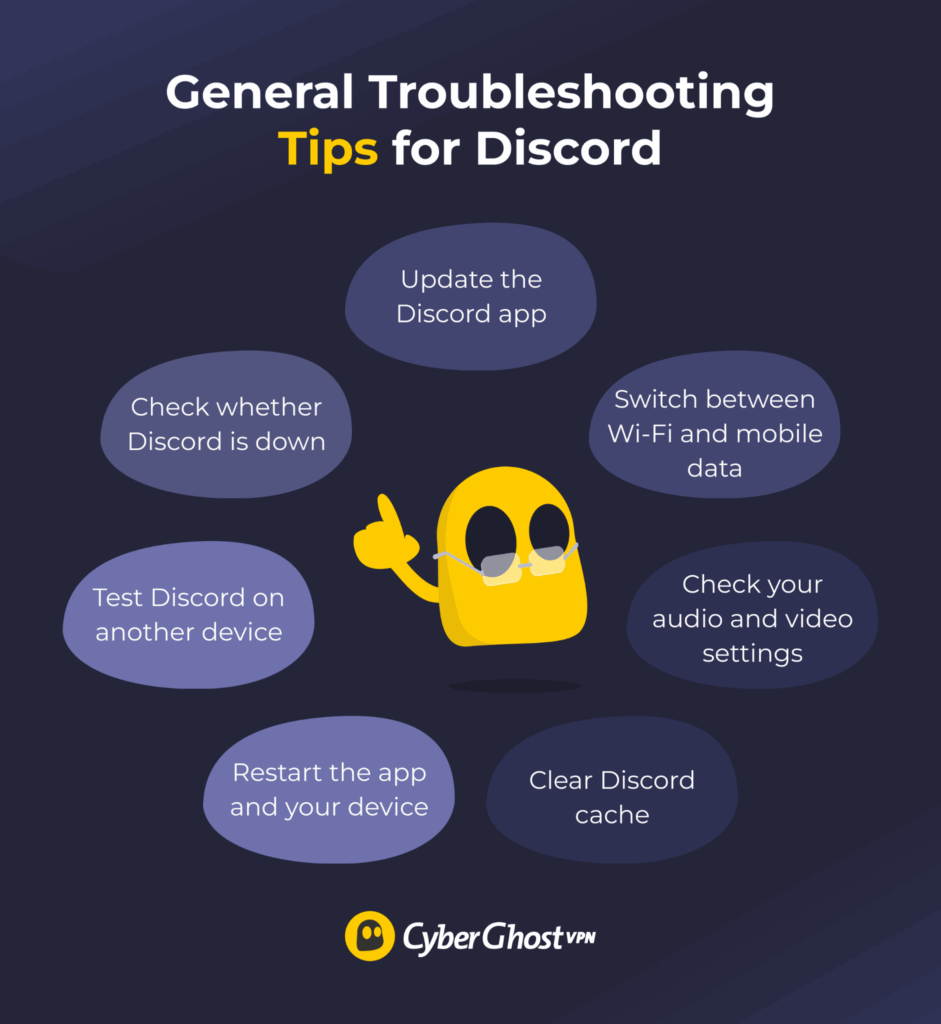
If Discord isn’t working as expected, the cause isn’t always local restrictions. The platform can also experience technical problems caused by your device, app, or internet connection. Before assuming the issue relates to network restrictions, try these general troubleshooting steps.
Check Whether Discord Is Down
Before troubleshooting your device or network, make sure Discord isn’t experiencing a service outage. Like any online platform, Discord can sometimes run into technical problems that affect messaging, voice channels, video calls, server access, or login services. When this happens, the issue can affect users in multiple countries at the same time.
Visit Discord’s official status page and look for any ongoing incidents or maintenance announcements. If the platform reports a known issue, there’s usually nothing you need to fix on your end. Your best option is to wait for Discord to resolve the problem and restore normal service.
Update Discord
An outdated version of the app can cause connection problems, login errors, crashes, and other unexpected issues. Discord regularly releases updates to fix bugs, improve performance, and keep the app running smoothly on newer devices and operating systems.
Open your device’s app store or visit Discord’s official website to see if a newer version is available. If there is, install the update and restart the app. Once Discord is up to date, test the feature that wasn’t working. A quick update is often enough to resolve common problems and improve overall app stability.
Switch Between Wi-Fi and Mobile Data
If Discord isn’t working on your current connection, try switching to another network. For example, if you’re connected to Wi-Fi, switch to mobile data and see whether Discord starts functioning in a different way. If you’re already using mobile data, try connecting to a Wi-Fi network instead.
This simple test can help you determine whether it’s Discord or the network that’s the issue. If Discord works on one connection but not another, your current network may be experiencing connectivity issues that are affecting certain features.
Check Your Audio and Video Settings
Incorrect audio or video settings can stop Discord calls from working, even when the rest of the app is working normally. If you can’t hear other people, they can’t hear you, or your camera isn’t showing up, check your Discord settings to make sure you selected the correct devices.
- Open Discord, click the gear icon next to Settings, then select Voice & Video from the left-hand menu.
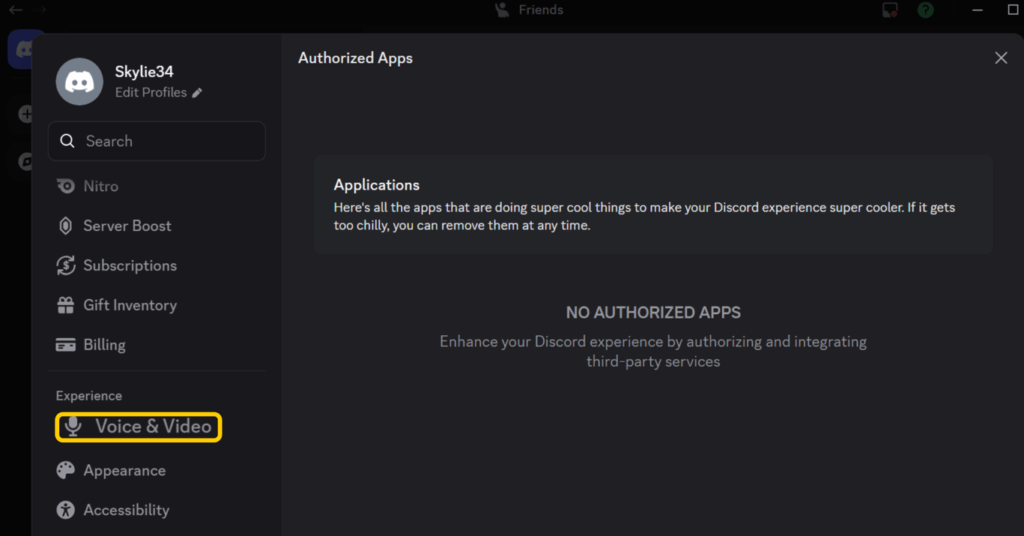
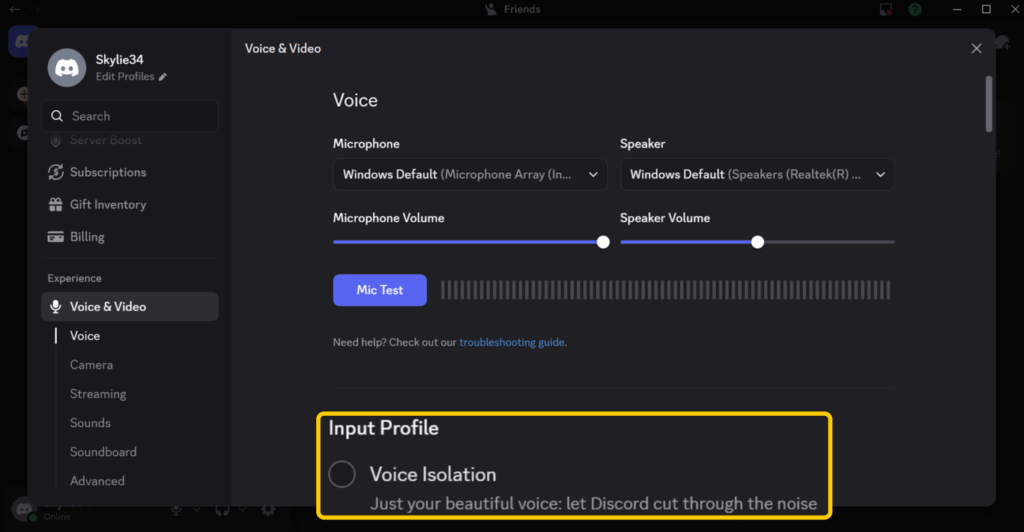
- Check that you’ve selected the correct microphone, speakers, or headphones.
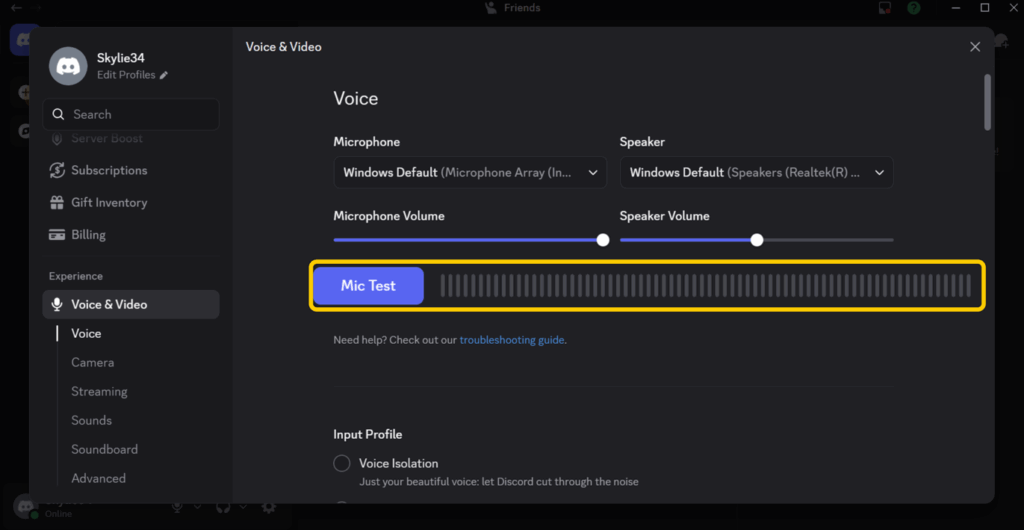
- Tap Mic Test and speak into your microphone to check whether the input sensitivity bar responds.
- Next, move to Camera, select the correct camera, and click Test Video to confirm it’s working.
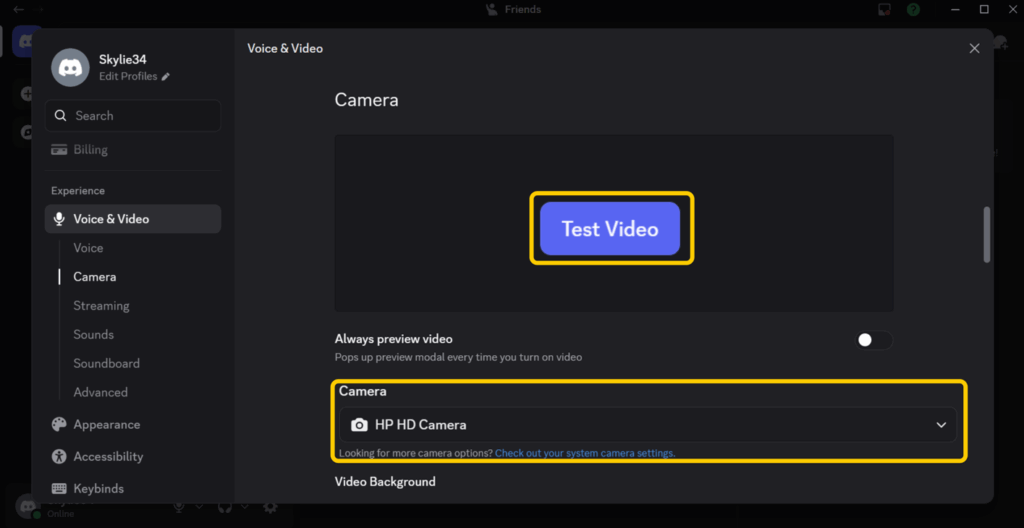
- If Discord can’t detect your microphone or camera, check your device settings and make sure the app has permission to access them.
Once you’ve finished testing, join a voice channel or start a call to see if the tests resolved the issue. If your microphone, speakers, and camera work during testing but calls still aren’t connecting, the problem might be your network rather than your device settings.
Clear Discord Cache
Discord stores temporary files, known as cache, to help the app load faster. Over time, these files can become outdated or corrupted, which may lead to problems like slow performance, failed connections, missing messages, or features that stop working properly. Clearing the cache removes these temporary files and allows Discord to create fresh ones.
Doing so won’t delete your account, messages, servers, or settings. It only removes temporary files that may be causing Discord to behave unexpectedly.
On Windows
- Close Discord completely.
- Press Windows + R to open the Run dialog box.
- Type “%appdata%” and press Enter.
- Open the Discord folder.
- Delete the Cache, Code Cache, and GPUCache folders.
- Restart Discord and check whether it fixed the issue.
On Mac
- Close Discord completely.
- Open Finder and click Go > Go to Folder.
- Enter “~/Library/Application Support/discord.”
- Delete the Cache, Code Cache, and GPUCache folders.
- Reopen Discord and test it again.
Restart Discord and Your Device
If Discord suddenly stops working, restarting the app is one of the quickest fixes to try. Temporary glitches can sometimes prevent messages from loading, calls from connecting, or servers from updating. Closing and reopening Discord refreshes the app and re-establishes its connection to Discord’s servers.
If the problem continues, restart your device as well. This clears temporary system issues, closes background processes that may be interfering with Discord, and gives the app a fresh start. Once your device powers back on, open Discord again and check whether the restart resolved the issue.
Test Discord on Another Device
If you have access to another phone, tablet, or computer, try signing in to Discord there. If the same feature works on another device, the problem is likely with your original device rather than your account or Discord itself.
If Discord still isn’t working, you’ve ruled out one possible cause and can focus on your network or the app instead. It’s a quick way to narrow down where the problem is before trying more advanced troubleshooting.
Common Discord Problems and How to Fix Them
- Discord can’t connect: Check your internet connection, restart Discord, and try switching between Wi-Fi and mobile data.
- Voice channels not working: Verify your audio settings and test whether the issue affects all servers or only specific channels.
- No sound during calls: Make sure you’ve selected the correct speakers and microphone in Discord’s Voice & Video settings.
- Messages not sending: Check Discord’s server status and confirm that your internet connection is stable.
- Discord keeps disconnecting: Restart your device, update Discord to the latest version, and reconnect to your network.
- Discord app keeps crashing: Clear the app cache, close background apps, and install the latest Discord update.
- Microphone not detected: Confirm that Discord has permission to access your microphone in your device settings.
What to Expect When Using Discord in the UAE
Using Discord in the UAE is a little different than it is in some other countries. While text chats, servers, and many community features are generally available, local regulations may limit some voice and video features. Knowing what to expect can make it easier to tell whether it’s a temporary technical issue or a feature that’s unavailable on your network.
If you use Discord on public Wi-Fi or other shared networks, CyberGhost VPN can help add a layer of privacy by encrypting your connection. It helps protect your data on unsecured networks and you can use it across Windows, macOS, Android, iPhone, and more. You can also try it risk-free with a 45-day money-back guarantee (14 days for monthly users).
FAQ
Is Discord blocked in the UAE?
Discord isn’t completely blocked in the UAE. Text messaging, servers, and many community features are generally accessible, but local VoIP regulations may restrict voice and video communication features. As a result, some users can access Discord for chatting, while voice channels and calls may not work as expected.
How can I use Discord in the UAE?
You can use Discord in the UAE by downloading the app or accessing it through a web browser and signing in to your account. Text chats, servers, direct messages, and many community features are generally available, although local regulations may limit some features. If you’re experiencing technical issues, general troubleshooting steps such as updating the app, checking your connection, or reviewing Discord’s service status may help.
Does Discord voice chat work in the UAE?
Discord voice chat may be available in the UAE. However, local regulations governing internet-based calling (VoIP) services can affect voice channels, direct voice calls, video calls, and screen sharing. As a result, availability may vary depending on the feature and network in use.
Do I need a VPN to access Discord in the UAE?
No, you don’t need a VPN to use Discord’s text chats, direct messages, servers, and many other community features in the UAE. Some people use VPNs to add privacy when using public Wi-Fi or other shared networks, but VPNs aren’t meant to be a way to access features that local regulations may restrict. If you choose to use a VPN in the UAE, you should ensure your use complies with all applicable local laws and regulations.

Leave a comment