
Nothing makes you question technology faster than Snapchat suddenly deciding you live in another country. One trip abroad and your Snap Map, local content, and location settings can start acting completely different. At the same time, sharing real-time location data on public Wi-Fi isn’t exactly everyone’s idea of a relaxing vacation.
This guide shows you how to manage your Snapchat location settings. You’ll learn how Snap Map works, how to hide or limit your location, and what actually happens when Snapchat determines your location.
Why Snapchat Shows Different Content in Different Countries
Snapchat may adjust some content based on where it thinks you are. This helps the app show local stories, nearby hotspots, regional lenses, trending Spotlight videos, and creators blowing up in your area. So if you travel to another country, your Snapchat vibe can change fast. One minute it’s your usual streaks, filters, and drama-filled group chats. The next minute, it’s local food snaps, random new trends, and Bitmojis hanging somewhere completely different.
To figure out your location, Snapchat looks at several signals, including:
- IP address: Your internet connection can help Snapchat estimate your general location.
- GPS and location settings: Your phone’s GPS helps Snapchat power features like Snap Map.
- Wi-Fi and mobile networks: Different networks can affect local recommendations and location updates.
- Phone language and region settings: Your device settings may influence the content Snapchat recommends.
Why Would You Want To Manage Your Snapchat Location?
People often manage their Snapchat location to get more control over privacy, recommendations, and location sharing.
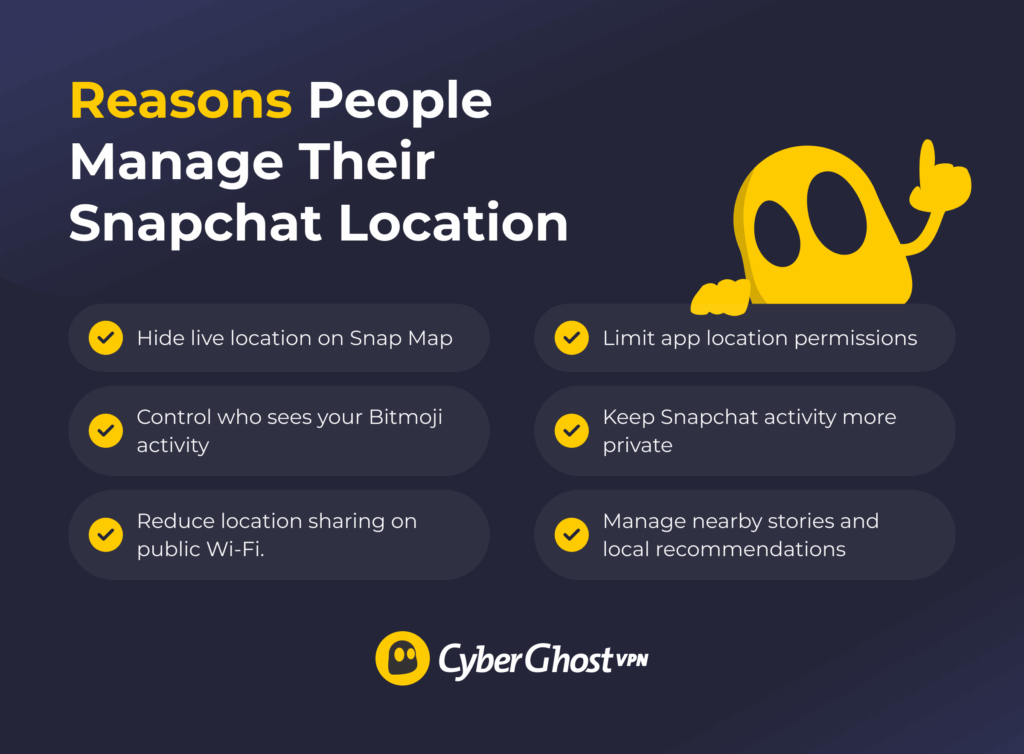
Adjusting your settings can change both what you share and what you see in the app. Some common factors that may affect whether you want to manage your Snapchat location include:
- More privacy on Snap Map: Hide your live location or choose who can see it.
- Less location sharing: Limit how much location data Snapchat can access.
- Better control over recommendations: Influence the local stories, filters, and content you see.
- Safer public Wi-Fi use: Reduce unnecessary exposure on unsecured networks.
- Less oversharing online: Avoid broadcasting your exact location in real time.
- More control over app permissions: Decide when Snapchat can access your location.
How to Manage Snapchat Location While Traveling
Snapchat loves location features. Between Snap Map, nearby stories, location filters, and Bitmoji updates, the app is constantly trying to figure out where you are. Luckily, you don’t have to share every move with your entire friends list, and these settings can help you take back a little more control.
Use Ghost Mode
Ghost Mode is Snapchat’s “nothing to see here” button for Snap Map. When you turn it on, your live location disappears from the map so friends can’t track where your Bitmoji is hanging out. It’s one of the easiest ways to get more privacy on Snapchat without turning location services off completely. It’s perfect for those moments when you want to post snaps without broadcasting your exact location.
You can turn on Ghost Mode from Snap Map settings:
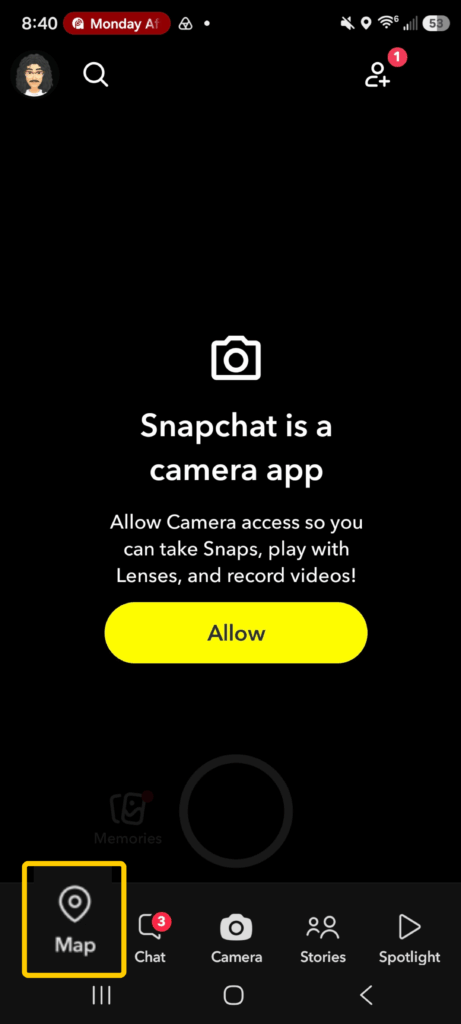
- Open Snapchat and tap your Map.
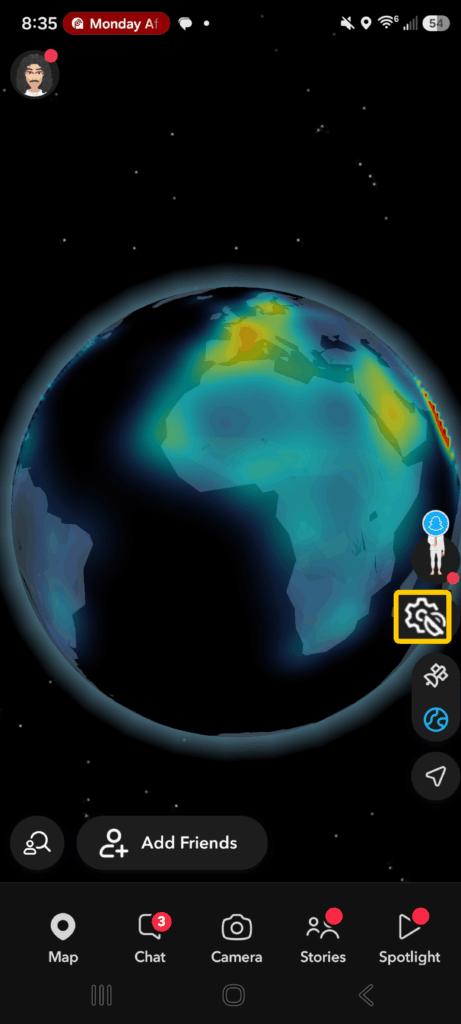
- Tap the Settings icon near the lower right corner.
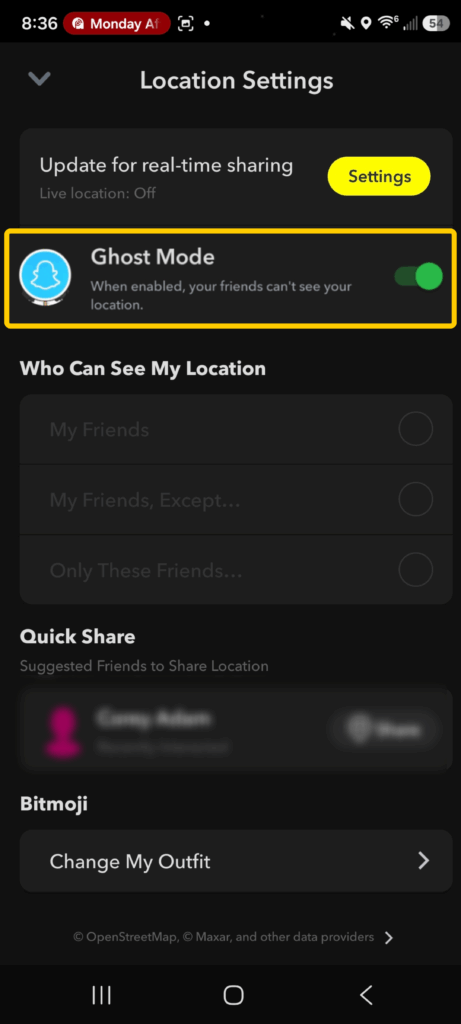
- Toggle Ghost Mode on.
Change Location Visibility
Snapchat also lets you control who can see your location instead of hiding it from everyone. You can keep sharing your location with close friends while keeping random classmates, coworkers, or acquaintances in your group chats out of the loop.
To change location visibility settings:
- Open Snap Map Settings and tap Ghost Mode.
- In the pop up, choose the people you want to share your location with: My Friends, My Friends Except, or Only These Friends.
Refresh Snap Map
Snap Map doesn’t always update instantly. Sometimes your Bitmoji gets stuck in an old location, nearby stories stop refreshing, or Snapchat keeps showing outdated map activity. Refreshing Snap Map helps Snapchat reload your latest location data and update what appears on the map:
- Open Snapchat and open Snap Map.
- Wait a few seconds for the map to reload. Then use your fingers to slightly move around the map to trigger a refresh.
- Close and reopen Snapchat if your location still looks outdated.
If your Snap Map still isn’t updating, check your internet connection, GPS settings, and location permissions. Weak signals or disabled location access can delay updates.
Update Snapchat Location Permissions
Changing your Snapchat location permissions gives you more control over what the app can access and when. This affects features like Snap Map, location sharing, nearby stories, and Bitmoji updates. If Snapchat feels a little too aware of your every move, these settings are where you dial things back.
On Android
- Open Settings and tap Location or Security and privacy.
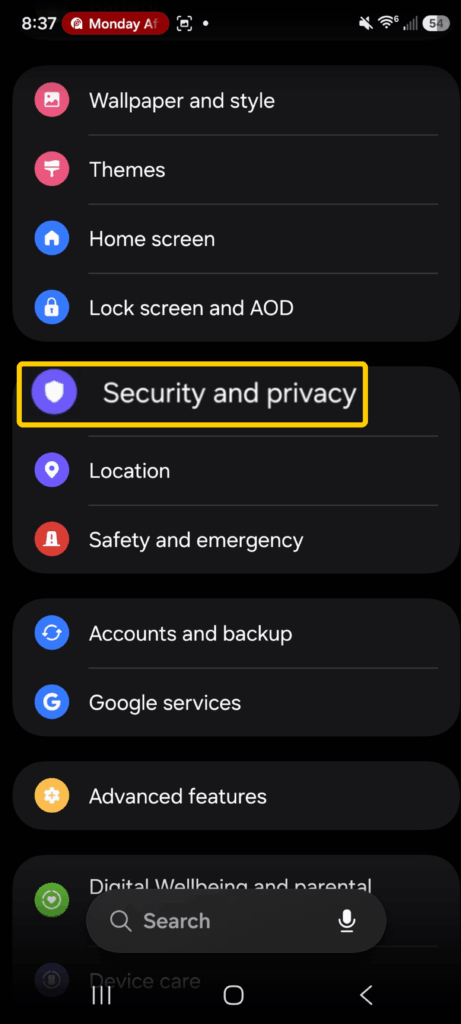
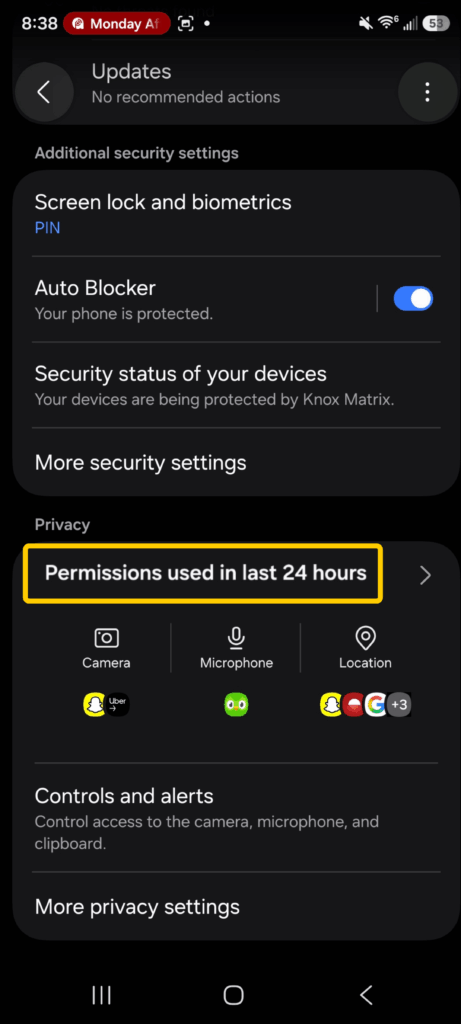
- Open App Permissions. This might be different depending on your phone model.
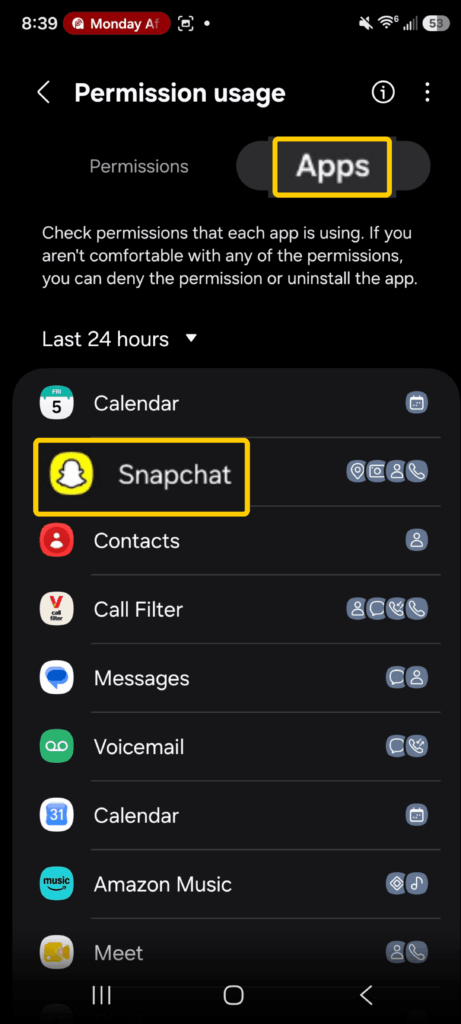
- Select Apps and tap Snapchat.
- Tap Location.
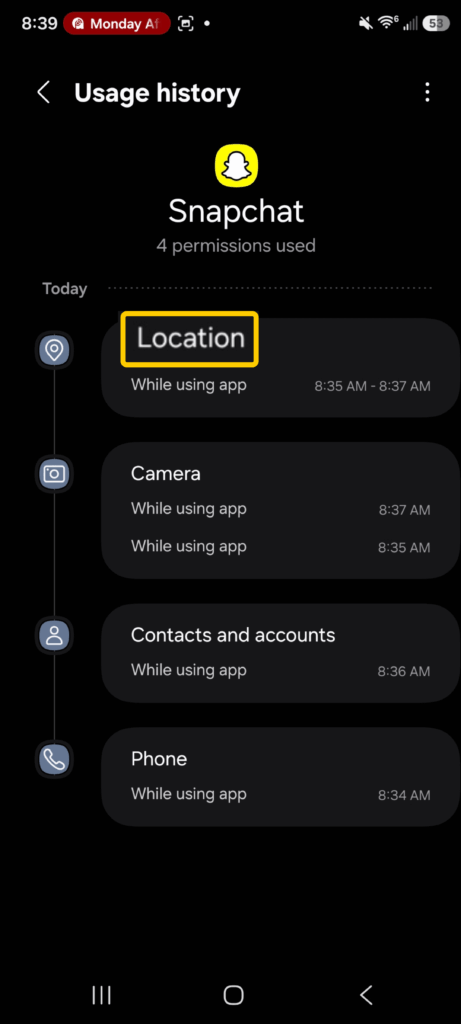
- Choose a permission setting:
- Don’t Allow blocks location access completely.
- Allow Only While Using the App limits location access to active Snapchat use.
- Ask Every Time lets you control access manually.
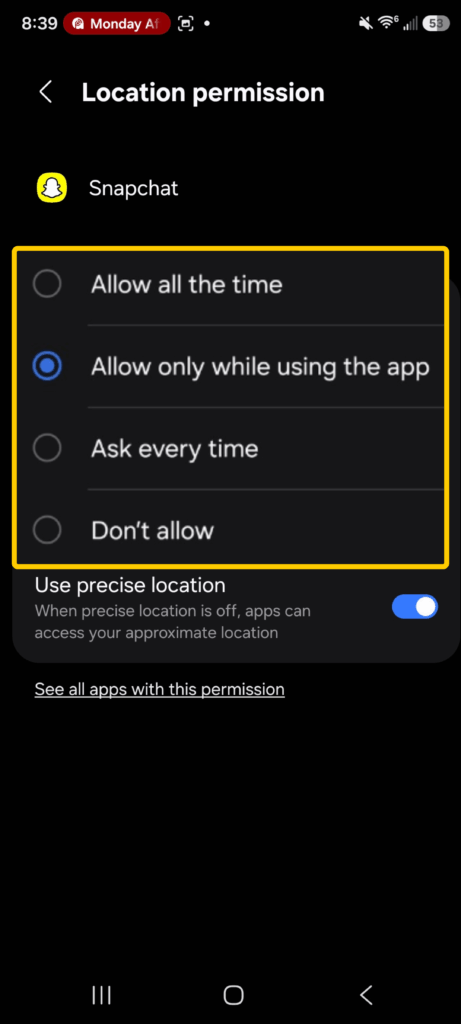
Some Android devices also let you disable precise location access for apps. The exact setting name may vary depending on your phone brand and Android version.
On iPhone
- Open Settings and tap Privacy & Security.
- Select Location Services.
- Tap Snapchat and choose a location setting:
- Never prevents Snapchat from accessing your location.
- While Using the App only shares location when Snapchat is active.
- Ask Next Time Or When I Share lets you decide each time.
You can also turn off Precise Location for less exact location sharing on Snap Map.
Use a Different SIM Card
Your SIM card can affect some of the location signals Snapchat uses. When you switch to a SIM card or eSIM from another country, your phone connects to local mobile networks in that region. Local networks can influence regional content, nearby recommendations, local ads, and some location-based features inside the app.
Using a local SIM/eSIM while traveling can also help Snapchat pick up more accurate local network information instead of relying only on your home carrier. In some cases, it may change the stories, filters, Spotlight content, and recommendations that appear in your feed. Plus, local mobile data often works better than fighting for survival on overloaded airport Wi-Fi.
Clear Snapchat Cache
Snapchat stores temporary files to help the app load faster. Over time, cached data can cause problems like outdated Snap Map activity, slow loading stories, broken filters, or random app glitches. Clearing the cache refreshes temporary app data without deleting your chats, memories, snaps, or streaks:
- Open Snapchat and tap your Bitmoji in the top left corner.
- Tap the Settings icon in the top right corner of your profile page.
- Scroll down until you reach the Account Actions section.
- Tap Clear Cache and then select Continue to confirm.
Change App Store or Google Play Region
Your App Store or Google Play region can affect some of the apps, features, recommendations, and content available on your device. Changing the region may also influence certain regional signals apps use, including Snapchat. In some cases, users notice different filters, local trends, Spotlight content, or app recommendations after switching regions.
On Android
- Open the Google Play Store and tap your profile icon.
- Go to Settings, open General, and tap Account and Device Preferences.
- Under Country and Profiles, select the country you want to switch to.
- Follow the prompts to confirm the change.
On iPhone
- Open the App Store and tap your profile icon in the top right corner.
- Tap your name or Apple ID at the top of the screen and select Country/Region.
- Tap Change Country or Region.
- Choose the country you want and follow the on-screen instructions.
Apple may require a valid payment method and billing address for the new region before the change works.
Create a New Snapchat Account
A new Snapchat account starts with a fresh activity history. This means Snapchat hasn’t built recommendations based on your old location data, watched stories, followed creators, or Snap Map activity.
Some users notice different regional content, filters, Spotlight videos, and recommendations after creating a new account. Snapchat may rely more heavily on current device settings, network signals, and location data when personalizing a newer profile.
How Long Does Snapchat Take to Update Your Location?
Snapchat usually updates your location within a few minutes after you open the app and connect to the internet. If you have Snap Map enabled, your location can refresh whenever Snapchat is active in the background or while you’re using the app. However, updates aren’t always instant, and the timing can vary depending on your internet connection, GPS signal, battery settings, and location permissions.
Some outside factors can slow your location updates. Weak Wi-Fi, poor mobile signal, battery saver mode, disabled background app refresh, or outdated app permissions can all affect how fast Snapchat refreshes your location. If your Snap Map looks stuck or inaccurate, opening the app, refreshing your connection, or restarting location services usually helps update it faster.
Snapchat Ghost Trails and How to Clear Them
Snapchat Ghost Trails are your location paths and movement history within the past 24 hours. Snapchat doesn’t publicly use the term “Ghost Trail,” but many users use it to describe the way their location activity appears or updates on the map. If you enable your location sharing, friends may see your Bitmoji move as Snapchat refreshes your location.
Ways to Hide Snapchat Ghost Trails
- Turn on Ghost Mode: Hide your live location from everyone on Snap Map.
- Choose specific friends: Limit who can see your location activity.
- Disable precise location: Share a less exact location through your phone settings.
- Turn off Snapchat location permissions: Stop Snapchat from accessing your location data completely.
Ways to Clear Snapchat Ghost Trails
- Clear the Snapchat cache: Remove old app data that may affect location updates.
- Restart the Snapchat app: Refresh Snap Map and location activity.
- Log out and back in: Reset temporary syncing issues.
- Restart your phone: Refresh GPS, Wi-Fi, and background app activity.
Why Use a VPN for Snapchat While Traveling?
Snapchat is all about sharing moments fast, but it also means you’re connected while sending snaps, checking Snap Map, scrolling Spotlight, and keeping streaks alive. A VPN encrypts your internet traffic to add more privacy while you use the app, especially on public Wi-Fi or shared networks. Your selfies should get views from friends, not random people on the same café Wi-Fi.
CyberGhost VPN also includes useful features like automatic Wi-Fi protection and Smart Rules. Automatic Wi-Fi protection can secure your connection when you join an unsecured network, while Smart Rules lets you automate when the VPN connects. These features can make adding privacy to your Snapchat sessions feel almost effortless.
Stay Private and Snap Freely While Traveling
Managing your Snapchat location settings while traveling is easy. Once you know how Snap Map, Ghost Mode, and location permissions work, it’s much easier to control what you share and who can see it. A few quick privacy tweaks can make a big difference when you’re snapping from airports, hotels, cafés, or anywhere in between.
If you use Snapchat on public Wi-Fi, CyberGhost VPN can make your connections more secure while traveling. It encrypts your traffic, helps protect your data on unsecured networks, and gives you access to servers in many countries worldwide. Plus, you can test it with a generous 45-day money-back guarantee (14 days for monthly users) before committing.
FAQ
Can you change your location on Snapchat?
Yes, you can change or manage some of the location information Snapchat uses. Snapchat relies on signals like your GPS, IP address, Wi-Fi network, and device settings. You can control this by using Ghost Mode, changing Snapchat location permissions, disabling precise location access, or adjusting your device and network settings while traveling. Tools like VPNs that change the IP address linked to your connection can also affect certain regional signals.
Does a VPN change your Snapchat location?
A VPN can change the IP address linked to your connection, which may affect some regional signals Snapchat uses. However, Snapchat also relies on GPS, Wi-Fi data, and device settings to detect location, so a VPN may not fully change how your location appears in the app. It’s best to use a VPN for added privacy and security on public networks rather than to bypass platform rules or restrictions.
How do you hide your location on Snapchat without spoofing?
You can hide your location on Snapchat without spoofing by turning on Ghost Mode in your Snap Map settings. You can also limit location permissions, disable precise location access, or choose specific friends who can view your location. These settings help reduce how much location information Snapchat shares while still letting you use the app normally.
Is it safe to fake your location on Snapchat?
Faking your location on Snapchat can come with privacy, security, and account risks depending on the method used. Some third-party spoofing tools may collect personal data, affect app performance, or conflict with platform rules. If your goal is more privacy while traveling, safer options include using Ghost Mode, adjusting location permissions, or using a VPN to add privacy on public Wi-Fi networks.

Leave a comment