
Google Pay makes it easy to check what you’ve paid for, but that convenience cuts both ways. If someone gets into your Google account, your Google Pay transaction history can reveal more than you’d expect, including dates, merchants, and payment info.
The “catch” is that your history exists in multiple lists — your Google Pay activity, data tied to the Google Pay services, and your Google Payments profile. In this guide, we explain how to delete your Google Pay transaction history and discuss the important factors around the deletion process.
What Does Deleting Your GPay Transaction History Mean?
Deleting your Google Pay transaction history only removes what you see in your Google account. It doesn’t erase all payment records across Google and other services. Your transaction data lives in a few different places, and each one works a little differently:
- Google Pay activity (My Activity): Controls what’s visible in your account. Deleting it clears your activity list, but it doesn’t remove all underlying transaction records tied to payments.
- Google Pay as a service: Exists in your Google account settings. Removing it disconnects Google Pay from your account, but it doesn’t override Google’s legal obligation to keep certain data.
- Google Payments profile: Stores your payment methods and transaction records. Closing it removes access and you can’t reverse this action, but Google may retain some information for regulatory reasons.
Keep in mind: Banks, merchants, and card networks keep their own records. Anything you delete on Google’s side doesn’t affect those.
Before you take action, be clear on your goal. It’s a good idea to decide whether you want to hide payments from someone with access to your device, reduce what appears in your Google account, or stop using Google Pay altogether.
Before You Delete Anything, Save What You Might Need
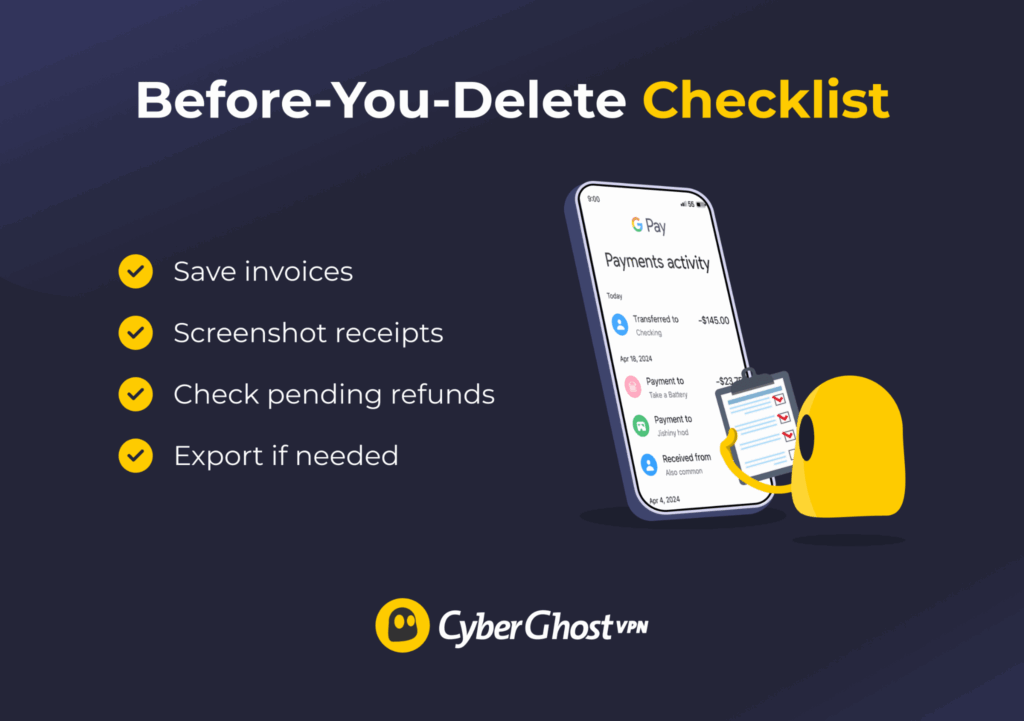
It’s tempting to clear everything and move on. Before you do, take a moment to check whether any part of your Google Pay payment history still matters to you. Once you remove the activity from your account view, pulling the same transaction details again can be difficult, or even impossible.
A quick check now can save you from chasing missing invoices or transaction details later. Start with anything you may need for records:
- Invoices and receipts: Save copies of any transactions tied to work, travel, or subscriptions you may need to verify later. Merchants don’t always keep invoices accessible forever.
- Open issues: Check for payments linked to refunds, returns, or chargebacks. Banks and merchants often ask for screenshots or confirmation emails when resolving disputes.
- Recent activity: Wait for any pending payments to settle so you can confirm the final amount and date.
If you want a backup for your own files, Google also offers an export option through Google Takeout, which lets you download your Google Pay data before you start the deletion process.
How to Delete GPay Transaction History
Google doesn’t offer a single “clear transactions” button inside the Google Pay or Wallet apps. Instead, you have to go through your Google Account activity controls.
The steps are mostly the same on desktop, Android, and iPhone because you’re using a browser-based Google page and not the app itself. You might see small layout differences depending on your device, but the process stays consistent.
Delete Google Pay Transaction History (Windows, macOS, Android, iOS)
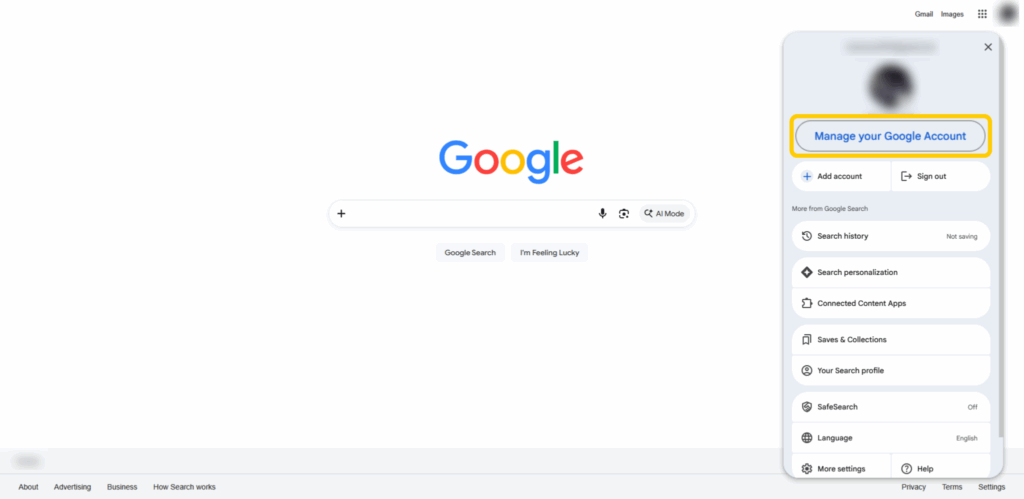
- Open Chrome and click your profile picture in the upper right corner. Tap Manage your Google Account.
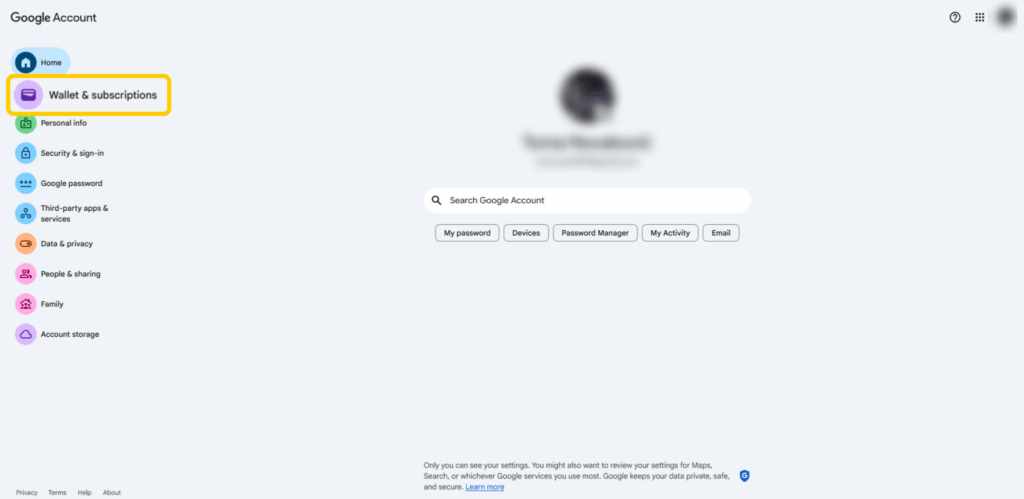
- Go to Wallet and subscriptions.
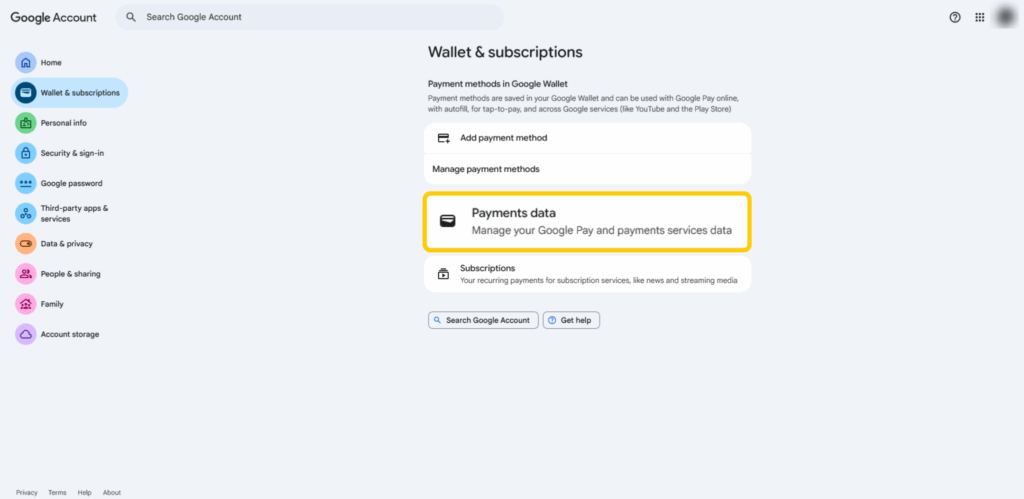
- Click Payments data.
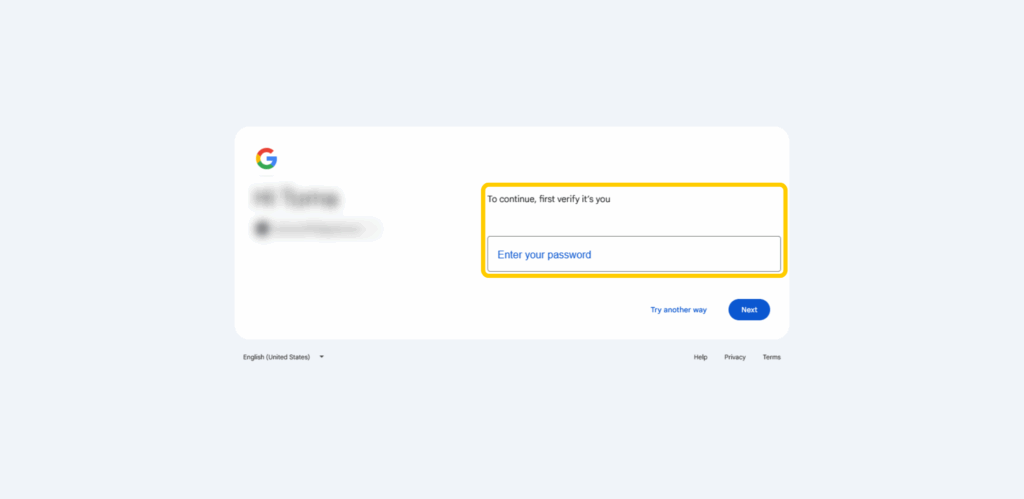
- Verify your password. You might need to confirm the login through an additional task, like matching a number on a trusted device.
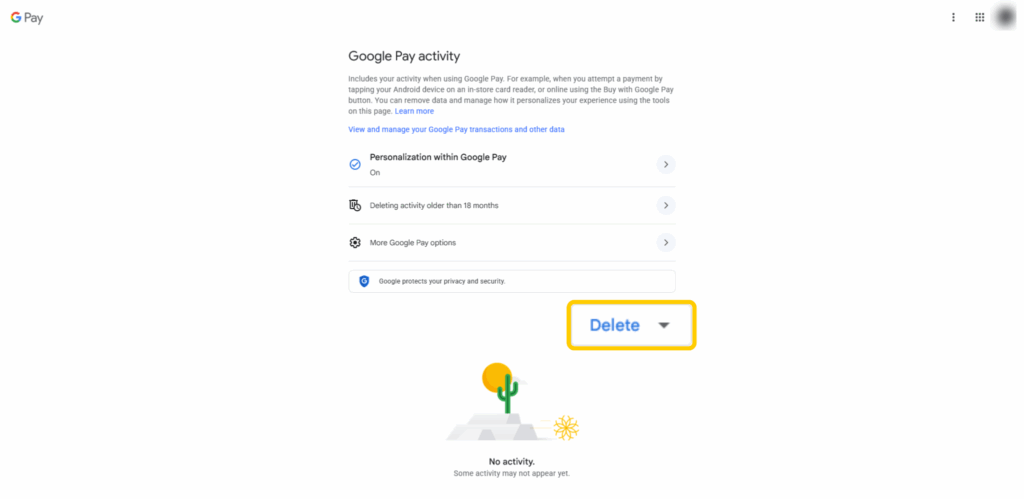
- On the Google Pay activity page, select Delete.
- Choose the time range you want deleted from your Google Pay history.
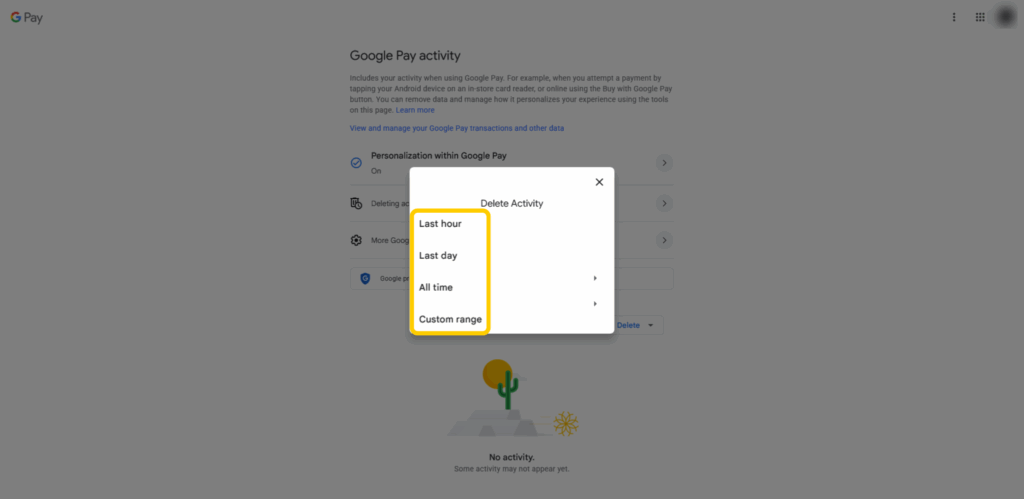
On desktop, Google groups deletion controls under the Delete menu rather than showing an “X” beside each transaction. Choosing All time removes all visible Google Pay activity entries from your account history.
If Deleted Transactions Still Appear
Deleted Google Pay activity may take a moment to update, and some items can appear in other places even after removal. If your Google Pay transaction history doesn’t disappear immediately, allow some time for sync and caching delays, and double-check that you selected the right time range for deletion.
Even after you delete Google Pay activity, Google may retain some information from your payments profile to comply with legal and regulatory obligations. Deleting activity removes what’s visible in your account, not every underlying transaction record.
How to Turn On Auto-Delete for Google Pay Activity
Instead of manually cleaning up your activity history, Google lets you set up an auto-delete period. It’s often set to 18 months by default, but you can also pick 3 months or 36 months, depending on your preference. These controls are in the same Google Pay activity page used for manual deletion, under Deleting activity older than X months.
Auto-delete only affects what’s visible in your Google account — it doesn’t erase everything tied to your payments. It doesn’t remove bank statements, merchant receipts, or card network records, and Google will log new transactions as you continue using GPay.
Closing Your Payments Profile vs Deleting the Google Pay Service
If deleting activity isn’t enough, you have two stronger options — removing Google Pay from your account or closing your payments profile. They sound similar, but they do different things.
- Delete the Google Pay service: This removes Google Pay from your account and disconnects it as a service. You won’t be able to use it unless you set it up again, but your payments profile still exists in the background. This is the better option if you want to stop using Google Pay without affecting your broader payment setup.
- Close your Google Payments profile: This shuts down your payments profile completely, removing stored payment methods and stopping purchases tied to that profile. You can’t reverse this action. This makes more sense if you want to stop using Google Pay or if your account has been compromised.
Again, neither option guarantees that Google will erase all payment records. Google may still retain some information to meet legal and regulatory requirements, and banks or merchants will keep their own records.
What You Can’t Delete (And Why)
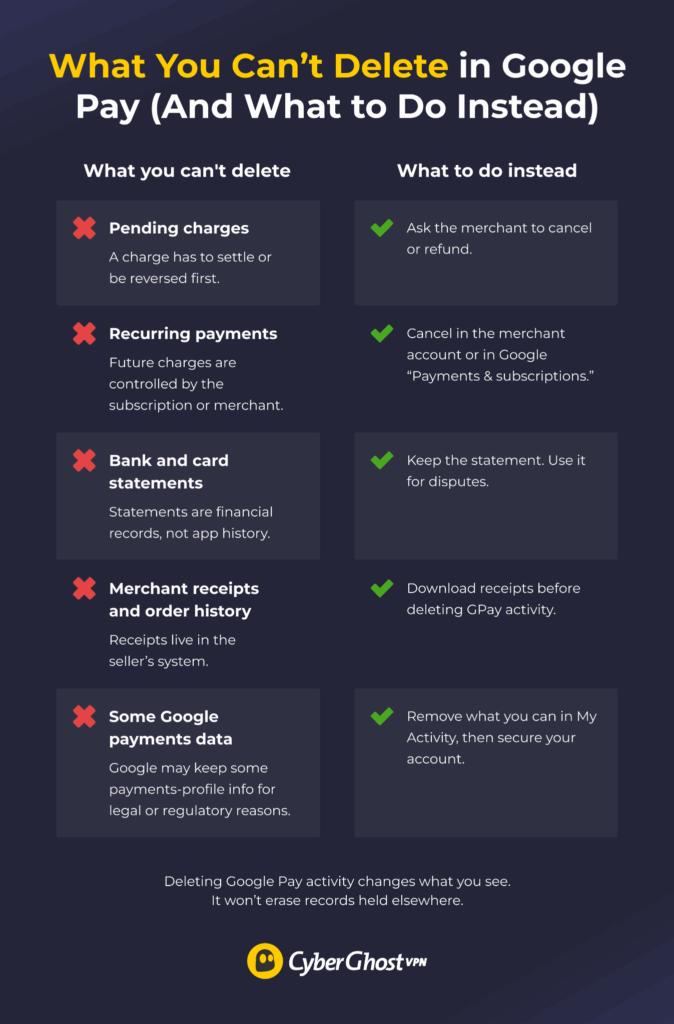
Google’s standard controls can’t remove some parts of your Google Pay transaction history. That’s down to how payments work across banks, merchants, and compliance systems. Deleting your transaction history likely won’t affect these categories:
- Pending transactions: The merchant or recipient has to complete or reverse pending charges first. This also applies to recurring payments.
- Bank statements: Deleting Google Pay activity doesn’t remove entries from your bank account, credit card, or debit card statements. Those records are financial documents.
- Merchant records: Vendor records can contain your order history, receipts, and refund logs, even if you delete them in Google Pay.
- Compliance retention: Google may keep some payment data for business, fraud prevention, or legal and regulatory obligations, even after you delete activity.
If you spot unauthorized transactions, contact your bank and the merchant. Deleting activity won’t protect your card details or stop charges already in motion.
How to Safeguard Your GPay Transaction History
If you want to keep some transaction history but have concerns about someone else accessing your account to read it, focus on access control first. Here’s what you can do:
- Lock your device: Use a PIN, fingerprint, or face unlock.
- Enable two-step verification: Turn on 2FA or passkeys in your Google account settings.
- Check active sessions: Review your devices and sign out of anything you don’t recognize.
- Clean up payment methods: Remove any payment methods you no longer use.
- Stay alert to phishing scams: Pay attention to fake “Google Pay support” emails or texts trying to get access to your account.
Does a VPN Protect Your Google Pay Transaction History?
A VPN doesn’t change the information Google stores about your Google account. Google logs Google Pay activity, whether you’re connected to a VPN or not. However, a VPN can help improve your security when you make online purchases on unsecured networks like public Wi-Fi hotspots. It adds an extra layer of encryption to your traffic, so it’s harder for potential cybercriminals to snoop on your online transactions.
CyberGhost VPN uses strong encryption standards like AES 256-bit, and it can even automatically open the VPN tunnel as soon as you hop on an unsecured network. This means you can easily boost your security if you need to check your Google Pay transaction history in places like cafés, hotels, or airports.
What Deleting Your Google Pay Transaction History Really Does
Deleting your Google Pay transaction history works in layers. You can remove visible activity, set auto-delete to limit how much builds up, or take bigger steps like removing the service or closing your payments profile. Keep one thing in mind: banks, merchants, and card networks keep their own records. Cleanup helps reduce what’s visible in your account, but it doesn’t erase everything tied to your payments.
FAQ
How do I delete all transactions in Google Pay?
You can delete your Google Pay transaction history through your Google account. Go to your Google Account settings and find the Wallet & subscriptions tab. Verify your login if prompted and then click the Delete button. Choose All time to delete your entire transaction history or choose a different date range. Keep in mind that Google may retain some data for legal reasons, and banks or merchants will still keep their own transaction records.
Can I recover deleted Google Pay transactions?
No, you can’t recover deleted Google Pay transaction history. That’s why you should carefully consider what you want to delete before going through the process. You might be able to get records of your transactions from your bank or the merchants you paid via Google Pay.
How do I delete a pending transaction on Google Pay?
You can’t delete a pending Google Pay transaction before it settles. You need to complete, cancel, or refund pending payments through the merchant or recipient first. Once Google Pay finalizes the transaction, you can remove the related activity from your Google account history. However, the payment itself will still exist in bank records and merchant systems, even if it no longer appears in your Google activity.
How do I delete transaction history on Cash App?
Cash App doesn’t allow you to delete individual transactions from your history. The only way to remove access is to close your Cash App account. Even then, transaction records aren’t fully erased — banks, payment processors, and merchants may still retain them for legal and compliance purposes. If you’re concerned about privacy, you can improve your account security. Many tips that apply to Google Pay also apply to Cash App and similar services.

Leave a comment