
Ever tried to host a chat, hop on Xbox Live, or join a PC multiplayer game, only to get hit with the “Double NAT detected” error? Suddenly, your friends can’t join, voice chat cuts out, and matchmaking feels like it takes years. It’s an unfortunately common network problem that can ruin a gaming session.
If this sounds familiar, you’re in the right place. Double Network Address Translation (NAT) is annoying, but it’s also fixable, and understanding it is a lot easier than most people think. Let’s walk through what double NAT actually is, why it breaks online gaming matches, and the simplest ways to get rid of it.
What Is NAT?
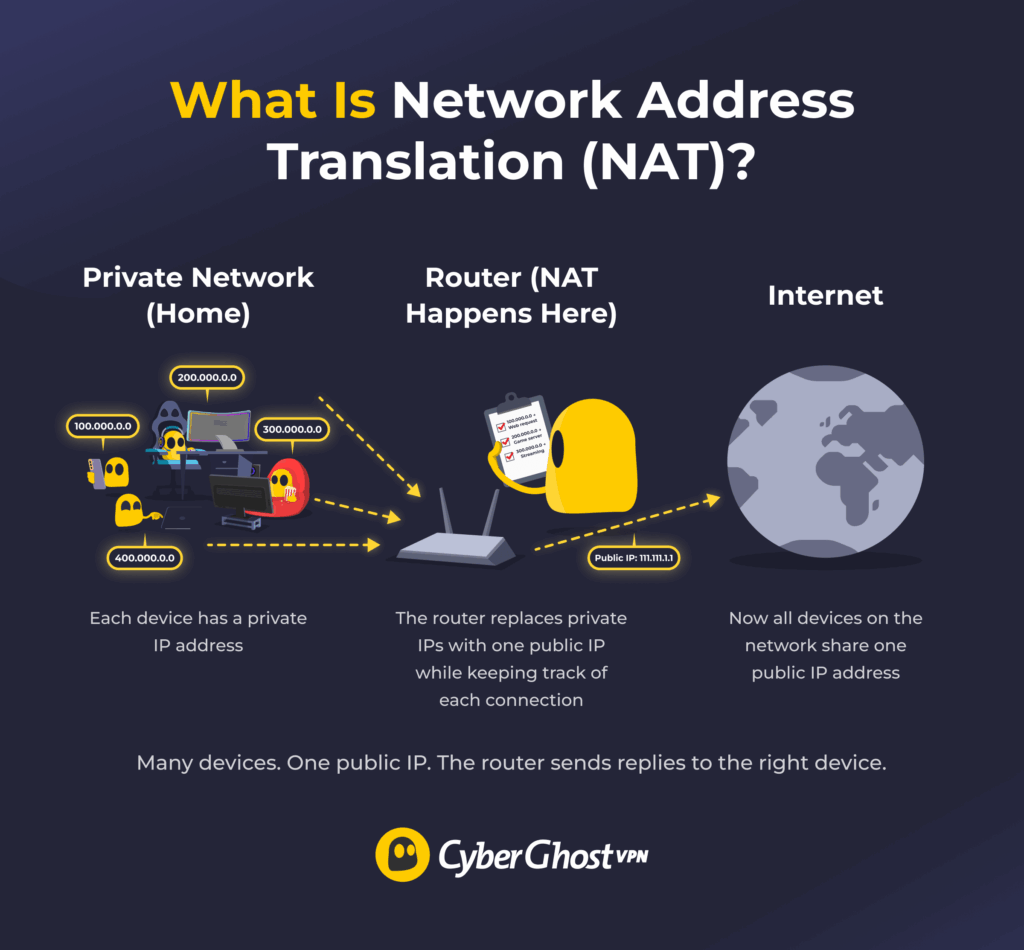
NAT (Network Address Translation) is the process your router uses to let multiple devices share a single internet connection and IP address. Each device on your network has a private IP address that only works inside your home. When a device connects to the internet, the router replaces the private IP with its own public IP and keeps track of the connection so replies go back to the right device.
This system lets many devices use the same public IP, which helps conserve IPv4 addresses. It also adds a small security benefit because devices on your network aren’t directly exposed to the internet. For example, if you have five devices online at the same time, they all share your router’s single public IP address. The router handles all incoming and outgoing traffic and makes sure each device receives the data meant for it.
What Is Double NAT and How Does It Happen?
Double NAT happens when two separate devices on your connection perform Network Address Translation. Instead of your devices sitting behind a single router, your traffic passes through two routing layers before reaching the internet.
This creates problems because incoming traffic must pass through both routers. Features like UPnP and port forwarding only work properly when they can manage inbound traffic directly. With two NAT layers, those automatic tools often fail, which leads to strict NAT types, broken matchmaking, or voice chat issues.
The most common cause is an ISP modem-router combo connected to your own personal router without disabling the ISP device’s routing features. In this setup:
- Your devices receive a private IP from your router.
- Your router receives a private IP from the ISP device.
- Your ISP device then connects to the public internet.
Double NAT can also occur if your ISP uses Carrier-Grade NAT (CGNAT). In that case, your entire home network sits behind another NAT layer inside the ISP’s infrastructure. Less commonly, a firewall, mesh node, or secondary router may have routing features enabled unintentionally.
Is Double NAT Always Bad?
Double NAT isn’t always a problem. For everyday activities like browsing, streaming, or social media, you’ll probably never notice. These apps only need your device to connect to the internet, so a second NAT layer doesn’t get in the way.
Issues arise when a device needs inbound connections from outside your network. Online multiplayer games, peer-to-peer apps, and some voice chat systems rely on direct connections. Double NAT blocks or complicates those inbound paths unless both routers are configured carefully. This is why you see strict NAT types, failed matchmaking, broken party chat, or an inability to host games.
Double NAT doesn’t directly increase latency. However, games may fall back to relay servers when direct connections fail, which can increase latency or reduce stability.
Some people intentionally use double NAT to segment guest networks or IoT devices. While this can provide isolation, it’s not a true security solution and shouldn’t replace proper firewall configuration.
Why Is Double NAT Bad for Gaming?
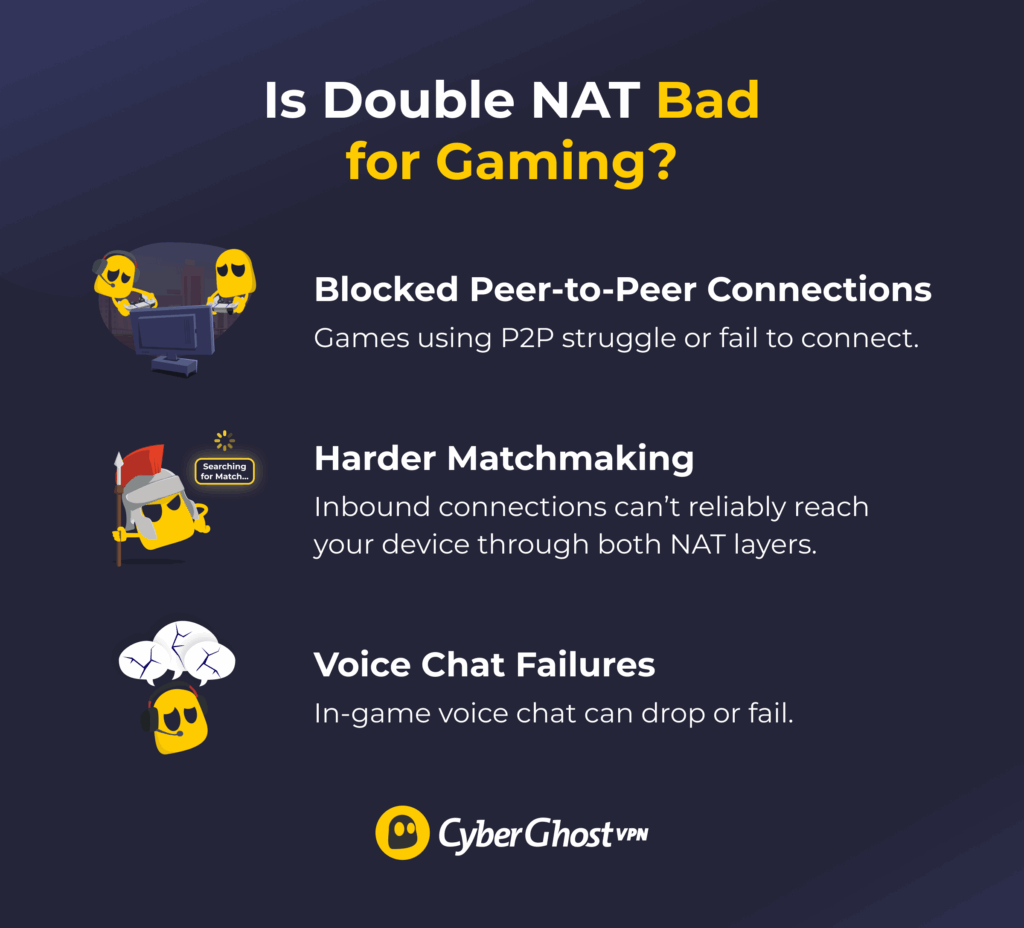
Double NAT mainly affects games that rely on peer-to-peer connections or direct inbound traffic. It won’t impact single-player games or fully server-hosted titles, but it can interfere with matchmaking, hosting, and voice chat in multiplayer environments.
It may make it harder for game servers or other players to connect to your device because their connections have to go through two routers instead of one. As a result, the automatic tools that normally keep online gaming running without interruptions can stop working.
The result is:
- Blocked peer-to-peer (P2P) connections: Games using P2P networking to connect players directly will often struggle with double NAT or fail completely. This is common in titles like Minecraft, GTA Online, Call of Duty, and other P2P-based multiplayer games.
- Harder matchmaking: Many games and consoles check your NAT type before placing you into a lobby. Double NAT often forces your system into a strict or Type 3 NAT, which limits who you can connect with and can slow down or block matchmaking.
- Voice chat failures: In-game party chat or VoIP features often can’t establish a stable connection through double NAT. This can lead to your audio dropping, making it tough to have a voice conversation.
- Higher latency and hosting problems: If a game uses player-hosted sessions, double NAT can prevent others from joining your lobby. When direct connections fail, the game may rely on relay servers, which can increase latency or reduce connection stability.
How to Check for Double NAT
1. Check Your Console’s Network Settings
Most modern consoles warn you automatically if there’s a double NAT problem, but you can also check it manually:
- On Xbox: Go to Settings > General > Network settings. If double NAT is detected, you’ll see a clear warning on this page.
- On PlayStation: Go to Settings > Network > View Connection Status. If your NAT Type shows Type 3, you may be dealing with double NAT or strict firewall rules.
2. Check Your Router’s WAN IP
Log in to your main router’s admin page and look at the WAN IP (sometimes called Internet IP or Gateway IP).
- If the WAN IP is public (not starting with 10.x.x.x, 192.168.x.x, or 172.16–31.x.x), you likely have single NAT.
- If the WAN IP is private, your router is sitting behind another router. This usually means double NAT, or, in some cases, CGNAT if your ISP is doing carrier-grade NAT.
3. Use Traceroute
- Open Command Prompt on Windows or Terminal on Mac.
- Type “tracert 8.8.8.8” (on Windows) or “traceroute 8.8.8.8” (on Mac) and press Enter.
- Look at the first two results in the list:
- If the first hop is a private IP and the second hop is public, you’ll likely have a single NAT.
- This method can suggest double NAT, but it cannot reliably distinguish between home double NAT and ISP carrier-grade NAT.
How to Fix Double NAT
To fix double NAT on your router from your computer, you’ll need full access to your Wi-Fi admin page. The admin page is your router’s settings panel, which you open in a web browser using your router’s IP address.
Most routers print the default IP address on a sticker on the bottom or back of the device, along with the default username and password.
If your router doesn’t have this information, here’s how to find your router’s IP address:
-
- On Windows: Press Win + R, type “cmd,” and in the window type “ipconfig.” Look for the Default Gateway. That’s your router’s IP.
- On Mac: Open System Preferences > Network > Advanced > TCP/IP. Look for Router to find the IP address you need.
1. Turn on Bridge Mode
Bridge mode disables the routing features of your ISP modem-router. This way, only your personal router handles NAT.
- Log in to your ISP modem-router’s admin page by entering its IP address into your browser and signing in with your username and password.
- Look for Bridge Mode under Advanced or WAN settings.
- Enable Bridge Mode and restart the device.
2. Disable NAT on Other NAT-Enabled Devices on Your Network
If you already know which device is causing the extra NAT layer, the next step is to turn off its routing features so your main router is the only one handling NAT.
- Log in to the device’s admin page using its IP address and your login credentials.
- Go to the settings section labeled Router Mode, NAT, DHCP Server, or Gateway Mode.
- Change the device to Access Point Mode, Bridge Mode, or Passthrough Mode.
- Save your changes and restart the device if needed.
3. Switch Your Router to AP Mode (Only if You’re Using It for Wi-Fi)
Some routers let you switch them into AP mode. In this mode, the device still provides Wi-Fi but turns off routing and NAT features, leaving the ISP router as the only device performing NAT.
- Log in to your personal router’s admin page.
- Look for Access Point (sometimes called AP) Mode.
- Enable it and reconnect to your ISP router.
4. Use Demilitarized Zone (DMZ)
Demilitarized Zone (DMZ) is a router feature that forwards all incoming internet traffic to one device on your network. If bridge and AP mode aren’t available, you can put your personal router into the ISP router’s DMZ so your router receives all inbound connections directly. This doesn’t remove double NAT, but it can reduce some of the connection issues it causes, especially for services that rely on inbound ports.
Using DMZ exposes the selected device to all inbound traffic from the internet. While your personal router may still provide firewall protection, placing it in a DMZ reduces the filtering normally performed by the ISP device. This method should only be used if bridge mode or AP mode isn’t available.
- Log in to your ISP modem-router.
- Go to DMZ or NAT/Firewall settings.
- Enter the private IP address of your personal router (find it in the connected devices list).
- Save and restart.
5. Get a Standalone Modem
If nothing else works, ask your ISP for a plain modem instead of a modem-router combo. A standalone modem doesn’t perform NAT, so your own router will be the only device translating addresses.
Fixing Double NAT for Gaming
If your main goal is to get uninterrupted online play, open NAT types, or reliable voice chat, there are a few gaming-specific workarounds you can try. These won’t fix the root cause of double NAT, but they can help your console or PC get a cleaner connection when other options (like bridge mode or AP mode) aren’t available.
Use Port Forwarding on Both Routers
Port forwarding lets your router send specific inbound traffic to the right device. With double NAT, you may need to forward ports on both routers so the traffic can reach your console.
- Log in to your ISP modem-router.
- Forward these Xbox Live ports to the IP address of your second router:
-
-
-
- TCP: 53, 80, 3074.
- UDP: 53, 88, 500, 3074, 3544, 4500.
-
-
- Log in to your second router.
- Forward the same ports again, but this time to your gaming consoles, like Xbox’s IP address (find it under Settings > Network > Advanced settings).
- Restart your modem, router, and gaming console. Run a network test on your Xbox to check if the error is gone.
Use UPnP (If Available)
UPnP automatically opens the ports your console needs. It won’t always work under double NAT, but in some setups it can make matchmaking and voice chat work more reliably. All you have to do is turn on UPnP in both routers. Then, restart your console so it requests the ports again.
Note: UPnP is convenient, but it also opens ports automatically, so you should be aware of the security trade-offs.
Hard-Wire the Console Into the Primary Router
If the console connects directly to the ISP router (instead of the secondary router), it skips the extra NAT layer entirely.
This can work if the ISP router has an available LAN port, and the console’s location allows for Ethernet or MoCA/powerline adapters. With this method, you’ll be able to avoid changing your router settings.
Can a VPN Help With Double NAT?
A VPN doesn’t remove double NAT. It also won’t make the “Double NAT detected” message disappear on consoles. Double NAT happens because your connection is being translated twice, usually by two routers or by your ISP and your router. A VPN doesn’t change that setup. However, in some cases, a VPN can reduce certain connection issues caused by double NAT.
When you use a VPN, your device sends traffic through an encrypted tunnel to a VPN server. Online services then see the VPN server’s public IP address instead of your home IP. Because the connection is initiated from your side, some apps and games that rely mainly on outbound connections may work more smoothly.
But there are important limits:
-
- It only helps the device using the VPN.
- It doesn’t remove the second NAT layer.
- It won’t fix strict NAT types on consoles.
- If a game or service requires direct inbound connections, the VPN provider would need to support port forwarding — and many don’t.
On consoles like Xbox or PlayStation, you can’t install a VPN app directly. Even if you set up a VPN on your router, the console will still detect double NAT because the underlying network structure hasn’t changed.
How Does Double NAT Affect VPN Connectivity?
On rare occasions, double NAT may interfere with certain VPN protocols, especially ones that need specific ports or NAT-traversal features, like IPsec. If those ports are blocked or the routers do not support NAT traversal, the VPN handshake may fail or show errors such as “can’t reach VPN server.”
Most modern VPN protocols, like OpenVPN or WireGuard®, work fine through double NAT, but the connection can still be less reliable depending on the router’s settings. Installing a VPN on your router doesn’t remove double NAT. The VPN tunnel is still created after your local NAT layers. If it still doesn’t work, you might need to remove the extra NAT layer.
Fix the Structure, Not the Symptoms
Double NAT isn’t dangerous, but it can seriously disrupt online gaming and peer-to-peer applications. While workarounds like port forwarding, UPnP, or DMZ can reduce some symptoms, the most reliable fix is structural: remove one layer of NAT. That usually means enabling bridge mode, switching a router to access point mode, or requesting changes from your ISP. Once that’s done, matchmaking, hosting, and voice chat should work as intended.
FAQ
Why does my Xbox say “Double NAT detected,” and can a VPN fix it?
Your Xbox is warning you that two routers are active on your network. This creates extra layers of translation, which block Xbox Live services from connecting properly. A VPN app won’t fix this on Xbox since consoles don’t support VPN apps, but a router-based VPN can sometimes help by giving the console a single, stable public IP address.
How do I fix double NAT when using a VPN?
To fix double NAT when using a VPN, you must remove one of the NAT layers because a VPN can’t do it for you. The simplest option is to put your ISP modem-router in bridge mode so only your own router handles NAT. If that isn’t possible, switch your router to Access Point Mode or remove the second router entirely.
If the extra NAT layer comes from your ISP’s carrier-grade NAT (CGNAT), you’ll need to ask your ISP for a public IP address. Once one NAT layer is gone, your VPN will work normally, and your network won’t be in a double NAT setup anymore.
What causes “Double NAT detected” errors on home networks?
A “Double NAT detected” error appears when two devices on your network are performing NAT at the same time, which creates two private networks in a row. This most often happens when you use your own router behind an ISP modem-router combo, when your ISP uses carrier-grade NAT (CGNAT), or when another device like a mesh unit or firewall appliance has routing features turned on by accident. With two NAT layers in place, incoming connections can’t reach your console or PC properly, which triggers the double NAT warning.
Is it safe to use a VPN if I have double NAT?
Yes, it’s safe to use a VPN even if you have double NAT. Double NAT doesn’t weaken your VPN encryption or expose you to extra risks. Your VPN tunnel still protects your traffic in the same way, and the two NAT layers simply sit outside the encrypted connection. The only potential issue is reliability, since some VPN protocols may have trouble connecting through multiple NAT layers, but using modern protocols like OpenVPN or WireGuard® usually avoids this.

Leave a comment