
Slow downloads often aren’t random. If files crawl instead of downloading normally, there’s usually a bottleneck somewhere: your Wi-Fi signal, background apps using bandwidth, outdated network drivers, or your router’s placement. The good news is that many download speed issues are quick to fix, and you often don’t need new hardware or a more expensive internet plan to see an improvement.
We’ll walk through what may slow downloads down and the steps you can take to increase your speeds on Windows, Mac, Android, or iPhone.
Understand Your Internet Speed and Test It Properly
Before changing anything, it helps to check the speed you’re actually getting and see how it compares to your internet plan. According to DataReportal’s Digital 2026 Global Overview Report1, global median fixed broadband speeds are now over 100 Mbps, yet individual results can vary depending on network congestion, location, and equipment.
ISPs (Internet Service Providers) advertise maximum speeds, not guaranteed ones, so it’s normal for real-world speeds to be lower. For the most accurate results, close apps that use the internet, pause downloads or streaming, and disconnect other devices if you can. You can use trusted tools like Speedtest.net, Fast.com, or your ISP’s own speed test page to compare results. Pay close attention to the units shown in the results.
-
- Mbps (megabits per second): Used to advertise internet speed.
- MBps (megabytes per second): Used to show file download speed. One megabyte equals eight megabits.
Internet speeds often drop during peak hours, typically in the evening when many people in your area are streaming or downloading at the same time. Home internet connections share local infrastructure, so heavy usage in your area can temporarily reduce available bandwidth.
To check for congestion, run speed tests at different times of day. For instance, conduct speed tests twice a day, once in the morning and once in the evening. If speeds are consistently lower during peak hours but normal earlier in the day, congestion may be the cause rather than a device issue.
What Is Considered a Fast Internet Speed?
To understand whether your results are slow or fast, it helps to compare them with common speed benchmarks. According to the Federal Communications Commission’s (FCC) Broadband Speed Guide2, these are the minimum speeds required for common online activities:
-
- 1–2 Mbps: Basic browsing, emails, and music streaming
- 3 Mbps: Standard-definition (SD) video streaming
- 3–6 Mbps: Online gaming (though low latency is often the most important factor)
- 5–8 Mbps: High-definition (HD) video streaming
- 10 Mbps: File downloading
- 25 Mbps: 4K (Ultra HD) video streaming
These figures reflect minimum speeds for a single device performing one activity at a time. Some households with multiple users or devices may need proportionally higher speeds.
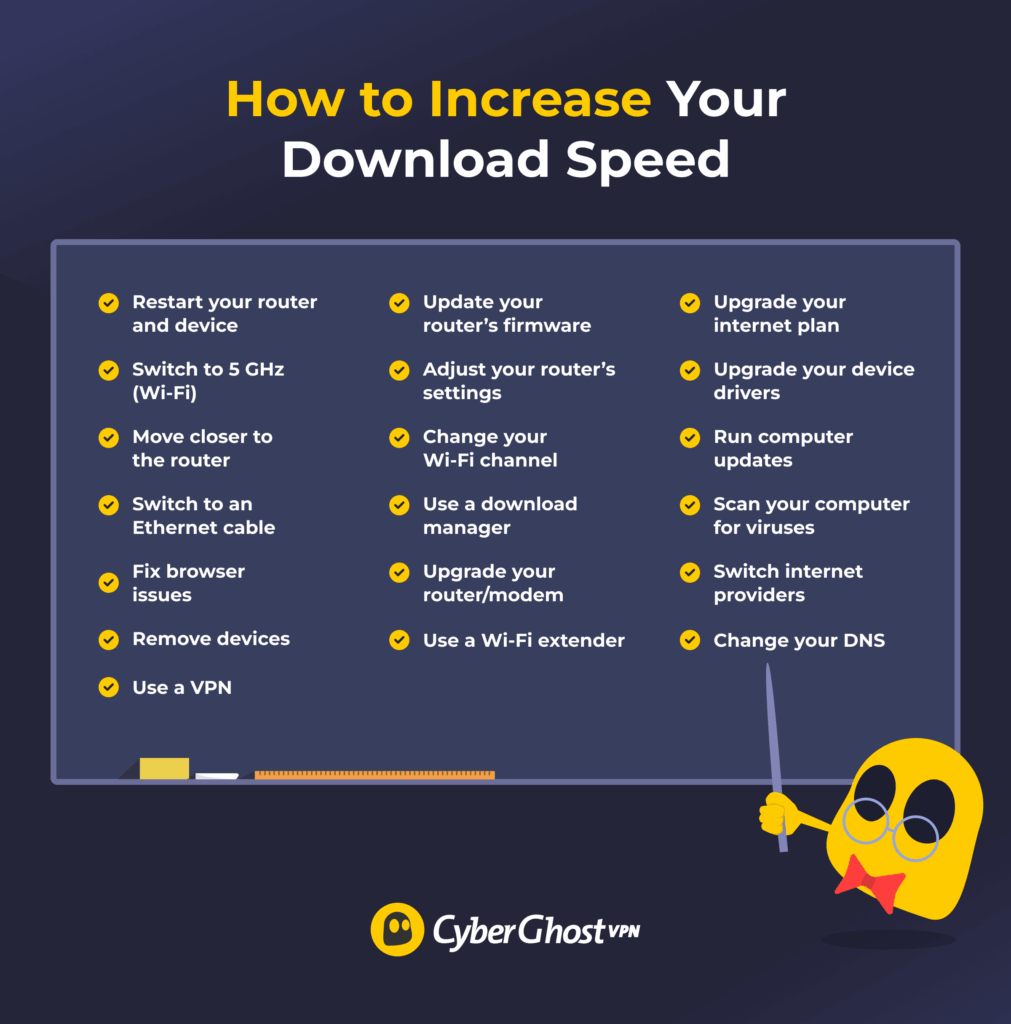
19 Ways to Increase Your Download Speeds
1. Restart Your Router and Device
Over time, routers can build up minor errors, memory issues, or connection problems that reduce performance. A restart clears temporary issues and forces the router to establish a new connection to your ISP that may work more efficiently.
-
- Shut down the computer, phone, or console you’re using to download files.
- Disconnect the router from the power source to fully stop the connection.
- Give the network enough time to clear its temporary memory and connection issues. 30 seconds is a good benchmark.
- Plug the router back in and allow it to reconnect to the internet fully.
- Power your device back on and reconnect to your network.
- Run a speed test to see if speeds have improved.
2. Fix Browser Issues
Browsers handle downloads differently, and some settings or extensions, like ad blockers, antivirus tools, and VPN add-ons, can directly limit download speed. In addition, corrupted cache data or outdated browser versions can cause unstable or reduced speeds.
-
- Open your browser’s extensions or add-ons menu and temporarily turn off tools like ad blockers, antivirus extensions, VPN add-ons, or download managers.
- Clear your browser’s cache by going to Settings > Privacy and Security > Delete browsing data (these descriptions may vary depending on your browser).
- Check your browser’s About or Update section to make sure you’re using the latest version.
- Close unused tabs and stop any background downloads or streams.
- After making all the above changes, fully close the browser and restart it to see if the issue has been resolved.
3. Remove Devices
Every connected device shares the same internet bandwidth. Even when not actively used, phones, TVs, smart devices, and background downloads can slow down your download rates. Some devices regularly sync data or stream in the background without clear signs, soaking up bandwidth without you noticing.
To increase download rates, disconnect devices you’re not using or pause streaming, gaming, and cloud backups on other devices. This frees up bandwidth and helps your download use more of the available connection, especially on busy home networks.
4. Move Closer to the Router
Wi-Fi signal strength drops quickly with distance and obstacles like walls, floors, and furniture. A weak signal forces your device to retransmit data, which reduces effective download speed even if your internet plan is fast.
Try moving closer to the router when downloading large files, or reposition it somewhere central and open. If possible, place it higher off the ground and away from electronics that cause interference. This can result in a noticeable and immediate improvement in download speed.
5. Switch to 5 GHz (Wi-Fi)
The 2.4 GHz Wi-Fi band is more crowded and prone to interference from nearby networks and household devices. This can limit download speed, especially in apartments or dense areas. The 5 GHz band offers higher speeds and less interference but works best at shorter distances.
If your router supports it, try connecting to the 5 GHz network for faster downloads. This is especially effective when you’re close to the router and downloading large files. Keep in mind that 5 GHz has a shorter range, so speeds may drop if you move farther away.
6. Switch to an Ethernet Cable
An Ethernet cable creates a direct, physical link between your device and the router. Unlike Wi-Fi, which sends data through the air, Ethernet transfers data over a dedicated line. This means that walls, distance, nearby networks, or household electronics can’t affect the connection.
A wired connection also allows your device to use the full capacity of your internet plan more reliably. Wi-Fi often reduces speed due to interference or signal quality, even when it shows a strong connection. According to testing done by Dell Technologies3, Ethernet connections typically deliver speeds much closer to the rated link speed (the maximum speed the connection is designed to support), often reaching more than 90% of that capacity. A study on real-world home networks at Cornell University4 has shown that Wi-Fi frequently becomes the performance bottleneck compared to wired connections.
Be aware that some older computers have Fast Ethernet ports, which cap your wired speed at 100 Mbps, even if your internet plan is faster. A Gigabit Ethernet port (1000 Mbps) is required to use most modern high-speed broadband plans. The Ethernet cable itself matters too. Cat5 cables are typically used for speeds up to 100 Mbps, while Cat5e and Cat6 support gigabit speeds.
7. Use a VPN
Using a VPN like CyberGhost VPN may help if your ISP is throttling your connection based on activity. For example, some providers may intentionally limit your speed when they detect you’re downloading large files. Because a VPN encrypts your traffic, your ISP can’t easily see the specific services you’re using, which could reduce app-based throttling.
However, VPN encryption and routing add overhead, which may slightly lower your speeds — especially if your provider doesn’t offer a fast server network. It also won’t prevent slowdowns caused by network congestion, data caps, or general bandwidth limits.
8. Update Your Router’s Firmware
Router firmware controls how your network handles traffic, security, and performance. Outdated firmware can cause slow speeds, connection drops, or poor handling of modern devices and higher internet plans. In some cases, bugs in older firmware directly limit throughput or create stability issues during large downloads. Here’s how to update it:
-
- Find your router’s model name by checking the label or searching your router settings for the exact model number.
- Open a browser and enter your router’s IP address (usually 192.168.0.1 or 192.168.1.1), then sign in with the admin username and password.
- Look for a menu labeled Firmware Update or Router Update.
- If an update is available, follow the on-screen instructions to download and install it.
- Don’t unplug or power down your router during the update to avoid errors or damage.
- Once the update finishes, restart the router to apply the changes.
9. Adjust Your Router’s Settings
Tweaking a few router settings can sometimes improve Wi-Fi performance and reduce congestion on your network. Many routers include built-in features that affect how bandwidth is distributed across the devices on your network. If these settings aren’t configured properly, they may slow down downloads.
Some useful settings to check include:
-
- Quality of Service (QoS): QoS allows you to prioritize certain devices or types of traffic. For example, you can prioritize downloads over background devices like Smart TVs or security cameras.
- Channel selection: If many nearby networks are using the same Wi-Fi channel, interference can reduce speeds. Switching to a less congested channel can improve performance.
- Channel width: Wider channels allow more data to pass through but may increase interference in crowded areas. Adjusting channel width can sometimes stabilize speeds.
- Guest networks: If your router has a guest network enabled, make sure that too many devices aren’t connected simultaneously and consuming bandwidth.
These settings are usually available in your router’s web interface or mobile app.
10. Use a Wi-Fi Extender
A Wi-Fi extender helps increase download speed by expanding wireless coverage in areas where the signal is weak. When your device struggles to maintain a stable connection, data must be resent multiple times, which reduces effective download speed even if your internet plan is fast.
Placing a Wi-Fi extender between your router and the weak-signal area can improve signal strength and stability. This allows your device to maintain a stronger connection and download data more efficiently.
11. Change Your Wi-Fi Channel (For Wireless Connections in Busy Places)
In crowded areas like apartment buildings, many nearby Wi-Fi networks compete for the same wireless channels. When multiple networks use the same channel, interference increases, and download speeds drop due to congestion and repeated data transmissions.
Switching to a less crowded Wi-Fi channel can reduce interference and improve performance. Most routers can automatically select the best channel, but manual selection may work better in very busy environments.
12. Use a Download Manager
A download manager may improve download performance by opening multiple connections to retrieve parts of a file simultaneously. This can help when a server limits speed per connection or when downloads are unstable. However, it won’t increase your maximum internet speed or bypass ISP bandwidth limits.
Download managers, like JDownloader and uGet, can also make downloads more reliable. They let you pause and resume files and recover from temporary connection drops. This helps reduce failed downloads and keeps things running, even if your internet connection isn’t perfectly stable.
13. Upgrade Your Router/Modem
Older routers and modems can limit download speeds even if your internet plan is fast. Many older models don’t support modern Wi-Fi standards, higher throughput, or faster processing, which creates a bottleneck before data ever reaches your device. In some cases, the modem itself can’t handle the speeds your ISP provides.
Newer routers offer better hardware, improved Wi-Fi performance, and support for modern features that handle high-speed connections more efficiently. Upgrading can improve range, stability, and overall download performance, especially in homes with multiple devices or high-speed plans.
14. Change Your DNS (Domain Name System)
DNS servers translate website or server names into IP addresses so your device knows where to connect. Changing DNS can reduce lookup time and may improve responsiveness even if it doesn’t increase the maximum speed of your internet connection. Public DNS services like Google DNS or Cloudflare DNS often respond faster than standard ISP DNS, especially during peak hours.
15. Upgrade Your Internet Plan
An upgrade makes sense when speed tests consistently show results close to your plan’s limit, yet downloads take longer than expected. This usually means your connection is working as intended, but the speed cap is simply too low for your needs. Before upgrading, make sure your router, modem, and devices can support higher speeds. Otherwise, the extra bandwidth may go unused and provide little improvement.
16. Update Your Device Drivers
Network drivers control how your device communicates with your router and the internet. Outdated or faulty drivers can cause slow speeds, connection drops, or poor handling of modern network standards, even when everything else is set up correctly.
Updating your network drivers can improve performance, stability, and compatibility with newer routers and faster connections. Driver updates often include fixes for known bugs and optimizations that allow your device to use available bandwidth more efficiently.
-
- Use system update tools first. On Windows, open Device Manager and check for network adapter updates. On macOS, use Software Update in system settings.
- If no update appears on your device, go to the website of your device or network adapter manufacturer and look for driver updates for your exact model.
- Download and install the newest available drivers, following the on-screen instructions.
- Restart your device to apply the update and reset network connections.
- Try downloading a file again to see if performance improves.
17. Run Computer Updates
System updates often include performance improvements, security fixes, and improvements to networking components that affect download speed. Running an outdated operating system can lead to compatibility issues with routers, browsers, or modern network standards.
Installing updates ensures your device is using the latest networking optimizations and bug fixes. Also, updates can resolve problems that cause unstable connections or reduced performance during large downloads. After updating, restart your device to apply the changes fully. Keeping your system up to date helps maintain consistent and reliable download rates over time.
18. Scan Your Computer for Viruses
Malware can slow downloads by secretly using your internet connection in the background or interfering with network traffic. Some malicious programs continuously send or receive data, reducing the bandwidth available for your downloads.
Viruses can also affect system performance, which impacts how quickly files are processed and saved. This can make downloads appear slower even when the internet connection itself is working properly.
Run a full scan using trusted antivirus software and remove any threats found. Maintaining a clean system helps prevent unwanted software from slowing down your connection and device.
19. Switch Internet Providers
If nothing else helps, the slowdown may come from your ISP’s network. Overloaded local nodes or outdated infrastructure in your area affect everyone on the same network and can’t be fixed with settings or equipment changes.
In that case, try switching to a different ISP. Compare real user reviews and local speed reports to see how providers perform where you live. An ISP with less congestion, newer infrastructure, or better local support can deliver faster and more consistent transfer speeds.
What Can Slow Down Your Downloads?
Slow downloads aren’t always caused by slow internet plans. Many times, the issue comes from factors you may not immediately notice, even when your connection looks fine on paper. This can make troubleshooting frustrating and lead to fixes that don’t actually help.
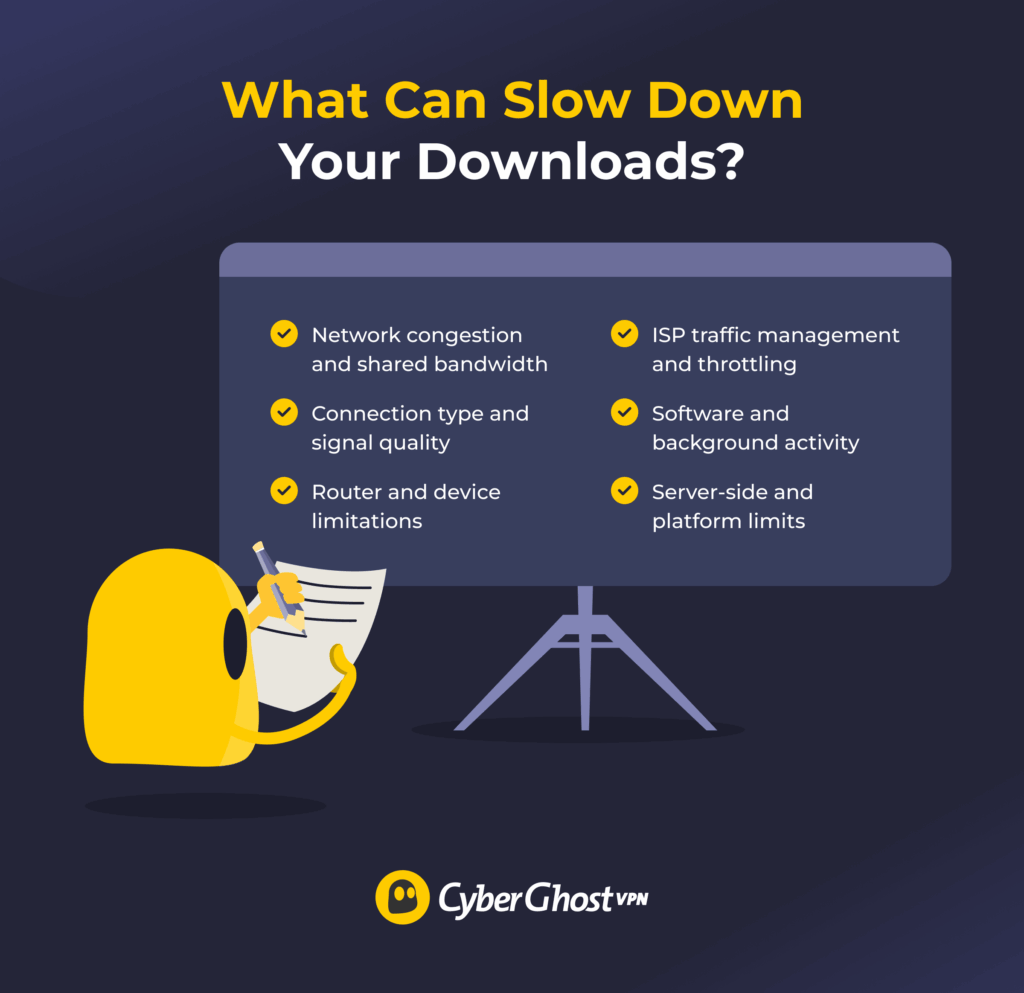
Infographic Title: What Can Slow Down Your Downloads?
Description: A ghostie stands beside a classroom chalkboard, looking thoughtfully at the list he just wrote. On the chalkboard is a simple list highlighting the main factors that slow download speeds, focusing only on the key headings. On the chalkboard:
-
- Connection type and signal quality
- Network congestion and shared bandwidth
- Router and device limitations
- Software and background activity
- Server-side and platform limits
- ISP traffic management and throttling
Understanding what commonly slows downloads makes it easier to spot the real problem. Here are some of the main ones:
-
- Connection type and signal quality: Wi-Fi is more sensitive to distance, walls, and interference than a wired connection, which can reduce download speeds even on fast plans.
- Network congestion and shared bandwidth: When multiple devices or people share the same connection, the shared bandwidth can slow down downloads.
- Router and device limitations: Older routers, modems, or devices may not support higher speeds and can become bottlenecks regardless of your internet plan.
- Software and background activity: System updates, cloud backups, antivirus scans, and other background apps can quietly consume bandwidth and slow downloads.
- Server-side and platform limits: Many websites, game launchers, and app stores may limit download speeds during peak times, even if your internet is quick.
- ISP traffic management and throttling: Some ISPs can slow certain types of traffic or reduce speeds during busy hours to manage network load.
Small Changes Could Add Up to Faster Downloads
Slow downloads are frustrating, but they’re often easier to fix than you may think. In many cases, the problem isn’t your internet plan at all. It’s things like Wi-Fi interference, background apps, router settings, or outdated equipment limiting your connection.
Trying a few of the tips above can often improve download speeds quickly. Small adjustments, like switching to Ethernet, updating your router, or freeing up bandwidth, can make a noticeable difference in everyday downloads.
If your ISP slows certain types of traffic, a VPN like CyberGhost VPN may also help. By encrypting your connection, it can help reduce app-based throttling and maintain more stable speeds on busy networks. You can try CyberGhost VPN risk-free with a 45-day money-back guarantee.
FAQ
Is 300 Mbps fast?
Yes, 300 Mbps is fast for most households. It’s enough for 4K streaming, large downloads, online gaming, and video calls on multiple devices at the same time. Under good conditions, a 5 GB file could download in just a few minutes. Actual speeds may vary depending on Wi-Fi quality, network congestion, and the server you’re downloading from.
Does using a VPN slow down download speed?
A VPN can slightly reduce download speeds because your traffic is encrypted and routed through a VPN server before reaching its destination. This adds some processing and distance to the connection. However, with a fast provider and a nearby server, the impact is usually small. In some cases, a VPN may even improve speeds if your ISP is throttling certain types of traffic.
What’s a good download speed?
A good download speed depends on how you use the internet. Around 25–50 Mbps is enough for basic browsing, HD streaming, and video calls on one or two devices. 100 Mbps or more works well for larger households with multiple devices, gaming, and frequent downloads. Higher speeds, such as 300 Mbps or above, are useful if many devices are active at the same time or if you regularly download large files.
Why are game downloads slower than expected?
Game downloads can be slower than expected because the platform hosting the game may limit download speeds, especially during peak hours when many users are downloading updates. Large game files also require time to verify and write data to your storage, which can slow the process. Other factors can also affect download speeds, including Wi-Fi interference, background apps using bandwidth, antivirus scanning, or slow storage drives.
How can I speed up downloads on Steam or game launchers?
You can often improve download speeds on platforms like Steam by switching to a nearby download region in the launcher’s settings. Closing background apps and downloads can also free up bandwidth. Using a wired Ethernet connection instead of Wi-Fi can also help. Make sure your device has enough free storage and that antivirus scans aren’t slowing the download process.

Leave a comment
Hugh
Posted on 13/03/2023 at 07:21
my download speed is 10-20 kbps even though I have 40mbps recorded on fast.com, I tried all tricks, anyway to fix it?
Ghostie
Posted on 15/03/2023 at 09:34
Hi, Hugh,
It sounds like your bandwidth might be taken up by other services or applications. Are you able to check your bandwidth usage and see what processes are using the internet?
Stay safe,
Darlene
Posted on 30/01/2023 at 22:31
Good day. I am 71 year old granny living in rural Alabama using Hughesnet
Which is only service available.
Hate it. They slow down service near end of month and expect me to buy tokens to speed up internet. I pay over $100 for 50g now. I stream on Roku at night for tv. Dish and direct tv a joke.
Likes your article so much.
Ghostie
Posted on 31/01/2023 at 11:02
Hi, Darlene
Thank you for your kind words! I’m sorry to hear about the situation with your current ISP. Lack of competing services in rural areas can sometimes lead to such problems.
Have you tried looking at other providers of satellite internet, like Starlink? If the internet bill is getting out of hand, the US Gov has an Affordable Connectivity program that helps low-income households cover the costs associated with internet services.
Stay safe,
Glamour
Posted on 07/01/2023 at 15:50
my download speed is 127kb even though I have 23mbbs recorded on fast.com, I tried all tricks, anyway to fix it?
Ghostie
Posted on 09/01/2023 at 10:52
Hi, Ghostie,
Thank you for the question! That sounds like an ISP issue, so you might want to give them a call and have a technician double-check that everything is ok with your connection.
On your end, you can use the Task Manager (available on both Windows and macOS) to see if anything is using up your bandwidth. Constant downloads to take up a lot of bandwidth, but that shouldn’t be the case all the time.
If your speed test shows up at the same level with no other internet activity shown in the task manager, then the problem could be from your network card, router, or (most likely) your ISP.
Stay safe,
Amy Saunders
Posted on 10/12/2021 at 05:37
Oh my God, I just couldn’t thank you enough for making me realize that we can simply use a Wi-Fi extender to create better connection. I’ve been struggling with low internet reception especially in my work cubicle since last week. I’ll remember this tip so the problem will be fixed very soon.
Vlad Melnic
Posted on 20/12/2021 at 09:38
Glad to help. Let me know if it worked!