
Ads on your phone aren’t always just annoying. Many advertising platforms and ad networks collect information about your browsing activity, interests, and other behavior to personalize the ads you see. For many free apps and services, that data collection is part of the trade-off. Some ads are more disruptive than others, using misleading pop-ups or repeated redirects to push you toward scam websites or unwanted downloads.
Fortunately, you can reduce many unwanted ads and limit some of the tracking behind them. This guide covers practical ways to reduce pop-ups, promotional notifications, and ad tracking on both Android and iPhone. Some tools, like Private DNS and deeper app permissions troubleshooting, are more flexible on Android, while iPhone users can rely on browser settings, notification controls, app reviews, and iOS’s built-in privacy features.
Why Ads Keep Appearing on Your Phone
Legitimate Ads: The Business Model
Many free apps make money through advertising. Developers can serve ads in exchange for free access to an app or service. It’s a common trade-off: you get access without paying upfront, while the developer earns advertising revenue.
However, online advertising can involve extensive data collection. Advertising platforms may use information such as your approximate location, interests, browsing activity, shopping habits, and interactions with apps to decide which ads you’re more likely to respond to.
Adware and Malicious Ads
Not all unwanted ads come from legitimate advertising. Adware is software that displays unwanted or excessive advertising on your device. It can sometimes arrive through untrustworthy app downloads, malicious websites, or software bundled with other downloads. Once installed, adware can display unwanted ads or pop-ups, sometimes even when you’re not actively browsing.
Malicious ads can also imitate security warnings, giveaways, or other legitimate-looking content to encourage you to click. They may lead to phishing pages, scam websites, or malicious downloads designed to steal information or compromise your device.
Behavioral Profiling and Tracking
Many apps and websites collect information about how you use them. They may install tracking cookies in your browser or record your interactions with their services to understand your browsing activity and interests.
This can help advertisers build a picture of what you’re interested in and personalize the ads you see. Depending on the service and its privacy practices, that information may also be shared with advertising partners or other third parties.
Browser-Level Solutions: Stop Pop-Ups Where They Start
If most of the ads appear in your browser, use built-in pop-up controls, tracking protection, and notification settings to help reduce interruptions without extra software.
Block Pop-Ups in Chrome on Android and iPhone
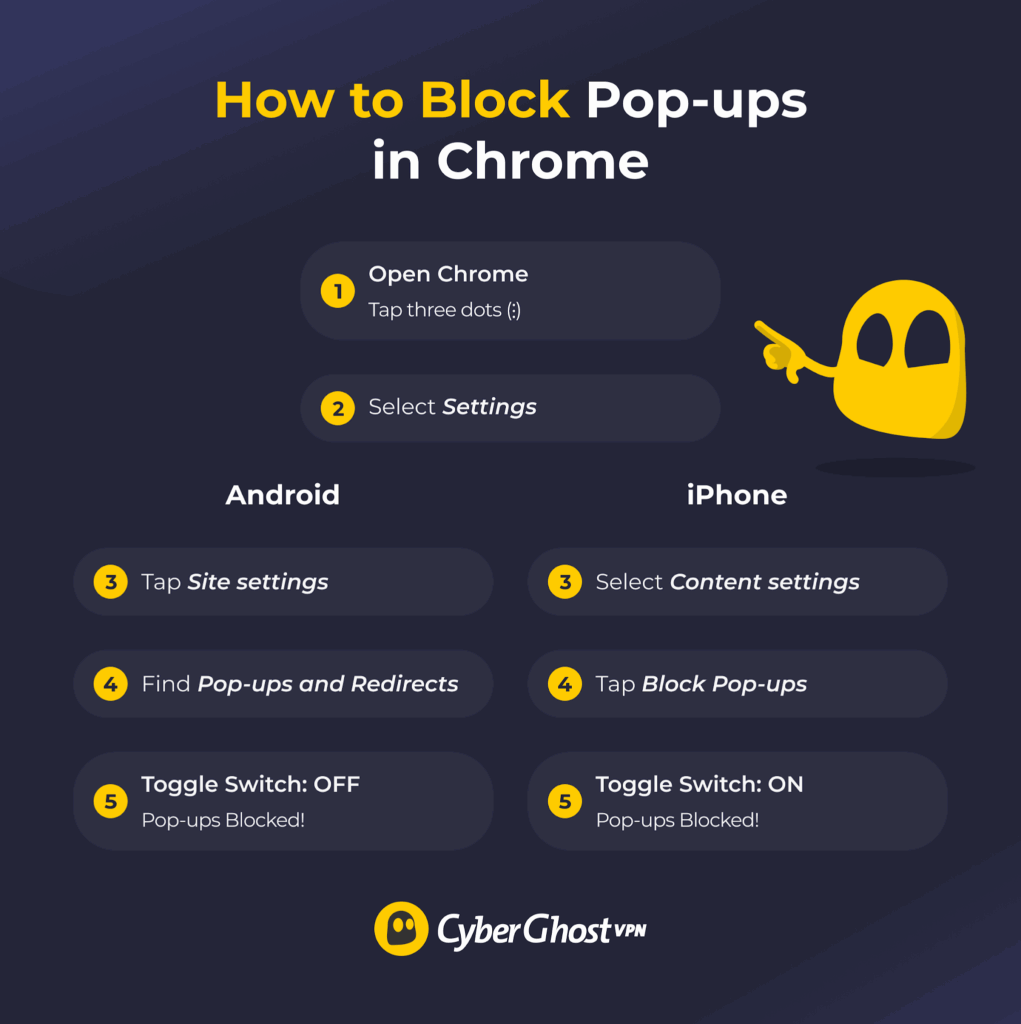
Chrome has a built-in pop-up blocker on both Android and iPhone. If you’re suddenly seeing more pop-ups or redirects than usual, check that the setting hasn’t been changed.
On Android and iPhone:
- Open Chrome on your phone.
- Tap the three-dot menu.
- Go to Settings > Site settings or Content settings.
- Tap Pop-ups and redirects or Block pop-ups.
- Make sure pop-ups and redirects are blocked.
Blocking pop-ups helps prevent websites from opening new windows or automatically redirecting you. Some legitimate sites use pop-ups for login screens or payment windows, so you may occasionally need to allow them.
You can also limit intrusive ads in Chrome for certain sites on Android. Go to Settings > Site settings and look for Ads to enable blocking for sites known to show deceptive advertising.
Block Pop-Ups in Safari on iPhone
Safari includes built-in settings to block pop-ups and warn you about fraudulent websites. Here’s how you can use it:
- Open Settings on your iPhone.
- Tap Apps > Safari.
- Turn on Block Pop-ups and Fraudulent Website Warning.
Apple recommends leaving both on if you want fewer interruptions and more warning when you visit a potentially fraudulent site.
Reduce Tracking in Firefox on Android and iPhone
Firefox includes built-in protections against tracking on both Android and iPhone. For additional privacy, you can use Enhanced Tracking Protection. To turn it on:
- Open Firefox.
- Tap the three-dot menu.
- Go to Settings > Privacy and security or Tracking Protection.
- Tap Enhanced Tracking Protection.
- Select Strict under Protection Level.
Strict protection blocks more tracking content than Firefox’s Standard setting, which can help reduce tracking while you browse. Keep in mind that stronger protection can occasionally cause parts of a website to stop working properly.
Turn Off Website Notifications
If ads or promotional messages appear even when you’re not browsing, they may be coming from websites or apps you’ve previously allowed to send notifications. Blocking that can stop them without affecting regular ads or pop-ups inside your browser. Follow these steps:
- Open your browser.
- Go to Settings > Site settings (or Privacy and security depending on your browser).
- Tap Notifications.
- Review the list of sites allowed to send notifications.
- Remove any sites you don’t recognize or no longer want notifications from.
The exact steps vary by browser, but the goal is always the same: remove notification access for sites you don’t recognize or no longer trust. This won’t stop ads that appear while you’re browsing, but it can clear out unwanted promotional notifications from websites you’ve previously given permission to.
App-Level Solutions: Identify and Remove Problem Apps
Some apps are simply heavy on advertising, while potentially unwanted or malicious apps can display pop-ups over other apps or send a constant stream of promotional notifications. The steps below focus more on Android because the OS offers more system-level controls for identifying apps that may be generating unwanted ads.
On iPhone, there isn’t an equivalent to Android’s Safe Mode or Display over other apps permission. Instead, review recently installed apps, remove anything you don’t recognize or no longer trust, and check each app’s notification settings. If the problem started after installing a new app, removing it can help determine whether it was responsible.
Identify Apps Causing Pop-ups
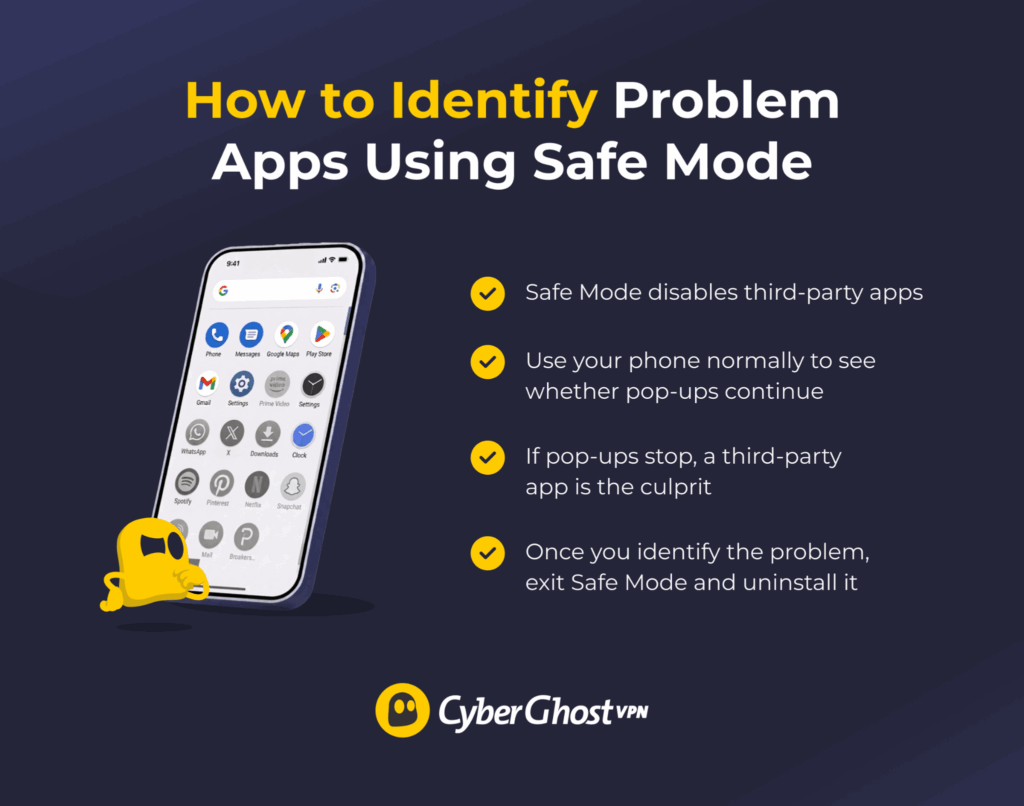
If the ads started recently, think if you’ve recently installed a new app. You can also restart your Android phone in Safe Mode, which temporarily disables third-party apps.
The steps vary by device, so follow your phone manufacturer’s instructions for entering Safe Mode. Then, use your phone normally for a while and see whether the pop-ups return. If the ads disappear in Safe Mode, a third-party app is likely responsible. Restart your phone normally, then look for the culprit:
- Go to Settings > Apps > See all apps.
- Sort by Last installed (or Recently updated if available).
- Look for apps you don’t remember installing or anything you installed shortly before the ads started.
- Check for apps with suspicious names, missing icons, or blank app info.
It’s also worth checking which apps have permission to appear on top of others. This can be useful for legitimate features like chat bubbles, but an unwanted app can abuse it to plaster ads over whatever you’re doing. To turn it off:
- Go to Settings > Apps > Special app access (or Advanced).
- Select Display over other apps (or Draw over other apps).
- Review the list and toggle off any app that shouldn’t have this permission.
Uninstall Suspicious Apps
If you find an app that doesn’t need to be on your phone, it’s a good idea to remove it. Long-press its icon and tap Uninstall, or go to Settings > Apps, select the app, and tap Uninstall. Restart your phone afterward and check whether the unwanted ads have stopped.
If you’re unsure about an app, check what it is before removing it. Some system apps have unfamiliar names but are still necessary for your phone to work properly.
Disable Notifications from Ad-Heavy Apps
Sometimes the app itself is fine, but its notifications are doing far too much. If you want to keep the app without seeing every promotion it sends your way, you can turn its notifications off:
- Go to Settings > Apps > See all apps.
- Select the app and tap Notifications.
- Toggle off Allow notifications, or disable individual notification categories if your phone offers that option.
On iPhone, you can do the same by opening Settings > Notifications, selecting the app, and turning notifications off or adjusting how the alerts appear. You’ll also stop legitimate notifications, so check whether the app lets you turn off promotional notifications while keeping the useful ones.
System-Level Solutions: Reduce Ads Across Your Phone
Browser settings can deal with ads while you’re browsing, but your phone also gives you controls that work more broadly across your device. You can limit personalized advertising or use DNS filtering to stop connections to many known advertising domains.
Turn Off Google Ad Personalization
Google can use information associated with your account and activity to personalize the ads you see. Turning off ad personalization won’t get rid of ads altogether, but it can limit how your activity is used to tailor them to you.
Your Android phone settings affect ad-related privacy controls on your device:
- Go to Settings > Google > Ads (or Ads privacy).
- Toggle off Ad topics, App-suggested ads, Ad measurement.
Your Google Account settings can affect personalized ads across devices where you’re signed in:
- Go to Settings > Google > Select your Google Account.
- Tap Google Account > Data & privacy.
- Tap My Ad Center.
- Toggle off Personalized ads.
This turns off personalized ads on Google services and can also affect them on partner sites and apps that show Google ads. It won’t affect ads served by other advertising platforms.
Use Private DNS to Block Ads at the Network Level
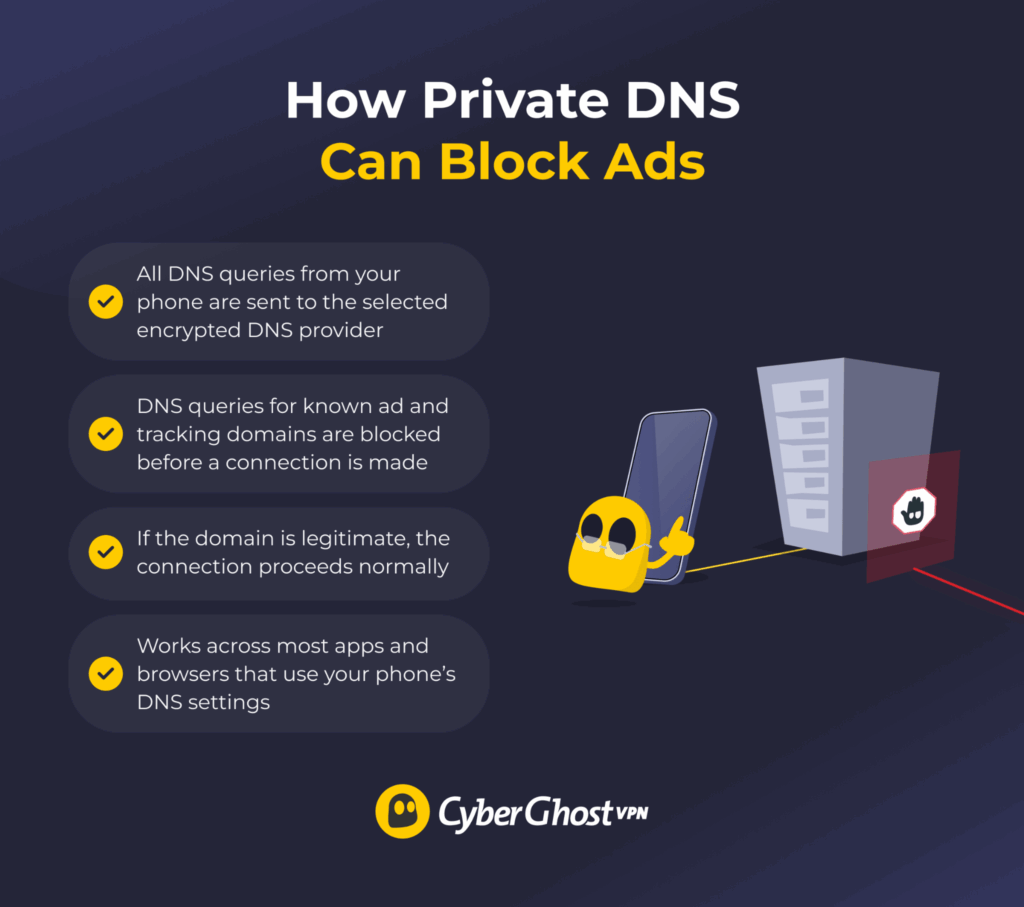
Private DNS can block connections to some known ad and tracking domains. Instead of dealing with ads inside individual browsers or apps, it filters certain network requests before they reach your device. This can prevent some ads and other unwanted content from loading.
To set up Private DNS:
- Go to Settings > Network & internet (or Connections).
- Tap More connection settings (or Advanced).
- Tap Private DNS.
- Select Private DNS provider hostname.
- Enter a reputable DNS provider hostname such as “dns.adguard-dns.com” (AdGuard DNS)
- Tap Save.
Filtering DNS providers maintain blocklists of known advertising and malicious domains. They won’t block every ad, but they can reduce many of them. Keep in mind that you’ll also be trusting that DNS provider with your DNS requests.
Note: On iPhone, you won’t find the same Private DNS setting as on Android. Instead, you can use a compatible DNS service or app to filter ads and trackers at the DNS level.
Network-Level Privacy: Where a VPN Can Help
A VPN won’t stop all ads or all ad tracking, but it can add another layer of privacy. Unlike the browser and system settings above, a VPN works by encrypting your internet traffic and masking your IP address. This can reduce some forms of IP-based visibility and help protect your connection on public Wi-Fi.
A VPN doesn’t block every tracking method. Websites and apps can still use cookies, account logins, device identifiers, browser fingerprinting, and information you choose to share. That’s why a VPN works best alongside the other privacy measures in this guide, not instead of them.
How a VPN Changes What Websites and Services Can See
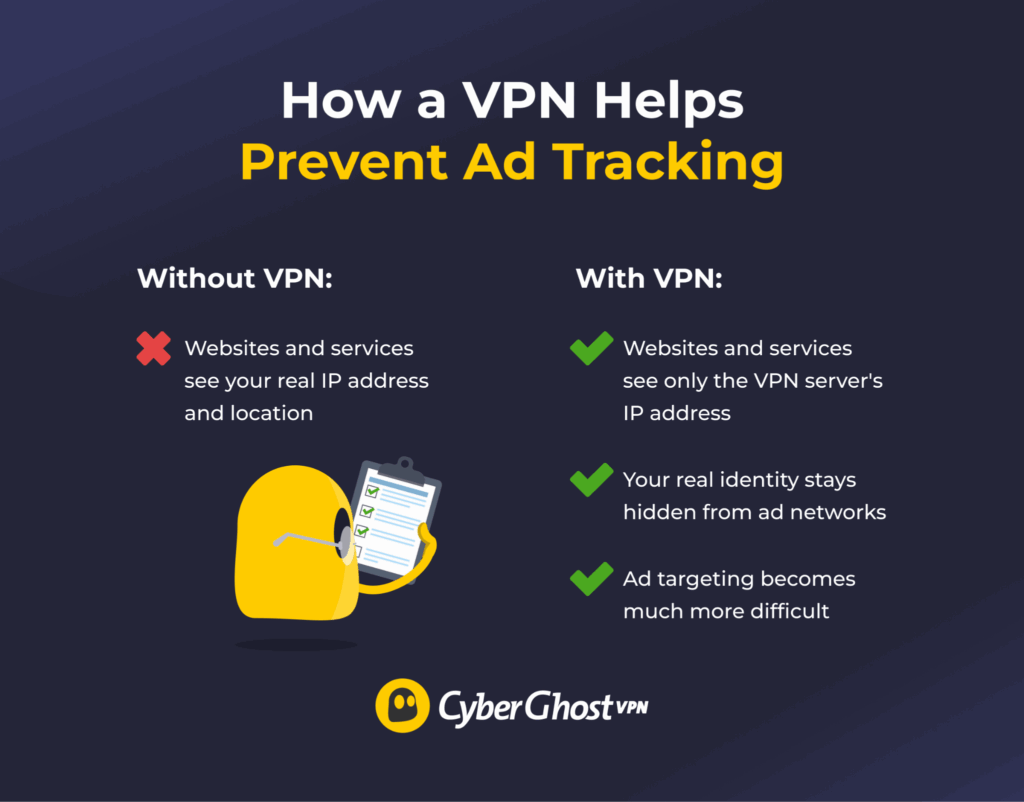
Using a VPN can:
- Reduce some IP-based location signals: A VPN replaces your public IP address with the VPN server’s IP address, making it less obvious which network or approximate location is associated with your connection. It doesn’t hide GPS data, account information, or other location signals apps may still use.
- Make IP profiling more difficult: Websites no longer see the public IP address assigned by your internet provider, removing one signal they could otherwise use to associate your activity with your usual network connection.
- Limit what your ISP can directly see about your browsing: A VPN encrypts your internet traffic, which helps prevent your ISP from directly viewing the contents of your traffic or the destinations you access through the encrypted tunnel. Your ISP can still see that you’re connected to a VPN as well as connection timing and data volume.
If you want a simpler way to add connection privacy on your phone, CyberGhost VPN gives you easy-to-use apps, strong encryption, and RAM-only servers designed to help protect your data privacy. It’s a practical option if you often use public Wi‑Fi, want to make IP-based profiling less straightforward, or simply prefer a more private connection while you browse.
Combine Multiple Solutions to Remove Phone Ads
The most effective approach combines several small changes rather than relying on one tool. Browser settings, app permissions, notification controls, Private DNS, and ad privacy settings can all reduce unwanted ads and tracking. Taken together, these changes can make your phone feel less cluttered and give you more control over how apps, browsers, and ad networks interact with your data.
If you want more connection privacy, especially on public Wi-Fi, a VPN can be a useful final layer. CyberGhost VPN helps protect your traffic with encryption, masks your IP address from the websites and services you use, and fits naturally into a broader privacy routine. Try it out risk-free as it comes with a 45-day money-back guarantee (14 days on the monthly plan).
FAQ
Why am I seeing so many ads on my phone?
Most ads come from apps and websites monetized through advertising. Some ad networks and other advertising technologies can track activity across websites and apps to help personalize ads. If you’re suddenly seeing more ads, check your recently installed apps and notification settings first. On Android, you can also review which apps have Display over other apps permission.
How do I stop ads from popping up on my phone?
Start by disabling pop-ups in your browser settings, then turn off website notifications, revoke app permissions, disable ad personalization in Google, and use DNS filtering where supported. On Android, you can set up Private DNS. On iPhone, you can use a compatible DNS service or other content-blocking tools.
A VPN like CyberGhost VPN can complement these measures across apps and browsers by encrypting your connection and masking your IP address, which can reduce some forms of IP-based tracking.
Can I reduce ads without installing an ad-blocking app?
Yes. Use built-in browser settings, website notification controls, app notification settings, Google ad personalization, and DNS filtering. On Android, you can use Private DNS. On iPhone, you can use a compatible DNS service or other built-in browser controls. These tools won’t remove every ad, but they can make a noticeable difference without requiring extra downloads.
Do certain apps cause more ads than others?
Yes. Some free games, flashlight apps, wallpaper apps, and utility apps (“phone cleaners,” “battery savers”) rely heavily on advertising for revenue and may show frequent or intrusive ads. Check app reviews and ratings for complaints about excessive ads before downloading. Some apps offer paid versions of apps or subscriptions that remove ads.
How do I know if my phone has adware?
Signs can include full-screen pop-ups, repeated browser redirects, fake warning messages, or apps you don’t remember installing. On Android, Safe Mode can help you test whether a third-party app is causing the problem, and tools like Google Play Protect may help identify risky apps.
On iOS, the best first step is usually to delete recently installed apps, review notification settings, and make sure Safari’s pop-up blocking and fraudulent-site warning are turned on. If the problem continues on either platform, back up your device before taking more drastic steps like a reset.

Leave a comment