
If you’re struggling to join multiplayer games, host lobbies, or connect with other players on your PS5 or PS4, your NAT type could be the problem. Your console’s NAT type affects how it establishes connections with other players, and a restrictive setting can cause matchmaking and connectivity issues.
For most PlayStation players, NAT Type 2 is the best option, offering a good balance of connectivity and security. If your console shows NAT Type 3, adjusting your router settings may help you get a less restrictive connection and return to gaming without constant connection problems.
Quick Steps: How to Change Your PS5’s NAT Type
- Open a browser and log in to your router’s control panel.
- Find the UPnP settings, usually under Advanced or NAT forwarding.
- Set the UPnP toggle to Enabled.
What Is NAT?
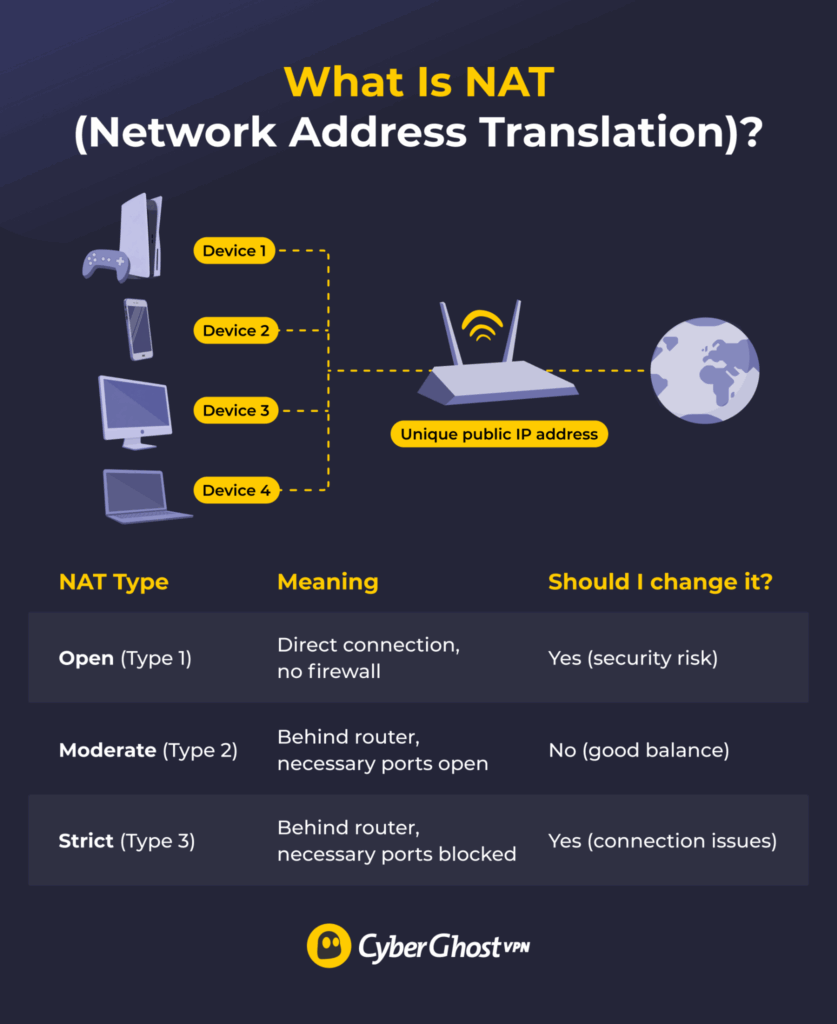
NAT (Network Address Translation) allows multiple devices on your home network to share a single public IP address. Your router gives each device, including your PS5 or PS4, a private IP address and manages the traffic between those devices and the internet.
When your PS5 connects to a game server or another player, your router uses NAT to direct incoming responses to the right device. However, some NAT configurations restrict incoming connections, which can make it harder to join multiplayer games, host sessions, or use voice chat.
PlayStation consoles use three NAT types, each with a different level of connectivity.
Open NAT (Type 1)
Open NAT means your PS5 is connected to the internet. This configuration is possible if your PS5 connects to a modem with an Ethernet cable instead of a router. It usually provides the best possible connectivity for online gaming because it can connect to other devices regardless of their NAT type.
This may sound ideal, but it comes with a significant downside. Open NAT means your PS5 connects to the internet without a router firewall to protect it. This could pose a serious security risk, so we don’t recommend it.
Moderate NAT (Type 2)
Moderate NAT means your PS5 connects to the internet through a router, with the ports necessary for online gaming open and working. This is generally the sweet spot between connectivity and security for most PS5 players. With Moderate NAT, you can join games, host multiplayer lobbies, use voice chat, and connect with other players who have Moderate or Open NAT types.
Strict NAT (Type 3)
Strict NAT means your router is blocking some connections that might be necessary for online gaming on your PS5. It’s usually the cause of NAT-related connectivity problems because the router closes some potentially necessary ports to increase security. Strict NAT normally only lets you connect to other players or servers with Open NAT, which can interrupt important gaming features like voice chat or matchmaking.
NAT vs Firewall
NAT and firewalls are separate router features that both affect network traffic. NAT manages how multiple devices share a single public IP address. A device’s NAT type roughly correlates with how its connection interacts with the router’s built-in firewall. A firewall blocks or allows traffic from specific ports based on security rules. It can cause your PS5’s NAT type to change to Type 3 (Strict) if it blocks the ports your console needs.
How to Check the NAT Type on Your PS5
You can check your PlayStation console’s NAT type through its interface; you don’t need any specialized tools. The same process works for your PS4, though the exact names of the menus might differ.
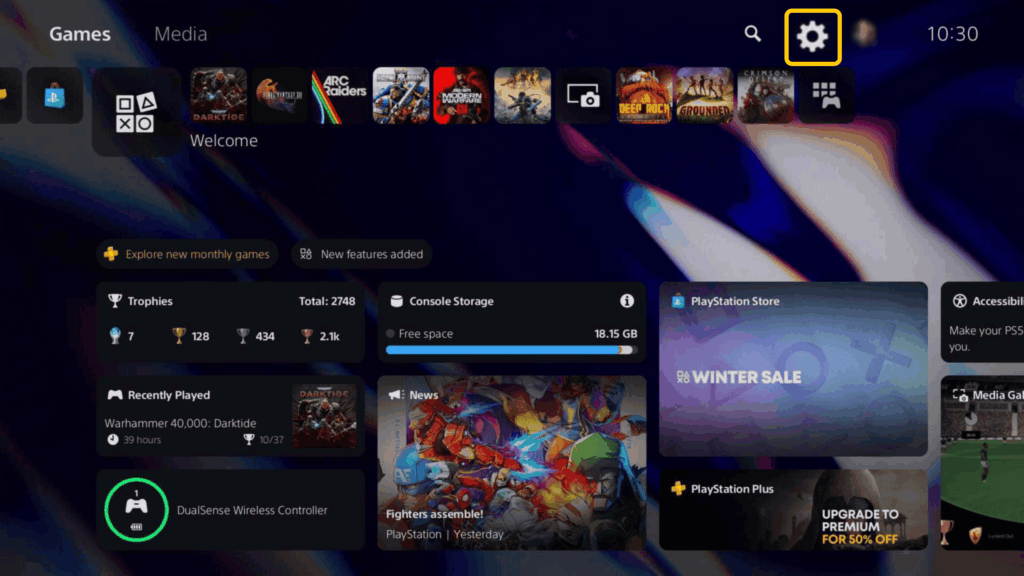
- From the PS5 home screen, go to Settings.
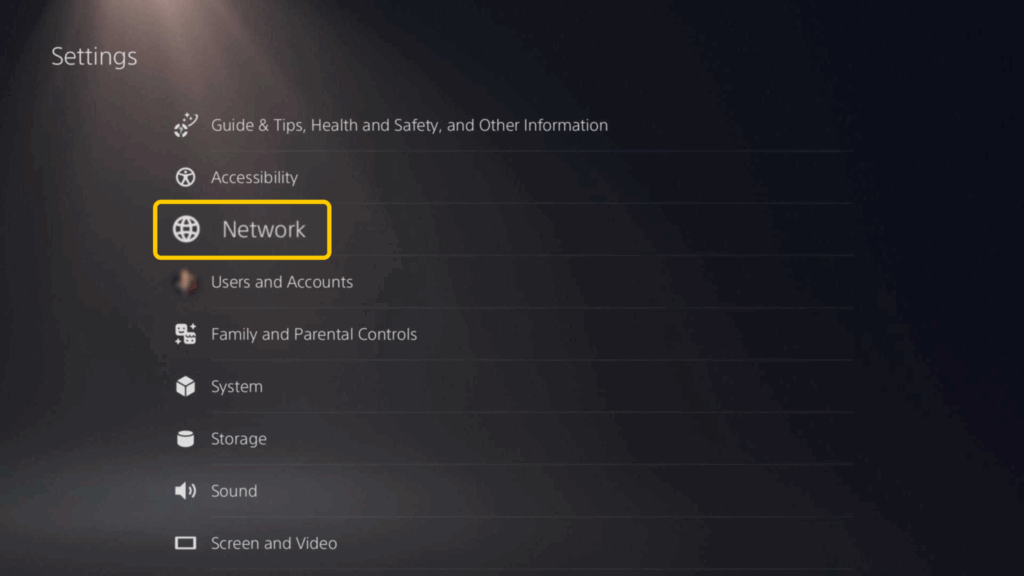
- Go to the Network menu.
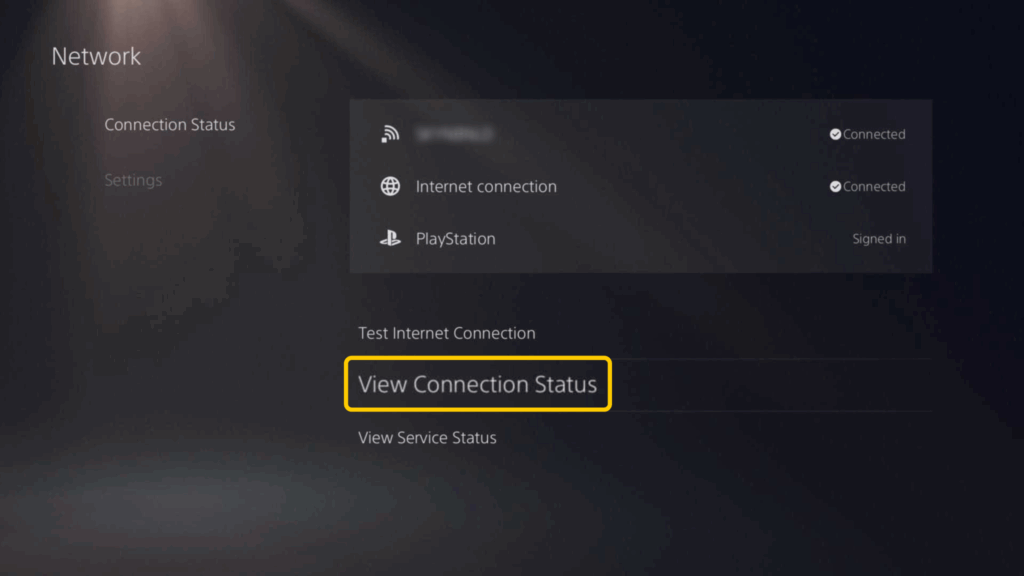
- Select View Connection Status.
- Find the NAT Type entry. It’ll be listed as Type 1 (Open NAT), Type 2 (Moderate NAT), or Type 3 (Strict NAT).
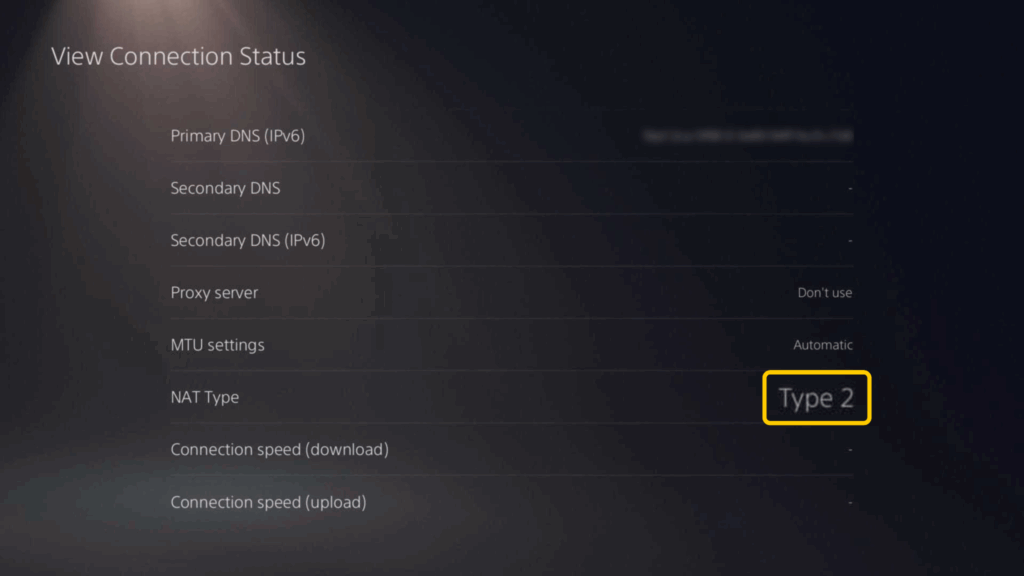
In this same menu, you can see the PS5’s IP address. Write it down because you might need it for some of the methods we discuss below.
How to Change the NAT Type for Your PS5
Unfortunately, you can’t change your NAT type through the PS5 — you have to use your router’s control panel instead. You can access your router settings through a browser on a computer or phone connected to the router. You can usually find the login credentials on a sticker on the router itself. Some routers only allow computers connected via cable to access the control panel.
For users who may not be as tech-savvy, we generally recommend using UPnP (Universal Plug and Play). The other options require modifying router settings, which could cause serious problems if you happen to configure them incorrectly.
UPnP (Universal Plug and Play)
UPnP is a setting that allows your router to open the necessary ports when your PS5 requests them. This is the simplest method, and it doesn’t involve changing important security settings on your router. Here’s how to enable it:
- Log in to your router’s control panel.
- Find the UPnP setting. It’s usually under sections titled Network, Advanced settings, LAN settings, or NAT forwarding.
- Enable UPnP.
- Save the changes and restart your router and PS5
- To check your NAT status, go to Settings > Network > Connection Status > Test Internet Connection and check the NAT type.
Port Forwarding
Port forwarding lets you route traffic coming from specific ports to your PS5. Opening specific ports this way can help change your NAT type from Strict to Moderate. Before setting up port forwarding, you need a list of ports. Game servers can use different ports, so you have to research the games you want to play and find the ports they use.
The PlayStation Network typically uses the following ports:1
- TCP: 80, 443, 3478–3480
- UDP: 3478, 3479, 49152–65535
Here’s how to set up port forwarding:
-
- Go to your router’s control panel.
-
- Find the port forwarding setting, normally under Network or Firewall settings.
-
- Follow your router’s instructions to create port forwarding rules for the ports listed above and the ones associated with the games you play.
-
- Assign the port forwarding rules to your PS5’s IP address.
-
- Save the changes and restart your router and console.
-
- Verify the connection by going to Settings > Network > Connection Status > Test Internet Connection and check the NAT type.
You can also refer to our detailed guide on port forwarding for your PS5.
DMZ Host
We don’t recommend using this option for your PS5 as it removes important security measures that normally protect your console from external malicious activity. Only use it as a temporary solution or if all other methods fail.
DMZ host is a feature on many routers that lets you “move” a device outside of your router’s firewall. If you place your PS5 on the DMZ host list, it becomes exposed to the internet, changing its NAT type to Open (Type 1).
-
- Open your router’s control panel.
-
- Find the DMZ host setting. It’s sometimes called “DMZ,” and it’s often in a router’s Advanced settings or NAT forwarding sections.
-
- Enter your PS5’s IP address.
-
- Save the changes and restart your router and PS5.
-
- Check the PS5 connection by navigating to Settings > Network > Connection Status > Test Internet Connection and check the NAT type.
Can a VPN Change My PS5’s NAT Type?
A VPN gives you a different public IP address, which might happen to result in a better NAT type. However, using a VPN often makes NAT-specific problems worse because it makes your PS5 traffic go through another layer of NAT on the VPN server.
A VPN might help if your ISP uses carrier-grade NAT (CGNAT). CGNAT means you share a public IP address with other users, and it prohibits you from opening ports. A VPN tunnels your connection through a different IP address, which can sometimes help with PS5 issues that arise from CGNAT.
While a VPN generally can’t help with NAT issues, it’s still a useful tool that could improve your PS5’s security and connectivity. It encrypts your traffic, which makes it harder for your ISP to target and throttle your PlayStation’s game traffic. It also adds a layer of protection against DDoS attacks.
You can install CyberGhost VPN on a compatible router, which funnels your PS5’s traffic through the VPN. Alternatively, you can set up our Smart DNS on your PS5. It can improve your connectivity, but it doesn’t have other security and privacy features like encryption or IP masking.
Changing Your NAT Type to Moderate Is Just the Beginning
For most players, getting Type 2 NAT on the PS5 is the ideal sweet spot — it’s a good balance between Type 1’s speed and Type 3’s security. The most reliable way to change your NAT type to Moderate is through UPnP or, if that doesn’t work, port forwarding. If all else fails, you can use the DMZ host feature, but its security risks often outweigh the benefits.
With your NAT type sorted out, you should be able to join lobbies, host games, and chat with friends without the connection issues that Strict NAT users often encounter. You might also want to consider getting a good gaming VPN like CyberGhost VPN. It encrypts your traffic and changes your IP address to improve your security and privacy without sacrificing the connectivity you’ve established.
FAQ
What NAT type is best for PS5?
The best NAT type for PS5 is Type 2 or Moderate NAT. While the ideal connectivity usually comes from Type 1 or Open NAT, it’s the least secure option. Open NAT goes around any firewalls and security measures your router might have in place, so it exposes your PlayStation to potentially harmful external connections.
What does Type 2 NAT mean on PS5?
Type 2 NAT, or Moderate NAT, means that your PS5 connects to the internet over your router, which filters traffic through a firewall. It’s generally the recommended NAT type for gaming because it balances connectivity and security. Most consoles operate fine under Type 2 NAT.
Why does my PS5 change to Type 3 NAT?
If your PS5 changes to Type 3 NAT, your network might have some restrictions in place, closing ports and preventing external connections. Type 3, or Strict NAT, is the most restrictive NAT type, and it’s likely to cause issues for your connectivity. You can usually change your NAT type through your router settings.
Can I use CyberGhost VPN with my PS5?
Yes, CyberGhost VPN offers multiple ways to get a VPN for your PS5. You can set it up on a compatible router, which then applies VPN protection to all connected devices, including your PS5. Our Smart DNS may help resolve your PS5’s connectivity issues, but it lacks VPN security features.
How do I check my NAT type on PS5?
To check your NAT type on PS5, go to Settings > Network > View Connection Status. In the list of details, you’ll see information under NAT Type. Remember that PlayStation consoles list NAT types by numbers. Type 1 means Open NAT, Type 2 means Moderate NAT, and Type 3 means Strict NAT.
How do I change my NAT type on PS5?
The most reliable way is to turn on the UPnP (Universal Plug and Play) feature in your router’s control panel. This lets your router open ports that your PS5 needs, which should in turn change your NAT type to Type 2 (Moderate). Alternatives include setting up port forwarding and using the DMZ host router feature, but these methods can be more complex and require changing important router security settings.
How do I change my NAT type to Open on PS5?
You can change your PS5’s NAT type to Open (Type 1) with the DMZ host setting on your router. This places your PS5 outside your router’s firewall protection. You can also connect your PS5 to a modem separate from your router with an Ethernet cable. Either way, we don’t recommend Open NAT for your PS5 because it’s the least secure NAT type and increases exposure to potentially harmful traffic.
References

Leave a comment