
Malware can make your Android device slow, drain your battery, and help cybercriminals get their hands on your sensitive information. Luckily, you don’t need technical skills to find the problem and fix it; Android offers built-in tools to spot suspicious activity.
With a few simple steps, you can check for malware, delete harmful apps, clear out hidden files, and keep your device protected in the future. Let’s take a look at how to recognize the warning signs, scan your Android device, and remove malware so you can use it with confidence again.
Quick Guide: How to Protect Your Android with CyberGhost VPN
- Subscribe to CyberGhost VPN.
- Install the app from the Android page or Google Play Store.
- Select a server and connect to encrypt your internet traffic and keep your online activity private on Android.
How to Check for Malware on Your Android
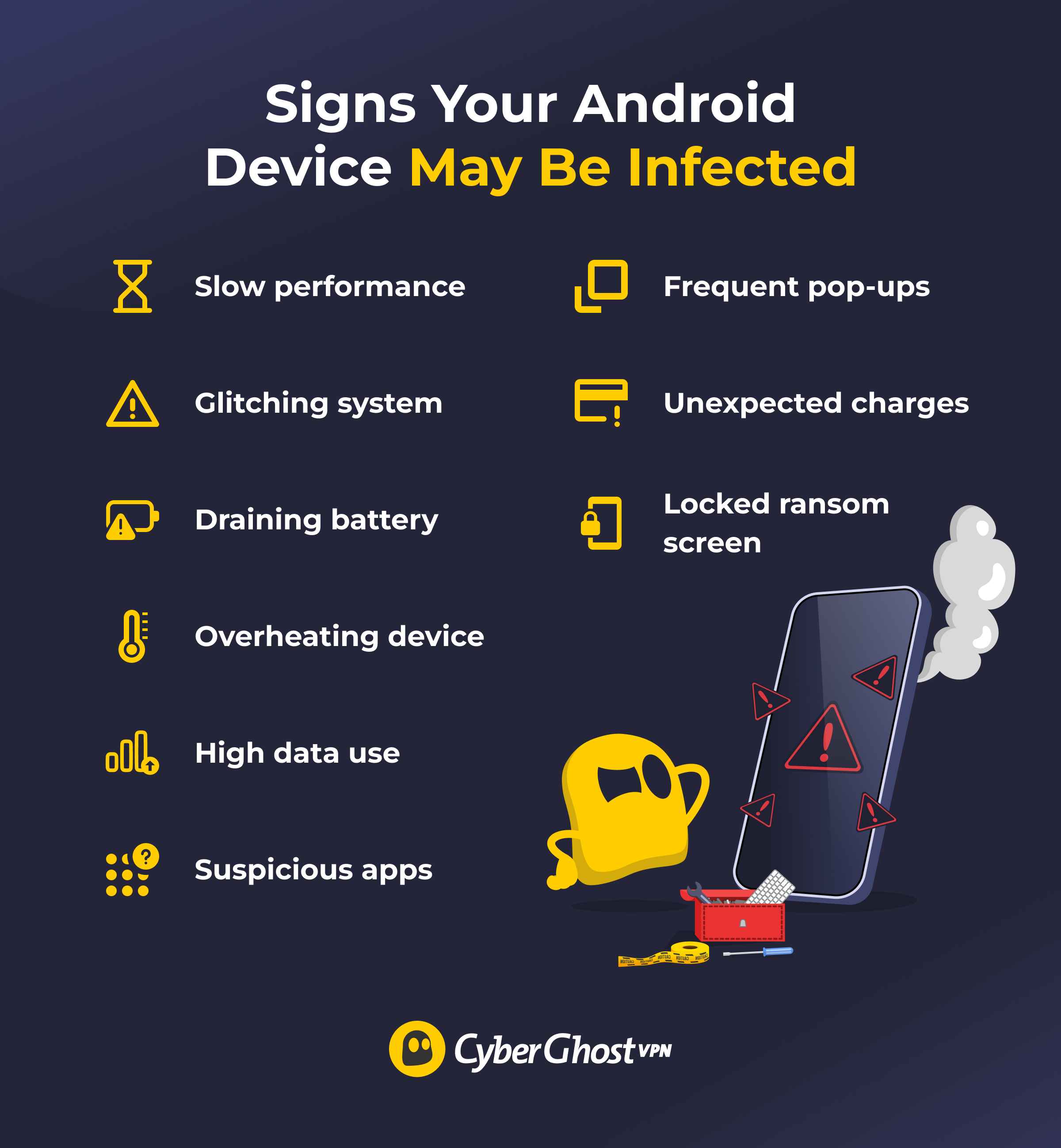
The sooner you catch malware, the less damage it can do. By checking for red flags and using Android’s basic security tools, you can confirm if your device is infected before moving on to malware removal.
Run a Malware Scan
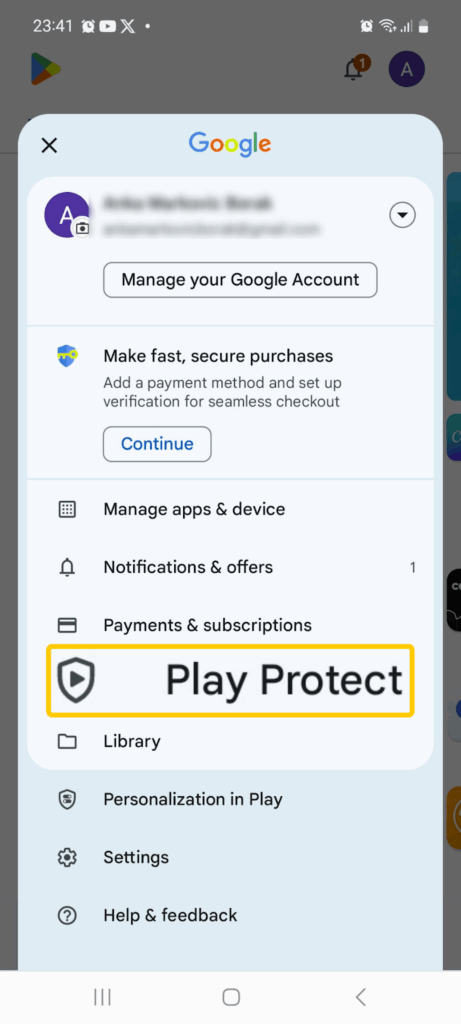
The quickest and easiest way to check for malware on Android is with a device scan. There are lots of third-party antivirus apps for Android (just make sure you get one from a legitimate provider). Google’s Play Protect also regularly scans your device for unsafe apps, but you can run a manual scan if you notice anything suspicious. Open the Play Store app and tap your profile icon > Play Protect > Scan.
Review Performance and Battery Use
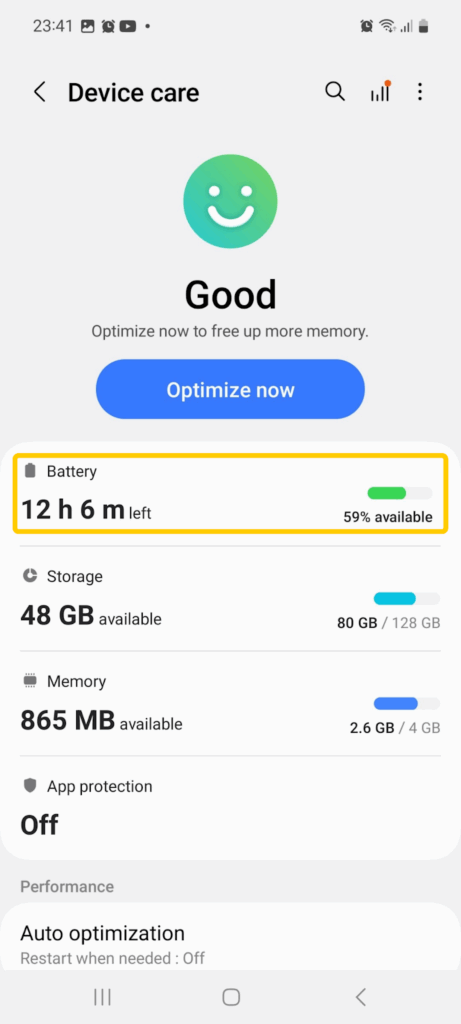
Overheating, unusually slow apps, system glitches, or a sudden drop in battery life can be some of the first signs of background activity from harmful software. Malware can push your hardware to work harder than normal, especially if it’s mining data or running processes without your knowledge.
Open Settings > Battery and device care > Battery to check your device’s overall power status. From there, tap Battery again to see which apps use the most energy and identify any that seem unusual.
Monitor Data Use
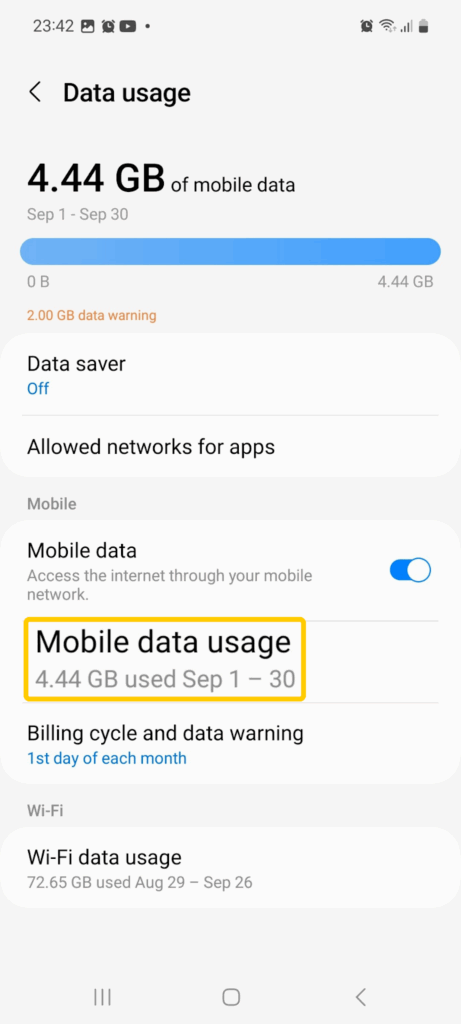
High data use can also point to hidden malware sending information in the background. Open Settings > Connections > Data usage > Mobile data usage, then choose a time range and look for apps with unusually high results.
Check for Unfamiliar Apps
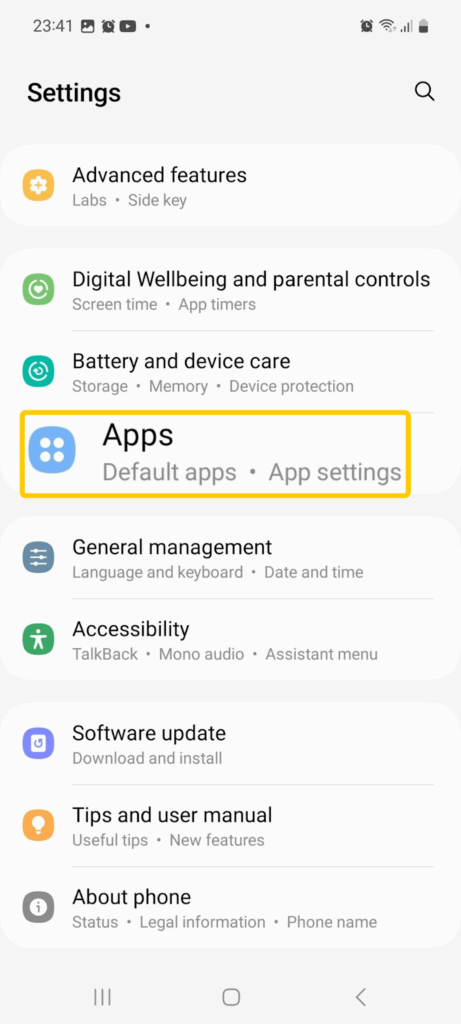
Go to Settings, then Apps, and look for any you don’t remember installing or that seem out of place.
Keep an Eye Out for Pop-Ups or Ads
If ads or alerts appear unexpectedly outside of your browser or over the top of another app, it could be adware. Avoid tapping on pop-ups or unknown links; they’re often designed to redirect you to malicious sites or download malware without you realizing.
Watch for Unexpected Charges
Keep an eye on your device bill for unexplained fees. Some malicious apps sign users up for paid services without consent. You can also check your Google Play account by going to Payments and subscriptions on your profile in the Play Store app. Look at both Subscriptions and Budget and history to make sure there are no payments you haven’t authorized.
Look Out for Ransom Messages
If you see a message claiming your device is locked and asking for payment, it’s a fake warning created by malware. Don’t pay or share any personal details. Instead, turn off Wi-Fi or cell data and follow the malware removal instructions below.
Test in Safe Mode
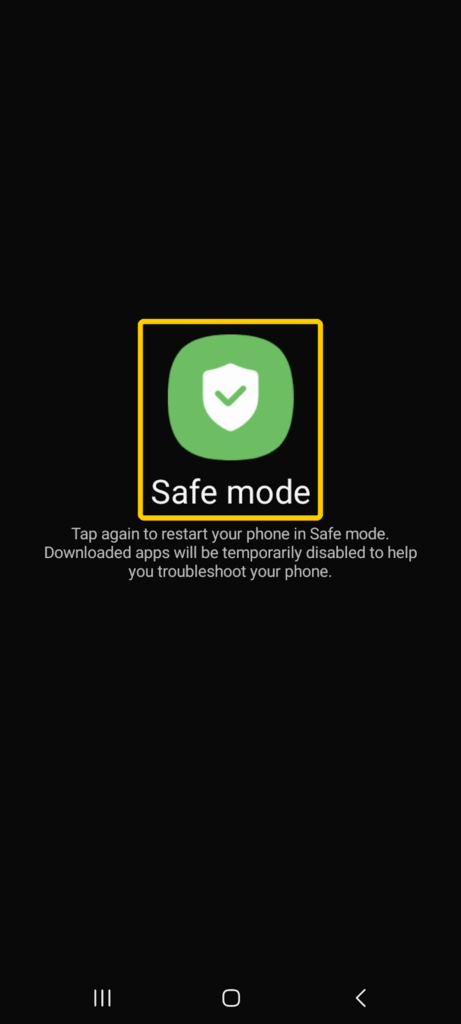
Safe mode temporarily disables all third-party apps and runs only your device’s core system apps. If any issues you’ve noticed stop while your device is in safe mode, it means one of your downloaded apps is likely the cause. To launch safe mode, hold the power button, press and hold Power off, and then tap Safe mode.
How to Remove Malware from Android Manually
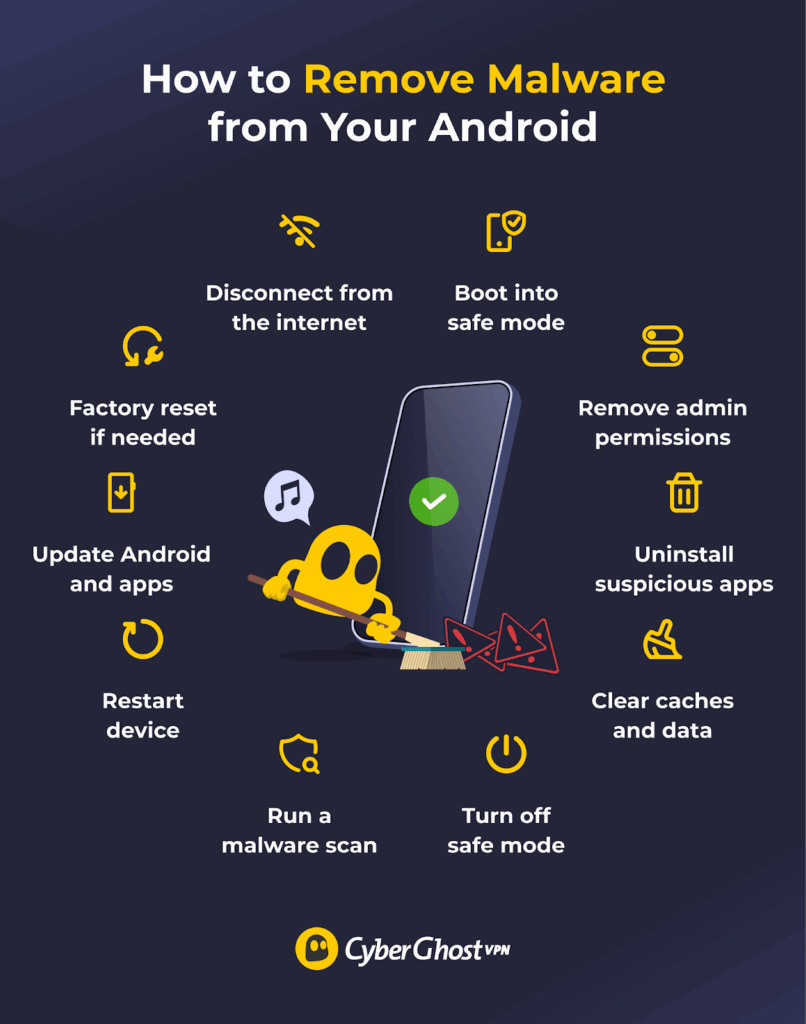
Play Protect usually gives you the option to remove unsafe apps right away. Third-party antivirus apps work the same way and will guide you through the cleanup if they spot a threat. However, you can also manually remove malware from Android by following these steps:
1. Disconnect from the Internet
Turn off Wi-Fi and mobile data before you start. This stops any malware from communicating with its creator, downloading extra files, or sending anything from your device while you remove it.
2. Boot Into Safe Mode
Switch your device to safe mode. This prevents third-party apps from running, so they can’t block you from uninstalling them or reinstalling themselves after removal.
3. Remove Device Admin Permissions
Some malware apps gain admin permissions that can prevent them from being uninstalled. In some cases, you need to remove these permissions before you can delete the app. Here’s how:
1. Open Settings and go to Security and privacy.
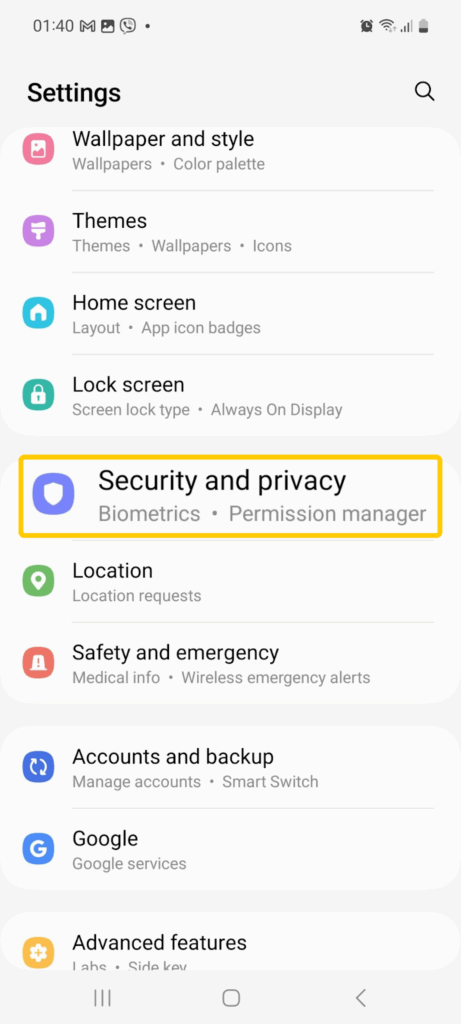
2. Tap Security & Privacy, then More Security Settings, and select Device Admin Apps.

3. Turn off device admin access for apps that shouldn’t have this level of control.
4. Uninstall Suspicious Apps
Once any necessary permissions have been removed, you can uninstall apps that you don’t recognize or that are behaving suspiciously.
1. Open Settings > Apps.

2. Scroll through the list and tap the relevant apps.
3. Select Uninstall and confirm.
4. Repeat this for any other apps that seem unnecessary or out of place. If you see duplicates, uninstall both, then reinstall the real version from the Google Play Store.
5. Clear Caches and Data
Leftover files can sometimes allow malware to reinstall itself or continue affecting apps. Clearing the cache and data gives the app a fresh start and removes anything that shouldn’t be there. It’s also a good idea to clear your browser data to get rid of any malicious redirects, cached pages, or pop-ups.
1. Open Settings > Apps.
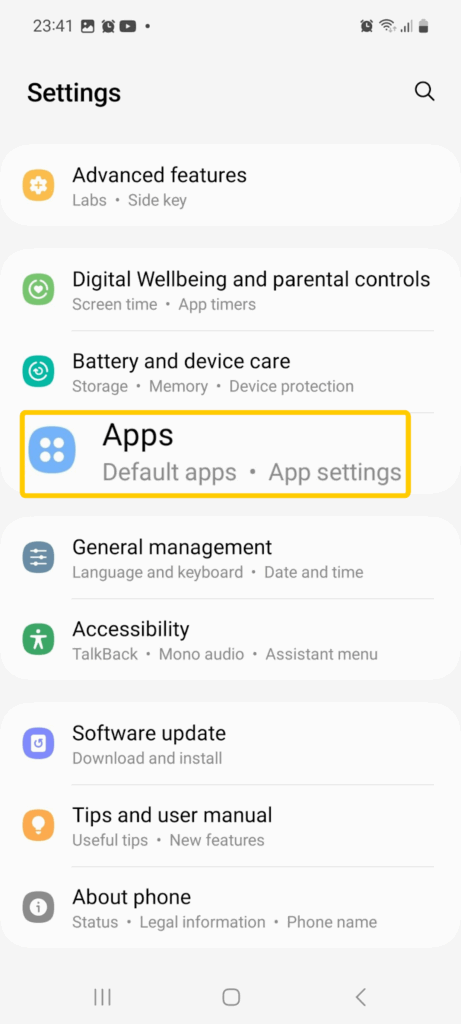
2. Select the app you want to reset and tap Storage.
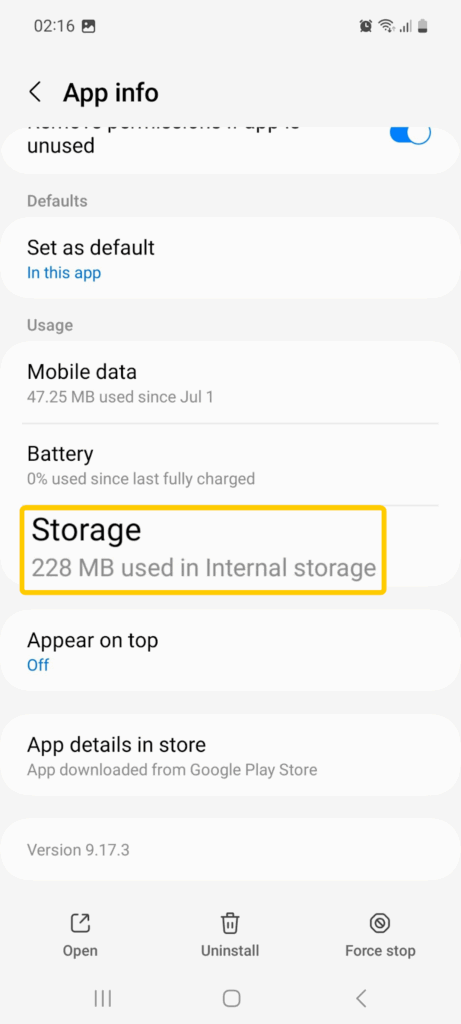
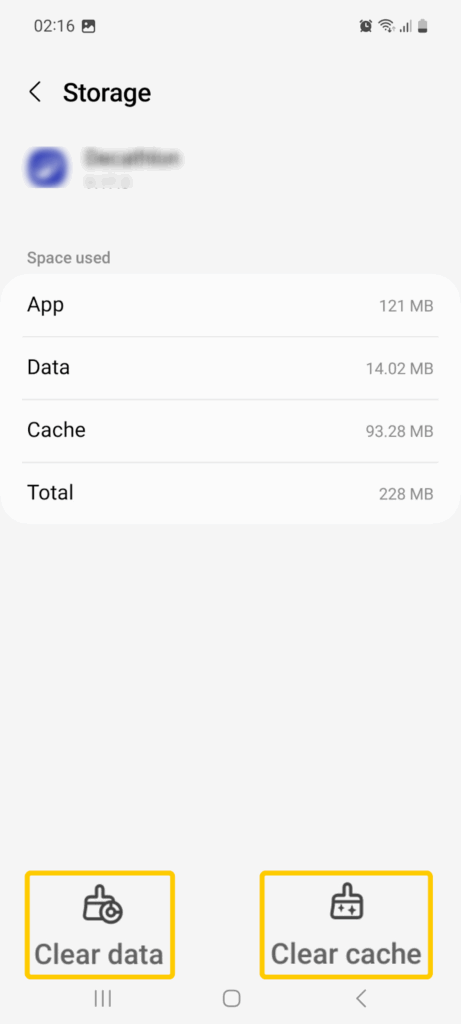
3. Tap Clear cache and then Clear data.
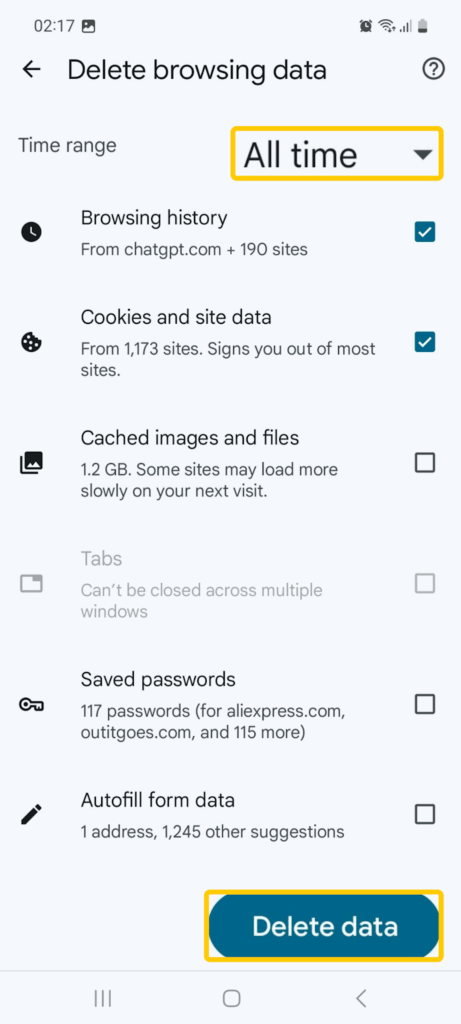
4. Open your browser, tap the three dots in the top-right corner, and choose Delete browsing data.
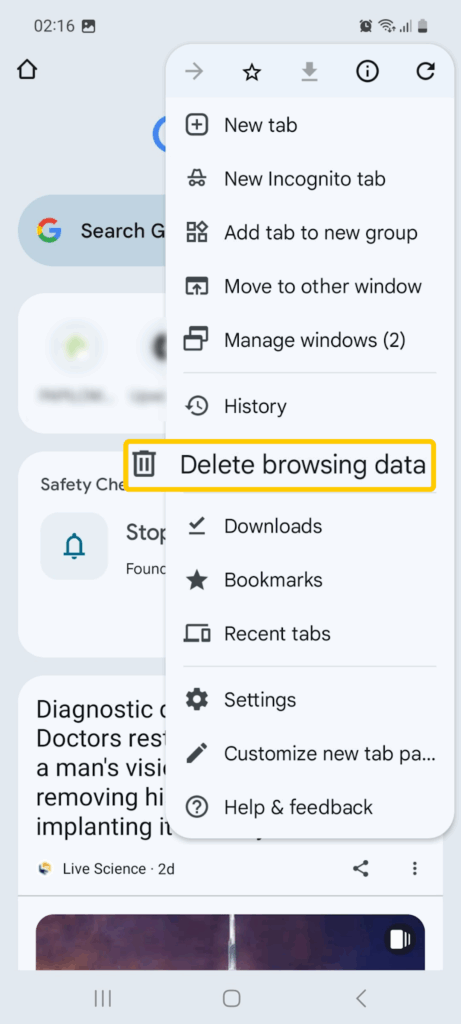
5. Tap More options, pick a time range, select the data types you want to remove, and tap Delete data.
6. Turn off Safe Mode
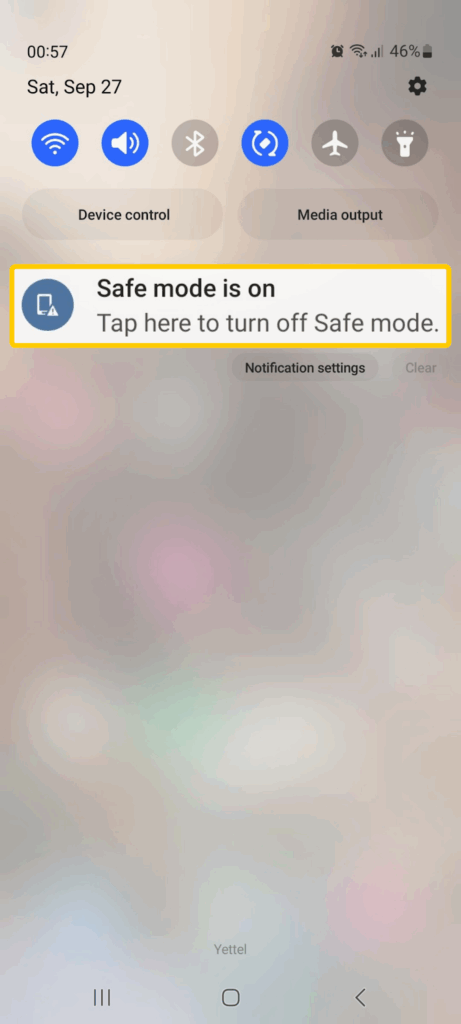
After you’ve made your changes, switch your device back to its normal setup. This allows you to run another malware scan without safe mode blocking your antivirus app. Even the Play Protect scan recommends for safe mode to be off, since third-party apps need to be running for malware scans to detect suspicious behavior. To exit safe mode, restart your device or open your notifications and tap the safe mode panel.
7. Run Another Malware Scan
Run a Play Protect or antivirus scan again to check if there are any remaining signs of malware on your device.
8. Restart the Device Normally
Once you’ve cleared out problem apps and files, and your malware scan is clear, restart your device.
9. Update Android and Apps
If everything looks normal after the restart, check for updates. Older software can have security gaps, and installing updates helps close them. This makes it harder for malware to come back or cause new problems.
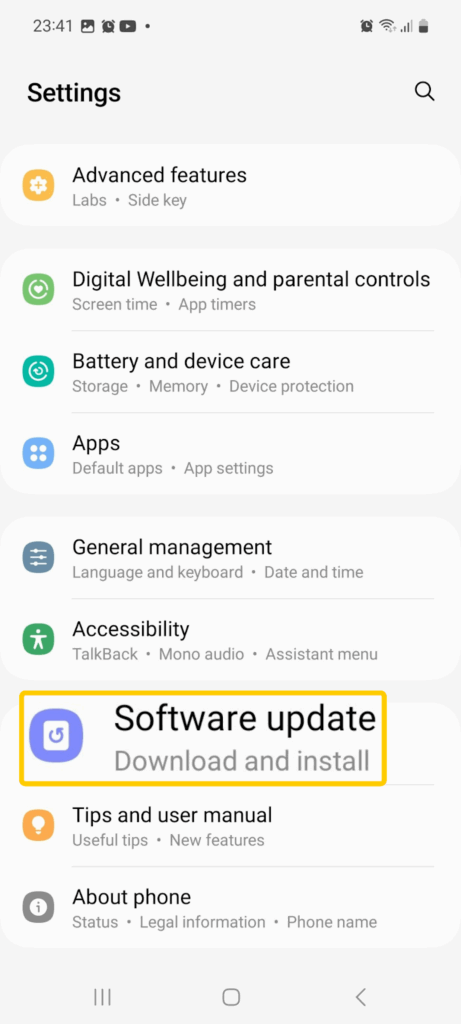
1. Open Settings and go to Software update.
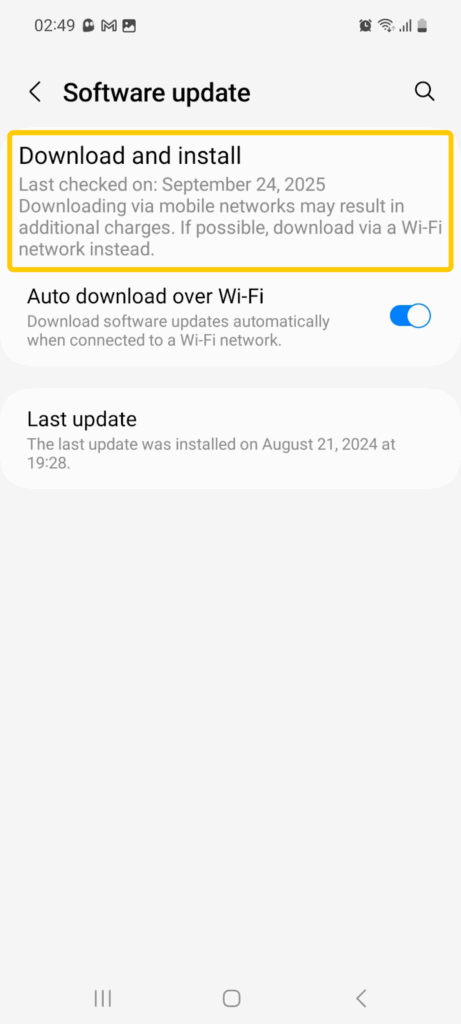
2. Tap Download and install to look for system updates.
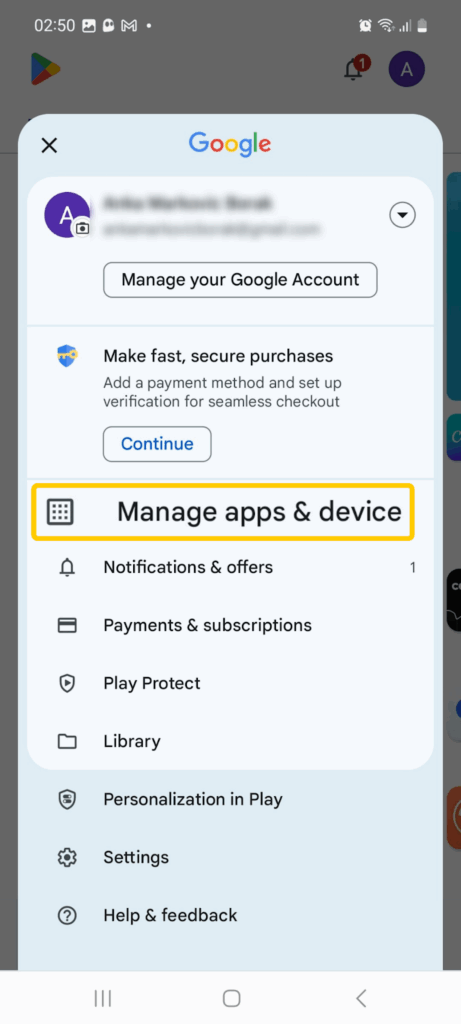
3. Open the Play Store, tap your profile icon, and select Manage apps & device.
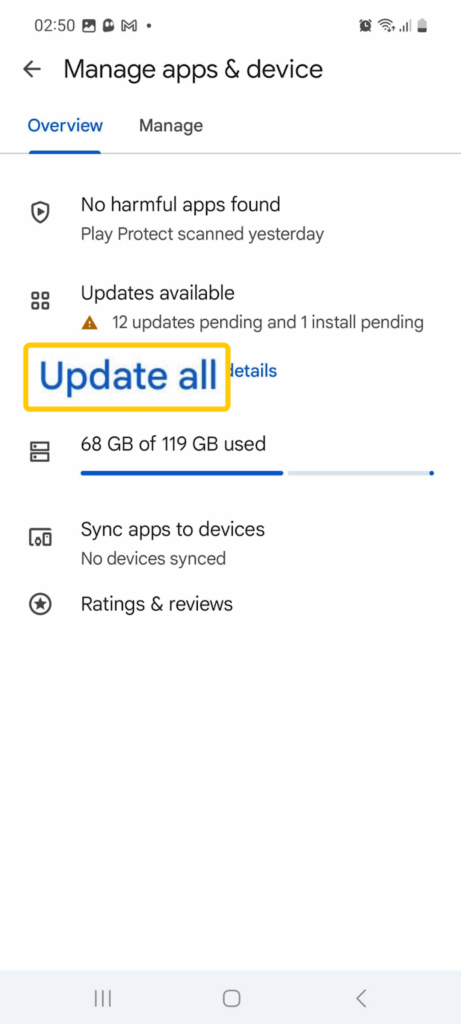
4. Tap Update all.
10. Factory Reset If Needed
If malware is still causing problems even after following the above steps, you might need to factory reset as a last resort. A reset wipes your device and removes any stubborn malware, but it also erases your personal data, so back up anything important first. Just make sure to scan your files with an antivirus before restoring them later.
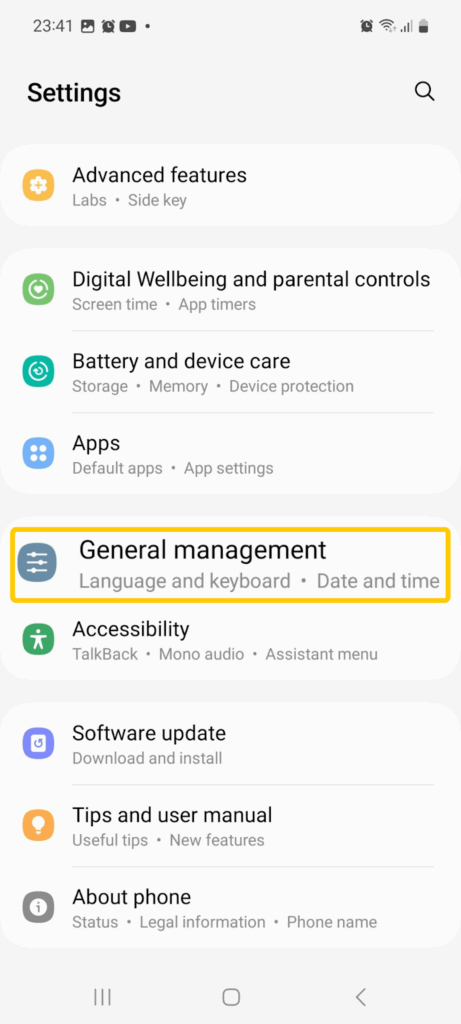
1. Open Settings > General management (or System on some devices).
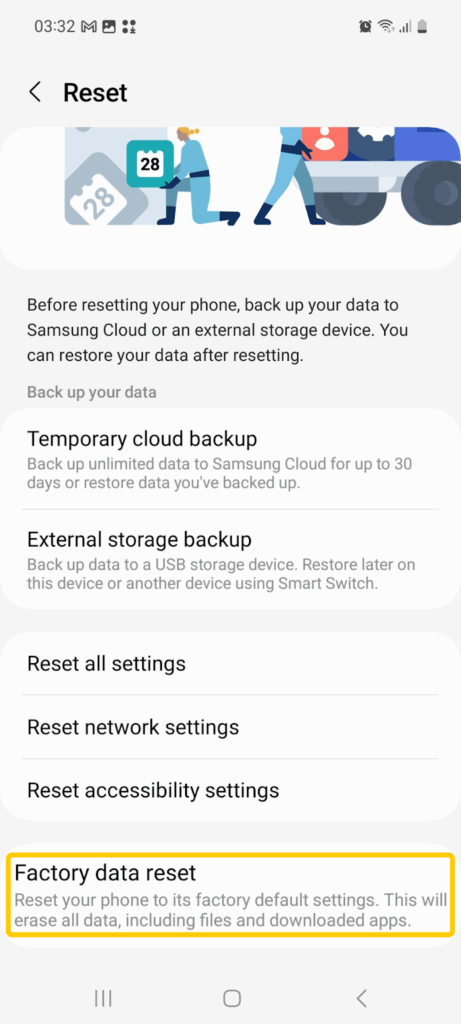
2. Tap Reset > Factory data reset.
3. Review the warning and confirm Reset.
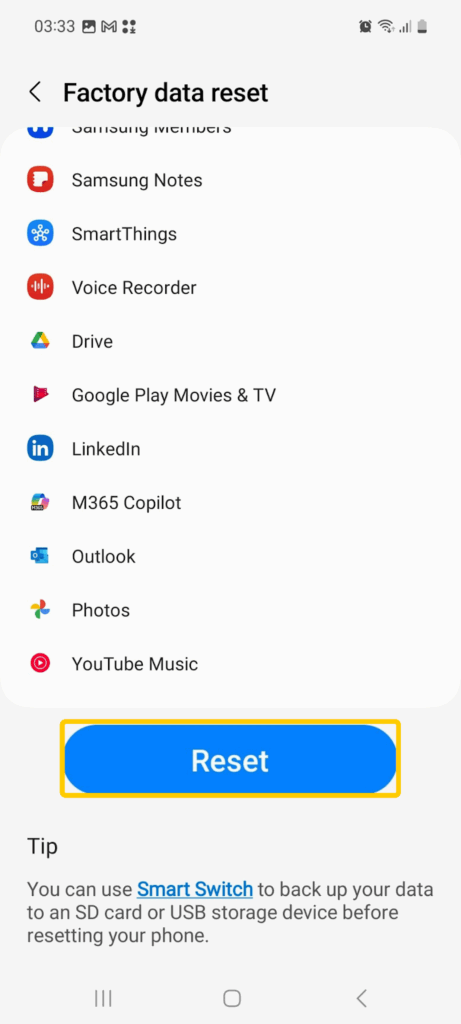
4. Wait for the process to finish, then set up your device again.
Tips to Prevent Malware on Android
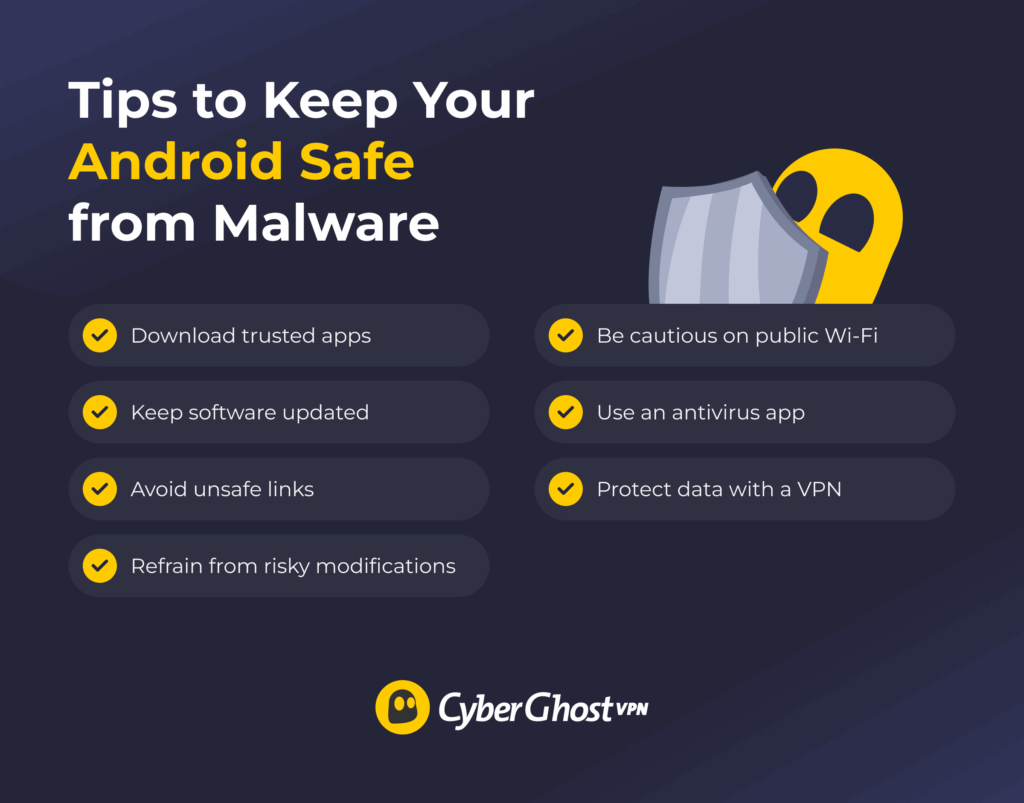
- Stick to trusted app sources: Download apps only from the Google Play Store or other verified platforms to reduce the risk of hidden malware. Check reviews and ratings, and steer clear of apps with few downloads, poor feedback, or unclear developer details.
- Keep Android and apps updated: Install the latest system and app updates to patch security flaws that attackers could exploit. Make sure your web browser is up to date, too.
- Watch out for suspicious links and ads: Avoid clicking pop-ups or unknown links in texts, emails, or ads. Malware often spreads through social engineering, including SMS phishing (smishing), which uses fake text messages to trick you into unsafe downloads or sharing personal data.
- Avoid risky modifications: Skip unofficial app stores or rooting your device. Doing this bypasses Android’s built-in security and increases the chance of malware infection.
- Be cautious on public Wi-Fi: Wait until you’re on a trusted network to access sensitive accounts or data. Cybercriminals can use shared networks to intercept your connection and redirect you to malware download pages.
- Use a trusted antivirus app: Add an extra layer of defense with a reliable antivirus that regularly scans for and removes known threats.
- Protect your connection with a VPN: Shield your traffic on any network, especially public Wi-Fi. VPNs encrypt your data, making it harder for attackers to intercept your connection. Some VPNs also come with malware protection. For example, CyberGhost VPN’s built-in Content Blocker feature blocks links to known malicious sites that could put your device at risk.
What is Malware?
Malware is short for “malicious software.” It refers to programs designed to disrupt, damage, or secretly access a device. On Android, it usually hides in apps or files and runs in the background to steal data, display unwanted ads, or interfere with everyday use.
Types of Malware That Affect Android
Android’s open design lets anyone create apps, but it also makes it easier for malicious programs to sneak onto devices. Here are some of the main types of Android malware that can put your data and privacy at risk:
- Viruses: Malicious programs that usually attach themselves to legitimate Android apps or files. They spread when you install unsafe or modified files and can cause crashes or unusual behavior.
- Spyware: Apps that secretly monitor your Android activity, such as messages, calls, or browsing history. They steal personal data and send it back to the attacker, where it can be used for financial or identity theft.
- Ransomware: Malware that locks your Android screen or encrypts your files, demanding payment to unlock them.
- Trojans: Harmful apps that disguise themselves as safe Android software. Once installed, they can steal data, display ads, or download other threats in the background.
- Worms: Self-replicating programs that spread malware across Android devices and networks even without you loading a malicious file or app.
Wrapping Up: How to Check for Malware on Android and Stay Protected
Android’s built-in Play Protect feature and its support for third-party antivirus apps make it relatively easy to check for malware on Android devices. If you start to notice warning signs like high data use or overheating, simply run a scan and follow the malware removal guide above.
That said, keeping your Android safe means more than just removing malware. Prevention is just as important. CyberGhost VPN has an easy-to-use native app for Android that lets you safeguard your device in just a few taps. Automatic Wi-Fi protection reduces security and privacy risks on public networks, while an independently audited no-logs policy ensures your online activity isn’t tracked or stored. It also comes with a 45-day money-back guarantee so you can try it risk-free.
FAQs
What are common signs of malware on an Android phone?
Malware can make your phone act sluggish, drain the battery faster than usual, or display unusual pop-ups and ads. Some users notice unfamiliar apps, unexpected data charges, or sudden changes in settings. In serious cases, you might even be locked out of your screen with a ransom demand. If you notice these issues, run a scan and remove any suspicious apps.
How can I manually check for malware on my Android device?
You can look for problems yourself using Android’s built-in tools. Start by running a Play Protect scan in the Play Store to spot unsafe apps. Then open your device’s settings to review installed apps and uninstall anything unnecessary. Check battery and mobile data usage for unusual spikes. If this doesn’t help, try Safe Mode to see if a downloaded app is causing the issue.
Are there built-in tools in Android to detect malware?
Android includes Google Play Protect and features like Safe Mode and the Permission Manager. These tools work for basic checks, but pairing them with CyberGhost VPN adds an extra layer of privacy. It encrypts your traffic with AES-256 and automatically turns on Wi-Fi Protection when you connect to unsecured networks.
What are the best apps to scan for malware on Android?
There are several reputable apps that can scan your Android device, including Bitdefender Mobile Security, Avast Mobile Security, and Norton Mobile Security. Choose options in the Play Store that have good reviews, update their threat lists often, and offer real-time protection. Using them with CyberGhost VPN adds another layer of privacy and blocks access to harmful websites with the built-in Content Blocker.
Can malware hide in apps from the Google Play Store?
Google Play scans apps before they’re published, but malicious apps can sometimes get past the review process and stay up until they’re reported. Keeping your device updated, running regular Play Protect scans, and using a reliable security app helps catch these threats early.
How do I remove malware from my Android phone?
You can remove malware by deleting suspicious apps. Start by running your phone in Safe Mode. Uninstall anything unfamiliar, then clear its cache and data. Update Android and your apps to patch security gaps. If problems continue, run a full scan or perform a factory reset as a last resort.
Is a factory reset the only way to get rid of Android malware?
No, you can try uninstalling suspicious apps first. A factory reset erases everything on your device and reinstalls a clean version of the system. It’s usually only needed if other steps fail, since it deletes personal files and settings.
Can malware on Android steal personal or banking information?
Some Android malware is built to steal sensitive data like passwords, banking details, or messages. It might record what you type, watch your activity, or show fake login screens. If you think this is happening, remove the bad app right away and update your passwords, especially for anything related to money.
How can I prevent getting malware on my Android in the future?
You can lower your risk by using reputable app stores, keeping your device and apps updated, and not clicking on unknown links or ads. Stay off unsecured public Wi-Fi or use CyberGhost VPN to encrypt your traffic and turn on its Wi-Fi Protection for safer connections. A reliable antivirus app and strong, unique passwords also help safeguard your data.
Does Google Play Protect offer enough security against malware?
Google Play Protect helps by scanning apps from the Play Store and on your device, but it isn’t foolproof. Some malicious apps can still slip through or appear safe at first. For stronger defense, combine Play Protect with a trustworthy antivirus app and CyberGhost VPN for added privacy. CyberGhost VPN includes a 45-day money-back guarantee, giving you time to try it risk-free.
What’s the difference between malware and a virus?
Malware is a broad term for any harmful software, and a virus is a type of malware. Viruses typically attach themselves to apps or files and spread through things like downloads or file sharing. Other malware works differently. For example, spyware can track what you do, and ransomware can lock your screen or files.

Leave a comment