
Passwords remain the primary sign-in method for most online accounts, but passkeys are becoming increasingly more common. That leaves many people wondering which one offers the better balance of security and convenience.
When comparing passkeys and passwords, passkeys generally offer stronger protection against phishing and credential reuse.1 Passwords still have one major advantage, though: they work almost everywhere. This guide explains how passwords and passkeys work, how they compare for security and convenience, and what to consider before switching.
Passkey vs Password at a Glance
Here’s how passkeys and passwords compare across the factors that matter most.
| Password | Passkey | |
| 🔐 How it works | Reusable secret credential | Public-key cryptographic credential |
| 💾 Service stores | Salted password hash | Public key |
| 👆 Sign-in | Type or autofill | Approve using your device |
| 🎣 Phishing | Relies on user judgment and MFA | Designed to resist credential phishing |
| 🔁 Reuse risk | Possible across accounts | Unique to each service |
| 🗄️ What happens after a breach | Hashes may be cracked | A stolen public key can’t authenticate by itself |
| ♻️ Recovery | Usually email or reset | Trusted devices, backups, or recovery |
| 📱 Across devices | Works almost everywhere | Depends on provider and device support |
| 🌐 Availability | Nearly universal | Growing |
How Passwords and Passkeys Authenticate You
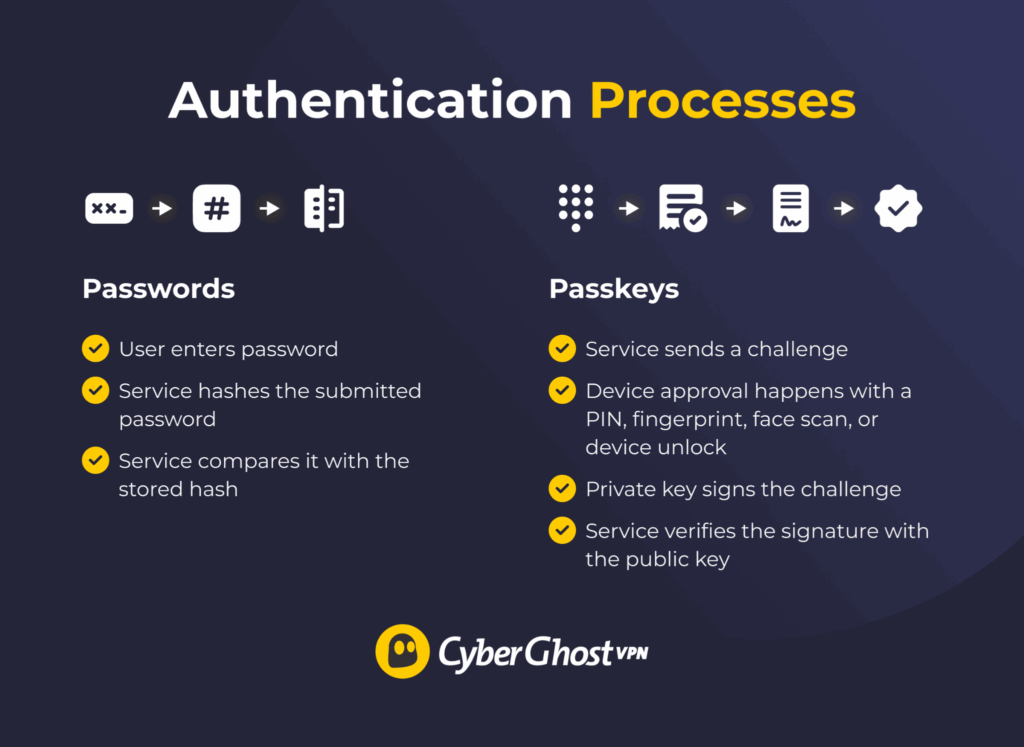
Passwords and passkeys both prove that someone is allowed into an account, but they handle that proof in very different ways.
How Password Authentication Works
A password is a secret credential created or stored by the account holder. When someone signs up for a service, a well-designed system doesn’t save the password itself. It runs the password through a hashing process, adds a unique value called a salt, and stores the resulting hash.
During login, the service processes the entered password again. If the new result matches the stored hash, access is granted.
This model is familiar and works almost everywhere, though it still depends on keeping the original secret out of the wrong hands. The same password can be reused across several accounts, entered on a fake login page, or exposed through a simple mistake.
A password manager helps reduce those risks by creating, storing, and autofilling unique passwords. It doesn’t replace password authentication itself. Many password managers can also store passkeys, so password managers and passkeys aren’t necessarily competing alternatives. They can work together.
How Passkey Authentication Works
A passkey is a cryptographic credential, while a fingerprint, face scan, or PIN simply unlocks it on the device. When you create a passkey, your device or credential provider generates a linked pair of cryptographic keys. The service receives the public key, while the private key remains protected by the authenticator and is managed through the credential provider if syncing is enabled.
Signing in works through a challenge-and-response process. The service sends a unique challenge to the authenticator. Once you approve the request, the authenticator uses the private key to sign the challenge, and the service verifies the response using the corresponding public key. The private key itself never travels to the website during authentication.
A device PIN, biometric scan, or another screen-unlock method authorizes the passkey locally. The website receives the signed response, not your fingerprint, face scan, or PIN. The biometric scan isn’t the passkey itself and isn’t handed over to every service you use.
Key term: A credential provider is the software or platform that stores and may sync your passkeys, such as iCloud Keychain, Google Password Manager, Windows, or a compatible third-party password manager.
Passkey vs Password: Security Comparison
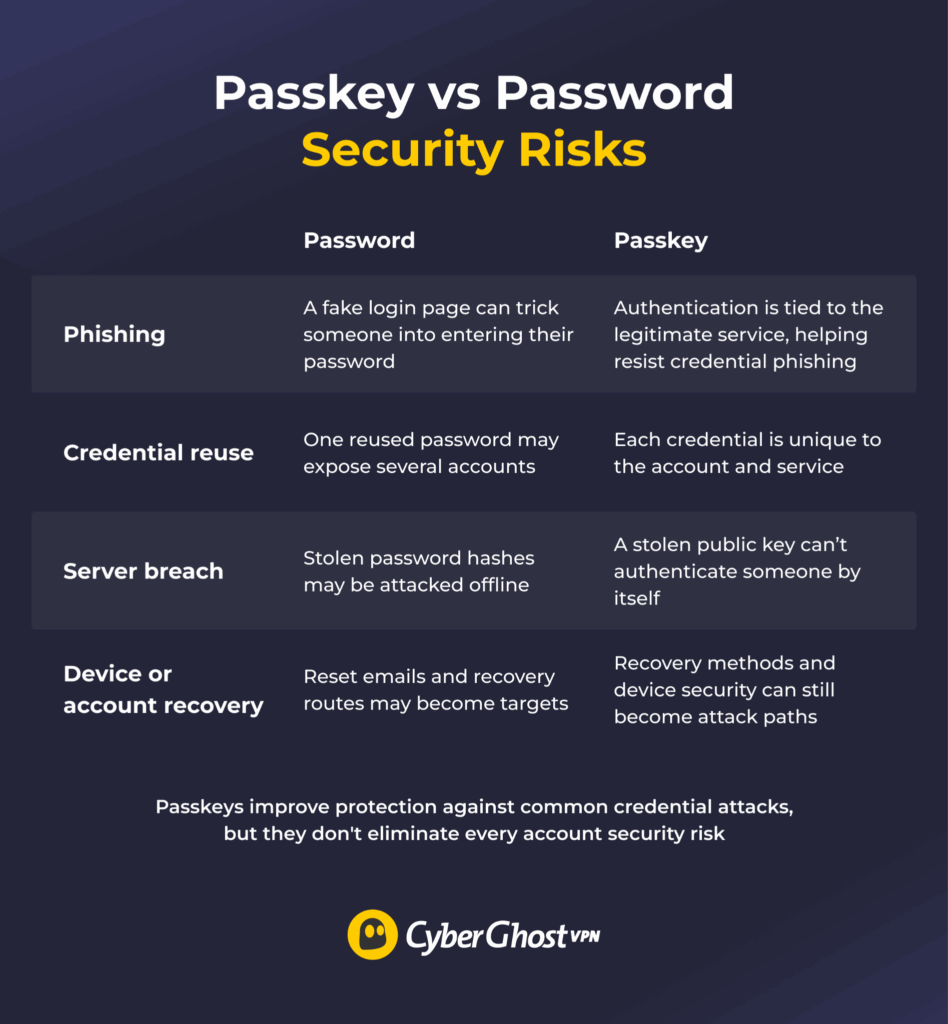
The biggest security differences appear in phishing, credential reuse, and the impact of a breached login database.
Phishing and Fake Login Pages
A fake login page with design, branding, and a URL similar to the real service can trick users into entering their password. Once someone submits the password, an attacker can try it on the legitimate account.
Password managers help reduce this risk because they usually won’t autofill credentials on a lookalike domain. That adds a useful warning, though someone can still type the password manually or hand it over during a social-engineering scam.
Passkeys work differently. They’re tied to the service or domain where they were created, so the authenticator won’t produce a valid response for an unrelated site. That makes passkeys resistant to credential phishing, though it doesn’t make every account threat disappear.
Passkeys can also change how multi-factor authentication works. A passkey may combine possession of a registered authenticator with local verification through a PIN or biometric, so the login can provide more than one authentication factor without asking for a separate code.
Services may still require another check for recovery, device enrollment, or sensitive account changes. Passkeys also won’t prevent session theft, recovery scams, malicious support interactions, or malware running on a trusted device.
Credential Reuse, Brute Force, and Server Breaches
Password reuse creates one of the biggest weaknesses in password-based accounts. If attackers obtain a password from one breach, they can test it across email, shopping, social media, and other services. This automated process is known as credential stuffing.
Weak passwords may also be guessed or cracked, while stolen password hashes can be attacked offline. Long, unique passwords generated by a password manager reduce those risks considerably. They are still vulnerable to phishing attacks, however, because they remain reusable.
Passkeys avoid reuse by design. Each credential is created for a specific account and service. The service stores the public key, while the private key remains securely stored by the credential provider. A stolen public key can’t authenticate someone on its own.
That doesn’t make a breached service harmless. Attackers may still obtain personal data, active session information, recovery details, or access through implementation flaws. Passkeys reduce the value of stolen authentication data, but they don’t protect everything the service stores.
Device Theft, Fallbacks, and Account Recovery
Losing a phone or laptop doesn’t automatically expose every passkey stored on it if the device remains properly locked. An attacker usually still needs to unlock the device or pass the local verification step, such as a PIN, fingerprint, or face scan.
The risk increases if the device itself is compromised or protected by a weak unlock method. Synced passkeys also make the credential provider account more important, as it may control access across multiple devices.
A weak fallback password or account-recovery process can undermine a strong login method. Some services keep the password active after a passkey is added. Attackers may target that route instead. Email reset links, recovery codes, security questions, and support-assisted verification can also become easier ways into the account.
Check whether the account retains a password, how recovery works, and whether you can revoke a passkey from a lost device. These alternative routes matter just as much as the normal sign-in flow.
Password vs Passkey: Which Is More Convenient?
Passkeys usually make everyday sign-ins quicker. Passwords often feel more familiar and work across a wider range of devices and services, so convenience depends on what happens before, during, and after login.
Password Convenience
Passwords are widely supported and easy to use on almost any device. Most people already understand the flow, and recovery usually follows a familiar path through email, security checks, or a reset link. A password manager can fill credentials automatically, so you don’t need to memorize dozens of logins.
Even with that help, passwords still bring a few common frustrations. Typos, forgotten credentials, password reuse, reset loops, and extra MFA steps can all slow things down.
Passkey Convenience
Passkeys are one form of passwordless authentication. “Passwordless” is the broader category, covering any sign-in method that doesn’t ask for a traditional password. Sign-in usually involves approving a prompt with a PIN, fingerprint, face scan, or another device-unlock method. This can feel smoother, especially on devices already set up for biometric or PIN access. You don’t need to create, remember, or enter a password, and repeat sign-ins are often faster.
The rough edges tend to appear during setup and recovery. Different services use different wording, and some make it unclear where the passkey is stored or what happens after a device change. Easier daily sign-in doesn’t always mean easier recovery. Losing a trusted device may leave you dependent on backups or the credential provider.
Using Passkeys Across Devices and Ecosystems
Passkeys can work across phones, tablets, and computers, but the experience depends on where the credential is stored and which devices you use. The smoothest setup usually happens when your devices share the same credential provider. Mixed ecosystems can still work, though they may need extra steps.
Synced vs Device-Bound Passkeys
Synced passkeys are stored through a credential provider and made available across trusted devices. That makes sign-in easier after switching phones or adding a new laptop, since the passkey can appear once the user signs in to the same provider account.
Device-bound passkeys stay tied to a particular authenticator, such as a hardware security key or a specific device. They offer tighter control in some higher-assurance environments, though they also demand more careful backup planning. A synced passkey may be securely copied through the provider’s sync system. It still isn’t disclosed to the website during authentication.
The trade-off is that synced passkeys usually improve convenience and recovery. Device-bound passkeys may offer stronger control in certain situations, but losing the only registered authenticator can make recovery harder.
Cross-Device Sign-In and Mixed Ecosystems
A phone can sometimes approve a login on another device through a QR code or nearby-device prompt. That doesn’t mean the passkey is copied or saved on the second device. Syncing a passkey and using one device to approve a login on another are two different processes.
Passkeys often work best within one ecosystem. Mixed Apple, Android, Windows, and browser setups may need additional prompts, QR scans, or help from a third-party credential manager. Older devices, unsupported browsers, and services without passkey support may still fall back to passwords.
Standards for transferring credentials between providers are emerging, though support still varies. Before relying heavily on passkeys, check how your credential manager handles transfer, export, and account recovery.
What Happens If…?
- You lose your phone: Use another synced device, a backup authenticator, or the service’s recovery process.
- You replace your phone: Synced passkeys may return after you sign in to the same credential-provider account.
- You use a public or shared computer: Choose the option to use a passkey from another device, then approve the login on your phone. Avoid saving a new passkey on the shared computer.
- You lose access to your credential provider: Use another registered authenticator or the service’s recovery process. This is why important accounts need a backup route.
- You switch ecosystems: Check whether your credential manager supports transfer or cross-platform access before retiring your old devices.
When Should You Use a Passkey or Password?
A passkey usually makes sense when you use trusted personal devices, have another way to recover access, and understand whether the account keeps its password fallback.
A password may remain more practical when:
- Passkey support is unreliable: The service, browser, operating system, or device doesn’t handle passkeys consistently.
- You regularly use shared devices: Saving a personal passkey on a device other people control may be inappropriate.
- Recovery is unclear: You can’t confirm what happens if every trusted device becomes unavailable.
- You can’t register a backup: Losing one device could leave you dependent on a difficult support process.
When you still need a password, store a long, unique one in a password manager and add stronger multi-factor authentication where available.
How to Start Using Passkeys Without Losing Access
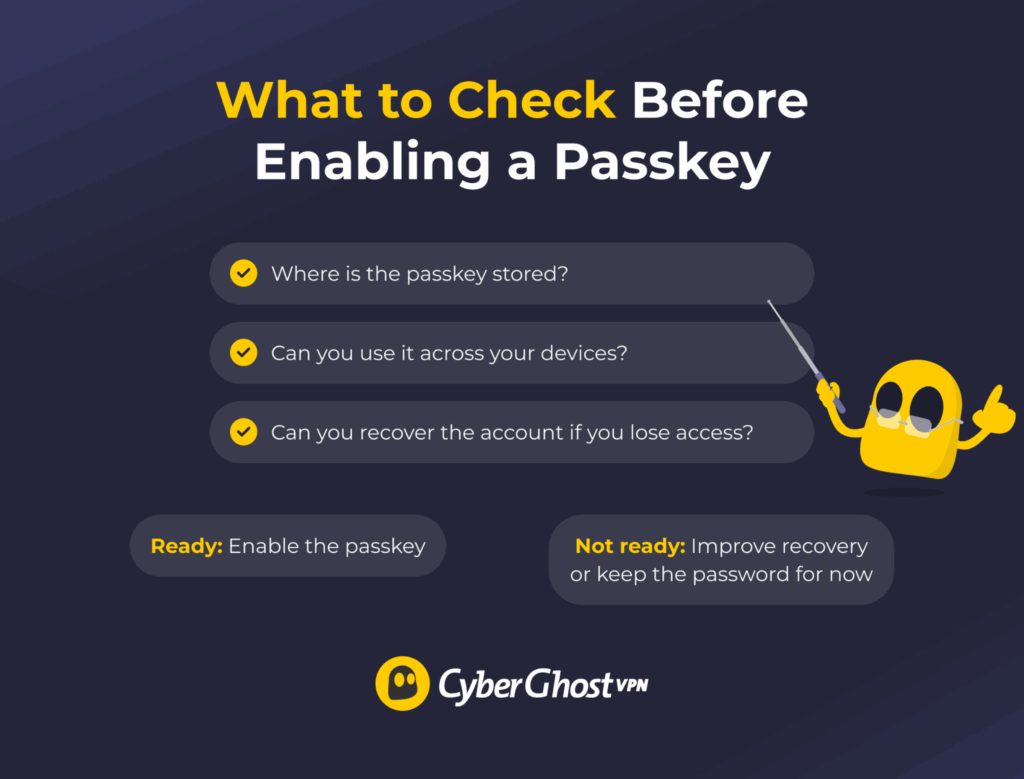
Once you’ve chosen an account, check its storage, backup, and recovery options before relying on the passkey. Use this checklist before making the switch:
- Check where the passkey is stored: Find out whether it syncs across devices or stays tied to one authenticator.
- Confirm the recovery process: Check what happens if you lose every trusted device.
- Add a backup method: Register another device, hardware authenticator, or recovery code where available.
- Review password fallback: Strengthen or remove the old password if the service allows it.
- Secure the credential-provider account: Remember that it may control syncing and restoration across several devices.
- Keep managing remaining passwords: Use unique credentials and MFA on accounts that don’t support passkeys yet.
- Remove obsolete passkeys: Revoke credentials linked to lost, replaced, or retired devices when the service provides that option.
Test the passkey before relying on it completely. Sign out, use it to return, and confirm that a backup device or recovery route also works. Remove an old password or authenticator only after you know the new setup won’t lock you out.
How to Protect Accounts That Still Use Passwords
Passwords will remain part of everyday account security for a while, so the goal is to make each one as hard to misuse as possible. Start with the basics:
- Use a unique password for every account: Reusing the same one can let a single breach affect several services.
- Choose long passwords or generated credentials: Length matters more than swapping letters for predictable symbols.
- Store them in a reputable password manager: This reduces memory pressure and makes unique credentials easier to maintain.
- Turn on stronger MFA where available: A hardware security key or another phishing-resistant method usually offers better protection than SMS.2
- Protect your recovery email: Password resets often depend on it, so use a strong sign-in method there too.
- Change exposed or reused passwords quickly: Don’t wait for suspicious activity if you already know a credential has leaked.
Don’t change passwords on a fixed schedule unless a service or workplace policy requires it. Update a credential when there’s evidence of compromise or when you know it has been reused.
These steps won’t give passwords the same phishing resistance as passkeys, but they can reduce common risks while passkey support continues to expand.
Is It Better to Use Passkeys or Passwords?
Passkeys are the better choice when they’re available and backed by a reliable recovery method. They remove the reusable secret that makes passwords vulnerable to credential stuffing and many phishing attacks, while also making everyday sign-ins quicker. Passwords aren’t disappearing yet, though. For accounts that still require them, use long, unique passwords stored in a password manager and protect important accounts with strong MFA.
The best approach is a combination: use passkeys where they’re well supported, secure any remaining passwords, and make sure you always have a safe way to recover your accounts. As passkey support improves across services and devices, you can gradually rely less on passwords without risking unnecessary lockouts along the way.
Strong authentication protects your accounts, but your internet connection needs protection too. CyberGhost VPN encrypts traffic routed through the VPN tunnel and masks your public IP address by replacing it with the VPN server’s IP. It also includes DNS leak protection and an automatic kill switch to help prevent your traffic from accidentally escaping the encrypted tunnel.
FAQ
What is the difference between a passkey and a password?
A password is a reusable secret that you enter or autofill. A passkey uses cryptography to prove that you control a trusted credential without sending a reusable secret to the service. You usually approve the login with your device PIN, fingerprint, face scan, or screen lock.
Are passkeys more secure than passwords?
Usually, yes. Passkeys offer stronger resistance to credential phishing and password reuse because each credential is tied to a specific service. Their real-world strength still depends on device protection, fallback passwords, and account recovery. A weak recovery route can undermine a strong login method.
Can passkeys replace passwords?
Passkeys can replace passwords on accounts that support fully passwordless sign-in. They can’t replace them everywhere yet, since many services still rely on passwords, older devices, or password-based recovery. Some accounts also keep the original password active after a passkey is added. Most people will use both methods for some time.
Do passkeys work on all devices?
No. Support depends on the device, browser, operating system, credential provider, and the service itself. Some passkeys sync across trusted devices, while others stay tied to one authenticator. A phone can also approve a login on another nearby device without saving the passkey there.
Should I switch from passwords to passkeys?
Yes, where support and recovery options are clear. Start with important accounts, confirm where the passkey is stored, and make sure you have another way back in if a device is lost. Keep strong, unique passwords with MFA for services that don’t support passkeys yet.

Leave a comment