
Downloading an app takes seconds. Deciding whether it deserves access to your device and data takes a little more care. A polished listing, strong rating, or familiar-looking icon can seem convincing, but each one gives you only part of the picture. An app can be legitimate without being privacy-friendly, and a legitimate app can still contain security vulnerabilities.
When downloading an unfamiliar app, consider multiple aspects rather than relying on a single signal. Look at its source, developer, permissions, maintenance, privacy practices, and security warnings. This guide explains how to check if an app is safe before downloading it, spot warning signs after installation, and respond if something seems wrong.
60-Second App Safety Check
You don’t need to investigate every app like a security researcher. A quick first pass can tell you whether it deserves a closer look.
- Proceed if: The app comes from a recognized source, the developer details match, its permissions make sense, and your device shows no warnings.
- Investigate if: The developer is unfamiliar, updates are infrequent, reviews raise concerns, or important privacy information is missing.
- Skip if: The publisher details conflict, the app requests unrelated access, or it asks you to bypass a security warning.
When you’re unsure, pause before downloading. A built-in device feature, browser version, or better-established alternative may offer the same function with less access. If the app passes this initial check, you can take a closer look at its developer, permissions, privacy practices, and security history before installing it.
8 Checks to Run Before Installing an App
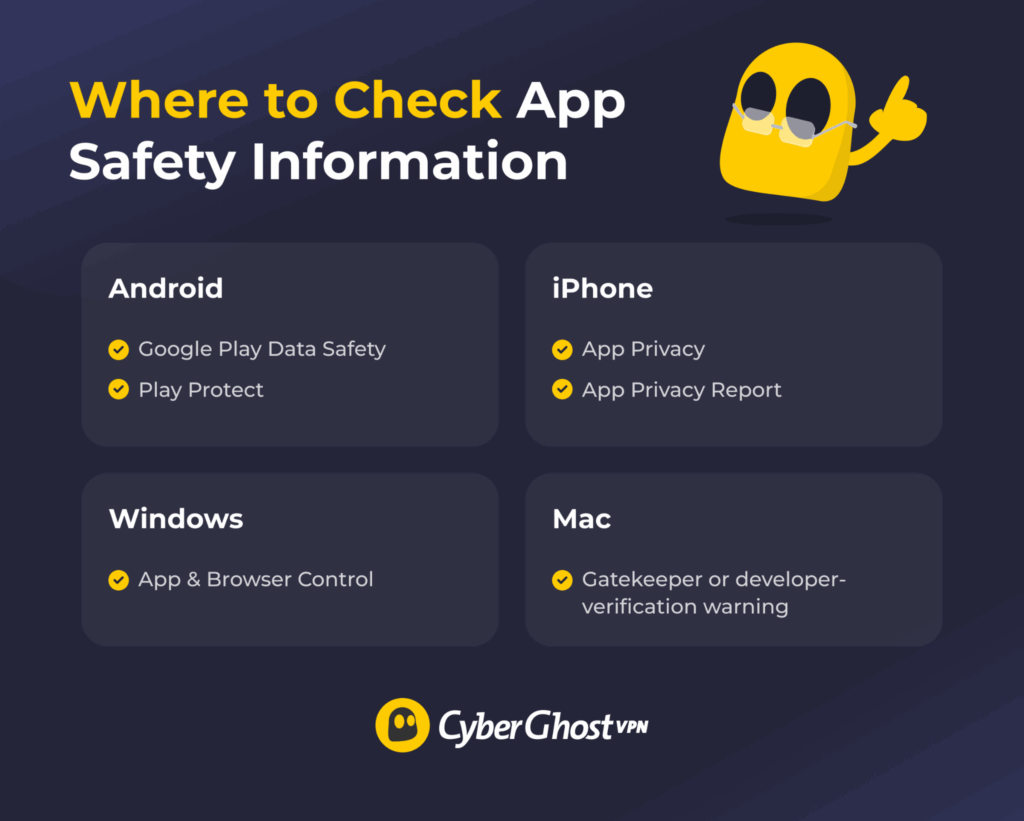
Start with where the app comes from, who made it, and whether the developer still supports it. These checks usually take only a few minutes and can expose obvious problems before the app reaches your device.
1. Download from a Trusted Source
Start with your device’s official app store or the developer’s verified website. Official app stores usually provide additional screening and security protections, while a verified developer website can help you confirm that you’re downloading from the legitimate source. However, those checks don’t guarantee that every app is harmless.
Be cautious when a download link arrives through an unsolicited message, pop-up, online ad, or unfamiliar website. Search for the app yourself in the official store or type the developer’s web address into your browser rather than following the link. Some legitimate developers distribute software outside official stores. In those cases, check the website, publisher, file signature, and installation warnings more carefully because fewer platform protections may apply.
2. Verify the App and Developer Names
Fake apps often rely on small differences that are easy to miss. A copied icon, altered spelling, or unfamiliar publisher name may make an imitation look convincing at first glance. Compare the listing with the developer’s official website and check:
- The exact app and publisher names
- Whether the domain is correct
- Whether the website links to the same store listing
- Whether the listing includes working support details
- Whether the screenshots, branding, and description are consistent
- Which other apps appear under the developer’s account
A publisher offering a large mix of unrelated, copied, or inadequate apps deserves closer scrutiny. The same applies when a familiar-looking app uses a developer name you don’t recognize.
3. Check the Update and Support History
Recent updates can be a sign that the developer still maintains the app and responds to technical or security issues. Review the last update date, version history, and release notes before installing it. Useful release notes should explain what changed, even briefly. A functioning support website and thoughtful responses to recurring complaints also suggest that the developer remains involved.
An older app isn’t automatically harmful. Some simple tools need fewer updates than complex services. Still, software that hasn’t changed in years may carry unresolved bugs, work poorly with newer operating systems, or lack current protections. Treat a long period of inactivity as a reason to investigate rather than an automatic rejection.
4. Read Reviews Without Trusting the Star Rating Alone
A high rating can look reassuring, but the reviews underneath it often tell a more useful story. Start with the newest comments, then read a mix of positive, negative, and middle-rated feedback. Pay attention to repeated complaints about unexplained charges, new permission requests, redirects, account problems, or features that don’t match the listing. Several reviews describing the same issue are more meaningful than one frustrated review.
The reviews themselves can also raise questions. Vague praise, nearly identical wording, or a sudden burst of five-star comments may suggest manipulation. Download numbers and ratings can help you judge an app’s track record, though they don’t prove the app handles data responsibly or contains no harmful code.
5. Check Whether Its Permissions Match Its Purpose
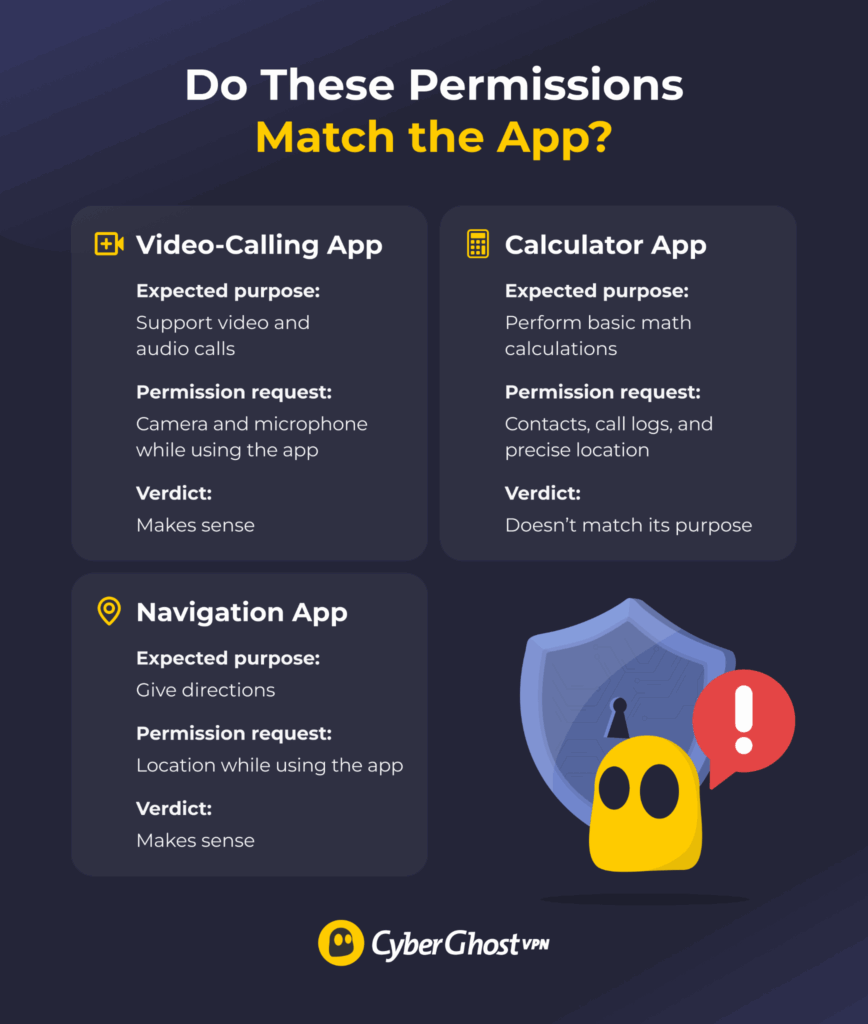
An app’s requested access should support a feature you intend to use. A navigation app may reasonably need your location, while a video-calling app may need your camera and microphone. A basic calculator has little reason to request contacts, call logs, or precise location. Take extra care when an app asks for:
- Contacts, messages, or call logs
- Camera, microphone, or precise location
- Photos, files, or access to local network devices
- Accessibility features or other elevated device access
Consider the timing and scope of each request, too. An app may only need location access while you’re using it or access to selected photos. You can often deny a permission initially and enable it later if a feature requires it. Accessibility and administrator access deserve the closest attention because they can give an app much broader control over your device. Approve them only when the request matches the app’s main purpose.
6. Compare the Privacy Label with the Privacy Policy
The privacy label gives you a quick overview, while the policy explains what may happen to your data in more detail.
On Google Play, review what the app says it collects or shares, why it needs that information, whether it encrypts data in transit, and whether it provides an account or data-deletion option. On Apple platforms, check whether the developer says data may be linked to you, used for tracking, or collected without being connected to your identity.
Developers provide these store disclosures themselves, so treat them as useful summaries rather than independent verification. Read the full policy when an app handles financial details, health information, identity documents, or precise location data. Vague descriptions, unclear retention periods, broad data-sharing terms, or no obvious deletion process deserve a closer look.
7. Research the Developer Beyond the App Store
A quick search can reveal whether the developer has a credible presence beyond the app listing. Look for an official website with working support details, prominent company information, and links that lead back to the same store page.
Search beyond the developer’s own website to see what independent sources have reported. Check whether the developer has faced previous security incidents, complaints about impersonation, or concerns about unexplained data use. A past incident doesn’t make an app untrustworthy. How quickly and openly the company responded may tell you more than the incident itself.
For open-source apps, active development, recent releases, and visible responses to reported issues can add confidence. An independent audit may help too, especially when it covers the current version or the same underlying code. Use those details alongside what you’ve already learned from the app’s permissions, updates, and privacy information.
8. Pay Attention to Security Warnings and Scans
Don’t dismiss a warning because you want the app. Your device may flag an unfamiliar publisher, a modified installer, harmful behavior, or a download page with a poor reputation. Take these warnings seriously:
- Google Play Protect alerts
- Windows reputation or publisher warnings
- macOS developer and notarization alerts
- Antivirus detections
- Browser warnings about the download page
For an APK or desktop installer, a multi-engine malware scanner can offer another useful signal. Treat the result as supporting evidence. A clean scan can’t confirm the file is harmless, especially if the threat is new or only activates under certain conditions.
Think carefully before uploading files to a public scanning service. VirusTotal, for example, says that it shares reports with its community and examining partners, while submitted file contents may also be available to premium customers.1 Avoid uploading confidential, proprietary, or sensitive files.
How to Check an App on Android, iPhone, Windows, and Mac
The checks above apply across platforms, but each operating system provides different built-in tools for reviewing apps, permissions, and security warnings. Their names and menu locations may change between software versions or device manufacturers.
| Platform | Where to Check | What to Look For |
| Android | Google Play listing/Play Protect | Data Safety information/harmful app warnings |
| iPhone | App Store/App Privacy Report | App Privacy details/actual data access |
| Windows | App & Browser Control | Reputation-based protection/ download warnings |
| Mac | Gatekeeper | Developer and notarization warnings |
Android
Start with the app’s Google Play listing, then use Play Protect and Android’s privacy controls for a closer look. Google Play Protect checks Play Store apps before download and periodically scans installed apps, including software from other sources. It may warn you about, disable, or remove an app when it detects potentially harmful behavior.
Open the Google Play Store, tap your profile icon, and select Play Protect to review its status and settings. You can also open Settings > Security & privacy > Privacy dashboard on supported Android versions to see which apps recently accessed your camera, microphone, location, or other permissions.
Menu names may vary by Android version and device manufacturer. Take extra care if Play Protect warns about an app, recommends additional scanning, or blocks an unverified app that requests sensitive permissions targeted in fraud.
iPhone and iPad
The App Store listing helps you review an app before installation, while App Privacy Report gives you visibility into some of its behavior afterward. Check the developer, version history, and App Privacy section. In regions where Apple supports alternative app distribution, review the marketplace or developer source. These apps undergo Apple’s baseline notarization process, but they don’t receive the full App Store review.2
After installation, go to Settings > Privacy & Security > App Privacy Report and turn the feature on. It records how often apps access data such as your location, camera, microphone, and contacts. It also shows network activity and the domains each app contacts.
App Privacy Report begins collecting information only after you enable it, so you may need to use the app for a while before useful details appear. Unexpected access doesn’t always indicate harmful behavior, but it gives you a reason to revisit the app’s permissions and purpose.3
Windows PC
Windows Security can help you assess downloaded installers, unfamiliar publishers, and potential unwanted software. Open Windows Security > App & browser control to review reputation-based protection, Microsoft Defender SmartScreen, and Smart App Control where available.
SmartScreen evaluates websites and downloads using reputation data, while Smart App Control can block malicious, untrusted, or unwanted apps on supported Windows 11 systems. You can also right-click a signed installer, open Properties, and look for the Digital Signatures tab. A valid signature helps confirm the publisher and whether the file has changed since signing. An unsigned file isn’t harmful, but it gives you less evidence about its origin.4
Mac
Gatekeeper checks downloaded software before it opens for the first time. For apps distributed outside the Mac App Store, macOS checks whether Apple has identified the developer and notarized its distribution, as well as whether there were any changes since signing.
Apple’s notarization process checks submitted software for known malicious content. This adds a useful screening layer, though it doesn’t guarantee that an app has no vulnerabilities or questionable data practices.
Be cautious with the Open Anyway option under System Settings > Privacy & Security. It makes an exception to Gatekeeper’s normal protection for the app. Use it only after confirming the developer and downloading the source. An app that asks you to disable protections or run unexplained Terminal commands deserves further investigation.
Warning Signs an Installed App May Be Causing Problems
The FTC lists persistent pop-ups, slow performance, unexpected redirects, and unfamiliar browser add-ons among common malware warning signs. A single symptom still doesn’t confirm malware.
| Warning Sign | What It May Look Like |
| Unexpected pop-ups or redirects | Ads, browser pages, or download prompts appear outside the app or while you’re doing something else. |
| Unexplained permission use | The app accesses your camera, microphone, location, contacts, or files when its features don’t seem to require them. |
| Sudden battery or data usage | The app begins consuming much more power, mobile data, or background activity than expected. |
| Frequent crashes or slowdowns | Your device starts lagging, overheating, or behaving unpredictably soon after installation. |
| Unknown apps or settings | New apps, browser extensions, accessibility services, administrator permissions, or configuration profiles appear without your approval. |
| Possible account compromise | You receive unfamiliar login warnings, password-reset emails, subscription notices, or charges. |
| Difficult removal or disabled protections | The app resists uninstallation or pressures you to disable antivirus software, Play Protect, Gatekeeper, or other device protection. |
Battery use can rise after an operating system update, while a badly designed app may crash without containing harmful code. Pay closer attention when several symptoms appear together, or the timing points to a recent installation. Review the app’s permissions and background activity in your device settings. Access that continues without a clear reason may help you identify the source of the problem.
What to Do If You Installed a Suspicious App
Act quickly and stay calm. These steps can help cut off the app’s access and protect any accounts or information it may have reached:
- Stop using the app: Close it and avoid entering more passwords, payment details, or personal information while you investigate.
- Revoke elevated access and uninstall it: Disable any accessibility, administrator, or device-management access you granted the app, then uninstall it. Review and revoke other sensitive permissions if the app remains installed while you investigate.
- Run built-in security checks: Scan the device using Play Protect, Windows Security, or another reputable security tool available for your operating system.
- Update the device and remaining apps: Install available operating system and app updates. These may address vulnerabilities that the suspicious app could have attempted to exploit.
- Protect affected accounts: From a trusted device, change any password you entered into the app and sign out of all other sessions. Use a unique replacement, enable multi-factor authentication where available, and review recent login and payment activity. If you entered payment or banking information, contact your financial institution or card issuer if you notice suspicious activity.
- Remove remaining accounts or subscriptions: Uninstalling the app may leave its account, stored data, or subscription active. Use the developer’s website or the relevant app-store settings to cancel unwanted charges and request account or data deletion.
- Report the app and escalate persistent problems: Report it through the app store or the platform’s official process. Seek professional support if redirects, unknown settings, or account alerts continue. On Android, Google says you may need to reset the device if signs of malware persist. Try the earlier removal steps first, back up essential files, and avoid restoring the suspicious app.
Don’t Let a Download Put Your Data at Risk
A few minutes of checking can save you a much longer cleanup later. Before installing an app, make sure its identity, requested permissions, and data practices match what it claims to do. If something doesn’t add up, look for a more trustworthy alternative. You might even find that a built-in device feature or your browser can do the same job without another download.
Even a legitimate app can send information over networks you don’t trust. CyberGhost VPN helps protect traffic routed through its encrypted tunnel, particularly when you’re using shared or public Wi-Fi. It also masks your public IP address from services reached through the VPN.
A VPN can’t make a suspicious app safe or stop it from collecting information you’ve given it permission to access. That’s why it’s worth combining CyberGhost VPN with careful app choices, sensible permissions, and your device’s built-in security features. Check what you’re installing first, then protect how you connect.
FAQ
How can I tell if an app is safe to download?
Check where the app comes from, who developed it, what permissions it requests, and whether its reviews, updates, and privacy information raise any concerns. Your device’s built-in warnings can provide another useful signal.
Is it safe to install apps from outside the official app store?
Some legitimate developers distribute software through their verified websites. However, downloads outside official stores may receive fewer platform checks. Confirm the website, publisher, file signature, and installation warnings before proceeding.
What app permissions should I be concerned about?
Pay particular attention to access involving your camera, microphone, precise location, contacts, messages, files, accessibility settings, or device administrator privileges. The request should support a feature you intend to use.
Can apps contain malware?
Yes. Attackers can introduce harmful code in imitation apps, modified installers, and occasionally software that they compromise after its release. Malware may steal information, change settings, display intrusive ads, or misuse sensitive permissions.
What should I do if I think I installed a malicious app?
Stop using the app, disable any elevated access it has, uninstall it, and run your device’s security checks. Change any password you entered into the app from a trusted device, sign out of other sessions, and review your accounts for unfamiliar activity.
Can an app be safe but still invade my privacy?
Yes, an app can be genuine and free from known malware while still collecting more data than you expect. Performing a few simple checks before downloading an app can help you avoid malware, but they can also help you understand what information an app collects and decide whether its data practices fit your expectations.
References:

Leave a comment