
Mobile hotspots have become a popular way to stay connected while traveling, working remotely, or avoiding crowded public networks. Since they use your mobile data connection instead of shared Wi-Fi, hotspots often feel more private and controlled than connecting to an open network in a café, airport, or hotel.
In many cases, they are safer than public Wi-Fi, but it doesn’t mean mobile hotspots are completely risk-free. Like any internet connection, they can still expose you to security issues if they aren’t set up or used carefully. In this article, we’ll break down how secure mobile hotspots really are, how they compare to public Wi-Fi, what risks to watch out for, and a few tips to make your connection safer.
What Is a Mobile Hotspot and How Does It Actually Work?
A mobile hotspot lets your phone or a dedicated device share its cellular internet connection with other devices. Instead of connecting to a traditional router, your laptop, tablet, or another gadget connects to your device as if it were a regular Wi-Fi network. Your phone acts as the middle point between those devices and the internet.
When you turn the hotspot on, your phone connects to your carrier’s mobile data network, such as 4G or 5G, and creates its own local Wi-Fi network. Other devices join it using a password. Their internet traffic passes through your phone, which sends and receives data through the cellular network.
The main difference from regular Wi-Fi is where the internet comes from. Home and public Wi-Fi rely on fixed routers connected to broadband internet, while a mobile hotspot relies on your phone, mobile signals, and data plan instead.
Are Mobile Hotspots Safer Than Public Wi-Fi?
Mobile hotspots are generally considered more secure than public Wi-Fi because they give you more control over the network. You decide when it’s active, who can connect, and what password is required. Public Wi-Fi, on the other hand, is usually shared among many users, which increases the chances of unauthorized access or malicious activity.
Hotspots also rely on cellular networks, which are typically encrypted. This adds a layer of protection that many public Wi-Fi networks may not offer. In public spaces like cafés or airports, Wi-Fi networks can sometimes have weak or misconfigured security settings, making them more vulnerable to threats like man-in-the-middle attacks, where attackers intercept data as it’s being transmitted.
Hidden Risks Most People Don’t Think About
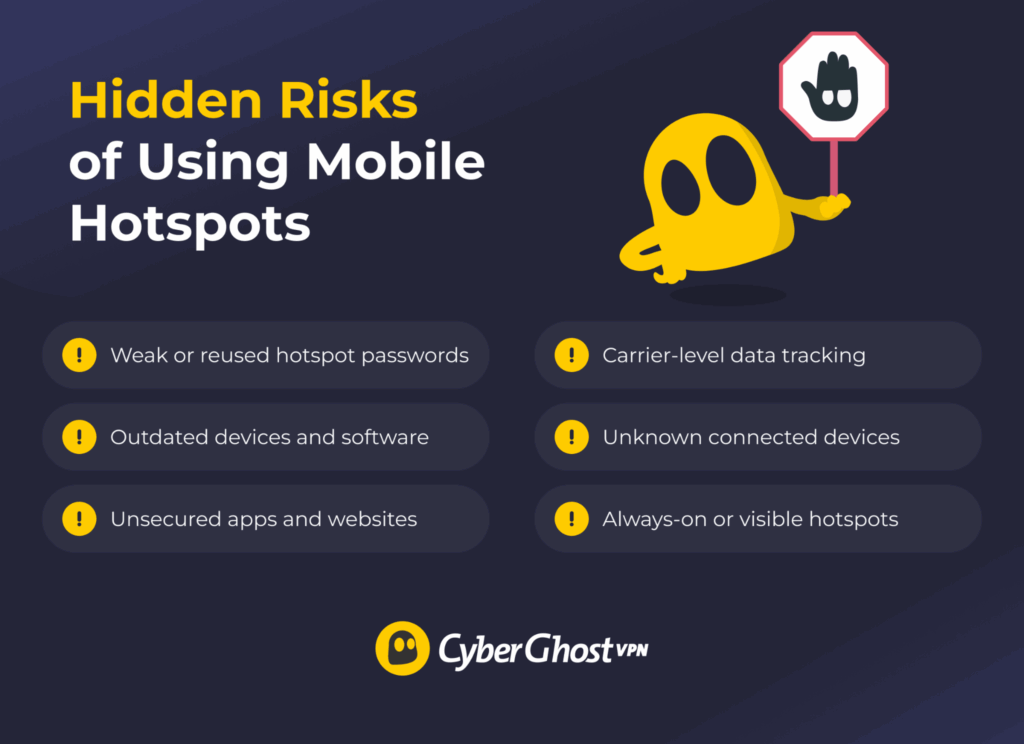
It’s easy to assume mobile hotspots are secure by default because they feel more private. However, they still come with risks that can be easy to miss:
- Weak or reused passwords: If your hotspot password is short or easy to guess, nearby users could potentially connect to your network without you realizing it.
- Outdated devices and software: Phones and hotspot devices still need security updates. Running outdated software can leave older vulnerabilities unpatched.
- Unsecured apps and websites: A hotspot protects the connection itself, but websites and apps still need proper encryption. If a site doesn’t use HTTPS, your activity may not be fully protected.
- Carrier-level data visibility: Your mobile provider still handles your traffic, so they can see details like the sites you visit and your data usage.
- Unknown connected devices: If you don’t monitor connections, someone could join your hotspot without being noticed, slowing your network and increasing risk.
- Always-on or discoverable hotspots: Leaving your hotspot on or visible makes it easier to find. The longer it stays active, the more chances for unwanted access.
Signs Your Mobile Hotspot Might Not Be Secure
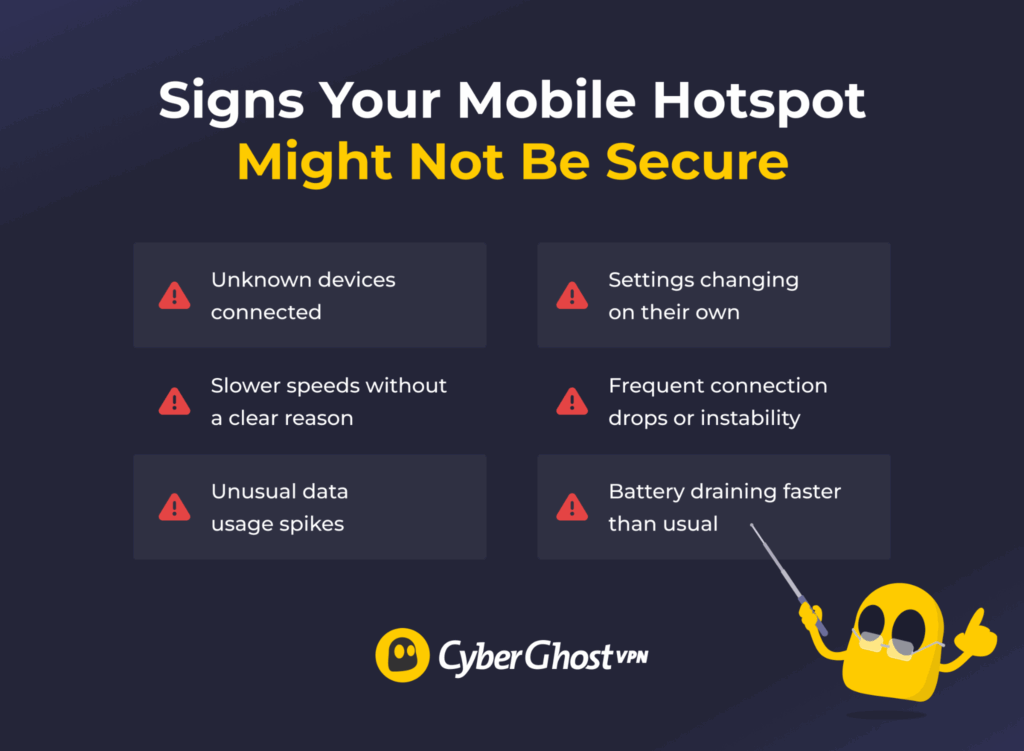
While not all issues are visible, there are some warning signs that something isn’t right with your hotspot or the devices connected to it:
- Unknown devices connected: If you see devices you don’t recognize in your hotspot settings, someone may have accessed your network without permission.
- Slower speeds without a clear reason: A sudden drop in speed can mean extra devices are using your connection, causing unexpected background activity.
- Unusual data usage spikes: If your data usage jumps even when you aren’t using it heavily, it could point to unauthorized access or apps sending data in the background.
- Settings changing on their own: If your hotspot name, password, or security settings change without you doing it, your device may be compromised.
- Frequent connection drops or instability: Random disconnects can sometimes signal interference, but they can also point to unwanted activity on your network.
- Battery draining faster than usual: Hotspots already use more power, but excessive drain may mean your device is handling more connections or activity than it should.
How to Make Your Mobile Hotspot More Secure
Use a Strong, Unique Password
Use a long password that combines letters, numbers, and symbols. Avoid common words, simple patterns, or anything linked to you, like your name or birthday. It’s also important not to reuse passwords from other accounts. If one gets exposed, your hotspot becomes an easy target too. If you’ve never changed your default hotspot password, now’s a good time. Set up something unique and update it regularly, especially if you’ve shared access with others before.
Switch to WPA3 or Stronger Encryption
Encryption protects data as it moves between your devices and your hotspot. If it’s weak, others nearby may be able to intercept or read parts of your traffic. That’s why the type of encryption your hotspot uses matters.
Most modern devices support WPA2 or WPA3, which is the newer and more secure option. It offers stronger protection against password-guessing attacks and makes unauthorized access more difficult, even for people nearby. If your device supports it, switch to WPA3. If not, use WPA2 with a strong password. Avoid older standards like WEP or open networks with no password. These offer little to no protection and can expose your data.
Please be aware the exact steps may vary depending on your phone model and operating system version, but the settings are usually found in your hotspot or network settings. Here’s how to check and update your encryption settings:
- Go to Settings and tap Connections.
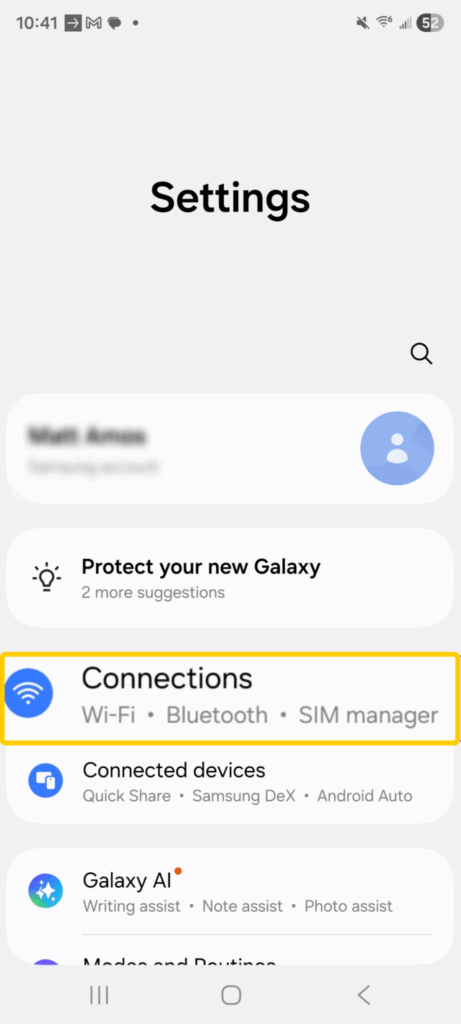
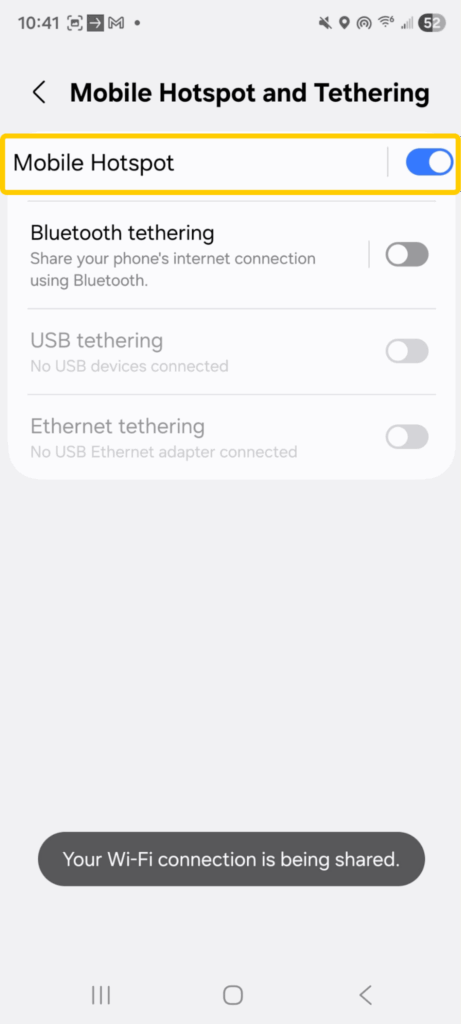
- Tap Mobile Hotspot and Tethering.
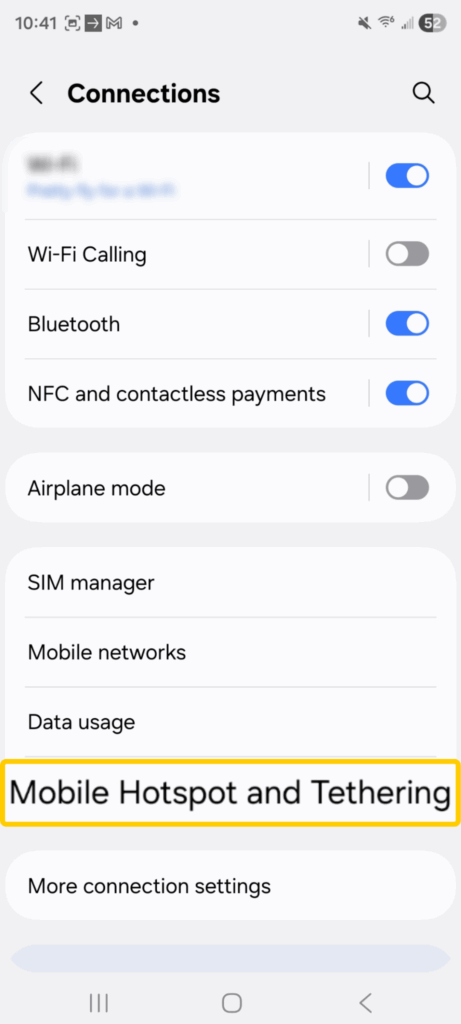
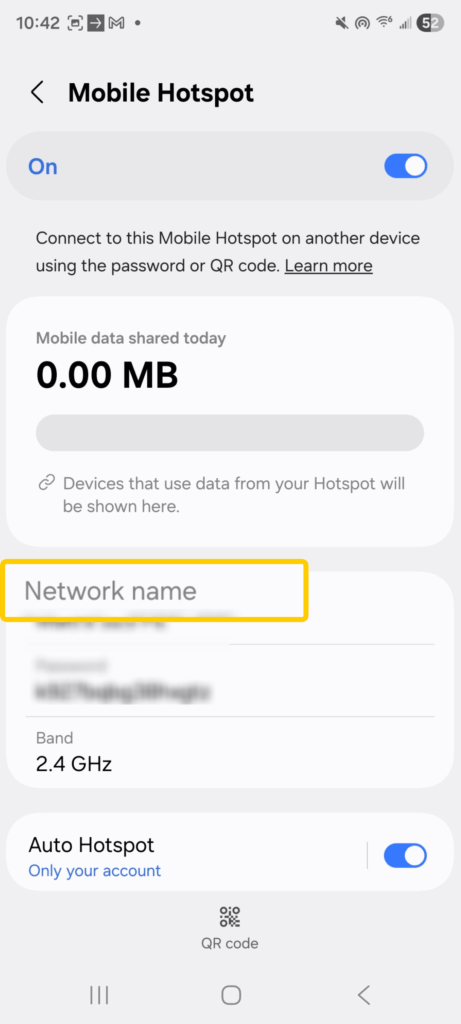
- You can toggle Mobile Hotspot on if you plan to use it. Then, tap Mobile Hotspot to access more settings.
- Tap Network Name to open a new window.
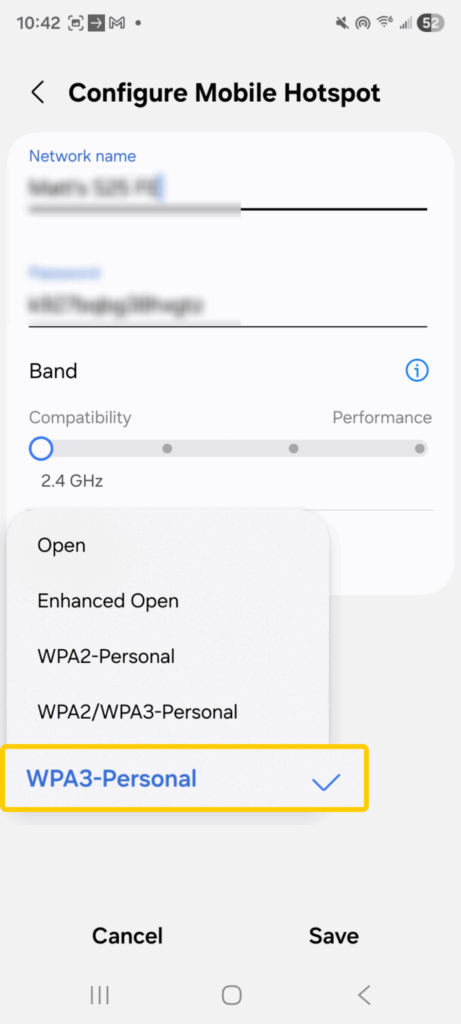
- If available, choose WPA3 as your security type. If it isn’t listed, select WPA2.
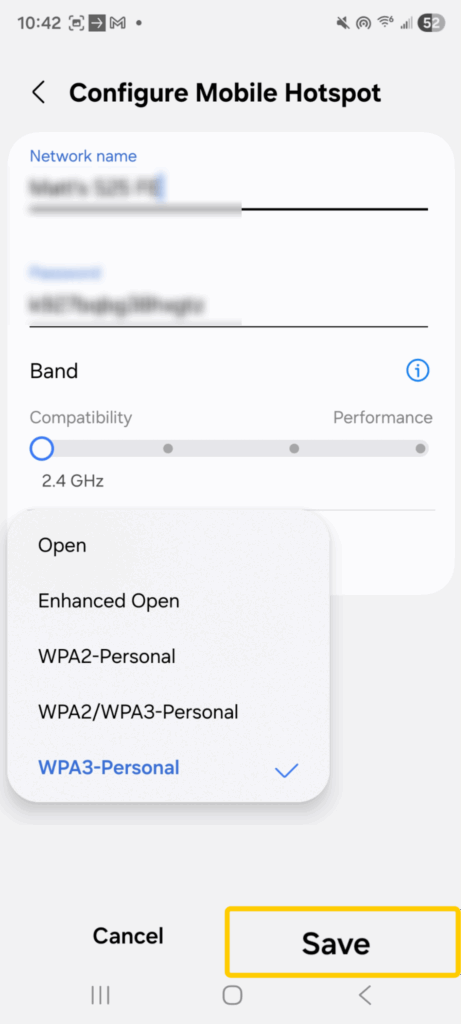
- After updating, make sure to tap Save if it’s an option. It’s also a good idea to reconnect your devices to apply the new settings.
Turn Off Your Hotspot When Not in Use
Make it a habit to switch off your hotspot as soon as you’re done using it. The longer it stays active, the more time others have to find it and try to connect. Even with a password, it’s better to reduce that window as much as possible.
Turning it off also helps you stay in control of who’s connected. It prevents unknown devices from reconnecting automatically and keeps your network private when you don’t need it. As a bonus, it saves battery and data.
Use a VPN for Extra Security
A mobile hotspot helps keep strangers off your network, but it doesn’t make your online activity completely private. Your mobile provider still handles your traffic, and the websites or apps you use can still collect data about your activity and location.
A VPN like CyberGhost VPN adds a layer of privacy by encrypting your internet traffic, which helps prevent others from easily seeing what you do online. It also masks your IP address by routing your connection through a VPN server, making it harder for websites and services to directly identify your real network or location. That can be especially useful when accessing sensitive accounts, working remotely, or browsing while traveling.
Limit Connections and Monitor Devices
Limiting connections and regularly checking which devices are connected to your hotspot can improve your security. Each extra connection increases the risk of unwanted access or unsafe activity, especially if you’ve shared your hotspot password before. Most phones let you review connected devices, remove unknown users, and limit how many devices can connect at once.
Open your hotspot settings and look for sections labeled Connected Devices, Client Devices, Device Management, or similar. You should be able to see which devices are currently using your hotspot. If you notice anything unfamiliar, disconnect it if possible and update your hotspot password to prevent it from reconnecting.
Many phones also let you set a maximum number of connected devices. Lowering the limit can reduce unnecessary connections and make your hotspot easier to manage, especially in public places or while traveling.
Keep Your Phone Updated
If your phone has unpatched security flaws, your hotspot traffic may be more exposed. Updates fix known vulnerabilities that attackers can exploit, so skipping them leaves your device exposed. Turn on automatic updates or check for them regularly in your settings. This includes system updates and app updates. Keeping everything current helps close security gaps and keeps your hotspot running as safely as possible.
Are Mobile Hotspots Secure Enough to Use?
Mobile hotspots are often more secure than public Wi-Fi, but they aren’t a complete solution on their own. You’re still responsible for how your network is set up, who connects to it, and how you use it. Small oversights can create gaps that put your data at risk, especially during everyday tasks like browsing, working, or logging into accounts.
If you want to close those gaps, a VPN can help. CyberGhost VPN encrypts your traffic and routes it through a secure server network, which adds more privacy across networks. It’s an easy upgrade to your security setup, whether you’re working, browsing, or traveling. You can test it out with a 45-day money-back guarantee (14 days for monthly users).
FAQ
Are public Wi-Fi hotspots safe to use?
Public Wi-Fi hotspots can be convenient, but they’re usually less secure than using your own mobile hotspot or a trusted home network. Some public networks are unsecured or poorly configured, which can make it easier for others on the network to intercept data or set up fake hotspots that imitate legitimate ones. If you need to use public Wi-Fi, it’s best to avoid accessing sensitive accounts unless the connection is protected. Using HTTPS websites, enabling MFA, and connecting through a VPN can help add extra privacy and security while you’re online.
What risks are associated with unsecured hotspots?
Unsecured hotspots expose your data to several risks. Attackers can intercept your traffic, steal login credentials, track your activity, or inject malicious content. They can also create fake hotspots that look legitimate to trick you into connecting. Without encryption, anything you send or receive may be visible to others on the network.
Can hackers spy on activity over public Wi-Fi?
Yes, cybercriminals may be able to spy on activity over public Wi-Fi if it’s unsecured or poorly protected. If a website or app doesn’t properly encrypt its traffic, someone on the same network may be able to intercept data like browsing activity or login details. In some cases, attackers also use techniques like fake hotspots or man-in-the-middle attacks to try to capture sensitive information.
Are mobile hotspots safer than public Wi-Fi networks?
Yes, mobile hotspots are generally safer than public Wi-Fi networks because you control access and they use cellular encryption. However, they aren’t completely risk-free, and weak passwords, outdated devices, or unsafe browsing can still expose your data.
How can you protect your data when using hotspots?
Protect your data by using a strong, unique hotspot password, enabling WPA2 or WPA3 encryption, and keeping your device updated. Limit who can connect, turn off your hotspot when not in use, and avoid accessing sensitive accounts without extra protection. For added privacy, use a VPN to encrypt your traffic and reduce exposure on hotspot connections.

Leave a comment