
Nothing kills the mood faster than getting kicked out of a match or seeing “NAT Type Failed” on your PS5 screen. You just want to play with friends, join party chat, or jump into a quick online game. Instead, you’re stuck dealing with connection errors, long matchmaking times, or players you simply can’t connect to.
If your NAT type is set to strict or not configured properly, it can block you from enjoyable online gaming. The good news is you can check your NAT type on PS5 in minutes and often fix it without calling your internet provider. Here is how to see your NAT type and change it for a better gaming experience.
What Is NAT Type on PS5 and What Does It Do?
Your Network Address Translation (NAT) type is set by your router and network setup. It controls how your PS5 connects to the internet. NAT translates your home’s private IP address into a public IP address so you can play online.
When you’re gaming, PS5 games may use dedicated servers or P2P connections where one player acts as the host. In those cases, NAT type matters more. Your NAT type affects how easily you connect to game servers, use voice chat, and join other players. A strict NAT can cause connection problems or limit your access to other players. A more open NAT usually means better compatibility and smoother online gaming.
NAT Types
PlayStation uses three NAT types to describe how open or restricted your network connection is. These NAT types describe how your router handles incoming connections to your PS5.
- NAT Type 1 (open): Your PS5 connects to the internet without a router in between. This setup allows unrestricted communication with other players and servers, but it’s uncommon and poses security risks for most home networks.
- NAT Type 2 (moderate): Your PS5 connects to the internet through a router, but the necessary ports are open. This is the most common and preferred NAT type for PlayStation users. Online gaming, matchmaking, and voice chat usually work very well.
- NAT Type 3 (strict): Your router is blocking or limiting the ports your PS5 needs. This can cause problems with multiplayer games, party chat, and connecting to other players. You may have trouble joining lobbies or hosting games.
How to Find Your NAT Type on PS5
Checking your NAT type on a PS5 is pretty simple:
- Turn on your PS5 and open the home screen. Select Settings (the gear icon in the top-right corner).
- Scroll down and click on Network, then choose Settings.
- Tap View Connection Status and wait a few seconds while the PS5 runs a network check.
- Check your NAT type. It will show up as Type 1, Type 2, or Type 3.
What NAT Type Is Best for PS5 Online Gaming
The best NAT type for PS5 online gaming depends on your setup and what you expect from your connection. Each NAT type has its advantages and limitations, and no single option is perfect for every situation. That said, NAT type 2 is the most reliable choice for most players.
NAT type 2 allows your PS5 to connect with game servers and other players while still keeping your network reasonably protected. Multiplayer gaming, matchmaking, and voice chat usually work well in this setup, which is why it’s the most common NAT type on home networks.
NAT type 1 offers fewer restrictions but comes with higher security risks, while NAT type 3 is more limiting and can cause connection problems when you’re gaming online. For most PS5 users, NAT type 2 strikes the best balance between performance, compatibility, and security.
How to Change NAT Type on PS5
You can change your NAT settings on your PS5 with the UPnP method or port forwarding. You need access to your router’s control panel for this.
You can only switch your PS5 to a fully open NAT (NAT type 1) by connecting it to the internet without a router, which is uncommon and not recommended. In normal home networks, what people call “open NAT” usually means NAT Type 2, and that’s the best and safest option for PS5 gaming.
Use UPnP
Enabling Universal Plug and Play (UPnP) is one of the easiest ways to get an Open NAT on your network. It allows devices on your network to request the ports they need. In most home setups, turning on UPnP helps you achieve NAT type 2 on your PS5, which is ideal for online gaming.
NAT type 2 means your PS5 connects to the internet through a router, but the necessary ports are open. This setup gives you strong connectivity while still keeping your router’s security features in place. NAT type 1, on the other hand, requires a direct connection to the modem and isn’t recommended for most users.
While UPnP is convenient, it does open ports when devices request them by default. On a typical home network this is generally safe, especially if your router firmware is up to date and protected with a strong admin password.
However, UPnP could allow a compromised device on your network to request open ports without manual approval. For most home users, this risk is low, but it’s something to be aware of. If you prefer more control over which ports are open, you can use manual port forwarding instead of UPnP.
Here is a step-by-step guide to enable UPnP on most routers. The exact layout may vary depending on your router model, but the overall process is similar.
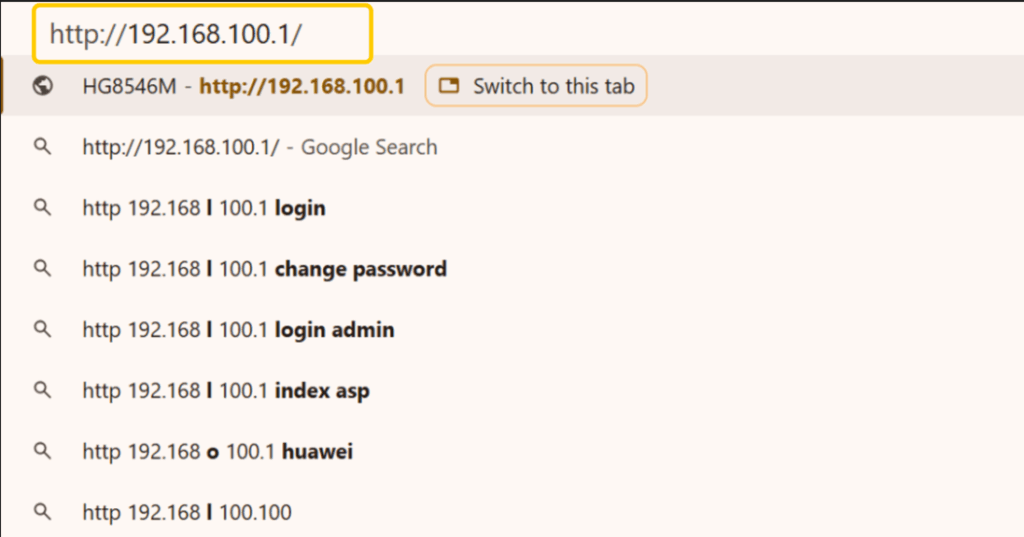
- Open a web browser on a PC connected to your network. Enter your router’s IP address (usually 192.168.0.1 or 192.168.100.1) into the address bar and press Enter to access the router’s settings.
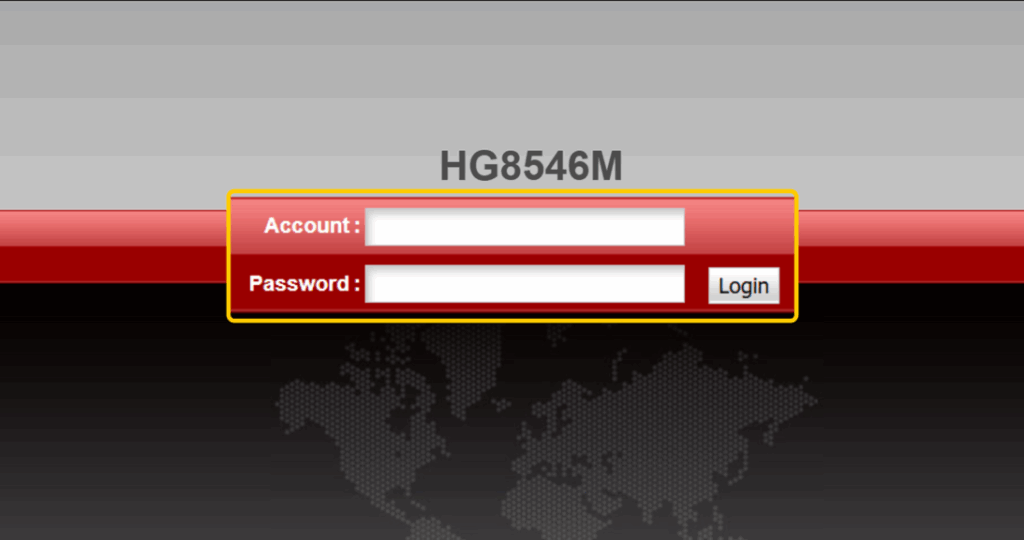
- Enter the username and password provided by your internet service provider. You may also find the login details printed on the router’s label.
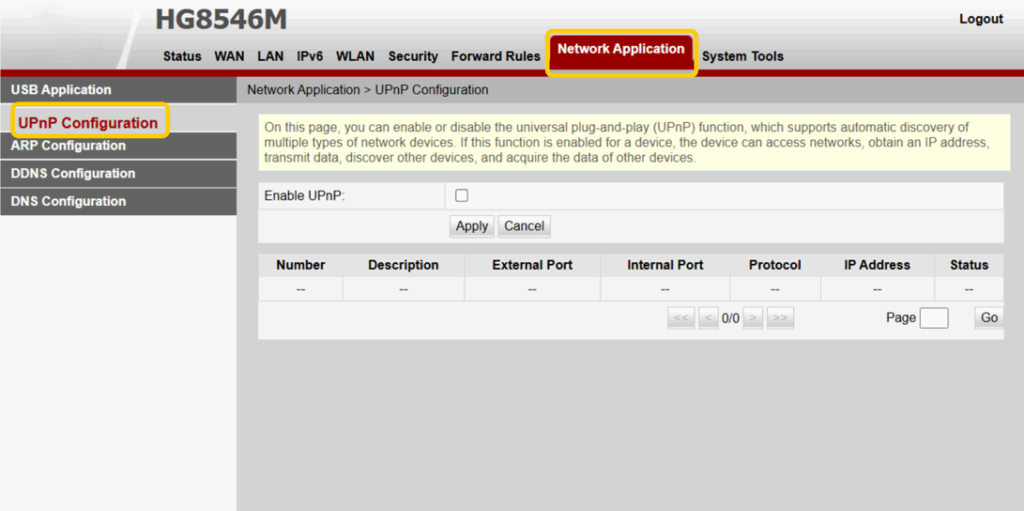
- Navigate to Advanced Settings, Network Settings, or a similar section depending on your router model. Look for a tab such as Advanced Network or Network Application.
- Check the Enable UPnP box and click Apply to approve the new settings.
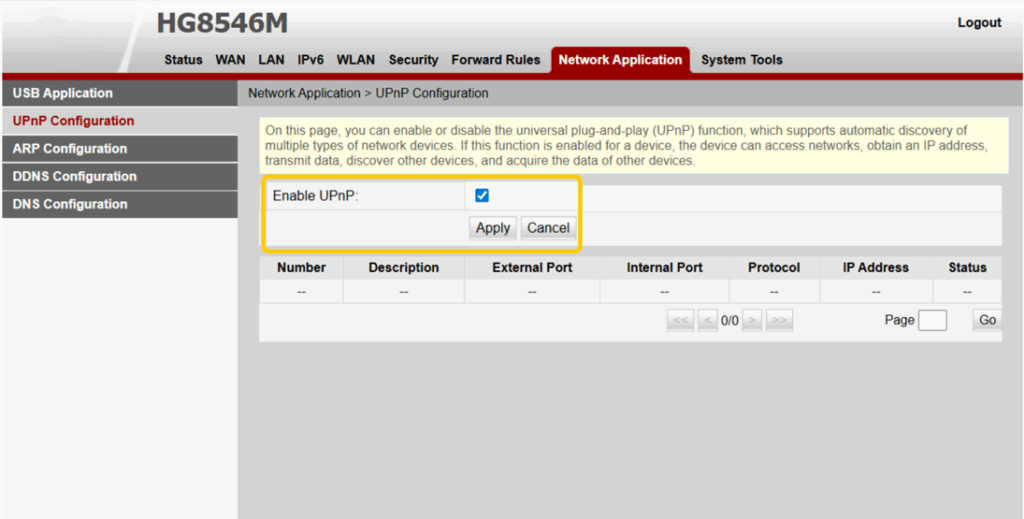
After enabling UPnP, restart your router. Then test the internet connection on your PS5. If configured correctly, your NAT type should change to Type 2.
Set Up Port Forwarding for Your PS5
Port forwarding gives you more control than UPnP, but it takes more time to set up. Instead of allowing devices to open ports, you manually choose which ports to open on your router. When done correctly, this can help your PS5 achieve NAT type 2, which is ideal for online gaming.
This method requires you to keep track of which ports are open and adjust them if needed. Some games use additional ports beyond the standard PlayStation Network ones. That means you may need to update your settings depending on the game you’re playing.
It isn’t the fastest method, but if you prefer full control over your network settings, follow these steps.
- Find the required ports by visiting the official PlayStation support page or the game developer’s website.
- Set a static IP address for your PS5. Port forwarding works best when your console has a fixed internal IP address. You can assign a static IP through your PS5 network settings or reserve one in your router settings. Please make a note of this IP address as you’ll need it later.
- Open a web browser on a device connected to your network. Enter your router’s IP address in the address bar and log in using your router credentials.
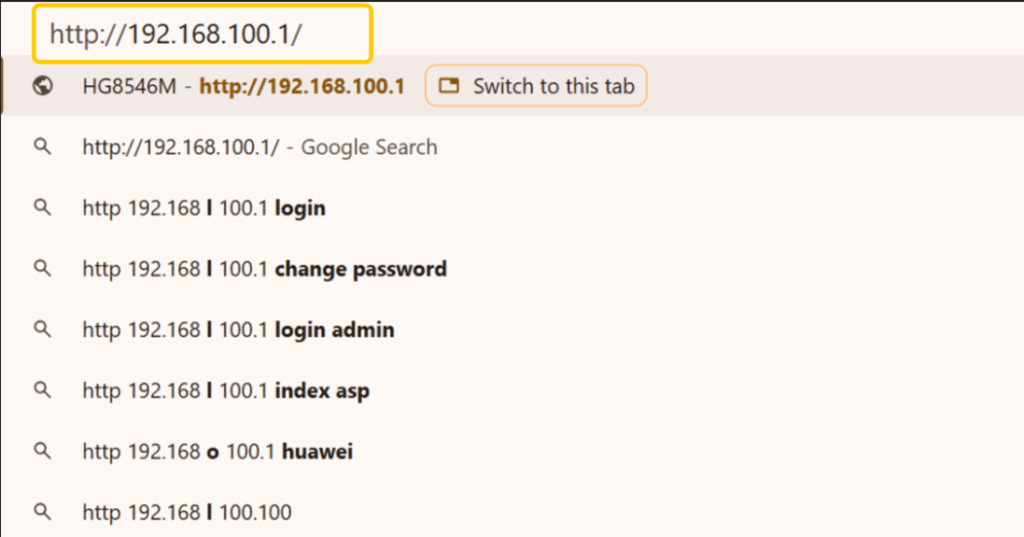
- Navigate to Advanced Settings, NAT, or Port Forwarding, depending on your router model.
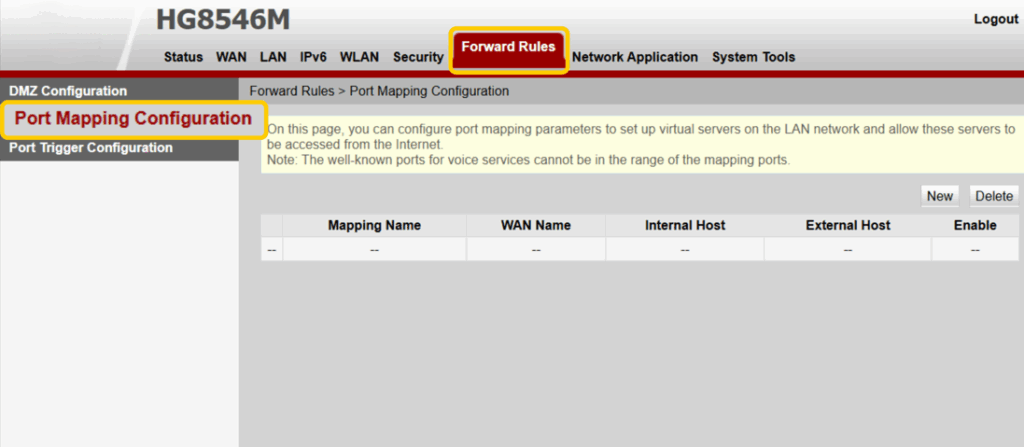
- Enter your PS5’s static IP address in the required field. Then add the correct ports and select the proper protocol for each rule. For the PlayStation Network, the commonly used ports are TCP 80, 443, 3478-3480 and UDP 3478 and 3479.1, 2
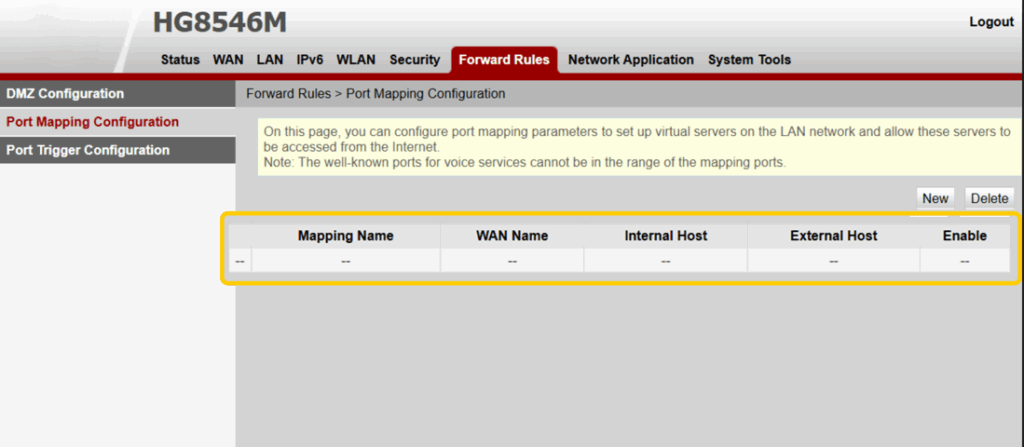
- Save your settings and restart your router. Once your router is back online, test your internet connection on your PS5. If configured correctly, you should see NAT Type 2.
If your NAT type doesn’t change, double-check that you entered the correct IP address and port numbers. You may also need to confirm whether your specific game requires additional ports.
How to Fix the NAT Type Failed PS5 Error
The NAT Type Failed error on PS5 usually means the console can’t communicate with your network during the connection test. This is often caused by router issues, blocked ports, or temporary network problems. You can usually fix it by trying the steps below:
- Restart your PS5 and router: Power off both devices, wait about 30 seconds, then turn them back on. This can clear temporary connection issues.
- Check your internet connection: Make sure your PS5 has an internet connection and that other devices on the same network are working normally.
- Enable UPnP on your router: UPnP allows your router to open the ports your PS5 needs to connect.
- Review firewall or security settings: Overly strict firewall rules on your router can block PlayStation Network traffic.
- Avoid double NAT setups: Using multiple routers or modems with routing enabled can interfere with NAT detection.
- Check for ISP restrictions or outages: Some internet providers use carrier-grade NAT or may have temporary service issues that affect connectivity.
After making changes, test your internet connection again on your PS5 to see if you’ve resolved the NAT Type Failed error.
Why You Should Use CyberGhost VPN With PS5
CyberGhost VPN can add privacy and security to your PS5 gaming by encrypting your internet traffic and hiding your real IP address, which helps reduce the risk of DDoS attacks and ISP throttling. It has a large server network, so you can choose a location close to your game servers for better stability. This can be especially useful on public Wi-Fi or shared networks.
What makes CyberGhost VPN practical for PS5 gamers is that it supports consoles through router setup. That means your PS5 benefits from VPN protection even without a built-in VPN app. The fact that there’s customer support available 24/7 through live chat and email makes getting set up even easier. Try it risk-free with our 45-day money-back guarantee (14 days on monthly plans).
Finding the Right NAT Types for Your PS5
The best NAT type for your PS5 depends on balancing connectivity and security. NAT type 2 is the sweet spot for most players, offering reliable online gaming without exposing your network more than necessary. If you’re having trouble joining games, hosting matches, or using voice chat, adjusting your router settings, or enabling port forwarding may help improve your connection.
If you decide to open ports on your router, it’s also worth thinking about your overall online privacy. While a VPN doesn’t change your NAT type or replace port forwarding, it can help protect your internet connection, especially if you game on public Wi-Fi or other shared networks. CyberGhost VPN offers an easy router setup for your home network, 100+ server locations, and 24/7 customer support.
FAQ
What NAT type is best for PS5?
NAT type 2 is the best option for PS5. It means your console connects through a router but still has the right ports open, so online games, matchmaking, and voice chat work as you’d expect them to. NAT type 1 is uncommon and not practical for most users, while NAT type 3 can cause connection issues and limit multiplayer features.
Can you get NAT type 1 on PS5?
Yes, but it’s uncommon. You can only get NAT type 1 on a PS5 if the console connects to a modem instead of a router. Most home networks use a router, which is why PS5s usually show NAT type 2 instead.
How do I change my NAT type on PS5 with Wi-Fi?
You can’t change the NAT type on your PS5 when using Wi-Fi. Your router controls the NAT type, not the console itself. To change the NAT type, you need access to your router’s settings to enable features like UPnP or set up port forwarding for your PS5. UPnP is easier because it opens the ports your console needs, while port forwarding gives you more control by allowing you to manually open specific ports.
Can CyberGhost VPN protect my PS5?
Yes. When you install CyberGhost VPN on your router, it helps protect your PS5’s internet connection by encrypting traffic sent between your home network and the VPN server. Whether your PS5 uses Wi-Fi or Ethernet, this adds a layer of privacy for your gaming activity and helps protect your data. Because the VPN runs on the router, any compatible devices connected to your network can benefit from the same protection.
How do I change my NAT type to open on PS5?
On PS5, NAT type 1 means the console connects to the internet without a router, which is uncommon. For most people, “open NAT” refers to NAT type 2, which is the recommended setup for smooth online gaming. If your PS5 has NAT type 3, log in to your router, enable UPnP or set up port forwarding, then restart your router and console and test the connection again.
How do I increase my NAT type on PlayStation?
You can increase your NAT type on PlayStation by changing your router settings. The most common fixes are turning on UPnP or setting up port forwarding for your PlayStation, which can move you from NAT Type 3 to NAT Type 2. After making the changes, restart your router and PlayStation, then test the connection again to check your updated NAT type.
Why is my PS5 NAT type now strict?
Your PS5 shows NAT type 3 because your network is blocking the ports it needs to connect online. This can happen if you disable UPnP, ports aren’t forwarded, or your router or ISP is using extra layers of NAT. It may also happen after changing router settings, switching ISPs, updating firmware, or using a VPN. When NAT is strict, multiplayer, party chat, and matchmaking may not work properly.
What is a failed NAT type on PS5?
A failed NAT type on PS5 means the console can’t detect your network’s NAT status during the connection test. This usually happens because of a network problem, like no internet access, blocked ports, router settings issues, ISP restrictions, or a temporary outage. When NAT type fails, online features like multiplayer and voice chat may not work you fix the issue.
References:

Leave a comment