
Ads can show up on websites, inside apps, across social feeds, in video players, and even through phone notifications. That’s why figuring out how to block ads isn’t always straightforward.
A browser setting may stop pop-ups, while app ads or home-screen ads need a different fix. Because these ads come from different sources, no single blocker catches them all.
This guide explains how to reduce ads across browsers, phones, apps, and websites. The best approach is to match the fix to where the ads appear.
Quick Answer: How to Block Different Ad Types
The fix comes down to where the ads appear and who’s serving them. A browser extension can help block website banners, while phone pop-ups, app ads, and social media ads need different controls.
| Ad Type | Best Fix |
| Website banners | Use a trusted browser ad blocker or content blocker. |
| Browser pop-ups | Turn on pop-up and redirect blocking. |
| Website notification ads | Revoke site notification permissions. |
| Android and Chrome ads | Check Chrome settings, app permissions, notifications, and Private DNS. |
| iPhone and Safari ads | Enable Safari pop-up blocking and use a Safari content blocker. |
| In-app ads | Try DNS-level or VPN-based filtering, though some ads may remain. |
| Social media ads | Adjust ad preferences and limit personalization (note that this won’t help you get rid of ads entirely, but it changes how ad networks choose which ads to show you and helps reduce tracking). |
| Persistent suspicious pop-ups | Check for adware, unwanted apps, or suspicious extensions. |
How to Block Ads on Websites and Browsers
Browser ads are usually the easiest to reduce. Most desktop browsers support extensions and include controls for pop-ups, redirects, and site permissions.
Use a Trusted Browser Ad Blocker
A browser ad blocker or content blocker can filter many website banners, trackers, pop-ups, and advertising scripts as pages load. It’s usually the most direct way to block ads on websites.
Open your browser’s official extension store, choose a well-reviewed blocker, and check its permissions before installing it. Recent updates and an established developer are also good signs. Once it’s installed, open the blocker’s settings and check whether it allows non-intrusive or “acceptable” ads by default. Turning that option off may reduce the ads that still get through.
No single Chrome extension blocks YouTube ads in every situation. Platform changes, extension permissions, and browser policies can all affect performance, so choose a well-maintained blocker from the official Chrome Web Store.
Block Pop-Ups, Redirects, and Website Notifications
Browsers include built-in controls for pop-ups, redirects, and website notifications. Pop-up blocking helps stop sites from opening unwanted tabs or windows, while notification settings control promotional alerts that can appear even after you close the website. Neither option removes ordinary banner ads.
| Browser | Block Pop-Ups | Remove Notification Access |
| Chrome | Menu > Settings > Privacy and security > Site settings > Pop-ups and redirects | Menu > Settings > Privacy and security > Site settings > Notifications |
| Firefox | Menu > Settings > Privacy & Security > Permissions > Block pop-up windows | Menu > Settings > Privacy & Security > Permissions > Notifications > Settings |
| Microsoft Edge | Settings and more > Settings > Privacy, search, and services -> Site permissions > All permissions -> Pop-ups and redirects | Settings and more > Privacy, search, and services > Site permissions > All sites > select the website > Notifications > Block |
| Safari on Mac | Safari > Settings > Websites > Pop-up Windows | Safari > Settings > Websites > Notifications |
Use the pop-up setting for unwanted windows or redirects. Use notification settings when ads appear as alerts outside the webpage. If the same promotional alerts persist after you block pop-ups, notification permissions are among the first places to check.
How to Block Ads on Android
Android offers several built-in controls to reduce ads in mobile browsing, apps, and notifications. There’s no universal mobile ad blocker, but browser settings, Private Domain Name System (DNS), and app permissions can each reduce different types of ads.
Turn Off Ad Topics and App-Suggested Ads
Android’s Ad privacy settings control how apps use topics and suggestions to personalize ads. Turning these features off can reduce personalized advertising, but ads will still appear.
To change them:
- Open Settings on your Android device.
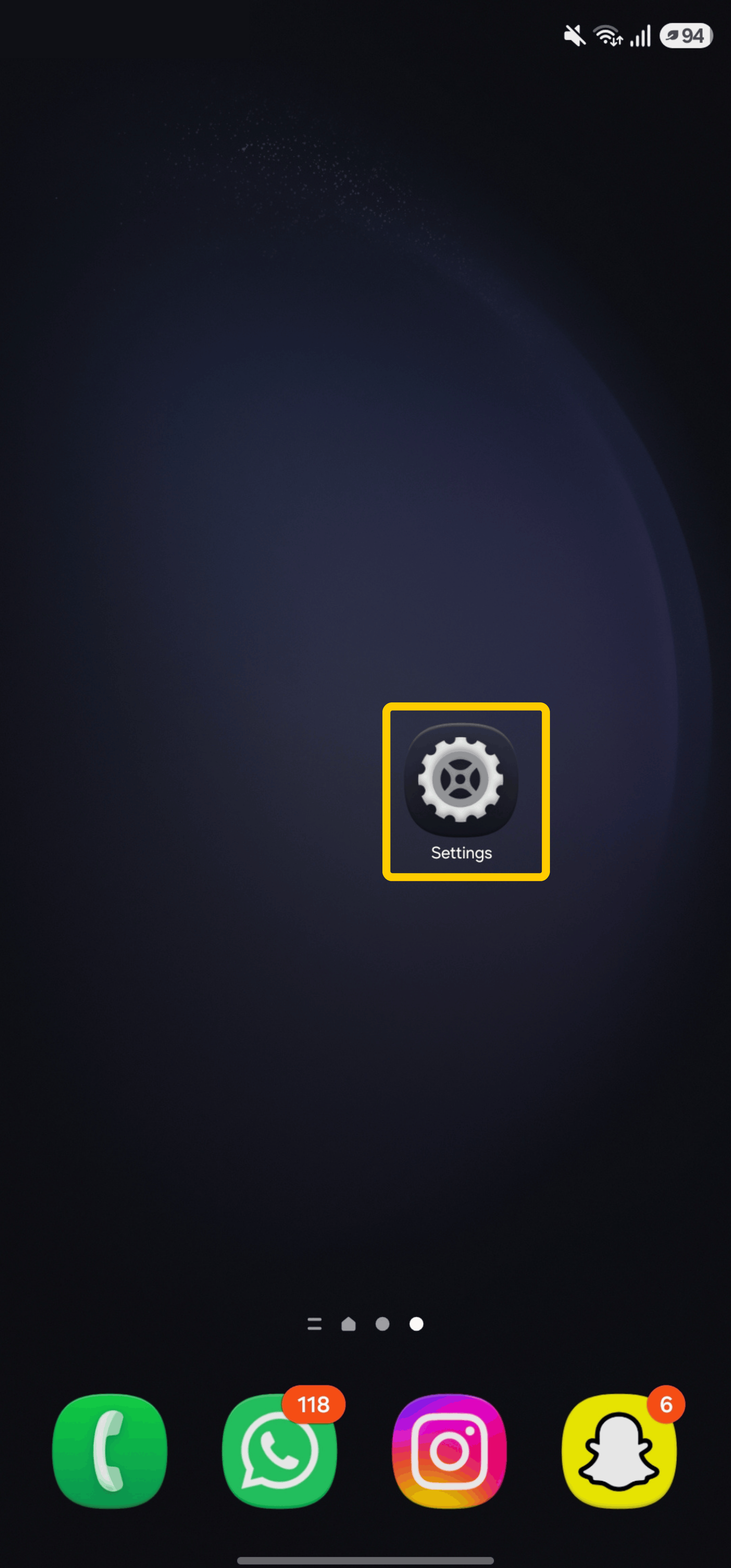
- Tap Google Services > All services.
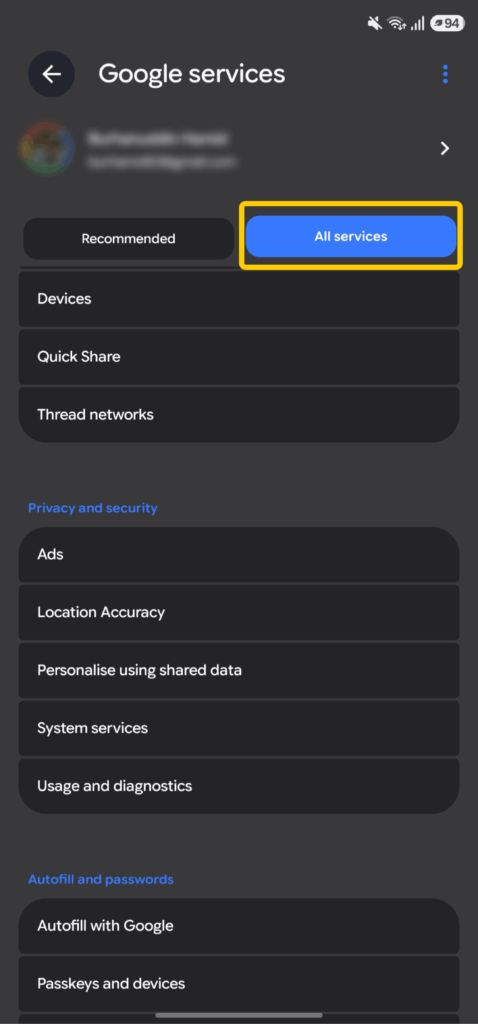
- Under Privacy & security, select Ads > Ads privacy.
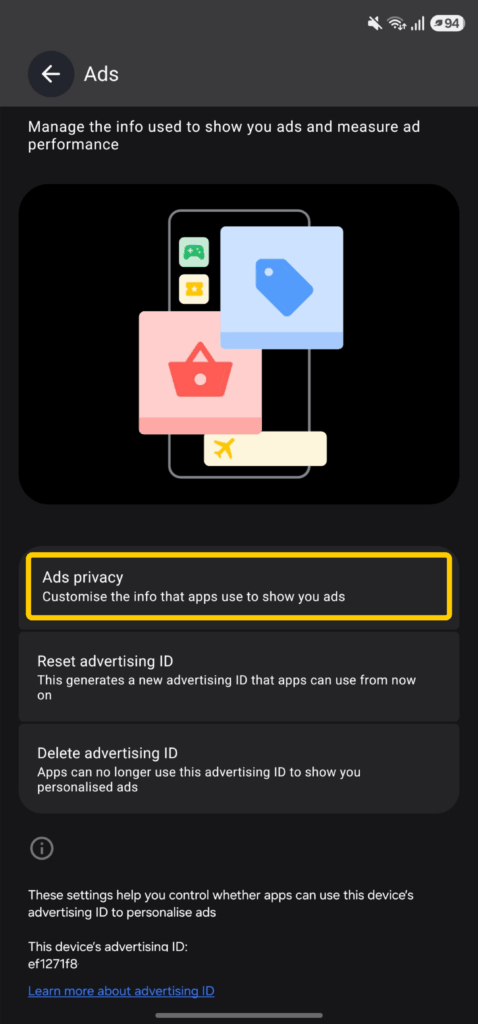
- Open Ad topics, App-suggested ads, or Ad measurement and turn off the features you don’t want to use.
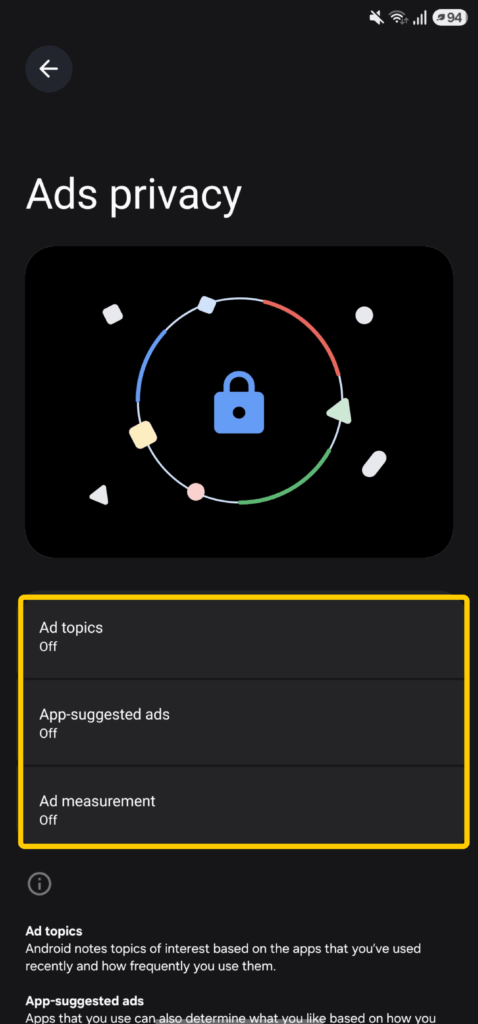
Android lets you remove ad topics and block apps from suggesting ads, but this doesn’t stop related ads from appearing. Removing a topic only stops Android from sharing it with apps. Blocking an app only stops it from storing ad suggestions with Android. Advertisers can still show you similar ads using other information, such as the content of the app you’re using.
Block Pop-Ups and Redirects in Chrome for Android
Chrome blocks many pop-ups by default, but it’s worth checking the setting if new tabs or redirecting pages keep appearing.
- Open Chrome.
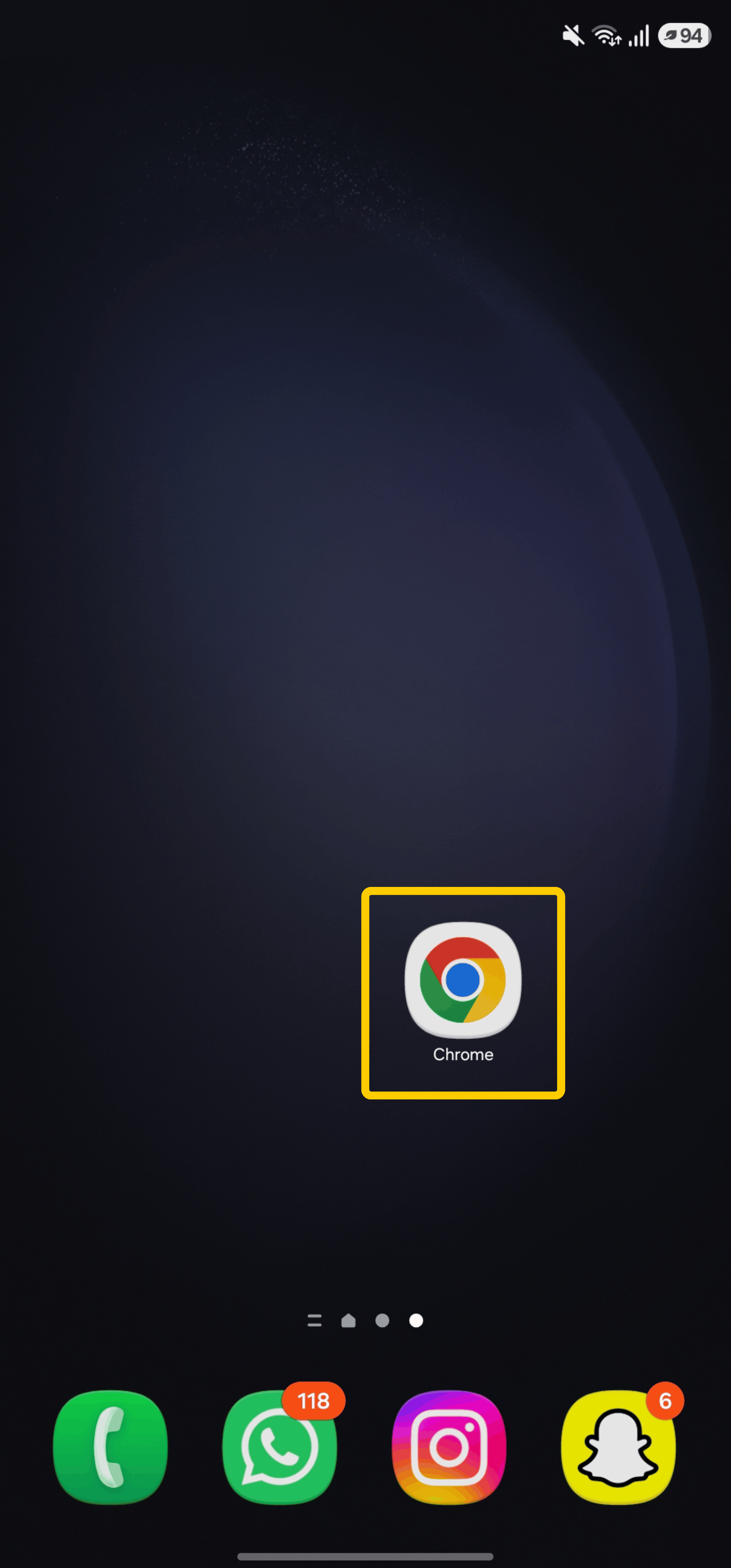
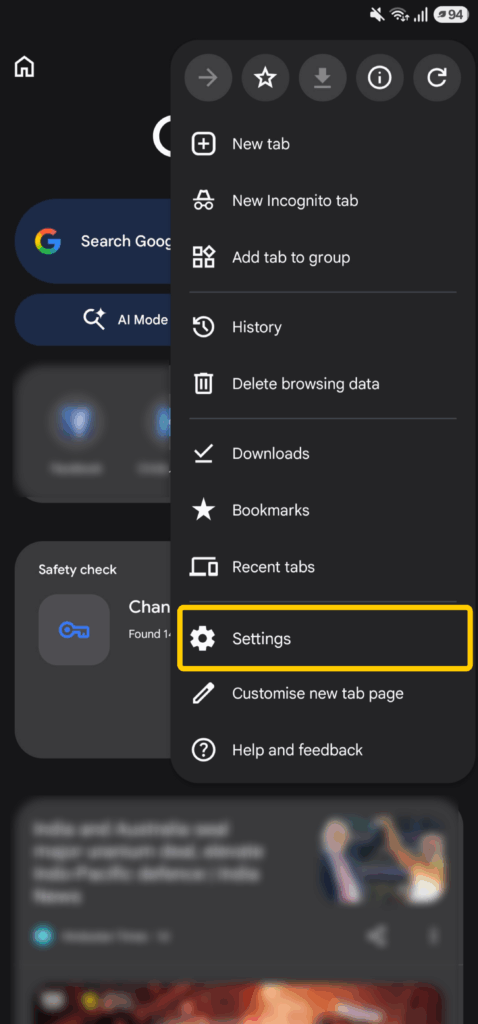
- Tap More > Settings.
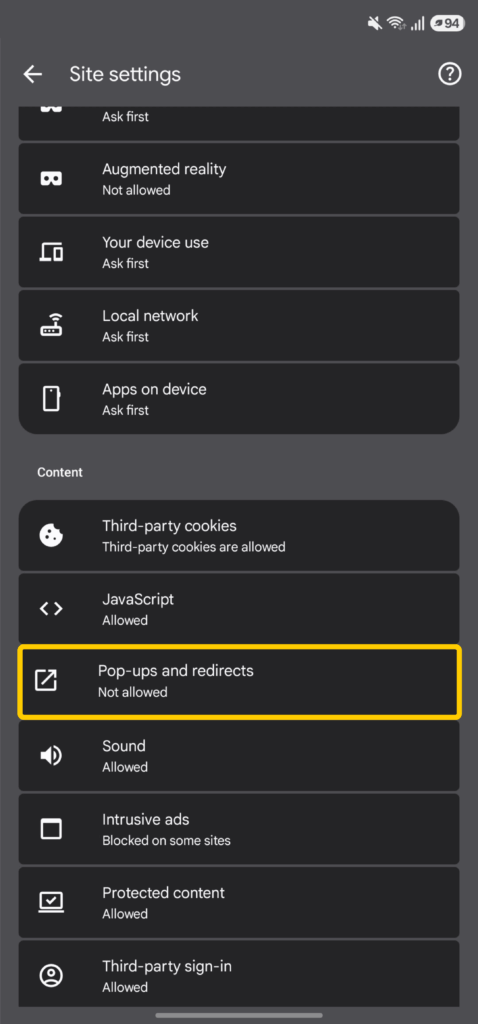
- Go to Site settings > Pop-ups and redirects.
- Select Don’t allow sites to send pop-ups and use redirects.
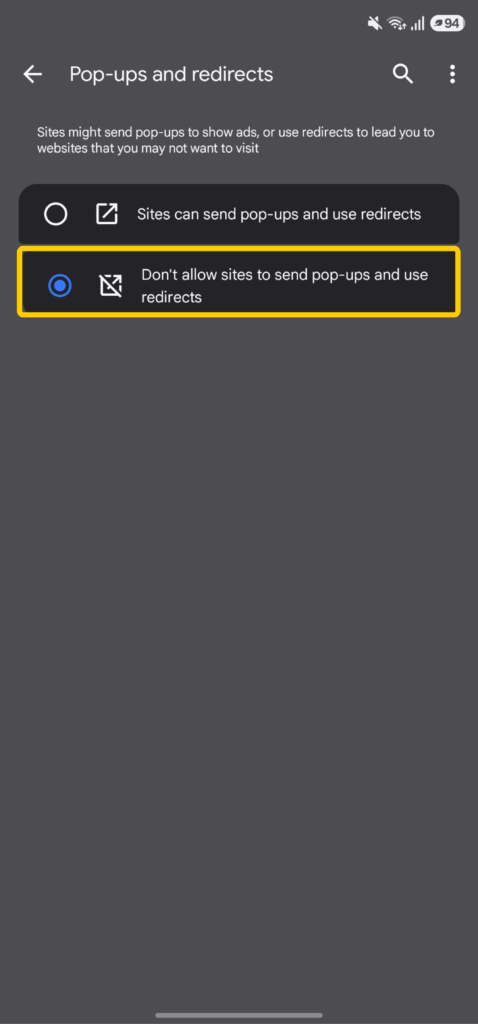
This setting helps with browser pop-ups and forced redirects. It won’t remove regular display ads inside websites or ads shown inside apps and games.
If pop-ups continue, check whether the site has permission to send notifications. Open the site, tap the page information icon beside the address bar, then review Permissions. Persistent pop-ups, changing homepages, or repeated redirects may also point to an unwanted app or malware on the device.
Chrome for Android doesn’t support desktop-style browser extensions. For browser-based ad blocking on your phone, use a mobile browser that supports trusted add-ons or built-in content blocking.
Use Private DNS for DNS-Level Ad Blocking
Android’s Private DNS setting can route DNS requests through a filtering provider that blocks known advertising and tracking domains. This can reduce ads across browsers and some apps, especially when they load content from separate ad servers. It still won’t catch ads served from the same domain as the app or website content.
To set it up:
- Open Settings.
- Tap Connections > More Connection Settings > Private DNS.
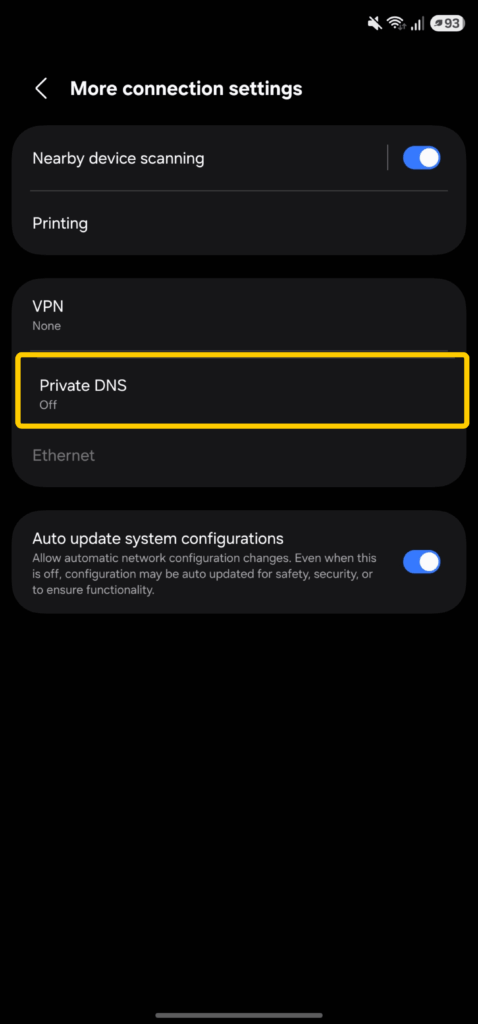
- Select Private DNS provider hostname.
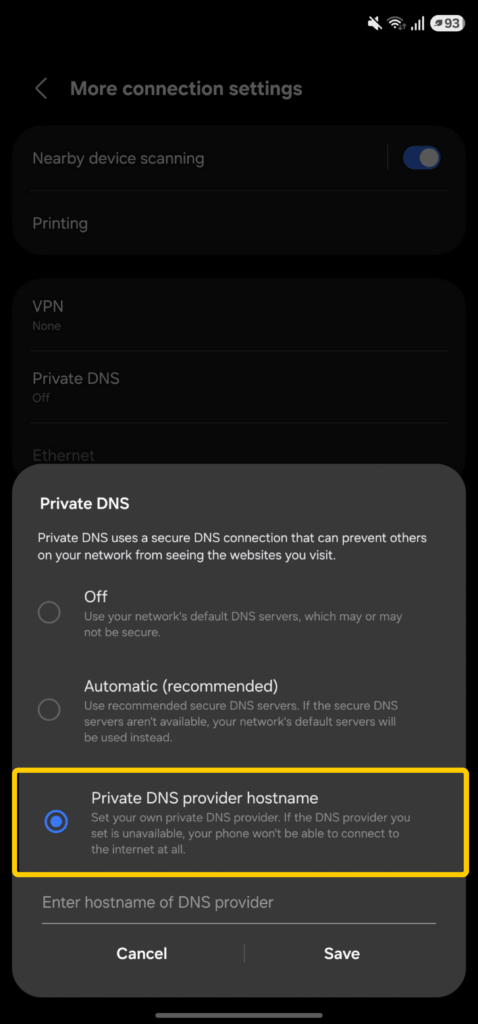
- Enter the hostname supplied by a reputable ad-filtering DNS provider.
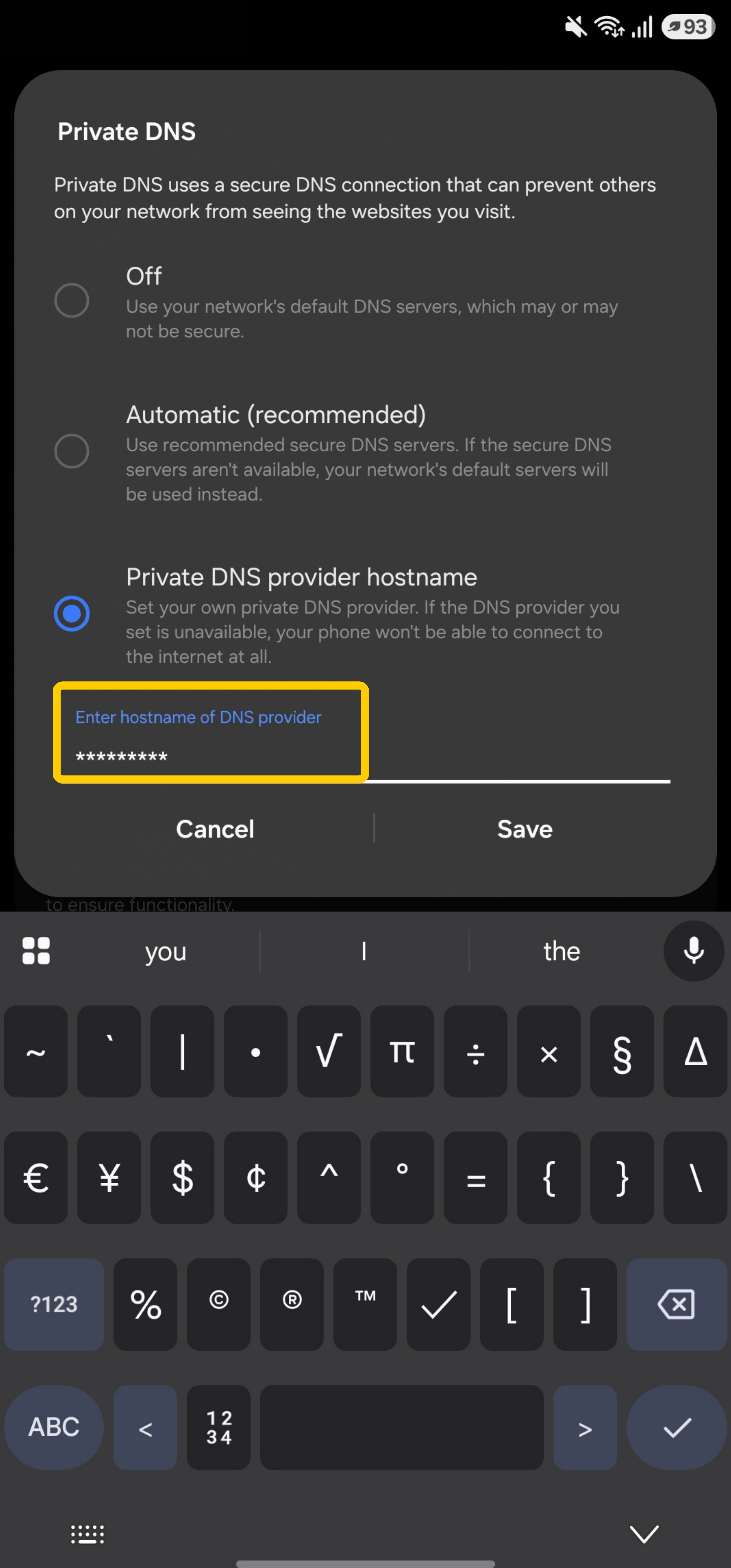
- Click Save to record your changes.
Menu names can vary by phone and Android version. Search your settings for “Private DNS” if the option doesn’t appear in the expected location. Private DNS only handles DNS requests and shouldn’t be treated as a complete ad blocker.
Check App Notifications and Overlay Permissions
Unwanted ads can sometimes arrive through website notifications you previously allowed. Instead of disabling every Chrome notification, review the sites that have permission and turn off the ones you no longer want.
To stop notifications from a specific website:
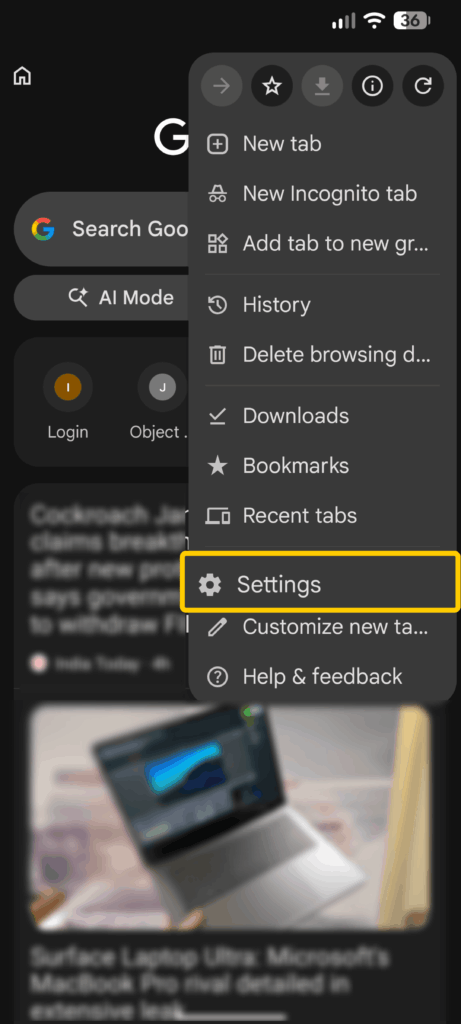
- Open Chrome.
- Tap the three-dot menu on the right.
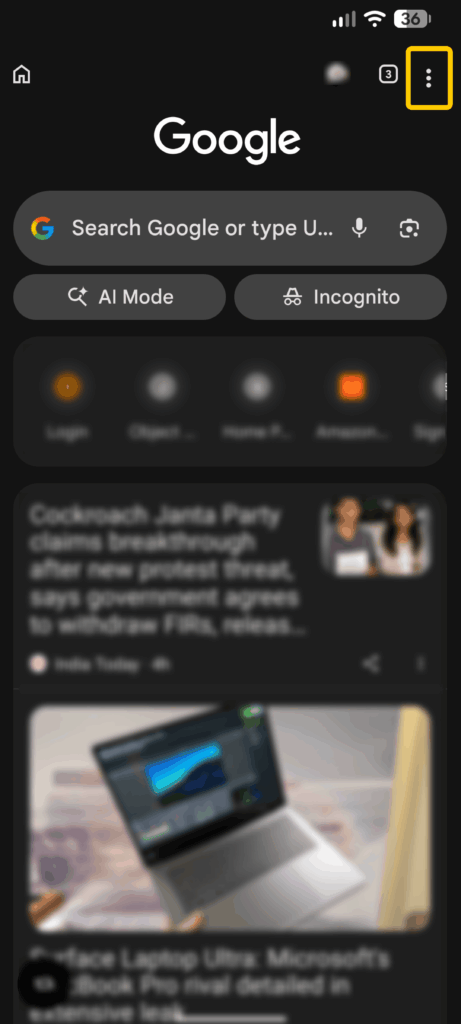
- Select Settings.
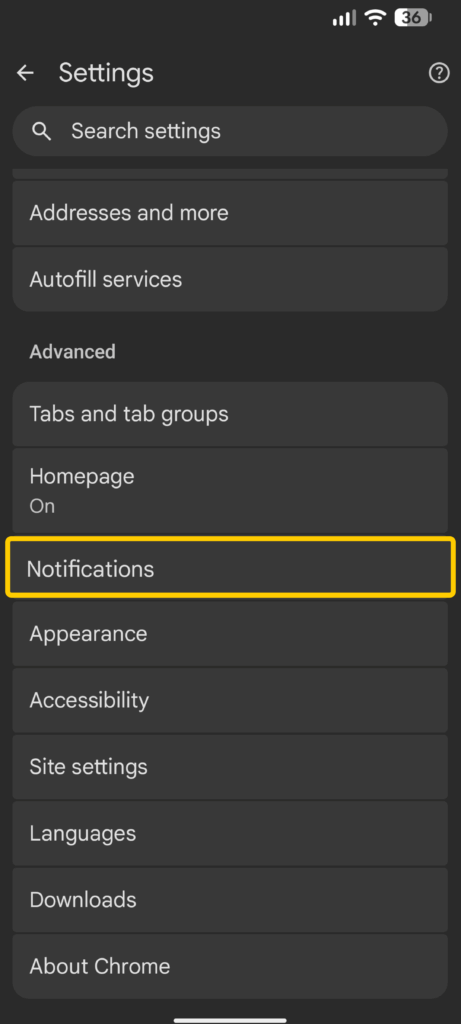
- Scroll down and tap Notifications.
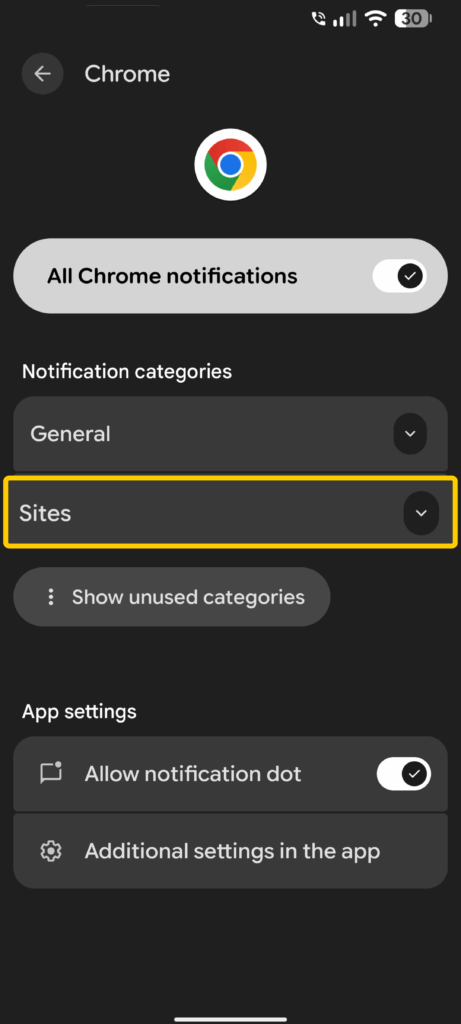
- Go to Sites to view the list of websites.
- Review which sites have notifications enabled, then turn them off for any site you don’t recognize or no longer want alerts from.
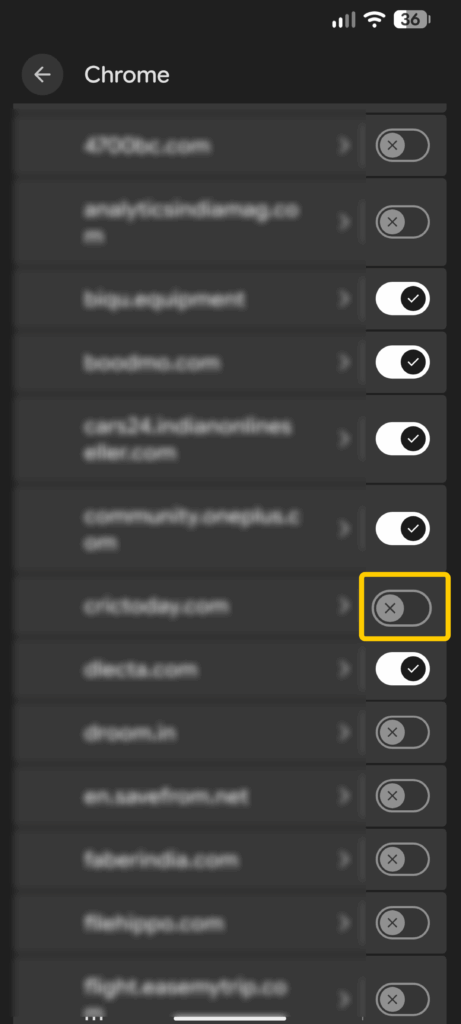
The exact menu names and layout can vary depending on your Android version and phone manufacturer.
If ads appear over other apps, review overlay permissions too:
- Open Settings > Apps > Special app access.
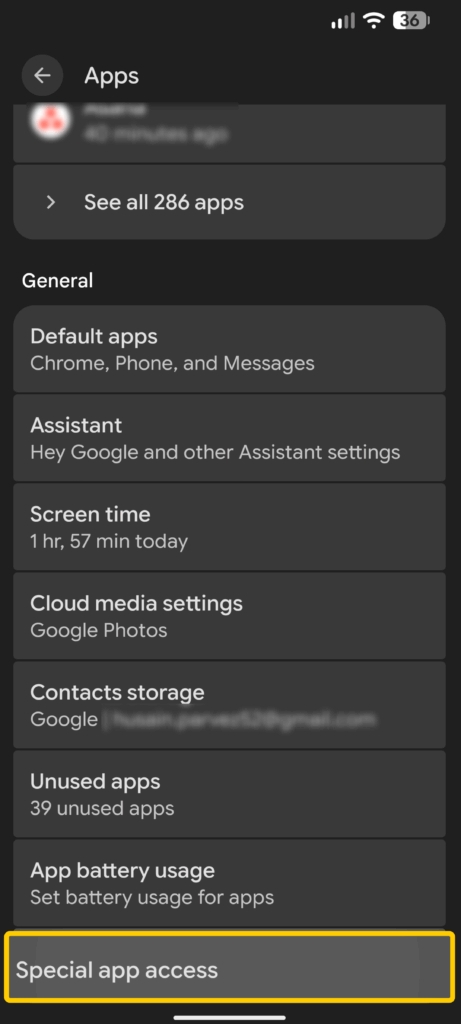
- Tap Display over other apps or Appear on top.
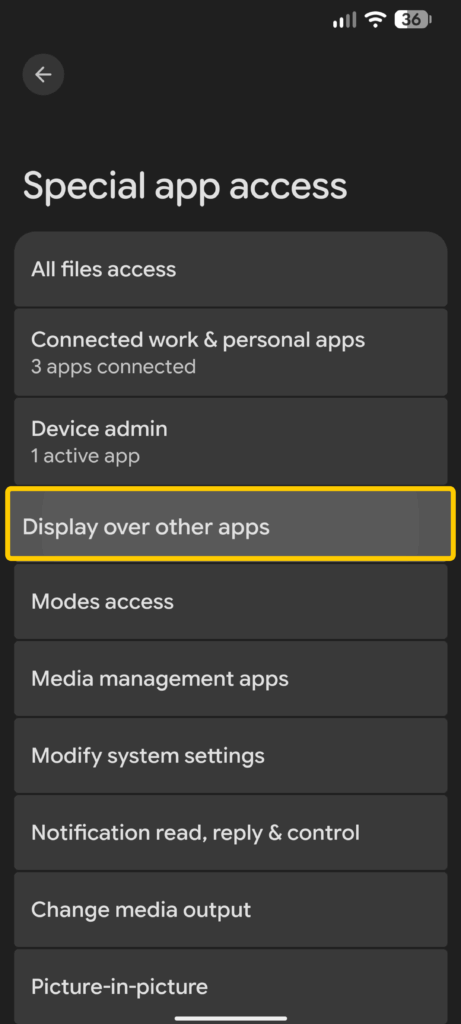
- Check which apps currently have permission and disable it for any unfamiliar app or one that doesn’t need access.
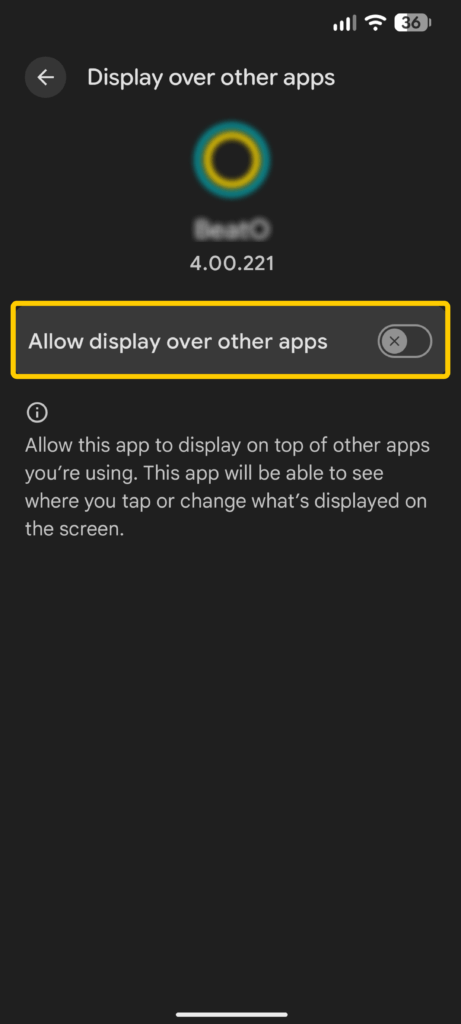
Menu names may vary depending on your Android version and phone manufacturer.
- Open Settings > Notifications > App notifications.
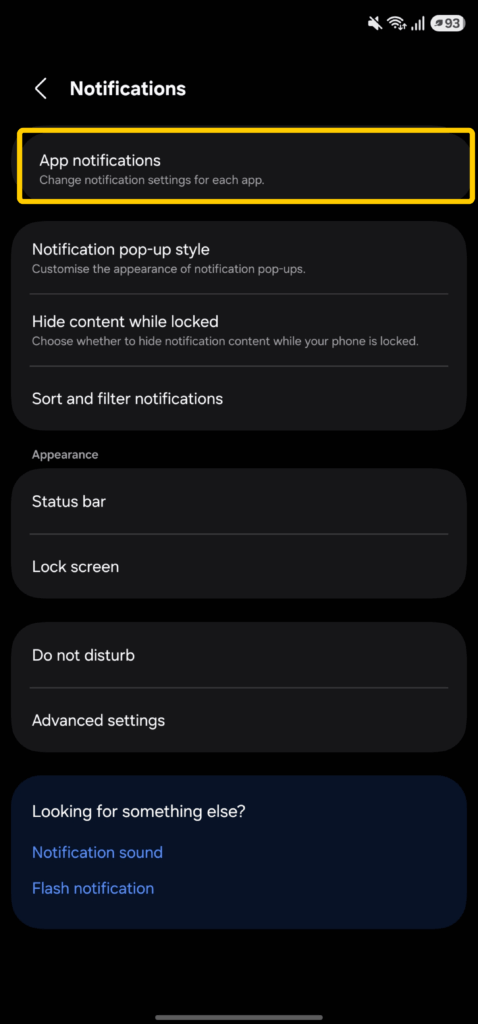
- Choose the app sending the ads.
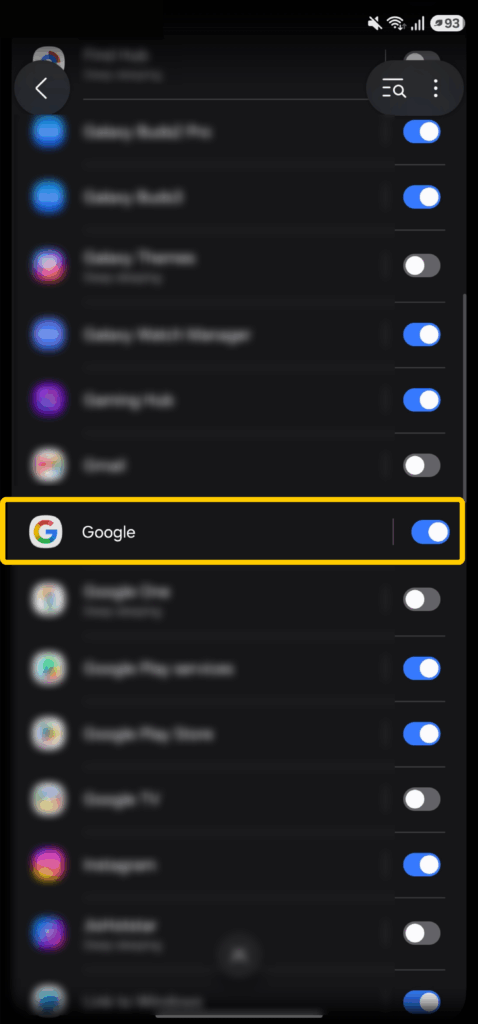
- Turn off all notifications or disable only the promotional category, if Android shows separate categories.
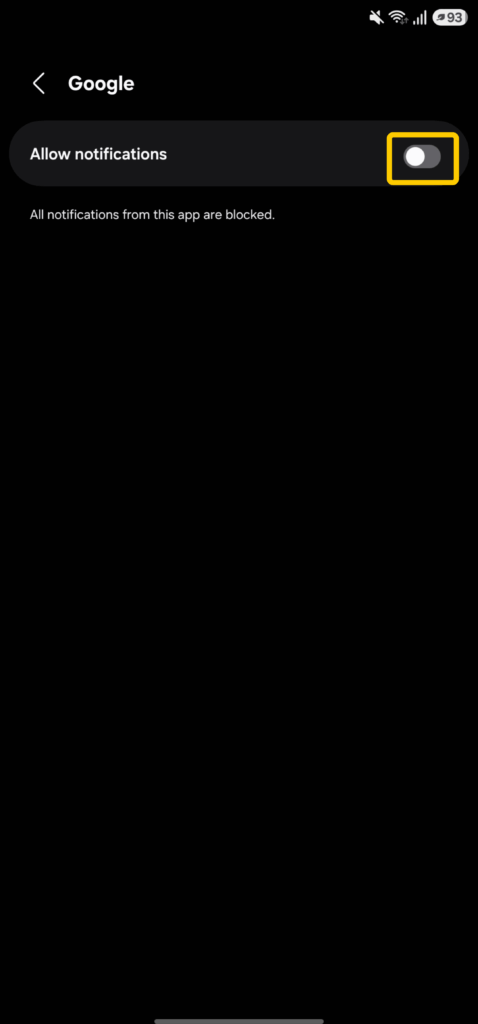
You can also press and hold a notification, then open its settings to identify the app responsible. If ads appear over other apps or on the home screen, search Settings for Display over other apps or Appear on top. Remove that permission from apps that don’t need it. Paths vary by manufacturer, but this usually appears under Apps > Special app access.
Check recently installed apps first. If one keeps showing aggressive ads after you remove its permissions, uninstall it.
How to Block Ads on iPhone, iPad, and Safari
Apple devices include built-in controls for pop-ups and personalized ads, while Safari also supports content blockers. These options can reduce several types of ads, though each one covers a different part of the browsing experience.
Turn On Safari Pop-Up Blocking
Safari can block pop-up windows on iPhone, iPad, and Mac. This helps with new tabs, alerts, and windows that open without warning, though it won’t remove standard banners or sponsored content inside a webpage.
On iPhone or iPad:
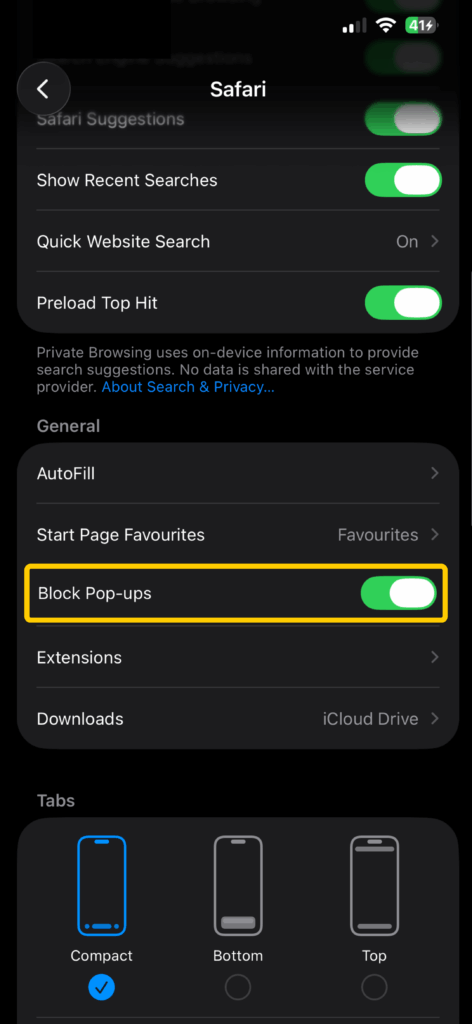
- Open Settings.
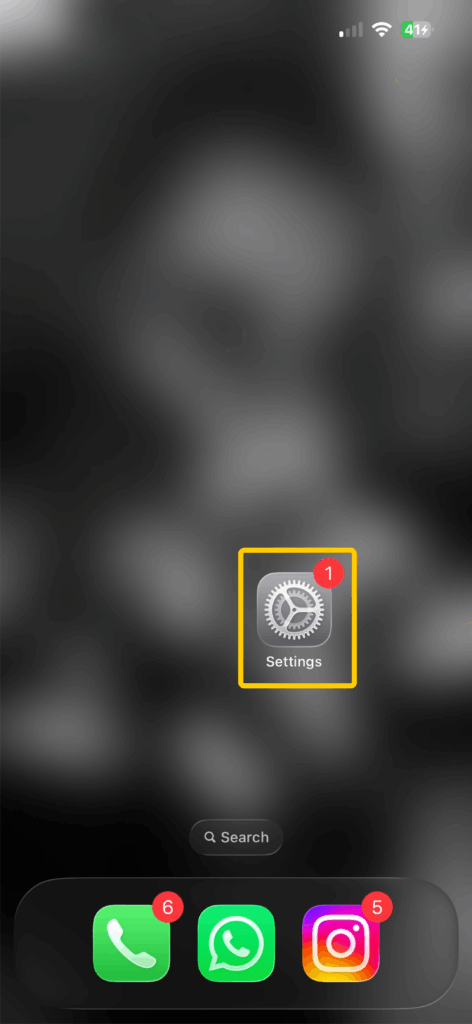
- Tap Apps > Safari.
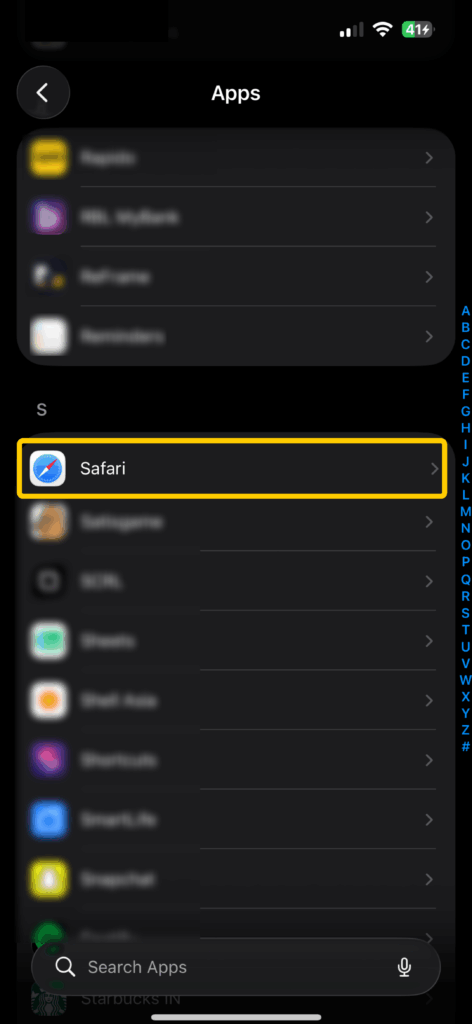
- Toggle on Block Pop-ups.
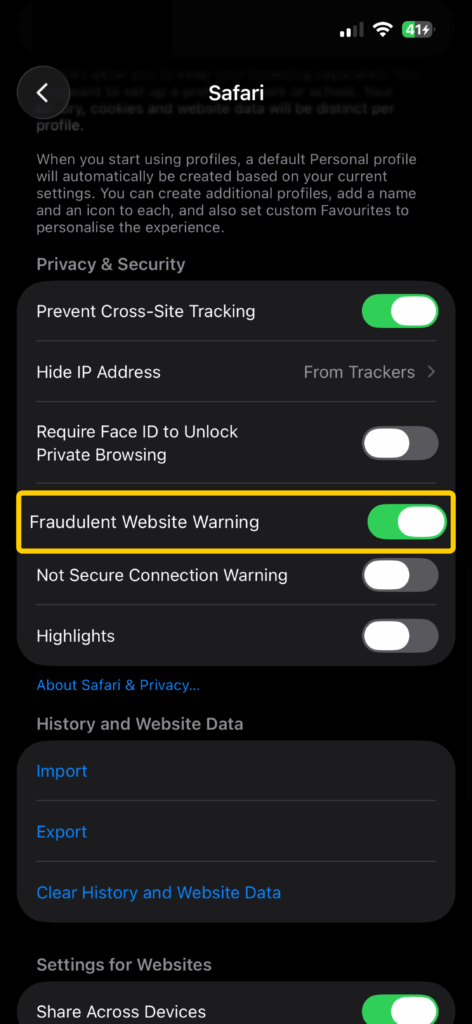
- Keep Fraudulent Website Warning turned on as an added precaution against suspected phishing pages.
On Mac:
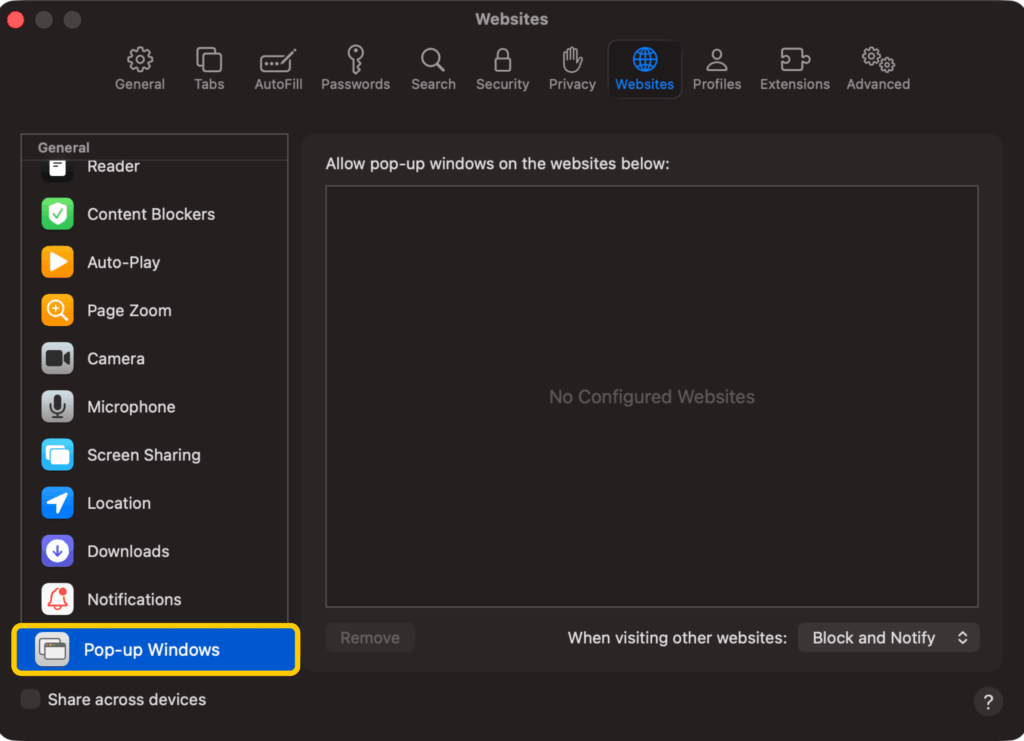
Open Safari > Settings > Websites > Pop-up Windows. Use the menu at the bottom to choose a default for all other websites: Block, Block and Notify, or Allow.
You can also set a different rule for individual sites, which works as an exceptions list. For example, you can block pop-ups everywhere but allow them for a bank or school portal that needs them.
Use Safari Content Blockers
Safari content blockers can filter cookies, images, scripts, pop-ups, and other page elements. On iPhone and iPad, they work inside Safari and don’t remove ads from other apps.
To set one up:
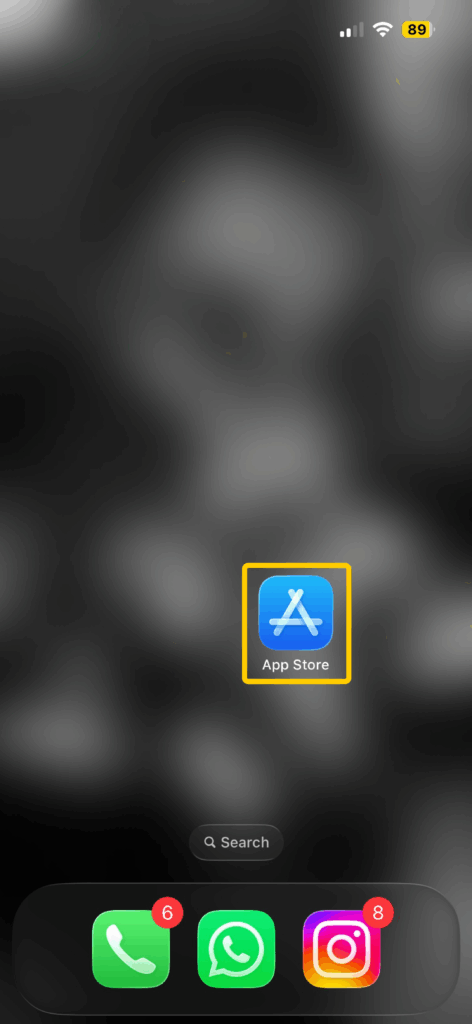
- Open the App Store and install a trusted content-blocking app.
- Once installed, go to Settings > Apps > Safari > Extensions.
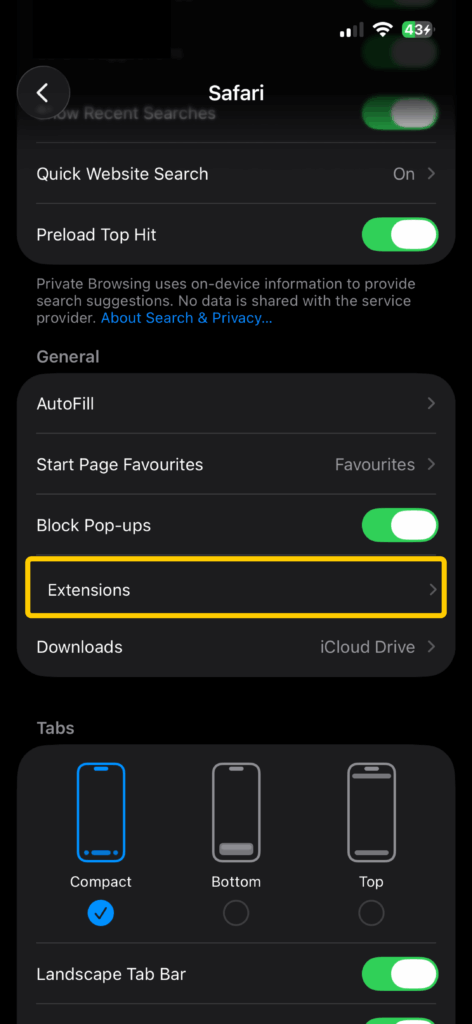
- Select the ad blocker and enable it.
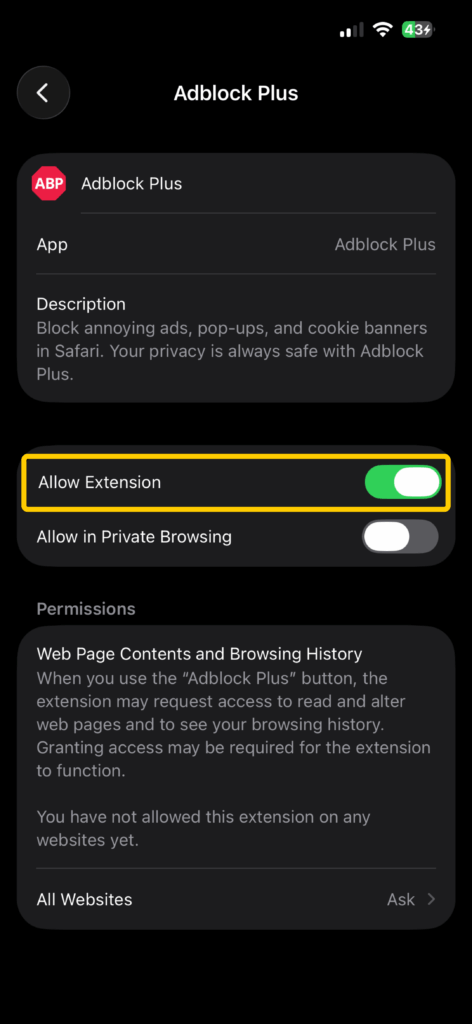
On Mac:
Install a Safari extension from the App Store, then open Safari > Settings > Extensions to enable it. You can also manage content blockers for individual sites under Safari > Settings > Websites > Content Blockers.
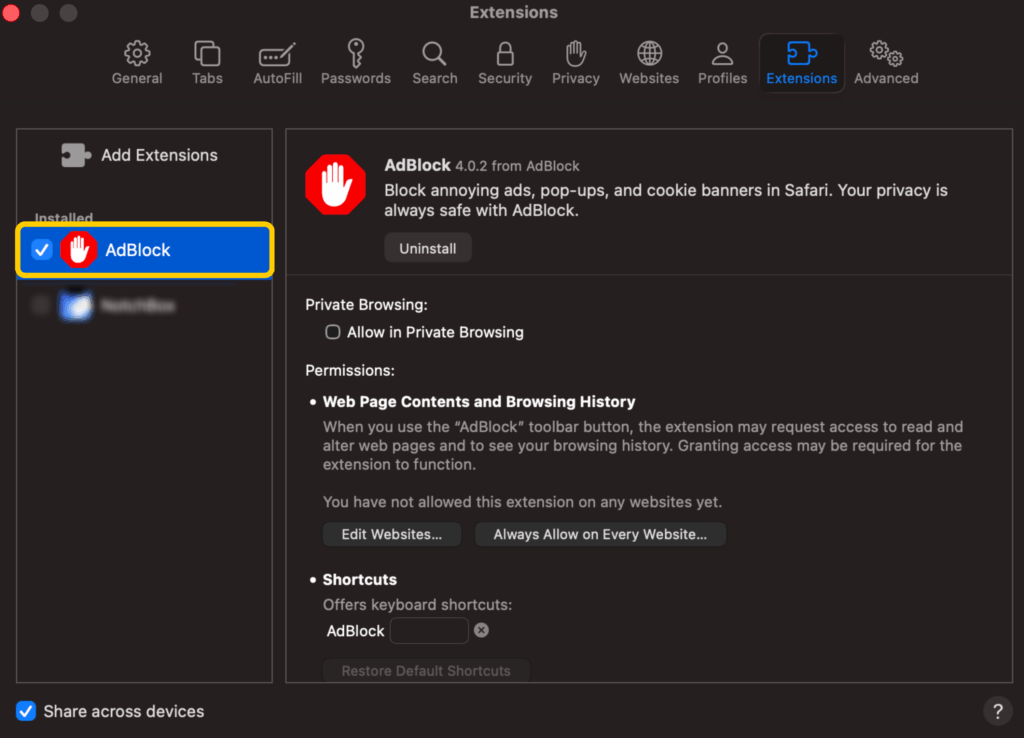
Check the extension’s permissions and recent update history before installing it. Content blockers can also break login forms, videos, or other site features, so it may help to disable them for trusted sites when something stops working.
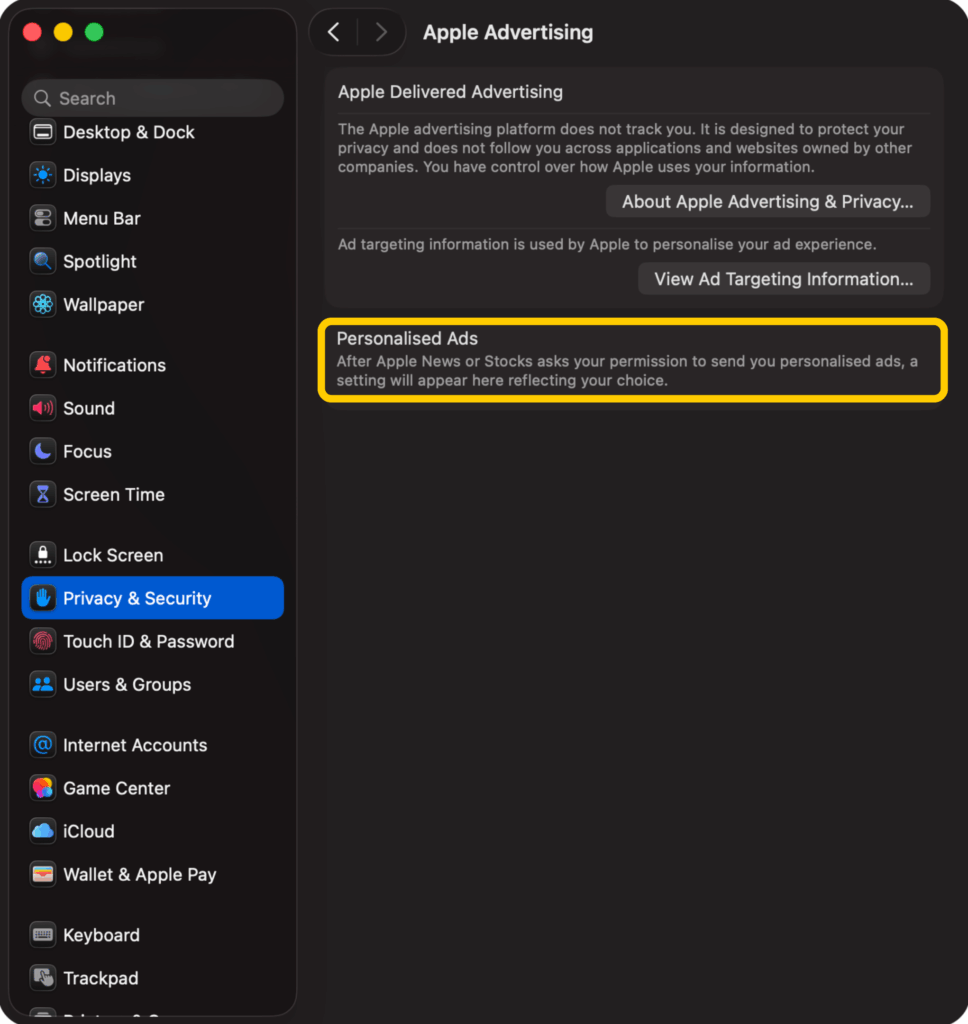
You can also limit personalized ads under Settings > Privacy & Security > Apple Advertising > Personalized Ads. This changes how Apple selects ads, but it won’t remove them.
How to Remove Ads from Mobile Apps and Games
Browser extensions usually don’t affect ads inside apps or games. DNS-level or VPN-based filtering can reduce some in-app ads by blocking requests to known advertising domains, though it may miss ads served through the same systems as the app’s main content.
You can also:
- Check for an ad-free option: Some apps offer a one-time purchase or subscription that removes ads.
- Try offline mode: Some games show fewer ads when you’re offline, but only if they support offline play.
- Replace aggressive apps: If an app floods the screen with ads or shows them outside the app, uninstalling it may be the cleanest fix.
- Use official versions: Avoid modified apps or unofficial “ad-free” copies.
In-app ads are harder to filter consistently, so the app’s own ad-free version or a less aggressive alternative often gives the best result.
How to Reduce Ads on Social Media Platforms
Social platforms don’t always let you turn off ads, but some let you choose which advertisers, topics, and interests influence what you see. They might also offer paid ad-free subscriptions.
Meta (Facebook and Instagram)
Facebook and Instagram now share the same Accounts Center > Ad preferences menu. From there you can:
- Hide ads from specific advertisers
- Choose to see fewer of certain ad topics
- Review how these platforms use your information for ad personalization
If you link your Facebook and Instagram accounts, these preferences apply across both platforms. You can’t stop ads on Facebook or Instagram unless you get an ad-free paid subscription (availability varies by region), but you can hide specific advertisers, reduce certain topics, and limit how your activity shapes personalized ads.
TikTok, Pinterest, X, and YouTube
Most other major platforms offer similar controls, though the names vary.
- TikTok lets you manage ad topics and turn off off-TikTok activity targeting under Settings and privacy > Ads personalization.
- Pinterest lets you limit personalized ads under Settings > Privacy and data.
- X lets you disable personalized ads under Privacy and safety.
- YouTube relies on your Google Ad Settings to control ad personalization.
You can also hide or report individual ads on most platforms, which helps improve future recommendations. These settings usually change which ads you see, rather than how many.
How to Block Pop-Up Ads on Your Phone
To stop ads on your phone, first check where they appear. Browser pop-ups, notification ads, home-screen ads, and in-app ads usually come from different sources.
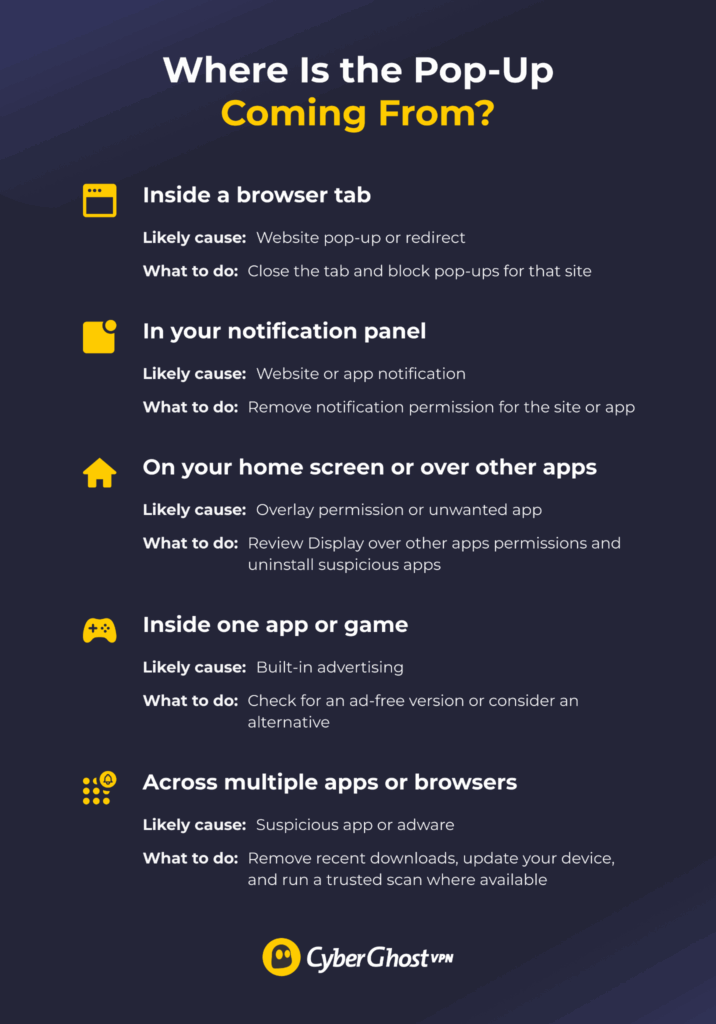
Don’t tap warning messages, fake close buttons, or download prompts inside a suspicious pop-up. Close the tab or app instead. If the ads continue across multiple apps or screens, remove recent downloads, update your device, and run a trusted scan.
Can You Block Ads Without Installing Apps?
Yes, you can reduce some ads without installing an ad blocker, extension, or VPN. Built-in browser and device settings are most useful for pop-ups, notifications, and personalized ads.
You can:
- Turn on your browser’s pop-up and redirect blocker.
- Remove notification permissions from unfamiliar websites.
- Enable Block Pop-ups in Safari on iPhone or iPad.
- Adjust ad preferences on social platforms to reduce personalization.
- Use Private DNS on supported Android devices with a reputable filtering provider.
- Search Settings for “Ads privacy” to review ad topics, app-suggested ads, and ad measurement controls.
These options are free and don’t require a browser extension. They can reduce pop-ups, notification ads, and targeted advertising, but they won’t block every banner, sponsored post, video ad, or in-app ad.
Why Do You Still See Ads With an Ad Blocker?
Ad blockers can miss ads for several reasons. Where the ad appears usually gives you the best clue.
| Why Ads Still Appear | What to Check |
| The ad shares a domain with the content | DNS-based filtering may not be able to block it without also breaking the page or app. |
| The blocker allows some ads | Turn off any setting that allows non-intrusive or “acceptable” ads. |
| The blocker uses outdated filters | Update the extension and refresh its filter lists. |
| The website detects ad blocking | The site may change how it delivers ads or restrict access. |
| The ad appears inside an app | Browser extensions usually don’t affect app or game ads. |
| You’re using Chrome on mobile | Chrome mobile doesn’t support standard desktop extensions. |
| The “ad” is a notification | Remove notification permission from the website or app. |
| The device has an unwanted app or extension | Review recent installations and remove anything suspicious. |
No single tool blocks every type of ad. Combining a trusted blocker with browser permissions and device settings usually provides broader coverage.
Are Ad Blockers Safe to Use?
Trusted ad blockers can be useful and may reduce exposure to malicious ads, trackers, and intrusive scripts. Choose carefully because many blockers need broad access to webpages to filter content.
Before installing one:
- Use an official store: Download extensions from your browser’s official store and mobile apps from the device’s official app store.
- Check the permissions: Review what the blocker can read or change before approving it. Chrome and Firefox both show these permissions during installation and let you review them later.
- Look at recent reviews and updates: Avoid abandoned tools, copycat extensions, or apps that see a wave of complaints.
- Skip cracked or unofficial versions: Unknown Android Package Kits (APKs), modified blockers, and downloads from unfamiliar websites carry more risk.
- Keep it updated. Updates can fix bugs, refresh filtering rules, and address new issues.
- Remove anything that behaves strangely: Uninstall a blocker if it injects ads, redirects search results, changes browser settings without a clear reason, or requests access that doesn’t match its purpose.
Ad blockers can reduce unwanted content, but they don’t protect against every malicious site, download, or piece of malware.
How CyberGhost VPN Can Help Reduce Ads and Tracking
CyberGhost VPN includes a free Block content tool for Windows that blocks DNS requests to known domains associated with advertising, tracking, and malicious content. This can stop some of those domains from loading in the first place, helping reduce ads and tracking requests across supported browser and app traffic.
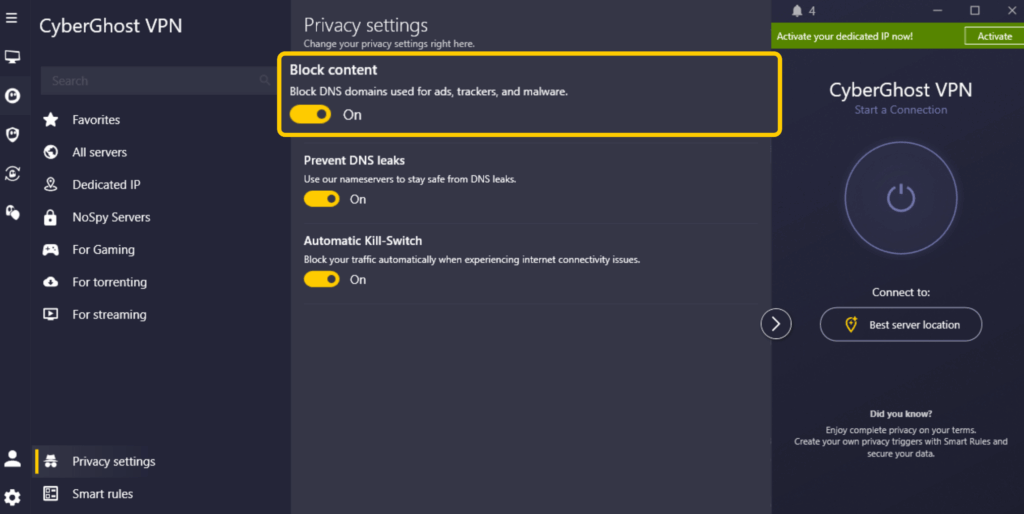
For broader coverage, use it alongside:
- Browser pop-up and redirect controls
- A trusted browser content blocker
- Device ad privacy settings
- Website and app notification permissions
Block content won’t remove every ad. Platform-served ads, sponsored social posts, first-party promotions, and ads built into apps may still appear.
Match the Fix to the Ad
Ads don’t all come from the same place, so start by figuring out what’s actually causing the problem. Browser banners, pop-ups, notifications, in-app ads, and sponsored posts each respond to different controls.
Start with the simplest fix available, then add a trusted blocker like the one from CyberGhost VPN if you need broader coverage. If something breaks on a trusted website, create a site-specific exception instead of disabling your blocker everywhere. A few targeted changes usually make for a much less cluttered browsing experience.
FAQ
How do I stop the ads on my phone?
To stop the ads on your phone, check whether the ads appear in your browser, notification panel, home screen or one specific app. Block the relevant permission, remove suspicious apps, and disable unwanted notifications.
What is the best way to stop ads on my browser?
The best way to stop ads on your browser is to use a reputable browser blocker alongside the browser’s built-in pop-up and notification controls. If ads keep appearing, check whether your blocker allows some ads by default and review its settings.
Are ad blockers safe to use?
Yes, trusted ad blockers are generally safe, but choose carefully. Download them from official stores, check their permissions and recent reviews, and avoid cracked or unfamiliar versions. Reviewing extension permissions is especially important because blockers may need access to webpage content to work.
Why do I still see ads even with an ad blocker?
If you still see ads with an ad blocker, check whether the ads come from apps, notifications, allowlisted sources, or the same domain as the main content. If they keep appearing, update the blocker and its filter lists, review notification permissions, and check for unwanted apps or extensions.
Can I block ads without installing apps?
Yes, you can reduce some ads with browser pop-up controls, notification settings, ad privacy controls, and Android Private DNS. Start with the built-in settings on your device before adding another tool. You can search “private DNS” on your Android device if the menu path differs.

Leave a comment