
When an iPhone suddenly behaves in unusual ways, it’s common for users to worry about malware and look for an antivirus scan to confirm what is going on. The challenge is that iOS does not support full malware scans because its security model blocks apps from accessing the system in the same way traditional scanners do.
This can leave you unsure about how to check your device or what to look for next. This guide can help you recognize real warning signs, remove possible malware, and strengthen defenses for the future.
Can You Run a Malware Scan on an iPhone?
Unlike Android devices or Windows PCs, iPhones don’t allow traditional antivirus apps to scan the entire system. That’s because iOS uses app sandboxing, which locks each app in its space. An app can use its data and resources, but it can’t read other apps’ data or system files. This limits what malicious software can do and prevents a rogue app from affecting other apps or the operating system.
Since iOS blocks apps from accessing the system at that level, you can’t run a malware scan in the traditional sense. Antivirus tools can’t sweep your files, check system processes, or inspect other apps the way they can on Windows or Android. Even so, it’s still possible to identify potential threats by looking for unusual behavior, odd system changes, and warning signs that suggest something is not right with your device.
Quick signs your iPhone might have malware or have been hacked include:
- iPhone getting hot for no reason: It warms up even when you’re not using it.
- Battery draining fast: Your battery drops much quicker than usual.
- Data usage suddenly spiking: Your cellular data usage shoots up without any change in how you use your phone.
- Safari pop-ups/redirects: Random pop-ups, fake warnings, or tabs keep opening in Safari/Chrome.
- Apps you don’t recognize: It’s not proof of malware, but it’s a good reason to review the app — and if needed, delete it and reinstall it from the App Store.
- Repeated login/password prompts: You keep getting unexpected sign-in requests, logouts, or password reset prompts.
- Messages sent that you didn’t write: Friends receive weird texts, DMs, or spam from you.
How to Scan an iPhone for Malware
You can’t run a traditional malware scan on an iPhone, even with third-party apps. However, you can check for warning signs in the device’s behavior:
- Check performance and overheating: Look for unusual slowdowns or overheating that could indicate a malicious app running hidden background tasks and consuming extra system resources.
- Review storage use: Open Settings > General > iPhone Storage and check for apps taking up more space than expected.
- Monitor data usage: Go to Settings > Cellular > Cellular Data and look for unexplained spikes in data usage for specific apps.
- Check battery usage: Navigate to Settings > Battery and look for apps with unusually high background activity.
- Look for jailbreak indicators: Find apps like Cydia or other unofficial app stores. These usually appear on devices that have been jailbroken, which means the iPhone’s built-in restrictions were removed to install apps from outside the App Store.
How to Remove Malware from an iPhone
Not every odd behavior points to malware, but if your iPhone seems compromised, it’s best to act fast. The safest approach is to start with the simplest fixes and move toward stronger measures only if needed.
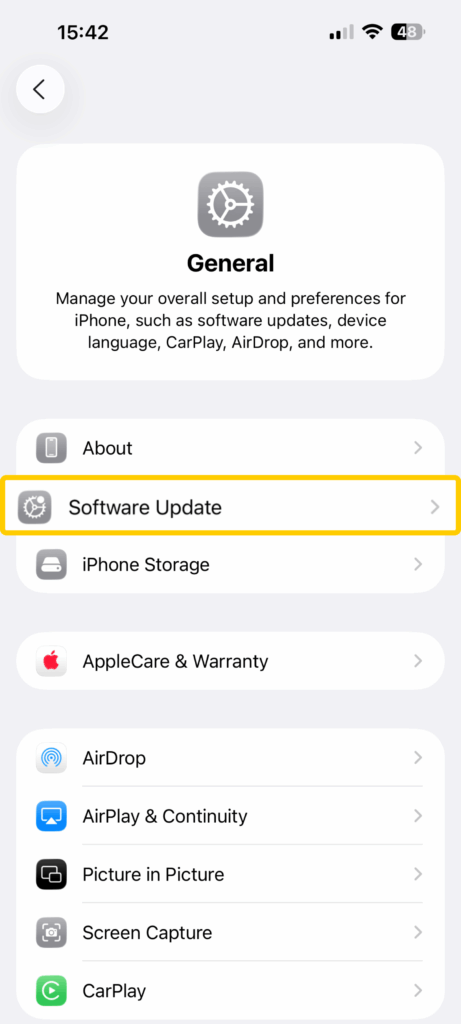
- Update iOS and apps: Go to Settings > General > Software Update and install any available updates. Many updates fix security flaws that malware relies on, so applying them can stop harmful processes from running and, in some cases, remove the issue altogether.
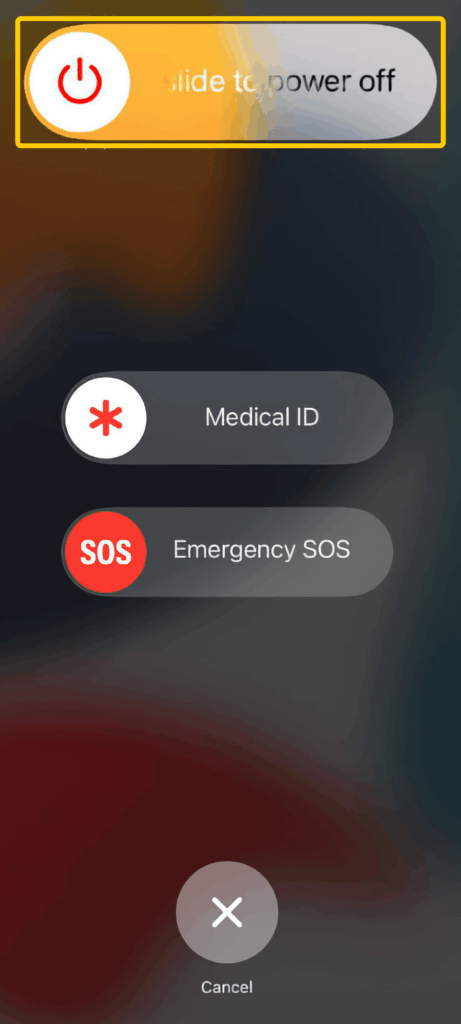
- Restart: Press and hold the Side button and a Volume button until the power-off slider appears, slide to turn it off, then press and hold the Side button again to turn it back on. Restarting can’t remove malware, but it can stop a harmful or stuck background process causing unusual behavior.
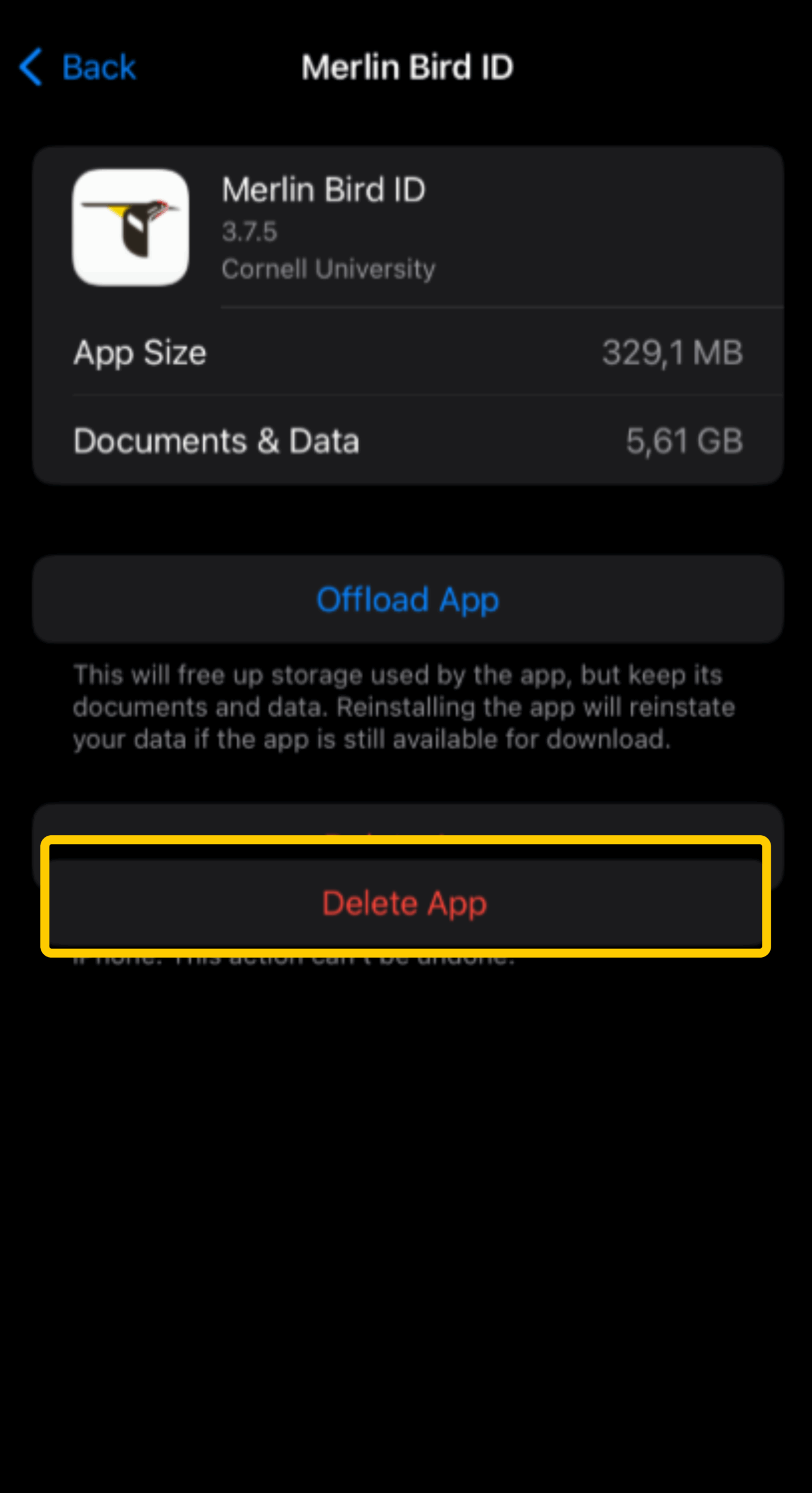
- Delete suspicious apps: Check Settings > General > iPhone Storage and remove any suspicious apps. Deleting an app also removes its data and stops any harmful activity the app may have caused.
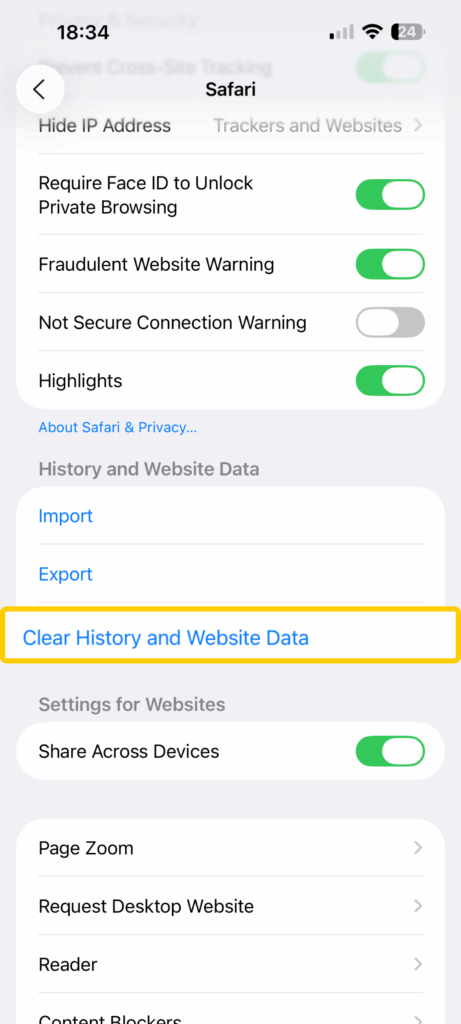
- Clear Safari data: Persistent pop-ups or redirects can sometimes come from harmful website data saved in Safari. Go to Settings > Apps > Safari > Clear History and Website Data to remove cached pages, cookies, and scripts that may be causing the issue. This clears website data like cache and cookies that can trigger pop-ups or redirects, but it won’t remove malware outside Safari.
- Remove unknown profiles: Go to Settings > General > VPN & Device Management and look for configuration profiles you didn’t install. These profiles can change settings like your network, browser, or device permissions. Removing an unfamiliar profile deletes any harmful changes it made and can stop malware-like behavior caused by redirected traffic or altered settings.
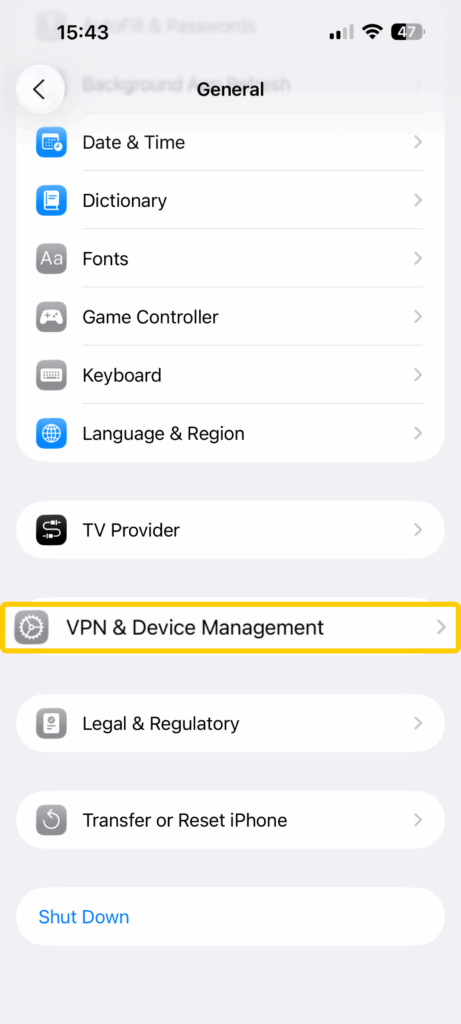
- Reset network settings: Visit Settings > General > Transfer or Reset iPhone > Reset > Reset Network Settings. This resets Wi-Fi, cellular, VPN, and DNS settings back to their defaults. Unwanted changes to DNS or network settings can sometimes cause redirects or connection issues. Resetting the network can clear those changes, but if a configuration profile or device management is involved, remove that first in VPN & Device Management.
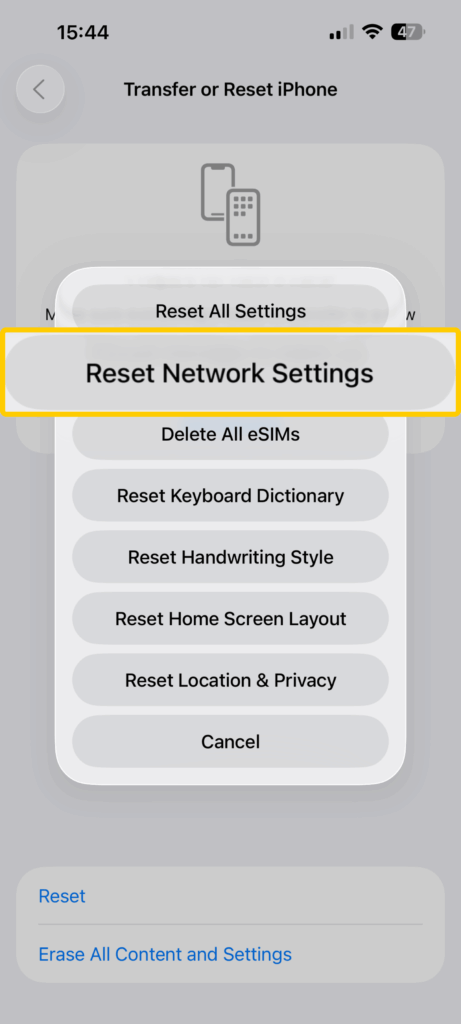
Note: This will remove saved Wi-Fi networks and passwords, Bluetooth connections, and any custom VPN or DNS settings. You will need to reconnect to Wi-Fi afterward, but your apps and personal data will stay intact.
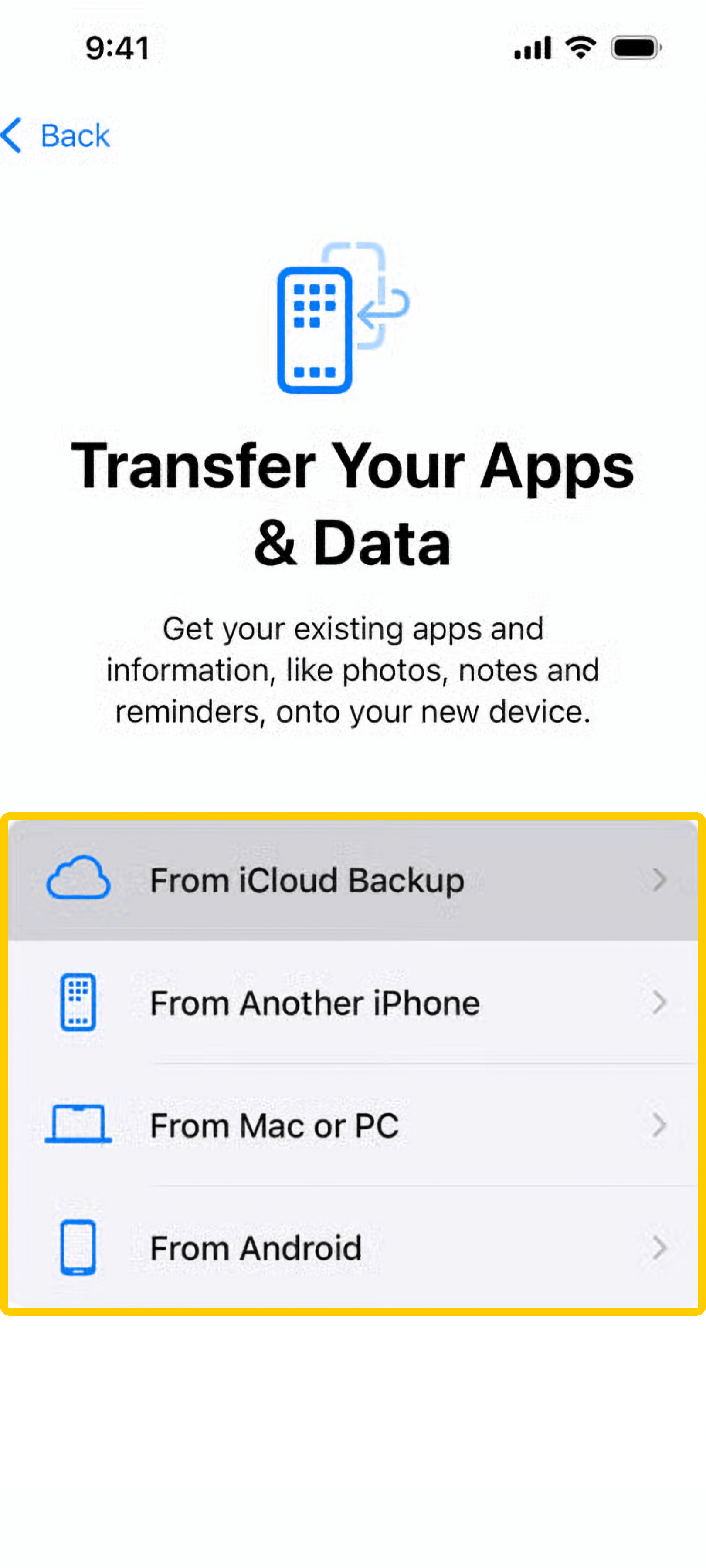
- Restore from a clean backup: If the problem started recently, erase the iPhone and restore from a backup made before the issue began. Erasing the device removes all apps, data, settings, and profiles, which eliminates malware or harmful configurations. Restore from iCloud or a computer to bring back only previously saved, clean data. After restoring, check Settings > General > VPN & Device Management to make sure no unfamiliar profiles are present.
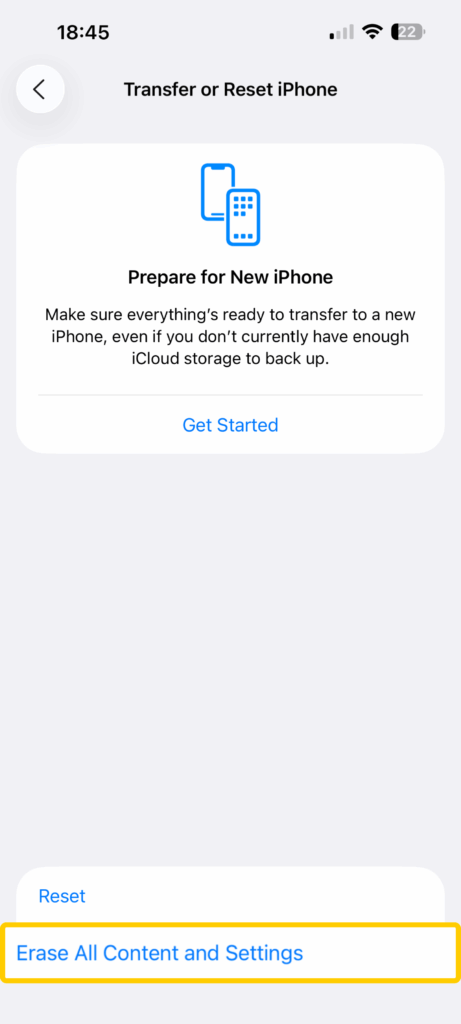
- Factory reset as a last resort: Go to Settings > General > Transfer or Reset iPhone > Erase All Content and Settings. After the reset, set up your iPhone as new without restoring from a backup, since that can reintroduce the same malware, corrupted settings, or harmful profiles that caused the problem. Please note that this process deletes all apps, data, and media on your device.
- Contact Apple Support: If symptoms persist, contact Apple Support or visit an Apple Store or authorized service provider for diagnostics and model-specific help.
How iOS Protects Against Malware (and Why Traditional Scanners Don’t Exist)
Apple designed iOS with multiple built-in defenses to make it harder for malware to take hold in the first place. These protections work differently from the antivirus approach you might know from Windows, macOS, and Android. Instead of scanning files after they are installed, iOS focuses on stopping threats before they reach the device, with features like:
- App Store reviews: Every app goes through Apple’s approval process before it appears on the App Store. While not perfect, this screening removes most dangerous or fake apps.
- Sandboxing: Each app is isolated in its own “sandbox,” meaning it can’t interfere with system files or other apps. Even if one app misbehaves, it’s contained, so it can’t cause system-wide damage.
- Code signing: Apps must be digitally signed by Apple or an authorized developer. This signature proves the software hasn’t been tampered with and blocks most unverified apps from running.
- Regular security updates: Apple pushes regular iOS updates that patch security flaws. Because updates roll out to all supported devices at once, you receive protection without relying on carriers or manufacturers.
However, this doesn’t mean iPhones are completely immune to threats. Malicious apps can sometimes slip through App Store review, phishing links can trigger unwanted actions, and configuration profiles can be used to change settings without permission. Jailbreaking also increases risk since it allows untrusted apps and services to run on the device.
How to Protect an iPhone from Malware
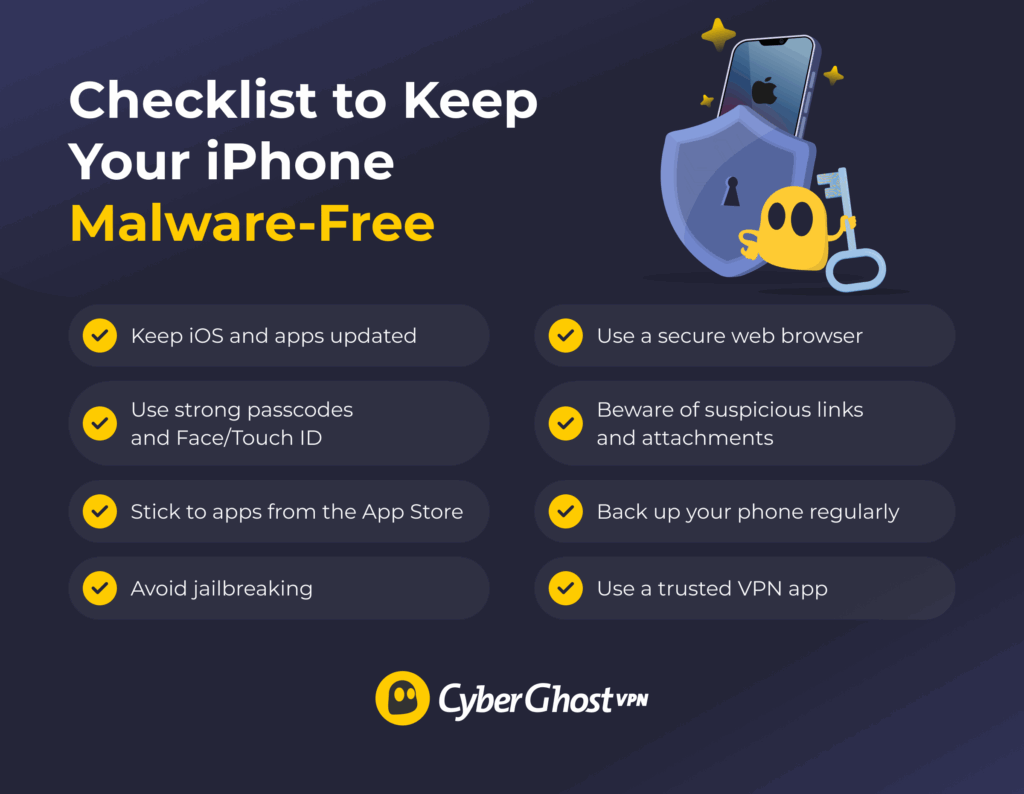
Preventing malware is much easier than removing it. Follow these simple security practices to significantly reduce the chances of infection:
- Keep iOS and apps updated: Apply updates regularly, since they fix security flaws that attackers may exploit. For example, updates often patch bugs that could let apps access your data or allow malicious sites to run harmful code.
- Use strong passcodes and Face/Touch ID: Lock your iPhone properly to prevent unauthorized access if it’s stolen or lost. Face ID or Touch ID adds quick, secure access for you while making it much harder for anyone else to open your phone. A weak passcode, like 1234, makes it easier for thieves to access data.
- Avoid jailbreaking: Keep iOS restrictions in place, since removing them weakens Apple’s safety protections. This makes it easier for untrusted apps, tweaks, or software from outside the App Store to run on your device, which increases the risk of installing something unsafe. You should only rely on Apple-reviewed apps.
- Beware of suspicious links and attachments: Stay alert to emails, texts, or pop-ups that try to trick you into downloading harmful software or giving away your personal info. Phishing texts pretending to be delivery updates are a typical example.
- Use a secure browser: Go with a browser that has anti-tracking and phishing protection. Safari is a solid choice because it blocks cross-site tracking, warns you about known malicious sites, and limits how much data websites can collect. However, you’ll also find some great alternatives on the iOS App Store, with advanced protection against risky websites.
- Use a trusted VPN on public Wi-Fi: Public Wi-Fi is handy, but it’s often not secure, and people on the same network might be able to see the data you’re sending. A VPN protects you by encrypting your traffic, which keeps your logins and personal information private even on risky networks.
Add Extra Protection on Public Wi-Fi With CyberGhost VPN
Apple builds strong defenses into iOS, but no system is completely immune. Threats are more likely on unsecured networks, and phishing links and shady downloads can lead to infection, so it’s smart to use every layer of protection you can. Keeping your phone updated, avoiding untrusted apps, and being careful with the links you open all go a long way.
Speaking of extra safeguards, an iOS VPN can provide an additional layer of privacy to your web browsing. While a VPN can’t remove malware already on a device, it can help protect your connection on public Wi-Fi and reduce the risk of certain network-based attacks. CyberGhost VPN encrypts your internet traffic, which makes it unreadable to anyone snooping on public Wi-Fi.
With safer browsing habits and an encrypted connection, you lower the risk of data theft and keep your online activity private. You can also try CyberGhost with a 45-day money-back guarantee, so there’s no risk in seeing if it works for you.
FAQ
Does an iPhone have a built-in malware scanner?
No, iPhones don’t have built-in malware scanners in the traditional sense. iOS doesn’t allow apps to scan the entire system, but it features built-in protections like app review, sandboxing, and security updates. These work together to stop most malware before it reaches the device.
Can iPhones get malware or viruses?
Yes, although it’s rare. Most iPhone threats come from unsafe links, phishing sites, or apps installed outside the iOS App Store. Apple’s restrictions make malware infections less common than on Android and Windows, but the risk isn’t zero.
How do I know if my iPhone has malware?
Warning signs include overheating, fast battery drain, sudden data usage spikes, strange pop-ups in Safari, or apps behaving oddly. These issues don’t always mean you have malware because they can happen for other reasons. However, if the behavior is unusual, keeps happening, or you notice more than one sign, it may be worth investigating further.
Can apps from the App Store contain malware?
It’s uncommon for apps from the App Store to contain malware, but this has happened in rare cases in the past. Apple reviews apps before publishing them, yet sometimes harmful apps slip through. When Apple discovers one, they remove it from the App Store and may send you a notification urging you to delete it. In some cases, iOS may prevent the app from opening and prompt you to delete it.
How do I remove malware from my iPhone if I suspect an infection?
It’s best to start simple: update iOS, restart the device, and delete suspicious apps or unknown profiles. If problems continue, reset Safari, reset network settings, or restore from a clean backup. A factory reset is the last option. If none of these work, contact Apple Support.
Are iPhones more secure than Android devices?
Generally, yes. iPhones run on a closed system with much stricter app controls, while Android allows more customization, which can open more risks. Still, no platform is completely secure, so safe practices are always important.
Does Apple automatically scan for malware on iPhones?
Yes, to a degree. Apple uses automated systems to check apps submitted to the App Store and blocks known malicious code. Devices also get regular security updates, which help prevent cybercriminals from exploiting vulnerabilities. However, iPhones don’t support real-time malware scanners like traditional antivirus software.
Can jailbreaking an iPhone increase the risk of malware?
Yes, jailbreaking removes Apple’s built-in restrictions, letting apps access areas of the system that normally couldn’t. This opens the door to malware, data theft, and other security issues.

Leave a comment