
Someone gaining unauthorized access to your phone camera could put your privacy at risk. They might be able to see your surroundings, capture private moments, or access sensitive information. But unusual camera activity doesn’t always mean someone hacked your phone. Software glitches and legitimate apps can cause similar behavior.
Knowing what to look for can help you separate harmless issues from genuine warning signs. Camera indicators, app permissions, and unfamiliar apps are good places to start when checking an Android phone or iPhone for suspicious activity.
Quick Signs Your Phone Camera Might Be Compromised
-
- Your camera indicator dot turns on when you’re not using the camera.
- You spot apps you don’t remember installing.
- Your battery drains faster than usual, even with light use.
- You notice unexplained spikes in your mobile data usage.
- Your phone overheats or slows down for no clear reason.
Behavioral Warning Signs to Watch For
Before you check any settings, pay attention to how your phone behaves day to day. Unusual patterns are often the first hint that something is running in the background without your permission. Keep in mind that these symptoms can also have harmless explanations, such as software updates, background apps, or battery problems.
- Unexpected camera activity: The camera app opens on its own, the flash triggers randomly, or the camera indicator dot appears when you’re not using a camera app. Check which app accessed the camera before assuming it’s malicious.
- Unusual battery drain: Apps or processes that run in the background can cause your phone to lose power faster than normal. Compare your battery life to how it performed a few weeks ago.
- Unexplained data usage: Footage and photos take up space, and sending that data off your device uses your mobile data or Wi-Fi connection. A spike in data usage can point to something transmitting information without your knowledge. Review data usage by app in your settings, especially for apps you don’t recognize.
- Device slowdowns and overheating: A phone that overheats or lags during use may be running extra processes in the background. This isn’t conclusive on its own, but worth noting alongside the other signs.
Watch for Unfamiliar or Suspicious Apps
Malicious apps and stalkerware can disguise themselves as ordinary tools or hide from your home screen. Check your phone’s full list of installed apps, not only the icons you can see. Look for:
- Vague names: Titles like “System Update” or “Device Health.”
- Missing icons: Blank, generic, or no icon at all.
- Unknown apps: Anything you don’t remember downloading or granting permissions to.
- Outside installs: Apps from outside the Google Play Store or Apple App Store.
An unfamiliar app isn’t automatically malicious. Phones come with preinstalled software, and some legitimate apps use generic names. Before removing anything, check the app’s developer, permissions, and installation details.
Kaspersky recorded more than 34,000 unique users affected by stalkerware in 2024–2025.¹ Stalkerware apps disguise themselves as system tools, which is exactly why a careful scroll through your app list matters.
How to Know if Your Phone Camera Is Hacked: Check App Permissions
Reviewing which apps have camera access is one of the most reliable ways to know if an attacker hacked your phone camera. Both Android and iPhone let you see which apps you’ve allowed to use your camera and revoke permissions that seem unnecessary. This won’t catch every type of spyware, but it’s a useful place to start.
Review Camera Permissions on Android
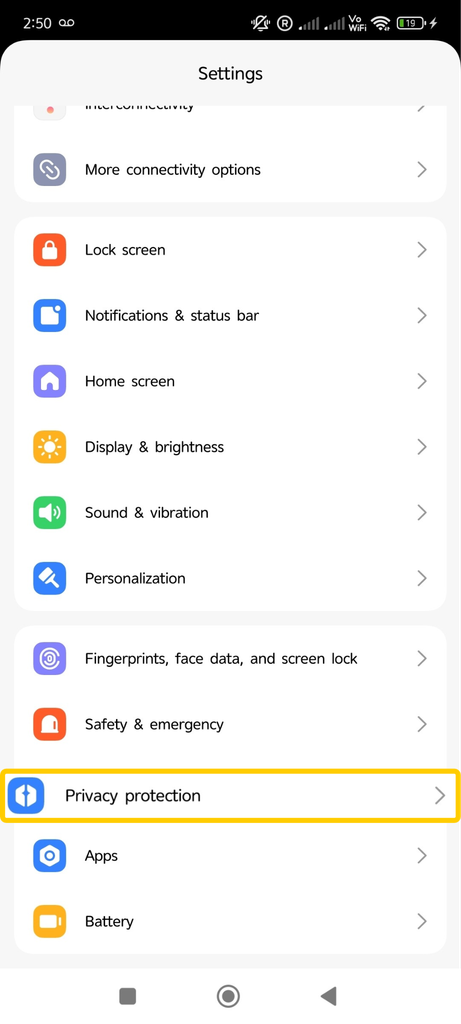
- Open Settings and go to Privacy protection or Security & Privacy, depending on your device.
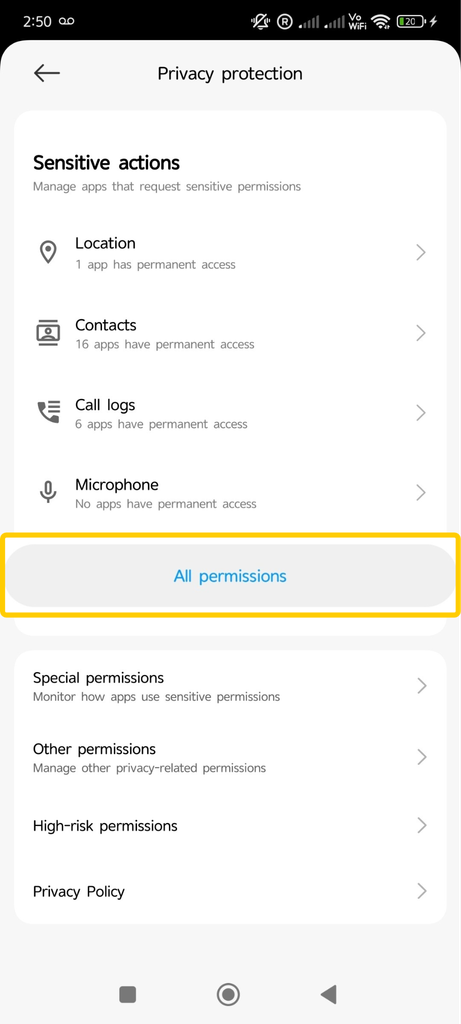
- Tap All Permissions (or Permission Manager).
- Select Camera to see every app with access.
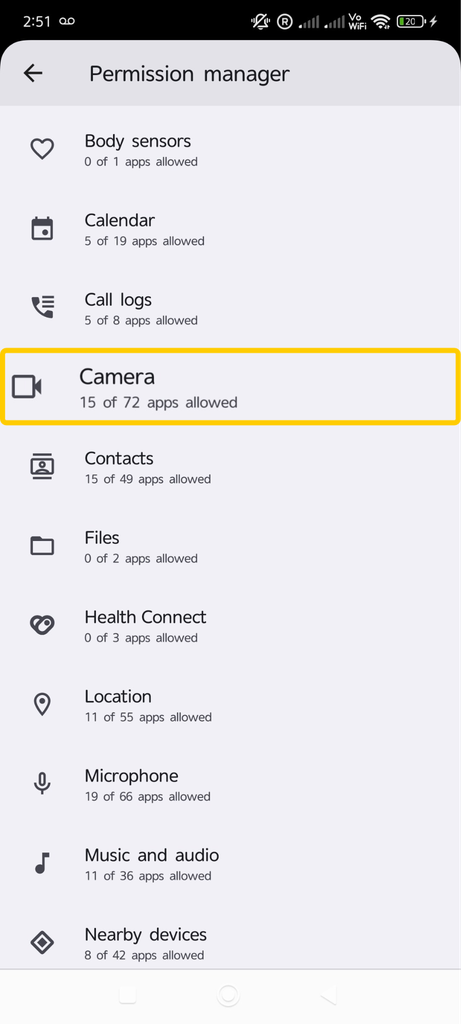
- Review the list and revoke access for anything unfamiliar or unnecessary.
Repeat these steps for Microphone, since many camera-focused threats request both permissions.
Review Camera Permissions on iPhone
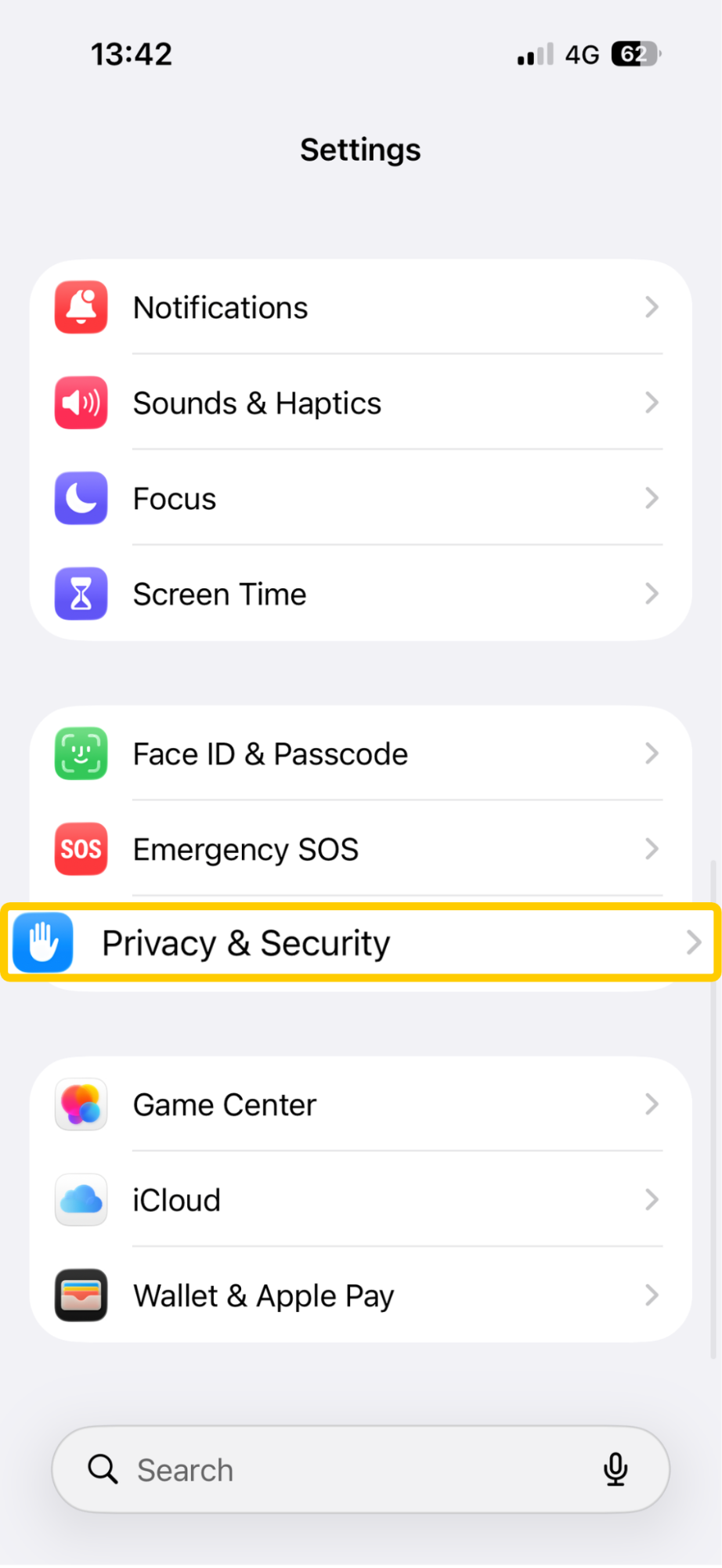
- Open Settings and tap Privacy & Security.
- Select Camera.
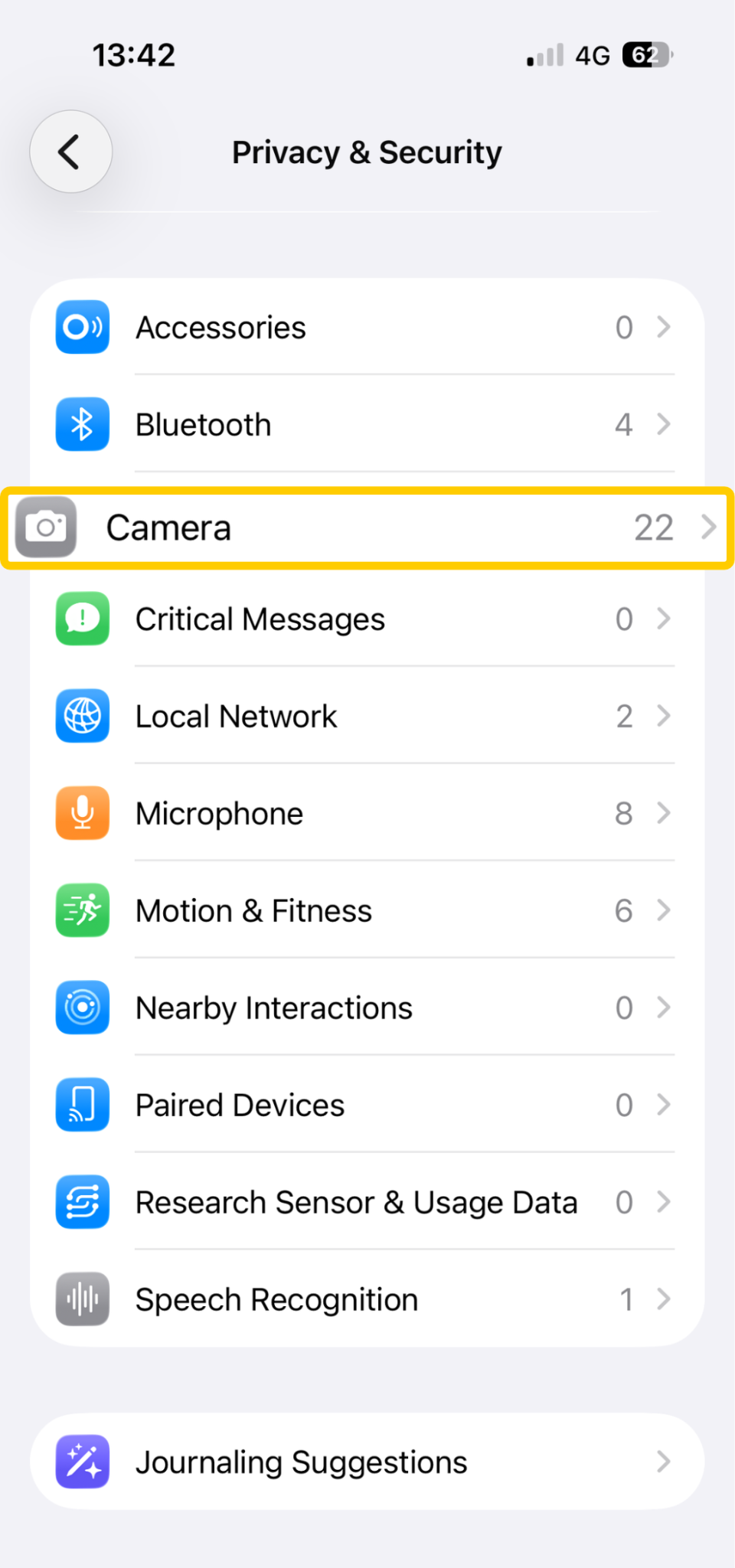
- Review which apps have access and toggle off any that shouldn’t have it.
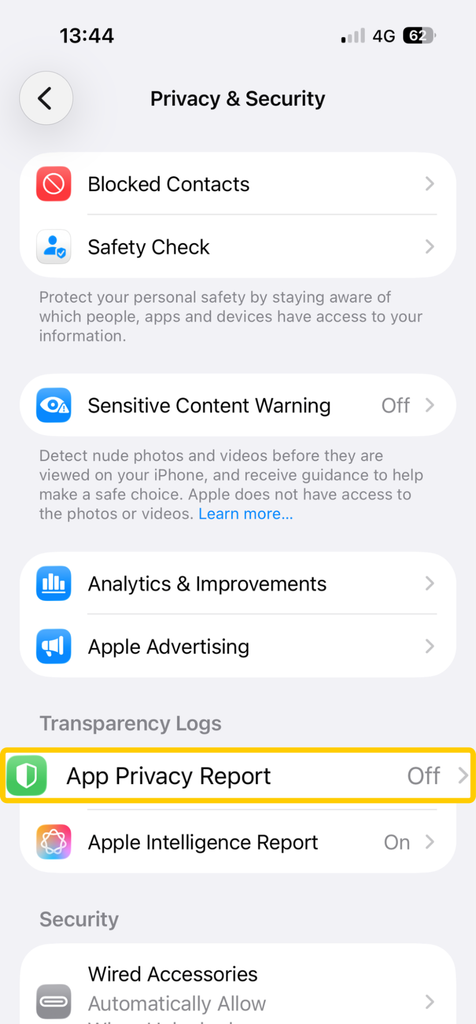
Repeat the process for Microphone. Apple also lets you review recent access under Settings > Privacy & Security > App Privacy Report, which shows exactly when an app used your camera and how often.
Use Your Phone’s Built-In Camera and Microphone Indicators
Your phone can show you when an app is using its camera or microphone. Both Android and iPhone display a small colored dot, making it easier to catch suspicious activity in real time.
Android’s Camera and Microphone Indicators
Android has included a privacy indicator since Android 12. A green dot in the top-right corner of your screen means an app is currently using your camera, while an orange dot points to microphone access. It may briefly appear as a camera or microphone icon before becoming a dot.
If you notice the indicator, swipe down to open Quick Settings and tap the privacy indicator to see which app is using the camera or microphone. The exact steps may vary depending on your phone.
iPhone’s Green and Orange Dots
iPhone has used the same color system since iOS 14. A green dot means your camera is in use, and an orange dot means your microphone is active. If a dot appears when it shouldn’t, open Control Center to see which app is responsible.
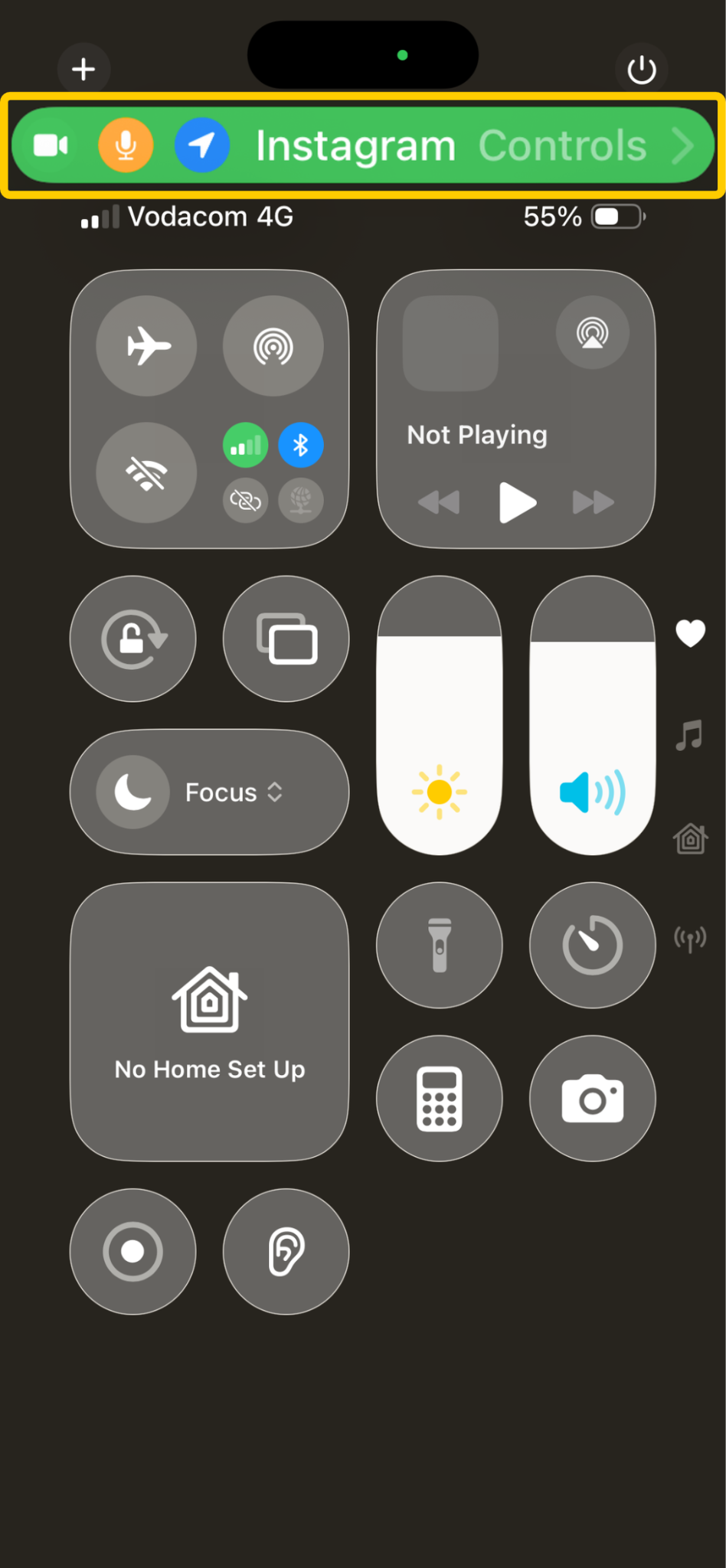
An unexpected indicator is a reason to investigate, not proof of hacking. Video calls, QR scanners, and other legitimate apps can trigger these indicators. Check which app is responsible before deciding whether its access is suspicious.
Run Deeper Security Checks
If the signs above point to something suspicious, a few additional checks can confirm whether spyware or another malicious tool is on your device. Look for unusual device permissions, signs of system modifications, and malware that may have escaped your initial review.
Check Device Admin Apps and Configuration Profiles
Some malicious apps request elevated permissions to make themselves harder to remove. On Android, go to Settings > Security > Device Admin Apps or Device Administrators and remove anything you don’t recognize. On iPhone, check Settings > General > VPN & Device Management for profiles you didn’t install yourself. Stalkerware often relies on these permissions to stay active and hidden.
Not every administrator app or management profile is suspicious. Work and school devices often use them legitimately, so check their purpose before making changes.
Look for Signs of Rooting or Jailbreaking
Rooting an Android phone or jailbreaking an iPhone can weaken built-in security protections, especially if you didn’t make those changes yourself. Malicious apps with root privileges bypass the OS’s camera API and could access your camera without triggering the privacy indicator.
Look for unfamiliar root-management tools, like Magisk on Android, or jailbreak-related apps like Cydia or Sileo on iPhone. They may indicate that someone’s modified the device, although it doesn’t mean someone is spying on you.
Run a Trusted Security Scan
A reputable mobile antivirus app may detect known spyware and malicious code, particularly on Android. Stick to established providers and be wary of free “cleaner” or “booster” apps. According to a Cybernews study of 40 popular free cleaner and antivirus apps on Google Play, nearly all contained data trackers, and six had links that appeared to be malicious.2
If a scan flags something, follow the app’s removal instructions rather than deleting files manually. Some spyware reinstalls itself if you don’t remove every related component. Keep in mind that a clean scan doesn’t guarantee your phone is free of spyware. Security apps have limited visibility on iPhone, and sophisticated threats may evade detection on either platform.
What to Do if You Think Your Phone Camera Is Hacked
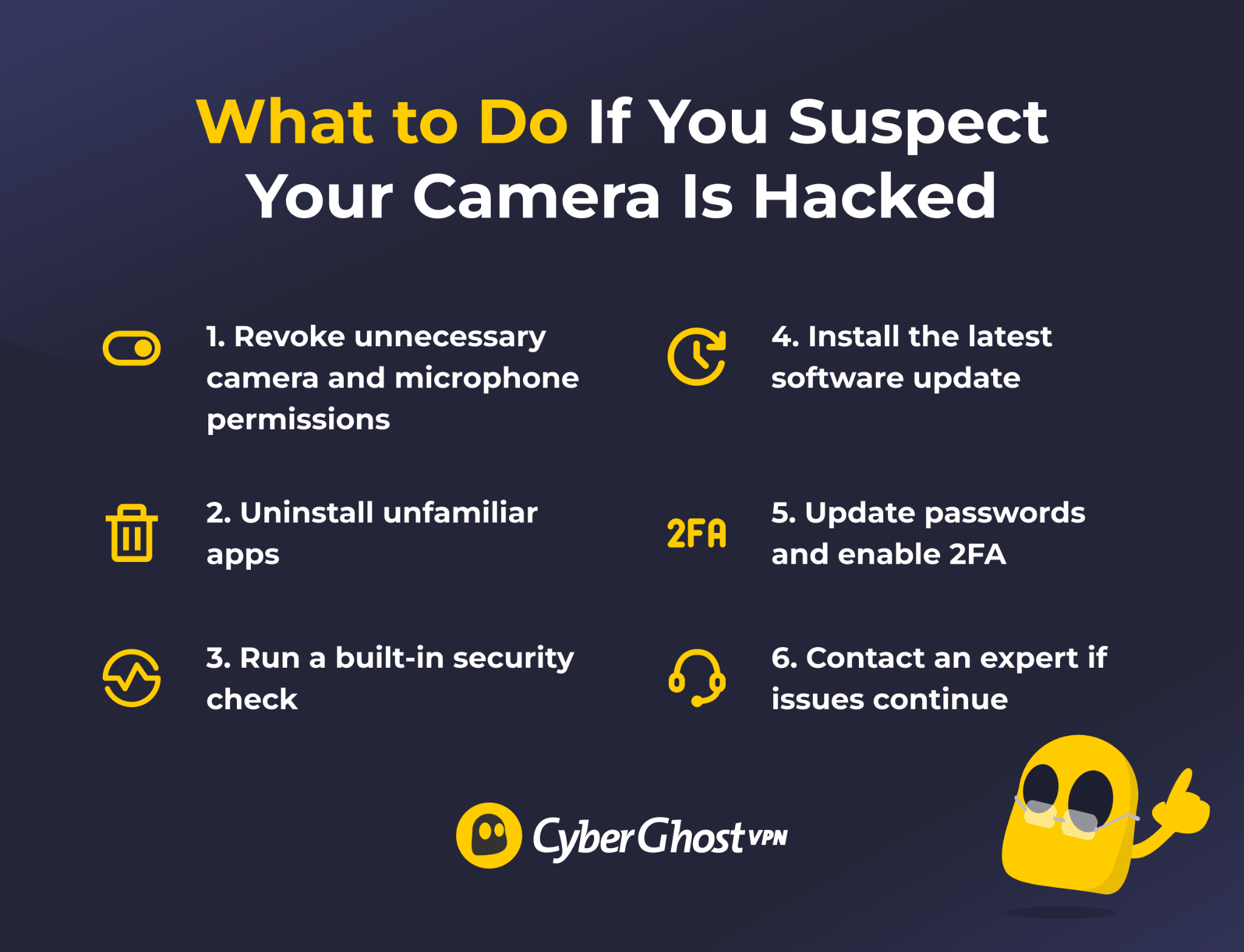
If you suspect someone has accessed your phone camera without permission, start by checking which apps can use it. You don’t need to reset your phone at the first sign of unusual activity.
- Review camera and microphone permissions: Revoke access from unfamiliar apps or apps that don’t need it. If you identify a malicious app, follow trusted removal guidance.
- Update your phone: Install the latest available operating system and app updates to fix known security vulnerabilities.
- Run a security scan: Use a reputable mobile security app to check for known threats on Android. Keep in mind that security scans are more limited on iPhones.
- Secure your accounts: Change your passwords from a trusted device and enable two-factor authentication (2FA) if you suspect your passwords or account information may have been exposed.
- Consider a factory reset: If suspicious activity continues or you have strong evidence of a compromise, resetting your phone may help remove malicious software. Back up important personal files first and avoid restoring suspicious apps or settings.
If you suspect someone close to you installed stalkerware, don’t rush to remove it. The person monitoring your phone may notice the change. Consider using a separate, trusted device to contact a support organization, such as the Coalition Against Stalkerware, for guidance on safer next steps.
How to Protect Your Phone Camera from Cybercriminals
A few consistent habits go a long way toward keeping your camera in your hands only. Prevention is far less stressful than cleanup, and most of these steps take a minute or two:
- Download apps from trusted sources: Stick to the Google Play Store or Apple App Store, and check app reviews and permissions before installing anything.
- Review app permissions regularly: Remove camera and microphone access from apps that don’t need it. Be especially cautious when an unfamiliar app requests these permissions.
- Keep your phone updated: Install operating system and app updates to protect against known security vulnerabilities.
- Consider a camera cover: Use a slide or sticker when you’re not using the camera. It won’t prevent microphone access or stop malware running on your phone.
- Be careful with suspicious links: Avoid unexpected download links and attachments, particularly from unknown senders.
A VPN can complement these precautions, but it can’t control your camera permissions or remove spyware. It encrypts traffic between your device and the VPN server, helping protect your connection from people monitoring public Wi-Fi networks. It’s an additional layer of online privacy, not a substitute for keeping your device secure.
Keep Your Phone Camera Under Your Control
Most camera scares have harmless causes, but a few checks can confirm if an attacker’s compromised your device. Watch for odd camera activity, battery drain, data spikes, and apps you don’t recognize. Review camera and microphone permissions and keep an eye on the green and orange indicator dots. If something looks off, run a security scan, remove suspicious apps, update your phone, and secure your accounts.
Pairing these habits with a VPN adds protection where it matters, like on public Wi-Fi. Get CyberGhost VPN to encrypt your connection and browse with more confidence.
FAQ
How can I tell if my phone camera has been hacked?
Some warning signs for a phone camera hack include a camera indicator light turning on without warning, unfamiliar apps in your app list, unusual battery drain, or unexplained data usage. None of these signs is proof on its own, but two or three together are worth investigating. Start with the permission checks to narrow down the cause.
Can someone access my phone camera without permission?
Generally no, an app needs your permission before it can use your camera, though malicious apps sometimes disguise what they’re asking for or exploit an unpatched security flaw. Spyware installed through physical access to your device is another route, since it can grant itself permissions during setup. Reviewing your app permissions is the best way to catch this.
How do I know if an app is using my camera?
To see if an app is using your camera, check the colored indicator dot in your status bar: green for camera access and orange for microphone access on both Android and iPhone. Tap the dot, or open your Control Center or Privacy Dashboard, to see exactly which app triggered it. This is one of the fastest ways to catch unexpected camera activity in the moment.
Can hackers turn on my camera remotely?
It’s possible that hackers can turn on your camera remotely, but only if there’s malicious software on your device. Remote activation requires some form of access first. Some mobile apps request camera and microphone permissions during installation. If granted, a rogue app can run in the background and spy on you.
How can I protect my phone camera from hackers?
To protect your camera from hackers, stick to official app stores, review your camera permissions, keep your operating system updated, and use a physical camera cover when you’re not on a call. Encrypting your connection with a CyberGhost VPN app adds another layer of protection for your data on unsecured networks. Together, these habits make it much harder for anything to slip through unnoticed.

Leave a comment