
Many people assume that a Windows password is enough to protect their files. In reality, it only prevents someone from logging into your account. If a thief gets their hands on your laptop, they could remove the hard drive, connect it to another computer, and potentially access its contents without ever needing your password. BitLocker helps protect against this by encrypting your drive, making the data unreadable without the correct credentials.
BitLocker is Microsoft’s built-in full-disk encryption feature for supported editions of Windows. It helps protect data if a device is lost, stolen, or improperly discarded by preventing unauthorized access to the drive. In this article, we’ll discuss what BitLocker is, what it can and can’t do, and what its equivalents for other operating systems are.
BitLocker Drive Encryption vs Device Encryption
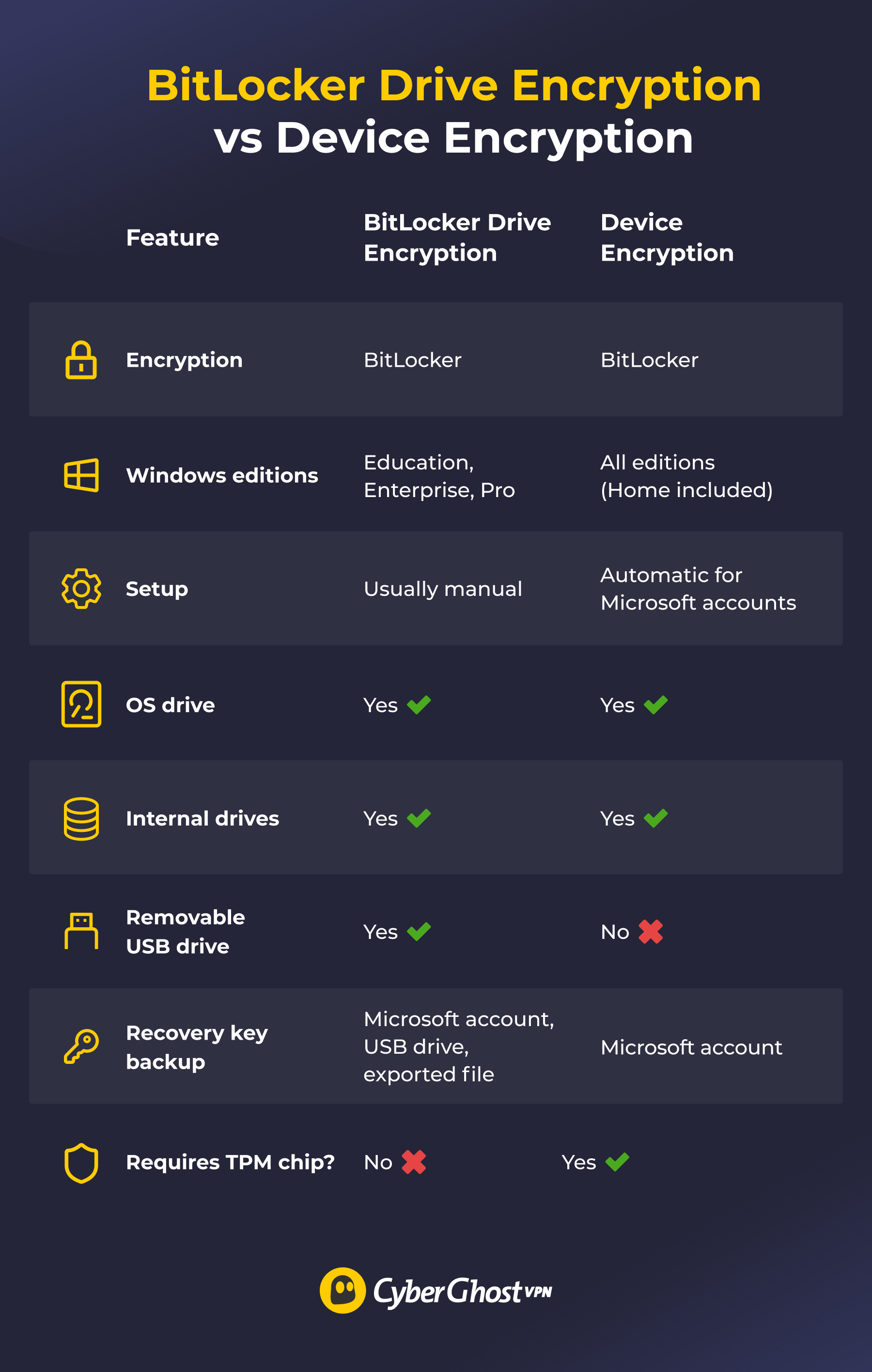
When people mention “BitLocker,” they typically mean ”the built-in disk encryption on Windows devices.” Strictly speaking, Windows has two related services: BitLocker Drive Encryption and Device Encryption. They use the same encryption methods, but they differ in availability, requirements, and customization.
BitLocker Drive Encryption is the more advanced, corporate-oriented option. It’s available on Windows Education, Enterprise, and Pro editions. It gives you more control over encryption settings, can support devices without a TPM chip in certain configurations, and includes BitLocker To Go for encrypting removable drives, like USB devices.
Device Encryption is considered the more general option. It’s available on all Windows editions, including Windows Home, but it has stricter requirements. The device must have a TPM chip (which verifies hardware upon startup) and UEFI Secure Boot (which verifies boot components). It doesn’t have the same customization options, but it uses the same encryption standard.
For simplicity, we use “BitLocker” in this article to refer to both of these services unless distinction matters.
What Does BitLocker Do?
BitLocker protects data at rest from unauthorized physical access. It applies full-disk encryption to information stored on hard drives, solid-state drives, and external storage media. This means that everything on the drive is encrypted, including user files, system files, applications, and the operating system itself.
The operating system’s storage drivers handle encryption and decryption in the background, keeping a copy of the encryption key in its memory. When an application requires data from the drive, the storage driver decrypts it on the go. When an application writes new data, the driver encrypts it before storing it on the drive. This happens automatically, so you can use the device normally once the encrypted drive is unlocked.
BitLocker provides its strongest protection when the encrypted drive is locked and its encryption keys aren’t available in memory, such as when the device is powered off. Once the system is running and the drive is unlocked, authorized applications and users can access decrypted data normally, so BitLocker doesn’t protect against every threat.
How Does BitLocker’s Encryption Work?
BitLocker uses the Advanced Encryption Standard (AES), a widely used encryption algorithm known for its strong security. Depending on configuration, it uses a 128-bit or 256-bit key length. A longer key creates more possible combinations, making brute-force attacks significantly harder.
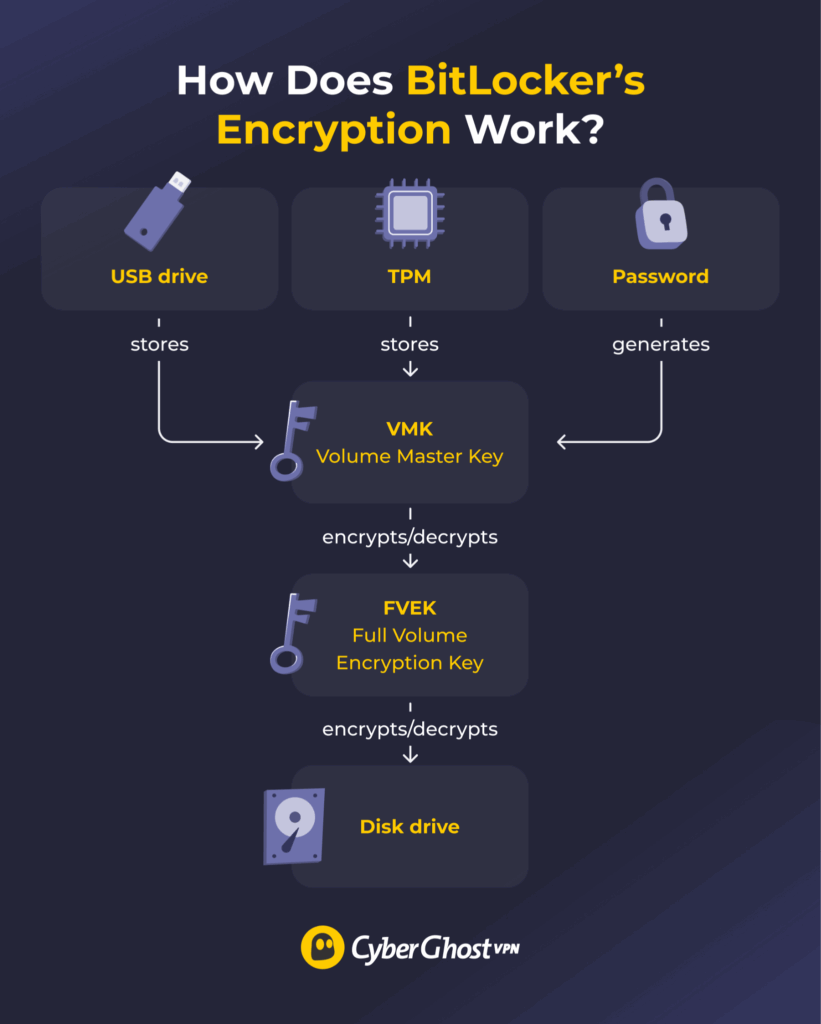
BitLocker relies on two cryptographic keys: the Full Volume Encryption Key (FVEK) and the Volume Master Key (VMK). The FVEK encrypts and decrypts data on the drive, while the VMK encrypts the FVEK. This means the key that protects your data is itself protected by another key.
On most modern devices, the VMK is typically stored in the Trusted Platform Module (TPM) chip. During system startup, the TPM performs integrity checks to ensure the computer is behaving as expected. Upon confirmation, it “releases” the VMK into the device’s memory. From there, the device uses it to decrypt the FVEK and, in turn, the disk drives. The TPM check can be combined with a password or a PIN for additional security.
If the integrity check fails, for example, because a hardware component was changed, BitLocker may enter recovery mode and require the recovery key before you can access the drive.
BitLocker Drive Encryption can also work without the TPM in certain configurations, though it’s still the recommended option. Depending on how it’s configured, you can use alternatives such as a USB startup key or password to unlock the encrypted drive.
What Is the BitLocker Recovery Key?
A BitLocker recovery key is a unique 48-digit number that works as a backup if you can’t use your usual decryption methods like a password or a PIN. You might have to provide the recovery key during startup if BitLocker detects a potential security risk or if you change hardware on the computer.
The recovery key is typically stored on your Microsoft account. Every recovery key has an ID, so you can recognize different recovery keys if you use BitLocker for multiple devices or drives on the same account. If you’re using BitLocker Drive Encryption, you can also store it as a plaintext file or a USB flash drive.
If you’re locked out of your device and you don’t have access to your recovery key, your data is practically unretrievable. BitLocker doesn’t have backdoors or master overrides that would allow you to access your drive without the recovery key. Ensure you always have access to it through your Microsoft account or another backup method.
However, it’s worth noting that Microsoft can have access to your recovery key. In 2025, Microsoft complied with a request from the FBI to hand over the recovery keys for several BitLocker-encrypted devices involved in an investigation. A spokesperson later elaborated that Microsoft receives requests for BitLocker recovery keys regularly, but it can’t comply if the key isn’t stored in Microsoft’s cloud servers through a Microsoft account.1
Why Use BitLocker
BitLocker is particularly useful when there’s a risk of someone gaining physical access to your device or storage drive. Common use cases include:
- Personal device security: Protects potentially sensitive data, such as tax documents, financial records, personal photos, or passwords, in the event of device theft.
- Regulatory compliance: Helps organizations meet legal and industry requirements regarding data access and security.
- Remote workforce security: Secures company data on devices used outside the corporate network.
- Device disposal: Makes data on an encrypted drive much harder to recover after a device is decommissioned.
What BitLocker Can’t Do
BitLocker protects data at rest, but it isn’t a complete security solution. It doesn’t:
- Protect data on an unlocked device: Once the drive is unlocked, authorized users and applications can access decrypted data normally.
- Defend against malware, phishing, or remote attacks: BitLocker is designed primarily to protect stored data from unauthorized physical access.
- Protect data transmitted over a network: It encrypts data at rest, not data in transit.
- Encrypt external drives automatically: You have to manually enable BitLocker To Go for supported removable drives.
BitLocker Alternatives for macOS, Android, iOS, and Linux
BitLocker is specific to Windows devices, but other major operating systems have their own built-in disk encryption options:
- macOS (FileVault): Encrypts the drive with an AES 256-bit method similar to BitLocker’s. Uses the Mac login password to encrypt and decrypt the drive.
- iOS: Applies full-disk encryption automatically when you set a device passcode or biometric lock.
- Android: Switched to file-based encryption from Android 7 onward. Encrypts individual files with different keys so some services and features can work without the user unlocking the device. Before file-based encryption, Android used a full-disk encryption method that had been available since Android 4.4.
- Linux (Linux Unified Key Setup; LUKS): Can be configured for a variety of encryption algorithms, including AES. Included with many popular Linux distributions.
Protect Your Data at Rest and in Transit
If your Windows device supports BitLocker, enabling disk encryption is a sensible way to protect your files if the device or drive is lost or stolen. It works quietly in the background once configured, but keeping your recovery key somewhere safe is essential.
BitLocker only protects data stored on your drive, so it’s one part of a broader security setup. CyberGhost VPN complements BitLocker by encrypting your internet traffic while it travels between your device and the VPN server. Used together, they protect your data at different stages: BitLocker while it’s stored on your device and CyberGhost VPN while it’s travelling across the network.
FAQ
What is BitLocker used for?
BitLocker protects data on Windows devices from unauthorized physical access. It encrypts the entire drive so the data remains unreadable, even if the device is lost or stolen. It doesn’t protect against online threats like malware, phishing attacks, or remote hacking.
How does BitLocker encryption work?
BitLocker has multiple layers of protection for the encryption process. The Full Volume Encryption Key (FVEK) encrypts the drive data, and the Volume Master Key (VMK) encrypts the FVEK. A Trusted Platform Module (TPM) chip typically protects the VMK through integrity checks that ensure the device hasn’t been tampered with.
Is BitLocker safe to use?
Generally speaking, yes. BitLocker uses a widely trusted AES encryption, as it’s known for its ironclad security. The most serious “danger” with BitLocker is losing access to your recovery key. Without it, you may be unable to recover the encrypted data.
Does BitLocker slow down a computer?
The impact is fairly small on modern hardware. Many modern processors include AES instruction sets that speed up encryption and decryption, so users typically don’t notice any significant slowdowns during everyday usage. However, older devices might experience a more noticeable drop in performance.
How do I enable or disable BitLocker?
For devices running the Device Encryption version, it’s usually enabled automatically when you use a Microsoft account on the device. For devices running BitLocker Drive Encryption, the exact location can differ by Windows version. Search for “bitlocker” in the Start Menu search box, and go to the Manage BitLocker result. From here, you can turn BitLocker on and off for each drive.
Where can I find my BitLocker recovery key?
If your recovery key was backed up to your Microsoft account, you can retrieve it from Microsoft’s recovery key page. In corporate environments, it’s likely in a central database or directory that handles recovery keys for all on-site devices. You can also save the key to a USB drive, print it out, or store it as a text file, depending on how you configure it during setup.

Leave a comment