
If your games take a long time to load, connect, or update, your Domain Name System (DNS) settings might be the problem. DNS settings won’t change your in-game ping, but they can affect how quickly your device reaches login servers, matchmaking services, and download servers.
Switching to a faster, more reliable DNS server can cut down on connection errors and get updates to start sooner. Find out which providers offer the best DNS servers for gaming and the steps you can take to change DNS settings on different devices.
Unlike switching DNS servers, a Virtual Private Network (VPN) can improve ping rates in certain circumstances. VPNs make it harder for ISPs to tell that you’re gaming, so they’re less likely to throttle your connection speeds. They may also lower ping by using more efficient routing than your ISP. CyberGhost VPN has gaming-optimized servers that can help minimize latency while gaming.
What Are the Best DNS Servers for Gaming?
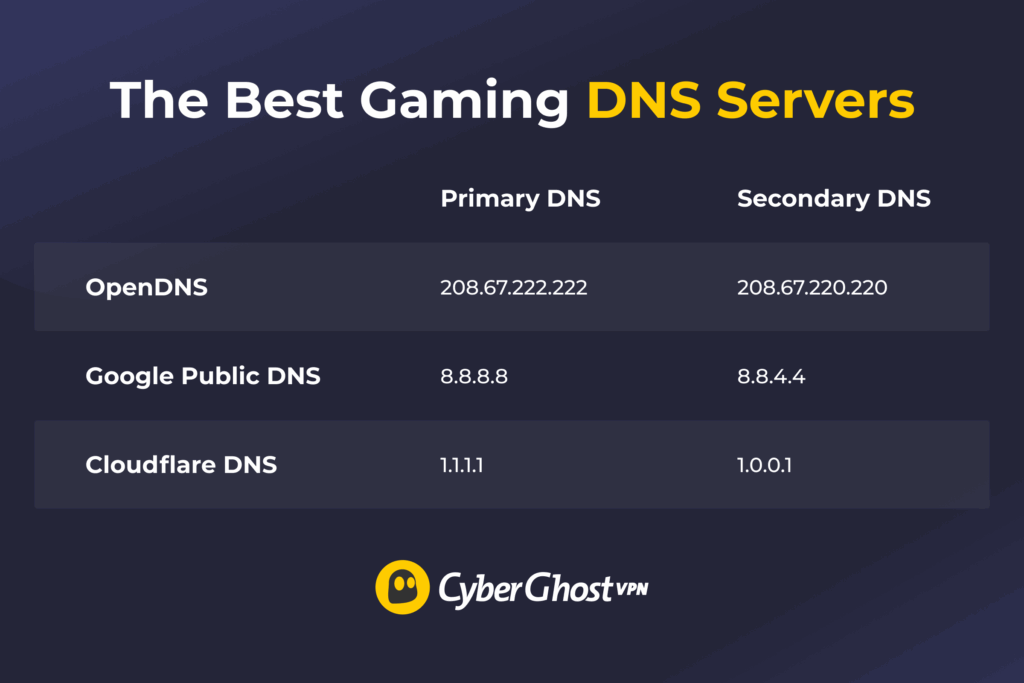
Each DNS provider gives you a primary and a secondary address. Your device uses the primary one by default, while the secondary one acts as a fallback if the first becomes slow or unresponsive. This helps maintain a consistent connection while gaming.
With that in mind, here are three popular public DNS services you may want to try: OpenDNS, Google Public DNS, and Cloudflare DNS. All of them offer free options and are easy to set up on most devices.
Cloudflare DNS
| Primary DNS Address | 1.1.1.1 |
| Secondary DNS Address | 1.0.0.1 |
Cloudflare DNS is among the fastest public DNS resolvers. Its huge global network uses an anycast system. This incorporates servers around the globe with the same IP address and attempts to route your connection to the closest one. Anycast networks may help your games check for updates, load account data, and connect to online services with less stalling at the start.
Cloudflare also puts a focus on privacy. It keeps minimal logs and supports encrypted DNS options like DoH (DNS over HTTPS).
Google Public DNS
| Primary DNS Address | 8.8.8.8 |
| Secondary DNS Address | 8.8.4.4 |
Google Public DNS is backed by Google’s large anycast network, which assists it in delivering fast and consistent DNS queries. For gamers, this can reduce the delay your device experiences when it tries to reach game-related services.
Google Public DNS doesn’t include built-in content filtering. Instead, it automatically validates Domain Name System Security Extension (DNSSEC) signatures to protect against forged DNS responses. This adds an extra layer of security without introducing filters that could interfere with game services. It also supports IPv6 and encrypted DNS protocols like DNS-over-HTTPS (DoH) and DNS-over-TLS (DoT).
OpenDNS
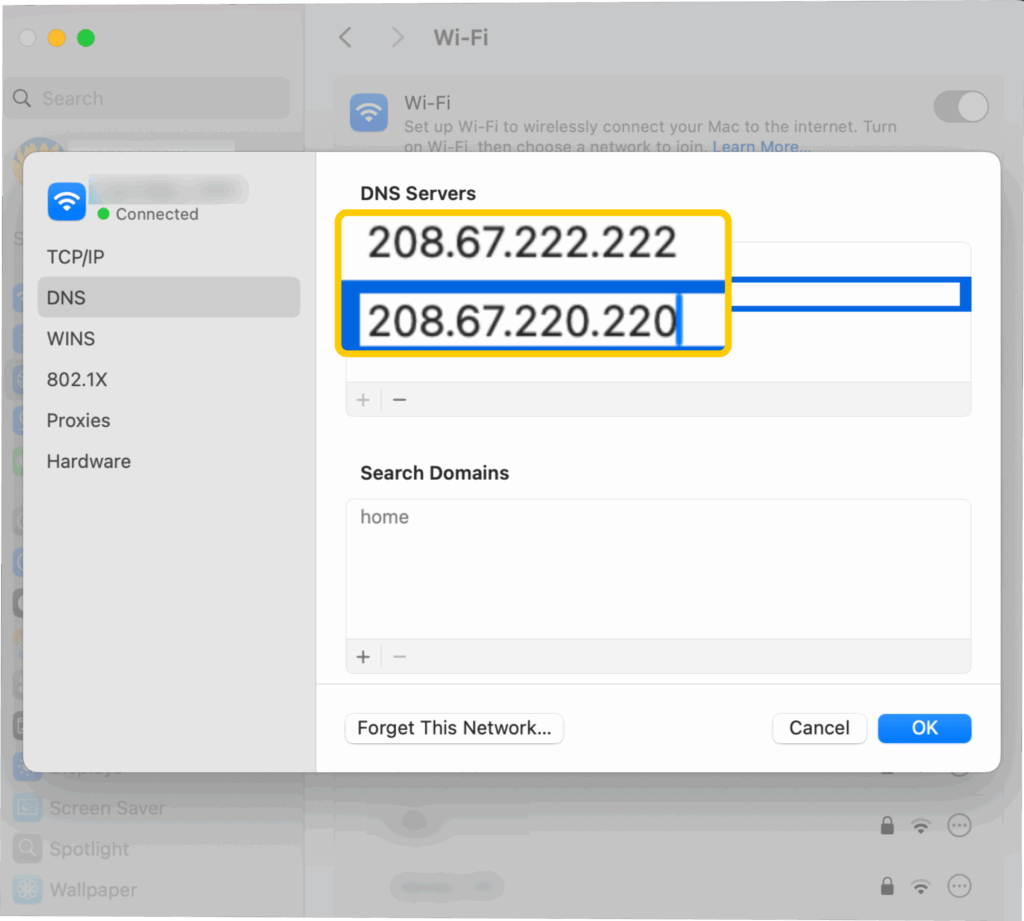
| Primary DNS Address | 208.67.222.222 |
| Secondary DNS Address | 208.67.220.220 |
OpenDNS, a resolver owned and operated by Cisco, claims to run the most up-to-date and largest DNS caches. A DNS cache could be considered a “phonebook” for the internet. Since OpenDNS answers billions of DNS lookups daily, most popular sites are already stored in its memory (or cache). This allows them to be faster than other resolvers. That speed could possibly help you start gaming with fewer delays.
OpenDNS focuses on filtering and security features, including blocking malicious domains. This may be helpful if you download mods, patches, or game files from the web. However, its support for encrypted DNS depends on your configuration and platform.
What Is a DNS Server?
A DNS server translates website and server names to IP addresses. It works in the background when you use an internet-connected app, like a web browser, email client, or video game. For example, when you enter a site’s name into a browser’s address bar, your browser asks a DNS server (also called a resolver) for the corresponding IP address. That’s how the browser knows which site to connect to.
In gaming, DNS servers help your device find the online services a game needs before you can start playing. If your DNS server is slow or unreliable, these steps take longer or fail.
Do DNS Servers Affect Gaming Performance?
Yes. DNS servers affect gaming performance, but only in the steps that happen before you start playing. DNS generally affects:
- Connection times: Devices use DNS to translate game server domain names to IP addresses. A slow DNS server could delay the lookup, increasing the time it takes for you to join a server.
- Matchmaking: Some online games, like Fortnite, use multiple domains for matchmaking. A faulty or slow DNS server could fail to return IPs, causing errors or delays when connecting to matchmaking servers.
- Update/DLC downloads: Slow or outdated DNS servers could cause delays before updates begin or even fail to connect to a download server.
However, DNS doesn’t impact your experience of actual gameplay. It doesn’t increase in-game ping, cause lag spikes, or affect your internet speed.
Why Use a Public DNS Server for Gaming?
Most devices use your ISP’s default DNS servers, but these aren’t always the fastest or the most reliable. Some ISP DNS servers may experience congestion or slower response times, depending on local infrastructure
Public DNS providers like Cloudflare, Google, and OpenDNS use larger global networks that are often quicker and more stable under heavy load. They also tend to offer better security and privacy. For gaming, this means your device might be able to connect to the servers it needs faster and with fewer interruptions.
How to Find the Fastest DNS Server for Gaming
The easiest way to do this is to use GRC’s free DNS Benchmark tool. It tests the reliability and speeds of up to 200 DNS servers. It also offers an in-depth analysis and comparison, detailing which servers provide the best performance.
When you first run the utility, it puts together a list of relevant DNS servers. You can manually add the DNS resolver you wish to test if it isn’t already there. After that, click Run Benchmark and wait a few minutes for the app to display the fastest servers.
Use GRC’s DNS Benchmark tool before changing your device’s DNS settings. It might show that your ISP’s servers (which you use by default) provide the best performance.
How to Change Your Device’s DNS Settings
Windows
- Open Settings, then choose Network & Internet.
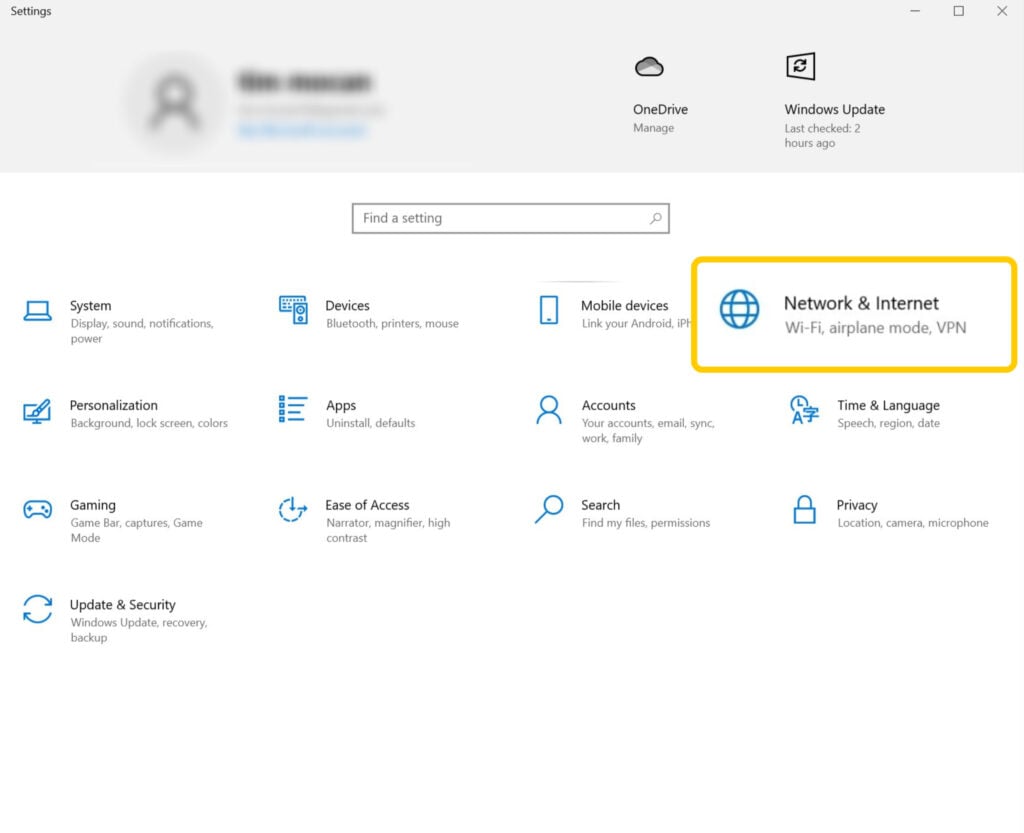
- Click Change adapter options.
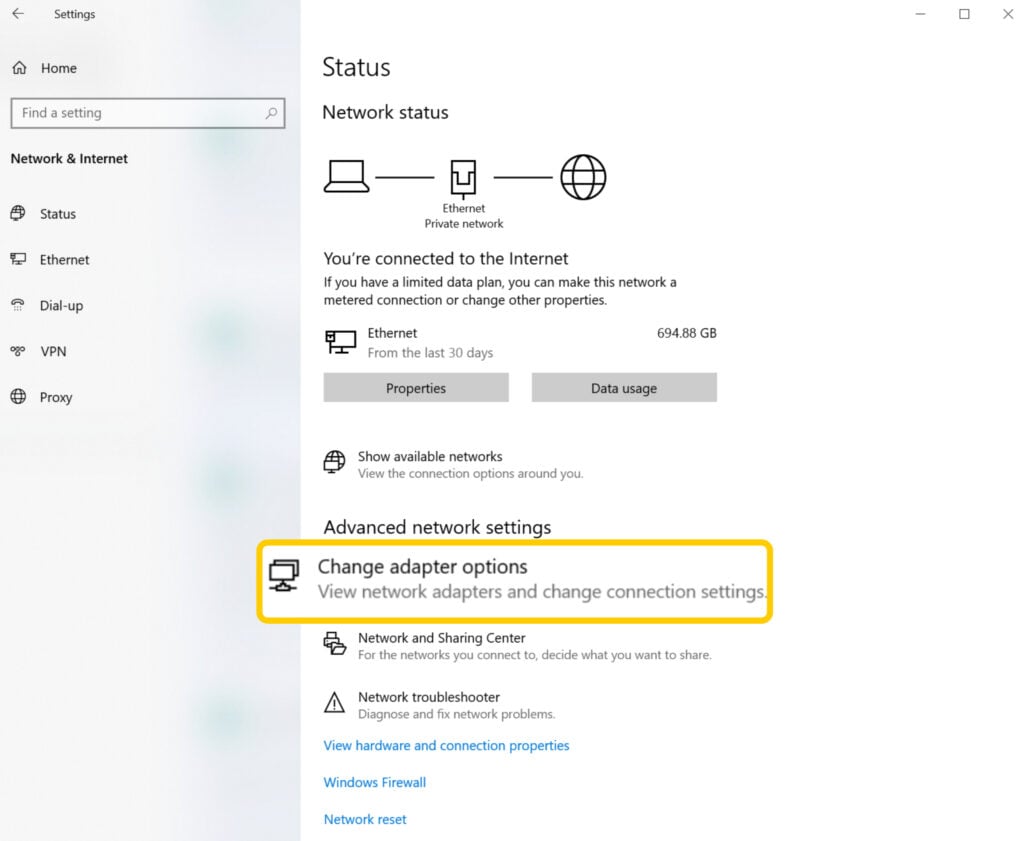
- Right-click your active connection and select Properties.
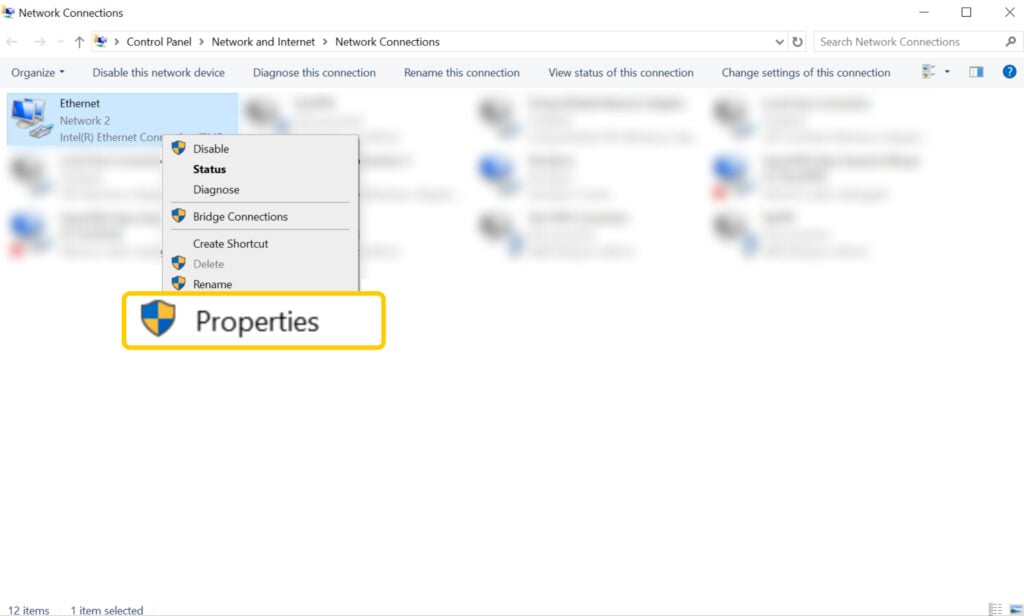
- Double-click Internet Protocol Version 4 (TCP/IPv4).
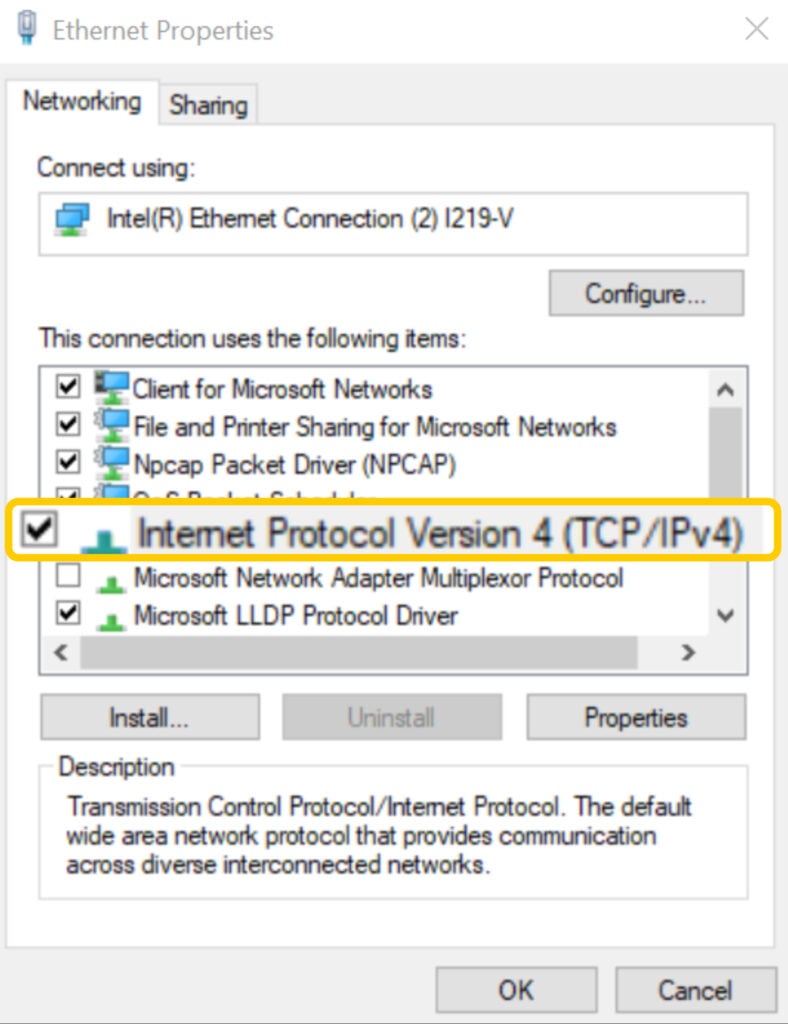
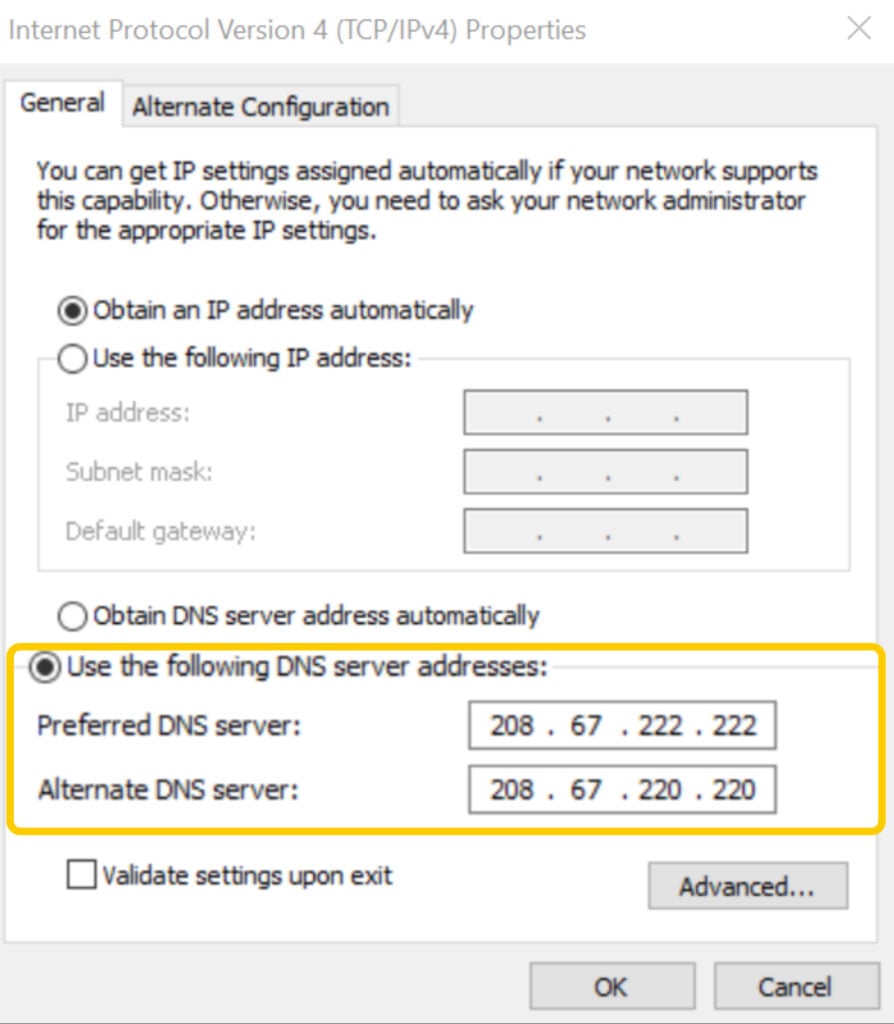
- Click Use the following DNS server addresses, add the DNS server details, and select OK.
macOS
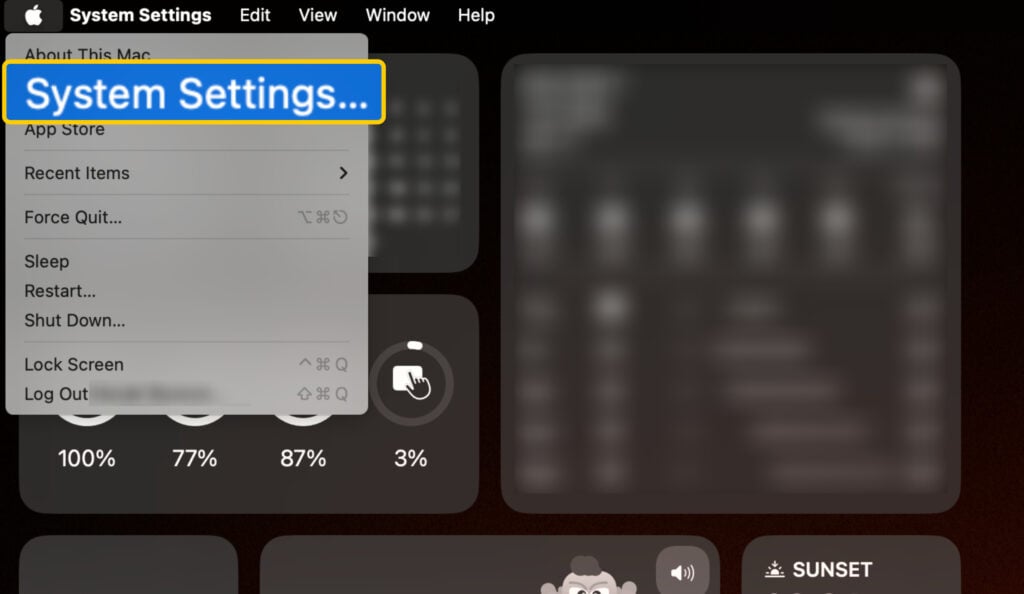
- Open the Apple menu and choose System Settings.
- Select Network and choose your connection type (Wi-Fi, for example).
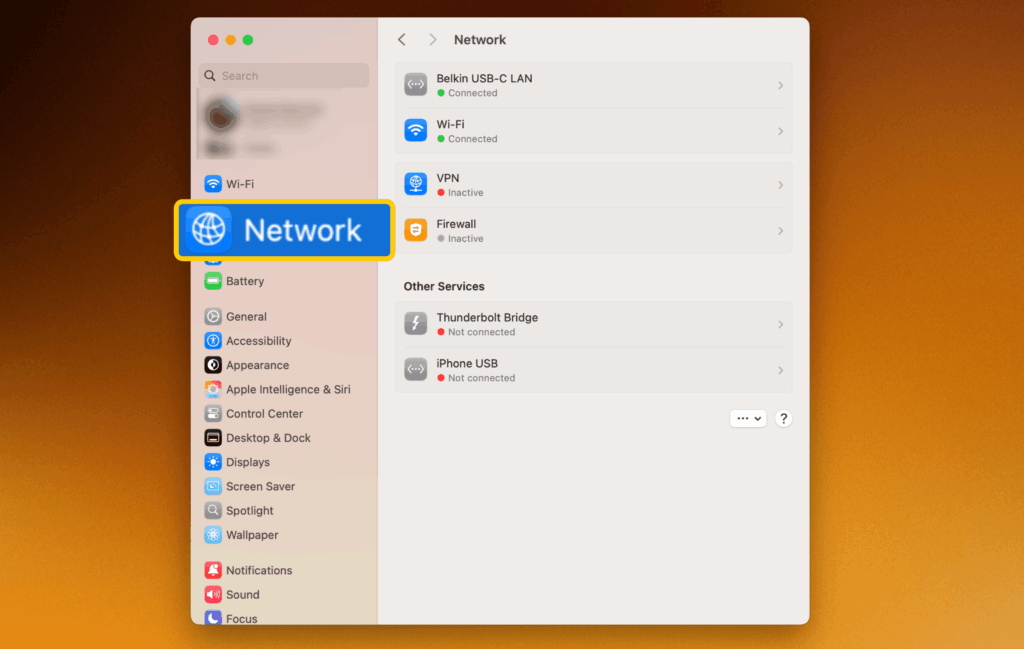
- Tap your active network connection and select Details.
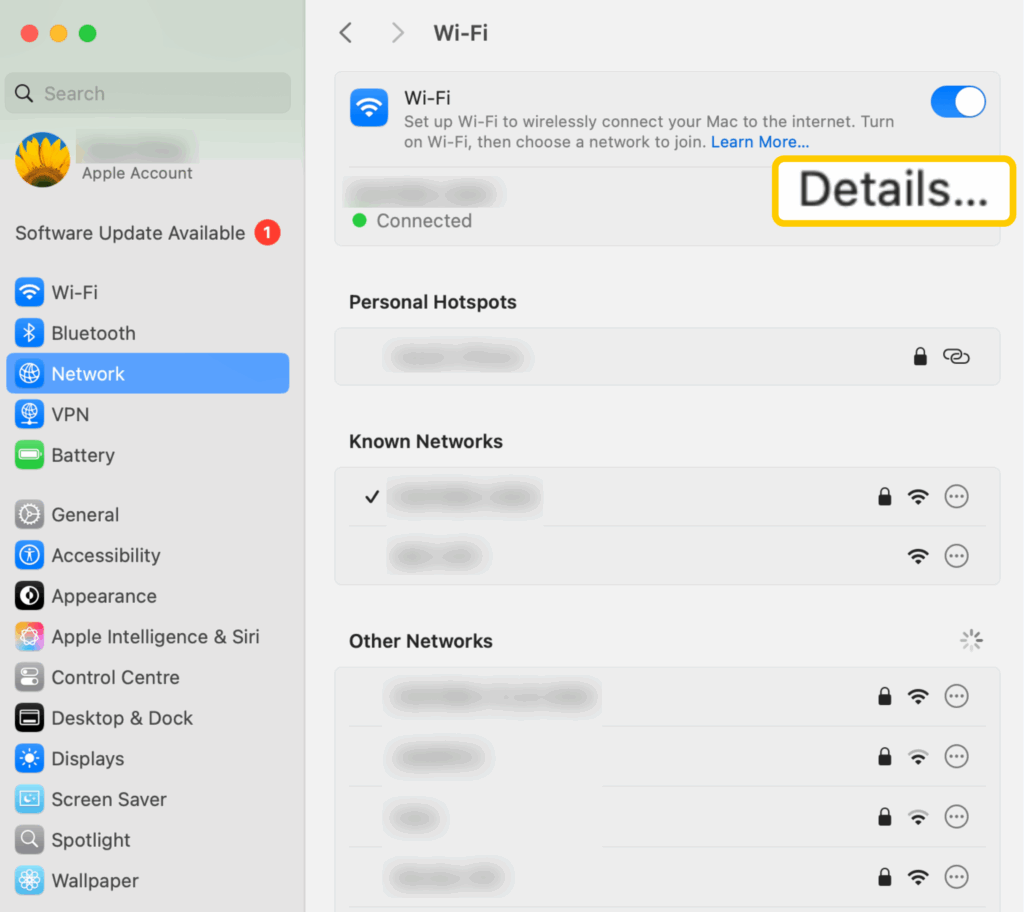
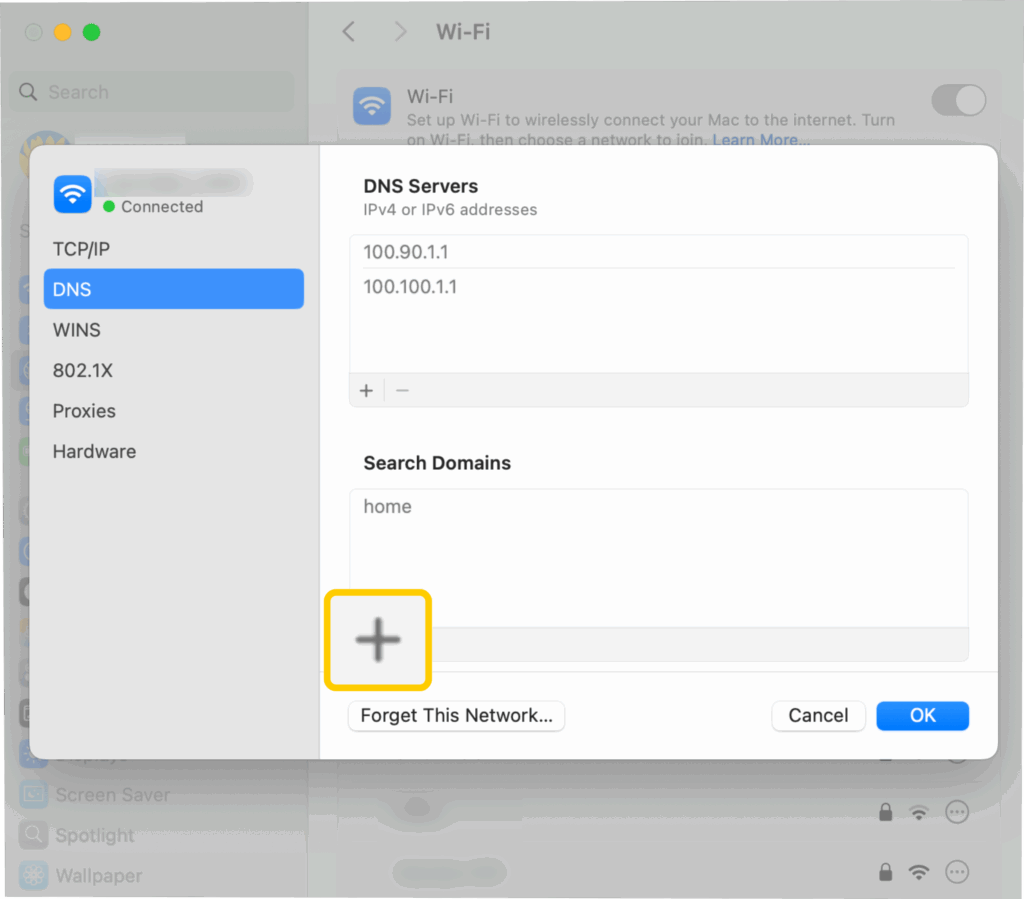
- Click DNS, then select the + sign.
- Add the new DNS servers and click OK.
Routers
The steps vary depending on your router model and firmware, but you usually have to do the following:
- Access your router’s IP address in your web browser and log in to your admin account. The IP and login details are usually on a label attached to the router.
- Look for the router’s DNS settings. You should find them in sections called Network, Internet, or Advanced.
- Add your chosen primary and secondary DNS addresses.
- Save your settings and restart your router if prompted.
PlayStation 5
- Access Settings in the top-right corner of your home screen.
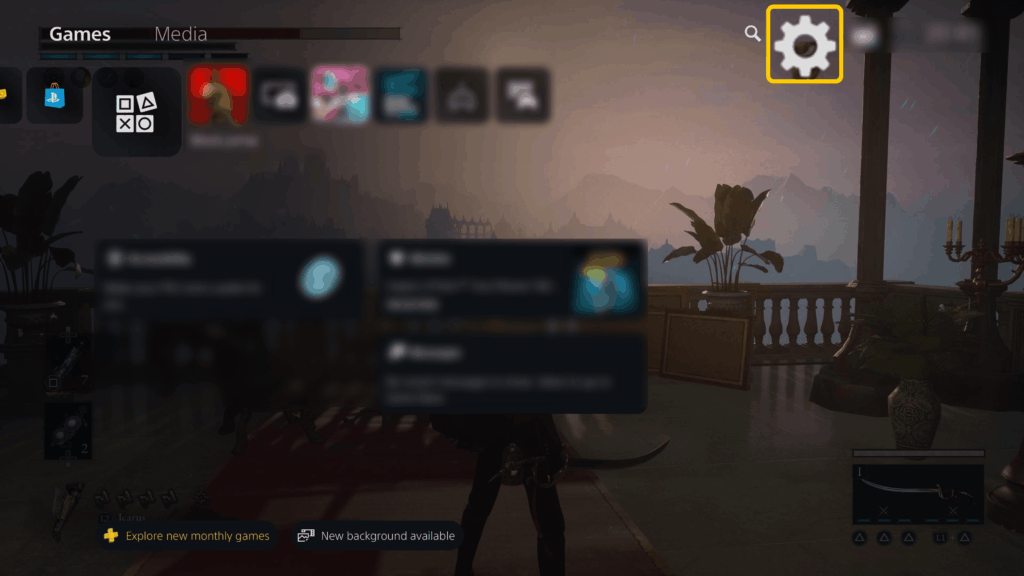
- Select Network.
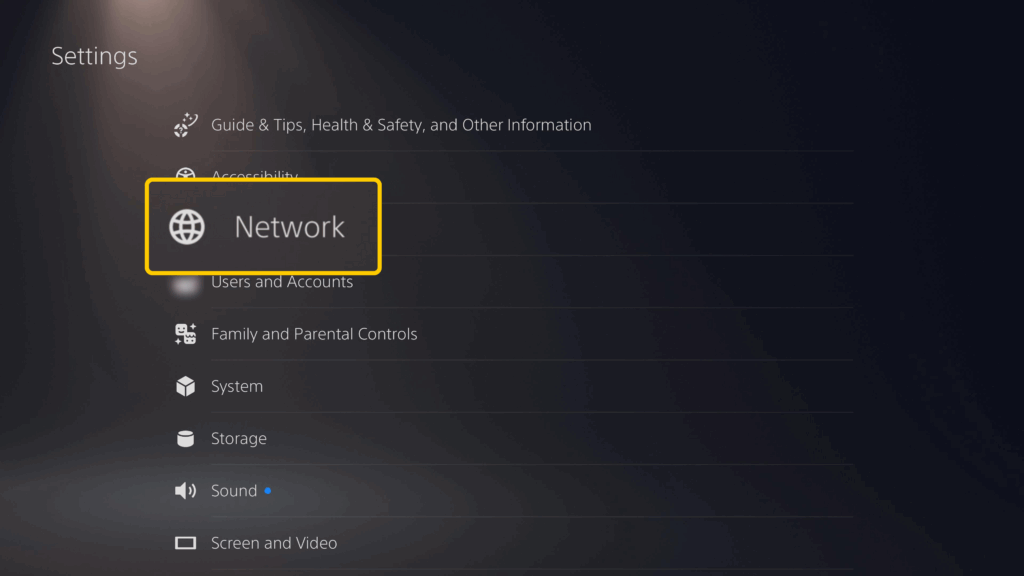
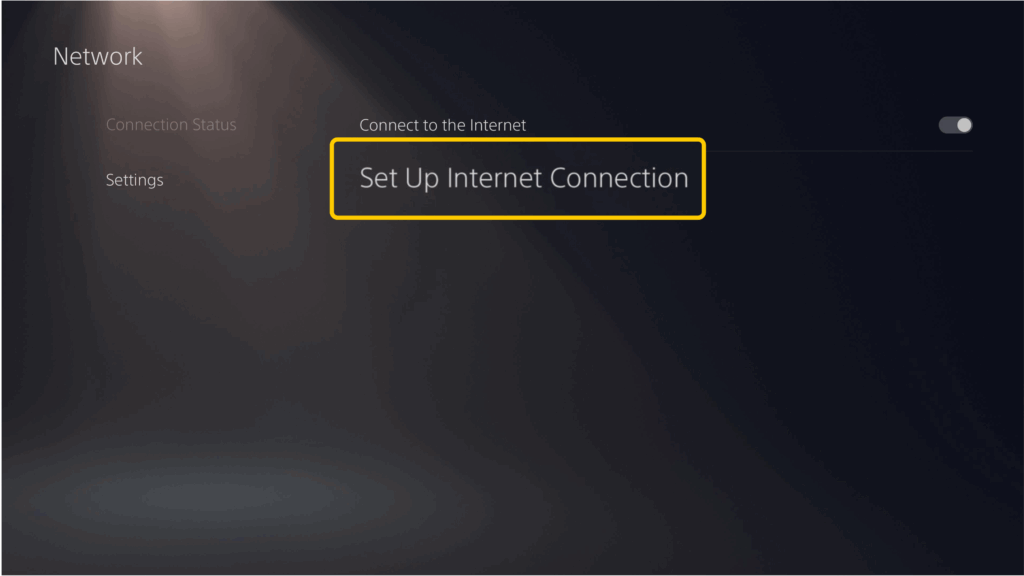
- Go to Settings, then choose Set Up Internet Connection.
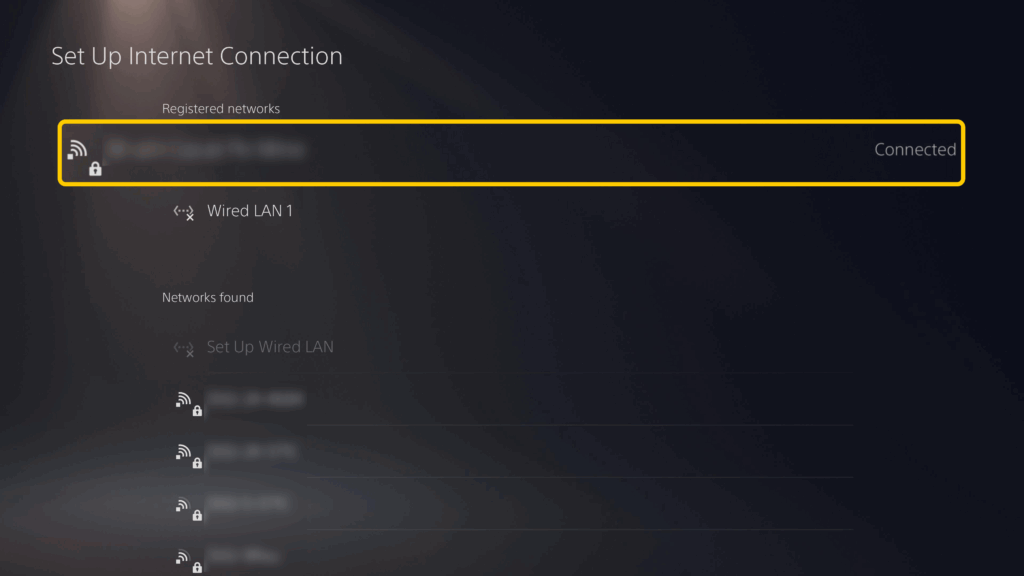
- Tap your active network and press the Options button on your controller. This will open a dropdown menu on your screen. Choose the Advanced option.
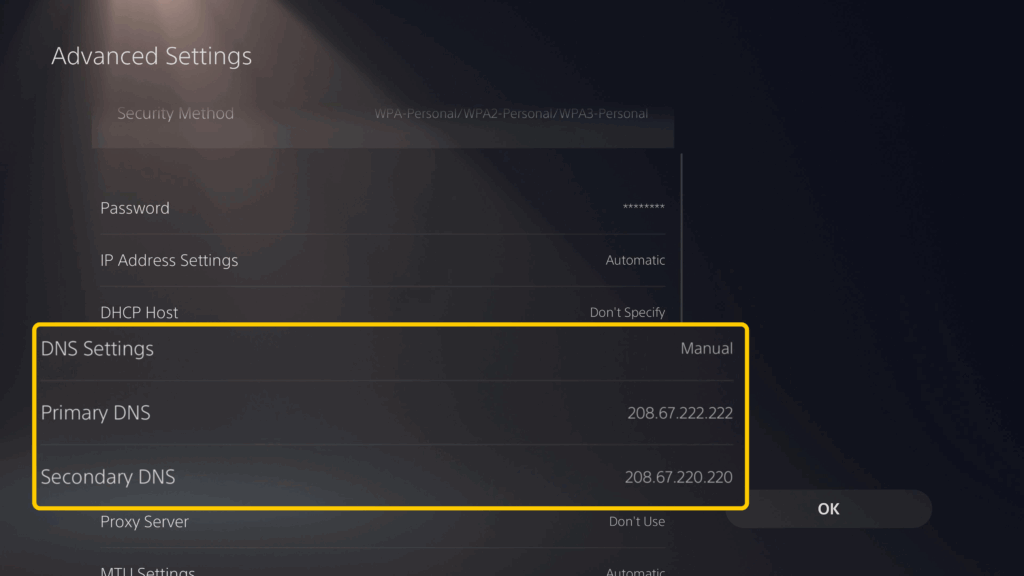
- Set DNS Settings to Manual, add the DNS server addresses, and select OK.
Xbox Series X
- On your home screen, press your controller’s Xbox button to open the Guide, then go to Profile & system.
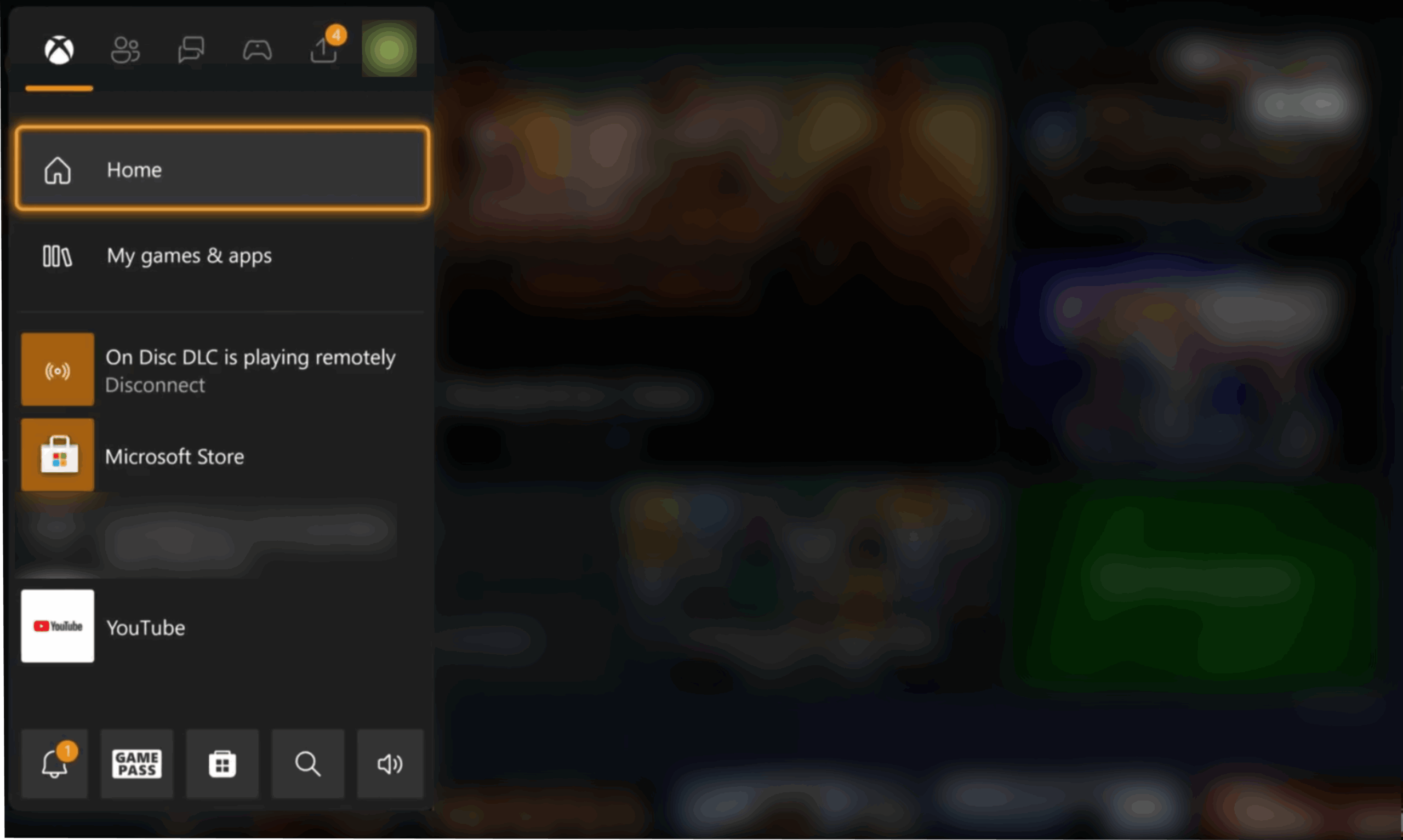
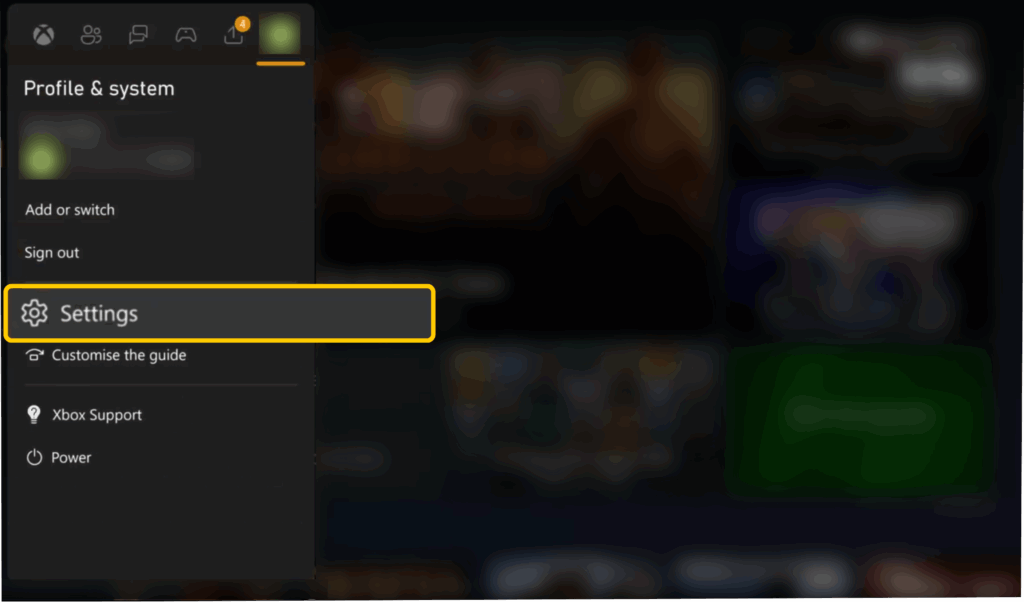
- Go to Settings.
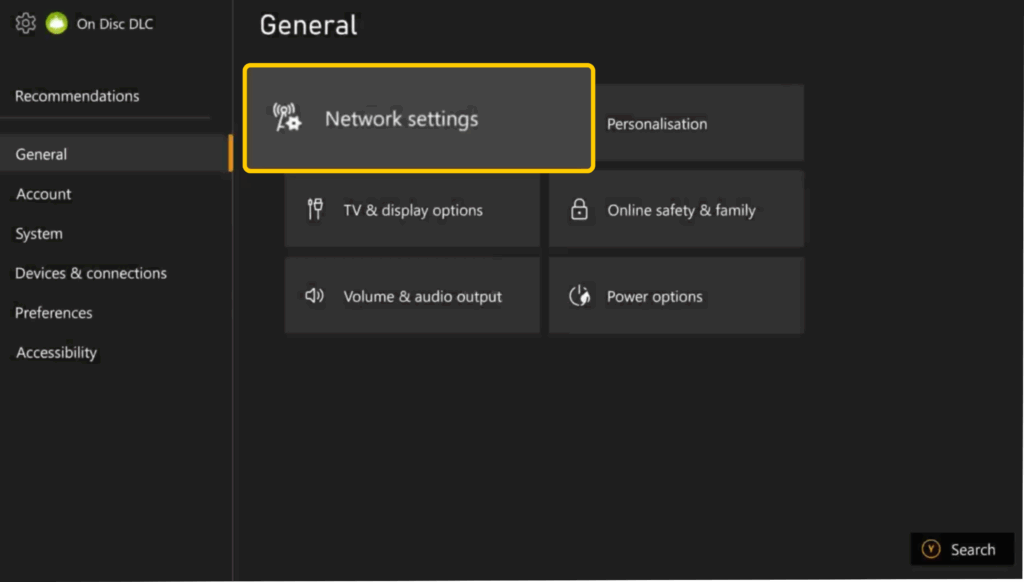
- Select General > Network settings.
- Go into Advanced settings.
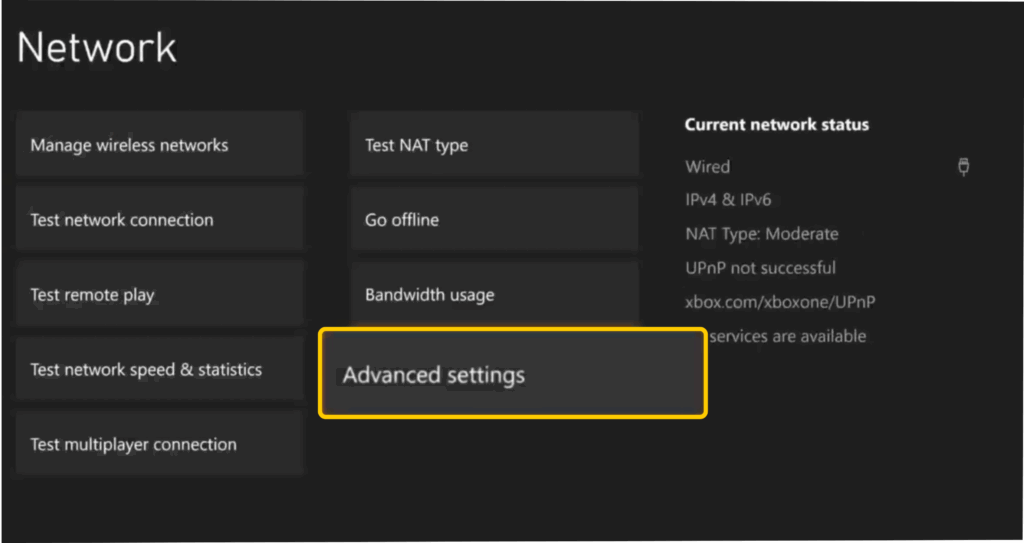
- Set DNS settings to Manual.
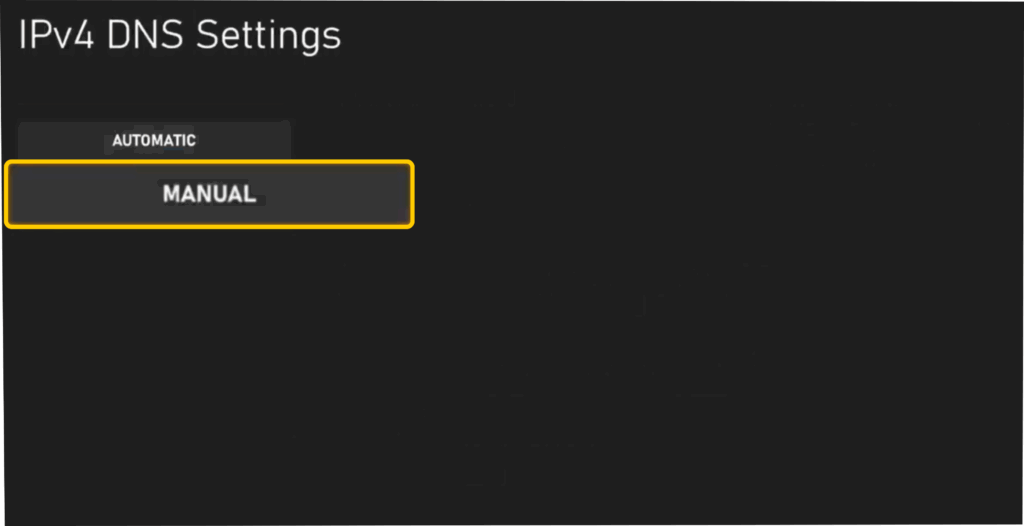
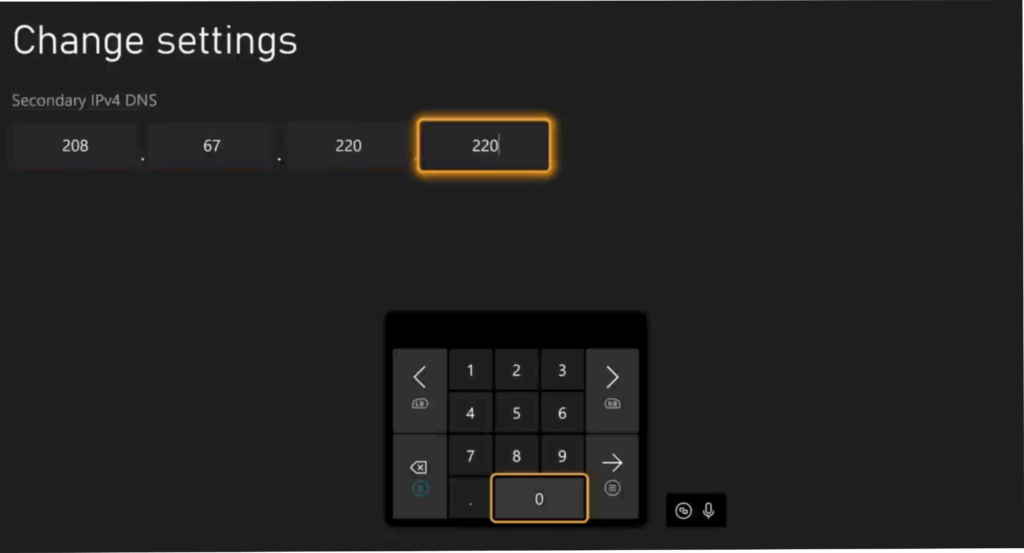
- Add the DNS addresses.
Is It Safe to Use a Public DNS Server for Gaming?
Yes, it’s safe to use a public DNS server for gaming as long as you stick to well-known providers. Services like Cloudflare, Google Public DNS, and OpenDNS are widely used, properly maintained, and generally just as safe as your ISP’s default DNS. In some cases, they can even be more private, since providers like Cloudflare and Google support encrypted DNS (DoH/DoT), which stops your ISP from seeing your DNS lookups.
The main risks appear when you use unknown or untrusted DNS servers. Smaller or shady providers might redirect your traffic, log your browsing, or route you to unsafe sites, which could expose you to malware if you download game files or updates from spoofed pages.
DNS Settings Can Help When Setting Up Online Gaming Sessions
Using a different DNS resolver doesn’t give you an edge when you’re in the middle of a match. However, it may still improve gaming if you’re experiencing connectivity issues. For instance, it could be beneficial if your game isn’t updating or if it’s taking too long to connect to a server.
To improve in-game speeds, you should play in your region, make sure your Wi-Fi signal is strong, or use a wired connection. A VPN can also help in some cases if your ISP slows down gaming traffic. When your connection goes through a VPN, your ISP can’t easily identify and throttle your gaming data, which can help keep speeds more consistent during busy hours.
If you want to game with a VPN, CyberGhost VPN has servers in 100 countries, optimized gaming locations, and intuitive apps for most devices. You can also try it risk-free with a 45-day money-back guarantee.
FAQ
What is a DNS server, and how does it affect gaming performance?
A DNS server translates site and server names to IP addresses. Online games use them to help users log in, connect to servers, and download updates or DLC. While DNS affects the initial connection process, it doesn’t directly affect in-game speeds.
Why should I change my DNS server for gaming?
A slow or faulty DNS server could make gaming frustrating. For example, it could cause delays when connecting to a game server or downloading an update or DLC. It might cause failed connections during matchmaking, too.
Which DNS servers are best for gaming in 2025?
Most gamers generally consider OpenDNS, Google Public DNS, and Cloudflare DNS as solid options. They usually provide fast performance and good stability, and each service has a free version.
Can using a faster DNS server reduce ping or lag in online games?
No, DNS servers don’t affect in-game speeds. When your device is trying to find and connect to the game’s servers, it uses DNS. Once you’re in a match, your ping and lag depend on your internet connection, not your DNS resolver.
A faster DNS server can still help during matchmaking. If your device can look up server addresses more quickly and without timing out, it’s more likely to connect to a nearby server instead of getting pushed to a fallback option. This can make the setup process faster, but it won’t change your actual in-game ping.
How do I find the fastest DNS servers for my location?
You can use GRC’s DNS Benchmark app, which checks up to 200 DNS servers to find the fastest ones. You can also manually add specific DNS resolvers and test them.
Are public DNS servers safe to use for gaming?
Yes, but only if you use well-known public DNS servers. These services enjoy widespread trust, undergo proper maintenance, and are typically just as secure as your ISP’s DNS. Some also support encrypted DNS, which can offer extra privacy.
How do I change my DNS settings on a PC, console, or router?
The steps vary depending on your device. However, you generally need to access your device’s network tab or page, open your active connection settings, and manually add DNS server addresses.
What’s the difference between DNS speed and internet speed?
DNS speed represents how fast a DNS server translates a domain name to an IP address. This affects how quickly it helps you connect to a game server or website. Internet speed refers to data transfer rates, which directly affect how fast you download files, your streaming quality, and the amount of lag in your gaming sessions.
Can a custom DNS server help with gaming stability or disconnects?
It might if you’re currently using a slow or misconfigured DNS server. A better resolver could prevent connection errors during login or matchmaking. However, it doesn’t fix in-game disconnects caused by a poor internet connection or server-side issues.
Should I use IPv4 or IPv6 DNS addresses for gaming?
Gamers generally use IPv4 DNS addresses, like OpenDNS (208.67.222.222 and 208.67.220.220). That’s because most game servers, internet service providers, and routers support IPv4. You should only use IPv6 DNS addresses if your network fully supports it. Otherwise, you may experience connectivity errors.

Leave a comment