
Because internet content often lacks safeguards, users of all ages can encounter violent, explicit, malicious, misleading, or content otherwise unsuitable for them. Blocking inappropriate content is a good online safety measure that reduces exposure to material that may be harmful, especially for younger users.
It’s generally impossible to block all sorts of sensitive content at once. Inappropriate content varies by category and exposure channel, so it’s difficult to cover every possible situation. You can combine different solutions, such as DNS filtering, search engine filters, and social network built-in settings.
In this guide, we’ll discuss how inappropriate content looks and where it can appear. Then, we go over a variety of ways to reduce your exposure site-by-site or on the device level.
What Is Inappropriate Content?
Many people immediately think of adult and explicit material when they hear the phrase “inappropriate content,” but this isn’t accurate. Inappropriate content is a broad term covering any content that can be harmful, offensive, or unsuitable for certain audiences. It’s not limited to a specific format either — it can be text, images, audio, or video content. The most common categories include:
- Adult and sexually explicit material: Pornography, nudity, or suggestive themes.
- Graphic violence: Real or simulated depictions of injury, abuse, or death.
- Hate speech: Content that promotes discrimination and hostility based on factors like ethnicity, religion, sexual orientation, and more.
- Hazardous activities: Depictions, instructions, or glorification of activities like self-harm, eating disorders, drug use, or gambling.
- Misinformation: False information that could cause harm.
- Age-inappropriate humor: Profanity and crude humor not suitable for children.
Where Can Inappropriate Content Appear?
Inappropriate content can show up in a variety of areas and contexts across the internet. It can appear intentionally if a user searches for it or unintentionally through autoplay, misclicks, and ad popups.
- Search engine results: Image or text results can deviate from the search prompt, particularly on later pages.
- Social media feeds: Algorithmic feeds can suggest unsuitable posts, images, and videos.
- Video platforms: Clickbait video titles and thumbnails often involve shocking content to spark viewer curiosity.
- Forums and comment sections: User-generated text content can be inappropriate to drive interaction.
- Ads: Autoplaying ads often have suggestive imagery to get the user to click on the ad or misclick trying to close it.
- Messaging apps: Conversation partners might share links to or send inappropriate content.
- Email and spam: Unsolicited emails can contain offensive or adult content.
How to Block Inappropriate Content on Different Devices With Built-in Features
Many popular devices have some form of built-in content blocking that can limit access to inappropriate content. However, these methods can only prevent access to a category of inappropriate websites, such as sites hosting explicit or violent content. They usually can’t block inappropriate content visible through ads, direct messages, or comments on sites.
Pro tip: Android devices don’t usually have built-in content filtering functionality on their own. You might need to install a particular app to block inappropriate sites, such as Google Family Link or a third-party parental control app.
Windows (Family Safety)
Microsoft offers Family Safety as a Windows functionality that can limit inappropriate content. It’s primarily intended as a parental control feature for a parent or guardian to set up on a child’s device or account. This setting works only on the Edge browser, but it blocks other browsers by default. Here’s how to set it up:
- Sign in to your Microsoft account.
- Go to Family Safety in the sidebar menu.
- Find the family member in the list and click on the three-dot menu.
- Select Go to overview > Edge.
- Here, you can toggle the Filter inappropriate websites and searches option.
- You can add specific sites to the Blocked sites or Allowed sites list to fine-tune access.
macOS (Screen Time)
On Mac devices, the built-in screen time controls also have an adult website filtering option. It applies only to the native Safari browser, so you might need to uninstall or block access to other browsers.
- Go to the Apple menu and select System Settings.
- Click on Screen Time in the sidebar.
- On the Family Member pop-up menu, choose the appropriate account.
- Select Content & Privacy > App Store, Media, Web & Games.
- Under Safari, choose Limit Adult Websites.
- You can then go to Customize to add additional URLs to the blocklist.
Pro tip: If you want to block access to sites that could contain inappropriate content without having to use the native browser, you can try finding a browser extension for Chromium or Firefox-based browsers. Go to your browser’s add-on store and search for content blocker extensions.
iOS (Screen Time)
You can use the built-in filtering methods for your iPhone or iPad to block access to adult websites:
- Open the Settings app.
- Tap Screen Time.
- Select Content & Privacy Restrictions.
- Turn the Content & Privacy Restrictions option on.
- Go to App Store, Media, Web, & Games > Web Content.
- Choose the Limit Adult Websites option.
If you want to add specific sites to the blocklist, you can tap the Add Website button under Never Allow and enter specific site URLs.
How to Block Inappropriate Content With DNS Filtering
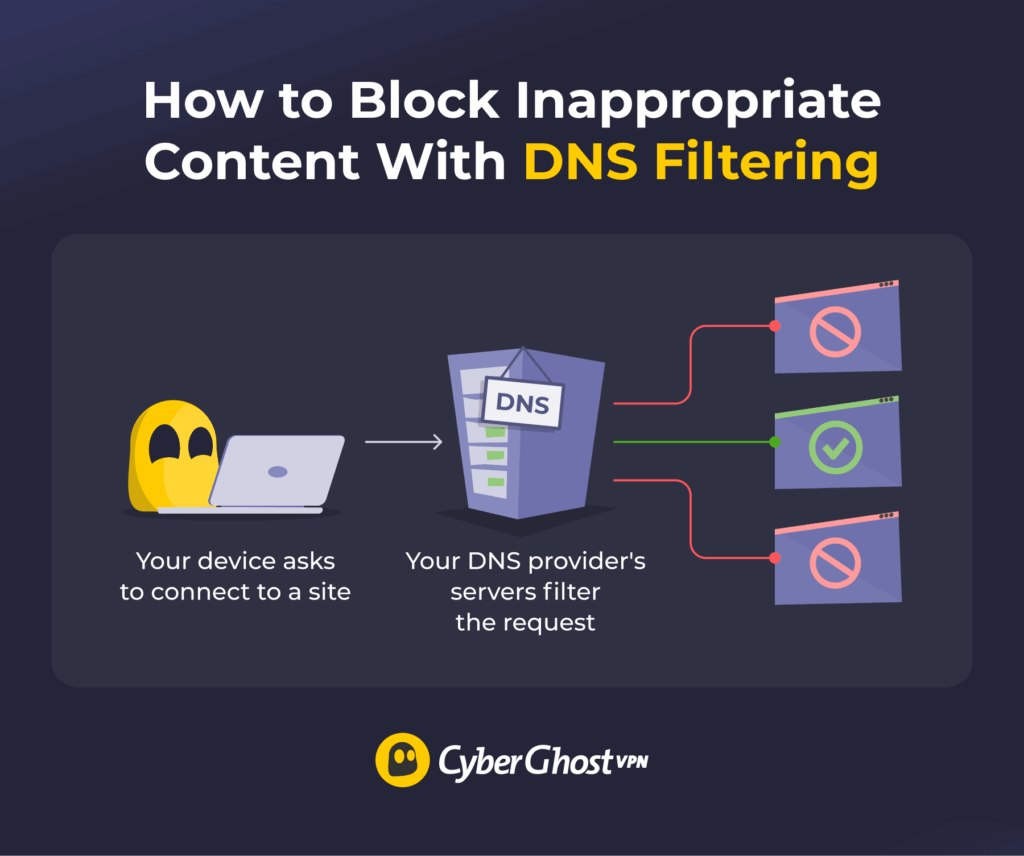
DNS filtering is a reliable method to prevent access to some inappropriate websites. It works on any device that lets you modify its DNS settings, and it normally doesn’t require any third-party software to work.
You can find a third-party “clean” DNS provider. These providers often maintain thorough lists of adult websites, shock sites, and other sites with inappropriate content. When your device uses such a provider’s DNS servers, any requests to possible unwanted sites fail to resolve. This means the device can’t connect to these sites.
Here’s how to set it up on different devices:
iOS
- Go to Settings > Wi-Fi.
- Tap the information icon next to the network name.
- Select Configure DNS > Manual.
- Tap Add Server and type in the DNS server address.
- Press Save to confirm your choice.
Android
The exact steps can vary based on your device’s Android version.
- Go to Settings.
- Find the option called Connections, Network and internet, or More connectivity options.
- Tap Private DNS.
- If necessary, set it to Manual.
- Find an option similar to Private DNS provider hostname.
- Enter the address you received from the DNS provider.
Windows
- Go to Settings > Network & internet.
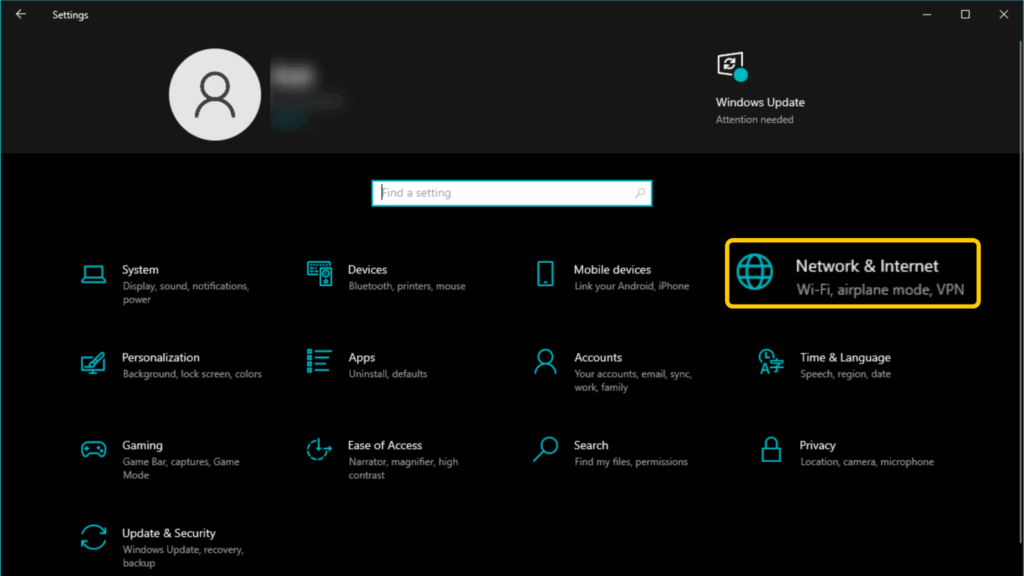
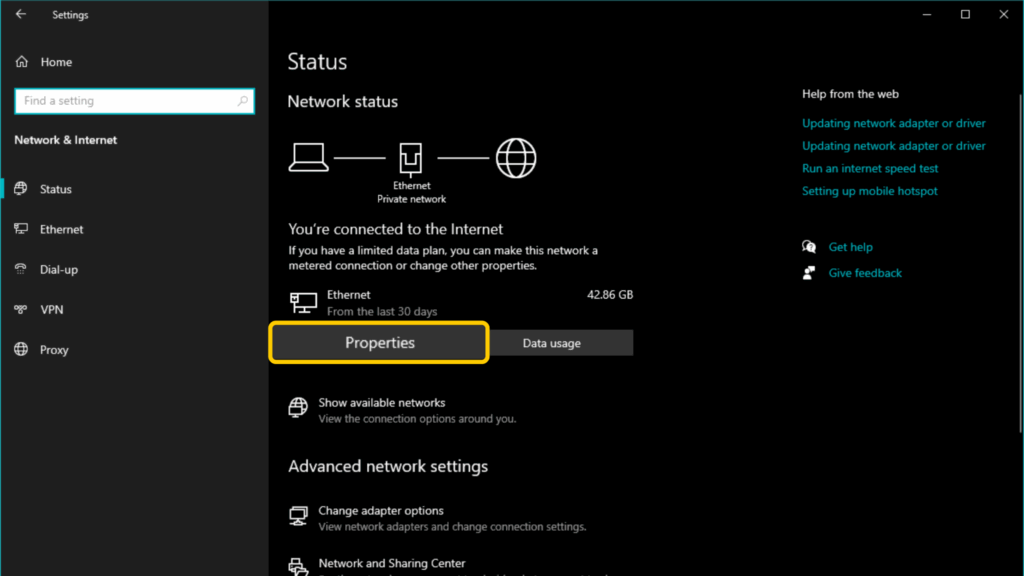
- Find your network and click Properties.
- Scroll down to IP assignment and click Edit.
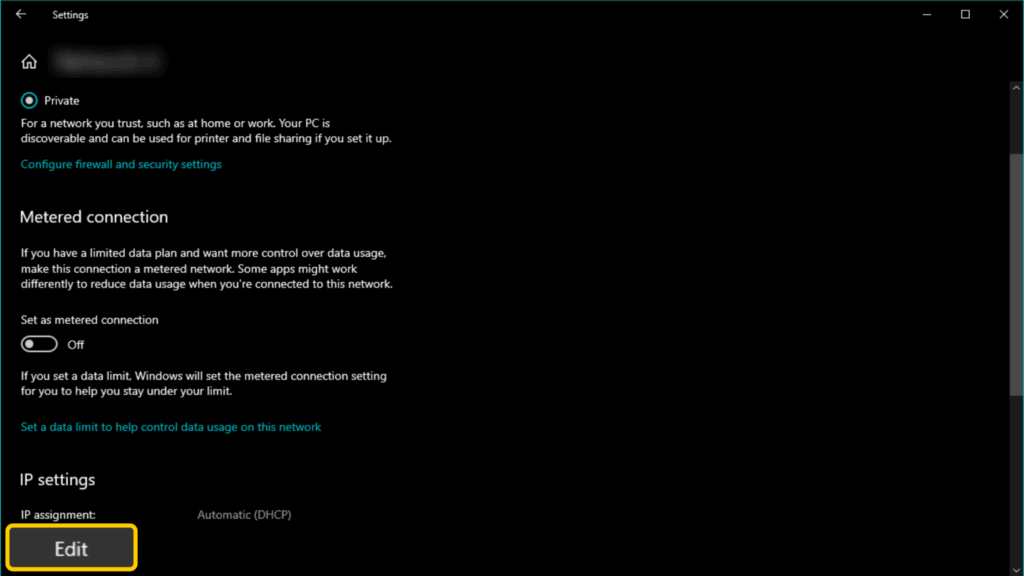
- In the window that opens, choose Manual.
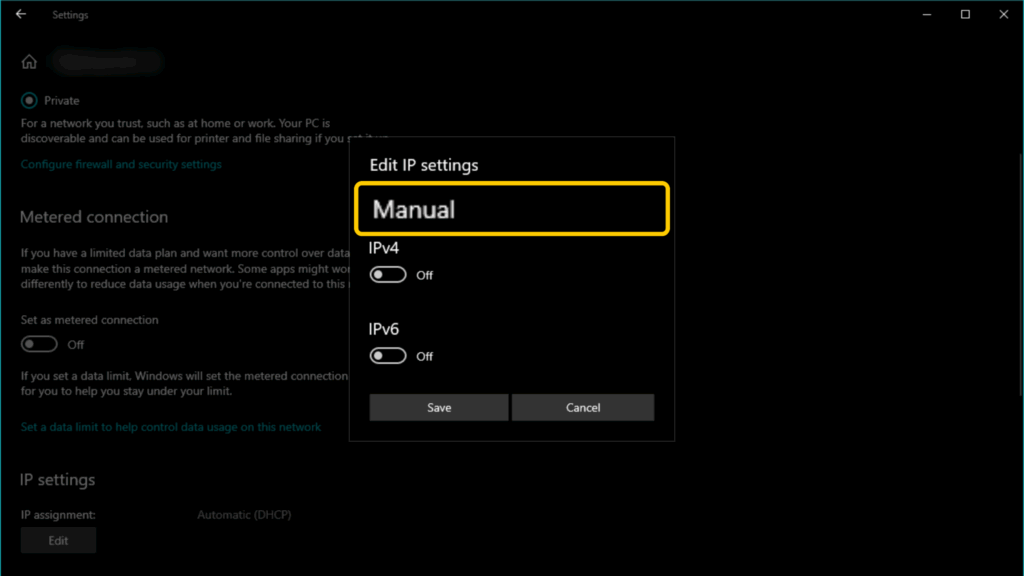
- Toggle IPv4 and IPv6 on and type in your preferred DNS addresses.
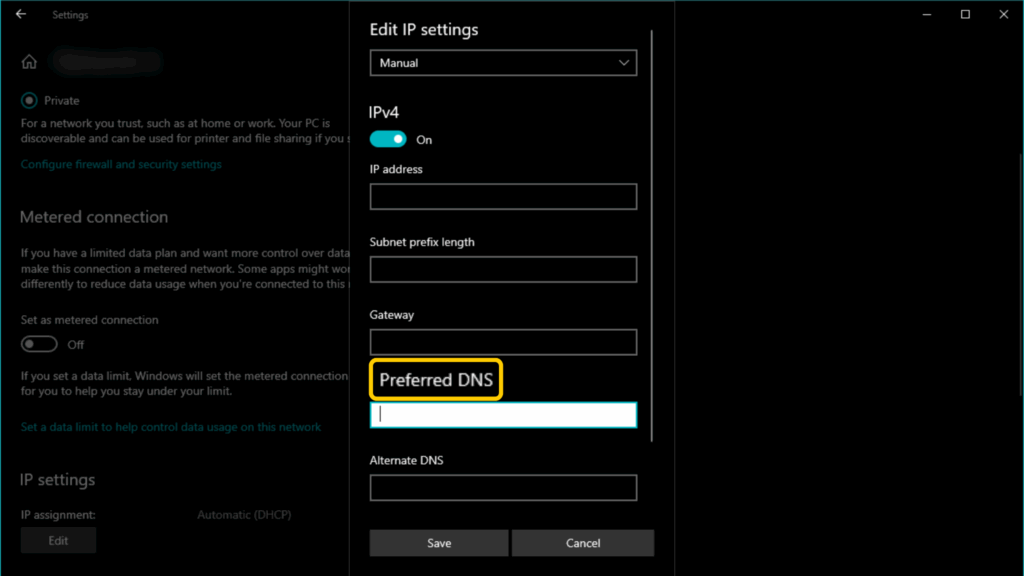
- Click Save to confirm the choice.
macOS
- Go to the Apple menu and select System Settings.
- Click on Network in the sidebar.
- Pick the currently active network and select Details > DNS.
- Under DNS Servers, click the plus icon at the bottom of the list.
- Enter the DNS server address. Click OK and Apply to save the changes.
Home Routers
A “clean” DNS setup on your router automatically applies to all connected devices. It’s a great option if you have multiple devices in the household, so you don’t have to adjust their settings separately. However, this means the filtering only applies on the home network.
- On a desktop or laptop computer, launch your browser and enter your router’s gateway IP address.
- Enter your username and password to access the router’s settings.
- Find the DNS settings. Every router has a different menu layout, so look for tabs named Internet, Connectivity, or something similar.
- Enter the DNS provider’s addresses where prompted.
- Save the changes and restart your router if a dialog asks you to do so.
How to Block Inappropriate Content on Popular Sites
Built-in device settings and DNS filtering can help block access to a variety of inappropriate sites, but they don’t work with content on allowed sites like social networks. Many sites have their own settings to limit or restrict sensitive content.
Google Search has SafeSearch, which filters out explicit, violent, and otherwise inappropriate content from the search results. The process works on all browsers.
- Go to Google’s home page.
- In the bottom bar, select Settings.
- Go to Search settings.
- In the Privacy and Safety tab, click SafeSearch.
- Click Filter to remove explicit content from your search results.
Alternatively, you can go directly to your SafeSearch settings by entering https://www.google.com/safesearch in your browser.
Facebook and Instagram
Meta lets you reduce how much inappropriate content you see while using Facebook and Instagram. The process is similar on both the Facebook and Instagram app.
- Tap the hamburger menu to access your account options.
- On Facebook, go to the Settings & privacy section. On Instagram, scroll down to What you see.
- Tap Content preferences > Sensitive content.
- Set the toggle to “Show less.”
X (Twitter)
X (Twitter) has a sensitive content filtering option that stops you from seeing posts tagged as sensitive on both the app and the site.
- Go to Settings.
- Navigate to the Privacy and safety section.
- Scroll to Content you see.
- Under Sensitive media, uncheck the box next to “Display media that may contain sensitive content.”
YouTube
YouTube has Restricted Mode, which blocks mature content. It analyzes factors like video title, description, tags, and metadata to flag content as mature, even if the creator hasn’t declared it on their own.
- Sign in to your account.
- Click your profile photo and go to Settings.
- In the General section, toggle on Restricted Mode.
Blocking Inappropriate Content: Difficult, but Not Impossible
Harmful content can appear through different channels, so blocking and restricting it is more complex than clicking a few buttons. You can still curate your online experience to reduce exposure to content you don’t like or find upsetting. Different operating systems and different sites or apps have different ways of letting users reduce how much sensitive content they see.
The best way to approach inappropriate content is through combining different methods. Most devices let you modify their DNS settings, so you can set them to use a third-party provider’s DNS servers. This lets you avoid a large number of potentially inappropriate sites. Then, on specific sites such as social networks, you can use built-in content restriction settings to further filter it out.
FAQ
How can I block inappropriate content online?
While you can’t always block out 100% of all inappropriate content, you can take a combined approach to reduce it. For example, you can apply SafeSearch if you use Google, turn on Restricted Mode on YouTube, and apply similar content restriction settings on different sites. You can also use a browser extension to block access to inappropriate sites.
How do I block inappropriate websites on my phone?
You can use a third-party parental control app or add a content blocker extension to your browser. Alternatively, you can change your device’s default DNS provider. This stops your device’s DNS requests from resolving, so your device can’t connect to these sites at all.
Can a VPN block inappropriate content?
No, VPNs don’t typically block inappropriate content. Some VPNs, including CyberGhost, have a feature that blocks potentially malicious sites and ads. Such sites or ads might contain inappropriate content, but the feature doesn’t target them on that basis.
How do I block inappropriate content on Google?
You can enable Google’s SafeSearch. From Google’s home page, go to Settings > Search settings > Privacy and Safety > SafeSearch. You can set it to “Blur” to blur out inappropriate image and video results or “Filter” to remove results.
What is the best way to filter inappropriate websites?
The most effective method is usually DNS filtering, either on the device level or the router level. Change your device or router’s default DNS to a provider that blocks inappropriate sites. Setting up DNS filtering on your router blocks sites with sensitive content on all devices connected to the router.
Can I block inappropriate content without third-party software?
Yes, you can on Windows, iOS, and macOS devices. They have built-in content filtering options that apply to their default browsers. Android doesn’t have such a functionality, but you can still set up DNS filtering to restrict access to inappropriate sites.

Leave a comment