
Your password suddenly stops working. You see a login from somewhere you’ve never been. Or a friend asks why you sent them a strange link. These can all be signs that someone has accessed your email account, and acting quickly can help limit what they can do next.
If you can still sign in, change your password, sign out of other sessions, and turn on multi-factor authentication. Check your recovery details, forwarding rules, and connected apps for unauthorized changes. If you can’t sign in, use your email provider’s official account recovery process.
This guide explains how to tell the difference between an attempted login, exposed credentials, and an account takeover, recover and secure your email, check what else may be at risk, and reduce the chance of it happening again.
What to Do If Your Email Is Hacked: Quick Guide
If someone has accessed your email, your first job is to regain control and cut off any access they left behind.
Do these things as soon as possible:
- Recover the account if you can’t sign in. Use your email provider’s official account recovery process.
- Change the password. If you think your usual device may be infected with malware, run a scan with trusted security software or use a different trusted device.
- Sign out of devices and sessions you don’t recognize.
- Turn on multi-factor authentication (MFA). If already enabled, review your verification methods and regenerate your backup codes.
- Check your recovery details and remove any email addresses or phone numbers you don’t recognize.
- Remove unauthorized access, including unfamiliar forwarding addresses, filters, inbox rules, delegates, connected apps, and app passwords.
- Secure other accounts linked to the email address, particularly sensitive accounts or any that use the same password.
- Warn your contacts if attackers sent messages from your account without your knowledge.
- Report the incident to your IT or security team straight away if it’s a work or school account.
Next, work out what actually happened. A security alert or breached password doesn’t always mean someone accessed your inbox. The signs below can help you distinguish between an attempted login, a data breach, and an account takeover.
| What You Noticed | What It May Mean |
| A blocked or failed login alert | Someone may have tried to access the account, but may not have succeeded. |
| Your email appears in breach data | Information linked to your email appeared in a data leak, but this doesn’t prove someone entered your inbox. |
| An unfamiliar successful login | Someone may have accessed the account. |
| Your password or recovery details changed | Treat the account as compromised. |
| Someone sent or deleted emails without your knowledge | Treat the account as compromised. |
| You’re locked out | Start the provider’s official recovery process. |
Signs Your Email Has Been Hacked
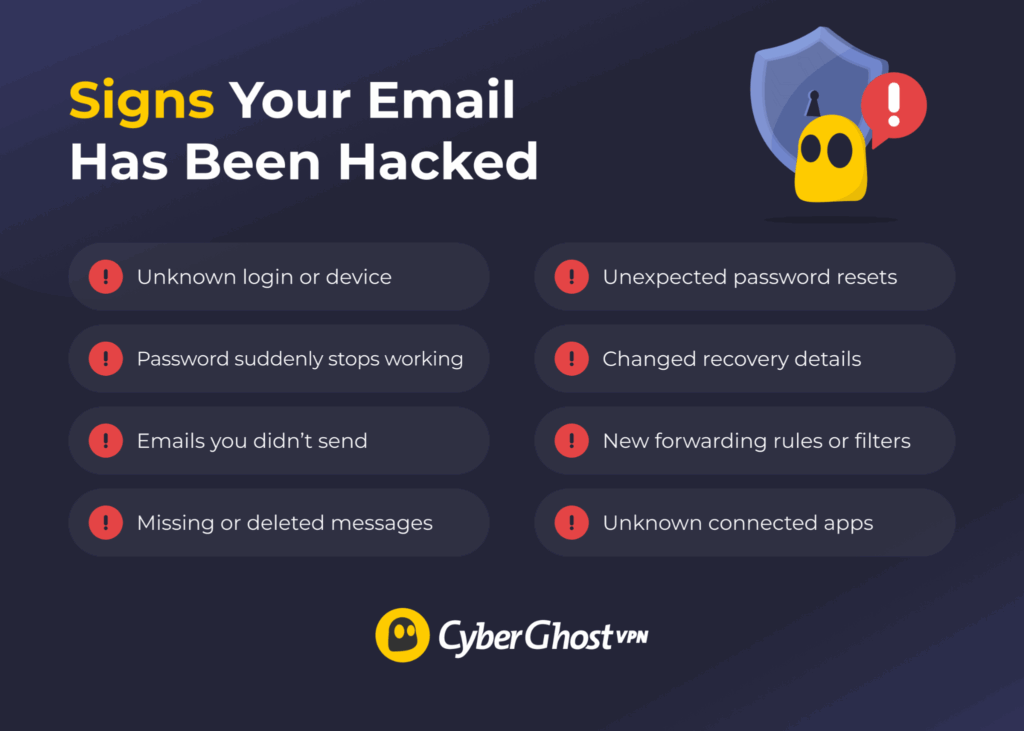
The clearest signs of a hacked email account are changes or activity that you didn’t make. Look for:
- Unfamiliar successful logins: Your provider shows a device, location, or session you don’t recognize.
- Your password stops working: Someone may have changed it after getting into the account.
- Emails you didn’t send: In addition to your inbox, check your other folders like Sent, Trash, and Archive. Keep in mind that someone with access to your account may have deleted those messages from Trash, so the absence of suspicious emails doesn’t prove the account is safe.
- Missing emails: Someone may have deleted messages or created a rule that moves them elsewhere to hide security alerts, password reset emails, or other evidence of what they changed or accessed.
- Friends receive strange messages from you: Attackers often use a trusted email account (yours) to send scams or phishing links to your contact list.
- Unexpected password reset emails: Someone may be using your email address to reset the password for another account and take control of it, such as your Facebook, your bank, or an online shopping account.
- Recovery details have changed: If you see a phone number or email address for account recovery that you don’t recognize, or if someone deleted or replaced your own information, they may have done so to make it easier to keep control of the account.
- New forwarding rules or filters appear: Attackers can use rules or filters to receive messages meant for you or hide them from your inbox.
- You receive MFA prompts you didn’t trigger: Someone may know your password and is trying to pass the second login check to access your other accounts.
- You find connected apps or devices you don’t recognize: These can sometimes maintain access even after you change the password.
How to Check If Your Email Has Been Compromised
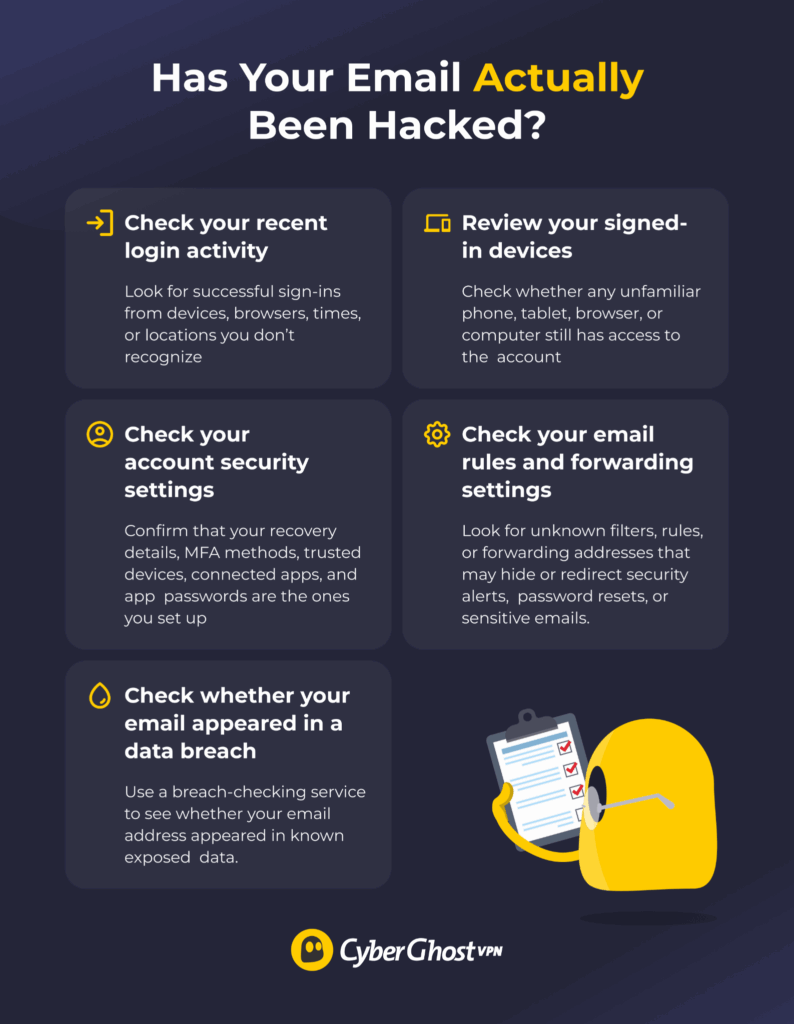
If you spotted any of the signs above, the next step is to check where they came from.
Review Recent Sign-In Activity
Open your email provider’s security or account activity page and review recent sign-ins. Look at the device, browser, time, and approximate location for each login. If you see a successful sign-in you don’t recognize, that’s much stronger evidence of unauthorized access than a failed login alert on its own.
A location can sometimes look unfamiliar because mobile networks, corporate networks, or VPNs route traffic through another area. Check the device and time as well before deciding that a login is malicious.
Review Your Signed-In Devices
Check the list of devices currently connected to your account. Remove anything you don’t recognize, including old phones, tablets, browsers, or computers you no longer use. An unfamiliar device with an active session may mean someone can access your account without entering the password again.
Check Your Account Security Settings for Changes
Go through the settings that control who can access or recover your account. Confirm that:
- Your recovery email address is still yours.
- Your recovery phone number hasn’t changed.
- You recognize every MFA method, including any registered passkeys or security keys. Attackers sometimes add their own passkey so they can keep signing in after you change the password.
- No unknown trusted devices appear.
- You recognize all connected apps and third-party access.
- No unfamiliar app passwords exist.
- No one has delegate or “send/read on your behalf” access to your mailbox that you didn’t grant.
- No one changed your auto-reply, signature, and reply-to address.
You’re looking for changes someone may have made after getting into the account, not the warning signs that led you here.
Check Whether Your Email Appeared in a Data Breach
A breach checker such as Have I Been Pwned can tell you whether your email address appears in known breached data. A breach result doesn’t mean someone definitely accessed your email account. It only means information linked to that address appeared in data exposed by another service.
CyberGhost VPN’s Identity Guard can also monitor an email address for known data breaches. If it alerts you to exposed data, check which service it’s referring to and change any password you still use there.
Either way, never reuse an exposed password on your email account or anywhere else.
Check Your Email Rules and Forwarding Settings
Open your forwarding, filter, and inbox-rule settings. Look for anything you didn’t create, especially rules that forward, delete, hide, or move security alerts, password reset emails, financial notifications, or other sensitive messages. An attacker can use these to keep receiving your emails or hide their activity even after you change your password.
Also check for mailbox delegation. Gmail’s “Grant access to your account” setting and Outlook’s delegate permissions let someone read or send your email without a forwarding rule or a separate login of their own. If you don’t use an email app that connects over Internet Message Access Protocol (IMAP) or Post Office Protocol (POP), consider disabling those protocols; otherwise, an attacker can sync your entire mailbox through them.
What to Do If You Can Still Sign In
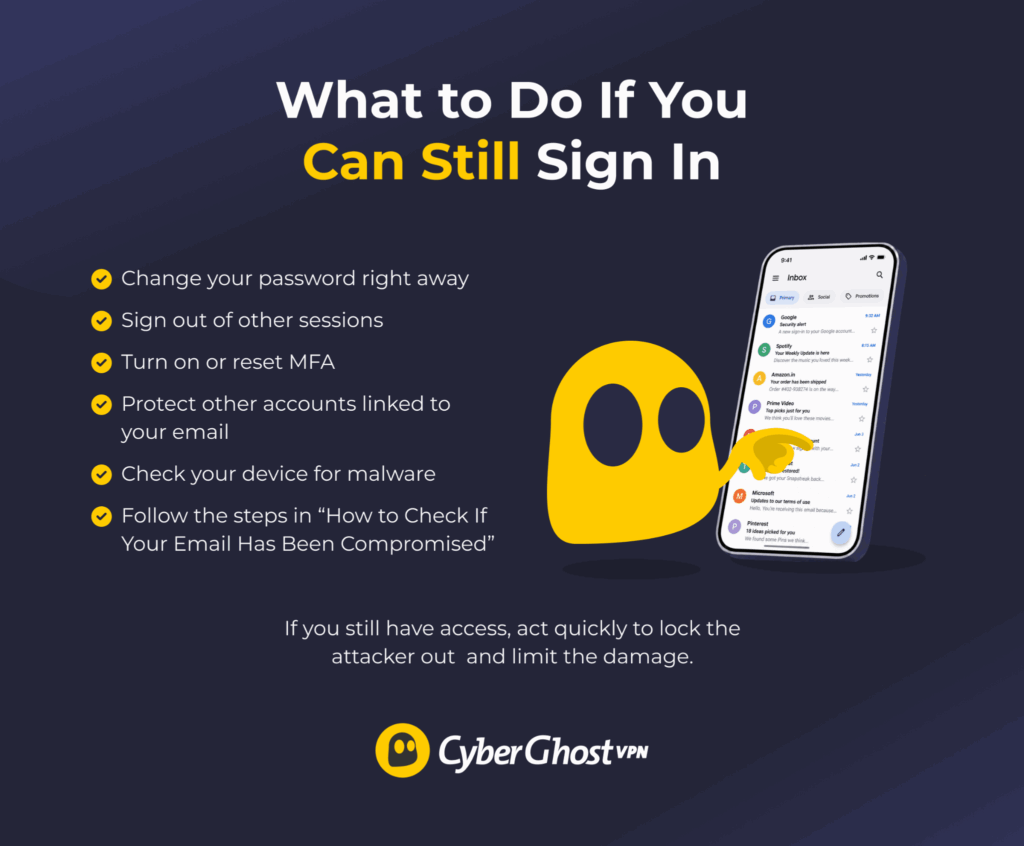
If you still have access to the account, move quickly. Your goal now is to lock the attacker out, protect anything linked to the inbox, and clean up any damage.
1. Change Your Password
Create a strong, unique password that you don’t use anywhere else. If you suspect malware on your usual device, change the password from a different trusted device. A new password typed on an infected machine can be stolen the moment you enter it. If your email provider supports passkeys, add one as your main sign-in method, but still change the password because most providers keep the password active as a fallback.
2. Sign Out of Other Sessions
Sign out of other devices and browser sessions, especially ones you don’t recognize. This helps cut off anyone who may still be using the account. It also invalidates stolen session cookies. That matters because malware often steals active sessions rather than passwords, and changing your password alone doesn’t always end those sessions.
3. Turn on MFA
If MFA isn’t on yet, turn it on now. If it’s already activated, make sure the attacker hasn’t added their own phone number, device, authentication method, passkey, or security key. Regenerate your MFA backup codes too. If the attacker viewed or downloaded the old ones, a new set makes them useless.
An authenticator app, security key, or passkey usually gives stronger protection than a code sent by SMS, though any supported second step is better than relying on a password alone.
4. Protect Other Accounts
Your email often acts as the reset point for other accounts. Change the passwords for anything sensitive that’s tied to it. Start with accounts that could cause the most damage:
- Password manager
- Banking and payment services
- Cloud storage
- Work or school accounts
- Social media
- Shopping accounts
- Subscriptions and other services using the same password
Don’t forget accounts you access with “Sign in with Google,” “Sign in with Apple,” or “Sign in with Microsoft.” These have no separate password to reset and whoever controls the email identity controls them. Securing the email account itself and signing out its sessions is what protects them.
If the compromised address is a work or school account, report it to your IT or security team immediately, even if you’ve already regained access. Admins can find and remove organization-level persistence such as Open Authorization (OAuth) app grants or mail flow rules that you can’t see from your own settings, and your organization may have legal requirements for reporting breaches.
5. Check Your Device for Malware
If you clicked a suspicious link, opened a strange attachment, or think someone may have stolen your password from the device, run a scan with trusted security software and update your system and browser. If the scan finds anything, change your email password again from a clean device once you remove the infection.
What If You Can’t Sign In?
If someone changed your password or recovery details, use your email provider’s official account recovery process as soon as possible. Open the provider’s website or app yourself rather than using a recovery link from an unexpected email or message.
Here’s where to start:
Gmail/Google
Go to Google Account Recovery and enter your Gmail address. Follow the prompts to prove the account belongs to you and reset your password. Google recommends this route if someone changed your password or recovery phone number, deleted the account, or you can’t sign in for another reason.
Outlook/Microsoft
Start with Microsoft’s Sign-in Helper. Enter the email address or phone number linked to the account and follow the prompts. If that doesn’t restore access, fill in the Microsoft account recovery form from a device and location you’ve previously used with the account and provide as much accurate information as you can, such as previous passwords.
Keep in mind that Microsoft support agents can’t send password reset links or change account details. The system automates recovery and if you turned on two-step verification (2FA) but can’t access any of your verification methods, Microsoft can’t recover the account.
iCloud Mail/Apple
First try to reset your Apple Account password on a trusted Apple device. If that doesn’t work, go to iforgot.apple.com and follow the steps to start account recovery. This process can take several days or longer if Apple can’t verify you immediately, and Apple Support can’t shorten the wait.
If you previously set up an Account Recovery Contact, that person may be able to give you a recovery code that helps you reset the password.
Other email provider
Go to the provider’s official website or app and look for its account recovery or compromised account support page. If your email comes through your employer, school, internet provider, or a custom domain, contact the person or company that manages the account.
Sign in from a device and location you normally use and answer the provider’s questions as accurately as you can. Depending on the service, you may be asked for a previous password, recovery email address, phone number, trusted device, or another way to confirm that the account is yours.
How to Protect Your Email After You Recover It
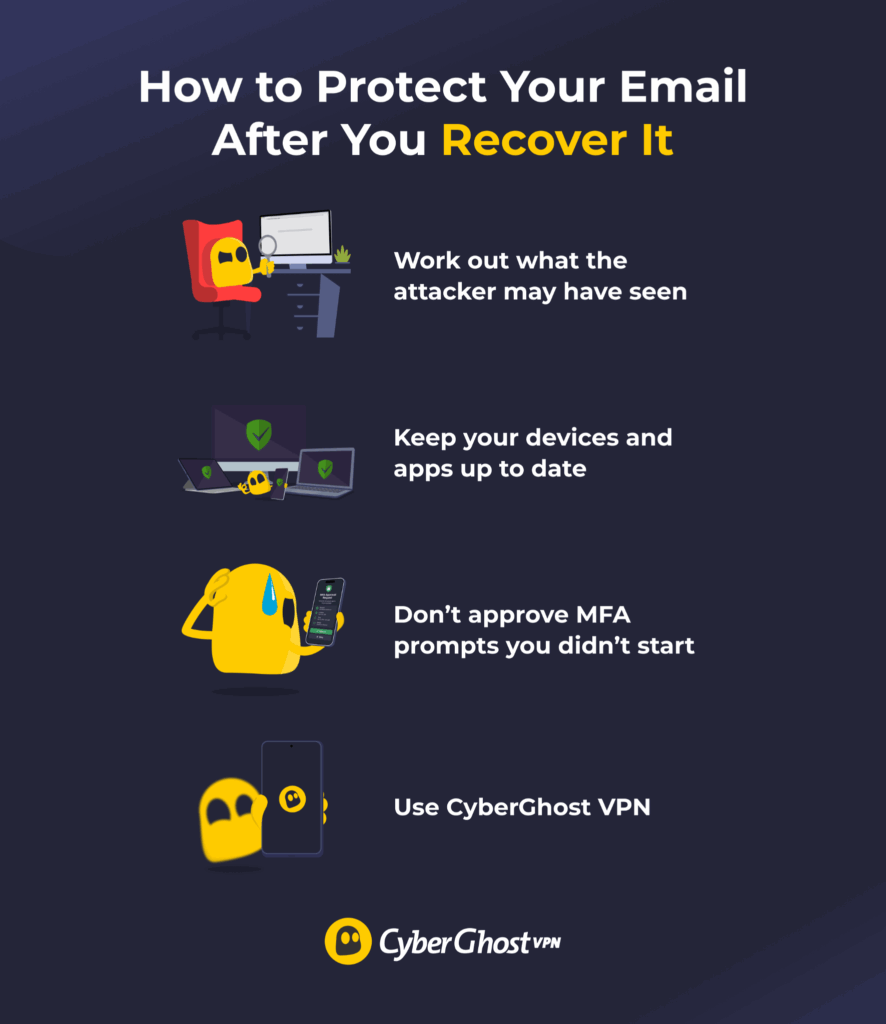
Once your account is secure, focus on reducing the ways someone could get your login details again.
Work Out What the Attacker May Have Seen
Regaining access doesn’t undo what the attacker already read. An email account can hold years of bank statements, invoices, tax documents, scans of ID, travel bookings, and password reset messages — everything an attacker needs for identity theft or convincing follow-up scams.
Once your account is back under your control:
- Think about what was actually in the mailbox. Search your own folders for the kind of sensitive documents an attacker would look for, so you know what may have been exposed.
- Alert your bank or card provider if financial details were visible, and review your statements for transactions you don’t recognize.
- Consider a fraud alert or credit freeze if someone exposed identity documents or your national ID/social security details.
- Expect targeted phishing. An attacker who read your email can reference real orders, real contacts, and real conversations, so treat unexpected messages that “know things about you” with extra suspicion.
- Report the incident if someone stole money or misused your identity.
Keep Your Devices and Apps Up to Date
Security updates fix known weaknesses in your phone, computer, browser, and email app. If you delay them, an attacker may exploit a flaw that a newer version fixed. Turn on automatic updates where you can. This is especially useful for your browser, operating system, email app, and security software because you use them to sign in to sensitive accounts.
Don’t Approve MFA Prompts You Didn’t Start
An unexpected MFA prompt can mean someone already has your password and is trying to complete the login. If you didn’t try to sign in, deny the request. Repeated prompts can be an attempt to wear you down until you approve one by mistake. If this happens, change your password and check your recent account activity straight away.
Consider CyberGhost VPN
CyberGhost VPN can help reduce some of the risks that may lead to stolen credentials, but it can’t stop every email takeover. These features can add extra protection when you access your email and help you spot signs that your details may have been exposed:
- Protection on public or shared Wi-Fi: CyberGhost VPN encrypts traffic between your device and the VPN server. Wi-Fi Protection can help secure the connection when you join a new network.
- Private Domain Name System (DNS) and Content Blocker: Your DNS requests move through the encrypted VPN tunnel to CyberGhost VPN’s own DNS servers. Content Blocker blocks requests to known domains linked to malware, trackers, and ads, which can reduce the chance of reaching some malicious sites.
- Automatic Kill Switch: If the connection drops, the automatic Kill Switch can help prevent your internet traffic from moving outside the encrypted VPN tunnel.
- Monitor your email with Identity Guard: This feature can alert you if your email address appears in known breach data, giving you a reason to check the affected account and change any exposed passwords.
Regain Control, Then Close the Gaps
Recovering your inbox is only the first step. Check how the attacker got in, remove any access they left behind, and secure the accounts connected to your email.
A strong password or passkey, MFA, careful phishing checks, and regular security reviews make future takeovers much harder. CyberGhost VPN can help protect your connection and warn you about known breach exposure, but your account settings still do most of the work.
FAQ
What are the signs that my email has been hacked?
Common signs include unfamiliar successful logins, emails you didn’t send, missing messages, changed recovery details, unexpected password resets, and new forwarding rules or filters. You may also lose access to the account or receive MFA prompts you didn’t trigger.
How can I check if my email was part of a data breach?
Use a trusted breach-checking service such as Have I Been Pwned or CyberGhost VPN’s Identity Guard. A result means information linked to your email appeared in known breached data. It doesn’t prove someone accessed your inbox.
What should I do if my email has been hacked?
Change your password, sign out of unfamiliar sessions, turn on MFA, check recovery details, and remove unknown forwarding rules, delegates, or connected apps. Then check what sensitive information the attacker could have seen and alert your bank if it included financial details. If you can’t sign in, use your provider’s official account recovery process.
Can I recover a hacked email account?
In most cases, yes. Gmail, Outlook, and iCloud Mail all provide account recovery options. Use the provider’s official recovery process and give it accurate information that helps prove the account belongs to you.
How can I prevent my email from being hacked again?
Use a unique password or passkey, turn on MFA, keep recovery details current, watch for phishing, and review account activity regularly. CyberGhost VPN can help protect your connection on shared networks and alert you to known breach exposure through Identity Guard.

Leave a comment