
Public Wi-Fi networks are convenient, but they’re not always secure. The same features that make public hotspots easy to use, like open access, no password requirements, and quick connectivity, can also make them attractive targets for cybercriminals. It’s worth understanding the risks before you connect to an open network to go online.
Many people use public Wi-Fi without issues, but unsecured networks can expose you to threats like fake hotspots, man-in-the-middle (MITM) attacks, malware, and data interception. This guide explains the biggest public Wi-Fi risks, how they work, and the practical steps you can take to stay safer wherever you connect.
Why Public Wi-Fi Is Unsecure
Open Wi-Fi networks often lack the protections you get on your home network. Many require little or no verification to join, making them easier for attackers to access alongside legitimate users.
This open access can create several security risks:
- Traffic may be easier to intercept if websites, apps, or services don’t encrypt it properly.
- Attackers on the same network may use packet-sniffing tools to capture unencrypted data.
- Network operators and attackers may be able to observe connection details, depending on how the network and websites handle encryption.
- Cybercriminals can position themselves between your device and the router to intercept or manipulate traffic.
- Malware may spread more easily if devices or services on the network are vulnerable.
Many attacks also go unnoticed at first. You might browse on public Wi-Fi without seeing any immediate problems, only to discover weeks later that a malicious actor compromised your account or misused your personal information. That’s why it’s important to combine public Wi-Fi with sensible security measures rather than rely on the network to protect you.
Common Public Wi-Fi Risks: The Threats You Need to Know
Man-in-the-Middle (MITM) Attacks
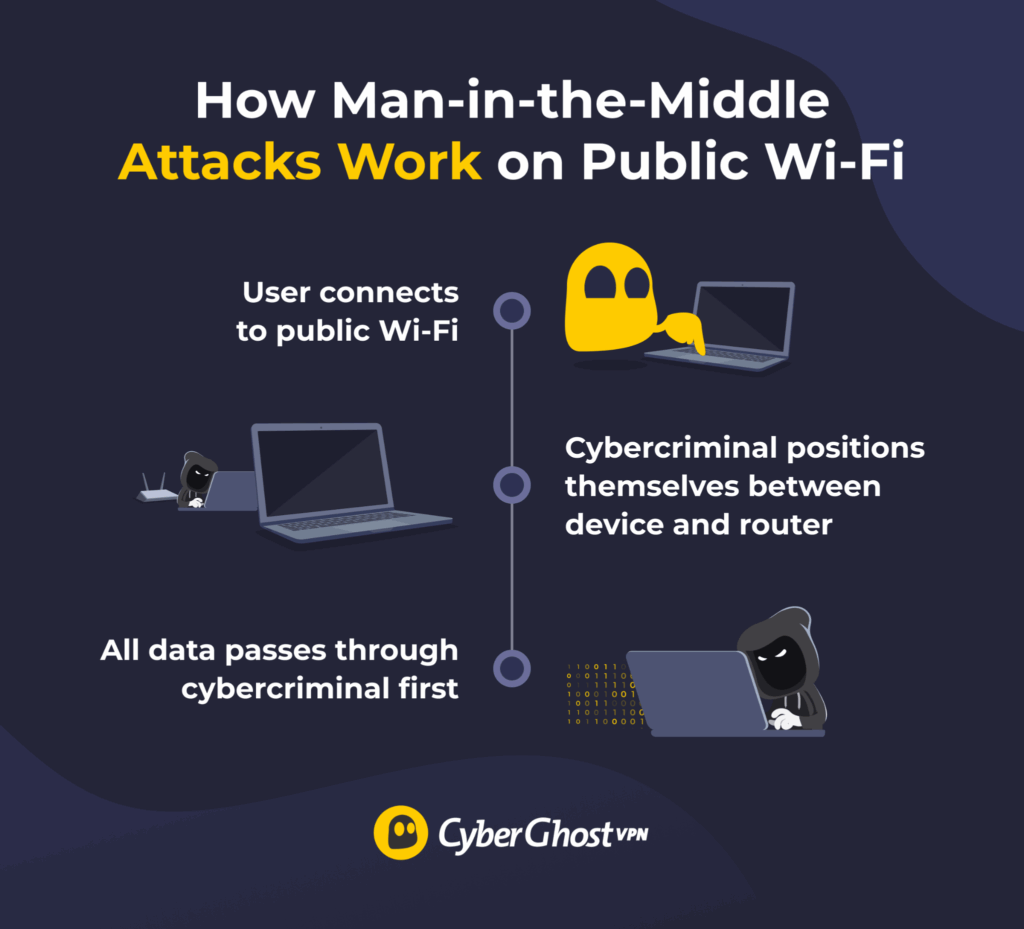
An MITM attack occurs when a cybercriminal positions themselves between your device and the Wi-Fi router, intercepting the communication between you and the websites you use. Instead of your data going straight to the internet, it flows through the attacker’s device first.
From this vantage point, the attacker may be able to:
- See which sites and services you’re connecting to, along with the timing and volume of your traffic.
- Intercept unencrypted (HTTP) traffic or exploit websites and apps that don’t enforce HTTPS/HSTS.
- Take advantage of misconfigured apps or outdated devices that don’t validate certificates correctly.
MITM attacks often happen without any obvious signs. Your connection may appear normal and pages load as they should while the attacker monitors or attempts to manipulate your traffic in the background.
Fake Hotspots (Evil Twins)
Cybercriminals don’t always wait for you to connect to a legitimate public network. Sometimes they create one of their own. Rogue hotspots, also called “evil twins,” are fake Wi-Fi networks designed to look like legitimate ones.
For example, a cybercriminal might set up a network called “Coffee_Shop_Free_WiFi” near a real coffee shop or “AirportWiFi” in an airport terminal, hoping people connect without checking. Some attackers even copy the legitimate network’s name and hardware ID (SSID and BSSID). On WPA2 networks, they may also send deauthentication packets that look like error messages to urge users to reconnect to the rogue network instead.
Once you’re connected to an evil twin, the attacker may be able to:
- Monitor unencrypted web traffic.
- Capture login credentials.
- Attempt to deliver malware or spyware.
Your best defense is to verify the exact network name before connecting. Ask a member of staff for the official Wi-Fi name or check the venue’s website or signage. When in doubt, don’t connect.
Malware Distribution
Public Wi-Fi can make it easier for cybercriminals to distribute malware, especially on unsecured or compromised networks. Once connected, attackers may try to exploit vulnerable devices or trick users into downloading malicious software without realizing it.
This can happen in several ways:
- Compromised files shared over the network
- Malicious downloads disguised as legitimate software
- Infected ads or pop-ups on websites
- Peer-to-peer file-sharing exploits
- Insecure auto-update systems that fetch software over HTTP or skip certificate and code-signing checks
Once malware infects your device, an attacker may be able to:
- Steal files and personal data
- Monitor your activity
- Use your device to attack other systems
- Encrypt your files and demand a ransom
- Harvest contacts or personal information for fraud
Many types of malware run in the background, so you may not realize someone’s compromised your device until much later.
Data Interception & Packet Sniffing
Whenever you use the internet, your data travels in small units called “packets.” A secure network usually encrypts these packets, so they’re scrambled in a way only the intended recipient can unscramble.
On open or poorly secured Wi-Fi, the network may not encrypt some packets. Attackers can use packet sniffing tools to capture and analyze unencrypted packets. Depending on the traffic, this could expose emails, browsing activity, passwords, or other sensitive information.
Unlike many other cyberattacks, packet sniffing is passive. The attacker isn’t breaking into your device. They’re often listening to traffic broadcast in plain text across an unsecured network. It’s like eavesdropping on a phone call playing over a loudspeaker.
Using websites protected by HTTPS helps reduce this risk because it encrypts the connection between your browser and the website. Before entering sensitive information, check that the website uses HTTPS and displays the padlock icon in your browser.
Session Hijacking
When you log into a website, it creates a session, which is a temporary connection that keeps you authenticated without requiring you to re-enter your password on every page. If the website doesn’t use HTTPS, an attacker can steal your session cookie and use it to access your account.
With your session hijacked, the attacker may be able to:
- Access your email and change your password.
- Make unauthorized purchases using saved payment methods.
- Transfer money from your bank account.
- Post on your social media accounts.
- Access sensitive documents in cloud storage.
Session hijacking isn’t always obvious. You may not realize someone has accessed your account until unusual activity appears or you receive security alerts.
What Data Is at Risk: Understanding Real Consequences
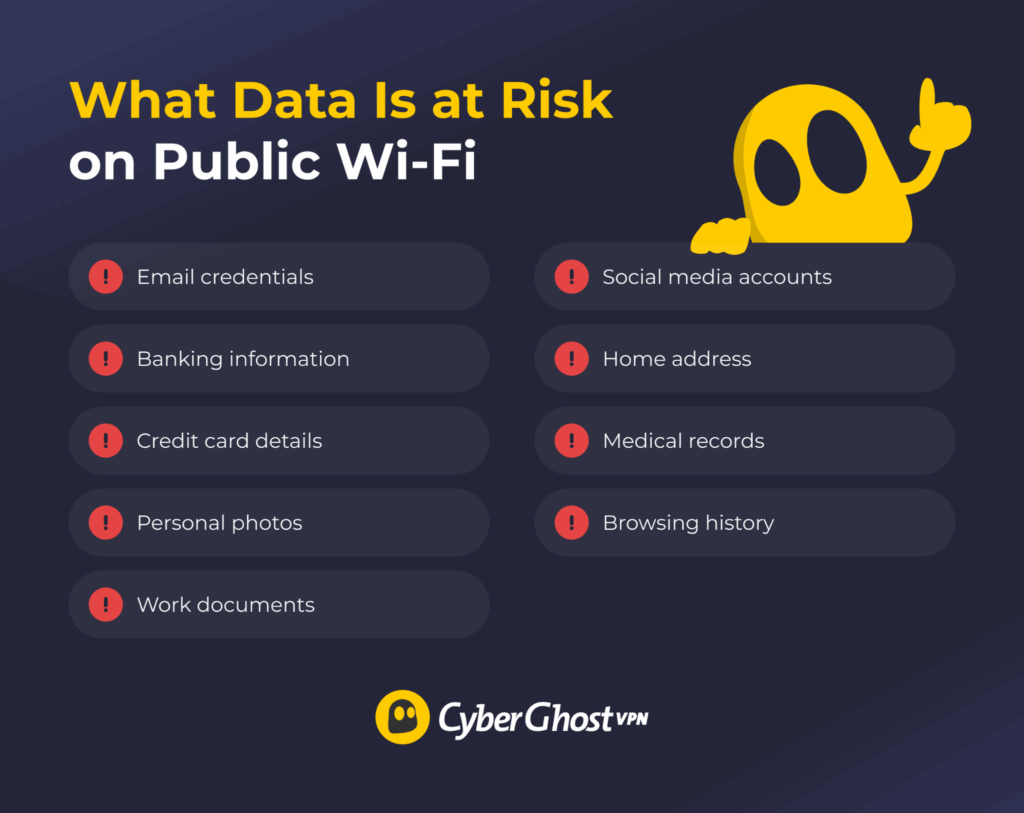
The consequences of using an unsecured public Wi-Fi network depend on what you’re doing online. If an attacker intercepts your data or compromises one of your accounts, the impact can range from inconvenience to financial loss or identity theft.
On public Wi-Fi, attackers may target:
- Email credentials: Logging into your inbox can help attackers reset passwords for other online accounts.
- Banking information: Getting access to your accounts can enable unauthorized transactions or financial fraud.
- Payment information: Stolen card information can lead to fraudulent purchases or financial loss.
- Personal photos and videos: Gaining this information can allow attackers to expose, misuse, or use your private content for extortion.
- Work documents: Exposing your confidential information can put your employer, clients, or projects at risk.
- Social media accounts: Access to your profile can enable impersonation, scams, or reputational damage.
- Home address and phone number: Details like your address or phone number can support identity theft or targeted fraud.
- Medical records: Retrieving Sensitive health information can lead to exposure or misuse for identity theft or insurance fraud.
- Browsing activity: Attackers can use your online habits to build a profile for targeted phishing or other scams.
Recovering from identity theft or financial fraud can take time. Victims may need to contact financial institutions, reset compromised accounts, dispute fraudulent activity, and monitor their credit or personal information.
How CyberGhost VPN Can Help Protect You on Public Wi-Fi
A VPN adds an encrypted layer between your device and the internet, making public Wi-Fi much safer to use.
When you connect to CyberGhost VPN on public Wi-Fi, it encrypts your internet traffic with a 256-bit Advanced Encryption Standard (AES) cipher, the same standard trusted by governments and financial institutions. This means the VPN:
- Encrypts your traffic: Even if someone intercepts your data, it lessens the chance they can read it.
- Protects your passwords and sensitive information: The VPN encrypts your login credentials and other personal data before they leave your device.
- Hides your IP address: Websites and online services see the CyberGhost VPN server IP address instead of your real one.
- Make common public Wi-Fi attacks less effective: Encrypted traffic helps protect against threats such as packet sniffing, man-in-the-middle (MITM) attacks, and fake hotspots.
CyberGhost VPN’s Kill Switch is another critical protection feature. If your connection drops unexpectedly, it automatically cuts your internet connection until the VPN reconnects. This helps prevent accidental data leaks.
Additionally, CyberGhost VPN also uses RAM-only servers, which can’t store data on persistent drives. Every server restart wipes the data in memory, significantly reducing the amount of information on a compromised server that an attacker could recover.
Identity Guard complements these by monitoring known data breaches. It’ll notify you if your email address appears in one and you can immediately change your password before it becomes compromised.
Other Security Measures to Use Alongside a VPN
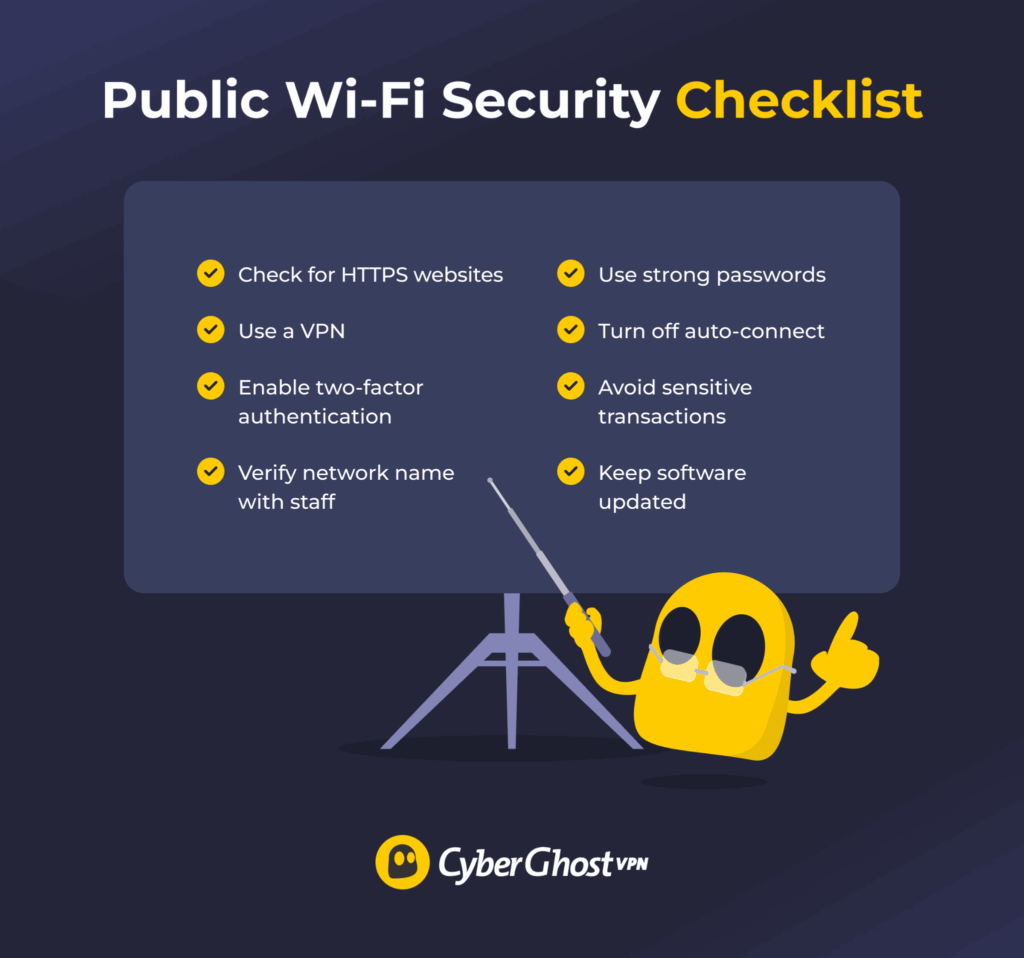
A VPN is an important layer of protection, but it works best alongside other security measures. Combining multiple safeguards creates a stronger overall defence.
Enable Two-Factor Authentication (2FA)
2FA requires two forms of verification to log in, usually your password and a second factor (usually a code from an authenticator app, SMS, or biometric scan). Even if someone steals your password, they still need the second factor to access your account.
Use HTTPS Websites Only
Before entering sensitive information, check that the website uses HTTPS rather than HTTP. The padlock icon and the “S” indicates that your browser encrypts the connection to the website. Look for the padlock icon as confirmation.
Avoid Sensitive Transactions on Public Wi-Fi
Even with a VPN, it’s best to avoid certain activities on public networks. Don’t access your bank account, enter credit card information, or reset important passwords unless necessary. Save these activities for your secure home network.
Keep Software and Apps Updated
Attackers often exploit security vulnerabilities in outdated software. Regular updates patch these holes. Enable automatic updates on all your devices.
Turn Off Auto-Connect Features
Most devices enable Wi-Fi to auto-connect by default, joining previously used networks on their own. This can accidentally connect you to an evil twin network with the same name as a legitimate one. Manually select networks instead.
Use Strong, Unique Passwords
If an attacker does intercept a password, a strong and unique password limits the damage to the individual account. Consider using a password manager to generate and store complex passwords.
Make Public Wi-Fi Safer and Avoid Common Risks
Public Wi-Fi doesn’t have to be something you avoid, but it does require extra caution. Understanding the most common risks, choosing trusted networks, and following good security habits can reduce your exposure when you’re away from home or the office.
CyberGhost VPN adds another layer of protection by encrypting your internet traffic before it leaves your device, making it much harder for anyone on the same network to intercept your data. Combined with HTTPS, two-factor authentication, regular software updates, and careful browsing habits, it makes your public Wi-Fi use much safer. Try it with your setup risk-free on our 45-day money-back guarantee (14 days on the monthly plan).
FAQ
Is public Wi-Fi safe to use?
Public Wi-Fi is less secure than a trusted home or work network because you don’t control who else connects or the Wi-Fi’s configuration. Using CyberGhost VPN encrypts your internet traffic, making it much harder for others on the same network to intercept it. For better protection, combine a VPN with other measures like two-factor authentication, HTTPS websites, and avoid sensitive transactions whenever possible.
What are the biggest risks of public Wi-Fi?
The biggest risks include MITM attacks, where attackers position themselves between your device and the router to intercept data. There are also fake hotspots, malware distribution, packet sniffing, and session hijacking. Each threat works differently, but combining a VPN with good security habits can significantly reduce your risk.
Can someone steal my information on public Wi-Fi?
Yes. On an unsecured public Wi-Fi network, cybercriminals may be able to intercept certain types of traffic or exploit weaknesses if you don’t take additional precautions. Using CyberGhost VPN encrypts your internet traffic, making intercepted data much harder to read. Enabling two-factor authentication also adds an extra layer of protection if an attacker compromises your credentials.
Does a VPN protect me on public Wi-Fi?
Yes. A VPN encrypts your internet traffic before it leaves your device and sends it through a secure tunnel to the VPN server. This helps protect your passwords, emails, and other sensitive data from people on the same network, while also masking your public IP address. CyberGhost VPN’s Kill Switch helps prevent accidental data leaks if the VPN connection drops unexpectedly.
What should I avoid doing on public Wi-Fi?
Avoid accessing sensitive accounts, entering payment details, or resetting passwords on public Wi-Fi, even with a VPN connected. Save banking, credit card entry, and financial transfers for your secure home network. If a sensitive task is urgent, connect to CyberGhost VPN, use an HTTPS site (look for the padlock icon), and never join networks with generic names like “Free Wi-Fi.”

Leave a comment