
Your TV is one of the most connected devices in your home, but rarely the most protected. Whatever Smart TV you own, there are many ways you can use a VPN to add a layer of privacy and security to its internet connection. Some Smart TVs let you install an app in seconds, while others need a quick workaround.
We’ll help you check whether your TV supports a VPN app. We’ll also walk you through every option for connecting your TV to CyberGhost VPN, whether you have an Android TV, Amazon Fire TV, Samsung, LG, or Roku device.
Quick Guide: How to Use CyberGhost VPN on Your TV
CyberGhost VPN has easy-to-use apps for Android TV, Google TV, and Amazon Fire TV.
- Subscribe to CyberGhost VPN.
- Download our app from the Google Play Store or Amazon Appstore and sign in.
- Connect to a server.
- Open your streaming app and sign in to your own account.
Why Use a VPN on Your TV?
Your TV sees a lot, and so do the companies behind it. Many Smart TVs use automated content recognition (ACR) technology to understand what you watch and personalize recommendations or advertising.
In 2017, the Federal Trade Commission and the State of New Jersey settled with TV maker Vizio over software that collected viewing data from 11 million sets without their owners’ consent1.
While a VPN can’t disable ACR or change your TV’s privacy settings, it does encrypt your internet traffic. That makes it harder for your ISP or someone on the same network to monitor your browsing activity.
Some ISPs slow your internet speed based on high-bandwidth online activities, like streaming. Encryption from a VPN can make it harder for your ISP to identify the services or apps you’re accessing online, which reduces the chances of content-based throttling.
Just like any other device connected to the internet, your Smart TV can be vulnerable to third parties and cybercriminals looking to track or steal your data. A VPN boosts your security to help keep your streaming and app logins and sensitive data out of the wrong hands.
Does Your TV Support a VPN App? How to Check
Before you pick a setup method, it helps to know whether your TV can run a VPN app at all. Only TVs running certain operating systems support native VPN apps, while the rest need a quick workaround.
There are two fast ways to check:
- Search your TV’s app store: Open it and look for “CyberGhost VPN” or “VPN.” If these apps show up, your TV can run them.
- Check your TV’s operating system: You’ll usually find it under Settings > System or About. Android TV, Google TV, and Amazon Fire TV all support VPN apps, while Samsung, LG, and Roku TVs don’t.
Here’s how the most common TV platforms compare:
| TV Platform | Native VPN Support | How to Use CyberGhost VPN |
| Android TV | ✅ | Install CyberGhost VPN from the Google Play Store. Requires Android 7.0 or later. |
| Google TV | ✅ | Install CyberGhost VPN from the Google Play Store. App support depends on Google Play Store availability. |
| Amazon Fire TVFire OS | ✅ | Install CyberGhost VPN from the Amazon Appstore. Requires Fire OS 6 or later. |
| Samsung Smart TV(Tizen) | ❌ | Use a compatible router setup or Wi-Fi/Ethernet sharing. |
| LG Smart TV(webOS) | ❌ | Use a compatible router setup, or Wi-Fi/Ethernet sharing. |
| Roku TV(Roku OS) | ❌ | Use a compatible router, compatible router setup, or computer hotspot. |
| Apple TV(tvOS) | ❌ | Use a compatible router setup, or Wi-Fi/Ethernet sharing. |
| Other Smart TVs, including Sony, TCL, Hisense, Philips, Sharp, Toshiba, Vizio, and Insignia | Depends on OS | If your TV’s operating system supports Google Play Store or Amazon App Store VPN apps, you can install CyberGhost VPN. If not, use a compatible router setup or Wi-Fi/Ethernet sharing where supported. |
If your TV runs a supported system, see the app setup guides below. If not, you can still get a VPN on your TV using one of the workarounds.
How to Set Up a VPN on Android TV or Google TV
Direct access to the Google Play Store makes it straightforward to set up a VPN on your Android TV or Google TV. Here’s the quick version:
- Open the Google Play Store and search for CyberGhost VPN.
- Download the app, choose your subscription, and sign in.
- Connect to one of CyberGhost VPN’s servers.
How to Set Up a VPN on Amazon Fire TV
CyberGhost VPN has a native app for Amazon Fire TV, so setup takes only a few minutes:
- Plug your Amazon Fire TV Stick into your TV.
- Download CyberGhost VPN from the Amazon Appstore.
- Sign in and connect to one of our servers.
How to Use a VPN on a TV Without App Support
If your TV runs on Tizen, webOS, Roku OS, or another system that doesn’t support VPN apps, you can’t install CyberGhost VPN. But there are still four ways to set it up.
Option 1: Configure CyberGhost VPN on Your Router
Setting up CyberGhost VPN on your router covers every device on your network at once, including TVs that don’t support VPN apps. It takes a little more setup than the other methods, but once it’s done, your Smart TV and everything else on your Wi-Fi network are automatically covered.
Before you start, make sure your router is compatible with VPN configurations and that you have an active CyberGhost VPN subscription. Then download your configuration file:
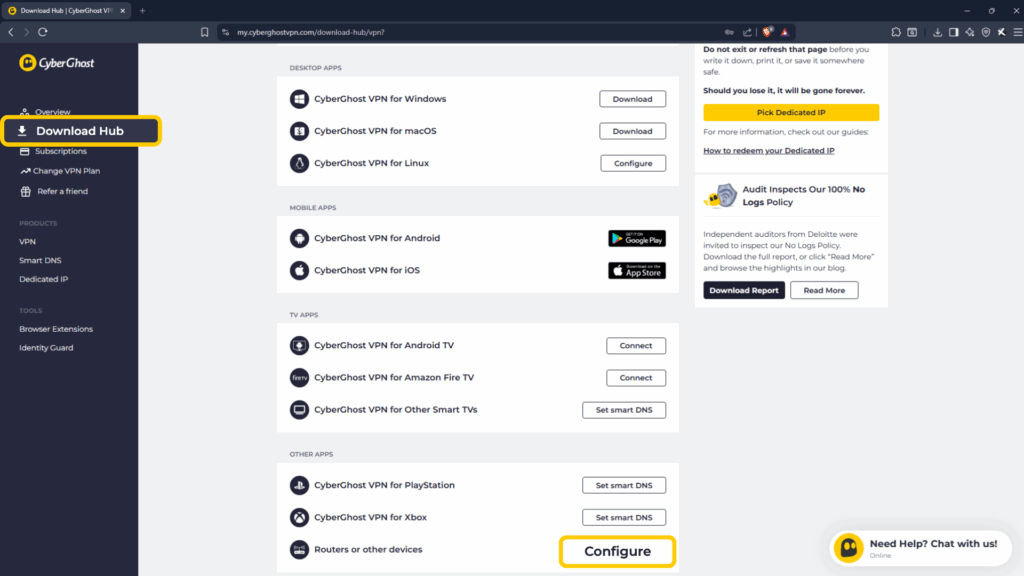
- Log in to your CyberGhost VPN account and open the Download Hub from the sidebar. Scroll down to Other Apps > Routers or other devices and click Configure.
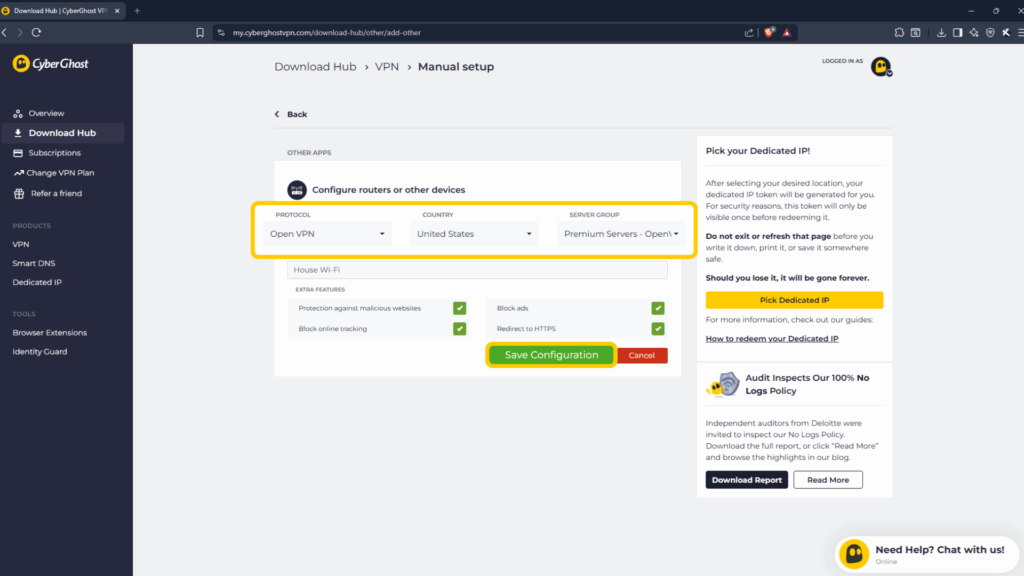
- Choose the OpenVPN protocol, a country server, and a server group. Enter a device name and select the security features you want (we recommend enabling all). Then click Save Configuration.
- You can now click Download Configuration to download the file.
The next step depends on your router’s firmware. We have detailed guides for the most popular ones, including DD-WRT and FreshTomato.
If your router runs different firmware but has a configurable OpenVPN client, you can set it up through its admin page. You’ll need your router’s private IP address, username, and password to log in. This information is usually provided in a setup email or printed on a sticker on the router. Once you’re in, follow the steps below, though they may vary slightly by model:
- Go to Advanced > VPN Client.
- Check the box next to Enable and save the setting.
- Go to the Server List section and click Add.
- Enter a description (name for your VPN), choose OpenVPN as the VPN type, and add the username and password from your CyberGhost VPN account. Upload the .ovpn file you downloaded earlier and click Save.
- Back in the Server List section, turn on the Enable option.
- Go to the Device List section and click Add.
- Select the devices that should connect to the VPN automatically, then click Save.
Option 2: Share Your VPN Connection Over Wi-Fi
Your computer can act as a VPN-connected Wi-Fi hotspot, and once your TV joins it, it’s covered too. The exact steps depend on your computer’s operating system.
On Windows 10 or 11
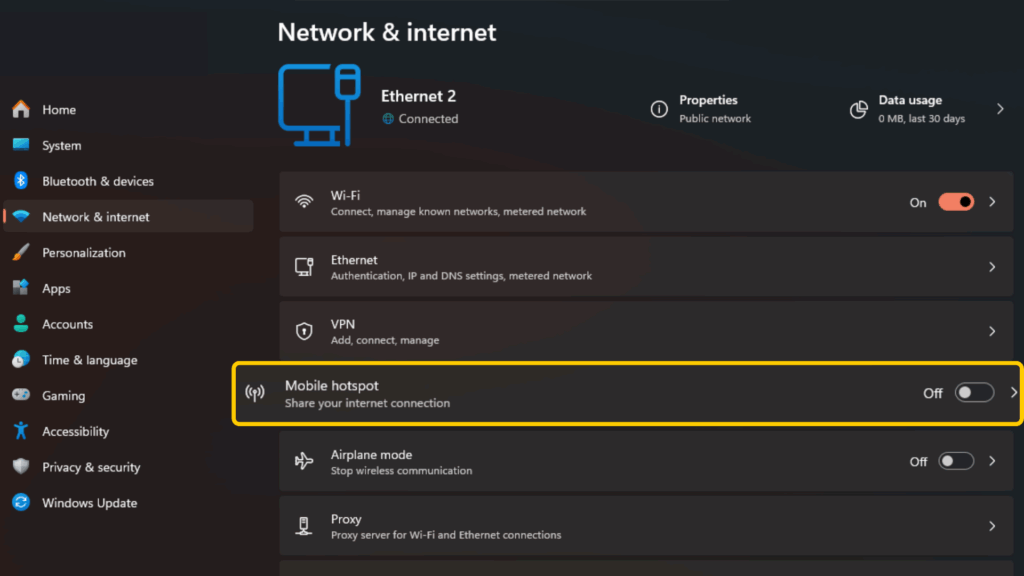
- Go to Settings > Network & Internet > Mobile Hotspot.
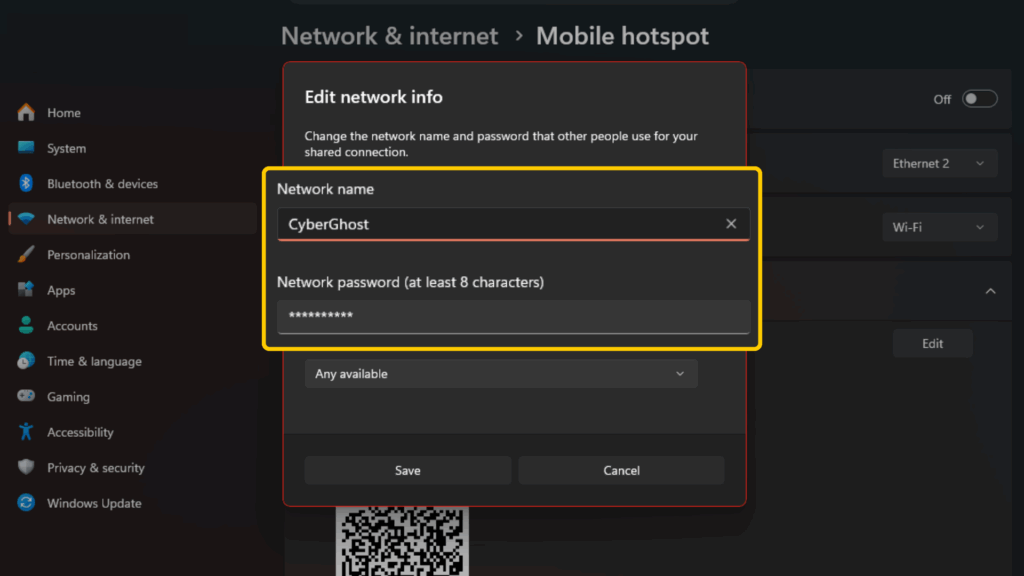
- Click Edit and set your hotspot’s network name and password.
- Under Share my internet connection over, choose Wi-Fi.
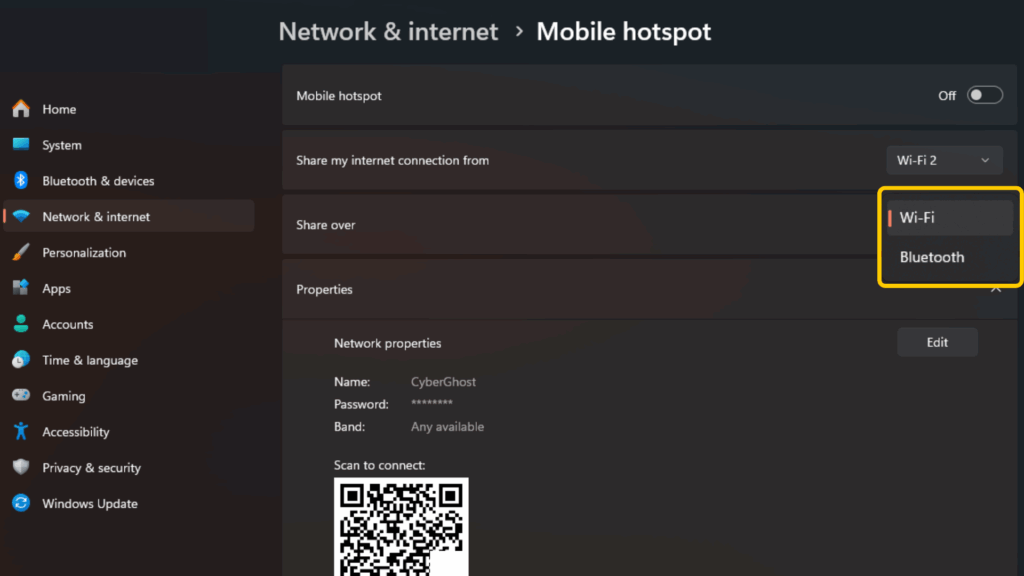
- Toggle Mobile Hotspot on.
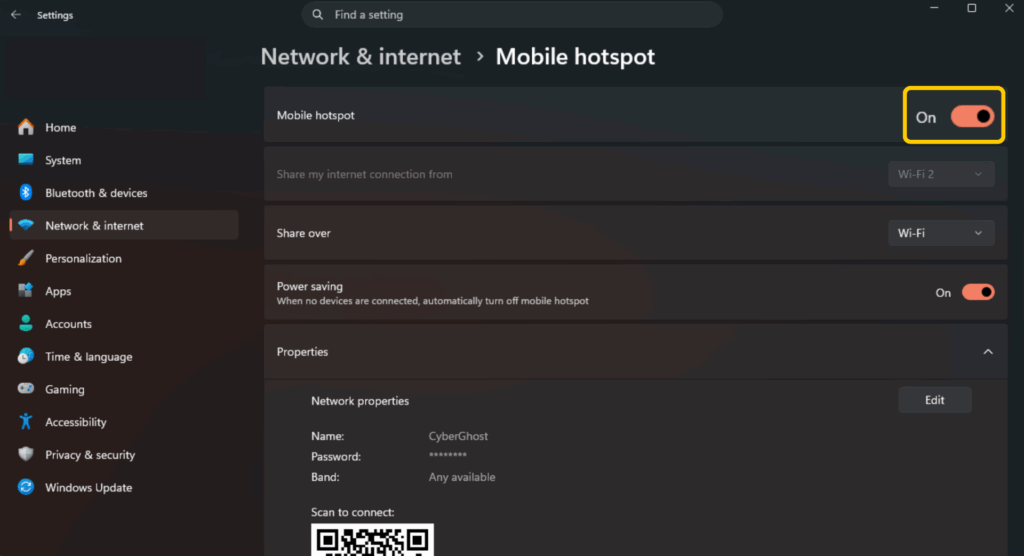
- Open CyberGhost VPN and connect to a server.
- Connect your Smart TV to your computer’s Wi-Fi hotspot.
For a step-by-step walkthrough with screenshots, see our Windows hotspot guide.
On macOS
- Connect your computer to your router with an Ethernet cable. You may need an adapter if your Mac doesn’t have an Ethernet port.
- Go to System Settings and select General > Sharing.
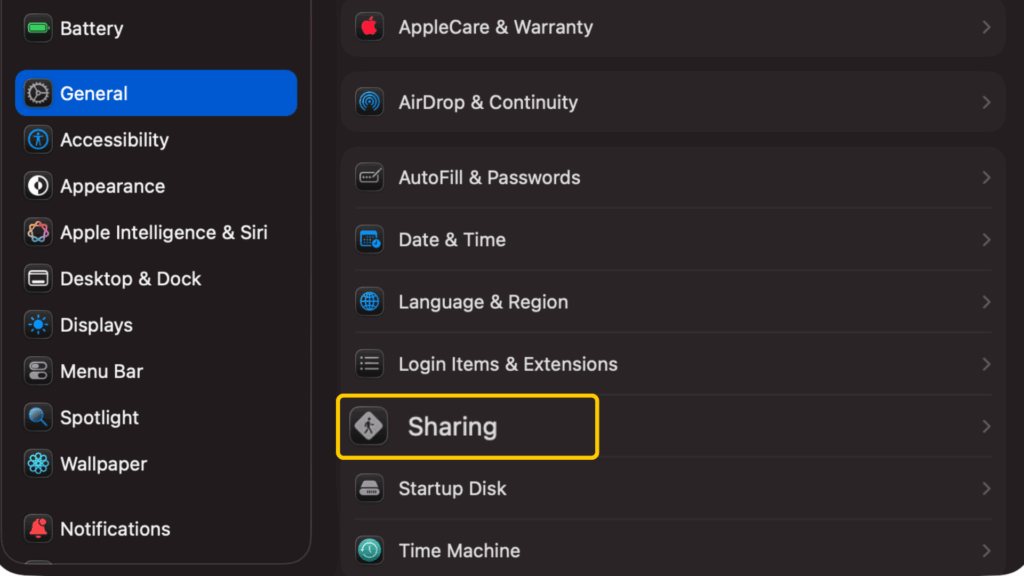
- Navigate to Internet Sharing in the list of services, don’t toggle it on yet. Click on the “i” information icon first.
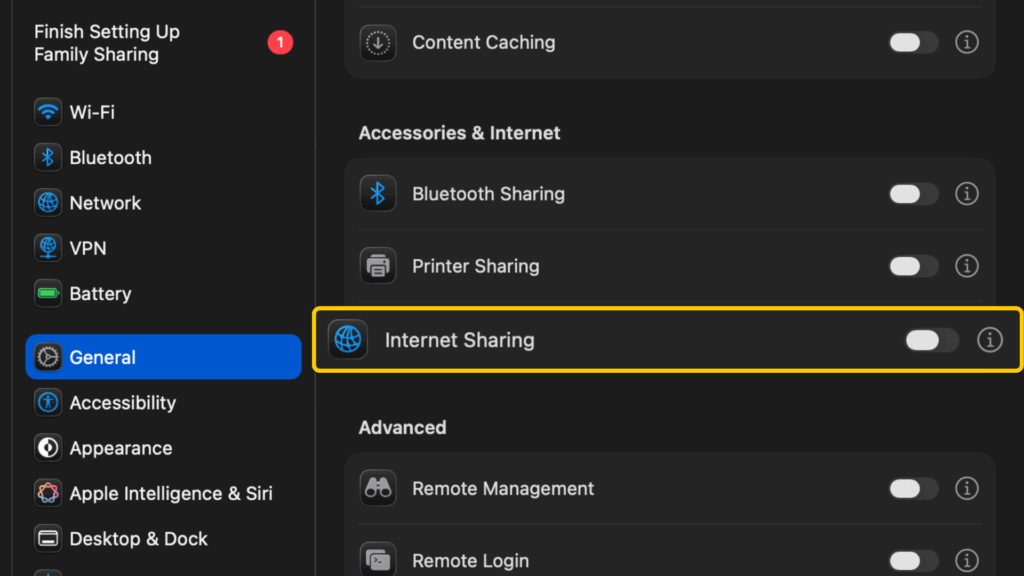
- In the pop-up box under the Share your connection from menu, choose CyberGhost VPN from the list of options.
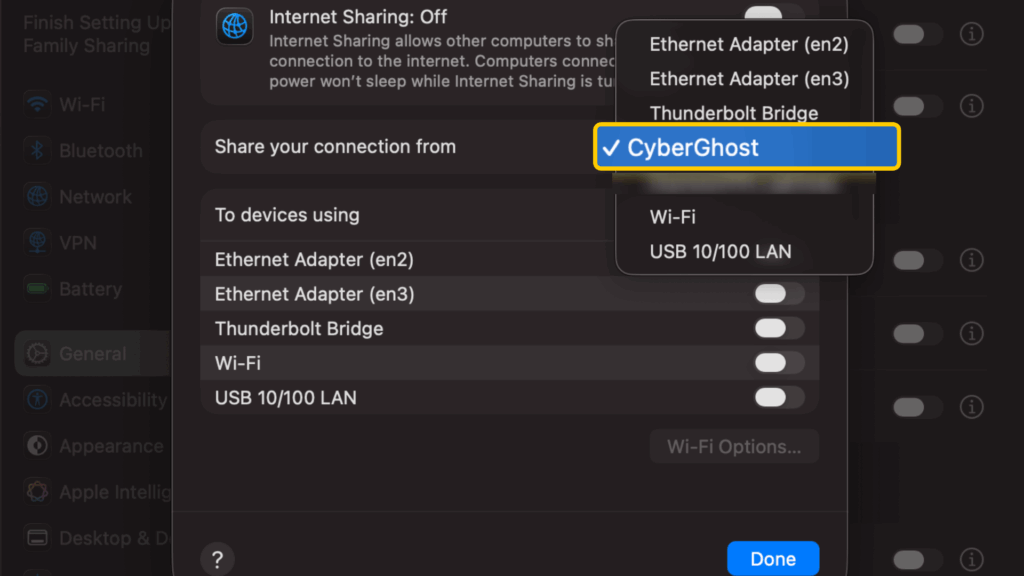
- In the To devices using section, select Wi-Fi.
- Select Wi-Fi Options and set your hotspot name and password. Under Security, choose WPA2/WPA3 Personal, then click OK.
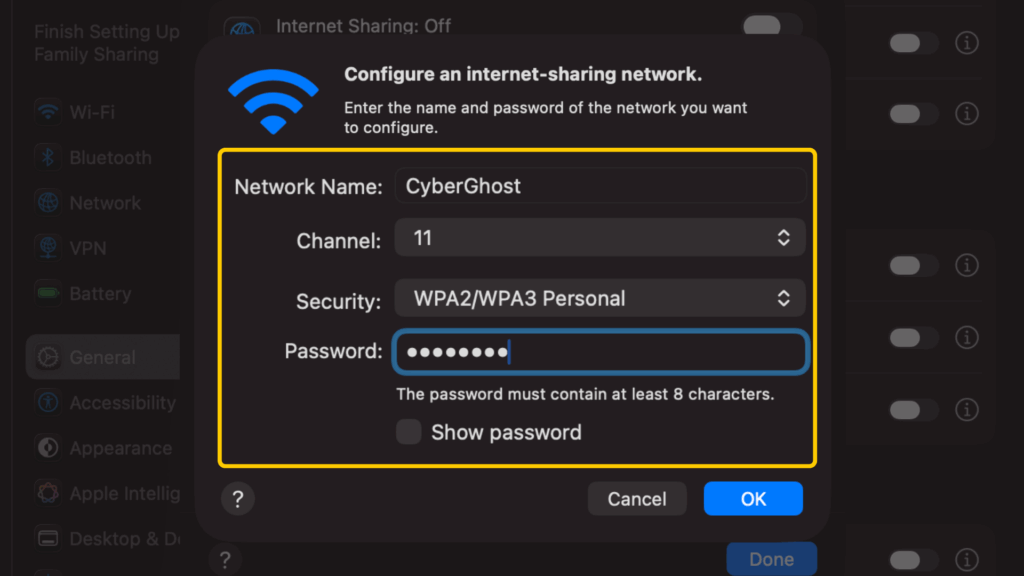
- Turn Internet Sharing on, then click Done in the dialog box.
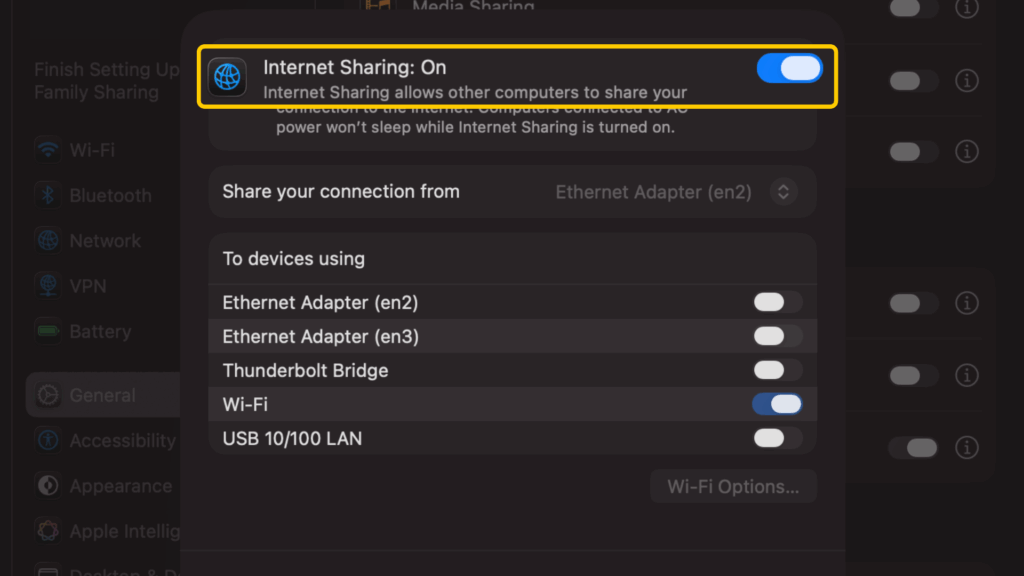
- Open CyberGhost VPN and connect to your preferred server.
- Connect your Smart TV to your computer’s Wi-Fi hotspot.
Option 3: Share Your VPN Connection via Ethernet
Prefer a wired setup? You can share your computer’s VPN connection with your TV over an Ethernet cable. If your computer doesn’t have an Ethernet port, an adapter works too. The exact steps depend on your computer’s operating system.
On Windows 10 or 11
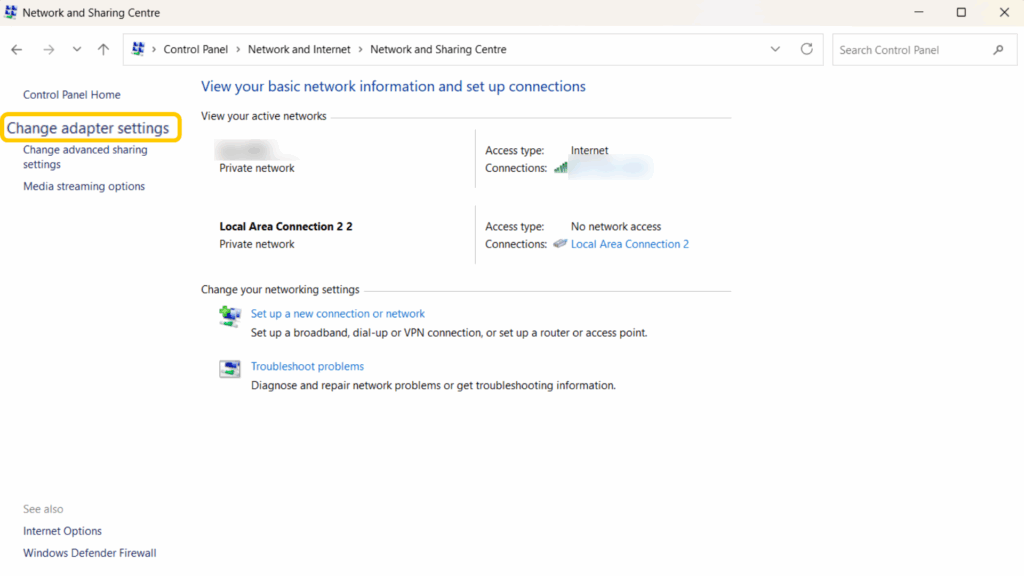
- Go to Start > Control Panel > Network and Internet.
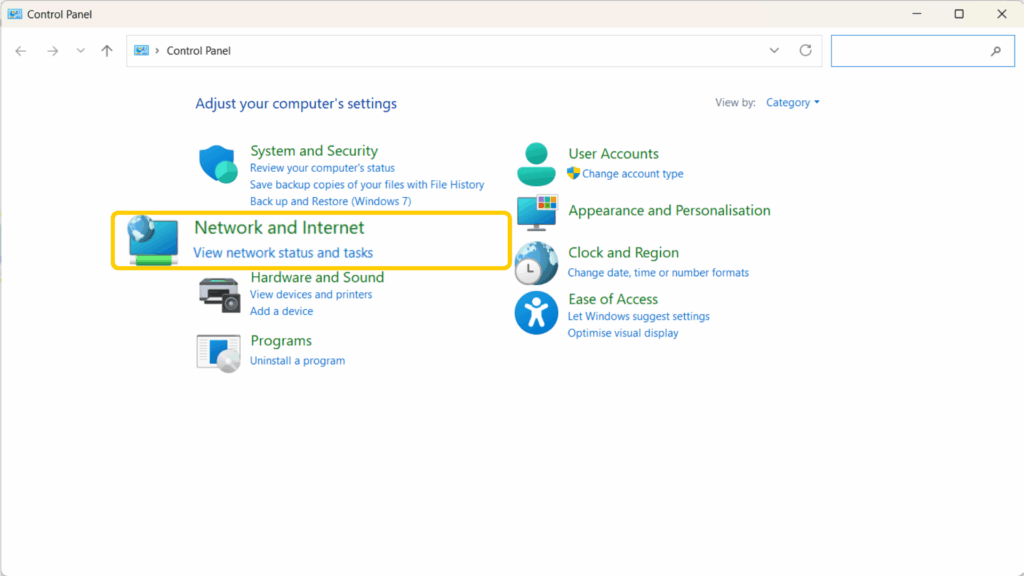
- Select Change adapter settings (labeled Show Network Connections on some versions).
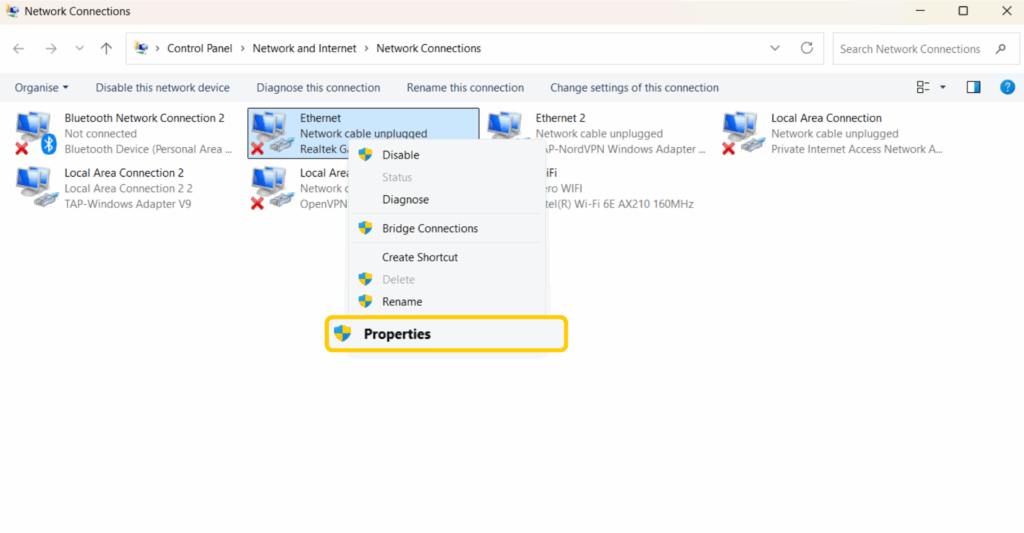
- Right-click your computer’s Ethernet port and select Properties.
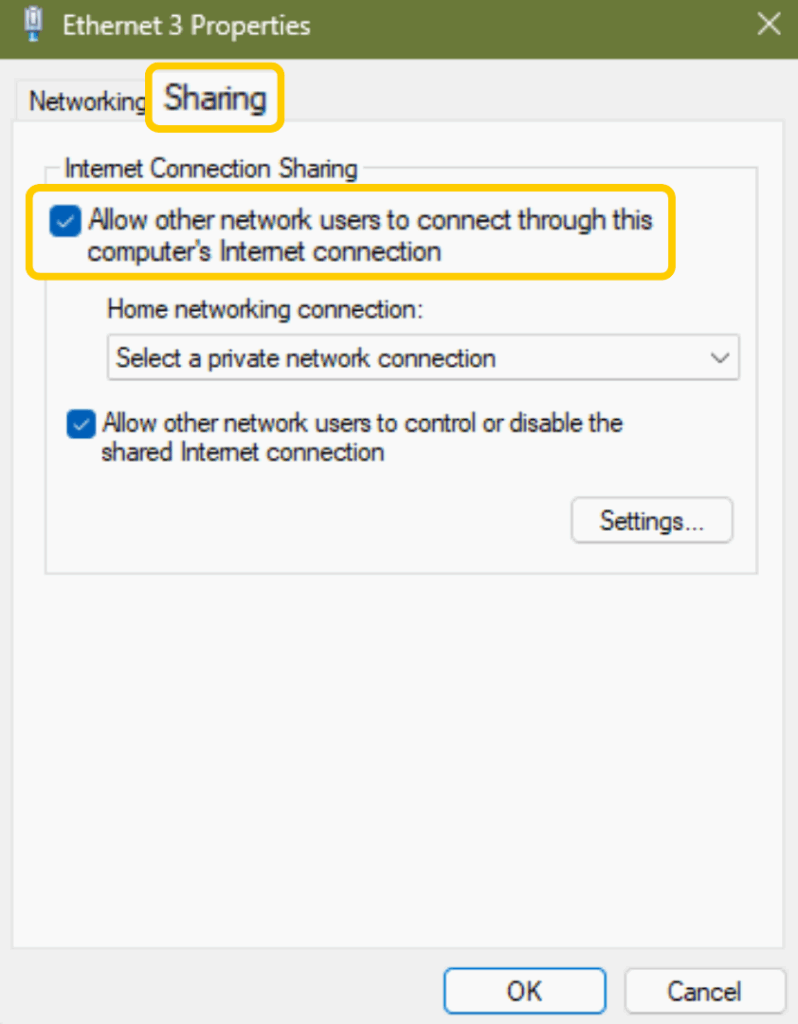
- Open the Sharing tab and check the Allow other network users to connect through this computer’s Internet connection option.
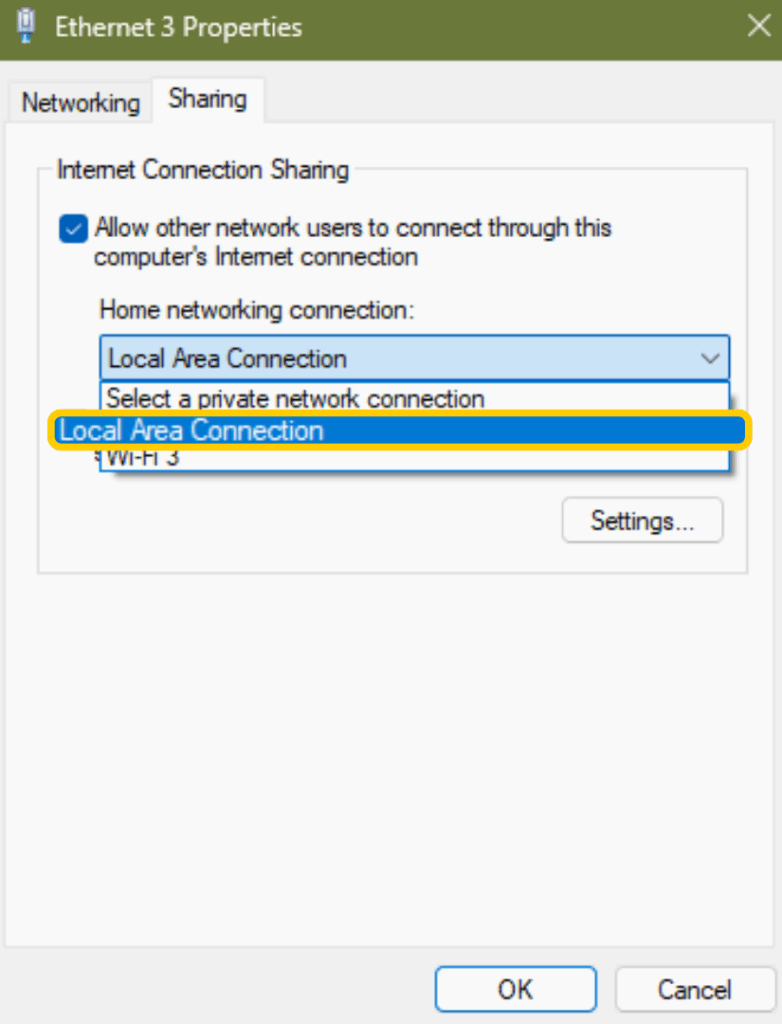
- Under Home networking connection, select Local Area Connection from the dropdown, then click OK.
- Connect to a server in the CyberGhost VPN app.
- Connect your computer to your Smart TV with an Ethernet cable.
On macOS
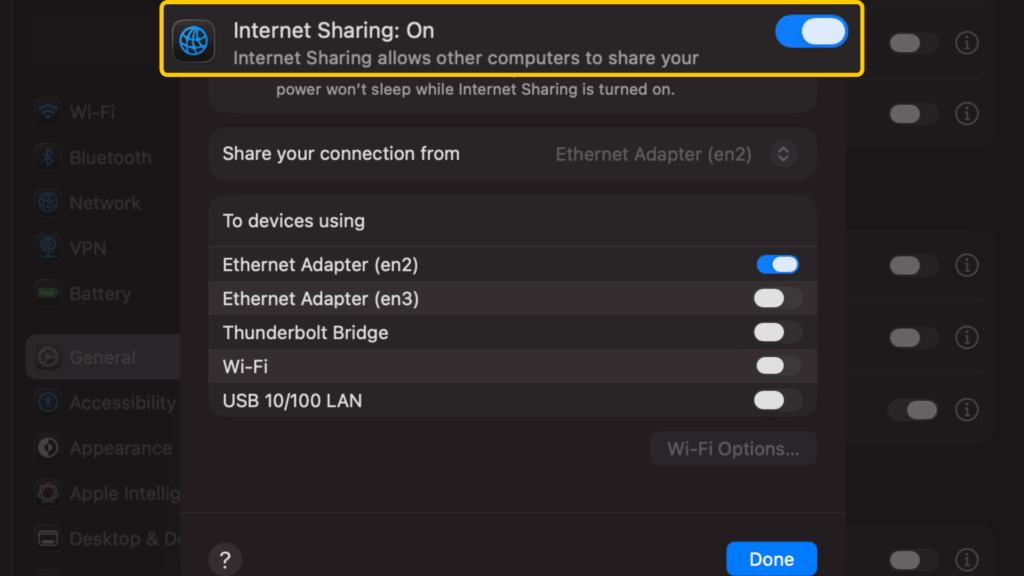
- Go to System Settings > General > Sharing.
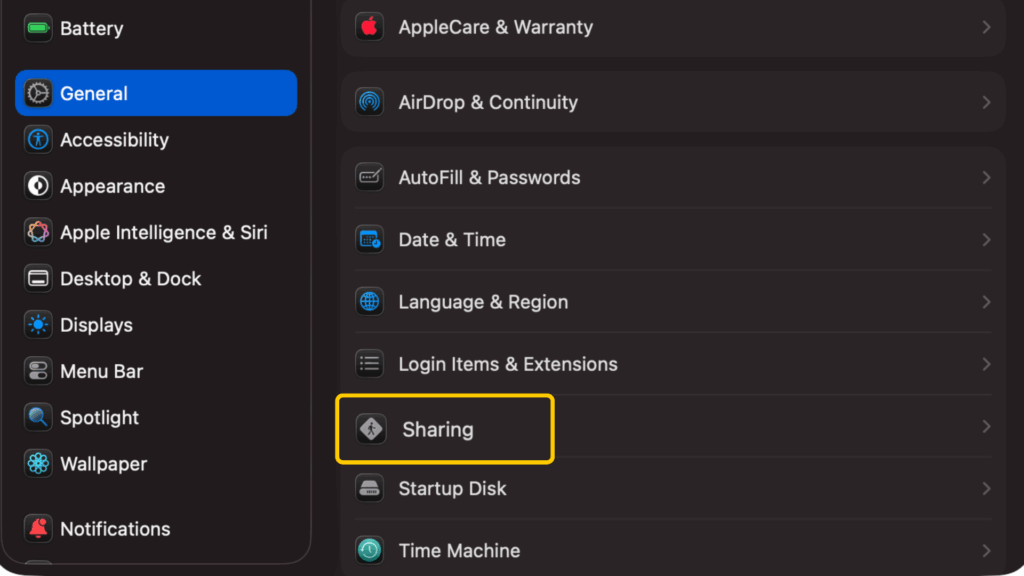
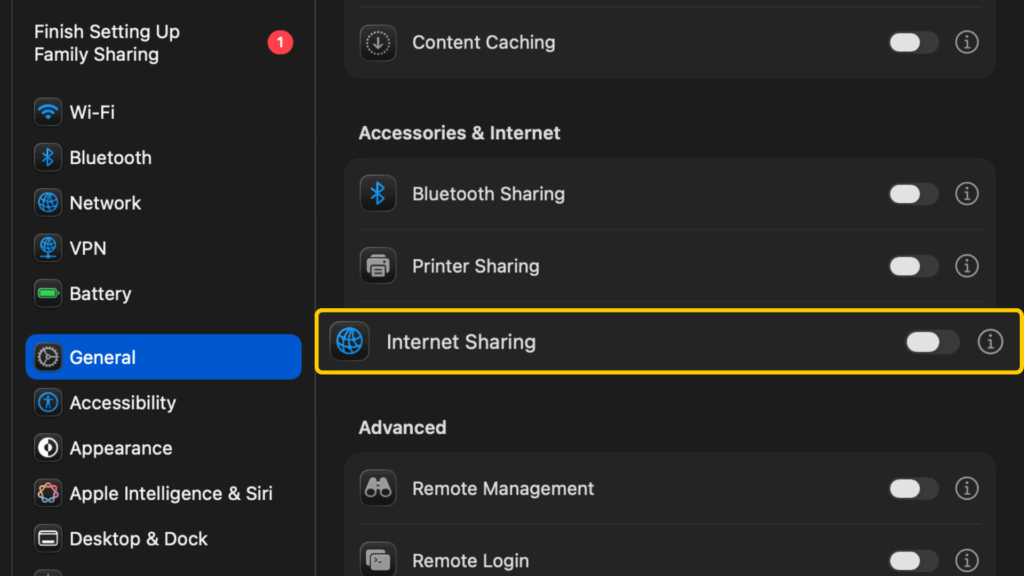
- Select Internet Sharing in the list of services, but don’t toggle it on yet. Instead, click on the “i” information icon next to it.
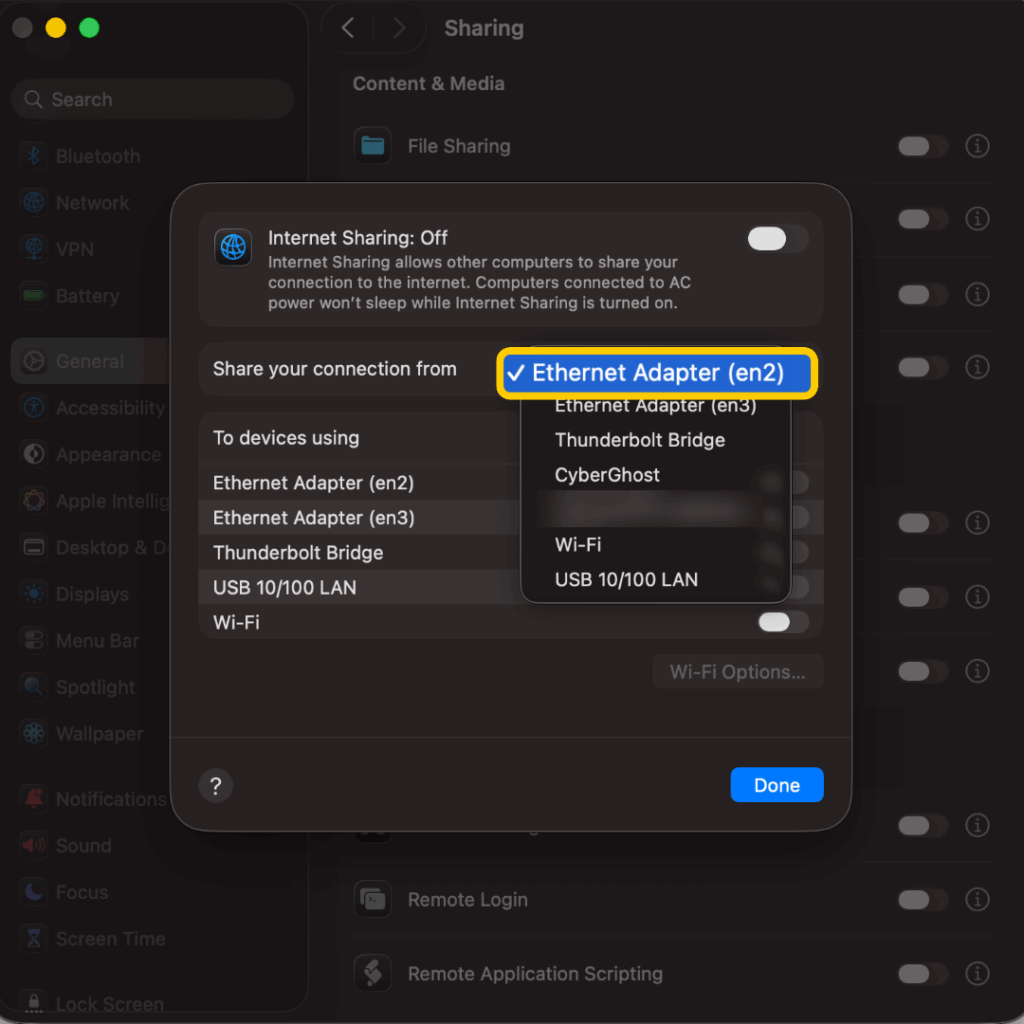
- On the pop-up menu, under the Share your connection from menu, choose Ethernet Adapter.
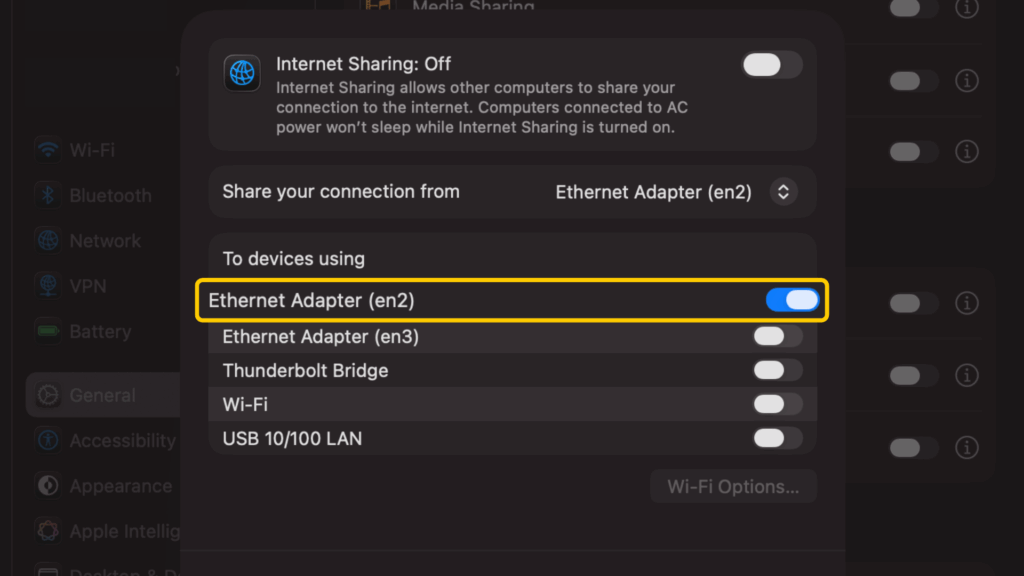
- In the To devices using section, toggle on Ethernet Adapter.
- Turn Internet Sharing on, then click Done in the dialog box.
- Open CyberGhost VPN and connect to your chosen server.
- Connect your computer to your Smart TV with an Ethernet cable.
Turn Any TV Into a Smart TV With a Streaming Device
Got an older TV without smart features? A streaming device can add them, and many run CyberGhost VPN directly.
Streaming devices that run Fire OS or Android TV OS, like the Fire TV Stick and Chromecast with Google TV, all support our app so you can get VPN protection without configuring your router. Plug in an Amazon Fire TV Stick, install CyberGhost VPN from the Amazon Appstore, sign in, and connect.
For Apple TV, CyberGhost VPN works through a compatible router setup or connection sharing.
VPN Not Working on Your TV? Quick Fixes
| Problem | What to Try |
| CyberGhost VPN doesn’t appear in your TV’s app store | Check your TV’s operating system. Samsung, LG, Roku, and many other Smart TVs don’t support VPN apps. |
| Your TV connects to the internet, but not through the VPN | Check that you’ve connected your TV to the VPN router, shared Wi-Fi hotspot, or Ethernet connection you set up. |
| Streaming quality drops after connecting | Connect to a nearby server, restart the streaming app, and check whether other devices are using bandwidth. |
| Roku won’t accept DNS settings | Use a compatible router setup or a computer hotspot. |
Why CyberGhost VPN Is a Great Choice for Your TV
CyberGhost VPN has native apps for Android TVs, Google TVs, and Amazon Fire TVs. It can also work with many other models via a compatible router or a shared connection. Our server network spans 100 countries and includes streaming-optimized servers and 10-Gbps infrastructure to help keep speeds high and buffering low.
You also get strong AES 256-bit encryption, a strict no-logs policy that guarantees we never keep track of your browsing activity, and RAM-only servers that wipe all data on every reboot. One subscription covers up to 7 devices at once, so your TV, phone, and laptop can all use VPN protection. You can try CyberGhost VPN risk-free with our 45-day money-back guarantee (14 days for monthly plans).
CyberGhost VPN doesn’t support copyright infringement. Only use CyberGhost VPN with streaming services you can legally access and with your own account or subscription.
FAQ
What’s the best VPN for Smart TVs?
CyberGhost VPN is the best VPN for Smart TVs. It offers apps for Android TV, Google TV, and Amazon Fire TV, along with a large VPN server fleet that includes streaming-optimized servers. By encrypting your online activity, it also offers a layer of security and privacy whenever you binge your favorite show. You can try CyberGhost VPN risk-free with a 45-day money-back guarantee (14 days for monthly plans).
Can I use a VPN on my Smart TV?
Yes. Smart TVs that run Android TV OS or Fire OS support the CyberGhost VPN app. For Samsung (Tizen), LG (webOS), Roku, and similar models, you can still use CyberGhost VPN by configuring it on your compatible router or sharing a connection from your computer.
Does a VPN affect streaming?
Yes. A VPN adds a step to your connection, so a small speed dip is normal. CyberGhost VPN features 10-Gbps infrastructure and streaming-optimized servers to help keep the drop minimal, so you can usually stream at the resolution your plan supports. For the best speeds, connect to a nearby server.
Can I use a free VPN for my Smart TV?
Yes, but free VPNs rarely offer apps for TVs, and many come with data caps, slow speeds, or weak privacy protections. Some may even log user data. A premium VPN with native TV apps is a practical pick. You’ll also get strong encryption protocols that can boost your online security and privacy.
How do I use a VPN on Roku TV?
Roku devices don’t support VPN apps or on-device DNS changes. The best fix is to set up CyberGhost VPN on your compatible router, which then covers your Roku TV and all other devices on your network. If you’d rather not configure your router, you can share a VPN-connected hotspot from your computer instead.
Can I install a VPN on my Samsung Smart TV?
No, Samsung and LG Smart TVs don’t support VPN apps, but you can still secure your TV by setting up CyberGhost VPN on your compatible router. Every device on your Wi-Fi network, including your TV, is automatically covered. You can also share a VPN connection from your computer.
Does Samsung TV have a built-in VPN?
No, Samsung TV doesn’t have a built-in VPN, and it doesn’t allow you to download one either. However, you can still use CyberGhost VPN with your Samsung TV by configuring it on your compatible router. If you need any help setting it up, our customer support team is available 24/7.
Can I set up a VPN on my wireless router?
Yes, it’s possible to set up a VPN on your wireless router as long as it supports VPN connections. While not all VPNs are compatible with routers, CyberGhost VPN is. The setup process will vary depending on the router you’re using.

Leave a comment