
A VPN and Incognito mode handle different parts of your browsing privacy, but they can work together. Incognito mode stops your browser from saving your browsing history, cookies, and site data after you close your private session. A VPN encrypts traffic between your device and the VPN server, helping protect it from people monitoring your network connection.
That means Incognito mode won’t hide your activity from your internet service provider (ISP), and a VPN won’t stop your browser from saving your history. Using both gives you more control over your browsing privacy. Understanding what each tool does and what it doesn’t do helps you decide when you need one or both.
VPN vs Incognito Mode: What’s the Difference?
Incognito limits what your browser saves, while a VPN encrypts the traffic you send through it. The table below compares what happens to your browsing history, public IP address, and account activity when you use either tool or combine them.
| Privacy Question | Incognito Alone | VPN Alone* | VPN* and Incognito |
| Does my browser keep new visits in its ordinary history? | ✗ | Usually yes | ✗ (for private visits) |
| Which public IP does a website see? | Your usual connection IP | The VPN’s IP | The VPN’s IP |
| Does this add an encrypted VPN tunnel? | ✗ | ✓ | ✓ |
| Can a service link activity to an account you sign into? | ✓ | ✓ | ✓ |
| Can downloaded files and saved bookmarks remain? | ✓ | ✓ | ✓ |
* Both VPN columns assume your browser’s traffic goes through a working VPN
There’s a difference between what your browser remembers and what websites remember about you. Incognito mode prevents visits from appearing in your browser’s regular history, but services like YouTube can still record activity when you’re signed in. Your internet service provider (ISP) may also keep its own network records.
What Does Incognito Mode Do?
Incognito mode lets you browse without saving your activity to your browser’s history. It’s often built into major browsers, although the name varies. Chrome calls it Incognito, Firefox and Safari use Private Browsing, and Microsoft Edge calls it InPrivate.
Private browsing opens a separate session from your regular windows. That can be useful if you want to check a second email account without signing out of your first one. Websites can still use temporary cookies to remember your login or shopping cart while you’re browsing. Still, your browser generally deletes those cookies and other session data when you close all your private windows.
Incognito mode doesn’t erase everything you do. Downloads and bookmarks you save can remain on your device, and websites can still recognize you when you sign in. Some browsers also offer extra tracking protections, such as Firefox’s tracker blocking and Safari’s defenses against fingerprinting, but these vary between browsers.
What Does a VPN Do?
A VPN encrypts traffic between your device and a VPN server, helping keep your online activity private from your ISP and anyone monitoring your local network. When you connect through a VPN, websites see the VPN server’s IP address instead of your usual public IP.
Your ISP can still see that you’re connected to a VPN, along with information like connection times and data usage. However, it generally can’t see what websites you reach through the encrypted VPN tunnel, provided you’ve routed your browser traffic and DNS requests through it.
That doesn’t mean browsing without a VPN leaves everything readable. Hypertext Transfer Protocol Secure (HTTPS) already encrypts the data exchanged between your browser and an HTTPS website, including in Incognito mode. It protects things such as passwords and page contents in transit. A VPN adds another encrypted layer between your device and the VPN server, helping conceal the websites you connect to from people monitoring your network.
Of course, you’re trusting your VPN provider to handle your connection responsibly. That’s why privacy practices matter as much as encryption. CyberGhost VPN follows a strict No-Logs policy, which means we don’t record your browsing activity while you’re connected.
When Should You Use Incognito, a VPN, or Both?
The best choice depends on what you’re trying to keep private and who you’re keeping it private from. Sometimes Incognito mode is enough. Other times, a VPN makes more sense. And there are situations where using both gives you an extra layer of privacy.
- Use Incognito mode when you don’t want a browsing session saved to your regular browser history. It’s handy for looking something up on a shared computer you trust. Remember that it won’t hide your activity from the network you’re using.
- Use a VPN when you want to protect your connection from people potentially monitoring the network, such as an unfamiliar Wi-Fi operator. You can still browse in a regular window and keep your history, bookmarks, and saved sign-ins.
- Using both makes sense when those concerns overlap. For example, if you’re using a laptop you share with someone else while connected to public Wi-Fi, a VPN can protect your traffic while Incognito keeps that session out of your browser’s regular history.
How to Use a VPN With Incognito Mode
Your setup depends on whether you use a VPN app or a browser extension. The app can protect traffic from your browser and other supported apps, while a browser extension generally only covers traffic within that browser. The setup is slightly different for each.
Use a VPN App
Using the CyberGhost VPN app is the simplest way to combine VPN protection with private browsing. Once connected, it can protect your browser’s traffic without needing special Incognito permissions.
- Open the CyberGhost VPN app, choose a server, and tap Connect. Wait for the app to confirm the connection before you start browsing.
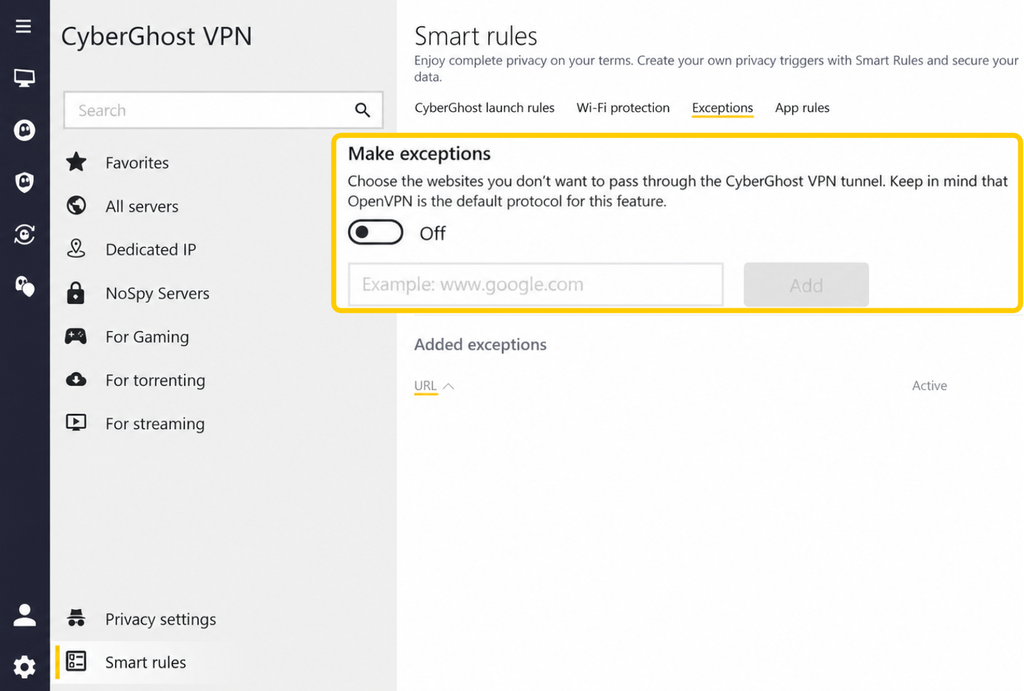
- Check your Smart rules settings to make sure they don’t exclude your browser or websites from VPN protection.
- Open Chrome and select the three-dot menu, then New Incognito window. You can also press Ctrl + Shift + N on Windows or Command + Shift + N on Mac.
- Keep the VPN connected while you browse. When you’re finished, close all Incognito windows to end the private session.
The process is similar on a phone. Connect through the VPN app, then open your browser’s private mode. Remember to close your private tabs when you’re finished, as switching back to regular browsing doesn’t necessarily close them.
Check Browser Extension Permissions
VPN browser extensions work differently from full VPN apps. For example, the CyberGhost VPN Chrome extension routes browser traffic through a proxy server. It only works for the browser, so it won’t cover other apps on your device.
To use a compatible extension in Chrome’s Incognito mode:
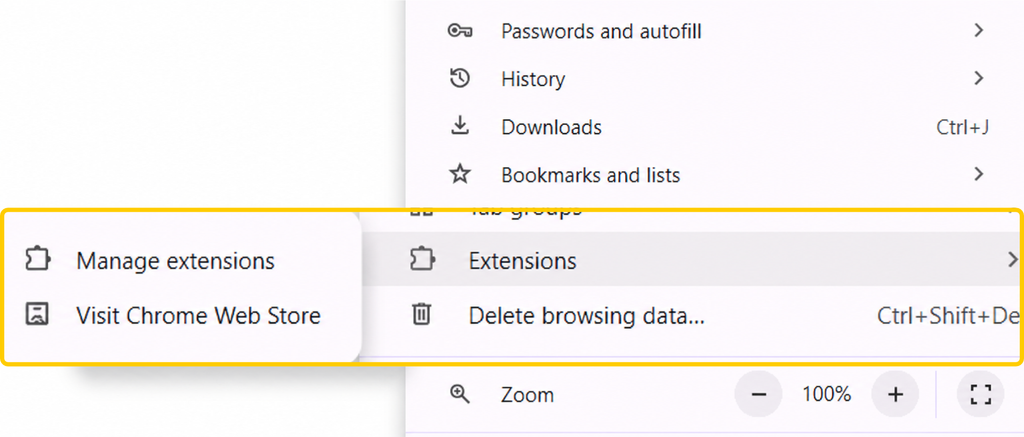
- Open Chrome’s three-dot menu and go to Extensions > Manage extensions.
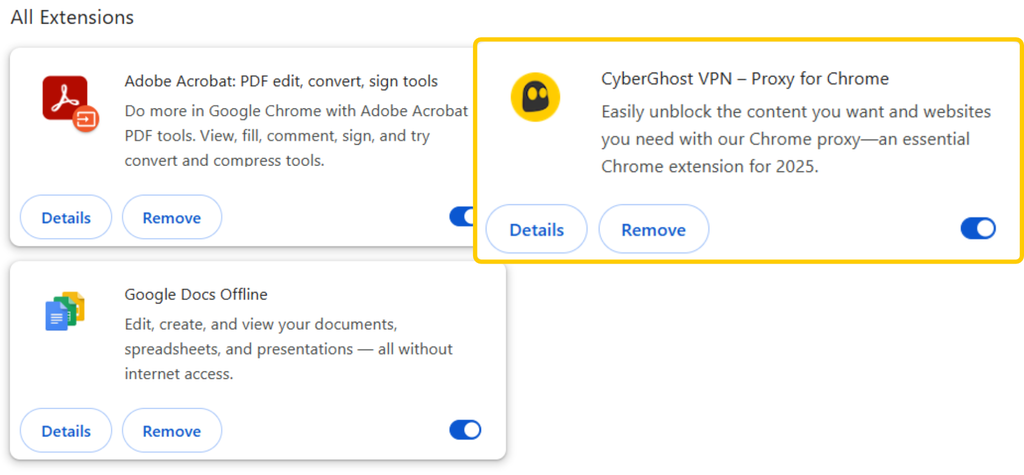
- Find your VPN extension and select Details.
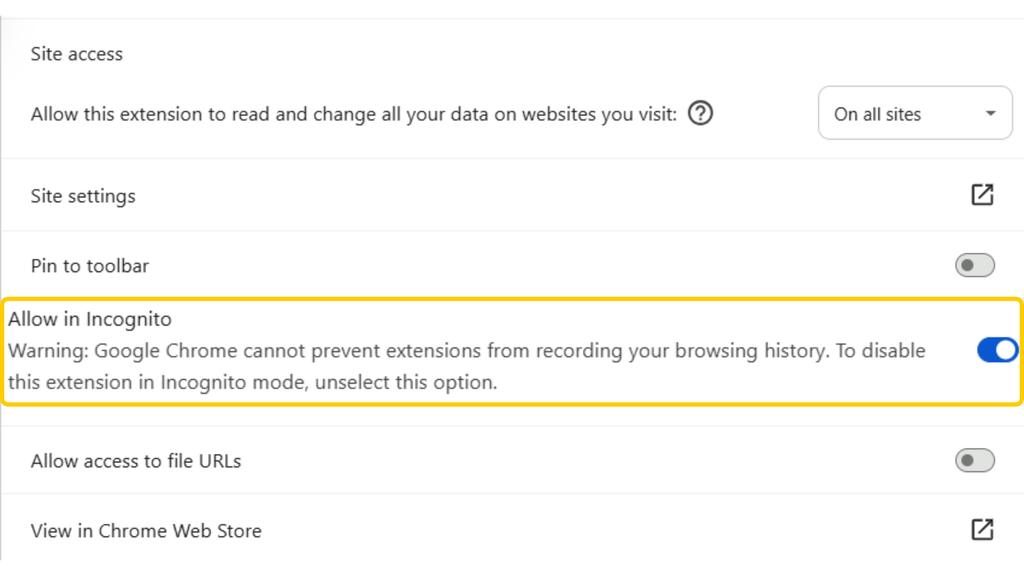
- Enable Allow in Incognito. Grant this permission only to an extension you trust.
- Open an Incognito window, check that the extension is connected, and verify the IP address it presents.
If the extension doesn’t support Incognito mode, use the VPN app instead. These extension steps apply to desktop Chrome, while the app route is the relevant option for Chrome on Android or iPhone.
Check Your Setup
A quick IP address check can help confirm that your private browsing session is using the VPN connection. You can also check that Incognito isn’t saving visits to your regular browser history. Keep these checks separate from sensitive browsing:
- Check your IP address before connecting to CyberGhost VPN: Open an IP checker and note your usual public IP address. If you’ve already connected, pause your browsing and disconnect for this baseline check.
- Connect to CyberGhost VPN: Open an Incognito window and visit the same checker. It should now show a VPN server’s IP address.
- Test your browser history: Visit a harmless website in Incognito, close all private windows, then check your regular browser history. That private visit shouldn’t appear.
If your usual IP address still appears, check the VPN connection and any browser exclusions or extension permissions, then repeat the check.
These tests confirm whether the website sees a different IP address and whether Incognito is keeping visits out of your regular history. They don’t guarantee complete anonymity or verify every aspect of your VPN’s security.
What Can Still Be Tracked When You Use Both?
Using a VPN with Incognito mode doesn’t make you invisible online. If you log into an online account, the website can still recognize you and record what you do. For example, a retailer can associate purchases with an account, even if you’re browsing privately through a VPN. Closing the private window or changing your IP address won’t erase those records.
Sites may also recognize your browser through browser fingerprinting, which uses characteristics such as your screen size, browser version, and language to help distinguish your device. Private browsing protections can make some tracking harder, but a fresh session and a different IP address don’t guarantee that visits can’t be linked. And if you’ve given a website permission to access your device’s location, a VPN won’t prevent it from receiving that information.
Neither tool can protect you from everything happening on your device. Monitoring software on a work or school computer may record your activity before a VPN encrypts it. Malware can also capture information on the device. Neither tool makes an untrusted computer suitable for sensitive browsing, and encrypting a connection doesn’t make the website at the other end trustworthy.
Take More Control of Your Browsing Privacy
You don’t have to choose between Incognito mode and a VPN. They tackle different privacy concerns and using them together can give you more control over what your browser remembers and what others can see about your connection.
Neither tool makes you invisible online, but that’s not the point. It’s about knowing what you want to keep private and using the right protections for the job. Whether you’re keeping a search out of your browser history or protecting your connection on unfamiliar Wi-Fi, a few simple choices can make a difference.
If you want to use both, connect to CyberGhost VPN before opening an Incognito window. Check that the private window shows the VPN’s IP address, then close all Incognito windows when you finish to end the private session.
FAQ
What is the difference between a VPN and Incognito mode?
A VPN protects traffic traveling through its encrypted tunnel, while Incognito mode prevents your browser from saving your private session to its regular history. A VPN also changes the public IP address websites see. Incognito doesn’t hide your IP address and both don’t prevent websites from recognizing you when you sign in.
Does Incognito mode hide my IP address?
No, Incognito mode doesn’t change your public IP address, so websites can use it as one indicator to estimate your general location. If you use Incognito with a VPN, websites receiving traffic through the VPN see the VPN server’s IP address instead.
Does a VPN hide my browsing history?
A VPN can hide the websites you visit through its encrypted tunnel from your ISP, but it won’t delete your browser history. Your browser may still save the sites you visit unless you’re using Incognito mode. Websites you’re signed into can also keep their own records of your activity.
Is a VPN more private than Incognito mode?
Neither a VPN or Incognito mode is more private because they secure separate parts of your browsing activity. A VPN helps protect your connection from network monitoring, while Incognito mode keeps private visits out of your browser’s regular history. Using both can be useful when you want those protections at the same time.
Can I use a VPN and Incognito mode together?
Yes, you can connect to CyberGhost VPN and then open an Incognito window in your browser. As long as your browser traffic goes through the VPN, you get the benefits of both tools. If you’re using a VPN browser extension instead of the full app, you may need to enable it for private browsing.

Leave a comment